> ## Documentation Index
> Fetch the complete documentation index at: https://moengage.com/docs/llms.txt
> Use this file to discover all available pages before exploring further.
# Create a Warehouse Segment Using Filters
> Build an audience from your data warehouse using dropdown filters instead of SQL, with attributes and events mapped from your warehouse tables.
The filter builder lets you build audiences from data in your warehouse using the same dropdown filters you use for regular MoEngage segments. You pick attributes and events from a list rather than writing a SQL query, so you do not need to involve your analytics team to create or change a segment.
MoEngage builds the SQL for you and runs it against your warehouse. Your data stays where it is. This is one of two ways to build a warehouse segment. For a comparison with the SQL method, refer to [Warehouse Segments - Overview](/docs/user-guide/segment/create-segments/warehouse-segments).
**Prerequisites**
* A connected data warehouse. For more information, refer to [Connect Your Data Warehouse](/docs/user-guide/segment/create-segments/warehouse-segments/connect-your-warehouse).
* Your warehouse tables mapped to MoEngage users, events, and attributes. Your data or engineering team does this once in [Warehouse Schema](/docs/user-guide/data/warehouse-schemas). Only mapped columns appear in the dropdowns.
The filter builder supports **BigQuery** and **Databricks**.
# Build a Segment
Building an audience and acting on it are two separate steps. You define filters and run them to get a count, and the result lands in **Query results**, where you turn it into a segment, a campaign, or an export.
To build a warehouse segment, perform the following steps:
1. On the sidebar menu in MoEngage, click **Segment** > **Warehouse Segments**. The Warehouse Segments page appears.
2. Select your warehouse connection from the dropdown beside the page title. The attributes and events mapped from that connection load into the filter dropdowns.
3. Select the **Filter** tab.
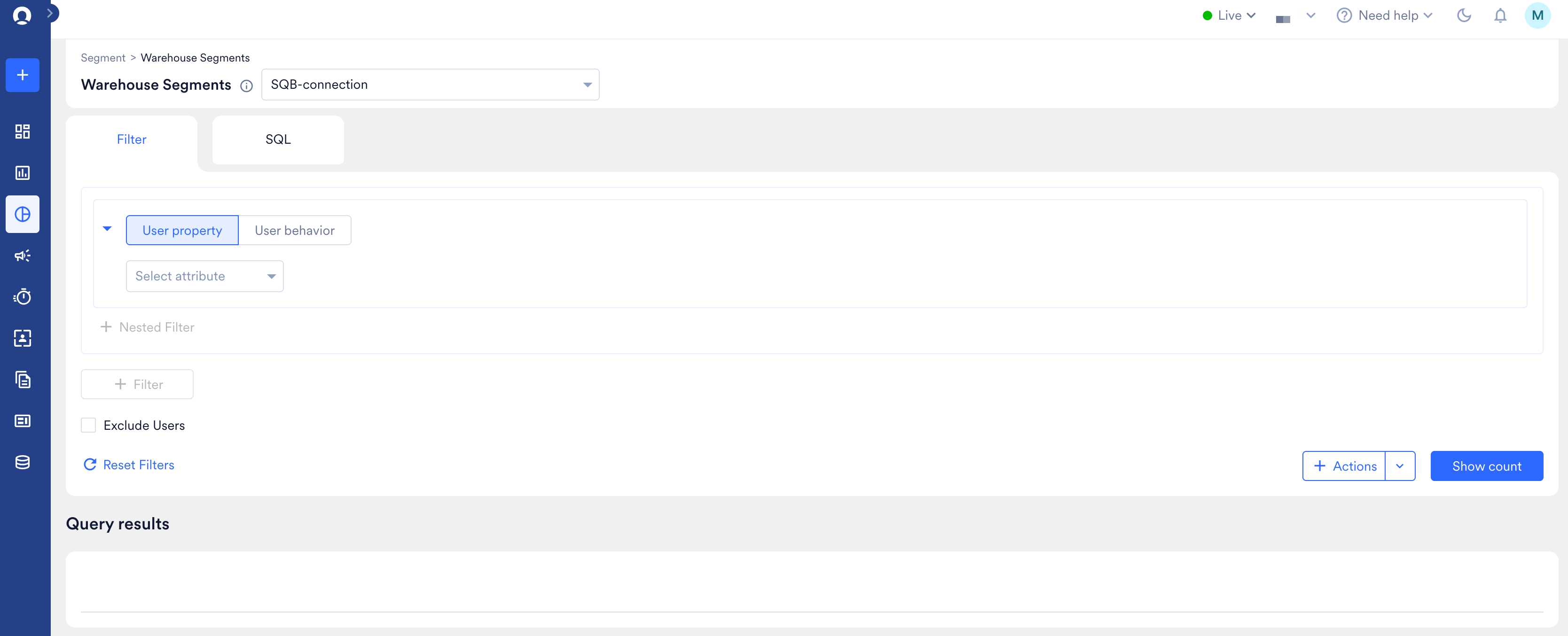 4. Build your audience in the filter block. Each block filters on either a **User property** or a **User behavior**. Use the toggle to switch between them.
* To narrow the same block further, click **+ Nested Filter**.
* To add a separate condition, click **+ Filter**.
* To remove everyone matching a condition instead of including them, select **Exclude Users**.
* To start over, click **Reset Filters**.
5. Click **Show count**. MoEngage builds the SQL, runs it against your warehouse, and adds a row to **Query results** below.
6. In **Query results**, click the ellipsis icon on the row and select what to do with the audience. For more information, refer to [Act on the Result](/docs/user-guide/segment/create-segments/warehouse-segments/create-using-filters#act-on-the-result).
There is no save button on this page. A warehouse segment becomes reusable only when you create a custom segment from a query result.
# Filter on User Properties
Select **User property** in a filter block to filter on the properties mapped from your user master table. Each row reads as attribute, operator, then value.
4. Build your audience in the filter block. Each block filters on either a **User property** or a **User behavior**. Use the toggle to switch between them.
* To narrow the same block further, click **+ Nested Filter**.
* To add a separate condition, click **+ Filter**.
* To remove everyone matching a condition instead of including them, select **Exclude Users**.
* To start over, click **Reset Filters**.
5. Click **Show count**. MoEngage builds the SQL, runs it against your warehouse, and adds a row to **Query results** below.
6. In **Query results**, click the ellipsis icon on the row and select what to do with the audience. For more information, refer to [Act on the Result](/docs/user-guide/segment/create-segments/warehouse-segments/create-using-filters#act-on-the-result).
There is no save button on this page. A warehouse segment becomes reusable only when you create a custom segment from a query result.
# Filter on User Properties
Select **User property** in a filter block to filter on the properties mapped from your user master table. Each row reads as attribute, operator, then value.
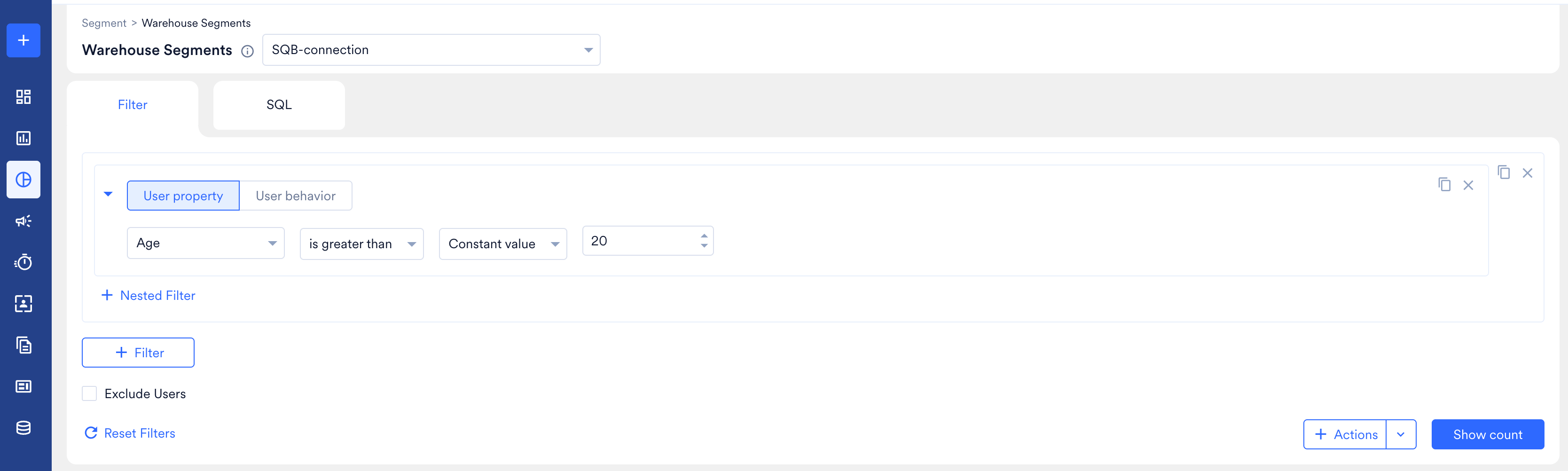 The value dropdown lets you compare the attribute against a **Constant value** you type, or against another attribute.
Only properties your data team mapped appear here, under the display names they gave them. Columns that were skipped during mapping are not available. If a property you expect is missing, ask your data team to map it in [Warehouse Schema](/docs/user-guide/data/warehouse-schemas).
# Filter on User Behavior
Select **User behavior** in a filter block to filter on what users did. Choose **Has Executed** or **Has Not Executed**, select the event, then set how many times and over what period.
The value dropdown lets you compare the attribute against a **Constant value** you type, or against another attribute.
Only properties your data team mapped appear here, under the display names they gave them. Columns that were skipped during mapping are not available. If a property you expect is missing, ask your data team to map it in [Warehouse Schema](/docs/user-guide/data/warehouse-schemas).
# Filter on User Behavior
Select **User behavior** in a filter block to filter on what users did. Choose **Has Executed** or **Has Not Executed**, select the event, then set how many times and over what period.
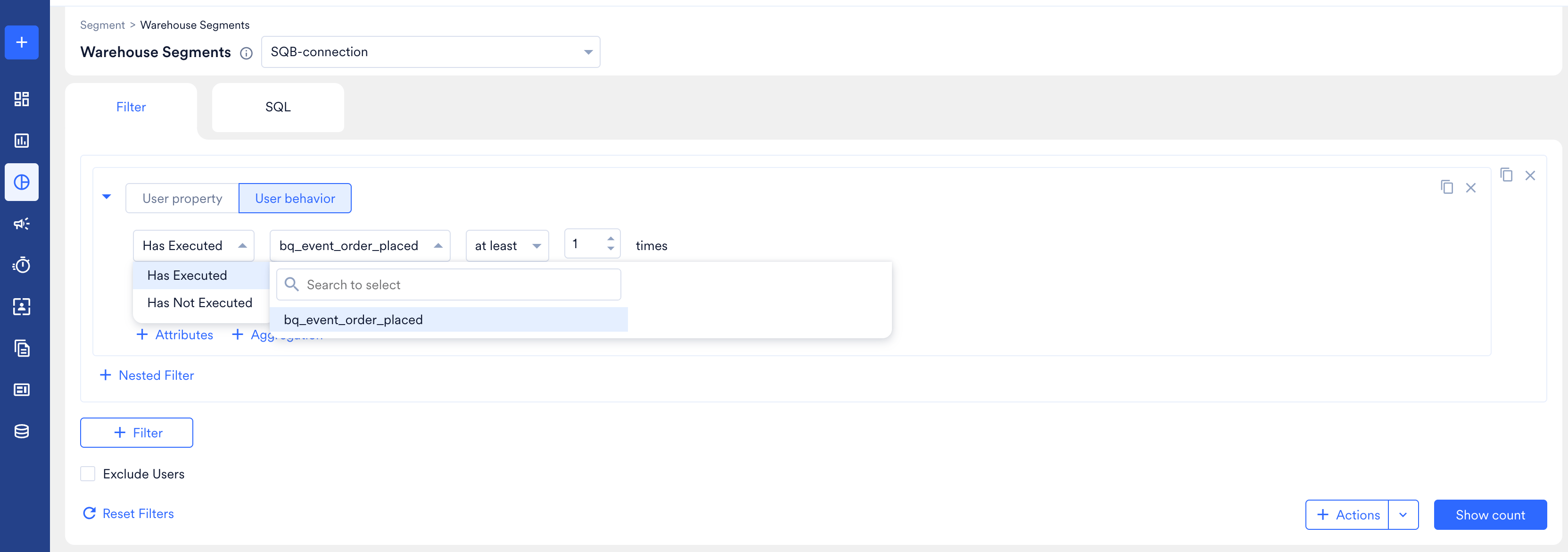 Two links appear under the filter:
* **+ Attributes** narrows the filter to specific event attribute values, such as an order above a certain amount.
* **+ Aggregation** filters on a computed value across the matching events rather than on a count of them.
Only events and attributes your data team mapped appear here. The event names are the display names set on each event schema.
## Event Occurrence Operators
Set how many times a user performed the event:
| Operator | What it matches |
| - | - |
| **exactly** | The user performed the event exactly n times. |
| **at least** | The user performed the event n or more times. |
| **at most** | The user performed the event n or fewer times. |
| **for the first time** | The user's first occurrence of the event falls inside the date range, with no occurrence before it. |
| **for the last time** | The user's most recent occurrence of the event falls inside the date range. |
**for the first time** and **for the last time** are bounded by the **Max event look-back** window set on your warehouse connection, which is 60 days by default. An event that first occurred before that window looks like a first occurrence inside it.
# Operators by Data Type
Available operators depend on the MoEngage data type your team mapped the column to.
| Data type | Operators |
| - | - |
| **String** | is, is not, contains, contains spaces, does not contain, starts with, does not start with, ends with, does not end with, exists, does not exist, is empty, is not empty |
| **Boolean** | is, is not, exists, does not exist |
| **Numeric** | is equal to, is not equal to, is between, is not between, is less than, is greater than, exists, does not exist |
| **Array (numeric)** | (any of / all of) is equal to, is not equal to, (any of / all of) is between, is not between, (any of / all of) is less than, (any of / all of) is greater than, exists, does not exist |
| **Array (string)** | (any of / all of) is, is not, (any of / all of) contains, (any of / all of) contains spaces, does not contain, (any of / all of) starts with, does not start with, (any of / all of) ends with, does not end with, exists, does not exist, (any of / all of) is empty, is not empty |
| **Date / time** | on, is between, before, after, in the next, in the last, is today, exists, does not exist |
| **Time of the day** | is, is between, in the following |
| **Day of the week** | is, is between, in the next, in the last, is today, in the following |
| **Day of the month** | is, is between, in the next, in the last, is today, in the following |
| **Month of the year** | is, is between, in the next, in the last, is this month, in the following |
You can also compare one attribute against another, and use special date filters, as you can in rule-based segments. For more information, refer to [Filters in Segmentation](/docs/user-guide/segment/advanced-concepts/filters-in-segmentation).
# Read the Query Results
Every time you click **Show count**, MoEngage adds a row to **Query results**. Each row records what you ran and what it returned.
Two links appear under the filter:
* **+ Attributes** narrows the filter to specific event attribute values, such as an order above a certain amount.
* **+ Aggregation** filters on a computed value across the matching events rather than on a count of them.
Only events and attributes your data team mapped appear here. The event names are the display names set on each event schema.
## Event Occurrence Operators
Set how many times a user performed the event:
| Operator | What it matches |
| - | - |
| **exactly** | The user performed the event exactly n times. |
| **at least** | The user performed the event n or more times. |
| **at most** | The user performed the event n or fewer times. |
| **for the first time** | The user's first occurrence of the event falls inside the date range, with no occurrence before it. |
| **for the last time** | The user's most recent occurrence of the event falls inside the date range. |
**for the first time** and **for the last time** are bounded by the **Max event look-back** window set on your warehouse connection, which is 60 days by default. An event that first occurred before that window looks like a first occurrence inside it.
# Operators by Data Type
Available operators depend on the MoEngage data type your team mapped the column to.
| Data type | Operators |
| - | - |
| **String** | is, is not, contains, contains spaces, does not contain, starts with, does not start with, ends with, does not end with, exists, does not exist, is empty, is not empty |
| **Boolean** | is, is not, exists, does not exist |
| **Numeric** | is equal to, is not equal to, is between, is not between, is less than, is greater than, exists, does not exist |
| **Array (numeric)** | (any of / all of) is equal to, is not equal to, (any of / all of) is between, is not between, (any of / all of) is less than, (any of / all of) is greater than, exists, does not exist |
| **Array (string)** | (any of / all of) is, is not, (any of / all of) contains, (any of / all of) contains spaces, does not contain, (any of / all of) starts with, does not start with, (any of / all of) ends with, does not end with, exists, does not exist, (any of / all of) is empty, is not empty |
| **Date / time** | on, is between, before, after, in the next, in the last, is today, exists, does not exist |
| **Time of the day** | is, is between, in the following |
| **Day of the week** | is, is between, in the next, in the last, is today, in the following |
| **Day of the month** | is, is between, in the next, in the last, is today, in the following |
| **Month of the year** | is, is between, in the next, in the last, is this month, in the following |
You can also compare one attribute against another, and use special date filters, as you can in rule-based segments. For more information, refer to [Filters in Segmentation](/docs/user-guide/segment/advanced-concepts/filters-in-segmentation).
# Read the Query Results
Every time you click **Show count**, MoEngage adds a row to **Query results**. Each row records what you ran and what it returned.
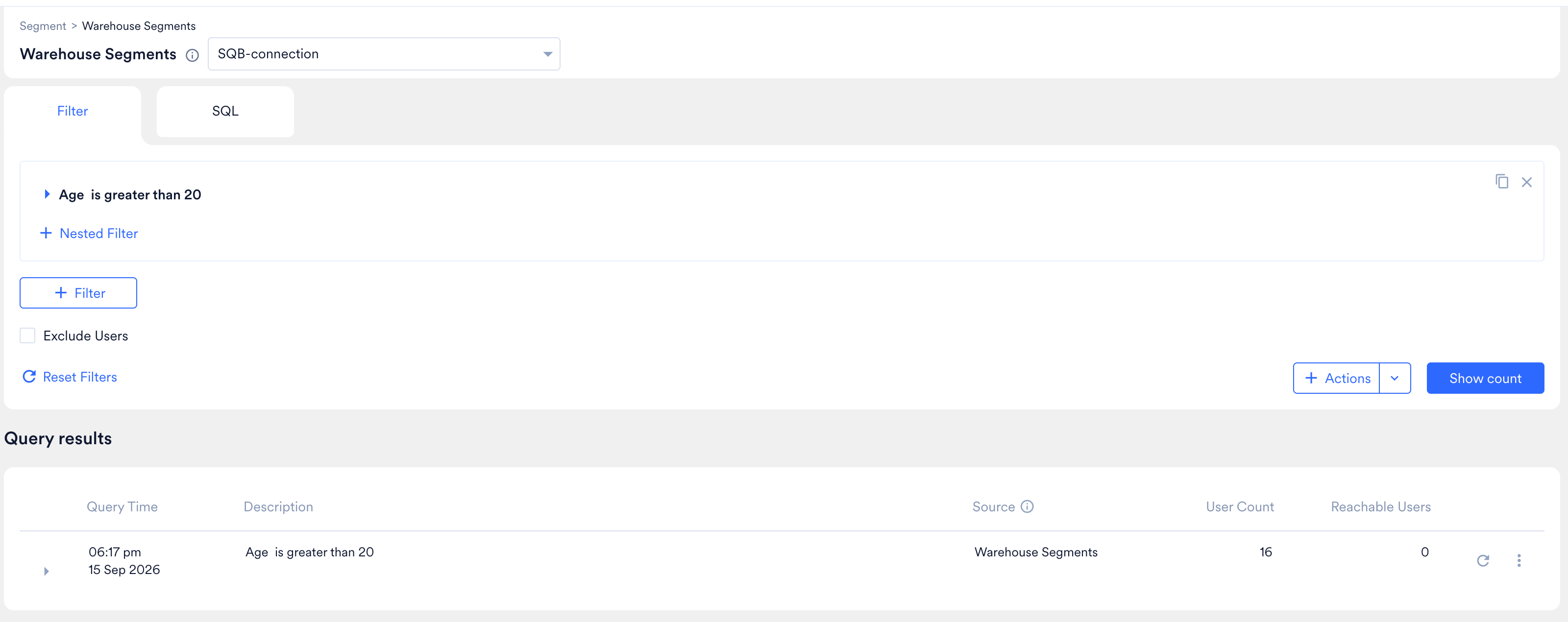 | Column | What it means |
| - | - |
| **Query Time** | When the query ran. |
| **Description** | The filter conditions in plain language, so you can tell runs apart. |
| **Source** | The warehouse connection the query ran against. |
| **User Count** | How many users MoEngage could resolve from the rows your warehouse returned. |
| **Reachable Users** | How many of those users can receive a campaign on at least one channel. |
Click the refresh icon to re-run a query without rebuilding the filters.
The user count is usually smaller than the number of rows your warehouse matched. A row becomes a user only if its user identifier matches a user already in MoEngage. If your warehouse returns 1,000 rows and 90 of those users exist in MoEngage, the count is 90.
That number is not fixed either. The same query can resolve to more users later, as those users become known to MoEngage.
# Act on the Result
Click the ellipsis icon on a query result row to choose what to do with the audience.
| Column | What it means |
| - | - |
| **Query Time** | When the query ran. |
| **Description** | The filter conditions in plain language, so you can tell runs apart. |
| **Source** | The warehouse connection the query ran against. |
| **User Count** | How many users MoEngage could resolve from the rows your warehouse returned. |
| **Reachable Users** | How many of those users can receive a campaign on at least one channel. |
Click the refresh icon to re-run a query without rebuilding the filters.
The user count is usually smaller than the number of rows your warehouse matched. A row becomes a user only if its user identifier matches a user already in MoEngage. If your warehouse returns 1,000 rows and 90 of those users exist in MoEngage, the count is 90.
That number is not fixed either. The same query can resolve to more users later, as those users become known to MoEngage.
# Act on the Result
Click the ellipsis icon on a query result row to choose what to do with the audience.
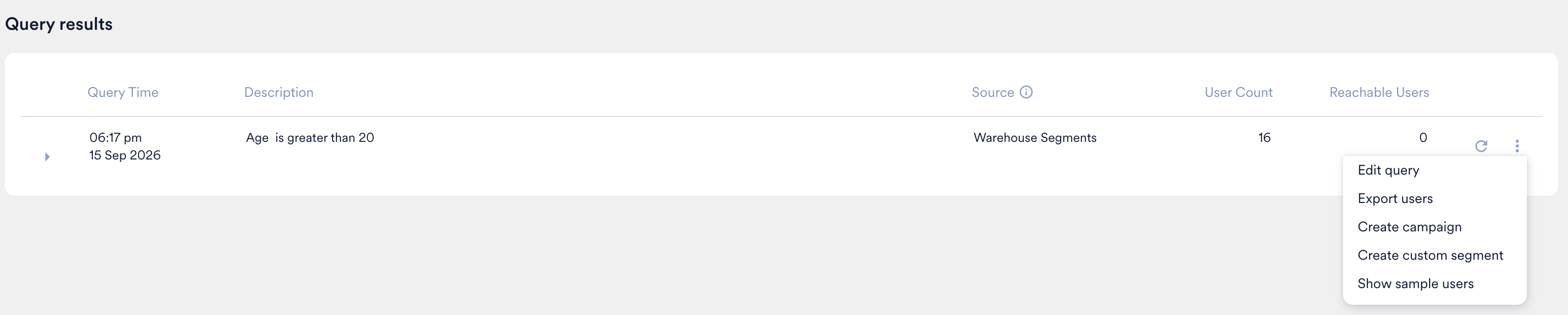 | Action | What it does |
| - | - |
| **Create custom segment** | Saves the audience as a reusable custom segment. This is how a warehouse query becomes something you can target repeatedly. For more information, refer to [Manage Segments](/docs/user-guide/segment/create-segments/manage-segments). |
| **Create campaign** | Starts a campaign with this audience already selected. |
| **Export users** | Exports the users the query resolved. For more information, refer to [Outbound Segment Sync](/docs/user-guide/data/exports/segments/outbound-segment-sync). |
| **Show sample users** | Shows a sample of the users the query matched, so you can sanity-check the audience before acting on it. |
| **Edit query** | Loads the filters back into the builder so you can change them and run again. |
## When Queries Run
MoEngage queries your warehouse at three points: when you click **Show count**, when you re-run a query result or a saved custom segment, and automatically at campaign run time for any campaign using a segment built this way.
These queries run on your data warehouse directly, so you incur the compute costs your warehouse charges for them. Checking counts repeatedly while building a segment runs a query each time.
# After You Create a Custom Segment
A custom segment created from a query result behaves like any other custom segment on the All Segments page, where it appears with the type **Warehouse - filter**. To show only these segments, select that type in the **Select Segment Type** list. You can view, edit, duplicate, archive, and create a campaign from the segment. For more information, refer to [Manage Segments](/docs/user-guide/segment/create-segments/manage-segments).
The segment detail page shows its type, source connection, creation date, last run time, user count, reachability, and edit history. Running the segment from this page refreshes the user count by re-querying your warehouse.
Exports return MoEngage attributes. MoEngage cannot resolve warehouse attribute values during an export, so warehouse columns are not included.
# Limitations
The filter builder does not support:
* **All Users segments.** Every warehouse segment needs at least one filter.
* **Value suggestions.** Attribute value dropdowns stay empty, so type values manually.
* **Analyse.** A warehouse segment cannot be used as the audience for an analysis.
* **Custom segment, affinity, and analytics filters** inside a warehouse segment.
## Unsupported Attribute Types
Attributes of these types cannot be filtered on, because they are not mappable in a warehouse schema:
* Object and object array attributes.
* Location attributes.
* Boolean arrays and date arrays.
For the full list of what can and cannot be mapped, refer to [Data Types](/docs/user-guide/data/warehouse-schemas#data-types).
## Unsupported Aggregations
Aggregating on a warehouse attribute is not available yet. The following aggregations are not supported at all:
* **Median.**
* **Change** and **percentage change.**
## One Connection per Query
A query reads from one warehouse connection. To combine data across connections, create a custom segment per connection and combine those on the standard segment builder.
# When a Segment Breaks
A warehouse segment depends on the warehouse tables behind it staying as they were mapped. If a column is renamed, a table is dropped, or a data type changes, the segment stops working.
You are not notified when this happens. A broken segment fails the next time it runs, which may be at campaign run time.
If a segment stops returning a count, ask your data team to check the mapping in [Warehouse Schema](/docs/user-guide/data/warehouse-schemas). Once it is corrected, run the segment again.
# Frequently Asked Questions
MoEngage only targets users it already knows. A row in your warehouse becomes a segment member only if its user identifier matches a customer ID in MoEngage. Rows for users MoEngage has never seen are skipped.
Mapping a warehouse schema does not import users. To bring new users into MoEngage, use [Imports](/docs/user-guide/data/imports/overview/overview-imports).
Two things have to happen first.
MoEngage refreshes warehouse metadata every 6 hours, so a column added just now may not be visible yet. Your data team can use **Force refresh** on the schema to pick it up sooner.
Then the column has to be mapped. Unmapped and skipped columns never appear in the segment builder, even after a refresh.
Value suggestions are not available for warehouse attributes. Listing the distinct values of a column means scanning the whole table in your warehouse, which is slow and costly, so MoEngage does not do it automatically.
Type the value you want to filter on. It must match what is stored in your warehouse, including capitalisation.
Not inside a single warehouse segment, because one segment reads from one connection.
Run your warehouse filters, then use **Create custom segment** on the query result. That custom segment can be combined with MoEngage attributes and events on the standard segment builder.
A segment used in a campaign refreshes automatically at campaign run time, so the campaign targets a current audience.
Elsewhere, the count you see is from the last run. Run the segment from its detail page to refresh it.
As far back as the **Max event look-back** window set on your warehouse connection, which defaults to 60 days. Events older than that are not visible to any filter, including **for the first time**.
Your data team sets this in **Settings** > **Data** > **Warehouse Schema**. Longer windows scan more data and cost more to query.
Something in the underlying warehouse table most likely changed, such as a renamed or dropped column, a changed data type, or a deleted schema. MoEngage does not warn you when this happens, so a working segment can start failing without notice.
Ask your data team to review the mapping in [Warehouse Schema](/docs/user-guide/data/warehouse-schemas). Once it is corrected, run the segment again.
Analysis needs event data stored inside MoEngage. A warehouse segment resolves to a list of users at run time and carries no warehouse event history with it, so there is nothing for an analysis to read.
You can still target the segment with campaigns and see campaign performance as normal.
This documentation is built and hosted on [Mintlify](https://mintlify.com), a developer documentation platform.
| Action | What it does |
| - | - |
| **Create custom segment** | Saves the audience as a reusable custom segment. This is how a warehouse query becomes something you can target repeatedly. For more information, refer to [Manage Segments](/docs/user-guide/segment/create-segments/manage-segments). |
| **Create campaign** | Starts a campaign with this audience already selected. |
| **Export users** | Exports the users the query resolved. For more information, refer to [Outbound Segment Sync](/docs/user-guide/data/exports/segments/outbound-segment-sync). |
| **Show sample users** | Shows a sample of the users the query matched, so you can sanity-check the audience before acting on it. |
| **Edit query** | Loads the filters back into the builder so you can change them and run again. |
## When Queries Run
MoEngage queries your warehouse at three points: when you click **Show count**, when you re-run a query result or a saved custom segment, and automatically at campaign run time for any campaign using a segment built this way.
These queries run on your data warehouse directly, so you incur the compute costs your warehouse charges for them. Checking counts repeatedly while building a segment runs a query each time.
# After You Create a Custom Segment
A custom segment created from a query result behaves like any other custom segment on the All Segments page, where it appears with the type **Warehouse - filter**. To show only these segments, select that type in the **Select Segment Type** list. You can view, edit, duplicate, archive, and create a campaign from the segment. For more information, refer to [Manage Segments](/docs/user-guide/segment/create-segments/manage-segments).
The segment detail page shows its type, source connection, creation date, last run time, user count, reachability, and edit history. Running the segment from this page refreshes the user count by re-querying your warehouse.
Exports return MoEngage attributes. MoEngage cannot resolve warehouse attribute values during an export, so warehouse columns are not included.
# Limitations
The filter builder does not support:
* **All Users segments.** Every warehouse segment needs at least one filter.
* **Value suggestions.** Attribute value dropdowns stay empty, so type values manually.
* **Analyse.** A warehouse segment cannot be used as the audience for an analysis.
* **Custom segment, affinity, and analytics filters** inside a warehouse segment.
## Unsupported Attribute Types
Attributes of these types cannot be filtered on, because they are not mappable in a warehouse schema:
* Object and object array attributes.
* Location attributes.
* Boolean arrays and date arrays.
For the full list of what can and cannot be mapped, refer to [Data Types](/docs/user-guide/data/warehouse-schemas#data-types).
## Unsupported Aggregations
Aggregating on a warehouse attribute is not available yet. The following aggregations are not supported at all:
* **Median.**
* **Change** and **percentage change.**
## One Connection per Query
A query reads from one warehouse connection. To combine data across connections, create a custom segment per connection and combine those on the standard segment builder.
# When a Segment Breaks
A warehouse segment depends on the warehouse tables behind it staying as they were mapped. If a column is renamed, a table is dropped, or a data type changes, the segment stops working.
You are not notified when this happens. A broken segment fails the next time it runs, which may be at campaign run time.
If a segment stops returning a count, ask your data team to check the mapping in [Warehouse Schema](/docs/user-guide/data/warehouse-schemas). Once it is corrected, run the segment again.
# Frequently Asked Questions
MoEngage only targets users it already knows. A row in your warehouse becomes a segment member only if its user identifier matches a customer ID in MoEngage. Rows for users MoEngage has never seen are skipped.
Mapping a warehouse schema does not import users. To bring new users into MoEngage, use [Imports](/docs/user-guide/data/imports/overview/overview-imports).
Two things have to happen first.
MoEngage refreshes warehouse metadata every 6 hours, so a column added just now may not be visible yet. Your data team can use **Force refresh** on the schema to pick it up sooner.
Then the column has to be mapped. Unmapped and skipped columns never appear in the segment builder, even after a refresh.
Value suggestions are not available for warehouse attributes. Listing the distinct values of a column means scanning the whole table in your warehouse, which is slow and costly, so MoEngage does not do it automatically.
Type the value you want to filter on. It must match what is stored in your warehouse, including capitalisation.
Not inside a single warehouse segment, because one segment reads from one connection.
Run your warehouse filters, then use **Create custom segment** on the query result. That custom segment can be combined with MoEngage attributes and events on the standard segment builder.
A segment used in a campaign refreshes automatically at campaign run time, so the campaign targets a current audience.
Elsewhere, the count you see is from the last run. Run the segment from its detail page to refresh it.
As far back as the **Max event look-back** window set on your warehouse connection, which defaults to 60 days. Events older than that are not visible to any filter, including **for the first time**.
Your data team sets this in **Settings** > **Data** > **Warehouse Schema**. Longer windows scan more data and cost more to query.
Something in the underlying warehouse table most likely changed, such as a renamed or dropped column, a changed data type, or a deleted schema. MoEngage does not warn you when this happens, so a working segment can start failing without notice.
Ask your data team to review the mapping in [Warehouse Schema](/docs/user-guide/data/warehouse-schemas). Once it is corrected, run the segment again.
Analysis needs event data stored inside MoEngage. A warehouse segment resolves to a list of users at run time and carries no warehouse event history with it, so there is nothing for an analysis to read.
You can still target the segment with campaigns and see campaign performance as normal.
This documentation is built and hosted on [Mintlify](https://mintlify.com), a developer documentation platform.