> ## Documentation Index
> Fetch the complete documentation index at: https://moengage.com/docs/llms.txt
> Use this file to discover all available pages before exploring further.
# Manage Segments
> Create, reuse, and manage custom segments in MoEngage. Save segment queries for reuse across campaigns and analytics, then view, edit, rename, archive, and analyze them from the All Segments page.
A custom segment is a saved, named segment query that you can reuse across campaigns, flows, and analytics pages without rebuilding the query each time. A custom segment can be a [file segment](/docs/user-guide/segment/segment-operations/file-segments) or a rule-based [filter segment](/docs/user-guide/segment/segment-operations/rule-based-filter-segments), and it can combine both — along with other custom segments.
This article explains how to create and use custom segments, and how to view and manage them from the **All Segments** page.
## Creating a Custom Segment
In the MoEngage dashboard, custom segments can be created in three ways:
* Navigate to **Segment** > **Create Segment**. After entering the query, click **Create** and select **Create Custom Segment**. Enter the custom segment name and save it. You can also create one from the Recent Query section: for a selected query, click the **Create Custom Segment** icon, enter a name, and save. These sections create a dynamic custom segment. For more information, see [Create Segments](/docs/user-guide/segment/segment-operations/rule-based-filter-segments).
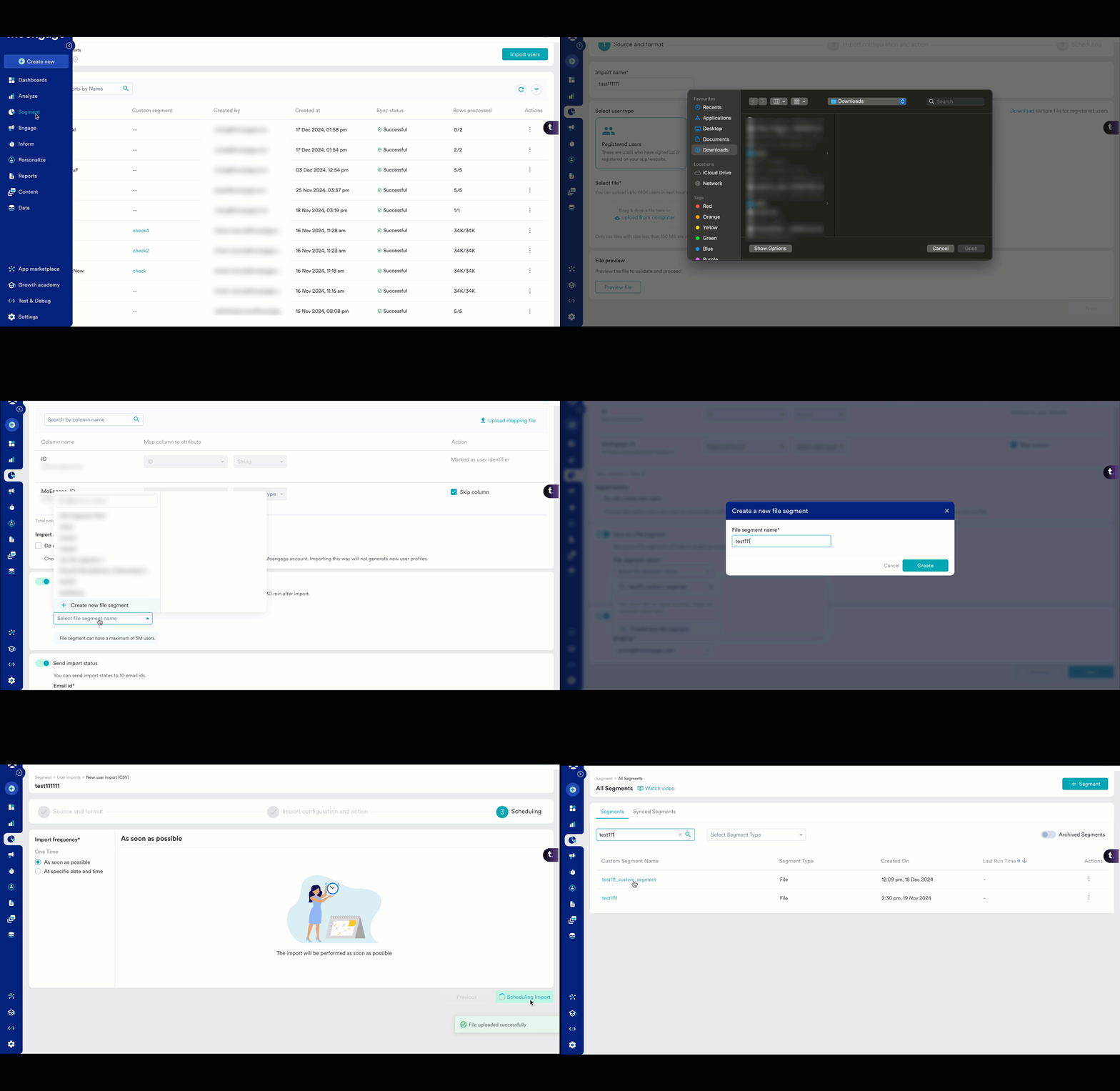
* While importing users. The users in the segment remain fixed, so this is a static custom segment. [Learn more about importing user data using CSV.](/docs/user-guide/data/imports/file-based-imports/import-user-data-using-csv)
* From Behavior analysis, Funnel analysis, and RFM Segments. These sections create a dynamic custom segment. [Learn more about RFM Segments.](/docs/user-guide/segment/segment-operations/rfm-segments)
## Using a Custom Segment
On the MoEngage dashboard, custom segments can be used in multiple ways:
* Use a custom segment to build a complex user segment, combined with user properties and user activities.
* Use a custom segment while creating other custom segments. Custom segments support up to 3 levels of recursion/nesting — Custom Segment A can include Segment B, which can include Segment C, which can include Segment D. [File Segments](/docs/user-guide/segment/segment-operations/file-segments) are not counted toward the nesting limit. For advanced nesting techniques, see [Segment Nesting](/docs/user-guide/segment/advanced-concepts/segment-nesting).
* While defining a new custom segment, up to 10 existing custom segments can be used. [File Segments](/docs/user-guide/segment/segment-operations/file-segments) are not counted toward this limit.
* Use a custom segment as the target audience while creating a campaign for channels such as Push, Email, SMS, In-App, Facebook, and Flows.
### Custom Segment Analysis
Users of a custom segment can be analyzed on the MoEngage Analytics pages — [Behavior](/docs/user-guide/analyze/analytics/behavior/behavior-overview), [Funnel](/docs/user-guide/analyze/analytics/funnels/funnels-overview), [Retention](/docs/user-guide/analyze/analytics/retention/retention-overview), [Session & Source](/docs/user-guide/analyze/analytics/session-and-source/session-and-source-overview), [User Paths](/docs/user-guide/analyze/analytics/user-paths/user-paths-overview), and [RFM Segments](/docs/user-guide/segment/segment-operations/rfm-segments). By default, all users are analyzed for the above analyses. To analyze users of a specific custom segment, select the desired custom segment from the custom segment dropdown, provide the other required parameters for the respective analysis, and click **Apply**.
 # All Segments
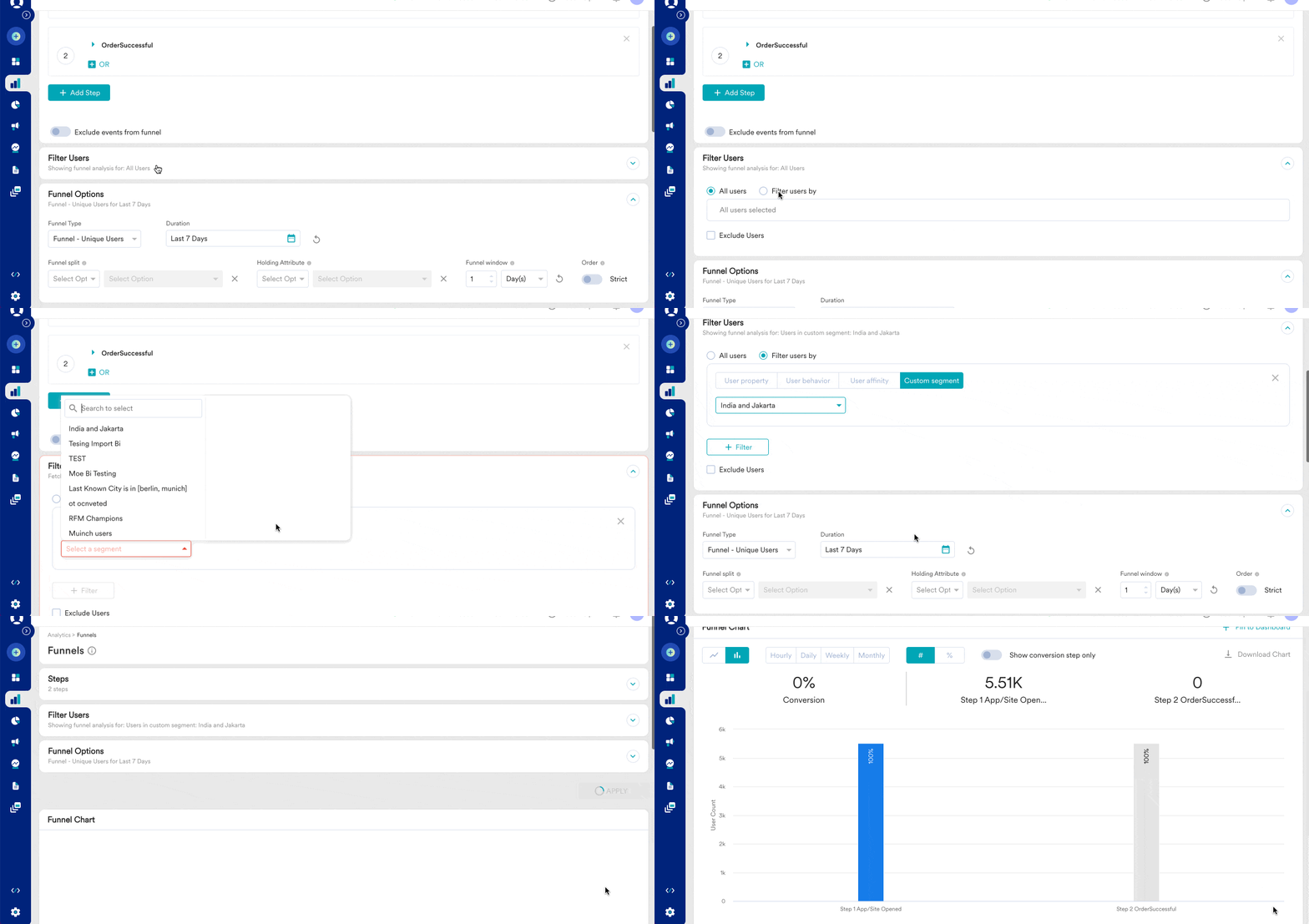
The All Segments page provides a unified view of all custom segments created and used in MoEngage. This enables growth teams to quickly get an overview of their custom segments in one place and perform actions on them. They can also navigate to the detail page of each custom segment from the All Segments page. If Teams are enabled for your account, the custom segments created for all the teams (to which you have access) will be displayed. To see the custom segments created for a specific team, select the team in the **All Segments for** dropdown list.
This page lists all the custom segments, showing the Custom Segment name, Segment Type (file segment or filter segment), Segment created time, Segment last run time (time at which the segment was the last run in a query or a campaign), and actions that can be performed on a custom segment.
Clicking on the Custom segment name will lead the marketer to that segment’s detail page.
You can sort the table by any of the columns in ascending or descending order. By default, the table is sorted in descending order of the last run time.
# All Segments
The All Segments page provides a unified view of all custom segments created and used in MoEngage. This enables growth teams to quickly get an overview of their custom segments in one place and perform actions on them. They can also navigate to the detail page of each custom segment from the All Segments page. If Teams are enabled for your account, the custom segments created for all the teams (to which you have access) will be displayed. To see the custom segments created for a specific team, select the team in the **All Segments for** dropdown list.
This page lists all the custom segments, showing the Custom Segment name, Segment Type (file segment or filter segment), Segment created time, Segment last run time (time at which the segment was the last run in a query or a campaign), and actions that can be performed on a custom segment.
Clicking on the Custom segment name will lead the marketer to that segment’s detail page.
You can sort the table by any of the columns in ascending or descending order. By default, the table is sorted in descending order of the last run time.
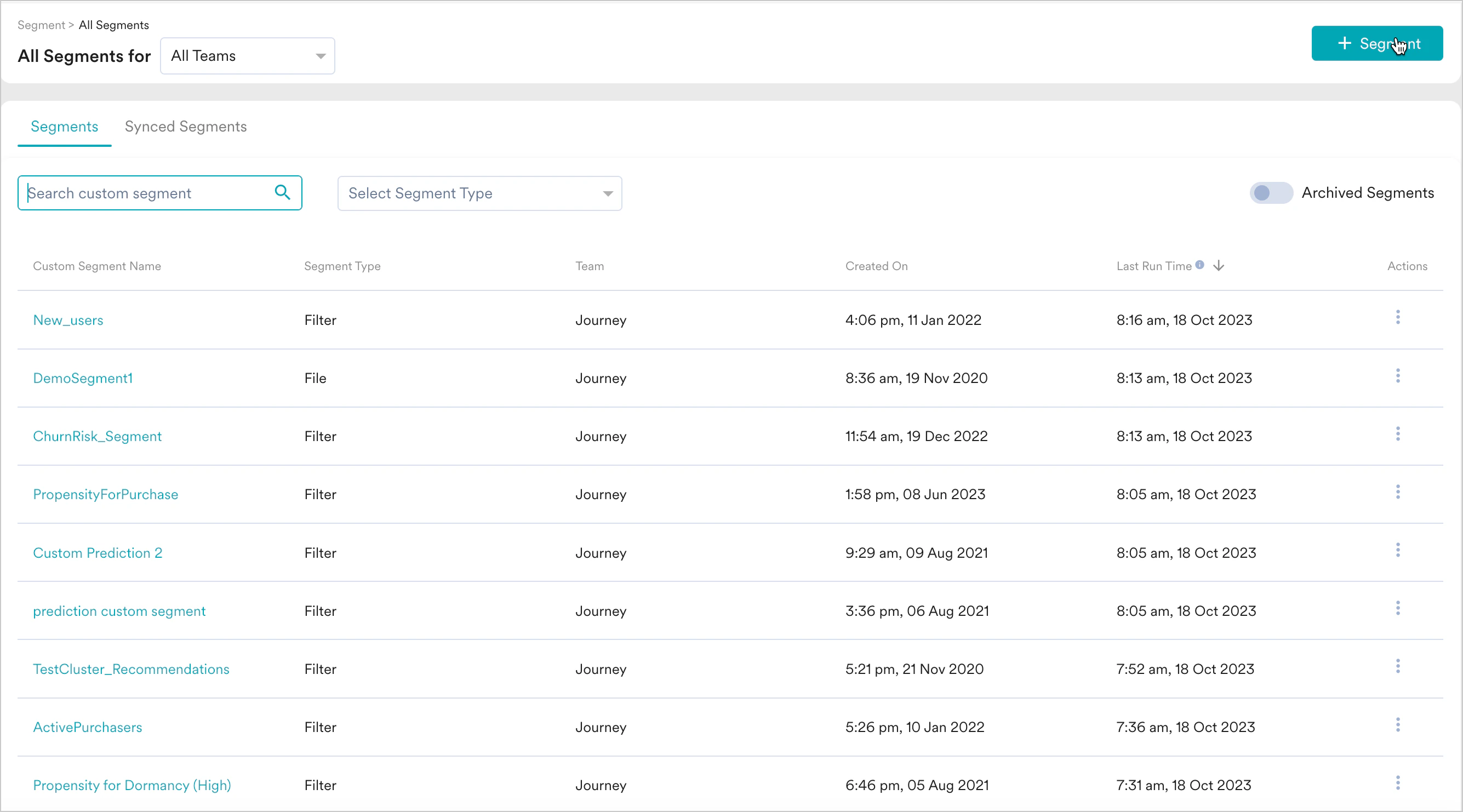 You can search for a segment by entering the desired segment name in the search box.
Segments can also be filtered by Segment Type - either File or Filter segments.
1. **File Segment** - These are custom segments that are created when growth teams upload a list of users. You can import a list of users containing one of the User Attributes that identifies a unique user, and a custom segment of these users gets created. [Learn more about file segments in this article](/docs/user-guide/segment/segment-operations/file-segments).
2. **Filter Segment** - These are custom segments that are created from the MoEngage dashboard. Growth teams can create rules and criteria to define a user segment. The rules and criteria can be applied to user attributes/properties, events & event properties, and a combination of the two. [Learn more about filter segments here.](/docs/user-guide/segment/segment-operations/rule-based-filter-segments)
Clicking on **+Segment** opens a panel that redirects to the **Create Segment** page (to create a filter segment), the RFM segment page, and the **Create File Segment** popup (to create a file segment). If Teams are enabled, and you are a part of multiple teams, you will need to select a team from the **Teams** dropdown before clicking **+ Segment**.
MoEngage Teams with the Segmentation Filters is a Beta feature. To get it enabled for your account, reach out to your CSM.
You can search for a segment by entering the desired segment name in the search box.
Segments can also be filtered by Segment Type - either File or Filter segments.
1. **File Segment** - These are custom segments that are created when growth teams upload a list of users. You can import a list of users containing one of the User Attributes that identifies a unique user, and a custom segment of these users gets created. [Learn more about file segments in this article](/docs/user-guide/segment/segment-operations/file-segments).
2. **Filter Segment** - These are custom segments that are created from the MoEngage dashboard. Growth teams can create rules and criteria to define a user segment. The rules and criteria can be applied to user attributes/properties, events & event properties, and a combination of the two. [Learn more about filter segments here.](/docs/user-guide/segment/segment-operations/rule-based-filter-segments)
Clicking on **+Segment** opens a panel that redirects to the **Create Segment** page (to create a filter segment), the RFM segment page, and the **Create File Segment** popup (to create a file segment). If Teams are enabled, and you are a part of multiple teams, you will need to select a team from the **Teams** dropdown before clicking **+ Segment**.
MoEngage Teams with the Segmentation Filters is a Beta feature. To get it enabled for your account, reach out to your CSM.
 ## Archived Segments
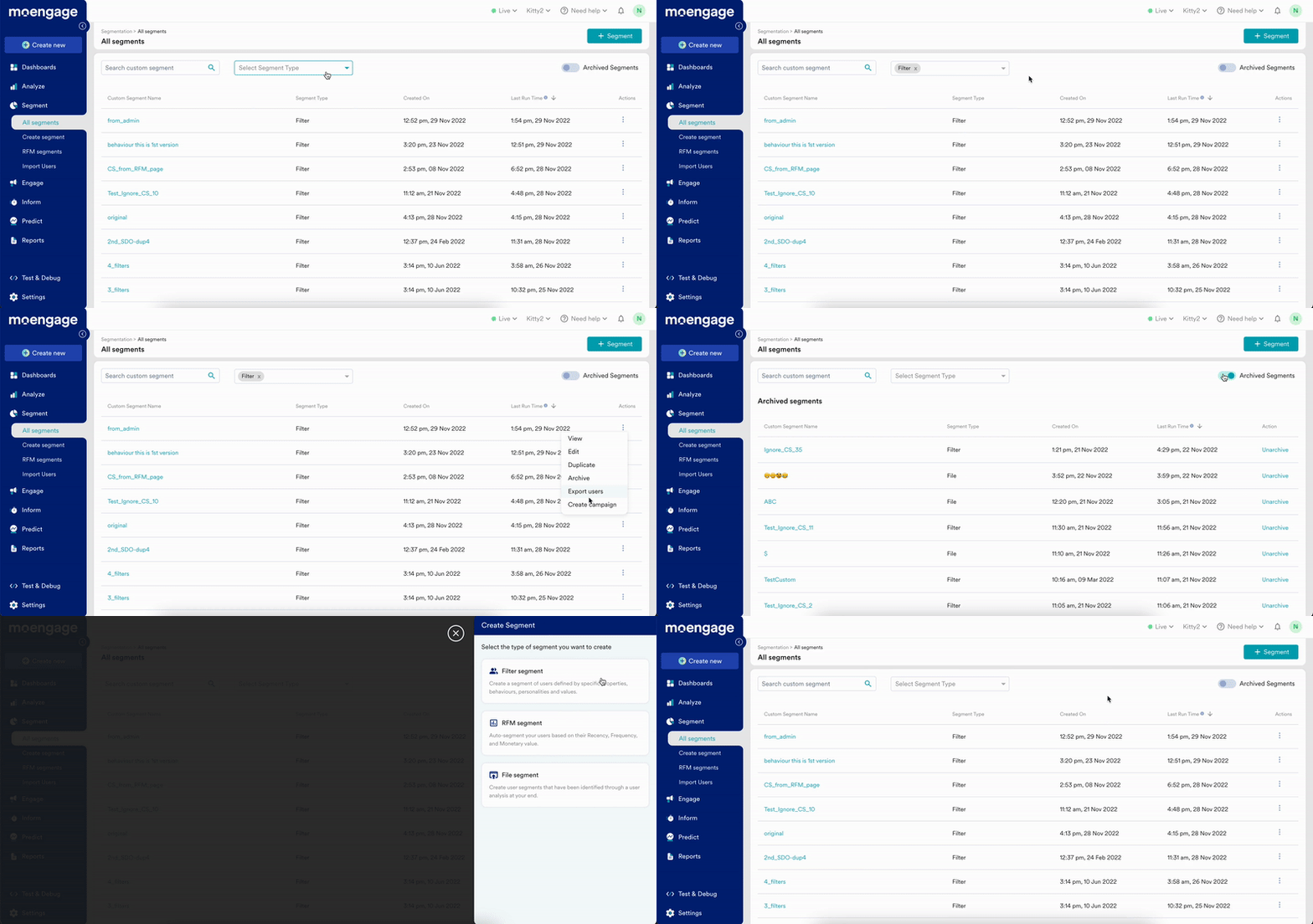
Clicking on the Archived Segment toggle on the All Segments page leads to Archived Segments Listing Page.
Filter segments archived in the last 6 months (or a maximum of 1000 archived segments) will be listed here. You can unarchive these segments from here.
File Segments archived beyond 30 days from the date of archival will not be listed on this page as they have expired. [Learn more about file segments here.](/docs/user-guide/segment/segment-operations/file-segments) Within 30 days of archival, you can unarchive the file segments from this page.
# Actions on Custom Segments
| Action | Description |
| --------------- | ---------------------------------------------------------------------------------------------------------------------------------------------------------------------------------------------------------------------------------------------------------------------------------------------------------------------------------------------------------------------------------------------------------------------------------------------------------------------------------------------------------------------------------------------------------------------------------------------------------------- |
| View | For both file and filter segments, clicking on View will redirect to that segment’s detail page. |
| Edit |
## Archived Segments
Clicking on the Archived Segment toggle on the All Segments page leads to Archived Segments Listing Page.
Filter segments archived in the last 6 months (or a maximum of 1000 archived segments) will be listed here. You can unarchive these segments from here.
File Segments archived beyond 30 days from the date of archival will not be listed on this page as they have expired. [Learn more about file segments here.](/docs/user-guide/segment/segment-operations/file-segments) Within 30 days of archival, you can unarchive the file segments from this page.
# Actions on Custom Segments
| Action | Description |
| --------------- | ---------------------------------------------------------------------------------------------------------------------------------------------------------------------------------------------------------------------------------------------------------------------------------------------------------------------------------------------------------------------------------------------------------------------------------------------------------------------------------------------------------------------------------------------------------------------------------------------------------------- |
| View | For both file and filter segments, clicking on View will redirect to that segment’s detail page. |
| Edit | - For Filter segments, the Edit option will open the Create Segments page will the filters of the segment pre-populated. These filters can be edited and the new query can be saved as a new custom segment.
- For File segments, the Edit option can be used to add, remove or replace users in an existing file segment. [Learn more about file segments here.](/docs/user-guide/segment/segment-operations/file-segments)
|
| Duplicate | - For filter segments, the Duplicate option will open the Create Segments page with the filters of the segment pre-populated. These filters can be edited and the new query can be saved as a new custom segment.
- File segments cannot be duplicated. This is because they represent a static list of users from an uploaded file and are not defined by editable rules. Duplicating a segment is useful for copying and then modifying its rules, but since a file segment has no rules, this action isn't applicable. To reuse the same list, you can simply use the original segment.
|
| Archive | Both file and filter segments can be archived from the dashboard depending on the segment source. |
| Rename | Update the name of a segment without disrupting existing campaigns, analytics, or downstream integrations. When renamed, the segment's unique ID remains unchanged. **Early Access:** Contact your MoEngage CSM or Support team to enable this. Not available for segments sourced from Campaigns, Imports, Locales, Global Control Groups, or partner integrations. |
| Export Users | Export Users can be used to download any one or more user attributes belonging to that segment. Please run the custom segment before exporting users to get the updated list of users. |
| Create Campaign | Create Campaign action leads to the create campaign page with Target Audience pre-populated with the segment’s definition. |
| Analyze Segment | Analyze a segment directly from the Segmentation page. This action auto-populates the segment in the Target audience section of Behavior, Funnels, Retention, Session and Source, User Paths, and RFM analysis. |
## Segment Sources
All custom segments fall into one of the following sources, depending on where they are created on MoEngage or where they are imported from into the MoEngage systems.
| Sources | Description | Actions available |
| ----------------------------------------------------------------------------- | ---------------------------------------------------------------------------------------------------------------------------------------------------------------------------------------------------------------------------------------------------------------------------------------------------------------------------------- | ---------------------------------------------------------------------------------------------------------------------------------------------------------------------- |
| Segmentation | Custom Segments created from MoEngage Segmentation have the source as Segmentation. | 1. View
2. Edit
3. Duplicate
4. Archive/Unarchive
5. Export Users
6. Create Campaign
7. Analyze Segment |
| CSV Upload, API, Import Users | These are custom segments that are uploaded into the MoEngage systems as File segments. File segments cannot be duplicated. | 1. View
2. Edit
3. Rename
4. Archive/Unarchive
5. Export Users
6. Create Campaign
7. Create Campaign
8. Analyze Segment |
| Campaigns, Analyse, Prediction, Campaign Locale, Global Control Group, Custom | These are custom segments that are created on MoEngage from sources other than Segmentation - such as Campaigns, Analyze, and Predictions. Edit actions such as - Edit, Duplicate, Archive, and Unarchive are not available for these segments as they may have an impact on campaigns/analysis that these segments are a part of. | 1. View
2. Export Users
3. Create Campaign
4. Analyze Segment |
| Cohort Sync, Amplitude, Mixpanel, mParticle, Segment IO | These are custom segments that are imported into the MoEngage systems from other third-party or external sources. Edit actions such as - Edit, Duplicate, Archive, and Unarchive are not available for these segments as they are externally managed. | 1. View
2. Export Users
3. Create Campaign
4. Analyze Segment |
## How to Manage Segments
### Edit a Segment
To edit the filters or rules of a segment:
1. Go to **Segment** > **All Segments**.
2. Find the segment and click the ellipsis icon in the **Actions** column.
3. Select **Edit**.
* For filter segments, the Create Segments page opens with the segment's current filters pre-populated. Update the filters and click **Save**.
* For file segments, choose to add, remove, or replace users, then upload the updated file.
### Rename a Segment
**Early Access**
This is an Early Access feature. To enable it for your account, please contact your MoEngage Customer Success Manager (CSM) or the Support team.
You can update the name of a segment without disrupting existing workflows, historical data, or downstream integrations. When a segment is renamed, its unique Segment ID remains unchanged.
To rename a segment:
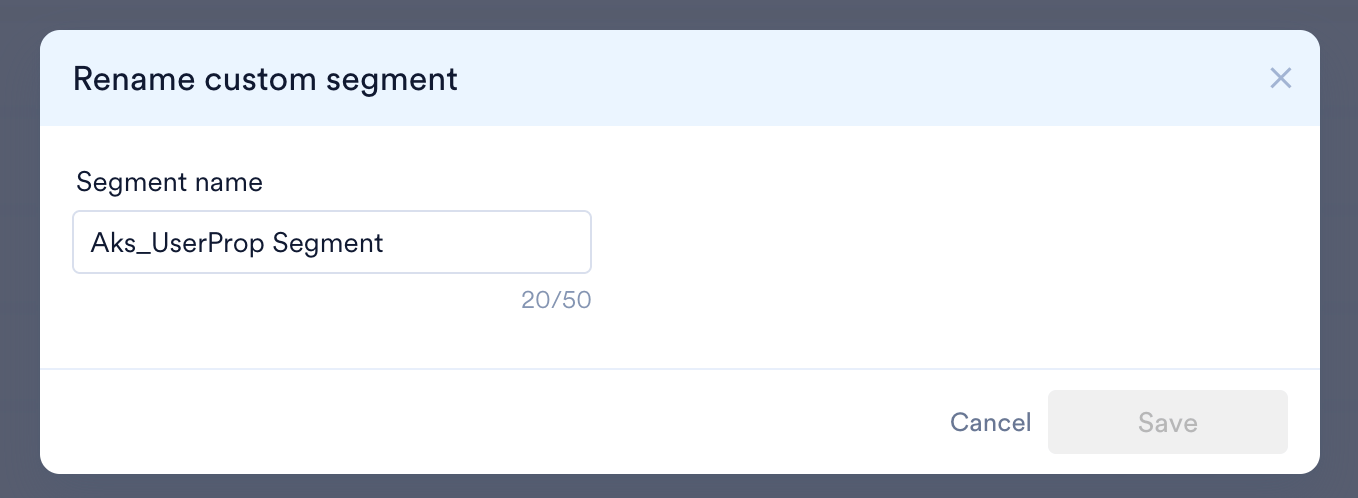
1. Go to **Segment** > **All Segments**, click the ellipsis icon on the desired segment, and select **Rename**. 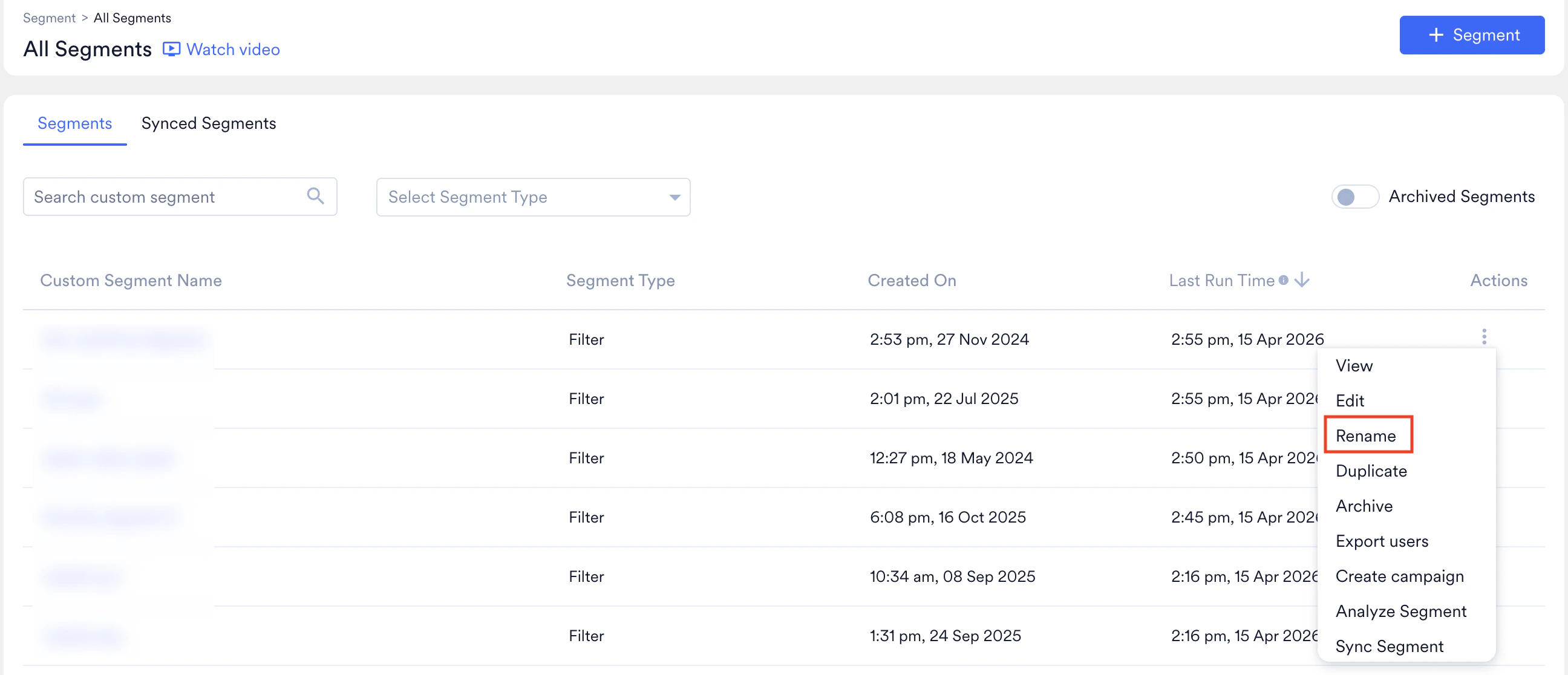 2. In the **Rename custom segment** window, enter the new name in the **Segment name** field and click **Save**.
  Keep the following in mind when renaming:
* Only users with **Create & Manage** permission in Segments can rename a segment.
* Segment names must pass character limits and uniqueness checks. Names cannot be reused, even for archived segments.
You cannot rename segments sourced from Campaigns, Imports, Locales, Global Control Groups, Data Science (predictions), or partner integrations (such as Amplitude, Mixpanel, or Segment).
### Archive and Unarchive a Segment
To archive a segment:
1. Go to **Segment** > **All Segments**.
2. Search for the segment you want to archive.
3. Click the ellipsis icon and select **Archive**.
Note the following archival behavior:
* Archived segments are not available in the segment dropdown across the MoEngage dashboard.
* If an archived rule-based segment is used in a campaign, the campaign still calculates it based on its rules. If an archived file segment is used, it returns 0 users.
* Segments that have not been run in the last 60 days are automatically archived.
* All users from an archived file segment are dropped after 30 days of archival. After that, the segment returns 0 users.
* Segment names cannot be reused, even when a segment is archived.
To unarchive a segment, go to **Segment** > **All Segments**, enable the **Archived Segments** toggle, find the segment, and click **Unarchive**.
# Segment Details
Clicking on the Segment Name from the All Segments page will lead you to the Segment Details page of that particular segment. You can navigate to this page from All Segments > Choose segment > Actions: View as well.
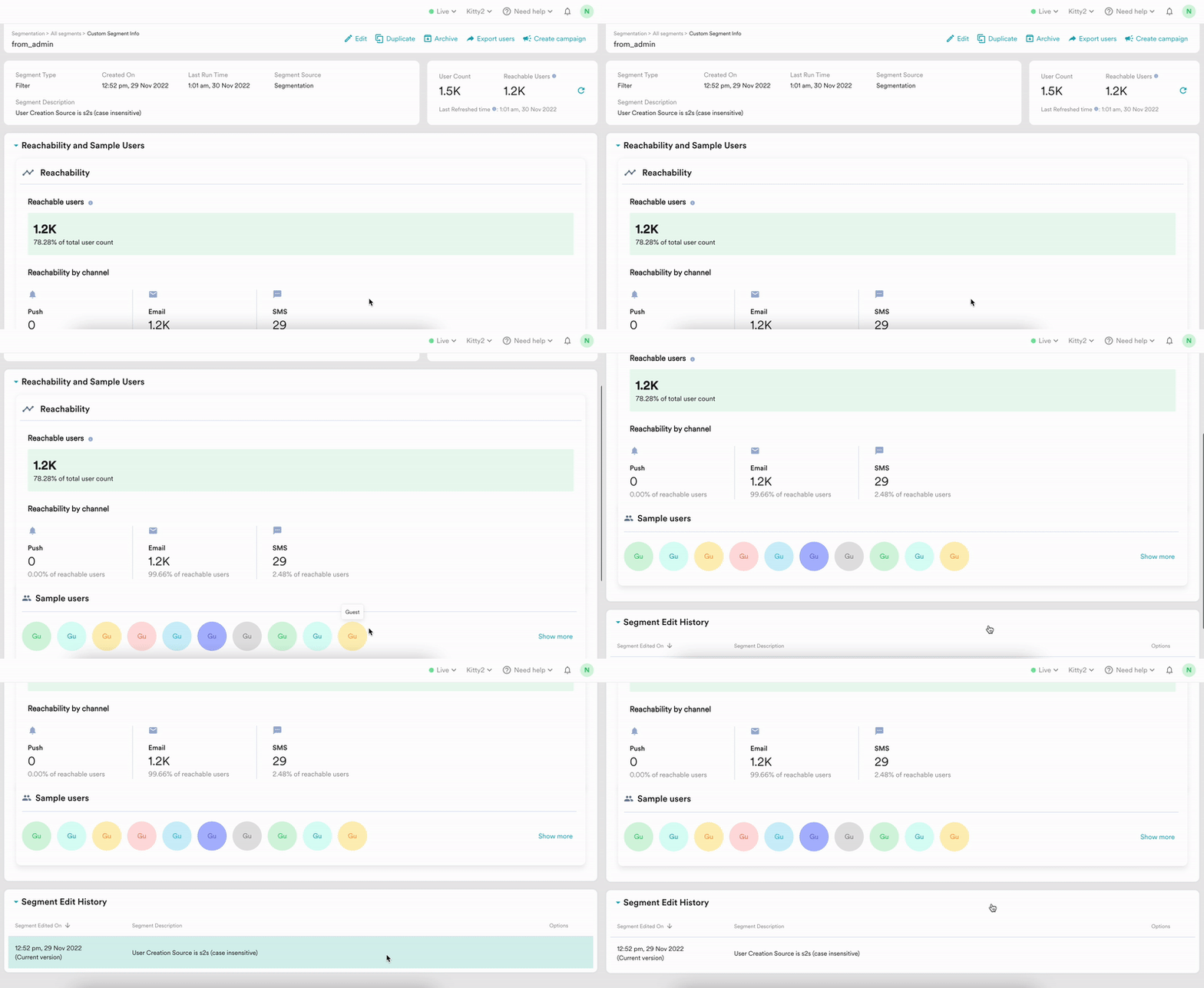
The Segment Details page lists the Segment type, description, created time, source, and the last run time of the segment.
This page also shows the user count, reachable users, and the last refreshed time of a custom segment. You can run the segment from here to get the latest user count and reachable users as well.
All actions on a custom segment (edit, duplicate, archive, export users and create campaigns) are available on this page based on the segment type and segment source.
Growth teams can also view the reachability and sample user information as available currently on the Create Segment Page. You can also view the Segment Edit History based on the type of the segment.
Keep the following in mind when renaming:
* Only users with **Create & Manage** permission in Segments can rename a segment.
* Segment names must pass character limits and uniqueness checks. Names cannot be reused, even for archived segments.
You cannot rename segments sourced from Campaigns, Imports, Locales, Global Control Groups, Data Science (predictions), or partner integrations (such as Amplitude, Mixpanel, or Segment).
### Archive and Unarchive a Segment
To archive a segment:
1. Go to **Segment** > **All Segments**.
2. Search for the segment you want to archive.
3. Click the ellipsis icon and select **Archive**.
Note the following archival behavior:
* Archived segments are not available in the segment dropdown across the MoEngage dashboard.
* If an archived rule-based segment is used in a campaign, the campaign still calculates it based on its rules. If an archived file segment is used, it returns 0 users.
* Segments that have not been run in the last 60 days are automatically archived.
* All users from an archived file segment are dropped after 30 days of archival. After that, the segment returns 0 users.
* Segment names cannot be reused, even when a segment is archived.
To unarchive a segment, go to **Segment** > **All Segments**, enable the **Archived Segments** toggle, find the segment, and click **Unarchive**.
# Segment Details
Clicking on the Segment Name from the All Segments page will lead you to the Segment Details page of that particular segment. You can navigate to this page from All Segments > Choose segment > Actions: View as well.
The Segment Details page lists the Segment type, description, created time, source, and the last run time of the segment.
This page also shows the user count, reachable users, and the last refreshed time of a custom segment. You can run the segment from here to get the latest user count and reachable users as well.
All actions on a custom segment (edit, duplicate, archive, export users and create campaigns) are available on this page based on the segment type and segment source.
Growth teams can also view the reachability and sample user information as available currently on the Create Segment Page. You can also view the Segment Edit History based on the type of the segment.
 ## Reachability and Sample users
**Reachable Users**
This will show the reachable user count across all outbound channels (Push, Email & SMS). Reachable user count is also available for specific channels individually.
**Sample users** initials or GU(Stands for Guest) - Click on these bubbles to open the user profile.
## Segment Edit History
The Segment Edit History section on the Segment Details page is based on the Segment Type of the chosen segment.
### File Segment Edit History
The Edit history for file segments shows the following columns - Segment Edited on (time of edit), Operation (Add, Remove, Replace users), Status of Operation, and details of the file processed.
## Reachability and Sample users
**Reachable Users**
This will show the reachable user count across all outbound channels (Push, Email & SMS). Reachable user count is also available for specific channels individually.
**Sample users** initials or GU(Stands for Guest) - Click on these bubbles to open the user profile.
## Segment Edit History
The Segment Edit History section on the Segment Details page is based on the Segment Type of the chosen segment.
### File Segment Edit History
The Edit history for file segments shows the following columns - Segment Edited on (time of edit), Operation (Add, Remove, Replace users), Status of Operation, and details of the file processed.
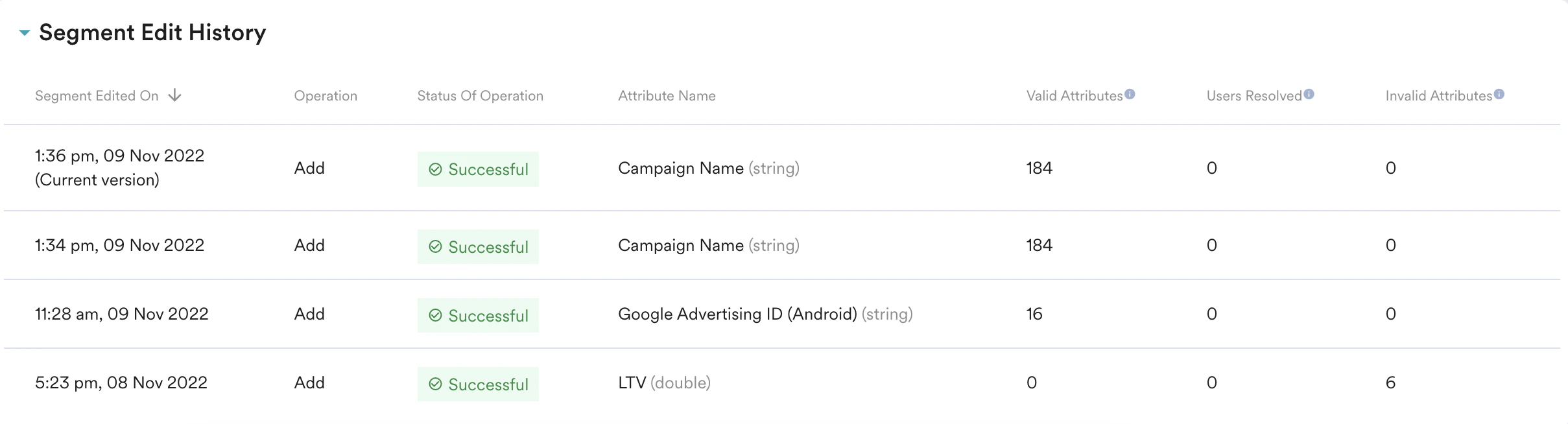 The Status of the Operation can have the following values:
1. Pending: Pending file segments are yet to be processed as there is already another file in the processing queue.
2. Processing: These file segments are currently being processed by the system.
3. Successful: File segments are processed successfully and their attributes are updated.
4. Failed: File segments that have failed while processing. On hovering over this status, you will be able to view the reason for failure as well.
Details of the file processed:
1. Attribute name: This column shows the user attribute uploaded in the file along with its data type.
2. Valid attributes: This indicates the number of records that were successfully processed in the file uploaded.
3. Users resolved: This indicates the number of existing users updated with the user attribute provided in the file. These users then become part of the custom segment.
4. Invalid attributes: This indicates the number of records in the file that failed during processing.
By default, this table is ordered in the ‘Segment edited on’ column, showing the latest edit first. You should be able to see the last 20 edits in the edit history of the file segment.
### Filter Segment Edit History
The Edit History for filter segments shows the following columns - Segment edited on(time of edit), Segment description, and Option (Use this version).
The Status of the Operation can have the following values:
1. Pending: Pending file segments are yet to be processed as there is already another file in the processing queue.
2. Processing: These file segments are currently being processed by the system.
3. Successful: File segments are processed successfully and their attributes are updated.
4. Failed: File segments that have failed while processing. On hovering over this status, you will be able to view the reason for failure as well.
Details of the file processed:
1. Attribute name: This column shows the user attribute uploaded in the file along with its data type.
2. Valid attributes: This indicates the number of records that were successfully processed in the file uploaded.
3. Users resolved: This indicates the number of existing users updated with the user attribute provided in the file. These users then become part of the custom segment.
4. Invalid attributes: This indicates the number of records in the file that failed during processing.
By default, this table is ordered in the ‘Segment edited on’ column, showing the latest edit first. You should be able to see the last 20 edits in the edit history of the file segment.
### Filter Segment Edit History
The Edit History for filter segments shows the following columns - Segment edited on(time of edit), Segment description, and Option (Use this version).
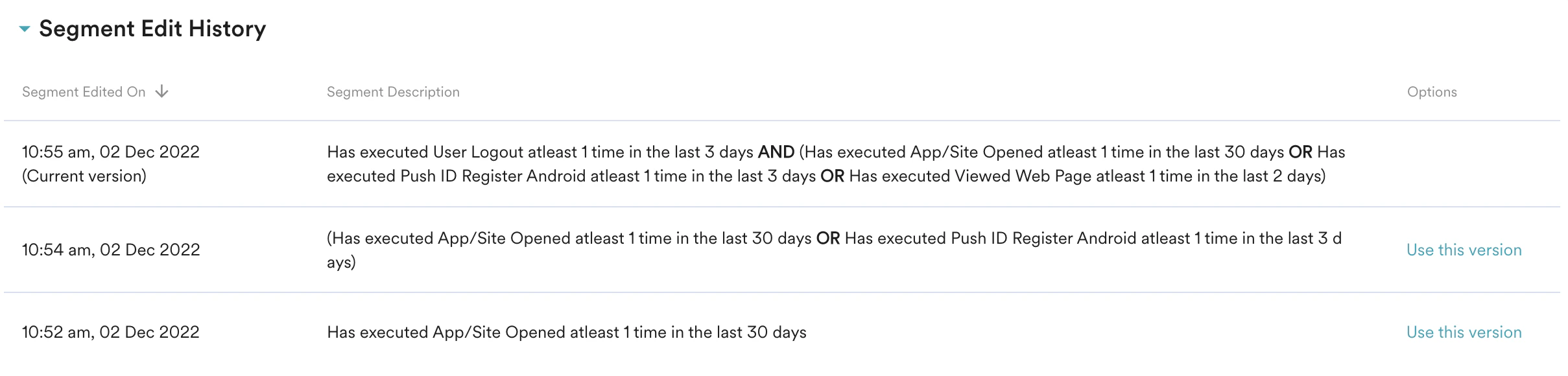 You can click on **Use this version** on an older version of the segment, to update the current segment definition to the chosen version. Refresh the segment count to get the latest user count and reachability of the edited segment.
By default, this table is ordered in the ‘Segment edited on’ column, showing the latest edit first. You should be able to see the last 20 edits in the edit history of the filter segment.
### Segment Renamed
**Early Access** \
This is an Early Access feature. To enable it for your account, please contact your MoEngage Customer Success Manager (CSM) or the Support team.
When a segment is renamed, the Segment Detail Page automatically updates its dynamic headers. Additionally, the Segment Edit History table will reflect this change:
You can click on **Use this version** on an older version of the segment, to update the current segment definition to the chosen version. Refresh the segment count to get the latest user count and reachability of the edited segment.
By default, this table is ordered in the ‘Segment edited on’ column, showing the latest edit first. You should be able to see the last 20 edits in the edit history of the filter segment.
### Segment Renamed
**Early Access** \
This is an Early Access feature. To enable it for your account, please contact your MoEngage Customer Success Manager (CSM) or the Support team.
When a segment is renamed, the Segment Detail Page automatically updates its dynamic headers. Additionally, the Segment Edit History table will reflect this change: 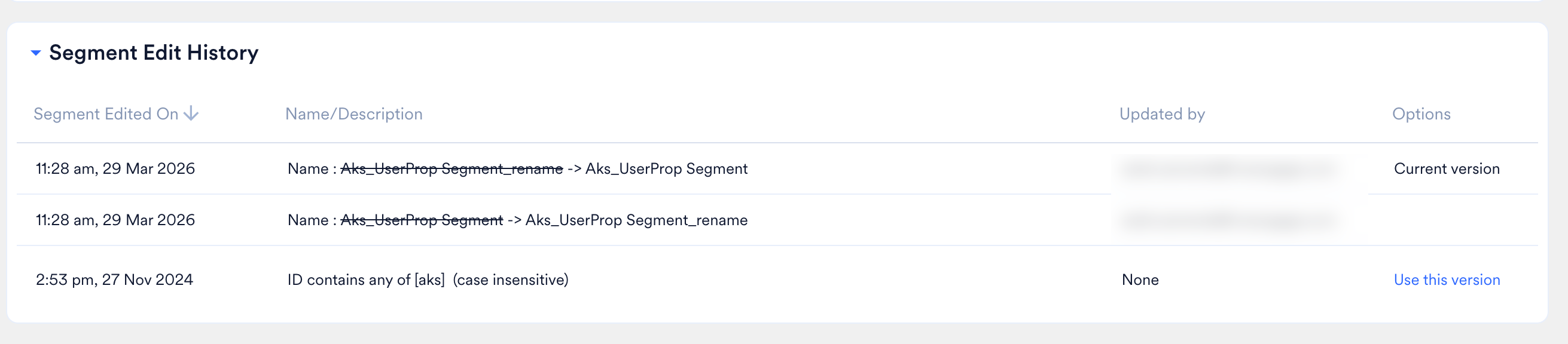 * The previous name appears with a strikethrough before the new name (For example, Name : ~~Custom Segment 1~~ -> Custom Segment 2)
* Users cannot take action on this specific row.
* All historical versions of the segment are stored as static text and will not change with the event name change or segment name change.
* The **Updated By** column in the Segment Edit History records who modified a segment, with the following conditions:
* **Filter-based segments**: Tracks all subsequent edits, but does not track the initial creation.
* **File-based segments**: Only tracks when a segment is renamed. It does not track the initial creation or general file updates.
## Synced Segments
You can sync and send customer segments created on MoEngage to any other platform in your tech stack. For more information, refer to [Outbound Segment Sync](/docs/user-guide/data/exports/segments/outbound-segment-sync).
## Troubleshooting
If the user count in your custom segment is lower than the number of users in your uploaded file, there are two common reasons:
* **Duplicate user IDs in the file:** MoEngage ignores duplicates. Each unique user ID is counted once.
* **Users not yet in MoEngage:** File segments can only contain users who already exist in MoEngage. If an uploaded user ID doesn't match an existing profile, that user is excluded from the segment.
For more information, read [Import User Data Using CSV](/docs/user-guide/data/imports/file-based-imports/import-user-data-using-csv).
* The previous name appears with a strikethrough before the new name (For example, Name : ~~Custom Segment 1~~ -> Custom Segment 2)
* Users cannot take action on this specific row.
* All historical versions of the segment are stored as static text and will not change with the event name change or segment name change.
* The **Updated By** column in the Segment Edit History records who modified a segment, with the following conditions:
* **Filter-based segments**: Tracks all subsequent edits, but does not track the initial creation.
* **File-based segments**: Only tracks when a segment is renamed. It does not track the initial creation or general file updates.
## Synced Segments
You can sync and send customer segments created on MoEngage to any other platform in your tech stack. For more information, refer to [Outbound Segment Sync](/docs/user-guide/data/exports/segments/outbound-segment-sync).
## Troubleshooting
If the user count in your custom segment is lower than the number of users in your uploaded file, there are two common reasons:
* **Duplicate user IDs in the file:** MoEngage ignores duplicates. Each unique user ID is counted once.
* **Users not yet in MoEngage:** File segments can only contain users who already exist in MoEngage. If an uploaded user ID doesn't match an existing profile, that user is excluded from the segment.
For more information, read [Import User Data Using CSV](/docs/user-guide/data/imports/file-based-imports/import-user-data-using-csv).
 The filters available for a custom attribute depend on the data type MoEngage receives for it. If date-based filters (such as "before", "after", or "between") are unavailable for a date attribute, the attribute is likely being received as a string instead of a datetime.
This typically happens when:
* The attribute was initially set up as a datetime, but your app later started sending it as a string.
* The same attribute is sent with different data types from different sources.
To fix this, ensure all sources send the attribute in the same, correct data type. Contact your development team to verify the data type being sent.
MoEngage uses segment names as unique identifiers to track and manage references across the system. To protect data integrity, a segment name cannot be reused — even if the original segment is archived and no longer visible in the dashboard.
To resolve this, use a different name for your new segment.
The filters available for a custom attribute depend on the data type MoEngage receives for it. If date-based filters (such as "before", "after", or "between") are unavailable for a date attribute, the attribute is likely being received as a string instead of a datetime.
This typically happens when:
* The attribute was initially set up as a datetime, but your app later started sending it as a string.
* The same attribute is sent with different data types from different sources.
To fix this, ensure all sources send the attribute in the same, correct data type. Contact your development team to verify the data type being sent.
MoEngage uses segment names as unique identifiers to track and manage references across the system. To protect data integrity, a segment name cannot be reused — even if the original segment is archived and no longer visible in the dashboard.
To resolve this, use a different name for your new segment.