> ## Documentation Index
> Fetch the complete documentation index at: https://moengage.com/docs/llms.txt
> Use this file to discover all available pages before exploring further.
# API Key Dashboard
> Manage API keys in MoEngage for authentication and data access. View workspace ID, generate keys, and control permissions from the dashboard.
This is an Early Access feature. To enable it for your account, please contact your MoEngage Customer Success Manager (CSM) or the Support team.
# Overview
API keys are typically used as an authentication or authorization mechanism. They are unique identifiers associated with a user or an application with access to API resources.
The API keys serve as a way for the API provider to track and control access to their resources. They help ensure the security and accountability of API access and allow providers to manage and monitor usage effectively.
The multikey feature is currently supported by data, segmentation, and push APIs.
To send data to MoEngage, you can use the Workspace ID and API key for that particular data. The API key used for sending user data differs from the API key used for sending events. Whenever a key is regenerated, the old key expires immediately, and it takes some time for the new key to become functional, leading to possible downtimes. As a solution, MoEngage provides multiple API keys, which help you to:
* **Generate a new key while the existing key is still available**: With the multi-key support, the existing key can be used until the new key becomes functional. This helps you rotate your keys for security purposes and avoid downtime. Consider a scenario in which your internal team creates a new key, and it takes some time for the team to integrate it into the system. Because the old key is still functional, your team has the time to integrate the new key into the system. After integrating the new key, you can deprecate the old key. This avoids downtime when sending data to MoEngage.
* **Use different keys for different teams**: Consider a scenario where an enterprise customer works with various vendors. This enterprise customer can share a key with one of its vendors to fulfill a business use case, which restricts the other vendors from fulfilling the same use case for security reasons. Using this feature, all vendors can fulfill the same use case by accessing it using different keys. Furthermore, as an enterprise customer, you can use different keys for different internal teams based on their functionalities.
# Create a Key
* After the multi-API key feature is enabled, the existing API keys in the API dashboard are migrated to your new API key dashboard as legacy keys.
* You can view the legacy key details and continue to use them. But you cannot archive, edit, or regenerate them.
* MoEngage recommends creating and utilizing new keys because legacy keys will be deprecated in the future.
Perform the following steps to create a key:
1. On the left navigation menu in the MoEngage dashboard, go to **Settings** > **Account** > **API keys**.
2. Click **+ Create new key**. 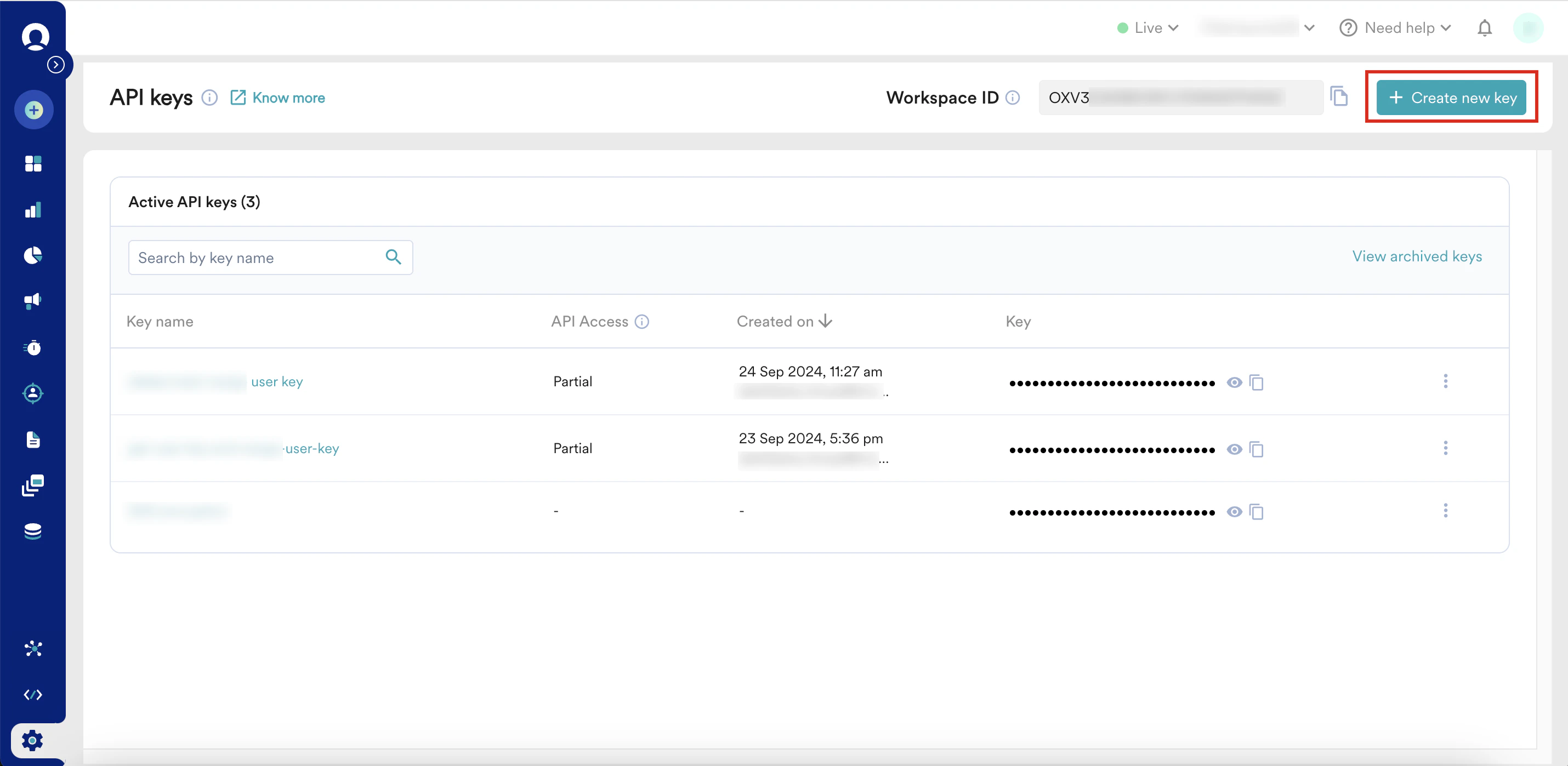 3. In the **Create new key** page, enter the following details:
1. In the **Key name** box, type a name for your key to facilitate easy identification.
2. In the **Select APIs for access** check box list, select the APIs you want to access using this key.
3. In the **Create new key** page, enter the following details:
1. In the **Key name** box, type a name for your key to facilitate easy identification.
2. In the **Select APIs for access** check box list, select the APIs you want to access using this key. 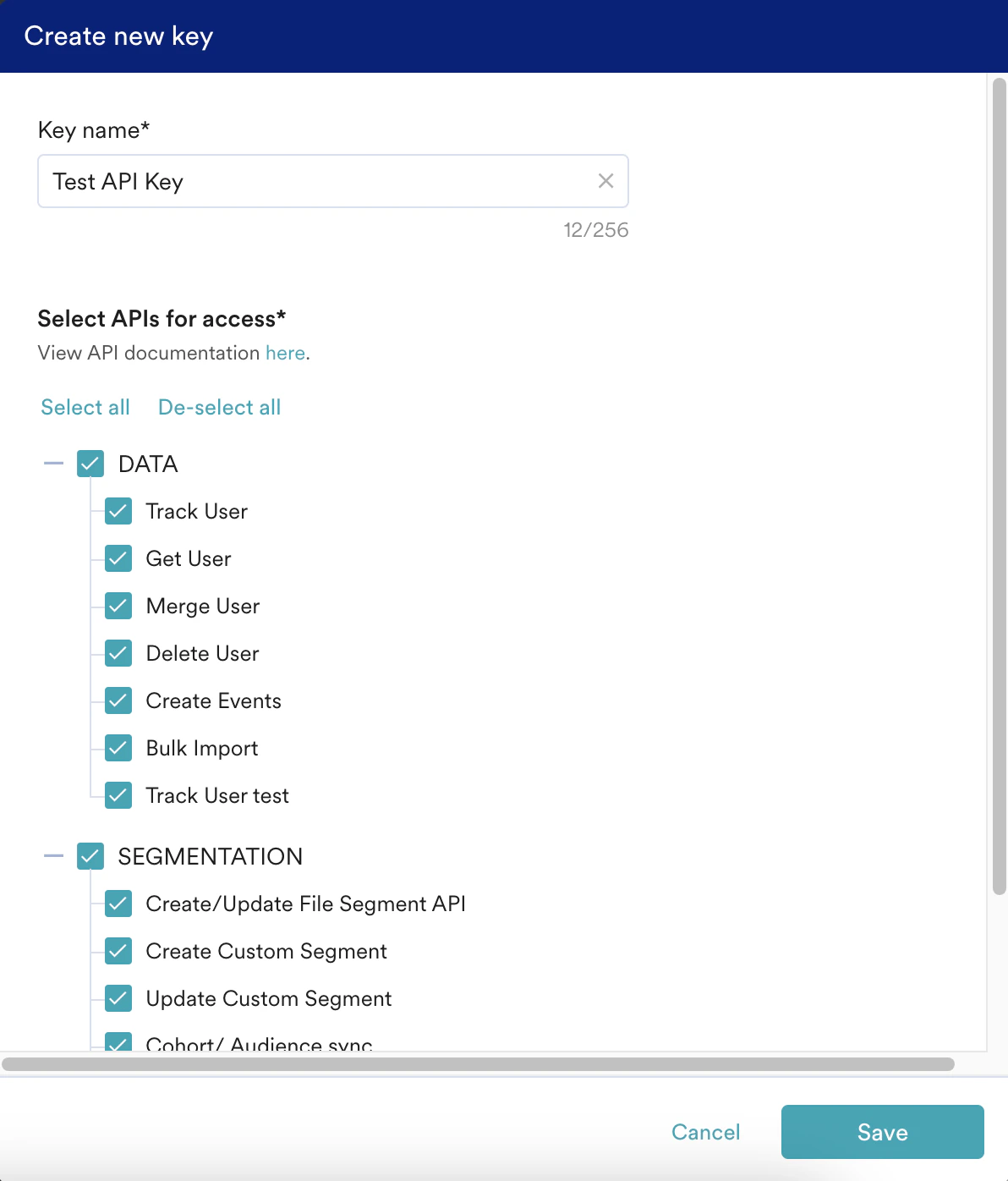 4. Click **Save**. After saving, this key is listed under **Active** **API keys**.
The **API Access** is **Full** if all listed APIs can be accessed using this key; otherwise, it is **Partial**.
5. Click **View archived keys** to view the list of archived keys.
6. On the **API Keys** page, clicking for each API key displays the following options:
4. Click **Save**. After saving, this key is listed under **Active** **API keys**.
The **API Access** is **Full** if all listed APIs can be accessed using this key; otherwise, it is **Partial**.
5. Click **View archived keys** to view the list of archived keys.
6. On the **API Keys** page, clicking for each API key displays the following options:  | Option | Description |
| ---------------- | ----------------------------------------------------------------------------------------------------------------------------------------------------------------------------------------------------------------------------------------------------------------------------------------------------------------------------------------------------------------------------------------------------------------------------------------------------------------------------------------------------------------------------------------------------------------------------------------------------------------------------------------------------------------------------------------------------------------------------------------------------------------------------------------------------------------------------------------------------------------------------------------------------------------------------------------------------------------------------------------------------------------------------------------------------------------------------------------------------------------------------------------------------------------------------------------------------------------------------------------------------------------------------------------------------------------------------------------------------------------------------------------------------------------------------------------------------------------------------------------------------------------------------------------------- |
| View key details | Click this option to view the key details. You can access the edit key and regenerate key options from the **View key details** page.
| Option | Description |
| ---------------- | ----------------------------------------------------------------------------------------------------------------------------------------------------------------------------------------------------------------------------------------------------------------------------------------------------------------------------------------------------------------------------------------------------------------------------------------------------------------------------------------------------------------------------------------------------------------------------------------------------------------------------------------------------------------------------------------------------------------------------------------------------------------------------------------------------------------------------------------------------------------------------------------------------------------------------------------------------------------------------------------------------------------------------------------------------------------------------------------------------------------------------------------------------------------------------------------------------------------------------------------------------------------------------------------------------------------------------------------------------------------------------------------------------------------------------------------------------------------------------------------------------------------------------------------------- |
| View key details | Click this option to view the key details. You can access the edit key and regenerate key options from the **View key details** page. 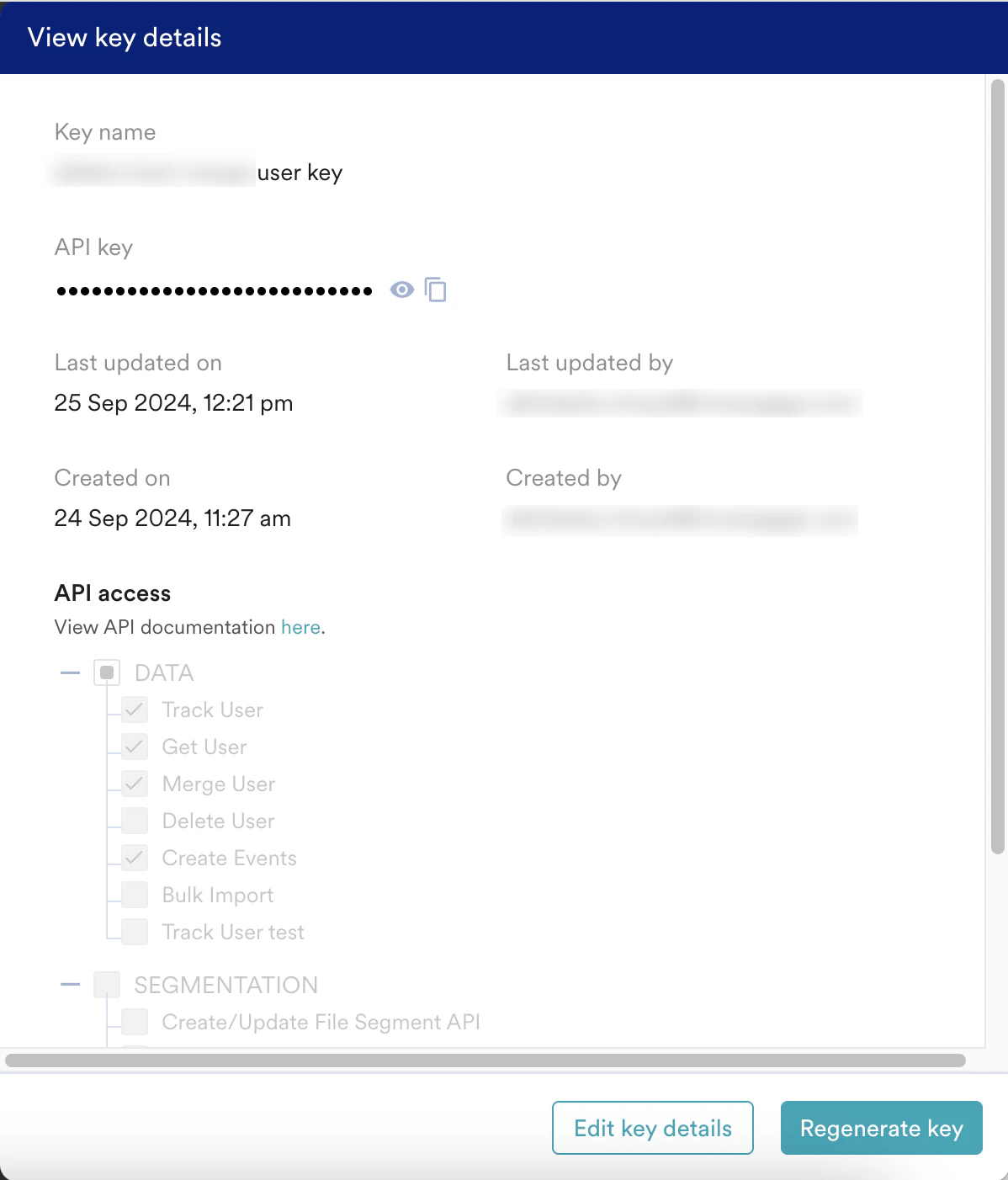 |
| Regenerate key | Click this optionto regenerate a new key. **Note**: The old key expires immediately after regenerating. To avoid errors, replace the old key with the regenerated key. |
| Edit key details | Click this option to edit the key name or access to your APIs. |
| Archive key | Click this option to archive your keys. After archiving them once, you cannot unarchive keys. **Note**: A maximum of 10 archived keys is maintained under the archived key list. |
# Audit Logs
|
| Regenerate key | Click this optionto regenerate a new key. **Note**: The old key expires immediately after regenerating. To avoid errors, replace the old key with the regenerated key. |
| Edit key details | Click this option to edit the key name or access to your APIs. |
| Archive key | Click this option to archive your keys. After archiving them once, you cannot unarchive keys. **Note**: A maximum of 10 archived keys is maintained under the archived key list. |
# Audit Logs
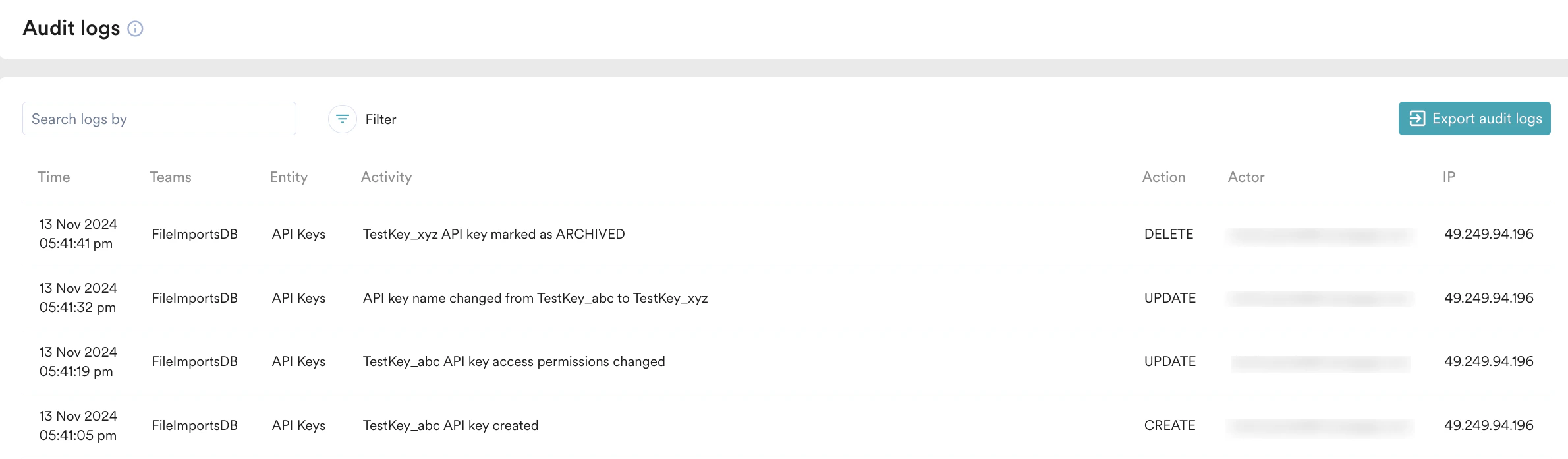 Admins use audit logs to understand the various actions performed in the MoEngage dashboard. Similarly, the audit logs also list any actions related to API keys. This helps admins know who performed what actions related to API keys. The following actions are supported in **Audit logs**:
* Click to filter audit logs based on **Team(s)**, **Action**, **Actor**, and **Date time Range**.
* Type the value in the **Search logs by** search bar for which you want to fetch the audit logs.
* Click **Export audit logs** to receive the audit log report in your email. You can download the report from the email.
Note that, for all the actions related to API keys, the **Entity** column in **Audit logs** displays **API Keys**. You can view the following actions related to API keys in audit logs, in the **Action** column:
* **Create** is displayed when an API key is created successfully.
* **Update** is displayed when:
* A key name is updated.
* The API access for a key is updated.
* A key is regenerated.
* **Delete** is displayed when a key is archived.
Admins use audit logs to understand the various actions performed in the MoEngage dashboard. Similarly, the audit logs also list any actions related to API keys. This helps admins know who performed what actions related to API keys. The following actions are supported in **Audit logs**:
* Click to filter audit logs based on **Team(s)**, **Action**, **Actor**, and **Date time Range**.
* Type the value in the **Search logs by** search bar for which you want to fetch the audit logs.
* Click **Export audit logs** to receive the audit log report in your email. You can download the report from the email.
Note that, for all the actions related to API keys, the **Entity** column in **Audit logs** displays **API Keys**. You can view the following actions related to API keys in audit logs, in the **Action** column:
* **Create** is displayed when an API key is created successfully.
* **Update** is displayed when:
* A key name is updated.
* The API access for a key is updated.
* A key is regenerated.
* **Delete** is displayed when a key is archived.