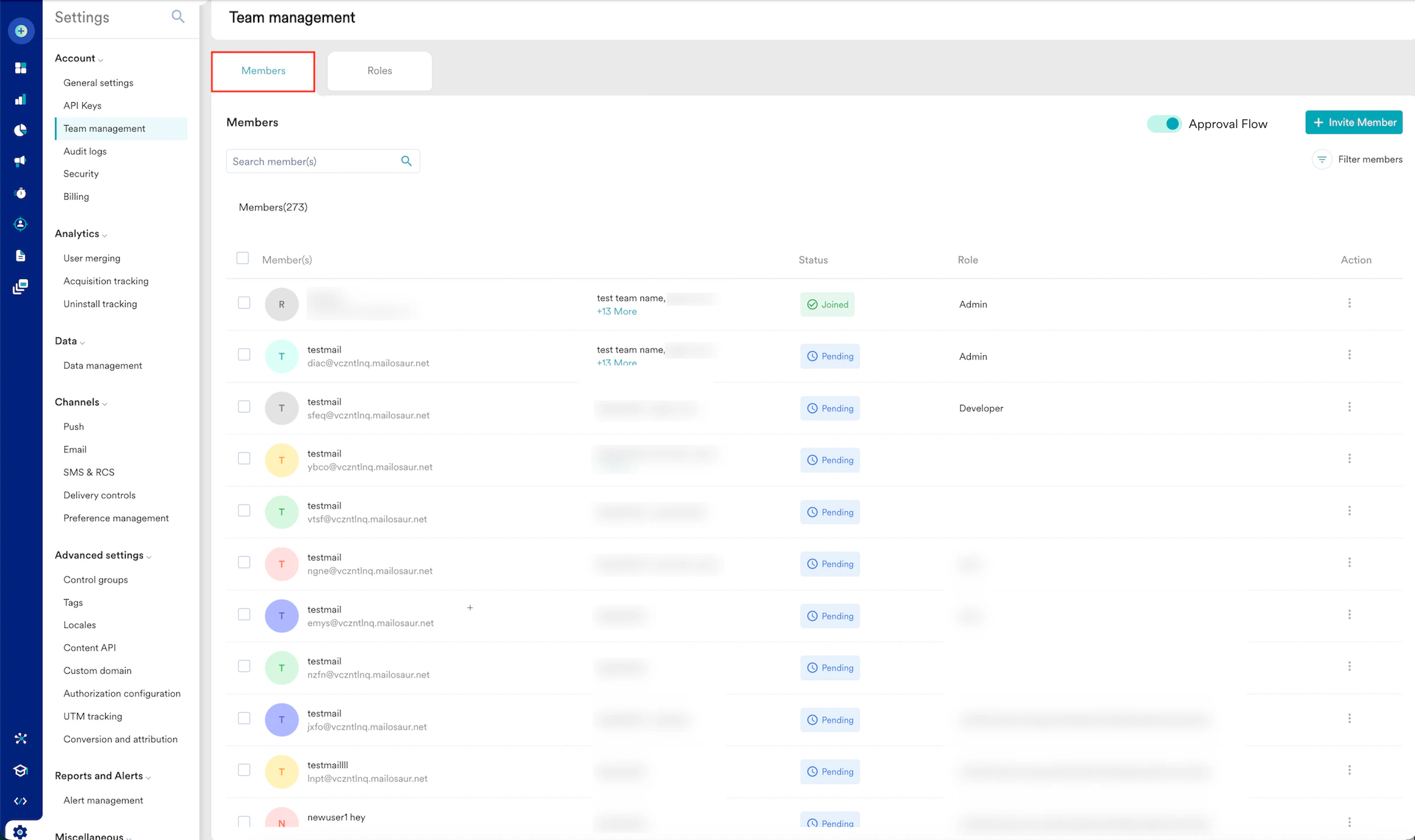
 On the Team management page, the data is displayed in a tabular format, with columns containing details related to each member.
| Columns | Description |
| --------- | ------------------------------------------------------------------------------------------------------------------------------------------------------------------------------------------------------------------------------------------------------------------------------------------------------------------------------------------------------------------------------------------------------ |
| Member(s) | This specifies the name and email ID of the member. |
| Status | This specifies the member's status, such as Joined, Pending, or Access revoked.
On the Team management page, the data is displayed in a tabular format, with columns containing details related to each member.
| Columns | Description |
| --------- | ------------------------------------------------------------------------------------------------------------------------------------------------------------------------------------------------------------------------------------------------------------------------------------------------------------------------------------------------------------------------------------------------------ |
| Member(s) | This specifies the name and email ID of the member. |
| Status | This specifies the member's status, such as Joined, Pending, or Access revoked. 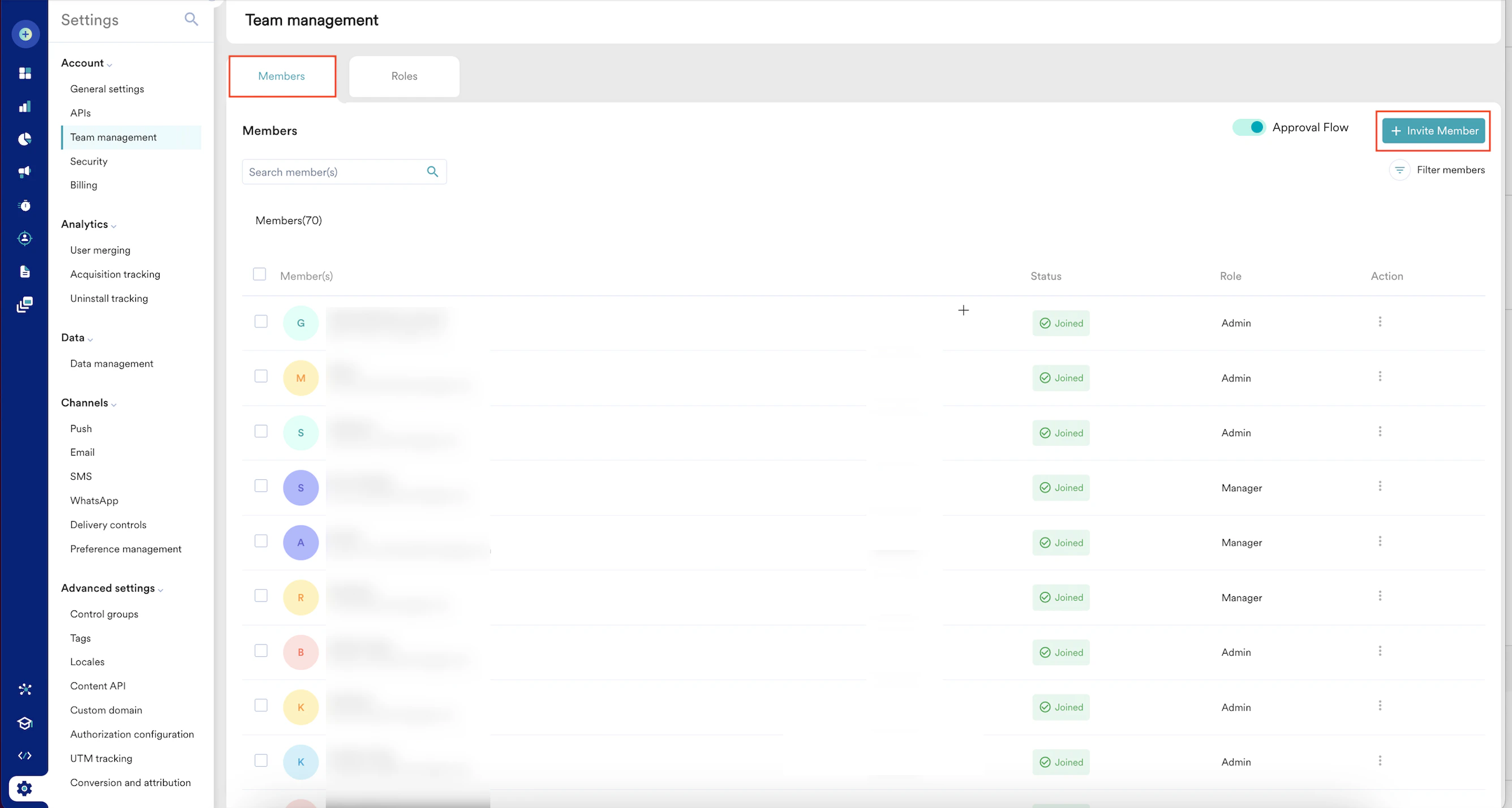 The Invite members pop-up window appears.
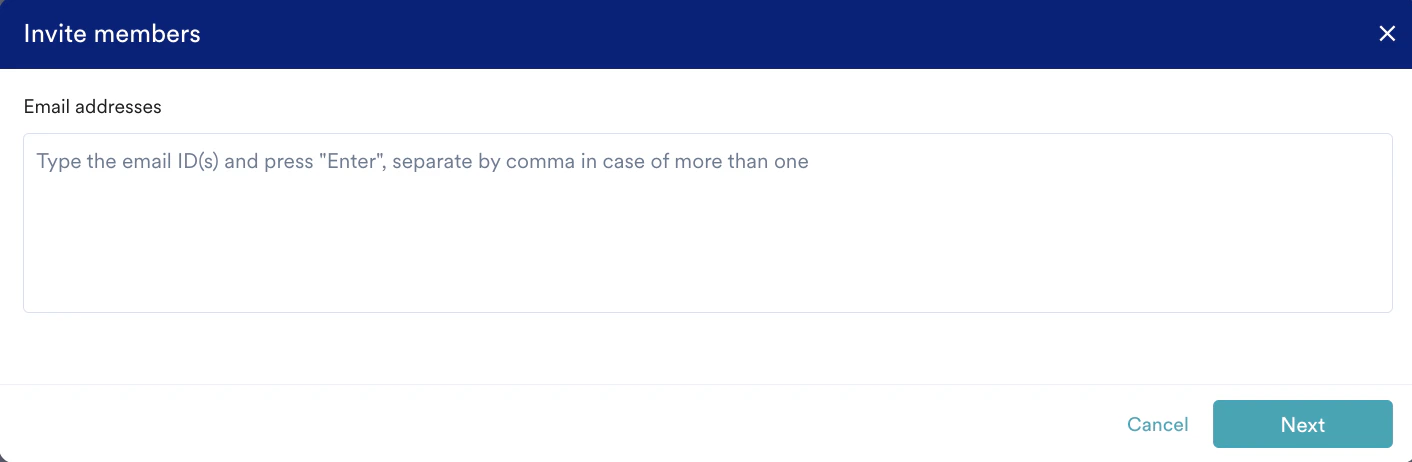 2. In the **Email addresses** box, type the email address of the member you want to invite.
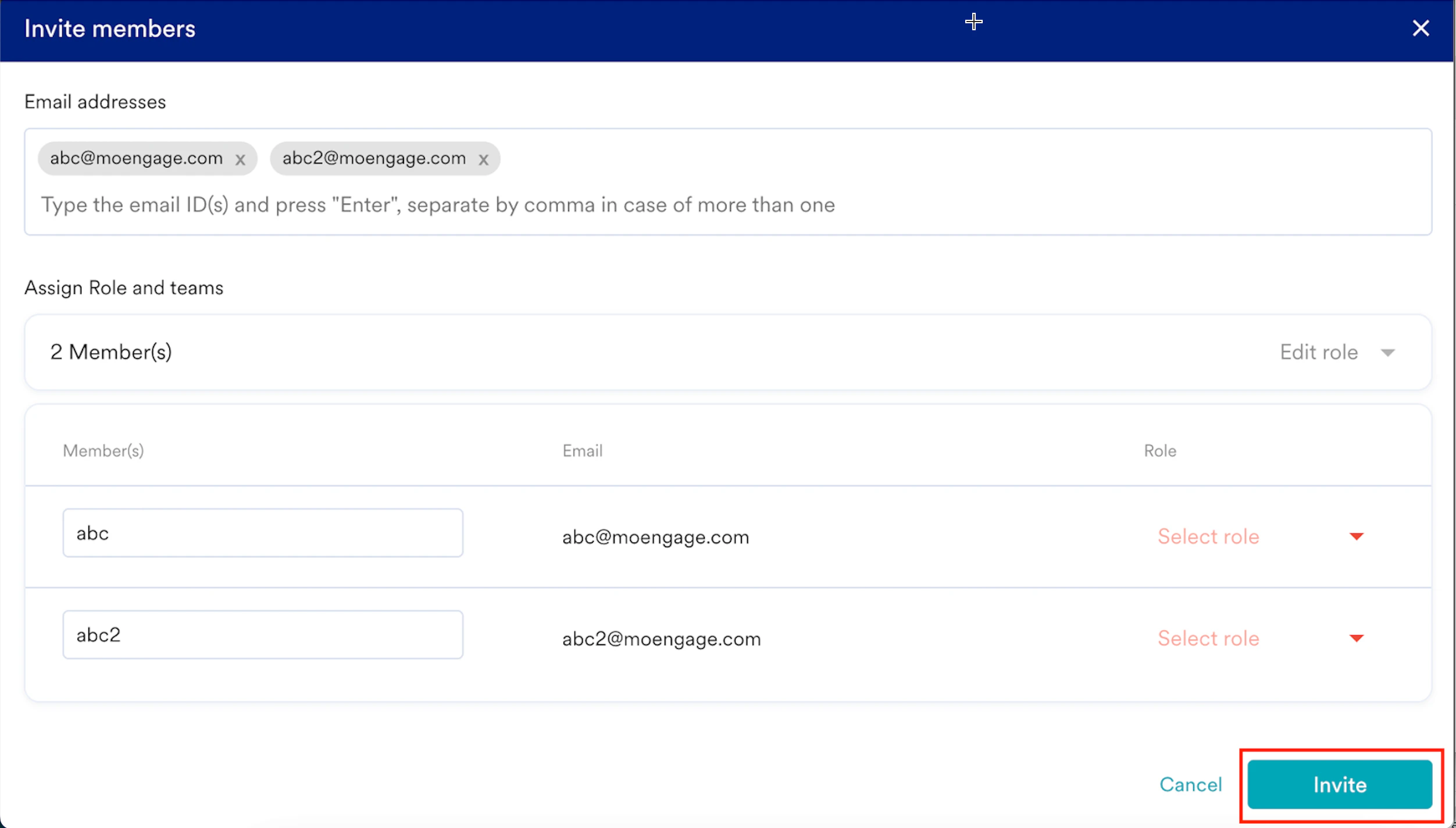 | |
5. Click **Invite**.
# Filter Members
You can filter the members in two ways:
### Search Members
1. On the left navigation menu in the MoEngage dashboard, click **Settings** > **Account** >**Team management**. The **Team management** page appears.
2. In the **Search members(s)** box, type the name or email ID of the member.
| |
5. Click **Invite**.
# Filter Members
You can filter the members in two ways:
### Search Members
1. On the left navigation menu in the MoEngage dashboard, click **Settings** > **Account** >**Team management**. The **Team management** page appears.
2. In the **Search members(s)** box, type the name or email ID of the member. 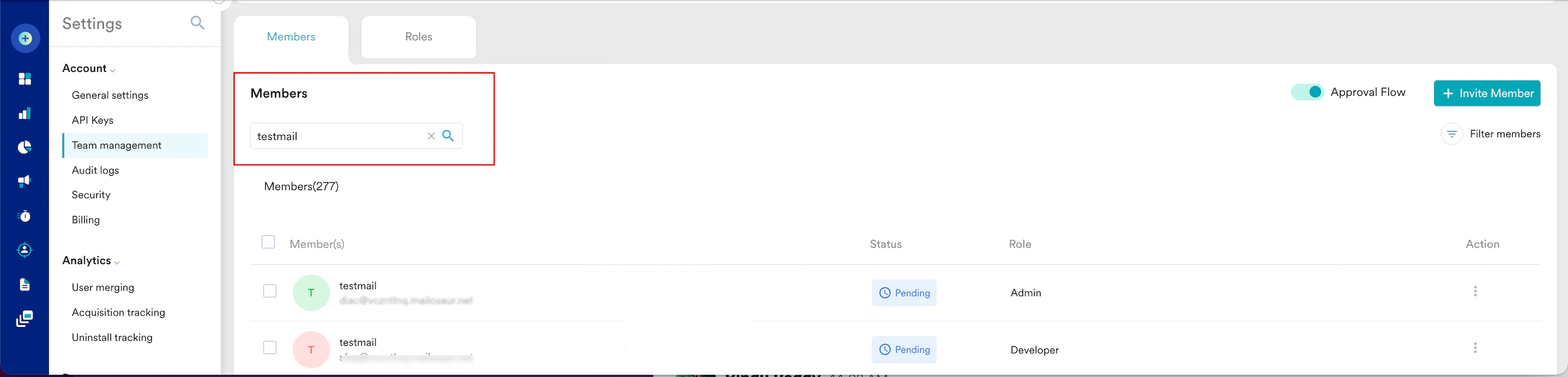 ### Filter Members
1. Click the **Filter members** icon.
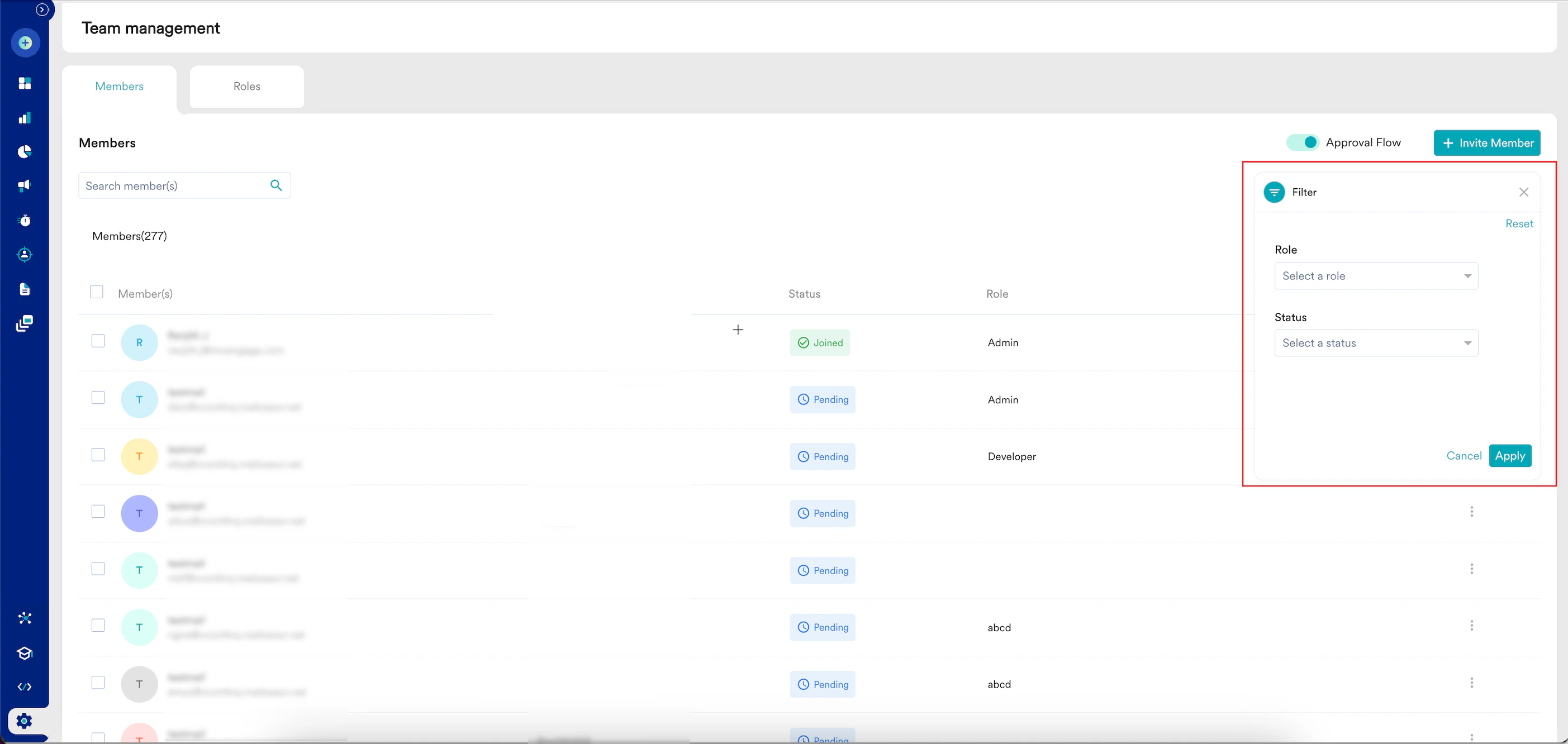
2. On the Filter dialog box, enter the following details:
| Field | Description |
| ----------------------------------------------------------------------------------------------------------------------------------------------------------------------------------------------------------------------------------------------------------------------------------------------------------------------------------------------------------------------------------------------------------------------------------------------------------------------------------------------------------------------------------------------------------------------------------------------------------------------------------------------------------------------------------------------------------------------------------------------------------------------------------------------------------------------------------------------------------------------------------------------------------------------------------------------------------------------------------------------------------------------------------------------------------------------------------------------------------------------------------------------------------------------------------------------------------------------------------------------------------------------------------------------------------------------------------------------------------------- | ----------------------------------------------------------- |
| Role | Select the role of the member. |
| Status | Select the status of the member, such as Joined or Pending. |
|
### Filter Members
1. Click the **Filter members** icon.
2. On the Filter dialog box, enter the following details:
| Field | Description |
| ----------------------------------------------------------------------------------------------------------------------------------------------------------------------------------------------------------------------------------------------------------------------------------------------------------------------------------------------------------------------------------------------------------------------------------------------------------------------------------------------------------------------------------------------------------------------------------------------------------------------------------------------------------------------------------------------------------------------------------------------------------------------------------------------------------------------------------------------------------------------------------------------------------------------------------------------------------------------------------------------------------------------------------------------------------------------------------------------------------------------------------------------------------------------------------------------------------------------------------------------------------------------------------------------------------------------------------------------------------------- | ----------------------------------------------------------- |
| Role | Select the role of the member. |
| Status | Select the status of the member, such as Joined or Pending. |
|  | |
3. Click **Apply**.
# Edit Individual Members
For each member you have invited to the workspace, you can perform the following tasks in the **Action** column.
* [Edit a Member’s Role](/docs/user-guide/settings/account/team-management/manage-members#edit-a-member’s-role)
* [Revoke Access from a Member](/docs/user-guide/settings/account/team-management/manage-members#revoke-a-member’s-access)
* [Grant Access to a Member](/docs/user-guide/settings/account/team-management/manage-members#grant-access-to-a-member)
* [Resend Invite to a Member](/docs/user-guide/settings/account/team-management/manage-members#resend-invite-to-a-member)
* [Delete a Member](/docs/user-guide/settings/account/team-management/manage-members#delete-a-member)
## Edit a Member’s Role
| |
3. Click **Apply**.
# Edit Individual Members
For each member you have invited to the workspace, you can perform the following tasks in the **Action** column.
* [Edit a Member’s Role](/docs/user-guide/settings/account/team-management/manage-members#edit-a-member’s-role)
* [Revoke Access from a Member](/docs/user-guide/settings/account/team-management/manage-members#revoke-a-member’s-access)
* [Grant Access to a Member](/docs/user-guide/settings/account/team-management/manage-members#grant-access-to-a-member)
* [Resend Invite to a Member](/docs/user-guide/settings/account/team-management/manage-members#resend-invite-to-a-member)
* [Delete a Member](/docs/user-guide/settings/account/team-management/manage-members#delete-a-member)
## Edit a Member’s Role
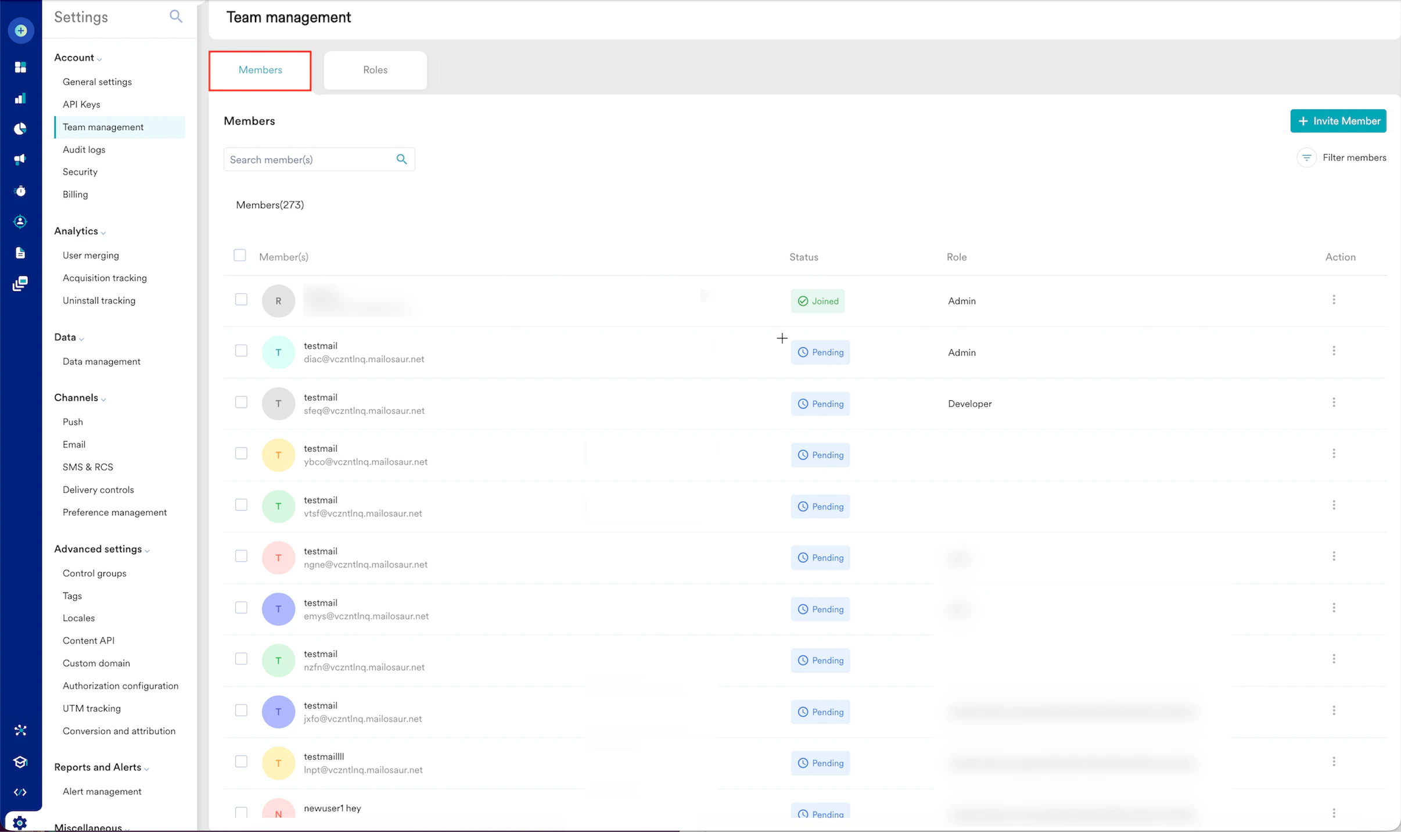 2. Click **Edit role**.
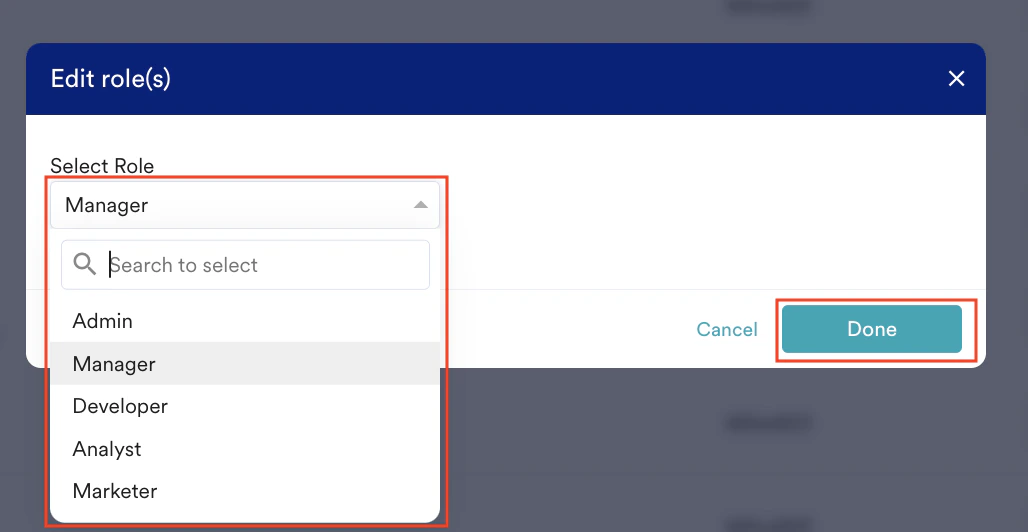
  The **Edit role(s)** pop-up window appears.
3. In the **Select Role** list, select the desired role.
4. Click **Done**.
The **Edit role(s)** pop-up window appears.
3. In the **Select Role** list, select the desired role.
4. Click **Done**.
 The member role is now assigned successfully.
2. Click **Revoke access**.
The member role is now assigned successfully.
2. Click **Revoke access**.  The **Revoke access** pop-up window appears, prompting for confirmation to revoke the member's access.
3. Click **Revoke**.
The **Revoke access** pop-up window appears, prompting for confirmation to revoke the member's access.
3. Click **Revoke**.
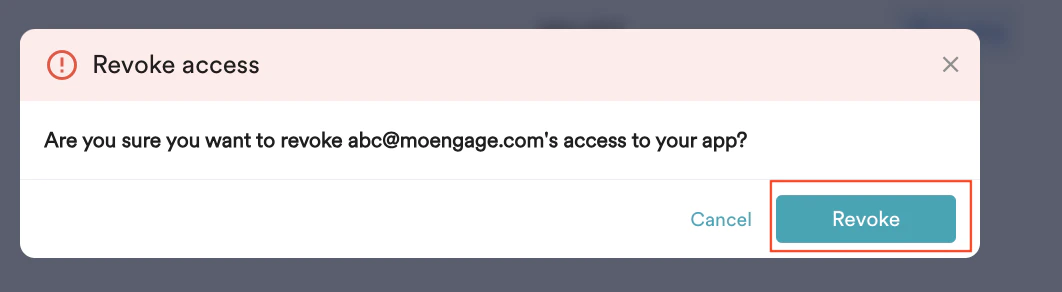 The member's access has been successfully revoked.
## Grant Access to a Member
3. Click **Grant access**.
The member's access has been successfully revoked.
## Grant Access to a Member
3. Click **Grant access**.
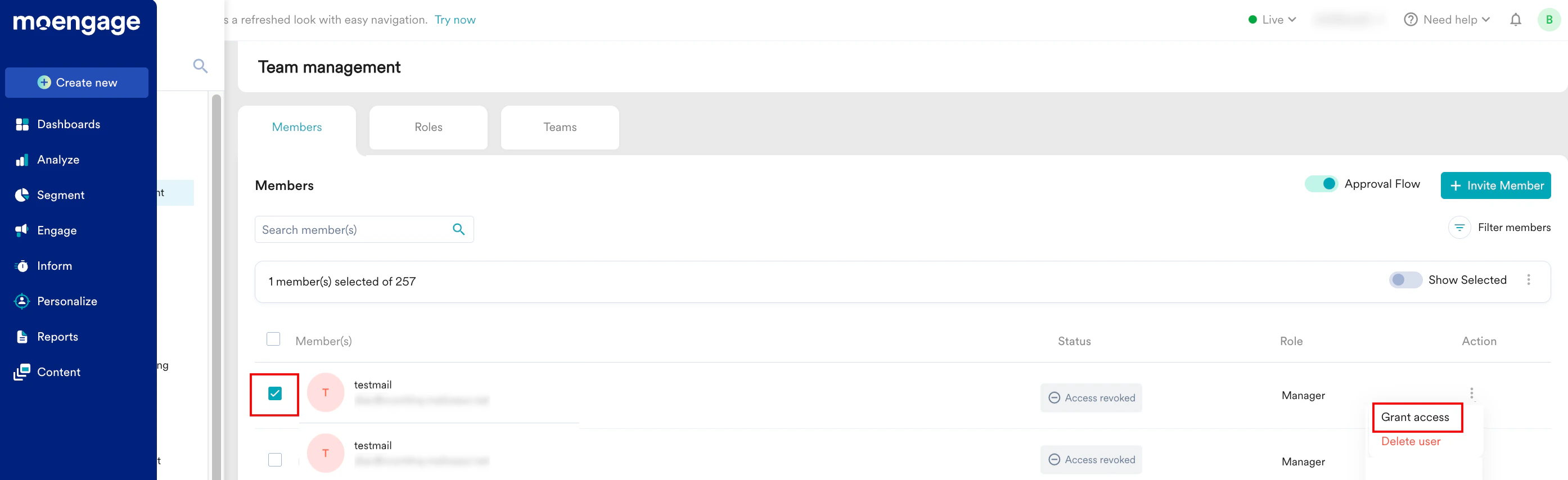 The member's access has been successfully granted.
## Resend Invite to a Member
2. Click **Resend invite**.
The member's access has been successfully granted.
## Resend Invite to a Member
2. Click **Resend invite**. 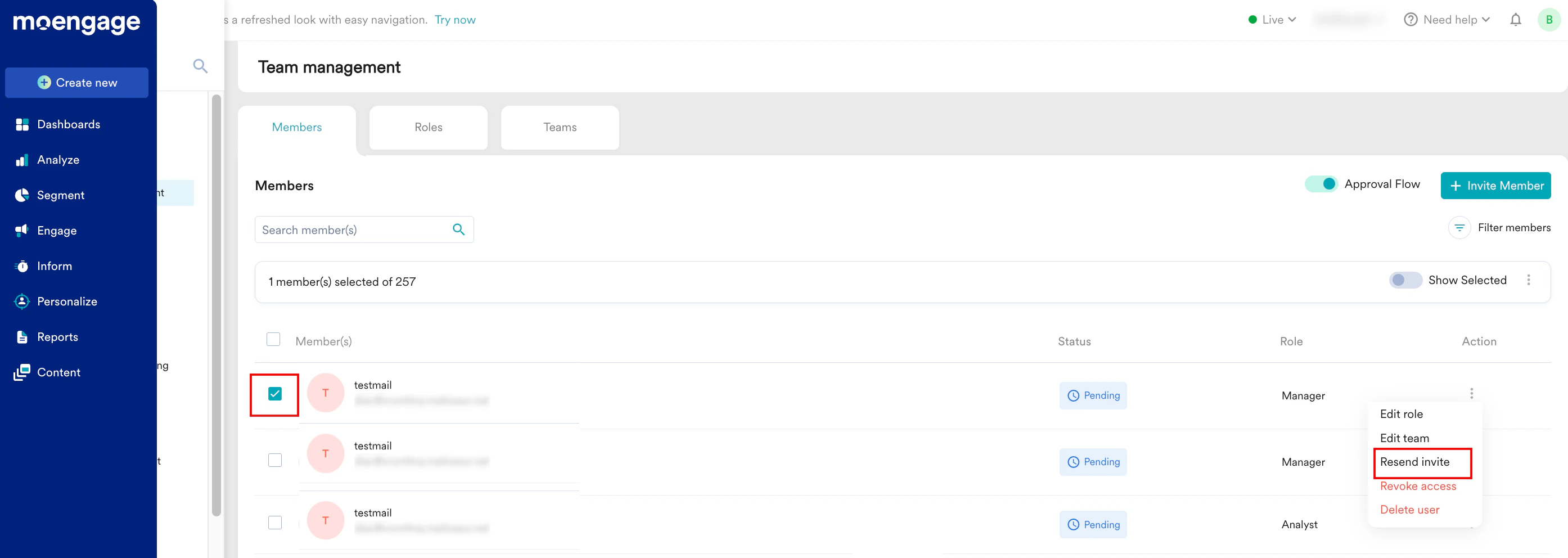 The invite has been successfully sent to the member.
## Delete a Member
2. Click **Delete user**.
The invite has been successfully sent to the member.
## Delete a Member
2. Click **Delete user**. 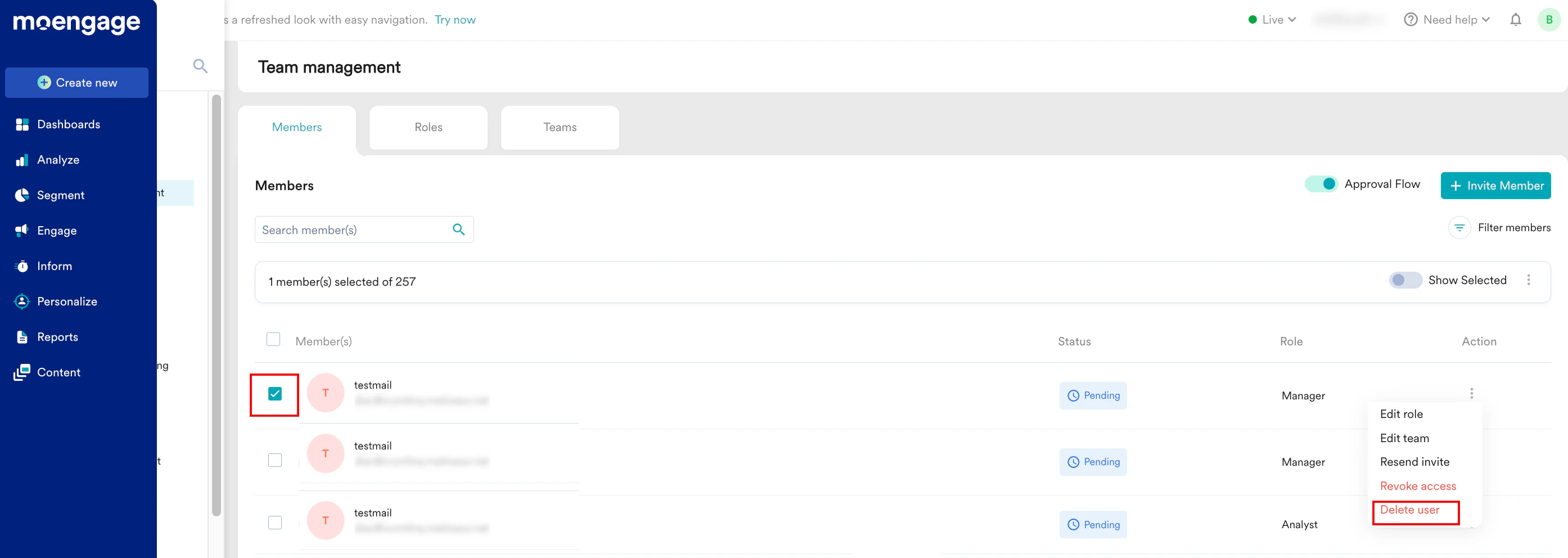 \
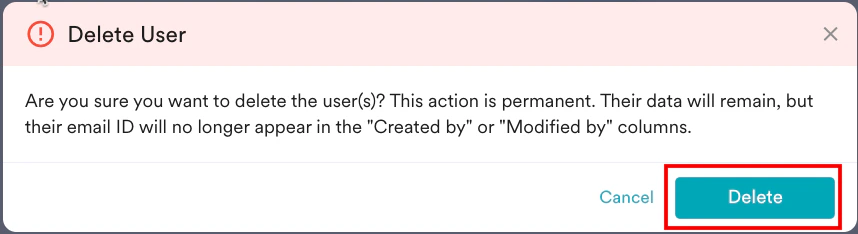
The **Delete User** pop-up window appears, prompting for confirmation to delete the member.
3. Click **Delete**.
\
The **Delete User** pop-up window appears, prompting for confirmation to delete the member.
3. Click **Delete**.
 You deleted the member successfully.
# Bulk Edit Members
This feature enables you to perform bulk edits for multiple users. The bulk edit actions available in the **Action** column vary based on the members' statuses.
### Members with the Same Status
When you select one or more members of the same status, you can perform the following bulk edits.
You deleted the member successfully.
# Bulk Edit Members
This feature enables you to perform bulk edits for multiple users. The bulk edit actions available in the **Action** column vary based on the members' statuses.
### Members with the Same Status
When you select one or more members of the same status, you can perform the following bulk edits.
| Status | Options | Description |
|---|---|---|
| Pending | Edit | This enables you to edit the role of any member. |
| Resend invite | This enables you to invite the particular member to join the workspace again. | |
| Export Members | This enables you to export members in a CSV file format. | |
| Revoke access | This enables you to revoke the member's access and remove the user from the account. | |
| Delete user | This enables you to permanently remove a member from the workspace. | |
| Joined | Edit | This enables you to edit the role of any member. |
| Export Members | This enables you to export members in a CSV file format. | |
| Revoke access | This enables you to revoke the member's access and remove the user from the account. | |
| Delete user | This enables you to permanently remove a member from the workspace. | |
| Access revoked | Grant access | This enables you to grant access to the members. |
| Export Members | This enables you to export members in a CSV file format. | |
| Delete user | This enables you to permanently remove a member from the workspace. |
| Status | Options |
|---|---|
| Joined and Pending | Edit |
| Export Members | |
| Revoke access | |
| Delete user | |
| Joined and Access revoked | Edit |
| Export Members | |
| Delete user | |
| Pending and Access revoked | Edit |
| Export Members | |
| Resend invite | |
| Delete user | |
| All members on a page | Edit |
| Export Members | |
| Resend invite | |
| Delete user |
3. Select the check boxes adjacent to one or more members that you want to bulk edit.
4. To view the list of selected members, turn the **Show Selected** toggle on.
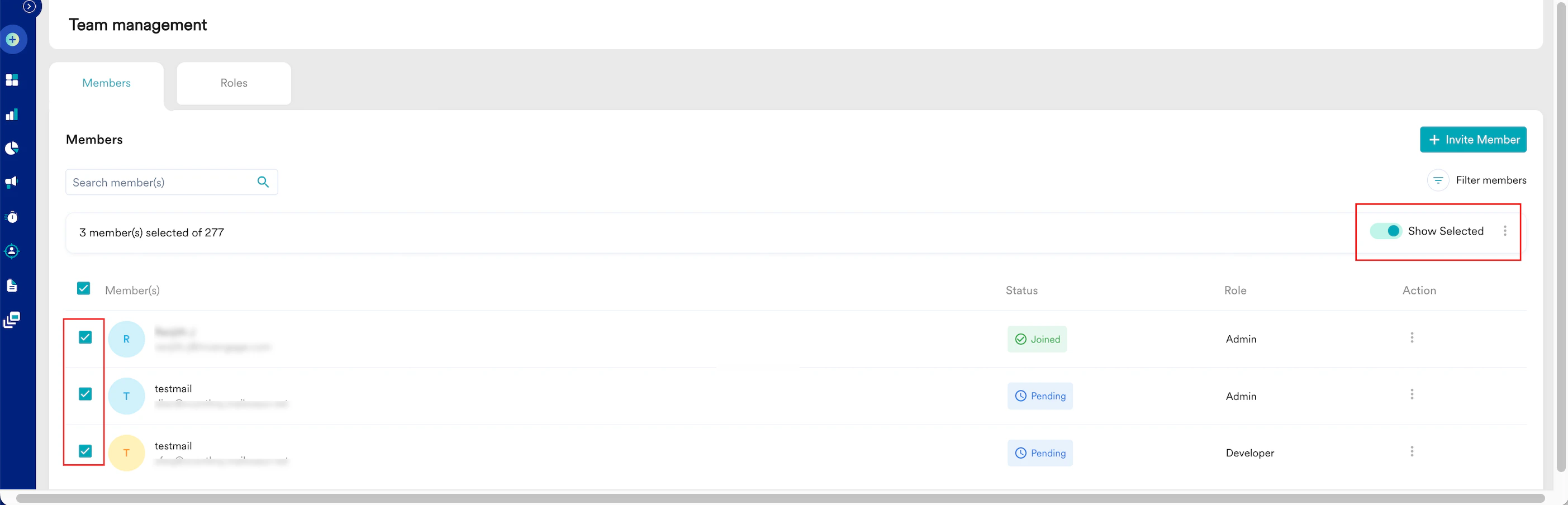 5. Click the ellipsis icon, and then click **Edit**.
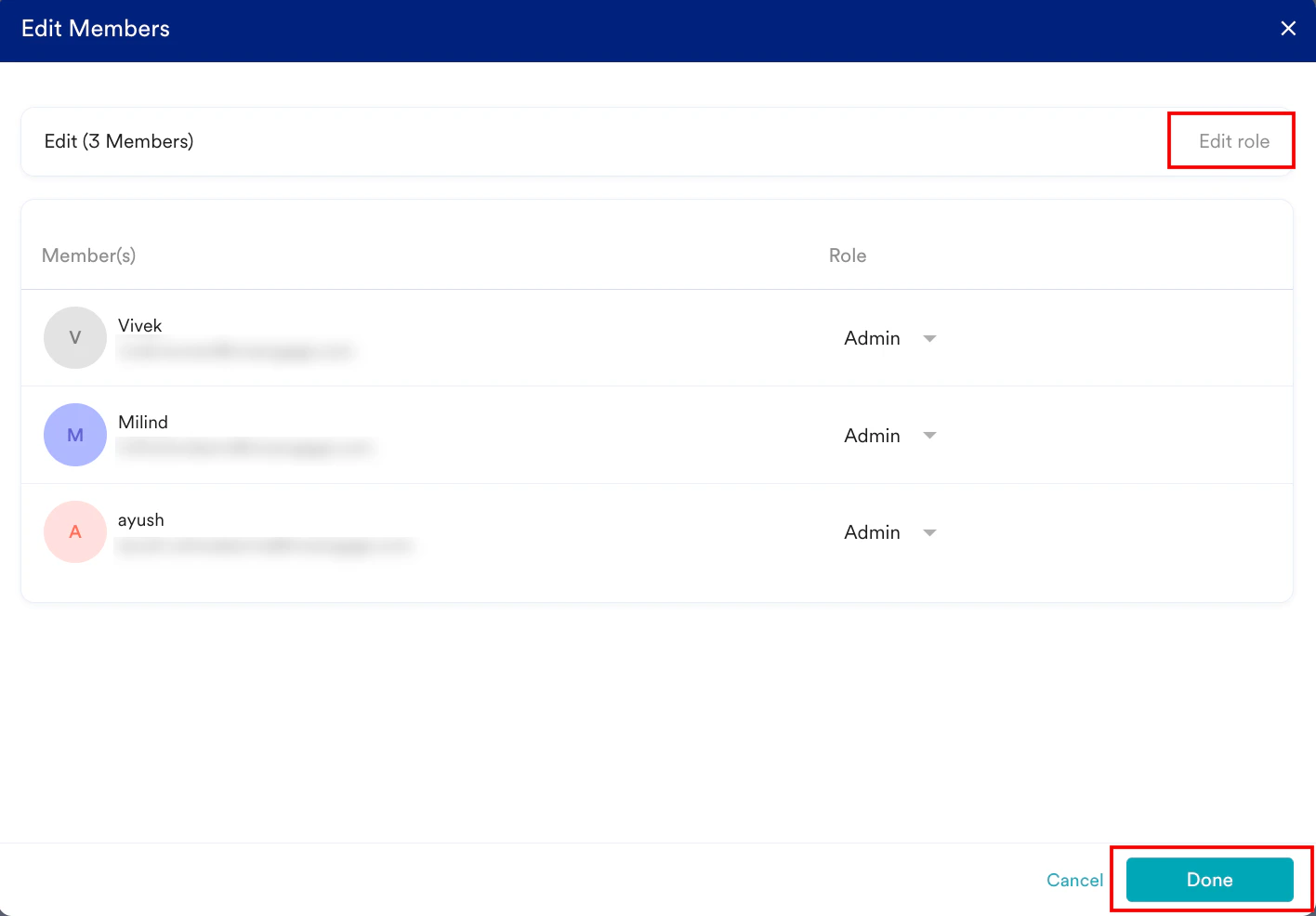
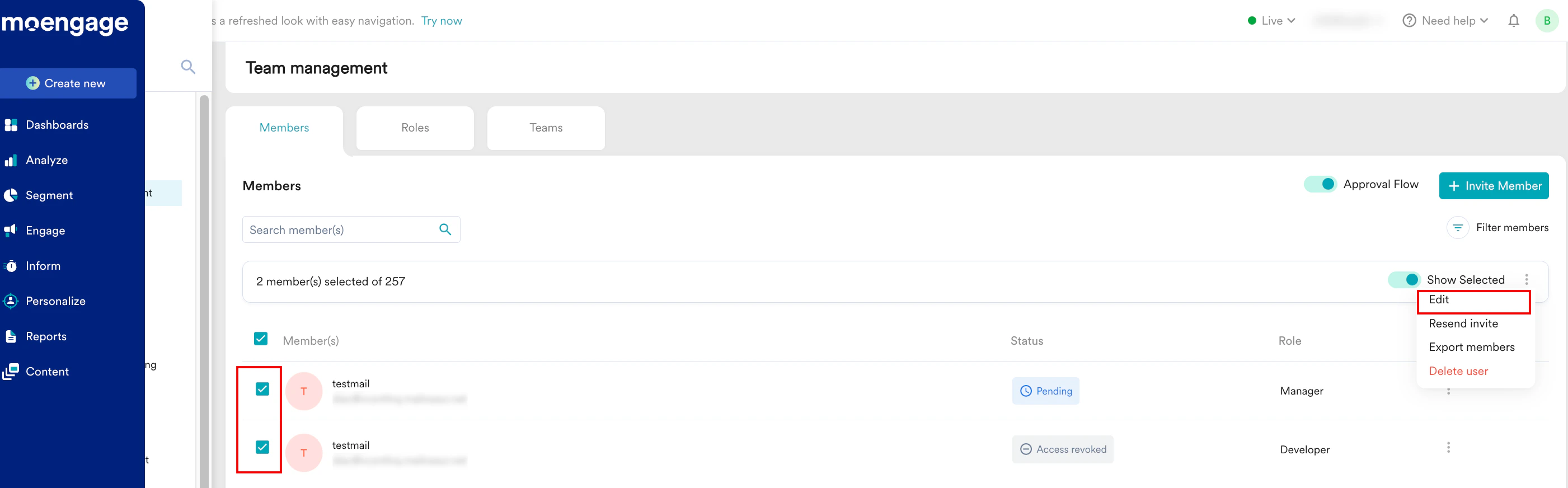 The Edit Members pop-up window appears.
6. Click **Edit Role** and change the role for the members. The same role will be assigned to all members.
7. Click **Done**.
The Edit Members pop-up window appears.
6. Click **Edit Role** and change the role for the members. The same role will be assigned to all members.
7. Click **Done**.
 The members are updated successfully.
## Export Members
To bulk export members, perform the following steps:
1. On the left navigation menu in the MoEngage dashboard, click **Settings** > **Account** > **Team Management** > **Members**.
2. On the **Team management** page, by default, you will be in the **Members** tab.
3. Select the check boxes adjacent to one or more members that you want to bulk export.
4. To view the list of selected members, turn the **Show Selected** toggle on.
5. Click the ellipsis icon and then click **Export members**.
The members are updated successfully.
## Export Members
To bulk export members, perform the following steps:
1. On the left navigation menu in the MoEngage dashboard, click **Settings** > **Account** > **Team Management** > **Members**.
2. On the **Team management** page, by default, you will be in the **Members** tab.
3. Select the check boxes adjacent to one or more members that you want to bulk export.
4. To view the list of selected members, turn the **Show Selected** toggle on.
5. Click the ellipsis icon and then click **Export members**. 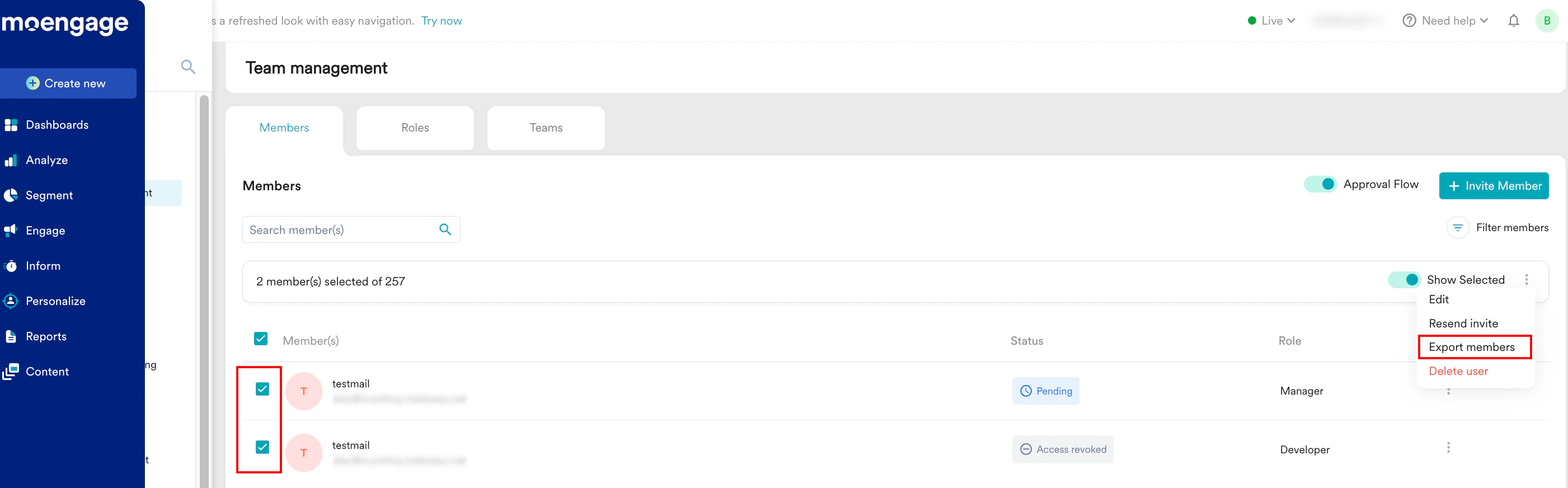 \
The members' list is successfully emailed to you in CSV file format.
## Revoke Access
To perform bulk revoke access, perform the following steps:
1. On the left navigation menu in the MoEngage dashboard, click **Settings** > **Account** > **Team Management** > **Members**.
2. On the **Team management** page, by default, you will be in the **Members** tab.
3. Select the check boxes adjacent to one or more members for which you want to perform bulk revoke access.
4. To view the list of selected members, turn the **Show Selected** toggle on.
5. Click the ellipsis icon and then click **Revoke access**.
\
The members' list is successfully emailed to you in CSV file format.
## Revoke Access
To perform bulk revoke access, perform the following steps:
1. On the left navigation menu in the MoEngage dashboard, click **Settings** > **Account** > **Team Management** > **Members**.
2. On the **Team management** page, by default, you will be in the **Members** tab.
3. Select the check boxes adjacent to one or more members for which you want to perform bulk revoke access.
4. To view the list of selected members, turn the **Show Selected** toggle on.
5. Click the ellipsis icon and then click **Revoke access**. 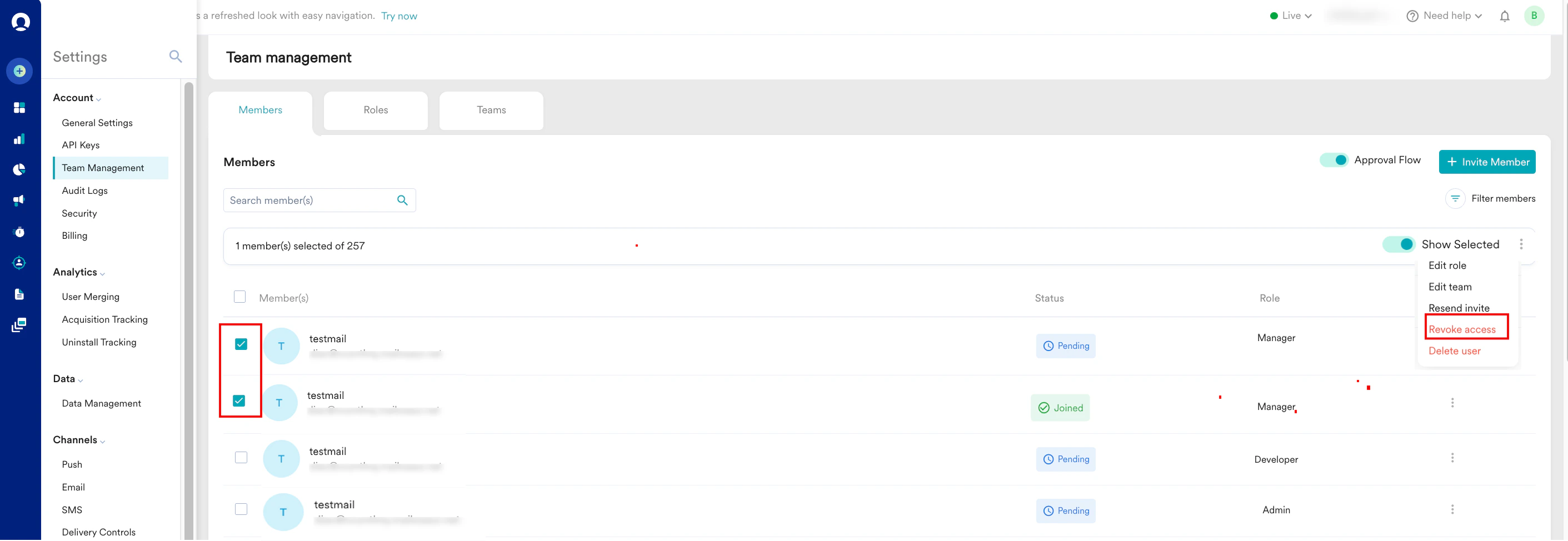 6. The **Revoke access** pop-up window will appear, prompting for confirmation to revoke the access of the members.
7. Click **Revoke**.
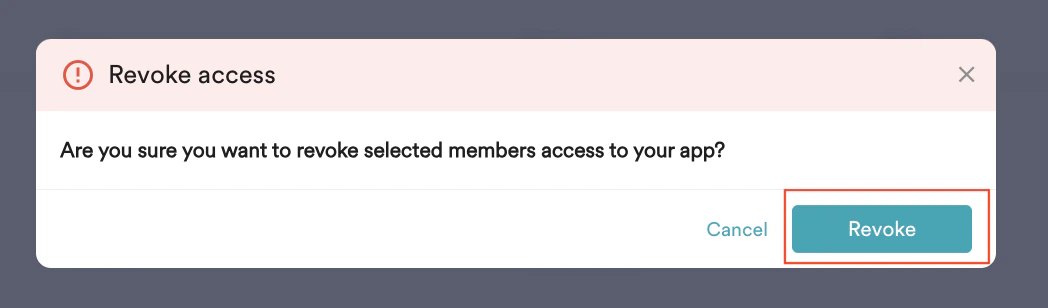
6. The **Revoke access** pop-up window will appear, prompting for confirmation to revoke the access of the members.
7. Click **Revoke**.
 The members' access is now successfully revoked.
## Grant Access
To perform bulk grant access, perform the following steps:
1. On the left navigation menu in the MoEngage dashboard, click **Settings** > **Account** > **Team Management** > **Members**.
2. On the **Team management** page, by default, you will be in the **Members** tab.
3. Select the check boxes adjacent to one or more members for which you want to perform bulk grant access.
4. To view the list of selected members, turn the **Show Selected** toggle on.
5. Click the ellipsis icon and then click **Grant access**.
The members' access is now successfully revoked.
## Grant Access
To perform bulk grant access, perform the following steps:
1. On the left navigation menu in the MoEngage dashboard, click **Settings** > **Account** > **Team Management** > **Members**.
2. On the **Team management** page, by default, you will be in the **Members** tab.
3. Select the check boxes adjacent to one or more members for which you want to perform bulk grant access.
4. To view the list of selected members, turn the **Show Selected** toggle on.
5. Click the ellipsis icon and then click **Grant access**. 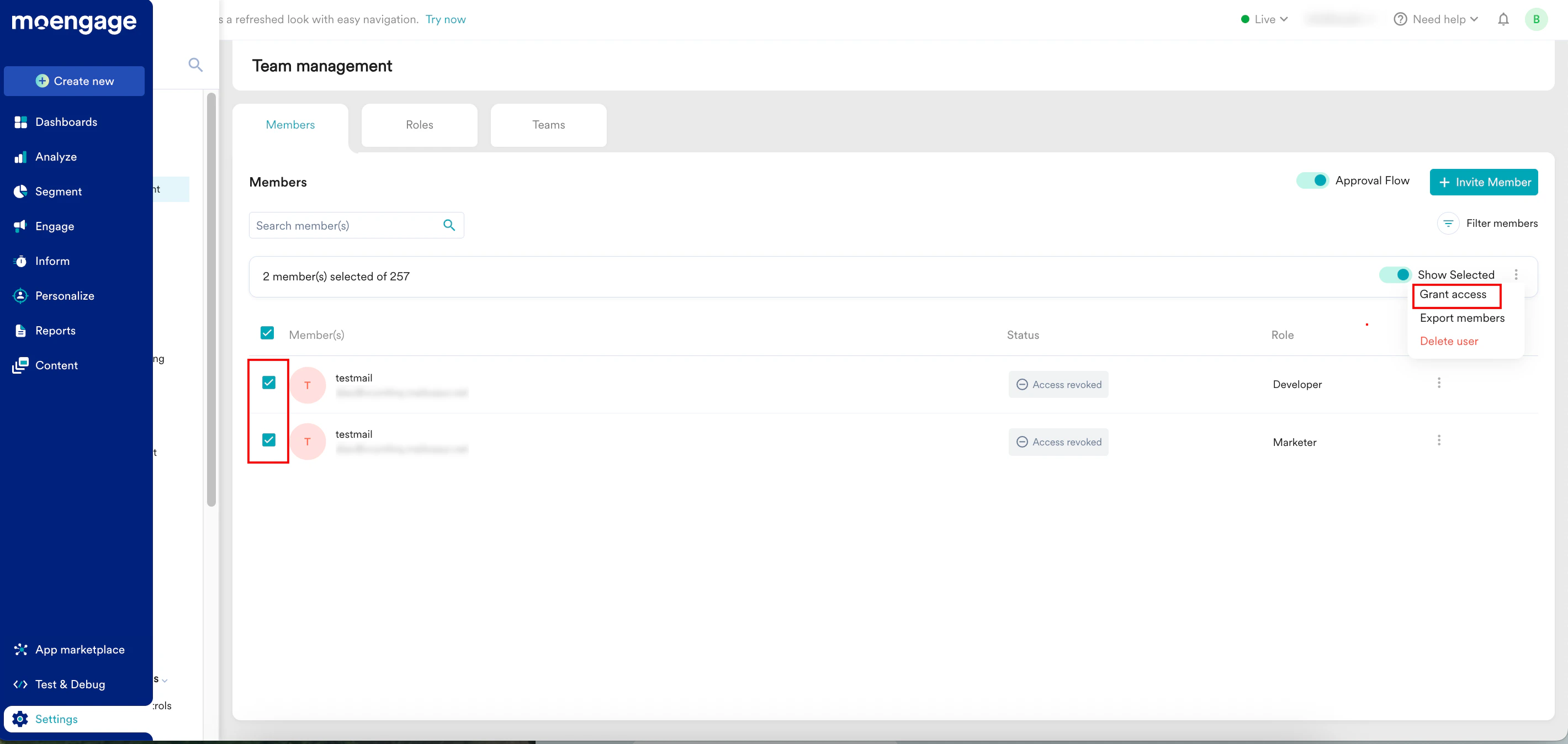 \
The members' access is now successfully granted.
## Resend Invite
3. Select the check boxes adjacent to one or more members for which you want to perform bulk resend invites.
4. To view the list of selected members, turn the **Show Selected** toggle on.
5. Click the ellipsis icon and then click **Resend Invite**.
\
The members' access is now successfully granted.
## Resend Invite
3. Select the check boxes adjacent to one or more members for which you want to perform bulk resend invites.
4. To view the list of selected members, turn the **Show Selected** toggle on.
5. Click the ellipsis icon and then click **Resend Invite**. 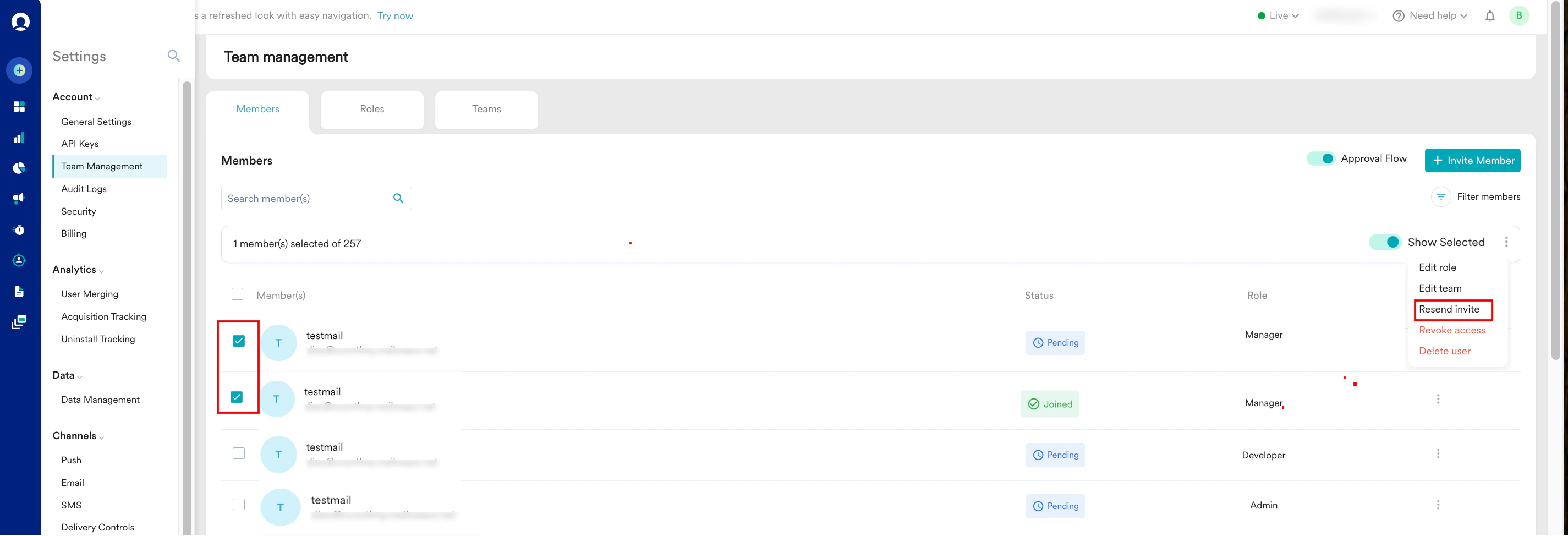 \
The members are re-invited successfully.
## Delete Members
To bulk delete members, perform the following steps:
1. On the left navigation menu in the MoEngage dashboard, click **Settings** > **Account** > **Team Management** > **Members**.
2. On the **Team management** page, by default, you are on the **Members** tab by default.
3. Select the check boxes adjacent to one or more members whom you want to bulk delete.
4. To view the list of selected members, turn the **Show Selected** toggle on.
5. Click the ellipsis icon next to the **Show Selected** toggle, and then click **Delete user**.
\
The members are re-invited successfully.
## Delete Members
To bulk delete members, perform the following steps:
1. On the left navigation menu in the MoEngage dashboard, click **Settings** > **Account** > **Team Management** > **Members**.
2. On the **Team management** page, by default, you are on the **Members** tab by default.
3. Select the check boxes adjacent to one or more members whom you want to bulk delete.
4. To view the list of selected members, turn the **Show Selected** toggle on.
5. Click the ellipsis icon next to the **Show Selected** toggle, and then click **Delete user**.  The **Delete User** pop-up window appears, prompting for confirmation to delete the members.
6. Click **Delete**.
You deleted the members successfully.
# FAQ
**How to recover Admin access and assign it to a new user if the original Admin account is deactivated?**\
Suppose your organization’s sole admin account has been deactivated, and you no longer have access to it. In that case, you can still recover admin access and assign new admin privileges by following these steps:
* Contact your organization’s IT administrator or domain owner to temporarily reactivate and grant access to the email account of the workspace's admin.
* Once the account is reactivated, use the Forgot Password option on the MoEngage login page to reset the password for that admin user account.
* After resetting the password, log in to the account and assign admin access to an existing user within your workspace or invite a new user with Admin access. This new admin will then have access to the MoEngage dashboard for that project.
* *(Optional)* Revoke the former admin's access from the workspace.
To prevent similar issues in the future, MoEngage recommends assigning admin roles to at least two users. This ensures that if one admin leaves or becomes unavailable, the other can still manage the workspace and perform necessary administrative tasks.
The **Delete User** pop-up window appears, prompting for confirmation to delete the members.
6. Click **Delete**.
You deleted the members successfully.
# FAQ
**How to recover Admin access and assign it to a new user if the original Admin account is deactivated?**\
Suppose your organization’s sole admin account has been deactivated, and you no longer have access to it. In that case, you can still recover admin access and assign new admin privileges by following these steps:
* Contact your organization’s IT administrator or domain owner to temporarily reactivate and grant access to the email account of the workspace's admin.
* Once the account is reactivated, use the Forgot Password option on the MoEngage login page to reset the password for that admin user account.
* After resetting the password, log in to the account and assign admin access to an existing user within your workspace or invite a new user with Admin access. This new admin will then have access to the MoEngage dashboard for that project.
* *(Optional)* Revoke the former admin's access from the workspace.
To prevent similar issues in the future, MoEngage recommends assigning admin roles to at least two users. This ensures that if one admin leaves or becomes unavailable, the other can still manage the workspace and perform necessary administrative tasks.