> ## Documentation Index
> Fetch the complete documentation index at: https://moengage.com/docs/llms.txt
> Use this file to discover all available pages before exploring further.
# Manage Tags
> Organize campaigns, flows, and content blocks in MoEngage using tags and categories. Create, edit, search, and manage tags from settings.
Perform the following steps to manage all your tags and categories:
1. Navigate to **Settings > Advanced Settings > Tags**.\\
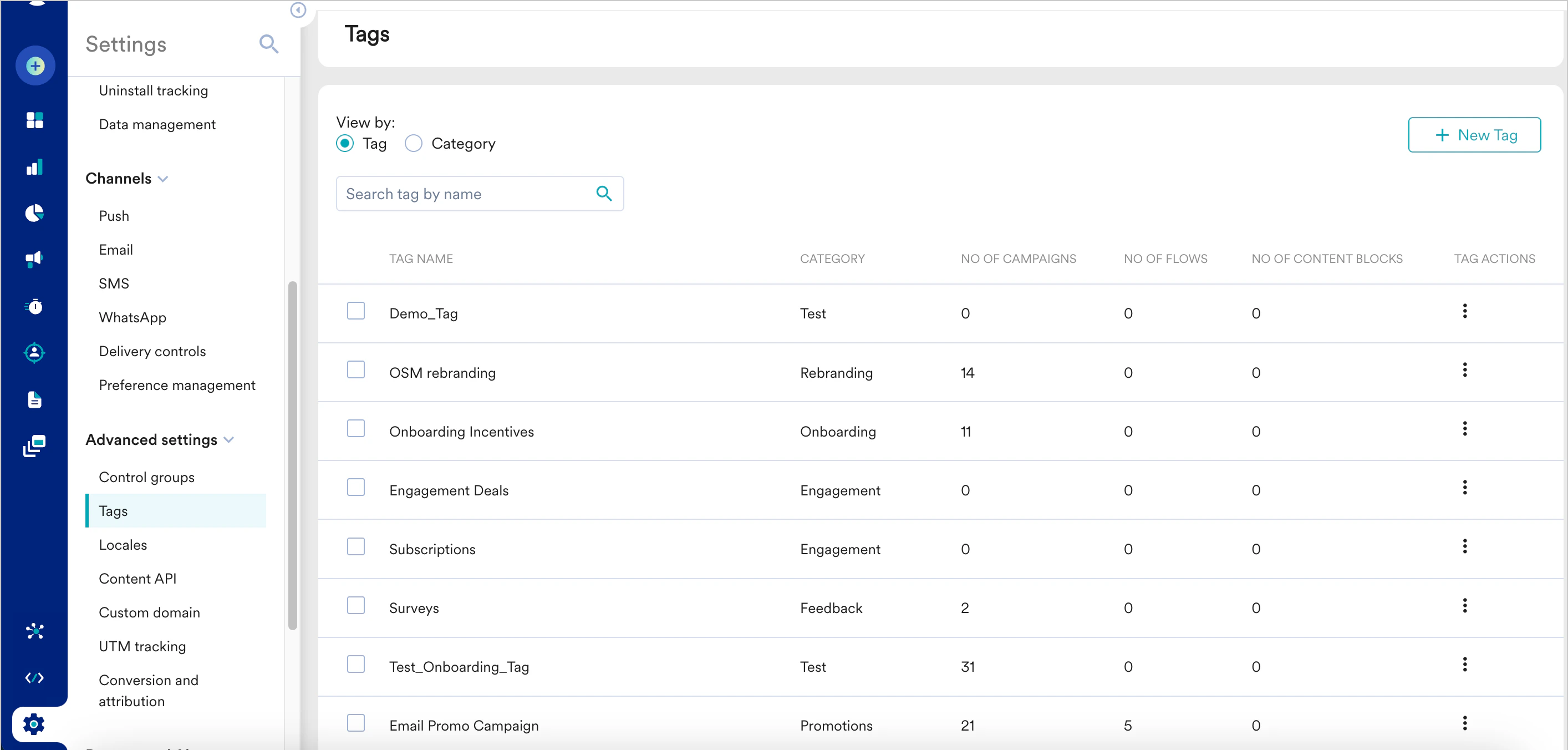 2. Under **View by**, click **Tag** or **Category** to view all the tags listed individually or grouped by their categories.
* **Tag**: When you select this option, each tag contains information about the number of campaigns, flows, and content blocks in which it is used. You can search for a tag by its name, edit it, or delete it.
* **Category**: When you select this option, you can search for a category by its name, edit it, or delete it.
The following actions are supported on tags:
### Create a Tag
1. Click **+ New Tag** to create a new tag.
2. Enter the tag name and category.
2. Under **View by**, click **Tag** or **Category** to view all the tags listed individually or grouped by their categories.
* **Tag**: When you select this option, each tag contains information about the number of campaigns, flows, and content blocks in which it is used. You can search for a tag by its name, edit it, or delete it.
* **Category**: When you select this option, you can search for a category by its name, edit it, or delete it.
The following actions are supported on tags:
### Create a Tag
1. Click **+ New Tag** to create a new tag.
2. Enter the tag name and category.
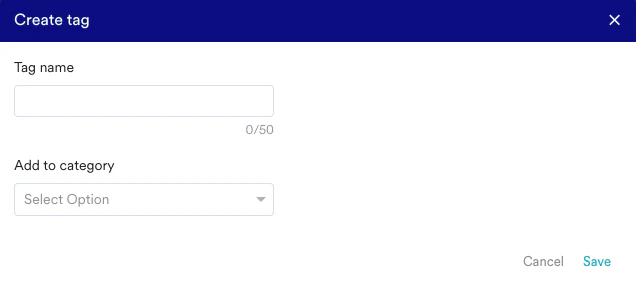 Note: The tags will be moved to Uncategorized if the category is empty.
### Edit/Delete a Tag
You are only allowed to edit the tag name or change tag categories. Click on the action button in the tag row. You can choose to edit/delete tags.
Note: The tags will be moved to Uncategorized if the category is empty.
### Edit/Delete a Tag
You are only allowed to edit the tag name or change tag categories. Click on the action button in the tag row. You can choose to edit/delete tags.  Note: Default tags cannot be modified.
### Edit/Delete Multiple Tags
1. Select all the tags that you want to update.
2. You can choose to edit/delete selected tags on the top row.
Note: Default tags cannot be modified.
### Edit/Delete Multiple Tags
1. Select all the tags that you want to update.
2. You can choose to edit/delete selected tags on the top row.
 ### Edit/Delete a Category
You are only allowed to edit the category's name. Click on the action button in the category row. You can choose to edit/delete a category.
If there are tags present in the category being deleted, you will have two options:
* Delete tags along with the category.
### Edit/Delete a Category
You are only allowed to edit the category's name. Click on the action button in the category row. You can choose to edit/delete a category.
If there are tags present in the category being deleted, you will have two options:
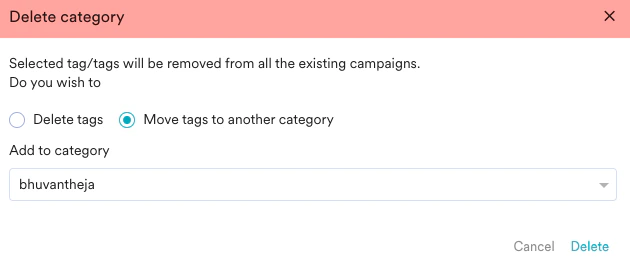
* Delete tags along with the category.
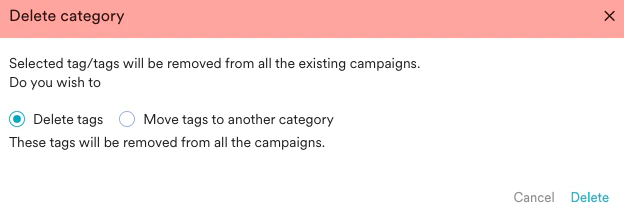 * Move the tags to a different category.