> ## Documentation Index
> Fetch the complete documentation index at: https://moengage.com/docs/llms.txt
> Use this file to discover all available pages before exploring further.
# Acquisition Tracking
> Enable acquisition tracking in MoEngage to measure install attribution, campaign effectiveness, and per-user conversion and revenue metrics.
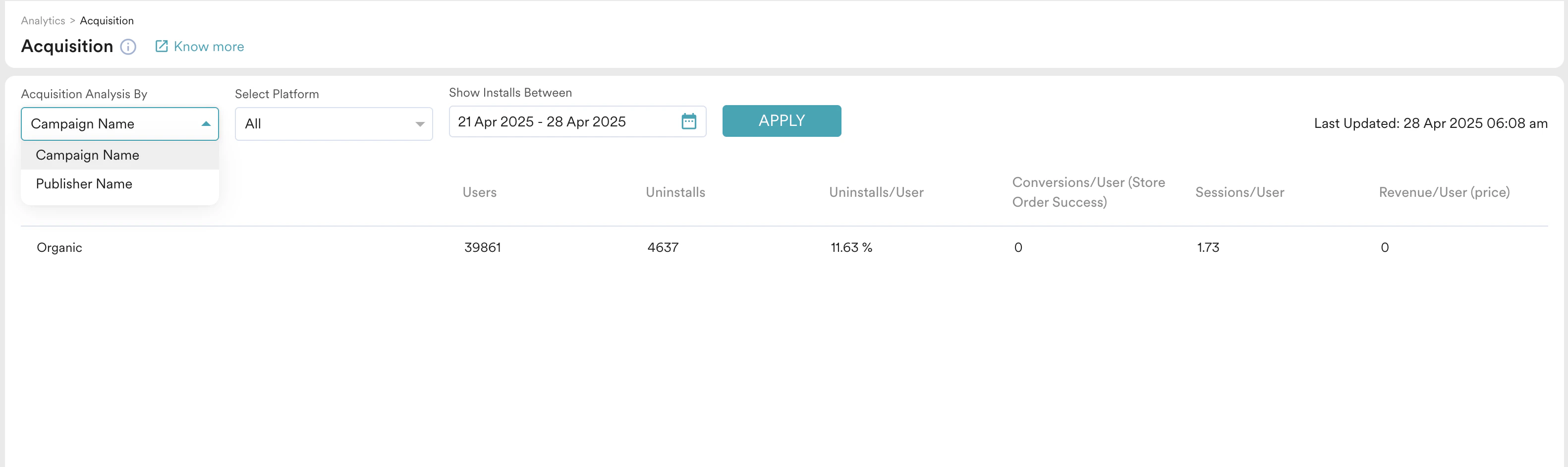
Acquisition tracking allows you to measure the effectiveness of your user acquisition campaigns by attributing installs and subsequent user actions back to specific campaigns and sources. Enabling this setting helps populate data on the **Acquisition** page in MoEngage Analytics.
Acquisition analytics helps to understand user acquisition campaign performance. You can track valuable user metrics such as conversions per user, revenue per user, and sessions per user. For more information on acquisition analytics, refer [here](/user-guide/analyze/analytics/acquisition).
 Perform the following steps to enable acquisition tracking and get the MoEngage attribution key:
1. On the left navigation menu in the MoEngage dashboard, go to **Settings** > **Analytics** > **Acquisition tracking**.
2. On the Acquisition tracking page, turn the **Acquisition tracking** toggle on.
Perform the following steps to enable acquisition tracking and get the MoEngage attribution key:
1. On the left navigation menu in the MoEngage dashboard, go to **Settings** > **Analytics** > **Acquisition tracking**.
2. On the Acquisition tracking page, turn the **Acquisition tracking** toggle on.
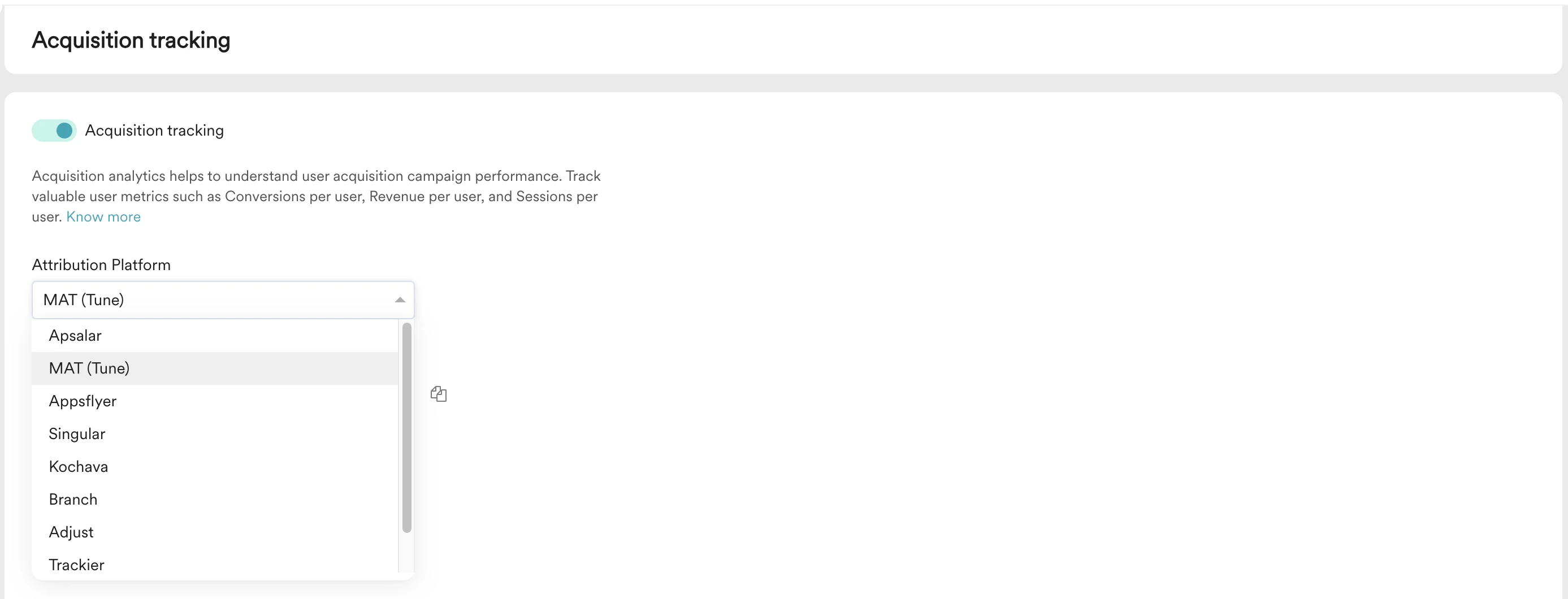
 3. From the **Attribution Platform** list, select the required platform.
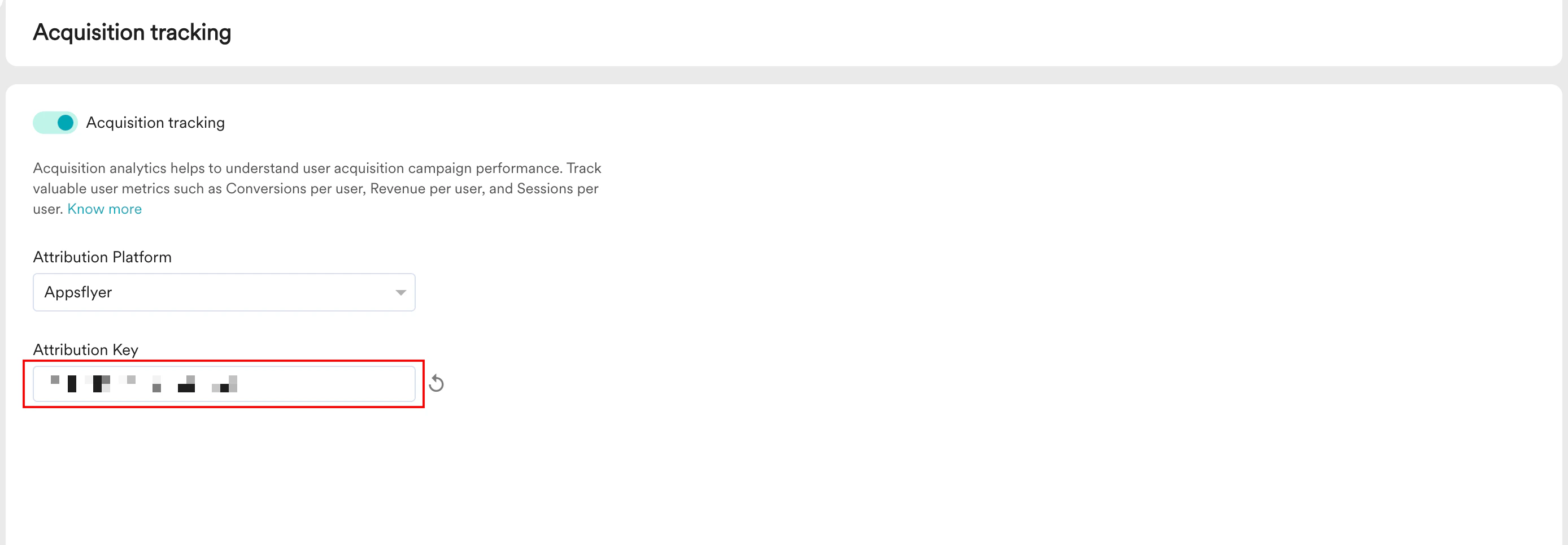
 4. In the **Attribution Key** box, copy the key. You will need this key to configure MoEngage as a destination or partner on your chosen attribution platform's dashboard.
 5. Click **Save**.
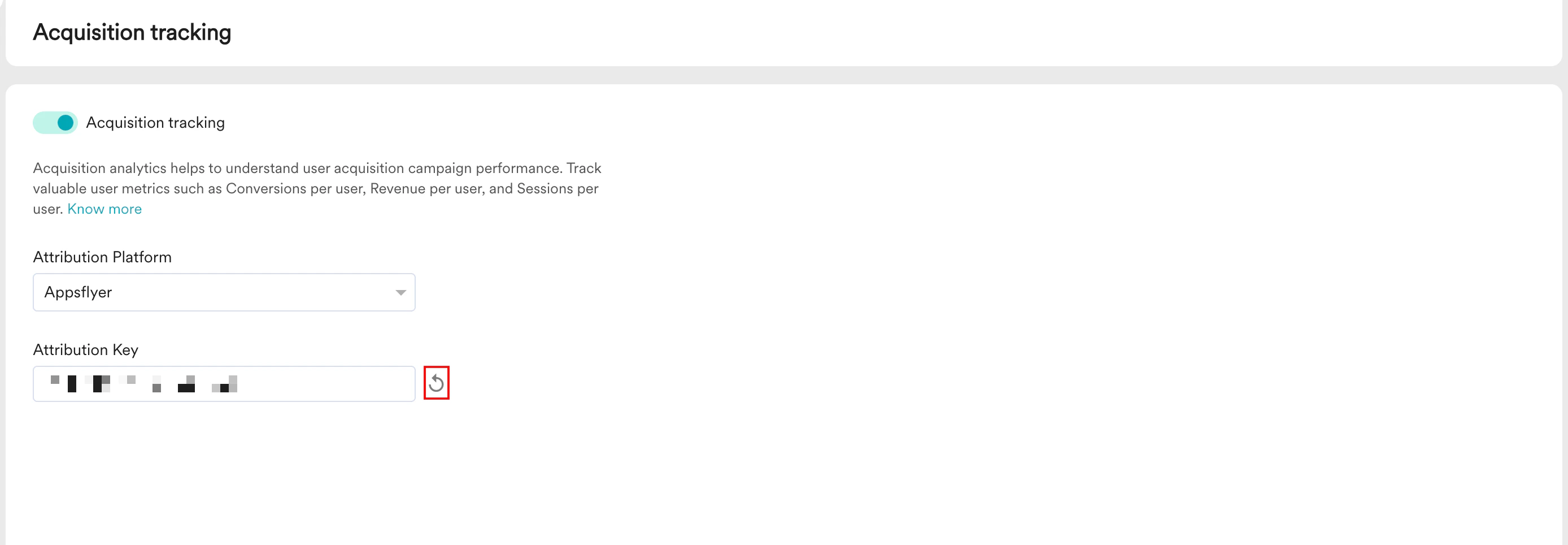
6. If you need to generate a new attribution key for security reasons, click the regenerate icon. Remember to update the key on your attribution platform if you regenerate it.
5. Click **Save**.
6. If you need to generate a new attribution key for security reasons, click the regenerate icon. Remember to update the key on your attribution platform if you regenerate it.