> ## Documentation Index
> Fetch the complete documentation index at: https://moengage.com/docs/llms.txt
> Use this file to discover all available pages before exploring further.
# Limit Messages for Periodic and Triggered Campaigns
> Controls how many times a user receives a Periodic or Event-Triggered campaign in MoEngage with limit messages, which uses a rolling window to block repeat sends until the limit resets.
## Overview
Limit Messages per User lets you control how many times an individual user receives a specific Periodic or Event-Triggered campaign, within a time period that you define. Use this setting to prevent overexposure — for example, to control how many times a user sees a coupon offer, a promotional push, or a reminder message.
The setting is available on the **Delivery Control** section of the campaign creation flow, for both new and existing campaigns. It is turned off by default, so campaigns behave exactly as they do today unless you explicitly enable it.
If you want to configure Limit Message using the Campaigns API, refer to the `limit_send_config` schema in the API reference for [Push](/docs/api/create-campaigns/create-campaign-draft-v5#body-one-of-0-delivery-controls-limit-send-config) or [Email](/docs/api/create-campaigns/create-campaign-draft-v5#body-one-of-1-delivery-controls-limit-send-config).
## Use Case
Marketers often need to make sure a benefit such as a coupon code, a limited-time offer, or a reward reaches a user only a fixed number of times, even if the campaign itself runs continuously or is triggered repeatedly by user behavior.
For example:
* Send a coupon code campaign to a user no more than **2 times in 30 days**, so the user doesn't receive more discount codes than intended.
* Send a cart-abandonment reminder no more than **once a week** per user.
* Send a welcome offer only **once**, ever, per user.
Without this feature, marketers had to build workarounds using custom attributes and additional logic to track and control send frequency. Limit Messages per User provides this control natively, without extra setup.
## Supported campaigns and channels
| Channel | Periodic | Event-Triggered |
| ---------- | --------- | --------------- |
| Push | Supported | Supported |
| SMS | Supported | Supported |
| WhatsApp | Supported | Supported |
| Email | Supported | Supported |
| Cards | Supported | Not Supported |
| Connectors | Supported | Supported |
## Things to Know
* This setting is turned off by default on all new campaigns.
* The limit and frequency setting has no effect on delivery speed or on any other part of the sending pipeline.
* This feature works independently of, and alongside, Frequency Capping — enabling one does not change the behavior of the other.
* The maximum frequency window you can configure is 1 year.
* This feature is also supported on existing campaigns.
* This feature is not applicable to transactional campaigns (for example, transactional email campaigns).
* This feature is not applicable to Flows.
## How the Limit is Counted
### What counts as a "message received"
For each channel and delivery type, there are different mechanisms on how MoEngage counts the limit to be exhausted. Following are the specific events used to determine successful delivery depending on the channel:
| Channel | Event used to count a send | Fallback event (if the primary event isn't available) |
| ---------- | --------------------------------------------- | ------------------------------------------------------------------------------------------------- |
| Push | Notification Received (Android / iOS / Web) | Notification Sent – iOS (used only when iOS delivery tracking isn't configured) platform |
| SMS | SMS Delivered | If a delivery callback is configured, *SMS Delivered* is used; if not, *SMS Sent* is used instead |
| Email | Email Delivered (for Amazon SES and SendGrid) | Email Sent (used for custom connectors and other native connectors) |
| WhatsApp | WhatsApp Message Delivered | — |
| Cards | Card Campaign Sent | — |
| Connectors | Connector Sent | — |
> **Note:** This event-based counting logic applies only to the channels listed above.
For **Push** and **Cards**, the limit is applied at the **platform level**, not at the user level. This means the count is tracked separately for each platform **Android**, **iOS**, and **Web** rather than as a single combined count for the user.
**Example:** Suppose you set a limit of **2 messages in 7 days** on a push campaign.
* This means the user can receive up to 2 messages on **Android**, up to 2 on **iOS**, and up to 2 on **Web** independently of each other, within the same 7-day window.
* If a message goes out to a user on Android and iOS, one count is used up on each of those platforms.
* If another message goes out to the same user on Android and iOS, one more count is used up on each. Both platforms have now reached their limit of 2.
* If a third message goes out that targets only Web, it still gets delivered on Web (since Web hasn't hit its limit yet), even though Android and iOS are already exhausted for this window.
In other words, hitting the limit on one platform does not block sends on the other platforms for the same user.
### Sliding Window Behavior
The limit works on a **sliding window**, not a fixed calendar period. Each time a send is triggered for a user, the system checks how many times that user has successfully received the campaign within the defined window, counting back from the current moment.
**Example:** Suppose the limit is set to 2 messages in 7 days.
* Every time a send is about to go out, the system checks: "In the last 7 days, has this user already received 2 messages from this campaign?"
* If the user has received fewer than 2, the message is sent, and the window is re-evaluated at the next send attempt.
* If the user has already received 2 within the trailing 7-day period, the message is blocked for that user until enough time has passed for one of the earlier sends to fall outside the 7-day window.
This means the window continuously "slides" forward with time rather than resetting on a fixed schedule (such as every Monday or on the 1st of the month).
* A delay in a periodic campaign's send time can affect delivery on the following day: The window is measured from the exact time of the user's previous successful send, not from the campaign's scheduled time. As a result, a delay on one day can cause a user to be skipped on the next.
**Example:** A periodic campaign is scheduled to send daily at 8:00 AM, with a limit of **1 message in 1 day**.
* On Day 1, the send is delayed and goes out at **8:15 AM**. The user receives it at 8:15 AM.
* On Day 2, the campaign runs on schedule at 8:00 AM, and this user is due to receive it at **8:01 AM**.
* Only 23 hours and 46 minutes have elapsed since the user's last successful delivery (8:15 AM the previous day), so the 24-hour window has not yet completed. The send is blocked, and the user does not receive the campaign that day.
This behavior is more likely to occur with tight limits, such as 1 message per day, on campaigns prone to delayed sends.
* Calendar months have differing lengths, which can affect delivery for monthly campaigns: A frequency defined in days (for example, 30 days) is measured as an exact day count, not as a calendar month. If a calendar month has fewer days than the configured frequency, a user may not be eligible to receive the next occurrence.
**Example:** A campaign is set to send monthly on the 15th, with a limit of **1 message in 30 days**.
* The user receives the campaign on **February 15**.
* There are fewer than 30 days between February 15 and March 15 (28 or 29, depending on the year).
* As a result, the 30-day window has not completed by March 15, and the user is not eligible to receive the campaign on that occurrence.
To avoid this, use a frequency unit of **Month(s)** rather than an equivalent number of days for monthly campaigns.
## Configure Limit Messages per User
 1. Create or edit a Periodic or Event-Triggered campaign.
2. Go to **Step 3** of the campaign creation flow, where the channel-specific delivery settings appear.
3. Under **Delivery controls**, turn on the **Limit messages per user** toggle.
4. Once enabled, you'll see **Prevent a user from receiving the campaign more than a set number of times**, followed by the configuration row:
* **No more than \[ ] messages in \[ ] \[unit] per user**
* The first field is the maximum number of messages a user can receive from this campaign (up to **100**).
* The second field and dropdown define the time window, a number paired with a unit of **Day(s)**, **Week(s)**, **Month(s)**, or **Year**. Whichever unit you choose, the window cannot exceed **1 year** (for example, up to 365 days, or up to 52 weeks, or up to 12 months).
For example, setting this to **no more than 9 messages in 1 Year per user** means a user can receive at most 9 instances of this campaign in any rolling 1-year period.
5. Save or publish the campaign.
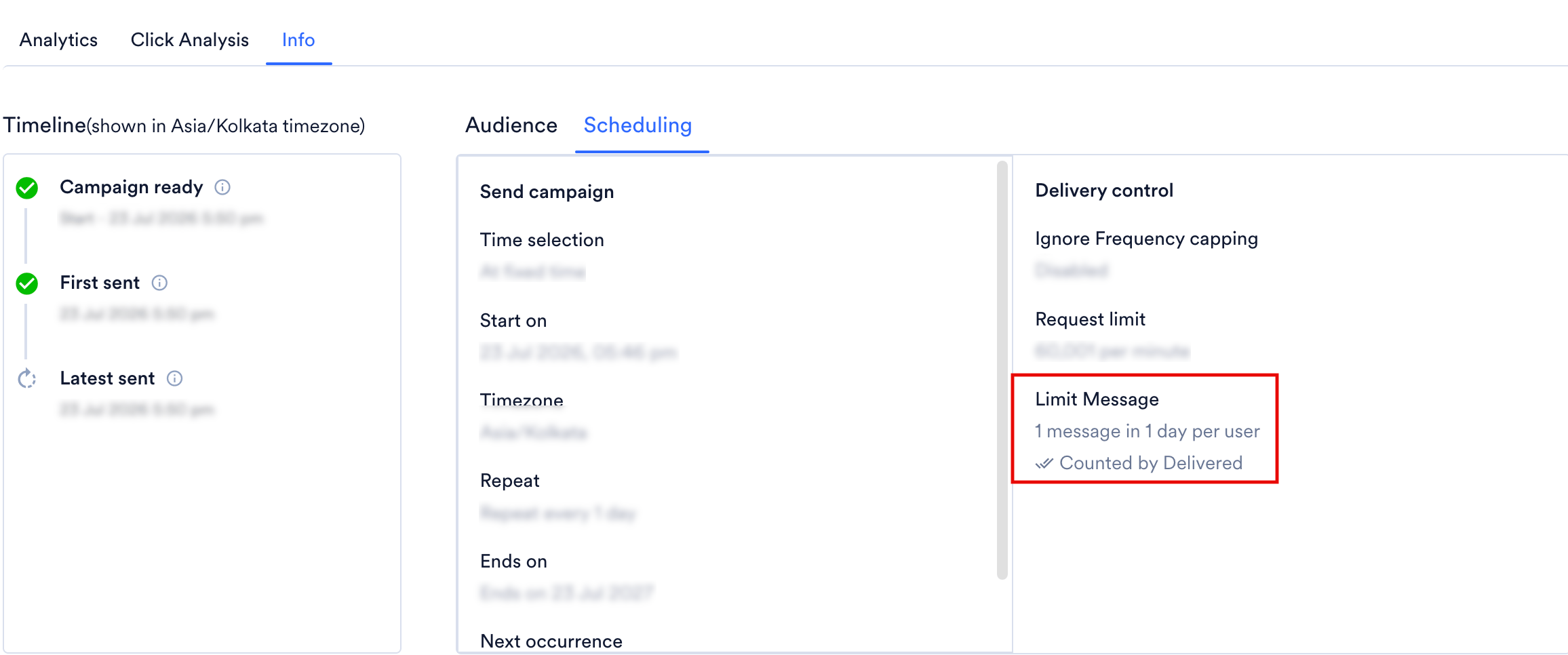
Once published, you'll be able to see the configured limit under **Limit message** in **Delivery control**, on the **Scheduling** tab of the campaign's **Info** page — for example, shown as **"1 time in 1 day"**.
1. Create or edit a Periodic or Event-Triggered campaign.
2. Go to **Step 3** of the campaign creation flow, where the channel-specific delivery settings appear.
3. Under **Delivery controls**, turn on the **Limit messages per user** toggle.
4. Once enabled, you'll see **Prevent a user from receiving the campaign more than a set number of times**, followed by the configuration row:
* **No more than \[ ] messages in \[ ] \[unit] per user**
* The first field is the maximum number of messages a user can receive from this campaign (up to **100**).
* The second field and dropdown define the time window, a number paired with a unit of **Day(s)**, **Week(s)**, **Month(s)**, or **Year**. Whichever unit you choose, the window cannot exceed **1 year** (for example, up to 365 days, or up to 52 weeks, or up to 12 months).
For example, setting this to **no more than 9 messages in 1 Year per user** means a user can receive at most 9 instances of this campaign in any rolling 1-year period.
5. Save or publish the campaign.
Once published, you'll be able to see the configured limit under **Limit message** in **Delivery control**, on the **Scheduling** tab of the campaign's **Info** page — for example, shown as **"1 time in 1 day"**.
 ## Edit an Existing Limit
You can update the number of messages or the frequency at any time, on both scheduled and active campaigns.
* **Scheduled campaigns**: Edits apply directly, since the campaign hasn't started sending yet.
* **Active campaigns**: Any change to the limit, frequency, or the on/off toggle creates a **new version** of the campaign. The updated settings take effect from this new version onward.
* If you change the number of days or months in the frequency while the campaign is active, each user's existing countdown toward their next eligible send is also updated to reflect the new frequency value.
## Turn Off the Limit
You can turn off Limit messages per user at any time from the same Delivery Control section, on scheduled, active, and paused campaigns. As with other edits, turning this off on an active campaign creates a new campaign version, and the limit no longer applies from that point forward.
## View Applied Limits
The limit and frequency you've configured are also visible on the campaign's info page, alongside the other Delivery Control settings, so you can quickly verify what's active without opening the edit flow.
## View Users Excluded Due to the Limit
Whenever a user is dropped from a send because they've already hit the configured **Limit messages per user** limit, this is recorded as an entry in the campaign's **Error breakdown**, under a category such as **Failed to Send**.
This error breakdown is available in the campaign analytics page for every supported channel.
## Edit an Existing Limit
You can update the number of messages or the frequency at any time, on both scheduled and active campaigns.
* **Scheduled campaigns**: Edits apply directly, since the campaign hasn't started sending yet.
* **Active campaigns**: Any change to the limit, frequency, or the on/off toggle creates a **new version** of the campaign. The updated settings take effect from this new version onward.
* If you change the number of days or months in the frequency while the campaign is active, each user's existing countdown toward their next eligible send is also updated to reflect the new frequency value.
## Turn Off the Limit
You can turn off Limit messages per user at any time from the same Delivery Control section, on scheduled, active, and paused campaigns. As with other edits, turning this off on an active campaign creates a new campaign version, and the limit no longer applies from that point forward.
## View Applied Limits
The limit and frequency you've configured are also visible on the campaign's info page, alongside the other Delivery Control settings, so you can quickly verify what's active without opening the edit flow.
## View Users Excluded Due to the Limit
Whenever a user is dropped from a send because they've already hit the configured **Limit messages per user** limit, this is recorded as an entry in the campaign's **Error breakdown**, under a category such as **Failed to Send**.
This error breakdown is available in the campaign analytics page for every supported channel.
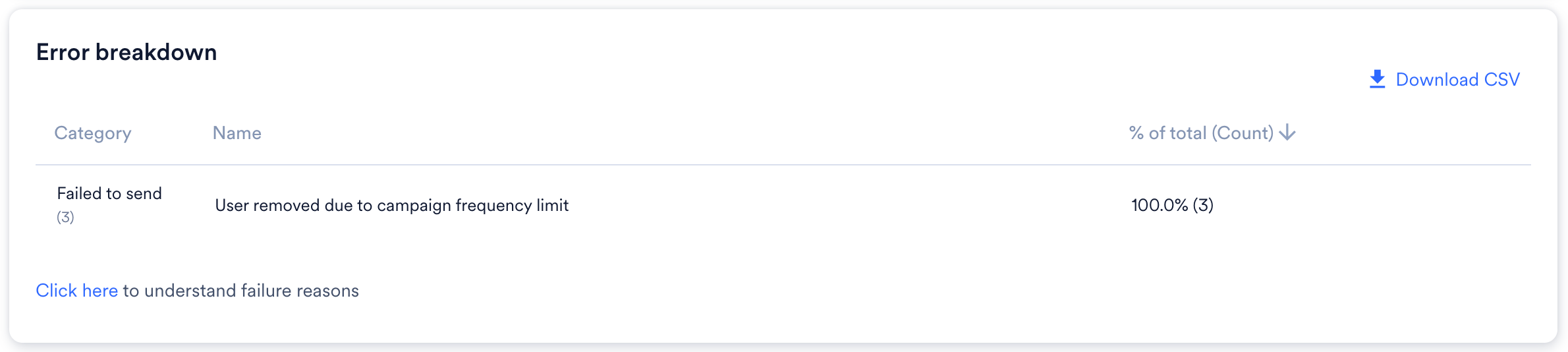 If you notice a drop or dip in the number of users reached by your campaign, check this error breakdown; it may simply mean those users had already received the campaign the maximum number of times allowed within your defined window, not that there was a delivery issue. These dropped users are also counted toward the campaign's **failed-to-send** numbers, so you can expect your failure count to reflect them as well.
## Frequently asked questions
Yes. The two settings work independently, and using one does not affect the other's behavior.
No. It uses a sliding window that is recalculated relative to the current time at every send attempt, not a fixed calendar period.
It depends on the channel and connector type, since that determines whether **Sent** or **Delivered** is used to count the limit. Where **Delivered** is used, failed or dropped sends don't count. For Push and Cards, the limit applies separately per platform, not shared across platforms.
For more information, refer to [How the limit is counted](/docs/user-guide/settings/channels/delivery-controls/limit-messages-for-periodic-and-triggered-campaigns#how-the-limit-is-counted) above.
Yes. When you update the number of days/months, each user's existing countdown is adjusted to reflect the new frequency.
If you notice a drop or dip in the number of users reached by your campaign, check this error breakdown; it may simply mean those users had already received the campaign the maximum number of times allowed within your defined window, not that there was a delivery issue. These dropped users are also counted toward the campaign's **failed-to-send** numbers, so you can expect your failure count to reflect them as well.
## Frequently asked questions
Yes. The two settings work independently, and using one does not affect the other's behavior.
No. It uses a sliding window that is recalculated relative to the current time at every send attempt, not a fixed calendar period.
It depends on the channel and connector type, since that determines whether **Sent** or **Delivered** is used to count the limit. Where **Delivered** is used, failed or dropped sends don't count. For Push and Cards, the limit applies separately per platform, not shared across platforms.
For more information, refer to [How the limit is counted](/docs/user-guide/settings/channels/delivery-controls/limit-messages-for-periodic-and-triggered-campaigns#how-the-limit-is-counted) above.
Yes. When you update the number of days/months, each user's existing countdown is adjusted to reflect the new frequency.