> ## Documentation Index
> Fetch the complete documentation index at: https://moengage.com/docs/llms.txt
> Use this file to discover all available pages before exploring further.
# Dashboard Subscriptions
> Schedule and manage dashboard subscription emails in MoEngage. Share custom dashboard snapshots with your team and whitelist email domains.
A *Dashboard Subscription* enables you to receive a snapshot of your custom dashboard via email. Additionally, dashboard subscriptions allow you to share custom dashboards with users in your organization.
On this settings page, you can:
* [Create subscriptions](/user-guide/settings/reports-and-alerts/dashboard-subscriptions#create-subscriptions)
* [Manage subscriptions](/user-guide/settings/reports-and-alerts/dashboard-subscriptions#manage-subscriptions)
* [Whitelist domains](/user-guide/settings/reports-and-alerts/dashboard-subscriptions#whitelist-domains)
The maximum number of dashboard subscriptions per workspace depends on your analytics package:
* **Customer Journey Analytics (CJA):** 10 subscriptions
* **Product Analytics (PA):** 25 subscriptions
# Create Subscriptions
Perform the following steps to create a dashboard subscription:
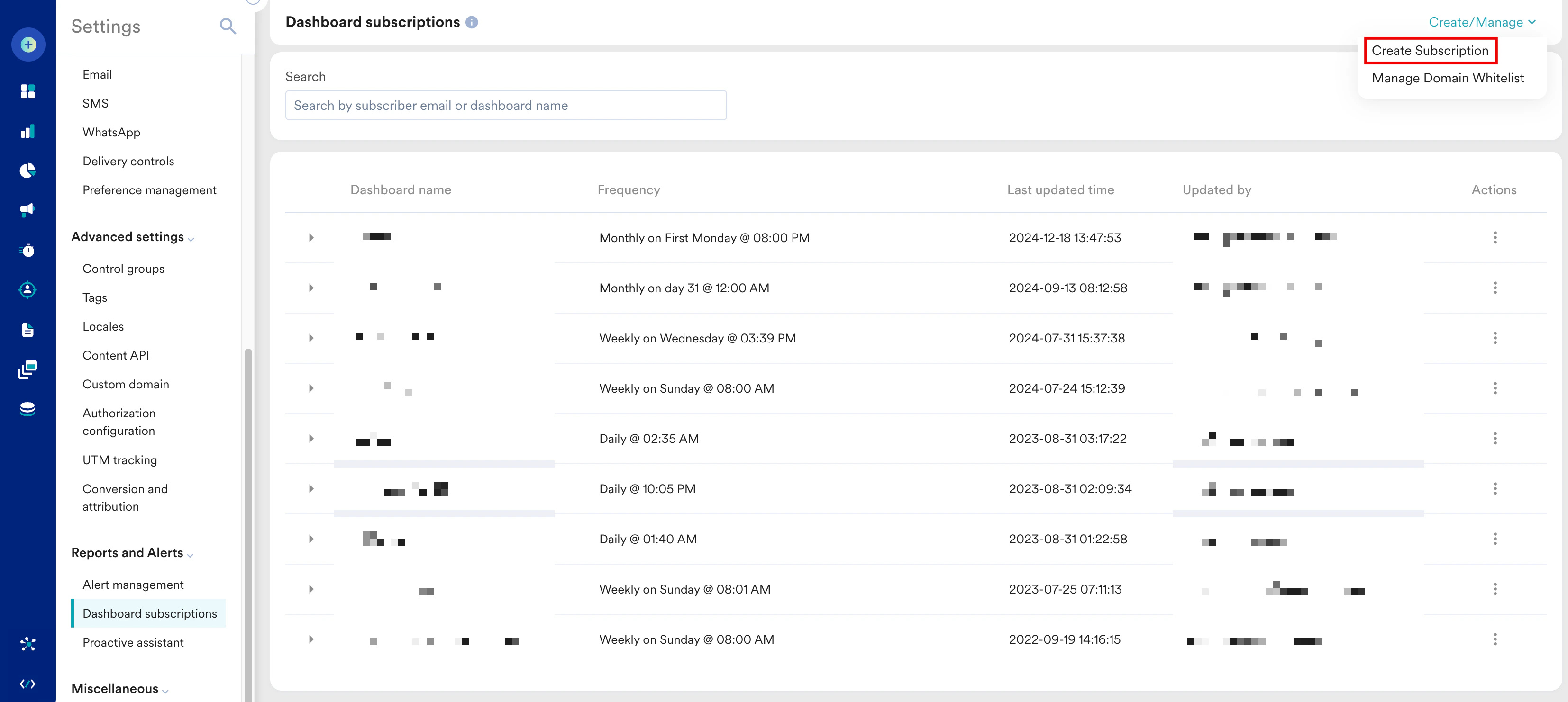
1. On the left navigation menu in the MoEngage dashboard, click **Settings** > **Reports and Alerts** > **Dashboard subscriptions**.
2. In the upper-right corner, click **Create**/**Manage** and select **Create Subscription**.
 3. On the **Subscribe to Dashboard** dialog box, enter the following details:
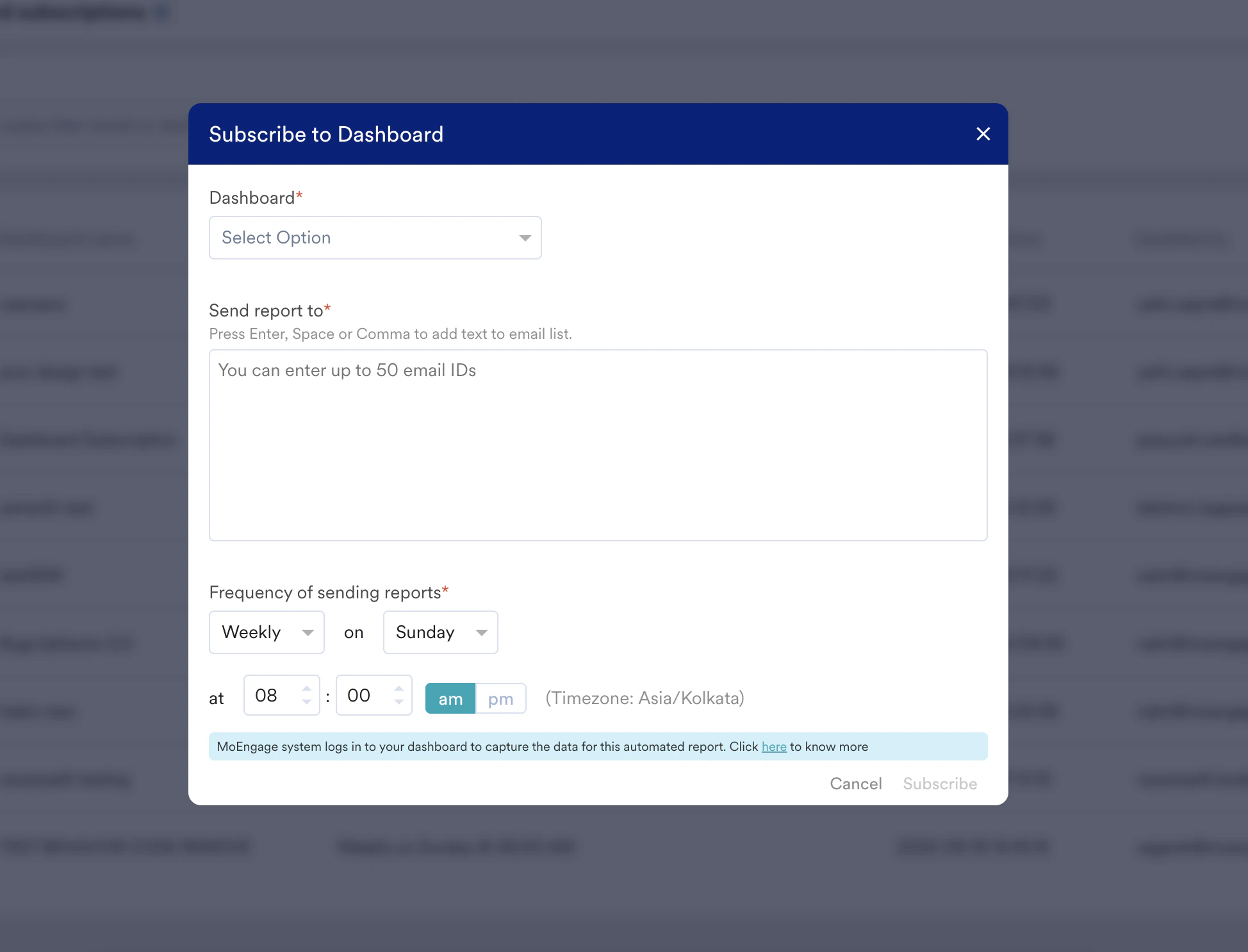 1. In the **Dashboard** list, select the dashboard for which you wish to receive scheduled reports.
2. In the **Send report to** box, type or paste the email address(es) to which the email report must be sent and press Enter.
* A list of recipients is added as a comma-separated list.
* You can add up to 50 email recipients to each subscription.
* For non-registered users, the email domain must be whitelisted. For more information, refer to [Whitelist Domains](/user-guide/settings/reports-and-alerts/dashboard-subscriptions#whitelist-domains).
3. In the **Frequency of sending reports** section, configure the following to send the dashboard report at a specific time and date:
| Field | Description |
| ----------------------------------------------------------------- | -------------------------------------------------------------------- |
| Daily, Weekly, or Monthly | Select the frequency at which you wish to send the dashboard report. |
| Sunday, Monday, Tuesday, Wednesday, Thursday, Friday, or Saturday | The day on which you wish to send the dashboard report. |
| Time | Use the arrows or type when you wish to send the dashboard report. |
| am or pm | Click am or pm to set the time. |
4. Click **Subscribe** to create the subscription.
* The **Dashboard** field is pre-populated when you create a subscription from the custom dashboard.
* If a dashboard subscription is already present for any dashboard, the subscription is shown upfront, and you can edit the existing subscription if required.
# Manage Subscriptions
To manage existing subscriptions, perform the following steps:
1. On the left navigation menu in the MoEngage dashboard, click **Settings** > **Reports and Alerts** > **Dashboard Subscriptions**. A list of all dashboard names will appear with the frequency of the subscription, the last update time, and the person who updated it.
1. In the **Dashboard** list, select the dashboard for which you wish to receive scheduled reports.
2. In the **Send report to** box, type or paste the email address(es) to which the email report must be sent and press Enter.
* A list of recipients is added as a comma-separated list.
* You can add up to 50 email recipients to each subscription.
* For non-registered users, the email domain must be whitelisted. For more information, refer to [Whitelist Domains](/user-guide/settings/reports-and-alerts/dashboard-subscriptions#whitelist-domains).
3. In the **Frequency of sending reports** section, configure the following to send the dashboard report at a specific time and date:
| Field | Description |
| ----------------------------------------------------------------- | -------------------------------------------------------------------- |
| Daily, Weekly, or Monthly | Select the frequency at which you wish to send the dashboard report. |
| Sunday, Monday, Tuesday, Wednesday, Thursday, Friday, or Saturday | The day on which you wish to send the dashboard report. |
| Time | Use the arrows or type when you wish to send the dashboard report. |
| am or pm | Click am or pm to set the time. |
4. Click **Subscribe** to create the subscription.
* The **Dashboard** field is pre-populated when you create a subscription from the custom dashboard.
* If a dashboard subscription is already present for any dashboard, the subscription is shown upfront, and you can edit the existing subscription if required.
# Manage Subscriptions
To manage existing subscriptions, perform the following steps:
1. On the left navigation menu in the MoEngage dashboard, click **Settings** > **Reports and Alerts** > **Dashboard Subscriptions**. A list of all dashboard names will appear with the frequency of the subscription, the last update time, and the person who updated it.
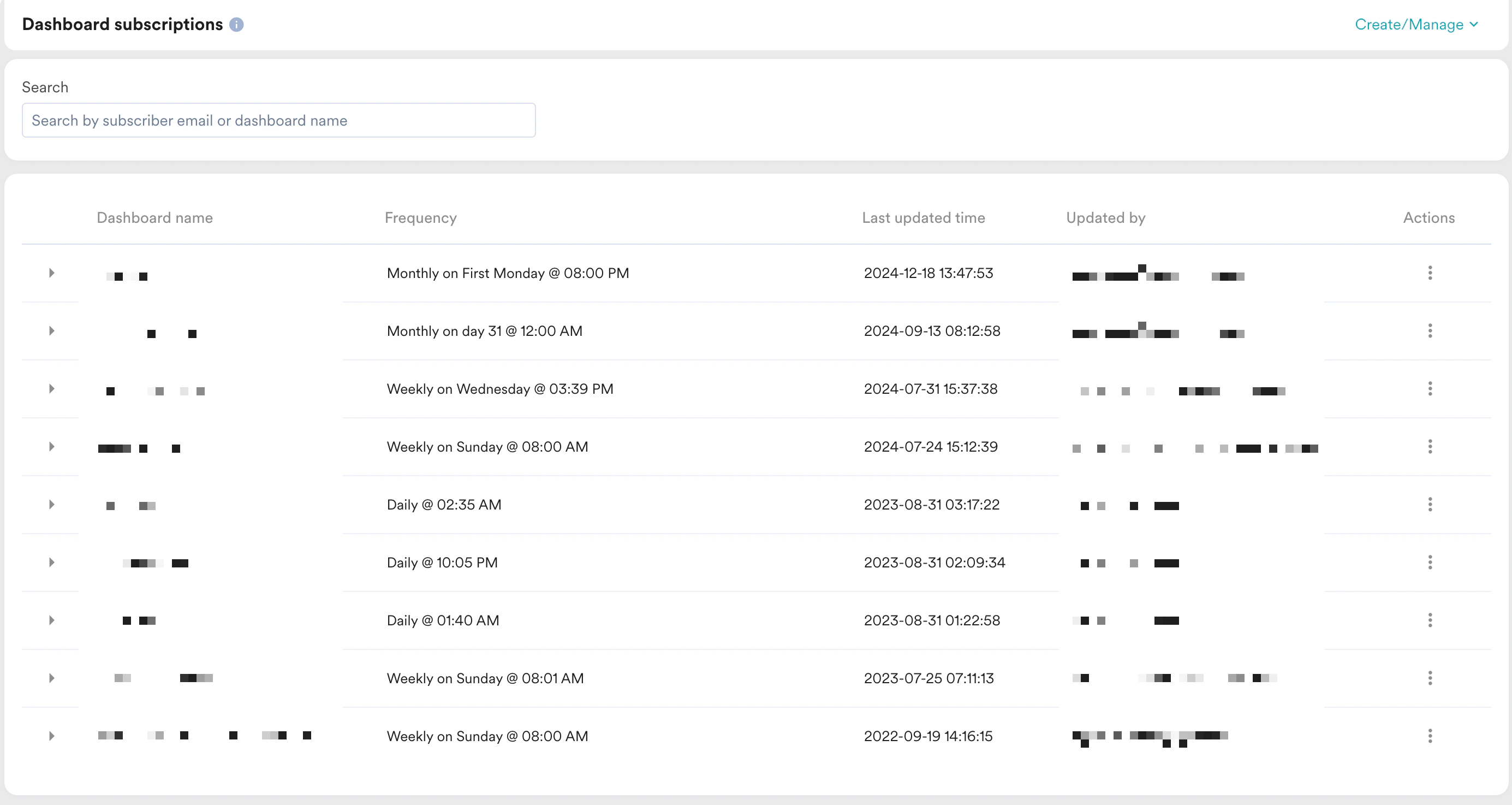 2. You can perform the following actions:
* **Search**: To find subscriptions by email or dashboard name, use the search box at the top.
* **Edit/Delete**: To edit or delete existing subscriptions, click the icon against a dashboard name and select **Edit** or **Delete**.
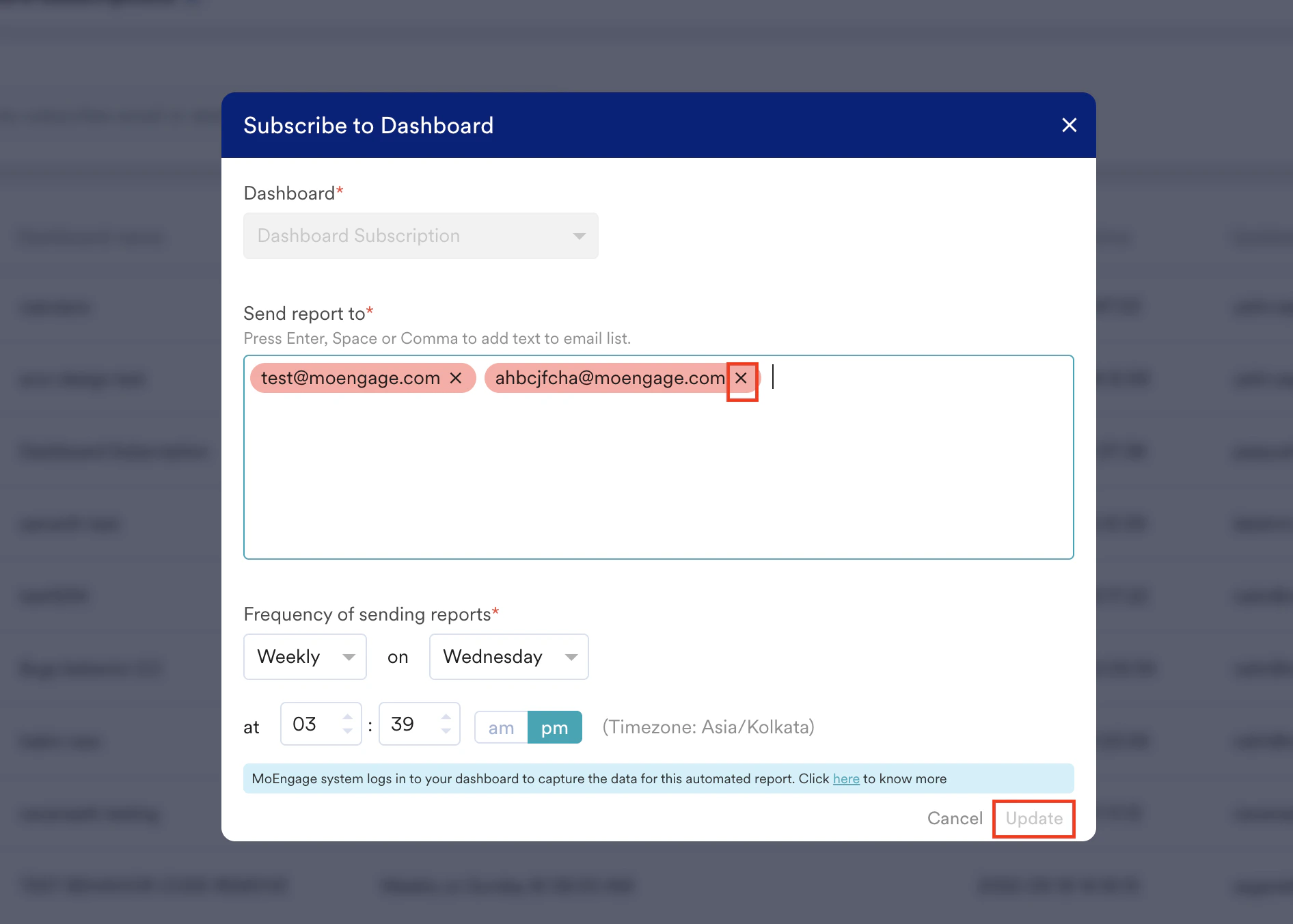
* **Unsubscibe**: To unsubscribe:
1. Click the icon for the required subscription name, and click **Edit**. The **Subscribe to Dashboard** dialog box appears.
2. In the **Send report to** box, remove the email and click **Update**.
2. You can perform the following actions:
* **Search**: To find subscriptions by email or dashboard name, use the search box at the top.
* **Edit/Delete**: To edit or delete existing subscriptions, click the icon against a dashboard name and select **Edit** or **Delete**.
* **Unsubscibe**: To unsubscribe:
1. Click the icon for the required subscription name, and click **Edit**. The **Subscribe to Dashboard** dialog box appears.
2. In the **Send report to** box, remove the email and click **Update**.
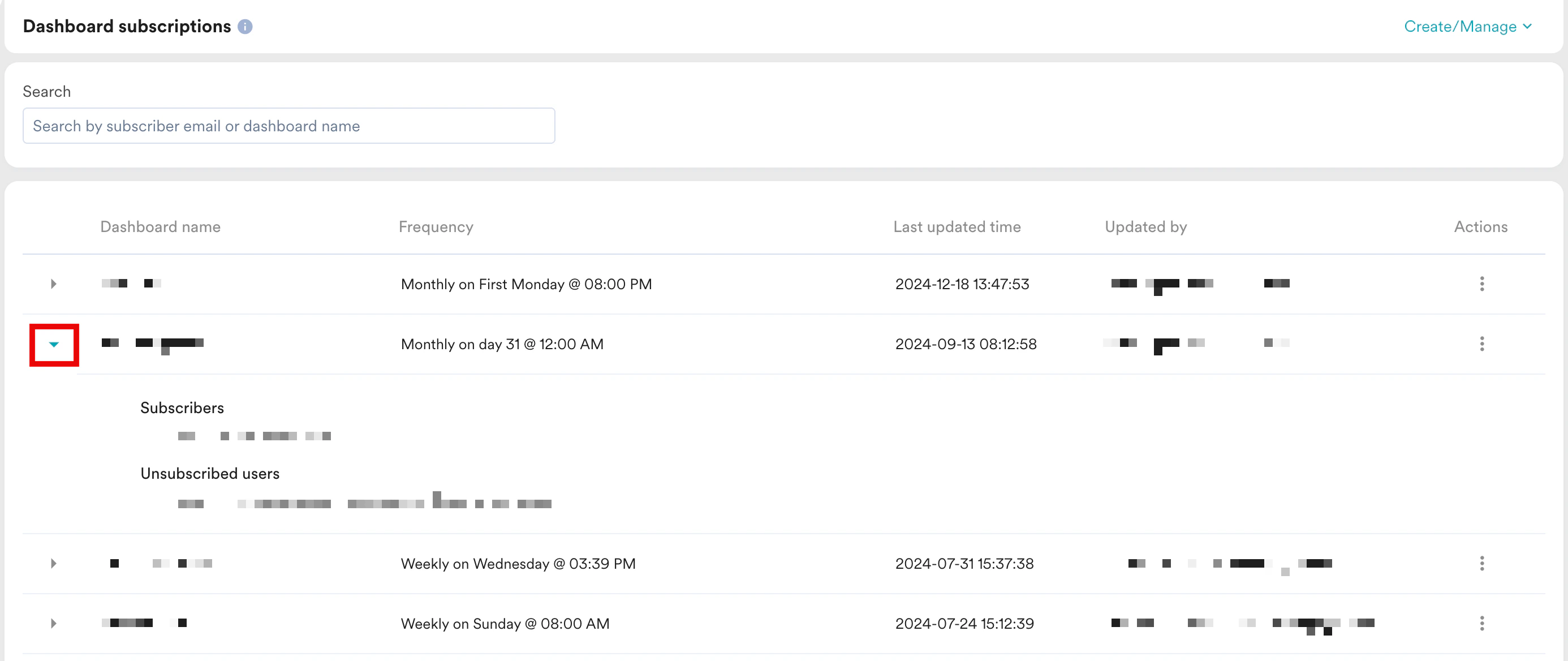
 * **View subscribers/unsubscribers**: To view the list of subscribers and unsubscribers, click the dashboard name. An expanded section appears listing the **Subscribers** and **Unsubscribers**.
 ## Subscription Access and Permissions
The following table describes the roles and permissions for managing subscriptions. For more information about roles and permissions, refer to [Access Roles](/user-guide/settings/account/team-management/access-roles).
| Action for managing subscription | Role and Access |
| ---------------------------------- | --------------------------------------------------------------------------------------------------------------------------------------------------------------------------------------------------------------------------------------------------------------------------------- |
| Create Subscription | All user roles that have access to the dashboard can create subscriptions. |
| Edit or Delete Subscription |
## Subscription Access and Permissions
The following table describes the roles and permissions for managing subscriptions. For more information about roles and permissions, refer to [Access Roles](/user-guide/settings/account/team-management/access-roles).
| Action for managing subscription | Role and Access |
| ---------------------------------- | --------------------------------------------------------------------------------------------------------------------------------------------------------------------------------------------------------------------------------------------------------------------------------- |
| Create Subscription | All user roles that have access to the dashboard can create subscriptions. |
| Edit or Delete Subscription | - All user roles can edit or delete their own created subscriptions.
- Only Managers and Administrators can edit or delete subscriptions for other user roles.
|
| Add Users to the Subscription List | - All user roles can add users who are part of the MoEngage workspace to the subscription list.
- Only Managers and Administrators can add users who are not part of the MoEngage workspace to the subscription list (the domain must be in the whitelist).
|
# Whitelist Domains
Domain whitelisting helps protect data confidentiality. Administrators and Managers can whitelist email domains that are used to subscribe to the dashboards.
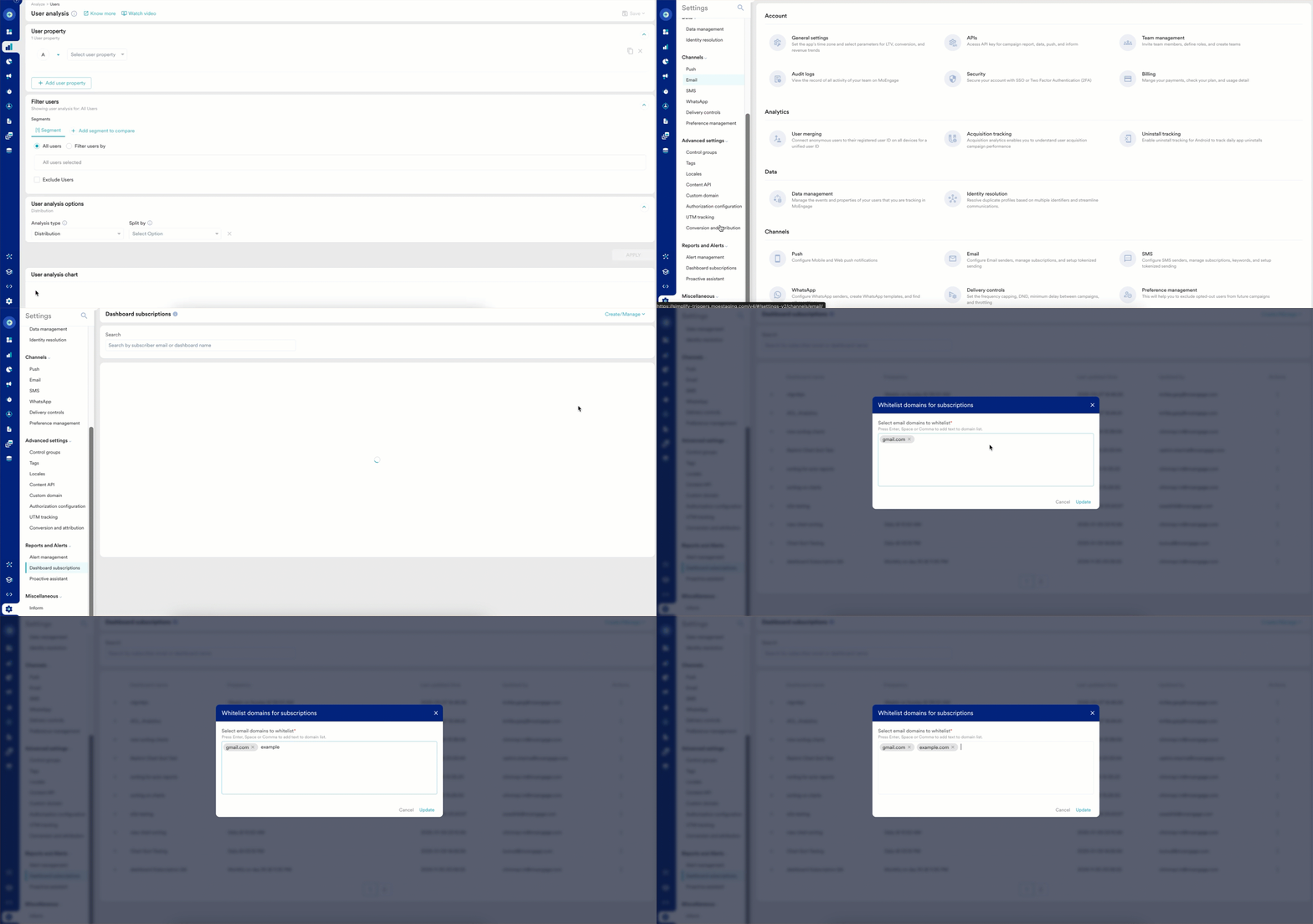 To whitelist a domain:
1. On the left navigation menu in the MoEngage dashboard, click **Settings** > **Reports and Alerts** > **Dashboard subscriptions**.
2. In the upper-right corner, click **Create/Manage** > **Manage Domain Whitelist**.
3. In the **Select email domain names to whitelist** field, type or paste the domains you want to whitelist and press Enter. For example, abc.com
4. Click **Update**. OR, click **Cancel** or **Close** to close the window without adding or updating the domain names.
You can whitelist up to five domains.
To whitelist a domain:
1. On the left navigation menu in the MoEngage dashboard, click **Settings** > **Reports and Alerts** > **Dashboard subscriptions**.
2. In the upper-right corner, click **Create/Manage** > **Manage Domain Whitelist**.
3. In the **Select email domain names to whitelist** field, type or paste the domains you want to whitelist and press Enter. For example, abc.com
4. Click **Update**. OR, click **Cancel** or **Close** to close the window without adding or updating the domain names.
You can whitelist up to five domains.