> ## Documentation Index
> Fetch the complete documentation index at: https://moengage.com/docs/llms.txt
> Use this file to discover all available pages before exploring further.
# Proactive Insights Settings
> Customize MoEngage Proactive Insights by configuring RFM insights, key insights preferences, confidence intervals, and analysis duration.
# Overview
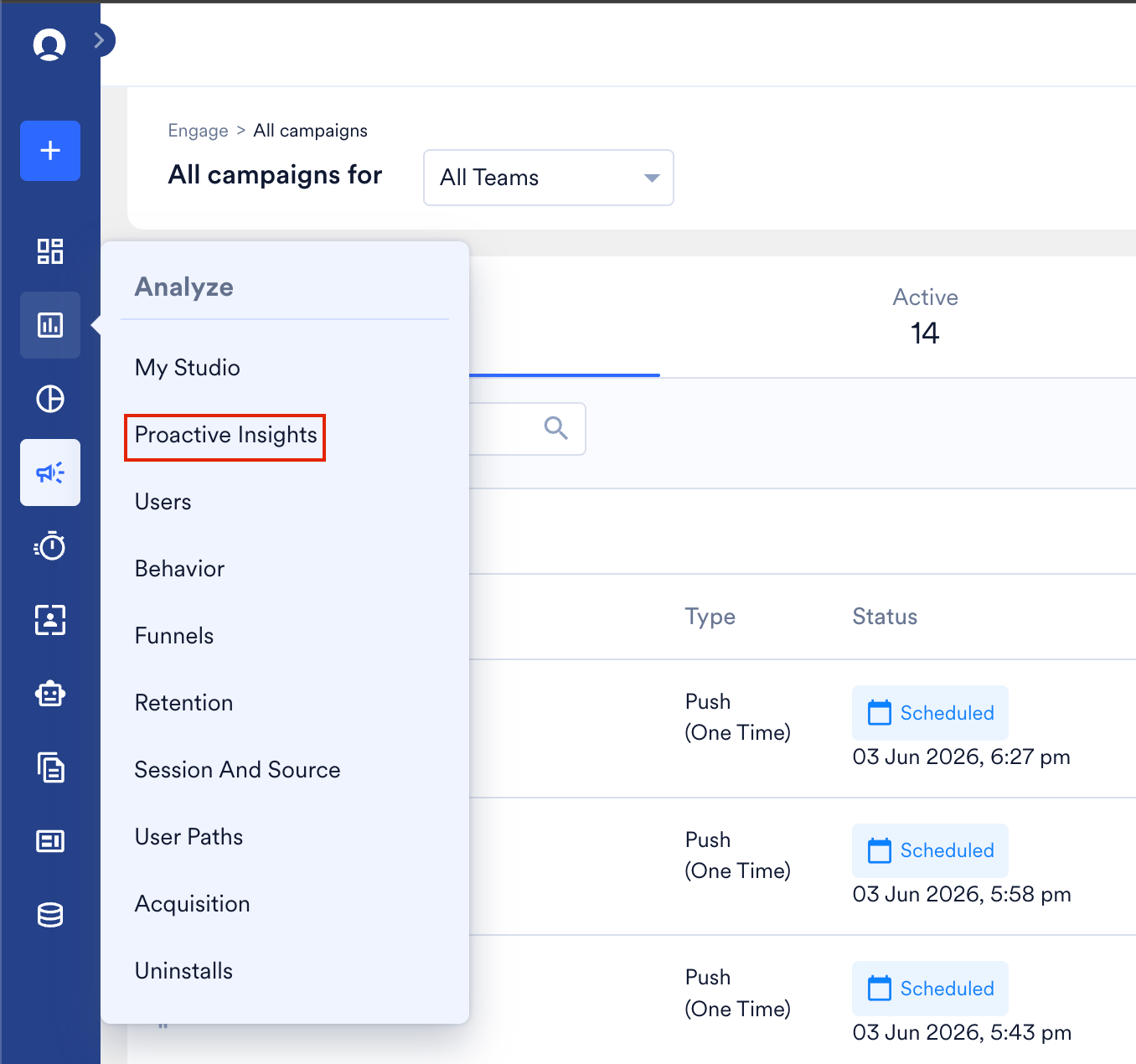
You can customize your RFM Insights and Key Insights preferences on the Proactive Insights settings page. You can also adjust the Confidence Interval and Analysis Duration based on your needs. Configuring these settings helps populate accurate data on the **Proactive Insights** page on the MoEngage dashboard. To open the Proactive Insights page, go to the left navigation, select **Analyze**, and then click **Proactive Insights**.
 For more information on how this AI-powered assistant works, refer to [Proactive Insights](/docs/user-guide/ai-and-intelligence/proactive-insights).
# Setting Up Proactive Insights
To access the Proactive Insights settings page, navigate to **Settings** > **Reports and alerts** > **Proactive Insights**. The **Proactive Insights settings** page appears.
For more information on how this AI-powered assistant works, refer to [Proactive Insights](/docs/user-guide/ai-and-intelligence/proactive-insights).
# Setting Up Proactive Insights
To access the Proactive Insights settings page, navigate to **Settings** > **Reports and alerts** > **Proactive Insights**. The **Proactive Insights settings** page appears.
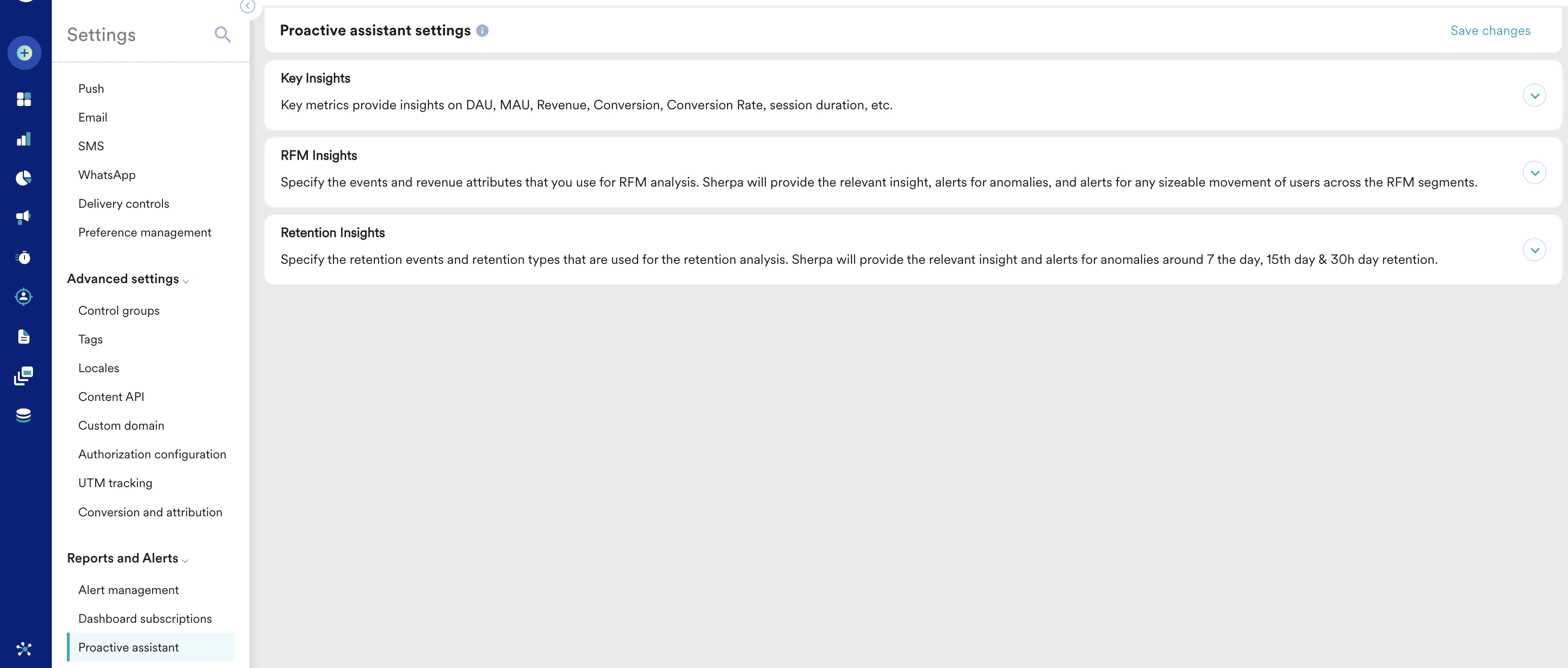 You can configure the following settings:
* [Key insights](/docs/user-guide/settings/reports-and-alerts/proactive-insights-settings#key-insights)
* [RFM insights](/docs/user-guide/settings/reports-and-alerts/proactive-insights-settings#rfm-insights)
* [Retention insights](/docs/user-guide/settings/reports-and-alerts/proactive-insights-settings#retention-insights)
## Key Insights
The events and revenue attributes that you set up in the **Key Insights** section will be used for Key Metrics analysis. Proactive Insights will provide relevant insight and alerts for any sizable movement of users for DAU and MAU Metrics.
You can configure the following settings:
* [Key insights](/docs/user-guide/settings/reports-and-alerts/proactive-insights-settings#key-insights)
* [RFM insights](/docs/user-guide/settings/reports-and-alerts/proactive-insights-settings#rfm-insights)
* [Retention insights](/docs/user-guide/settings/reports-and-alerts/proactive-insights-settings#retention-insights)
## Key Insights
The events and revenue attributes that you set up in the **Key Insights** section will be used for Key Metrics analysis. Proactive Insights will provide relevant insight and alerts for any sizable movement of users for DAU and MAU Metrics.
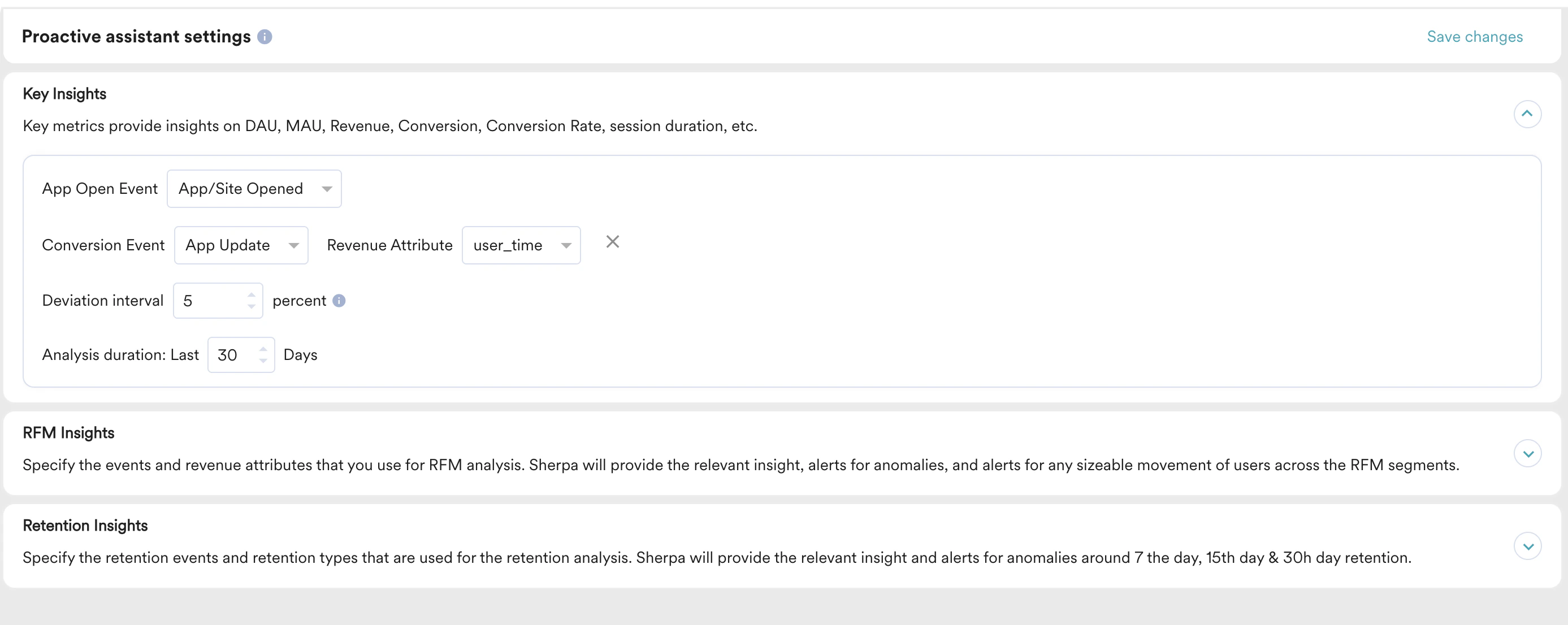 Perform the following steps to set up Key Insights:
1. Specify the **App Open Event**, **Conversion Event**, and **Revenue Attribute** you would like to use for Key Insights.
2. Define the **Deviation interval.** The Deviation Interval is the range around the forecasted value within which the actual value is likely to fall for generating insights. This range can be between 5% to 20%.
3. Set the **Analysis duration** based on your needs.
## RFM Insights
The events and revenue attributes that you set up in the **RFM Insights** section will be used for RFM analysis. Merlin AI will provide relevant insight and alerts for any significant movement of users across the RFM segments.
Perform the following steps to set up Key Insights:
1. Specify the **App Open Event**, **Conversion Event**, and **Revenue Attribute** you would like to use for Key Insights.
2. Define the **Deviation interval.** The Deviation Interval is the range around the forecasted value within which the actual value is likely to fall for generating insights. This range can be between 5% to 20%.
3. Set the **Analysis duration** based on your needs.
## RFM Insights
The events and revenue attributes that you set up in the **RFM Insights** section will be used for RFM analysis. Merlin AI will provide relevant insight and alerts for any significant movement of users across the RFM segments.
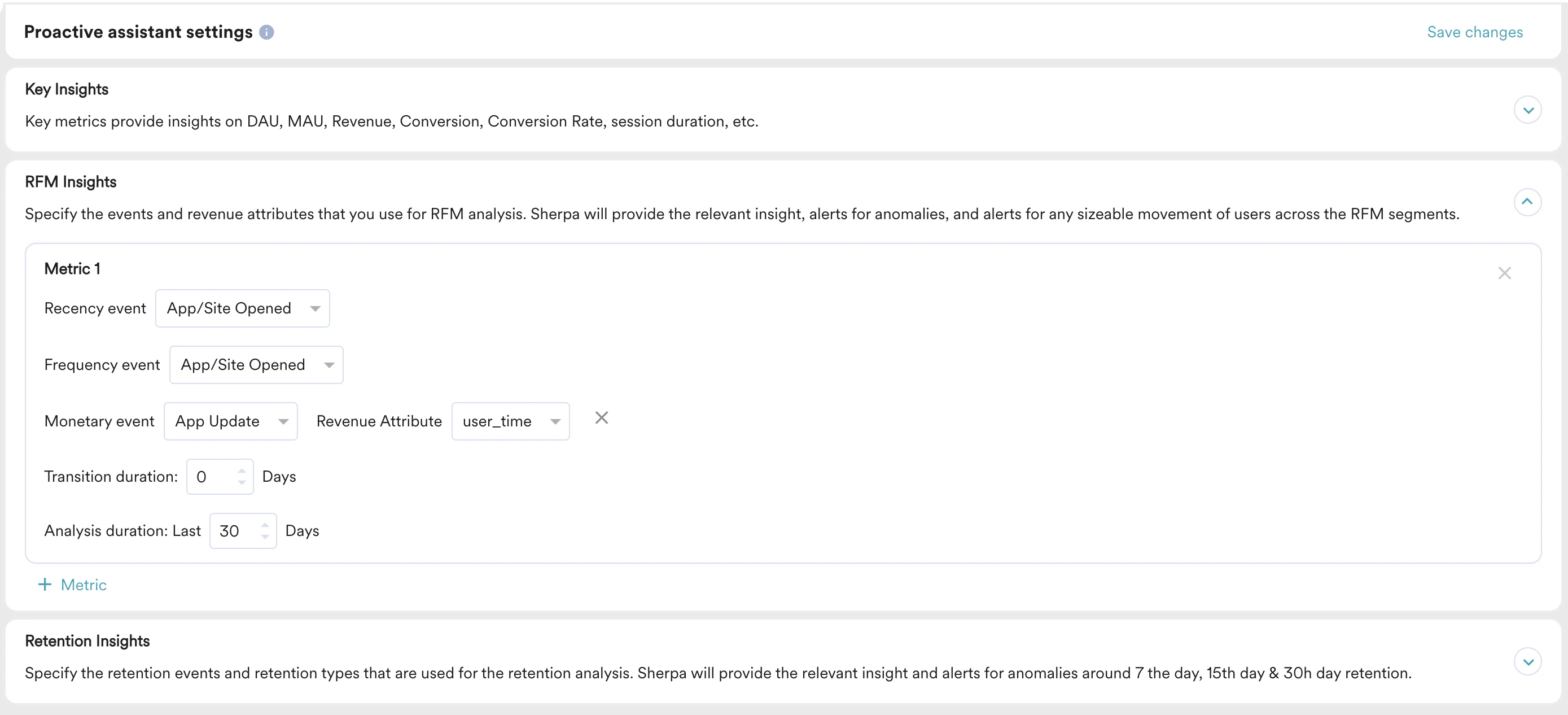 You can set up to five different RFM Metrics to be used as input to Merlin AI. Perform the following steps to set up RFM Insights:
1. By default, **Recency event** and **Frequency** **event** will be set up as *App/Site Opened.*
2. **Monetary event** will be picked from the **Settings** > **General** > **Goal mapping** > **Revenue attribute** field.
3. These inputs will be analyzed over the duration added in **Analysis duration**. Set the analysis duration based on your needs. It is recommended to be above 7 days for meaningful insights.
## Retention Insights
The events and revenue attributes that you set up in the Retention Insights section will be used for Retention analysis. Merlin AI will provide relevant insight and alerts for anomalies around 7-day, 15-day, and 30-day retention.
You can set up to five different RFM Metrics to be used as input to Merlin AI. Perform the following steps to set up RFM Insights:
1. By default, **Recency event** and **Frequency** **event** will be set up as *App/Site Opened.*
2. **Monetary event** will be picked from the **Settings** > **General** > **Goal mapping** > **Revenue attribute** field.
3. These inputs will be analyzed over the duration added in **Analysis duration**. Set the analysis duration based on your needs. It is recommended to be above 7 days for meaningful insights.
## Retention Insights
The events and revenue attributes that you set up in the Retention Insights section will be used for Retention analysis. Merlin AI will provide relevant insight and alerts for anomalies around 7-day, 15-day, and 30-day retention.
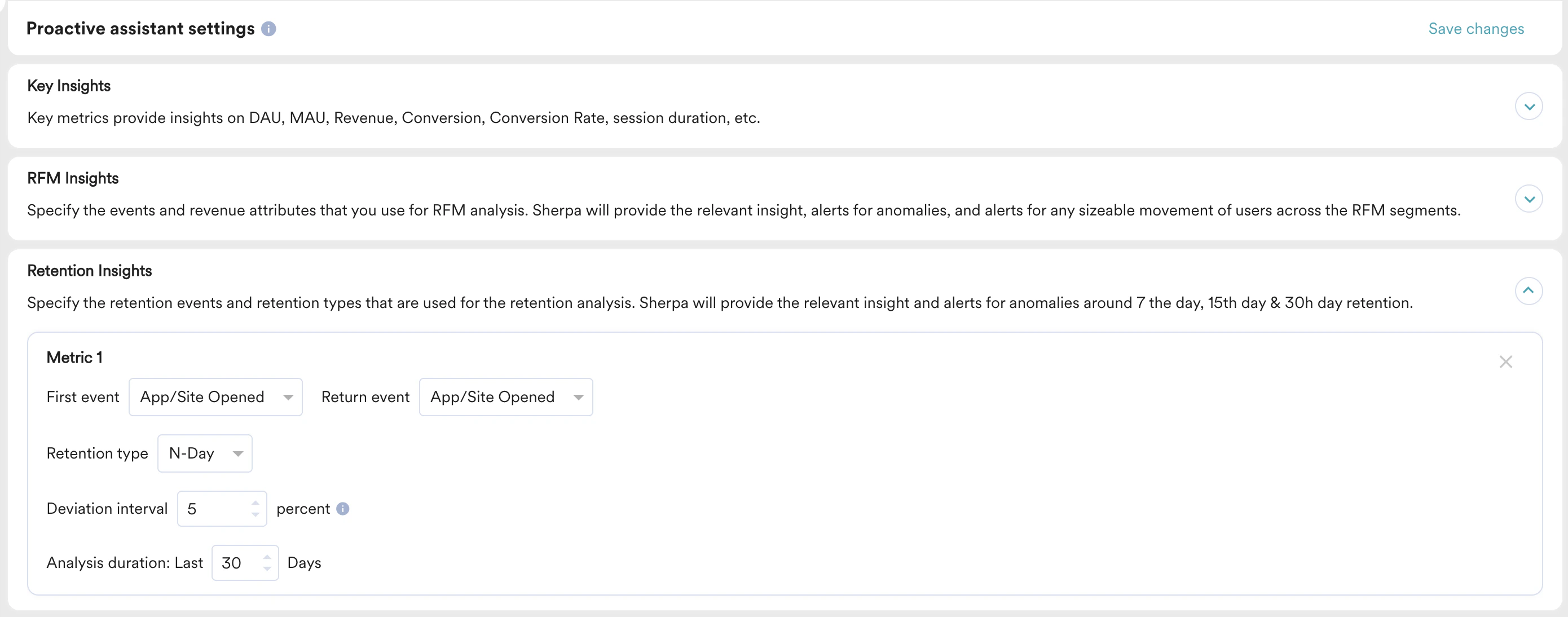 Perform the following steps to set up Retention Insights:
1. Specify the **First Event**, **Return Event**, and **Retention type** you would like to use for Retention insights.
2. Specify the **Deviation interval** and **Analysis duration** based on your needs.
Proactive Insights will provide the relevant insight and alerts for any sizable movement of users for D7 and D30 Retention Metrics.
All MoEngage AI products, which were previously referred to as *Sherpa AI*, are now known as *Merlin AI*.
Perform the following steps to set up Retention Insights:
1. Specify the **First Event**, **Return Event**, and **Retention type** you would like to use for Retention insights.
2. Specify the **Deviation interval** and **Analysis duration** based on your needs.
Proactive Insights will provide the relevant insight and alerts for any sizable movement of users for D7 and D30 Retention Metrics.
All MoEngage AI products, which were previously referred to as *Sherpa AI*, are now known as *Merlin AI*.