

Summary of Changes
| Step | Changes |
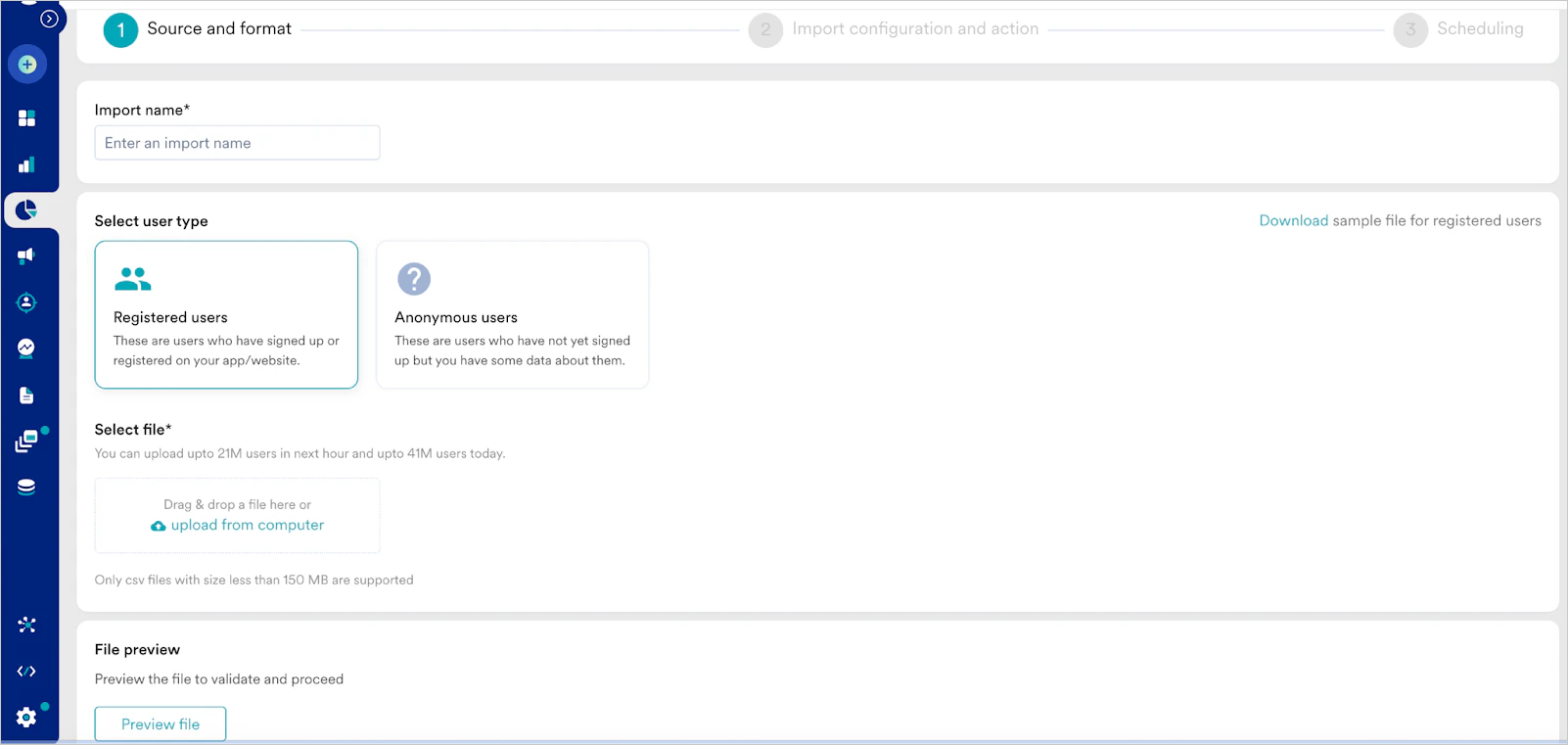
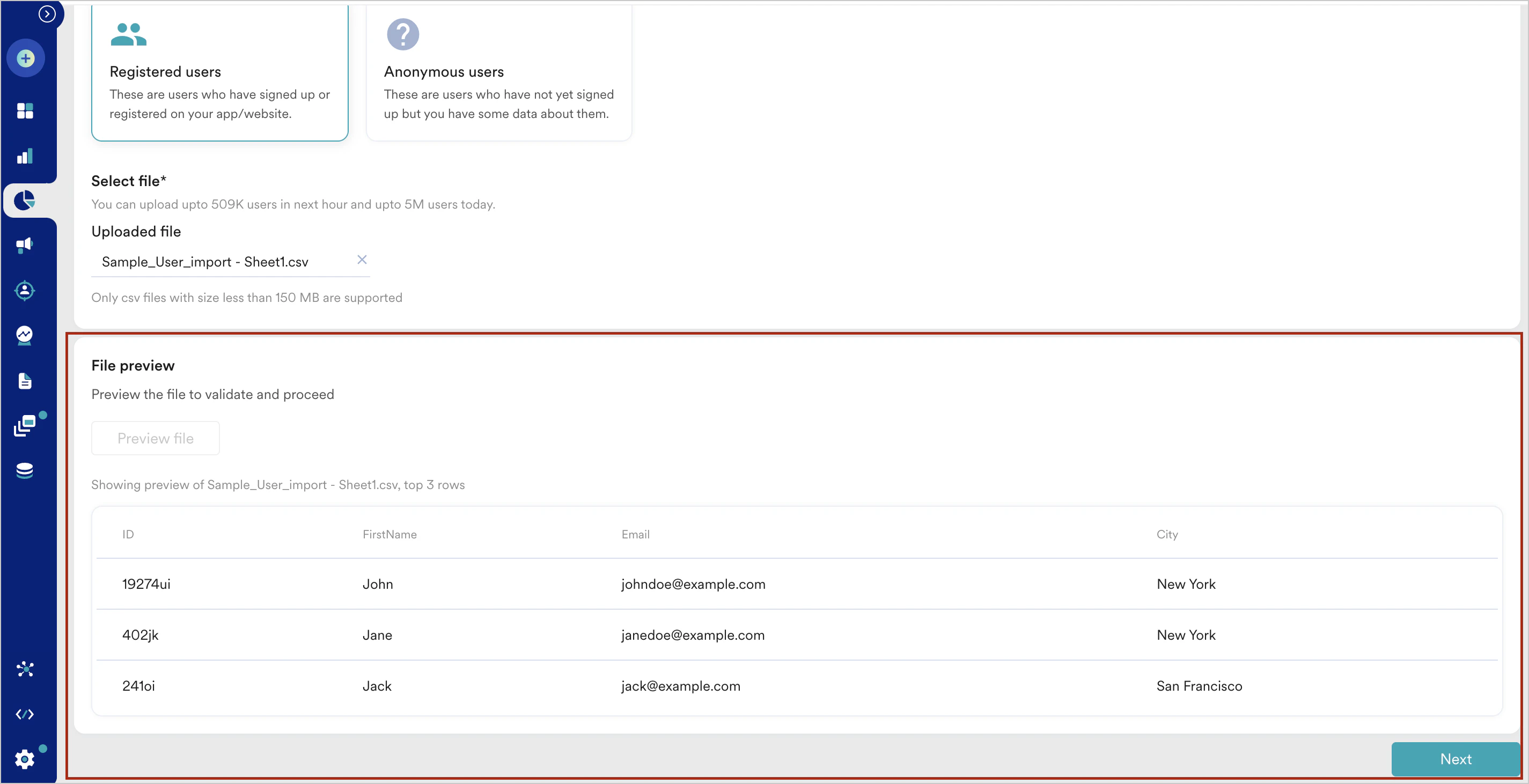
| Step 1 - Upload Users | 1. Enhanced look and feel (Core functionality remains the same) 2. New option to preview uploaded files |
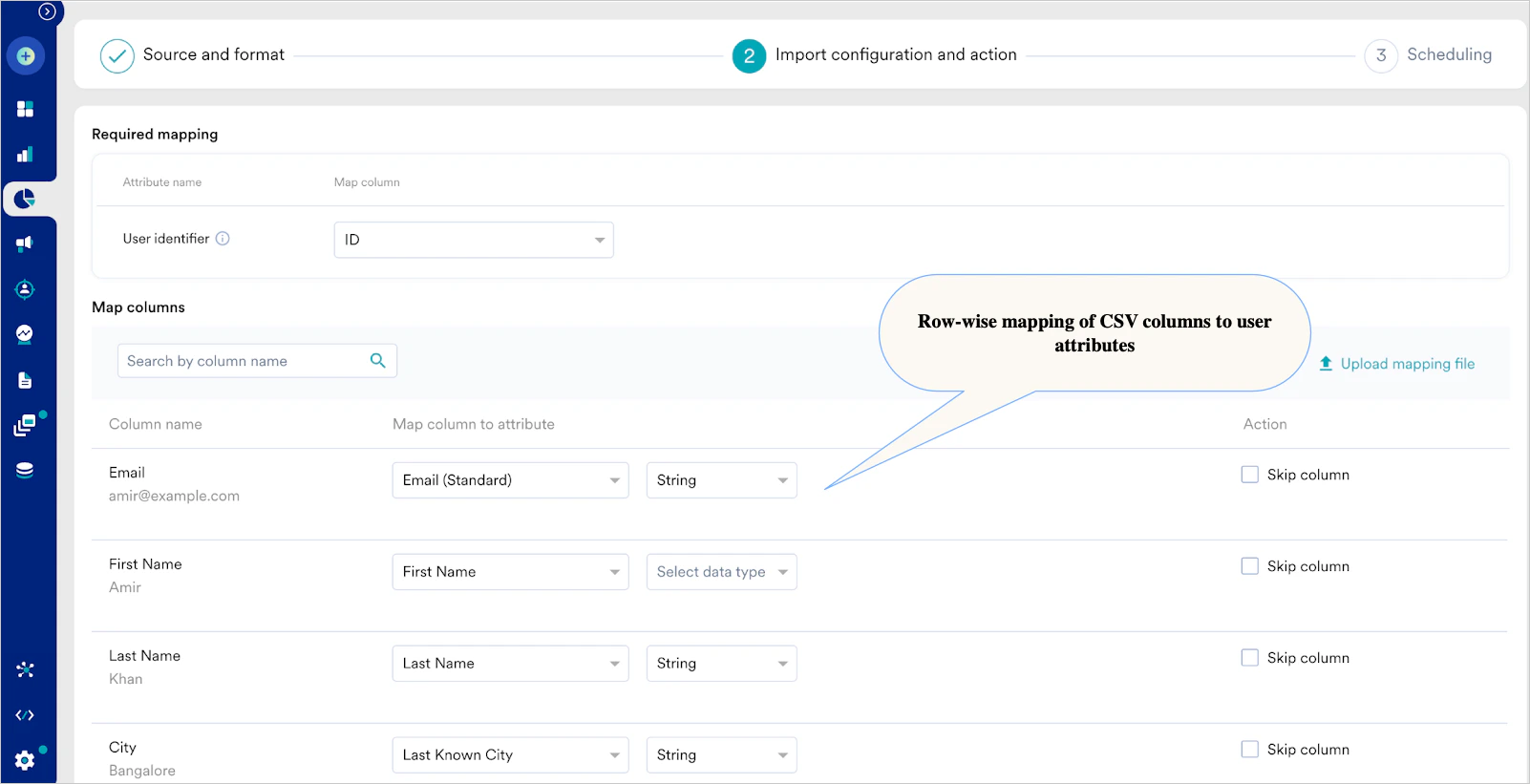
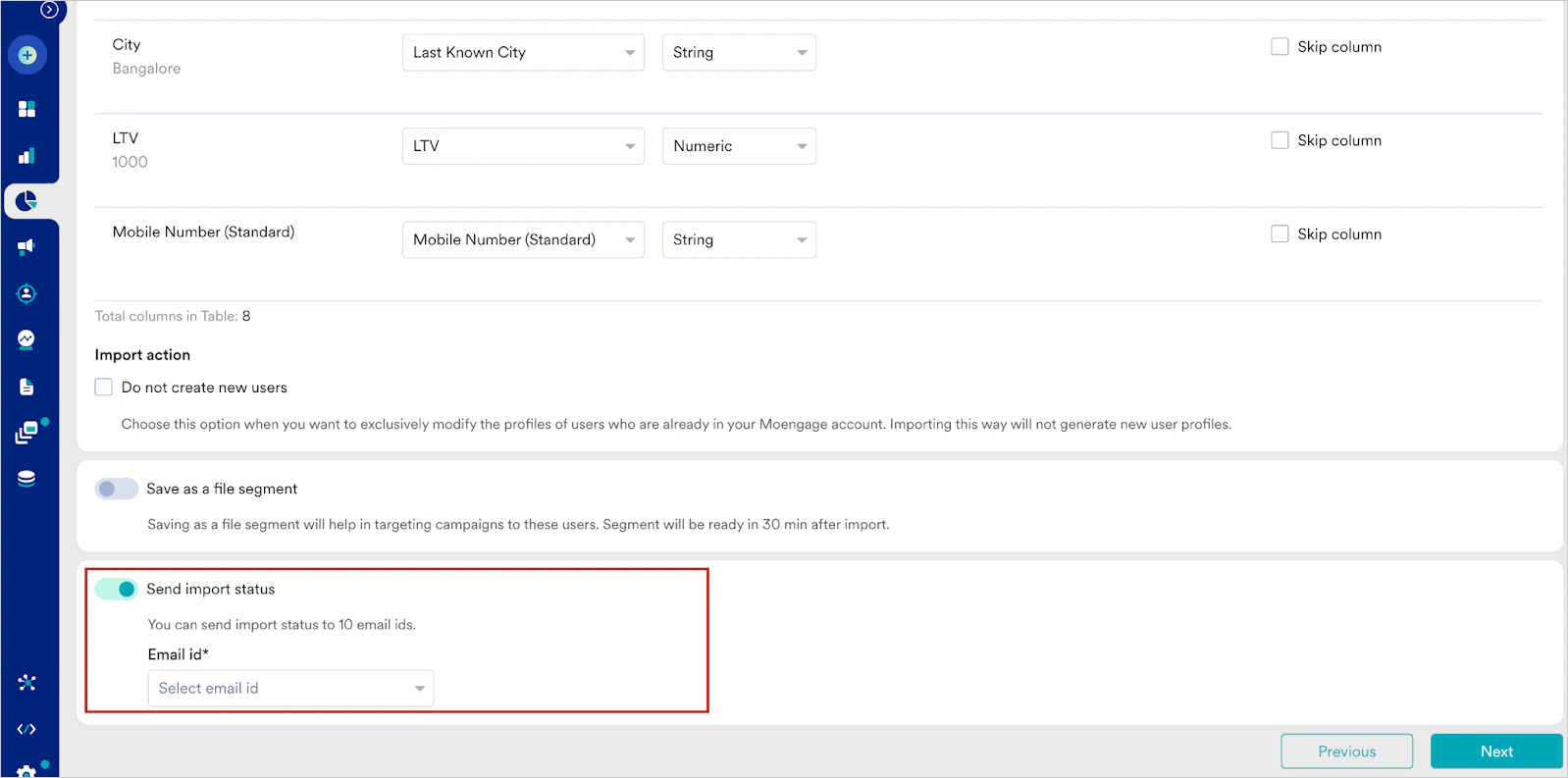
| Step 2 - Mapping CSV Columns to User Attributes | 1. Enhanced mapping experience 2. Configuring email alerts |
| Step 3 - Scheduling Imports | 1. New option to schedule user imports at the desired date and time |
Changes in Step 1
Revamped UI to facilitate an enhanced user experience Current UI Revamped UI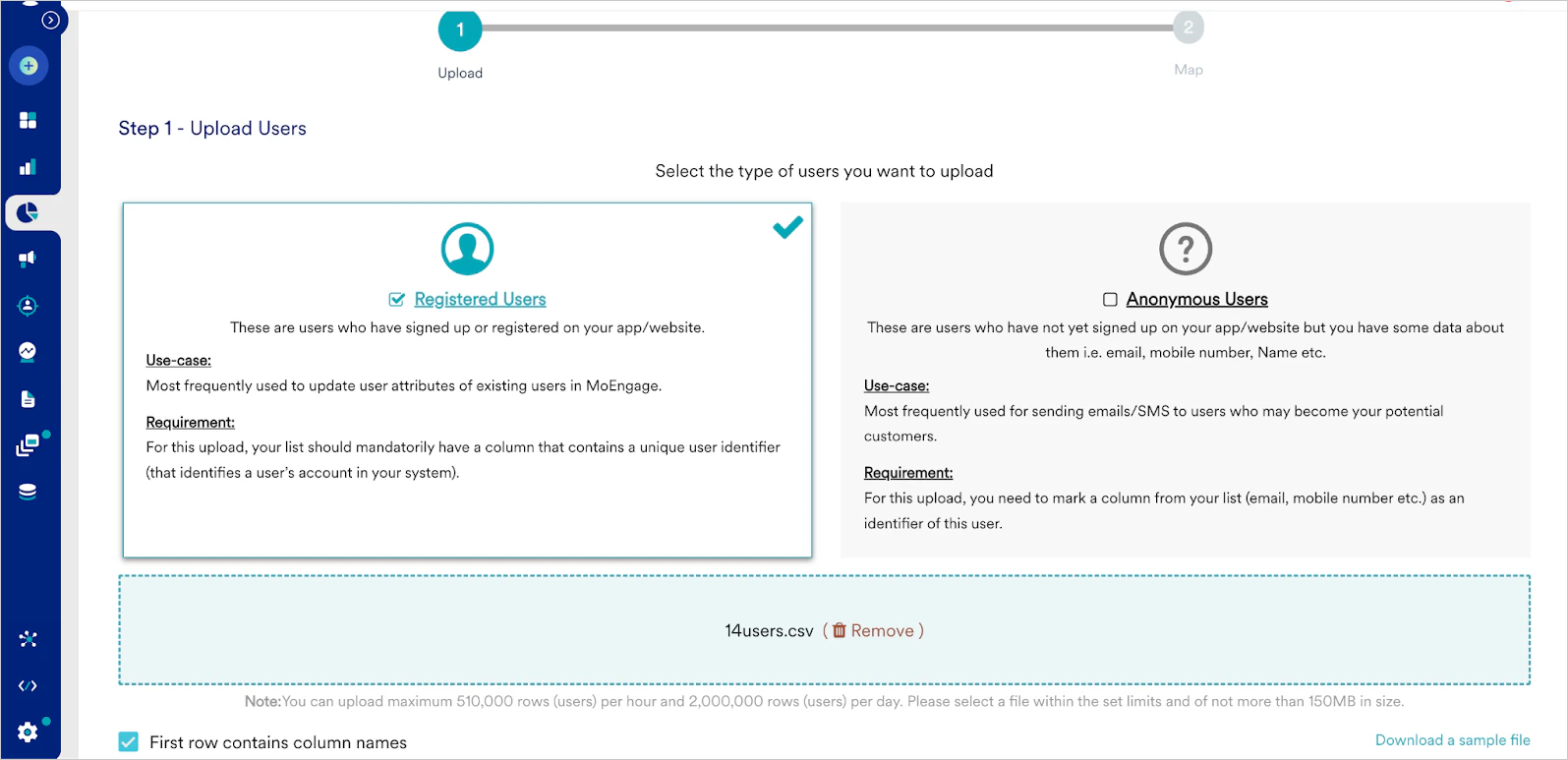
Changes in Step 2
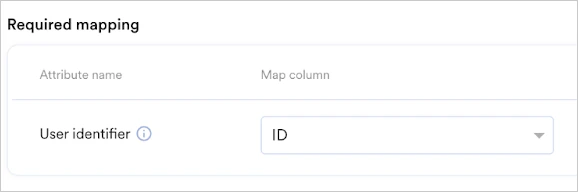
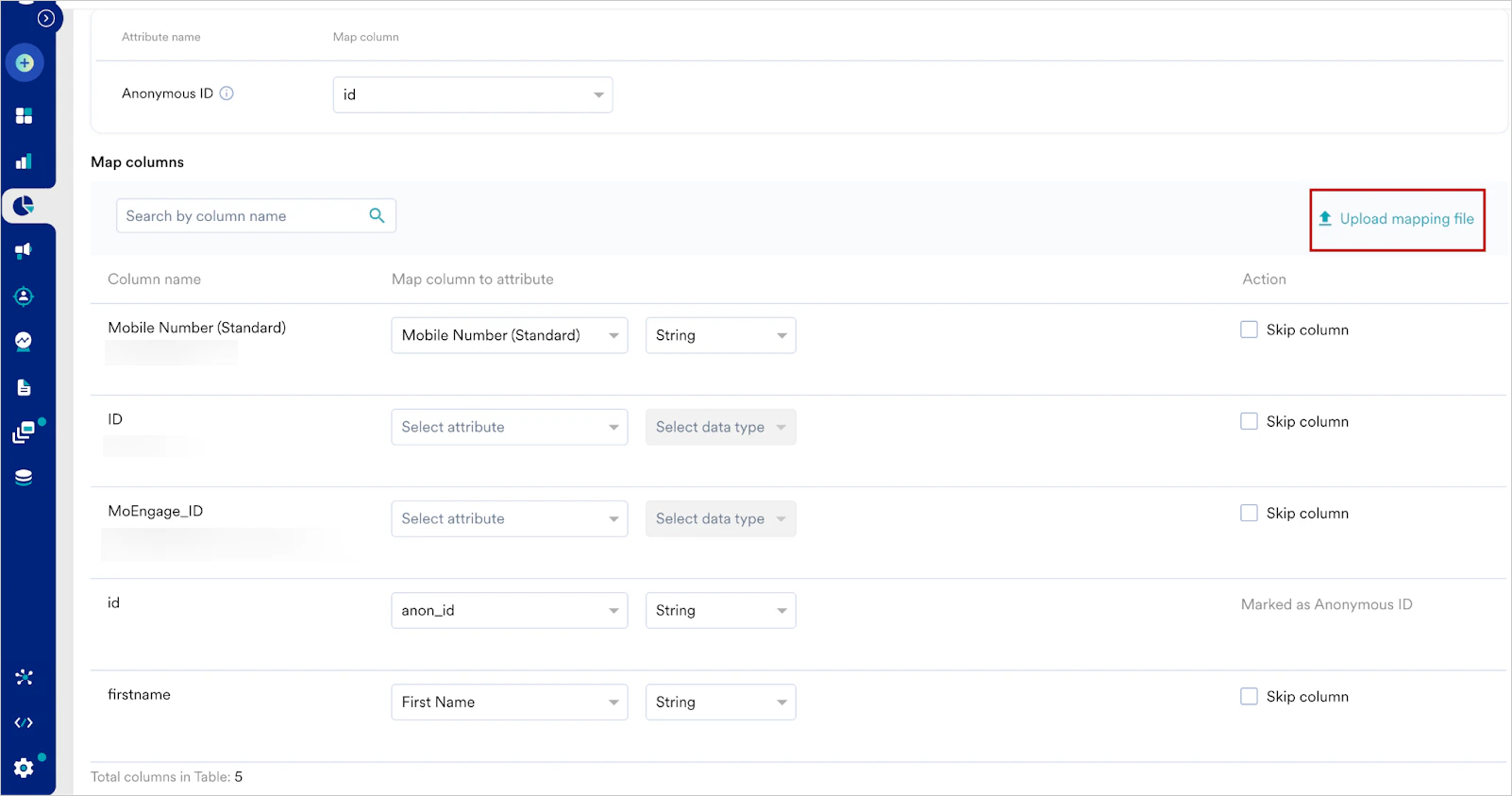
Enhanced Mapping table In the current version, the UI for mapping the columns to attributes is in a tabular format, while in the new version fields are lined in rows instead of the table thus making mapping easier. The row-wise mapping helps in having a single view of all the fields mapped and eases navigation across columns. Current UI Revamped UI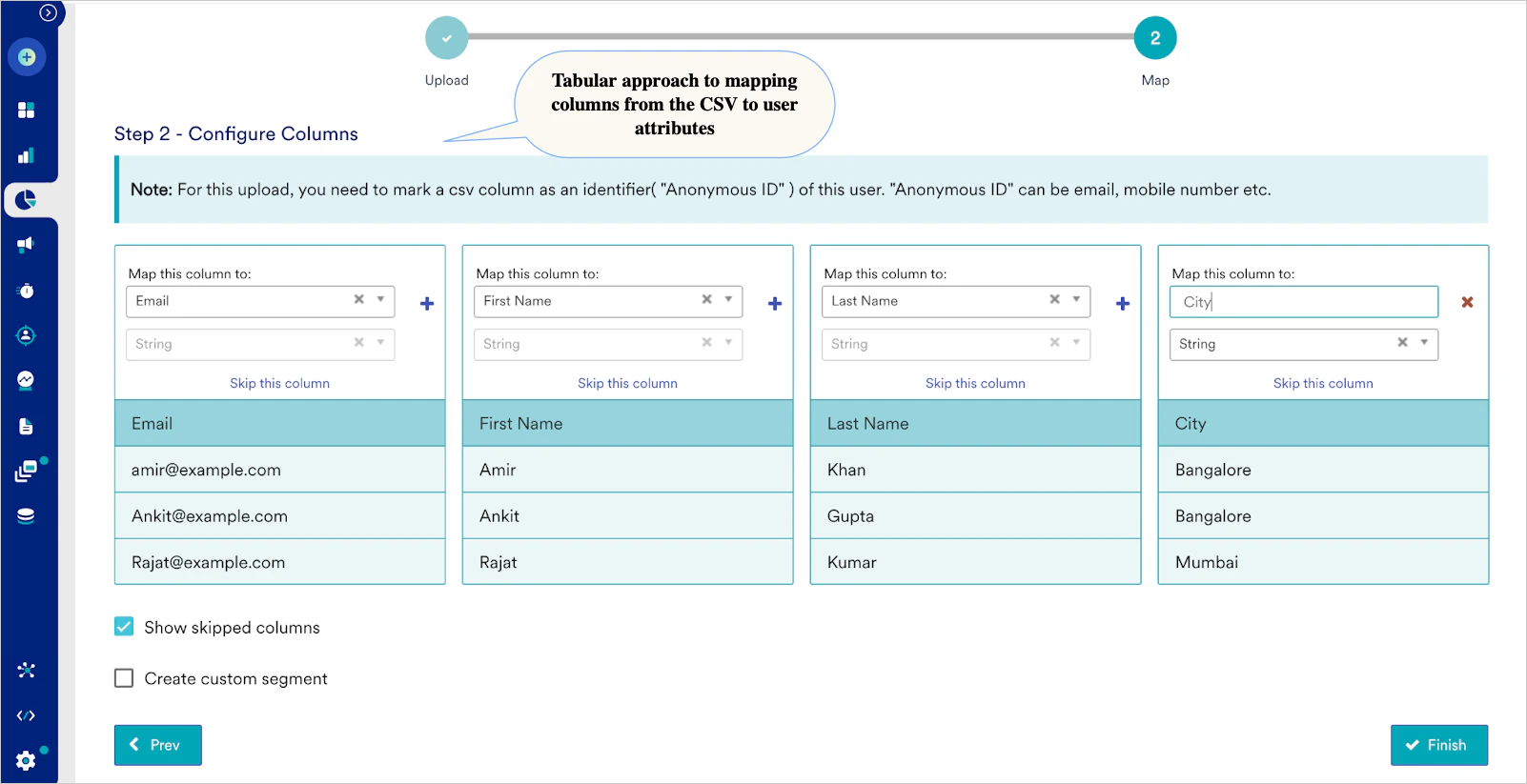
Addition of Step 3
You can schedule your imports in step 3, as shown in the following image. The following options are available:- As soon as possible
- Schedule the import at a specific date and time

Support for Array Attributes
You can upload array attributes while importing data. Guidelines to import array attributes- MoEngage supports simple arrays. Nested and associative arrays are not supported.
- The supported delimiter in the CSV is ‘|’
-
Datatypes supported are Array Double (numeric), and Array String. These datatypes will be available in the datatype dropdown under Mapping column to attribute in Step 2.

-
All the elements in the array have to be homogenous (all the elements will be either double or all string ). If they are not homogenous, MoEngage will try to typecast (transform) the element and then store the data.
Example of an array in a CSV field: [1|2|3]
