

Configure Sinch India as an RCS Connector (Service Provider)
Perform the following steps to configure Sinch India as a connector:- On the left navigation menu in the MoEngage UI, go to Settings > Channels > SMS & RCS > Sender configuration.
- On the RCS tab, click + Add RCS Sender.
- Click the Sinch India tile.
- On the Sender Details page, add the following details:
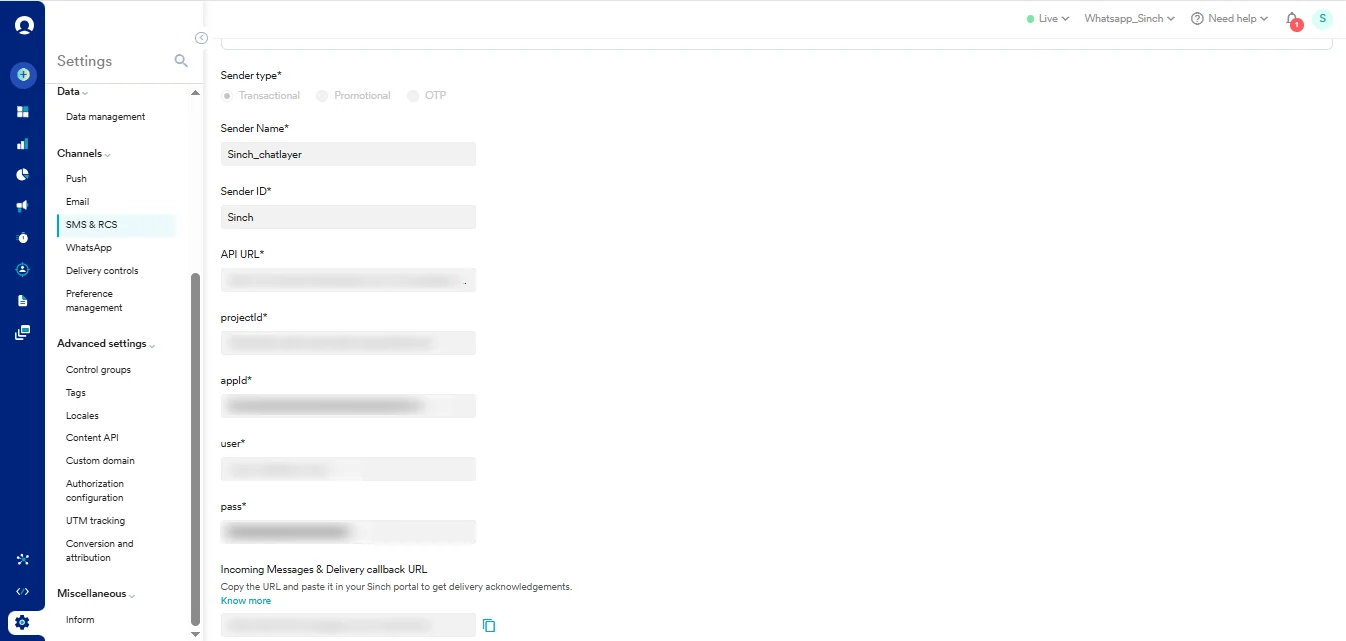
| Field | Description |
|---|---|
| Sender type | Select the sender type. It must be the same sender type as you have created with Sinch India during onboarding:
|
| Sender Name | Enter the name of the sender. This field identifies the readable sender name that can be used while creating a campaign or alert. |
| Sender ID | Enter the sender ID. This is the Sinch platform app ID visible on SmartTA. You can get this from the Sinch India onboarding team. |
| API URL | You can get this API URL from the Sinch India onboarding team. |
| ProjectID | You can get this ProjectId from the Sinch India onboarding team. |
| AppID | You can get this App ID from the Sinch India onboarding team. |
| User | You can get this User from the Sinch India onboarding team. |
| Pass | You can get this Pass from the Sinch India onboarding team |
- Click Save to save this sender configuration.
- Incoming Messages and delivery callback URL : Configuring delivery tracking allows you to monitor whether messages have been delivered to end users. Configuring incoming message URLs allows you to track messages’ responses so that you can act on them accordingly. Copy this URL from the MoEngage UI and email it to the Sinch India onboarding team so they can configure it.