

Introduction
SendGrid is a cloud-based SMTP provider that allows you to send email without maintaining email servers. SendGrid manages all technical details, from scaling the infrastructure to ISP outreach and reputation monitoring to whitelist services and real-time analytics.Configure SendGrid Account
You can sign up for SendGrid and select your pricing plan.Add Domains in SendGrid
To send emails from your domain using SendGrid, you need to set up domain authentication. This involves generating DNS records for your domain and dedicated IPs, adding these records to your DNS servers, and then validating them in SendGrid. For more information, refer to the following articles:- To set up a domain, refer to How to Set Up Domain Authentication.
- To set up link branding, refer to How to set up link branding.
- To set up reverse DNS for a dedicated IP, refer to How to set up reverse DNS.
- To set up SSL for click tracking domain, refer to Setup SSL for Click Tracking.
- To set up Sign in with Apple, refer to Configuring Sign in with Apple.
Create API Keys in SendGrid
Create API keys with full access. For more information, refer to the API KeysMake sure to note the API key in a secure location. You cannot view it again after creation.
Configure SendGrid Settings in MoEngage UI
- Log in to your MoEngage dashboard.
-
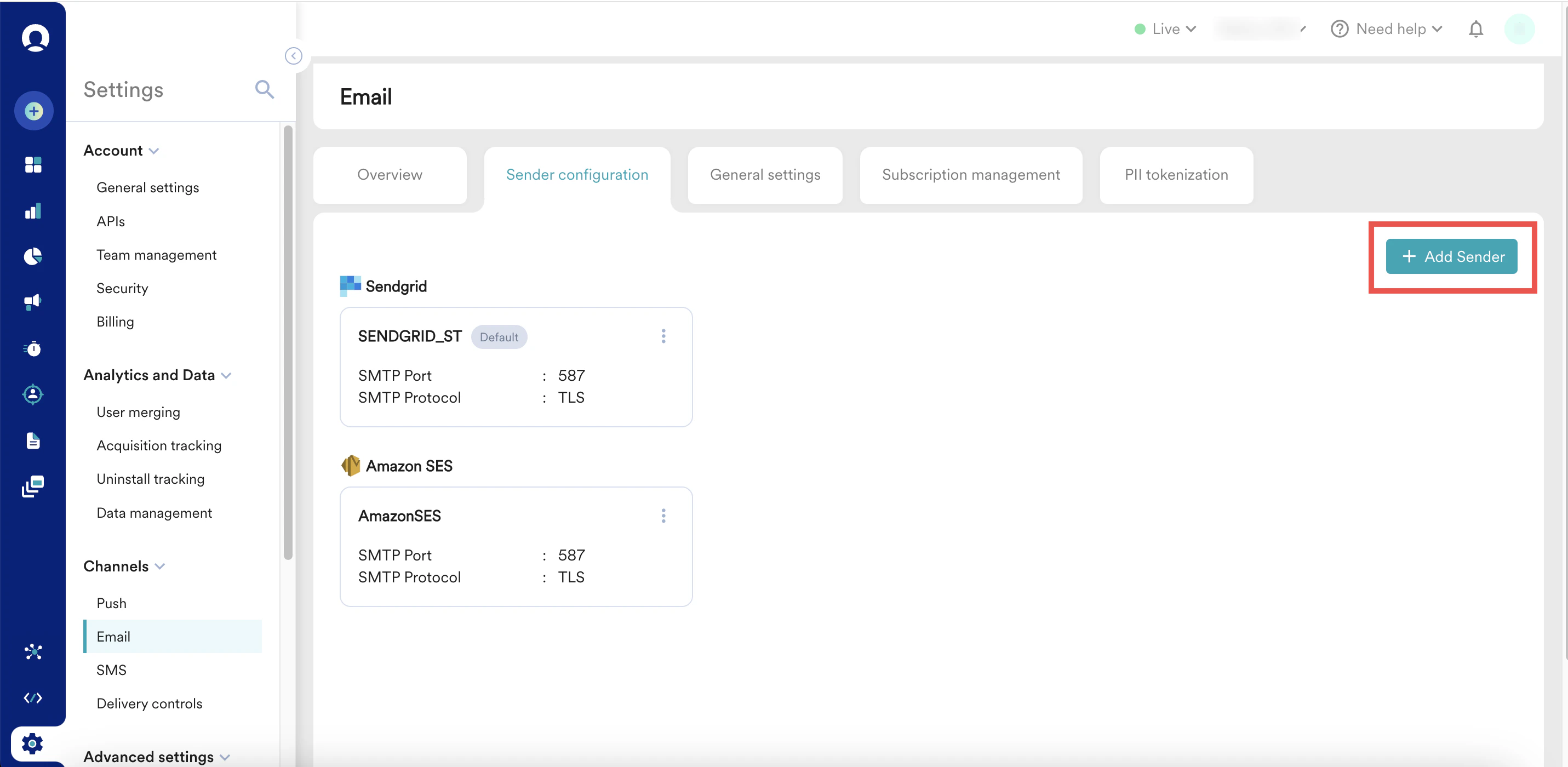
Navigate to Settings > Under Channels > Email > Sender Configuration tab> Click Add Sender
-
In the following Add Sender screen, add the following SMTP details as shown below:
 All of the following details are case-sensitive.
 - Configure Unsubscribe Settings based on your requirements. For more information, refer to Track Email Unsubscribes.
- Configure the List unsubscribe email settings based on your requirements. For more information, refer to List Unsubscribe Email.
- Click Save. The added connector is listed under the Sender configuration tab.
- Navigate to the General Settings tab.
- From the Set a default sender drop-down, select the sender you added.
- From the User Attribute that stores the user’s email address drop-down, select Email (Standard).
-
In the “From” email address(s) field, add the from address. The domain (the part after @) must be a validated one on SendGrid.
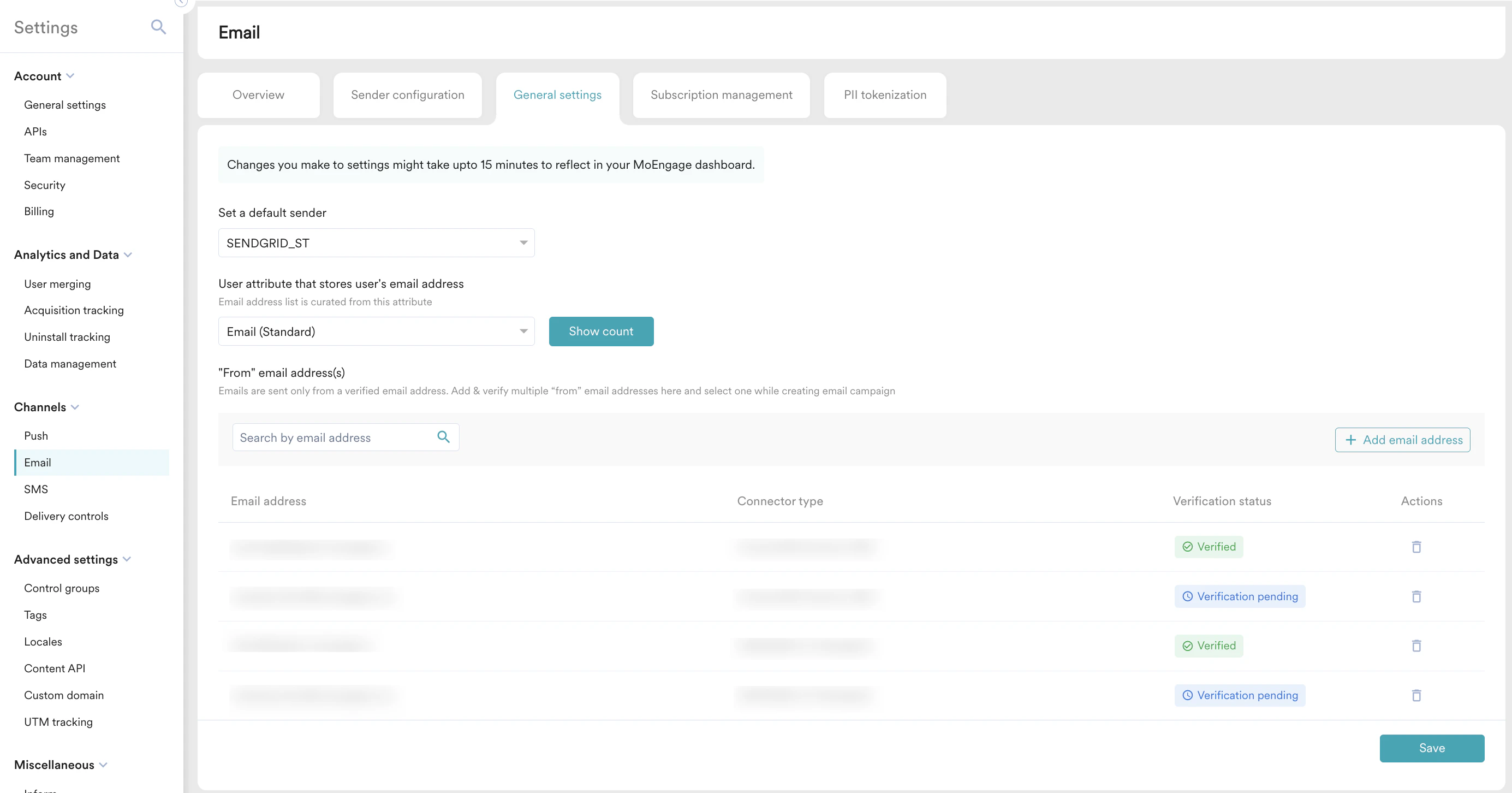
- Save the settings. The “from address” mailbox added above will receive a verification email.
- Click the confirmation link to validate the same.
From Address:
Promo - info@, emails@, fashion@, offers@, deals@
Triggered - updates@, news@, alerts@
Promo - info@, emails@, fashion@, offers@, deals@
Triggered - updates@, news@, alerts@
Configure SendGrid Bounce and Complaint Settings.
-
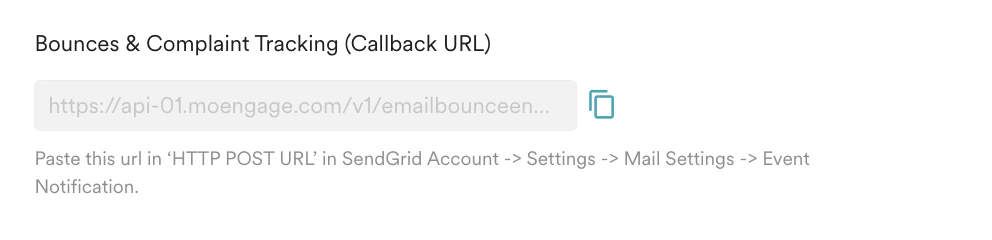
Copy the URL in the Bounce & Complaint Tracking from email settings.
-
Use the below API to configure event webhook:
To successfully configure the event webhook, make sure to add the following inputs to the API:cURL
- Enter the API key obtained from the above Create API Keys from SendGrid section by replacing
API_KEY_GENERATE_ABOVEin the API. - Paste the URL obtained from step 1 in the above API, by replacing
"Bounce and Complaint tracking URL from Step 1" - Enter your dashboard name, by replacing
"MOE App name"in the above API.
- Enter the API key obtained from the above Create API Keys from SendGrid section by replacing