To create Facebook Audience campaigns in MoEngage, you need to connect your MoEngage account with your Meta app and Meta ad account. This setup allows you to sync user audiences from MoEngage directly to Facebook, enabling targeted advertising based on your user segments.
This article explains how to set up or use an existing Meta app and a Meta ad account. Before you begin, understand the necessary permissions for Meta apps.
Required Meta App PermissionsThe MoEngage integration with Facebook Custom Audiences requires your Meta app to have STANDARD access for the Ads Management, Ads Read, and Business Management permissions. Without these permissions, MoEngage cannot add or remove users from your Facebook Custom Audiences.
Create a New App
Use an Existing App
- Log in to developers.facebook.com.
- On your dashboard, click Create App.
- On the App details step, enter a name for your app, and then click Next.
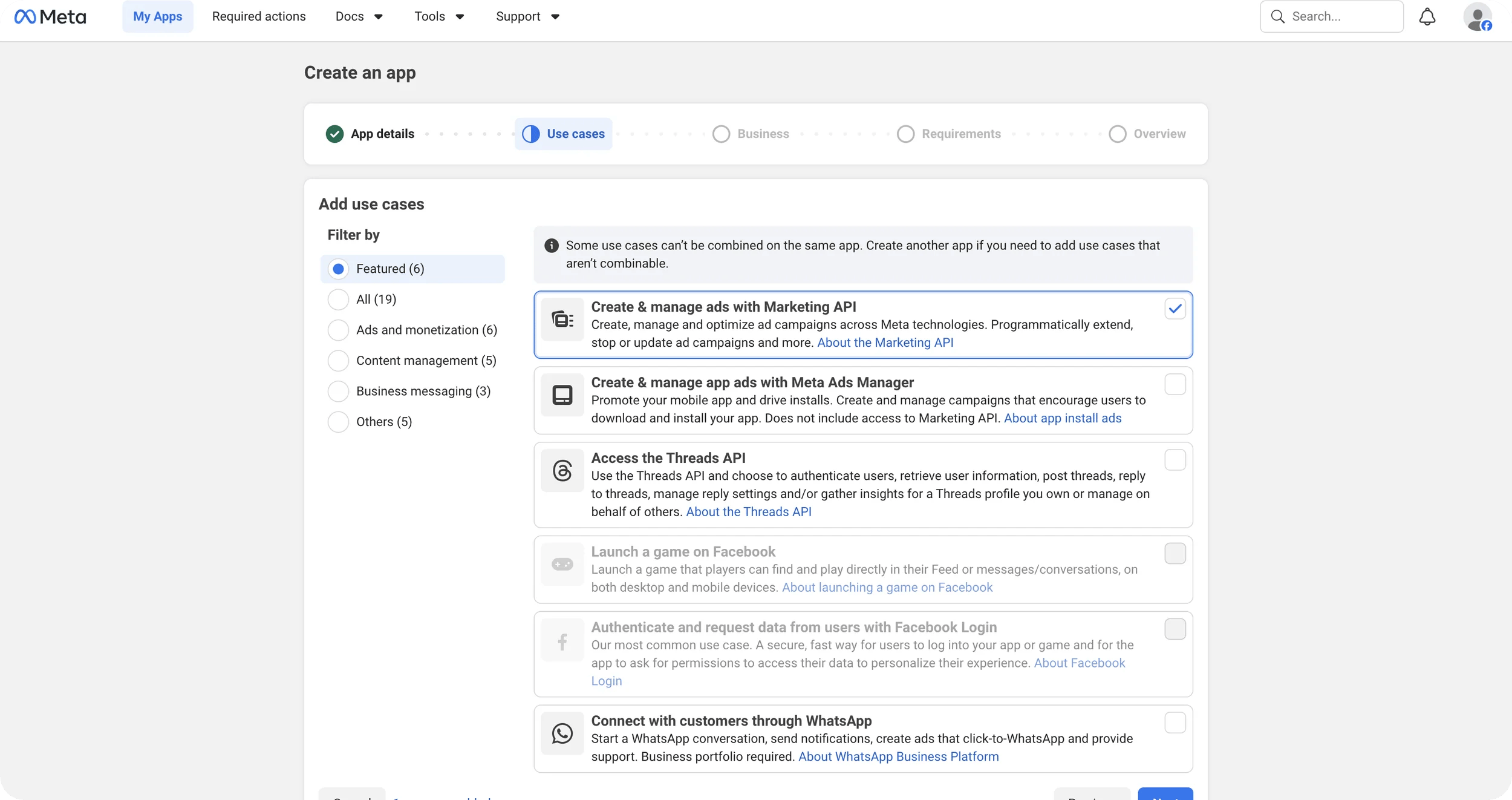
- On the Use cases step, select Create and manage ads with Marketing API, and then click Next.
- Select the Facebook Business account to associate with your app, and then click Create app.
Your app is created. Next, configure the required permissions and generate an access token.
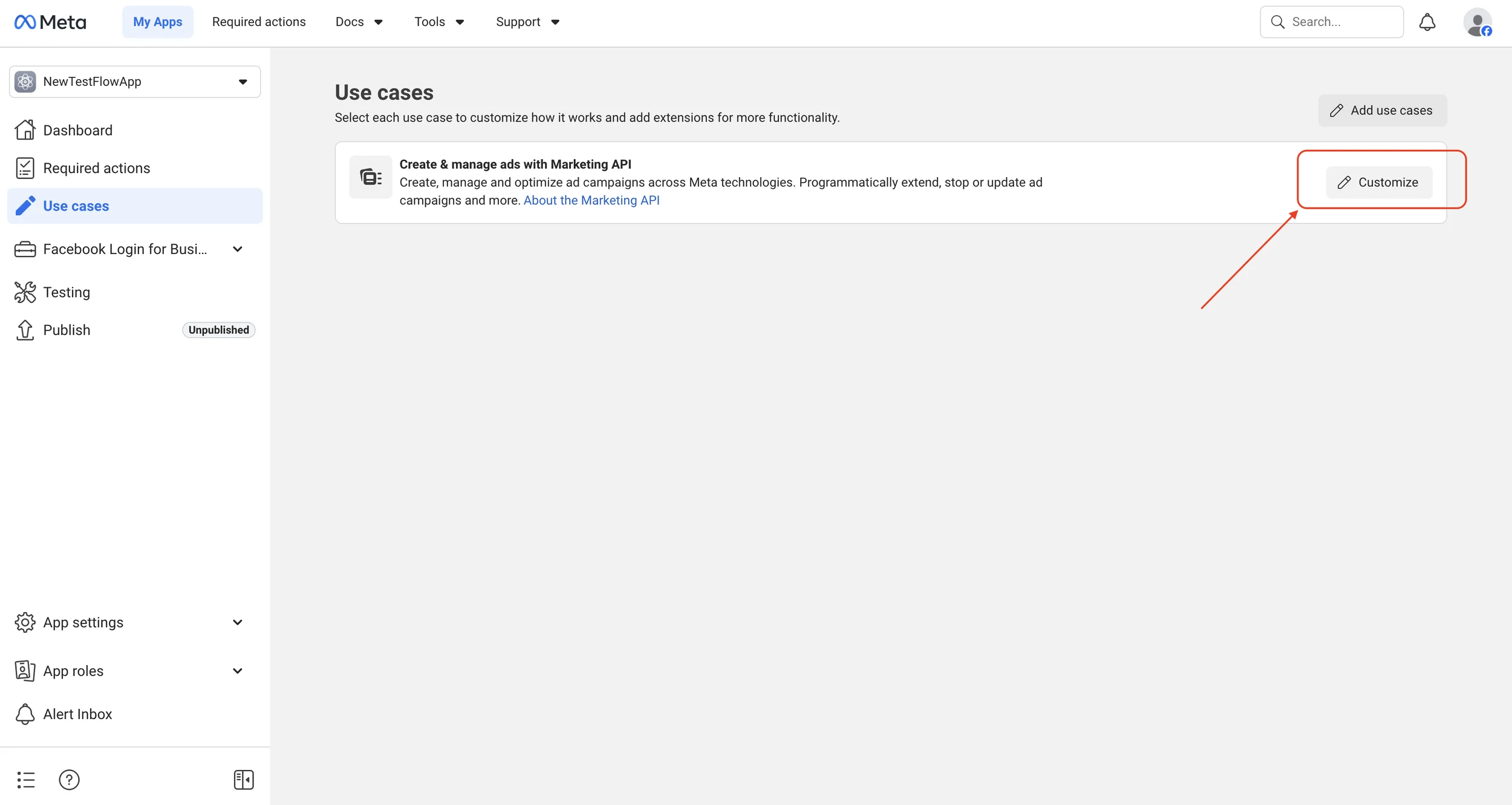
- Open your app, and then in the left menu, click Use cases.
- For Create & manage ads with Marketing API, click Customize.
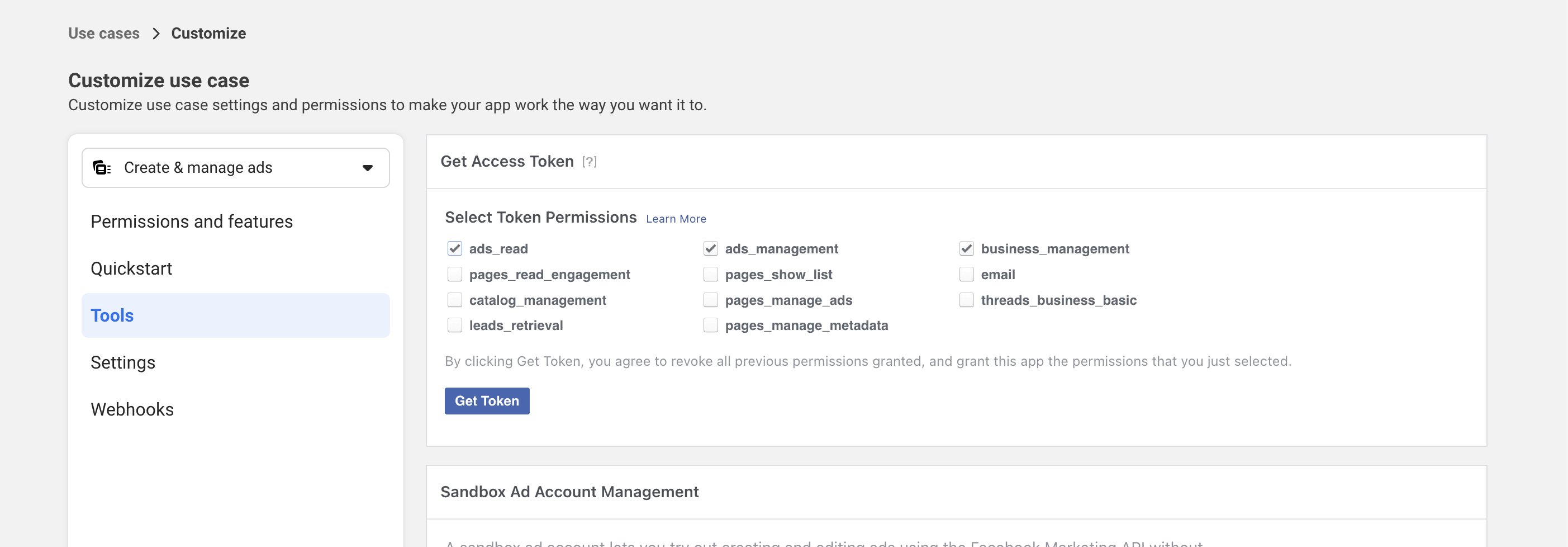
- In the left menu, click Tools. Under Select Token Permissions, select all three of the following permissions:
ads_readads_managementbusiness_management
- Click Get Token to generate your access token. Copy this token and keep it safe — you need it when you connect Facebook Audience in MoEngage.
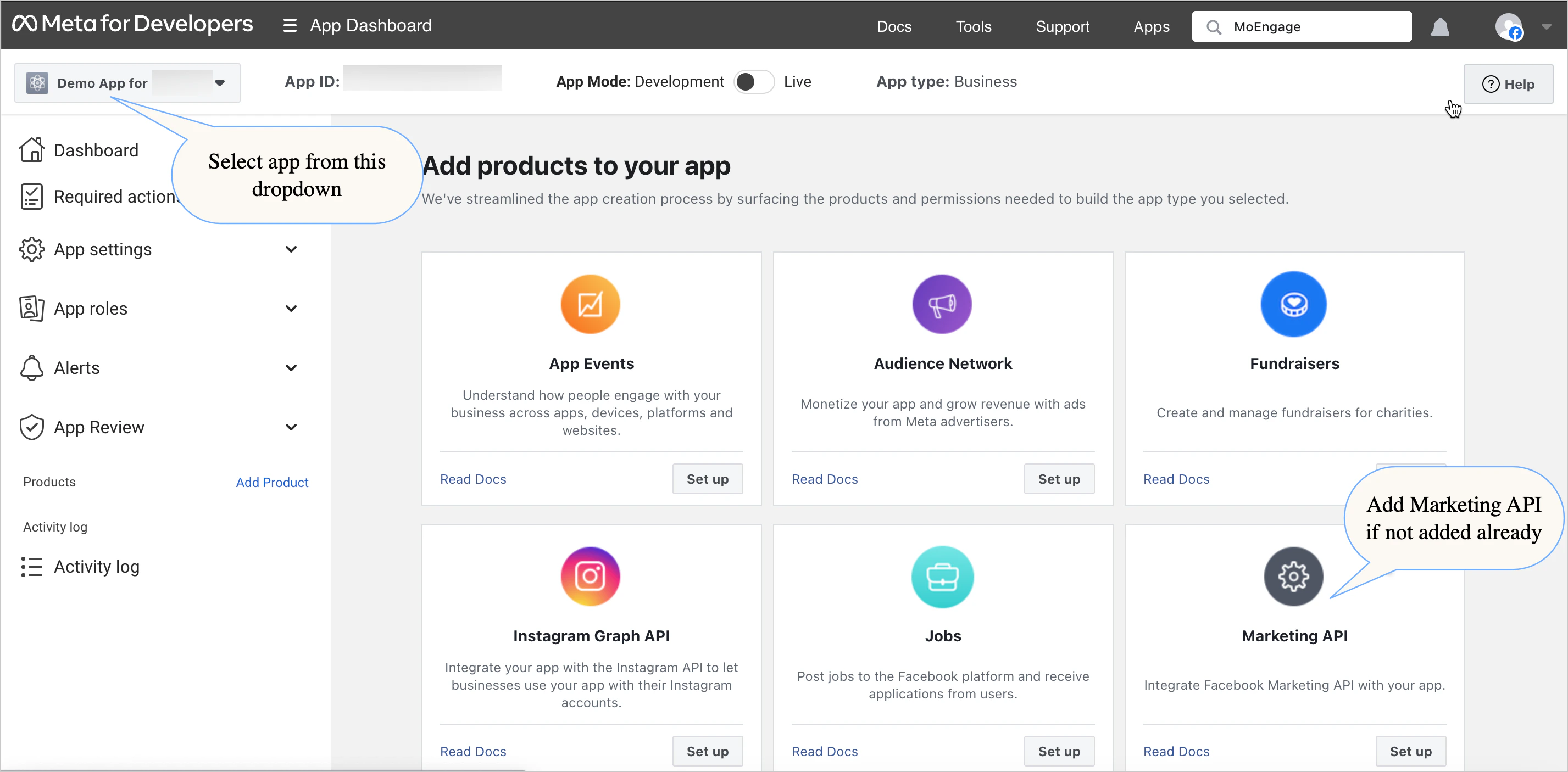
- Go to developers.facebook.com/apps, and then in the App drop-down menu at the top left corner of the App dashboard, select the app you want to use.
- Add the Marketing API to this app, if you have not already added it.
- If you are using an existing app, ensure that your app has STANDARD access for the Ads Management and Ads Read permissions. To check this, go to App Review > Permissions and Features, and then search for ads_read and ads_management. You should have Standard Access for both of these. Adding or deleting users from Facebook Custom Audiences does not require Advanced access.
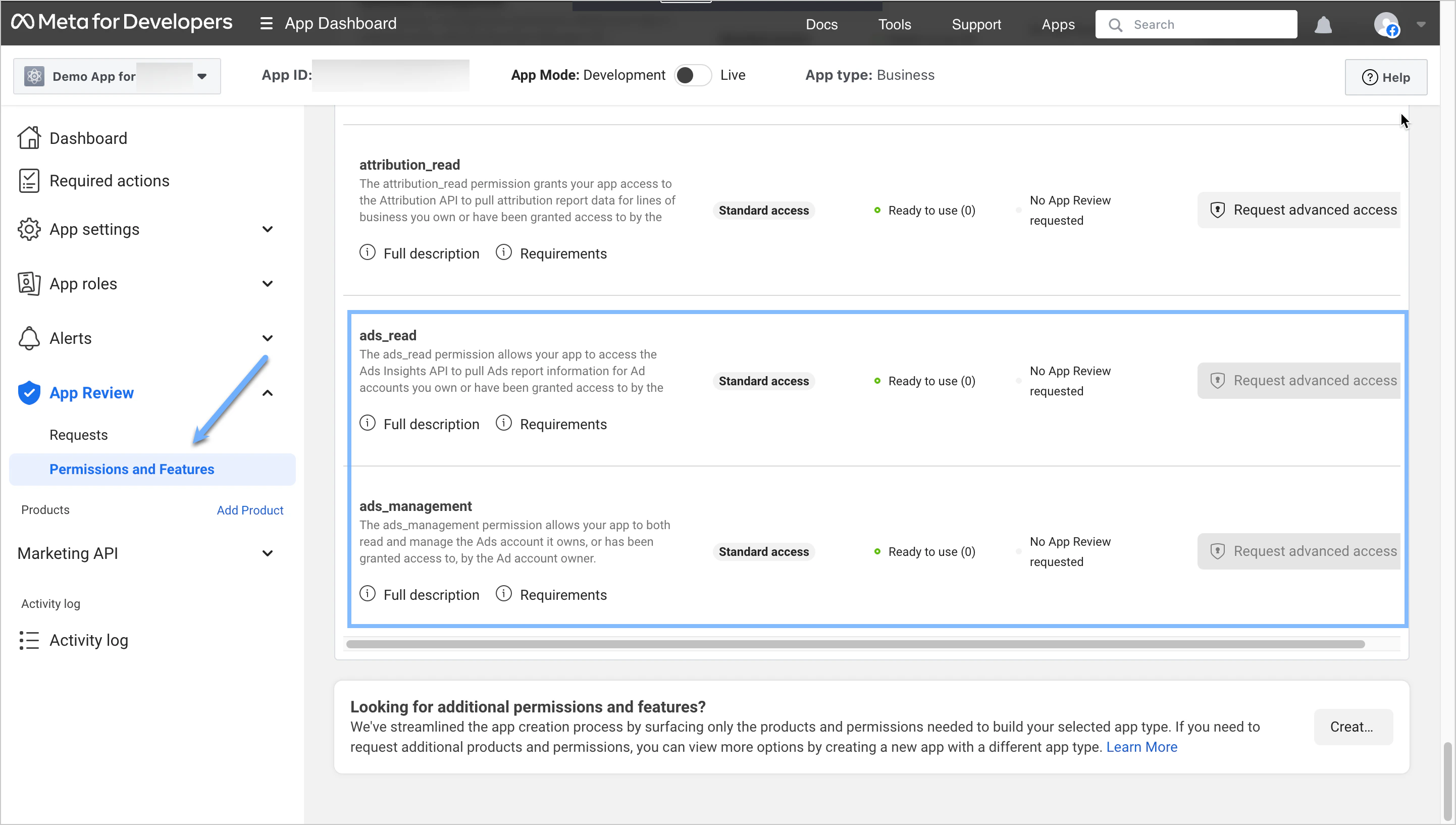
- Copy the app ID displayed at the top of the page.
- Go to the Meta Business Settings page.
- In the left menu, click Accounts, and then click Apps. You can find the name of the app you want to configure in the Apps list on the left.
- If the app is not on the list, click the Add drop-down menu, and then select Connect an App ID.
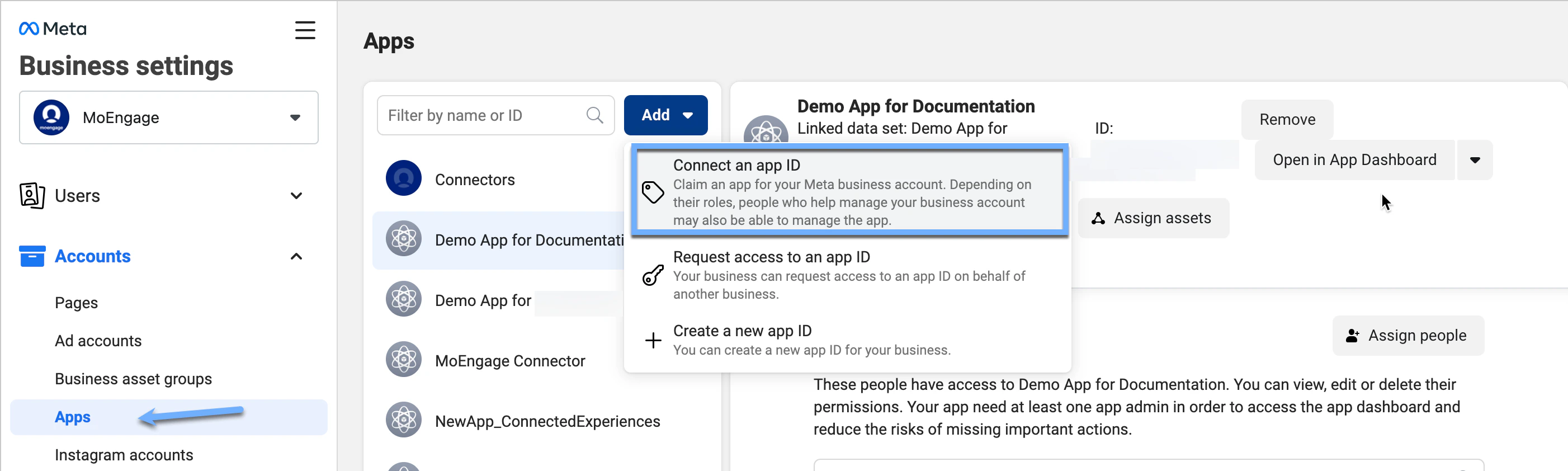
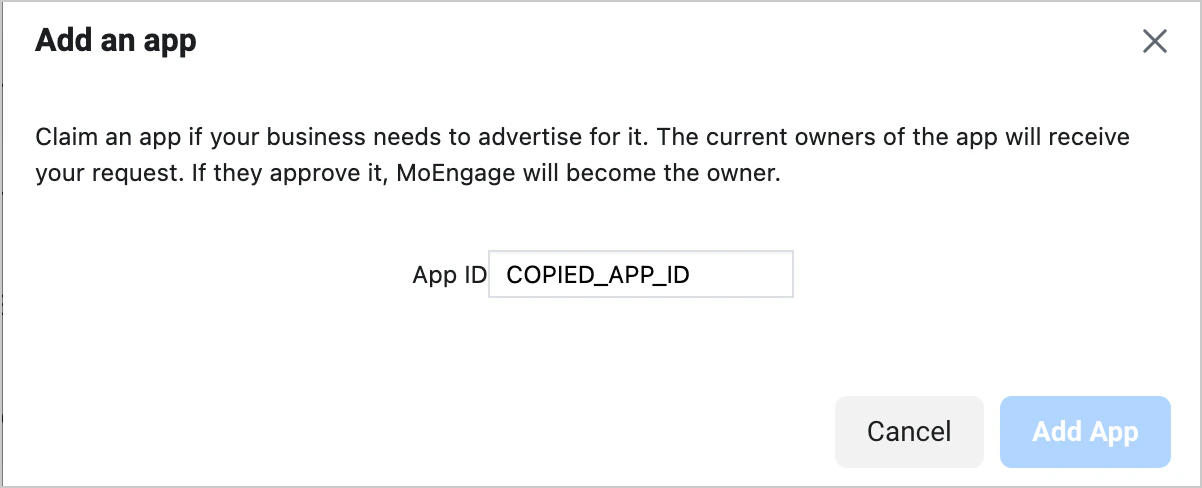
- In the dialog box, enter the app ID you copied in Step 4, and then click Add App.
- The app appears in the Apps menu once successfully added.
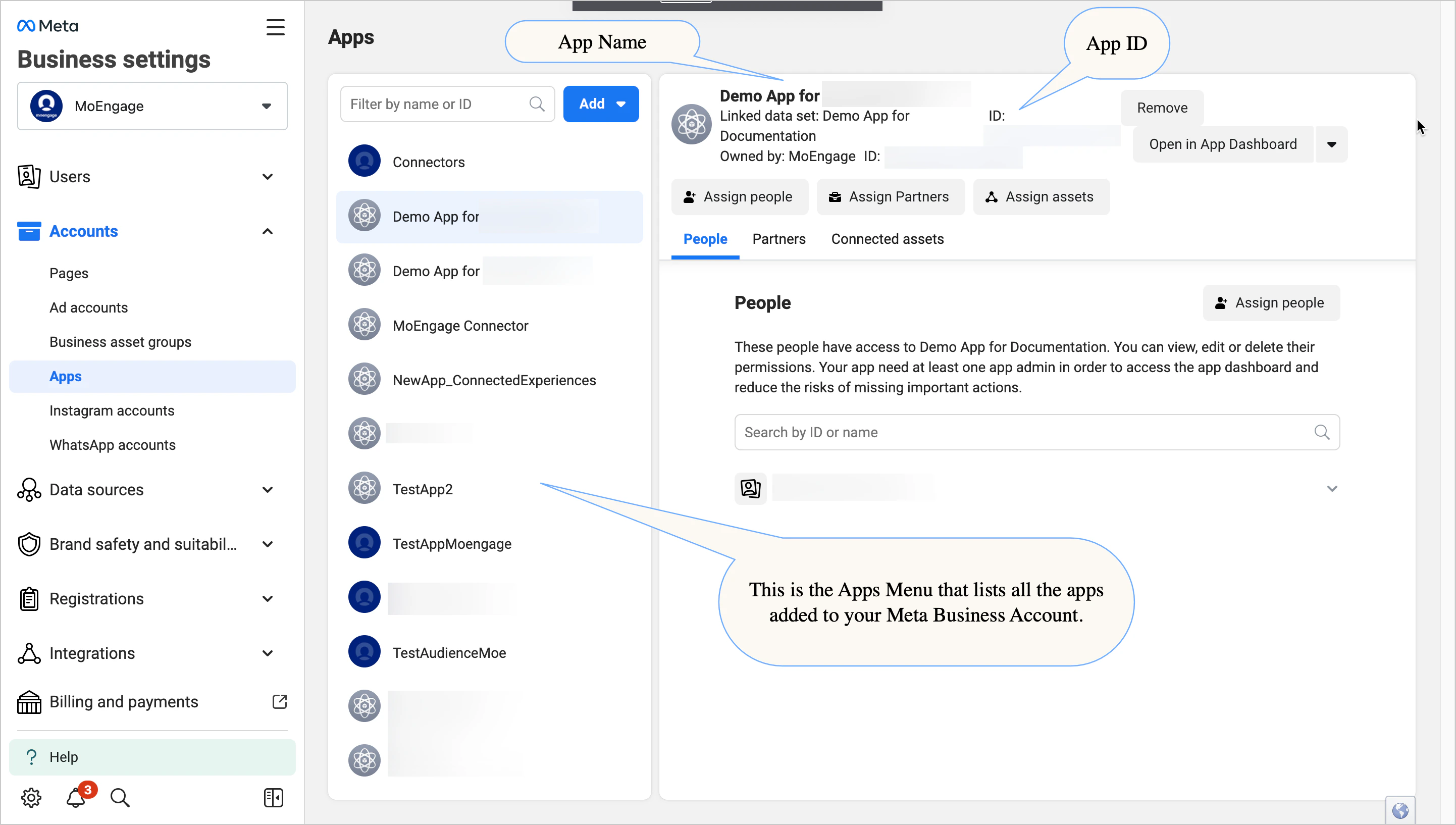
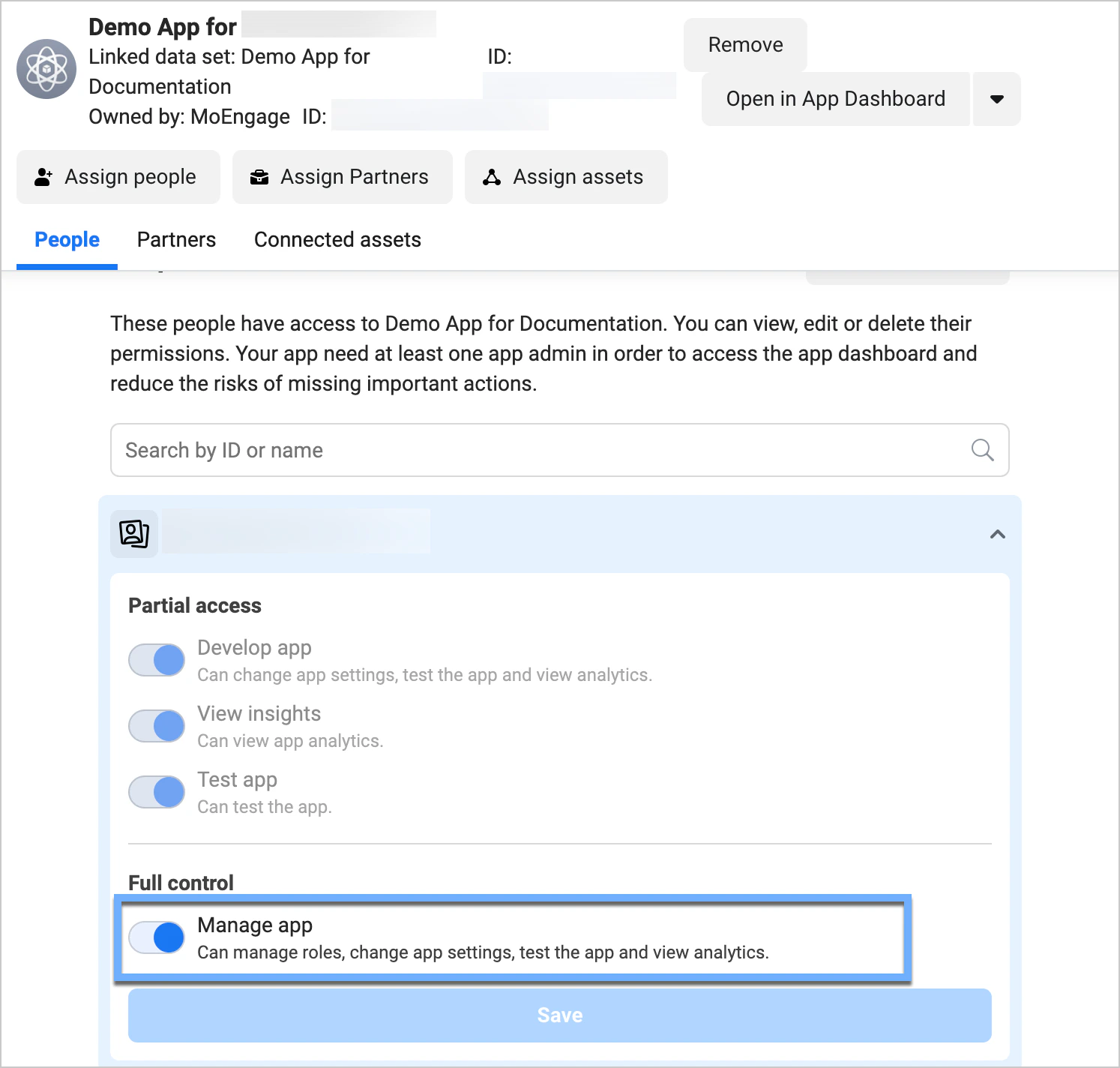
- Ensure you have admin access to the app you want to use. On the People tab, click your ID or name in the list of people with access to the app. Make sure the Manage App toggle is on.
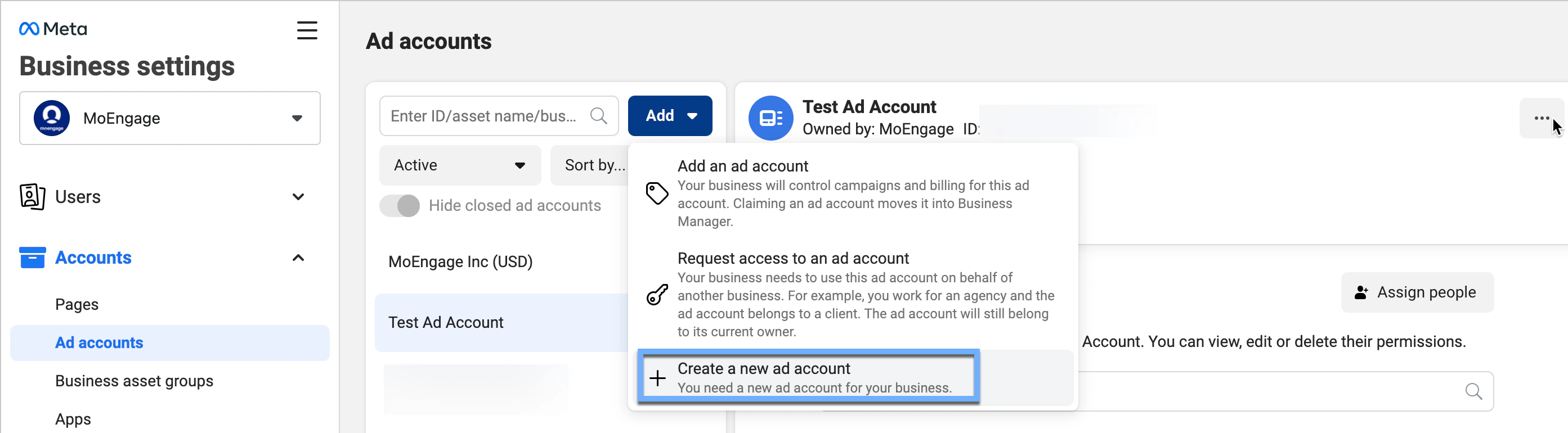
- Go to the Meta Business Settings page. In the left menu, click Accounts, and then click Ad Accounts.
- On the right side, in the Ad Accounts screen, click the Add drop-down menu, and then select Create a New Ad Account.
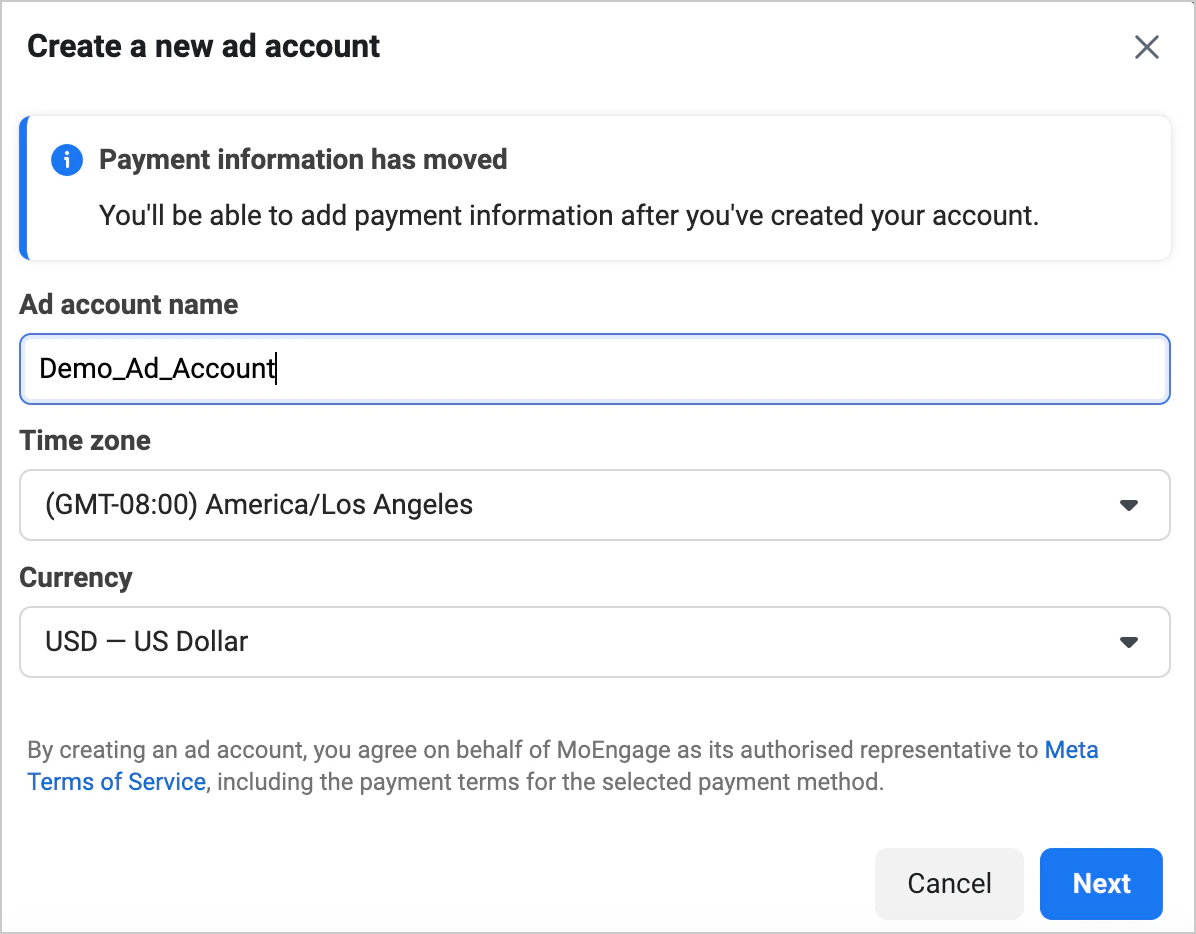
- Enter a name for the account, the time zone, and the currency. Click Next.
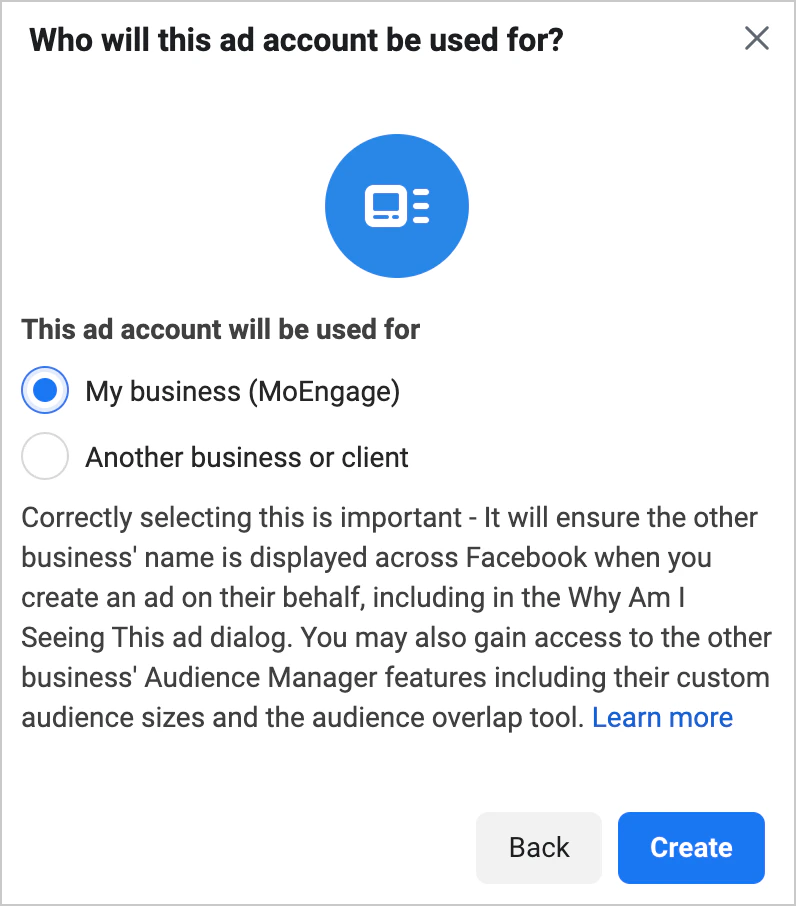
- On the Who Will This Ad Account Be Used For screen, select My Business. Click Create.
- On the next screen, you can add people and set permissions. Select your account, and then enable the Manage Account toggle. Click Assign.
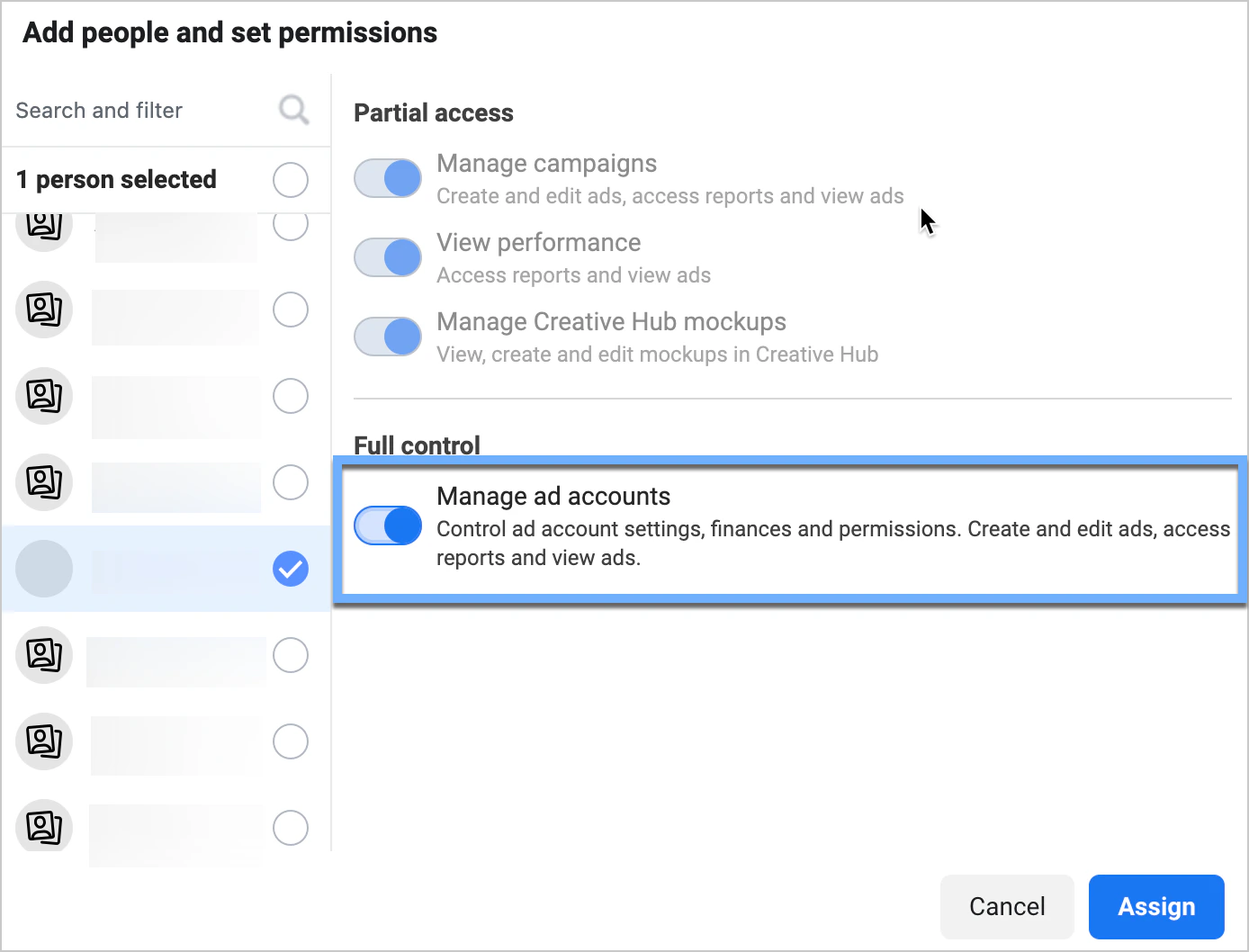
- Add your payment information. Once you add all necessary details, your ad account appears in the Ad Accounts menu.
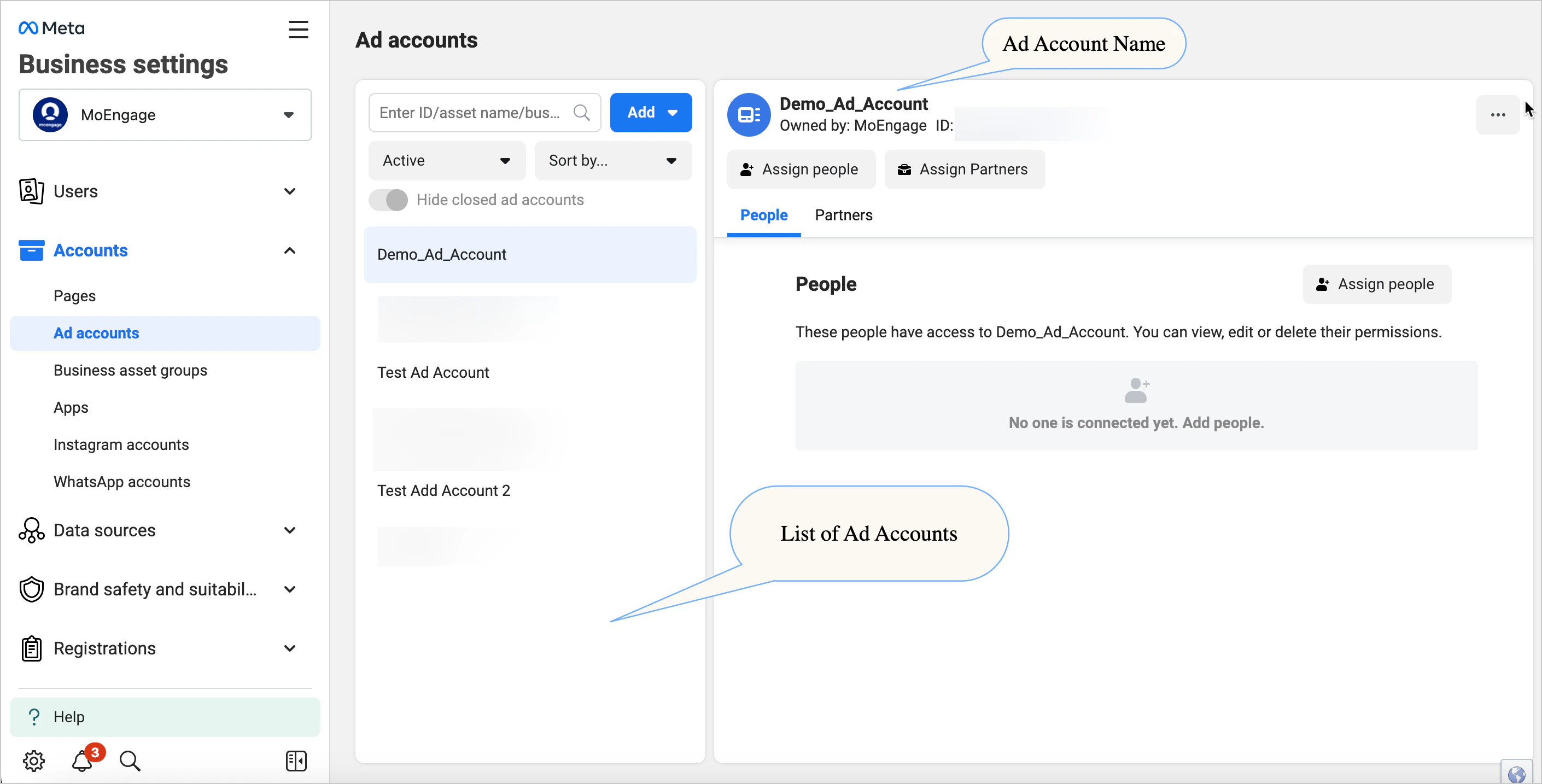
- Go to the Meta Business Settings page. In the left menu, click Accounts, and then click Ad Accounts.
- In the Ad Accounts list on the right side of the screen, click the ad account you want to use. The ad account details appear on the Ad Account dashboard.
- Click your user name on the People tab. To confirm that you have admin access to the ad account, ensure the Manage Ad Accounts toggle is on.
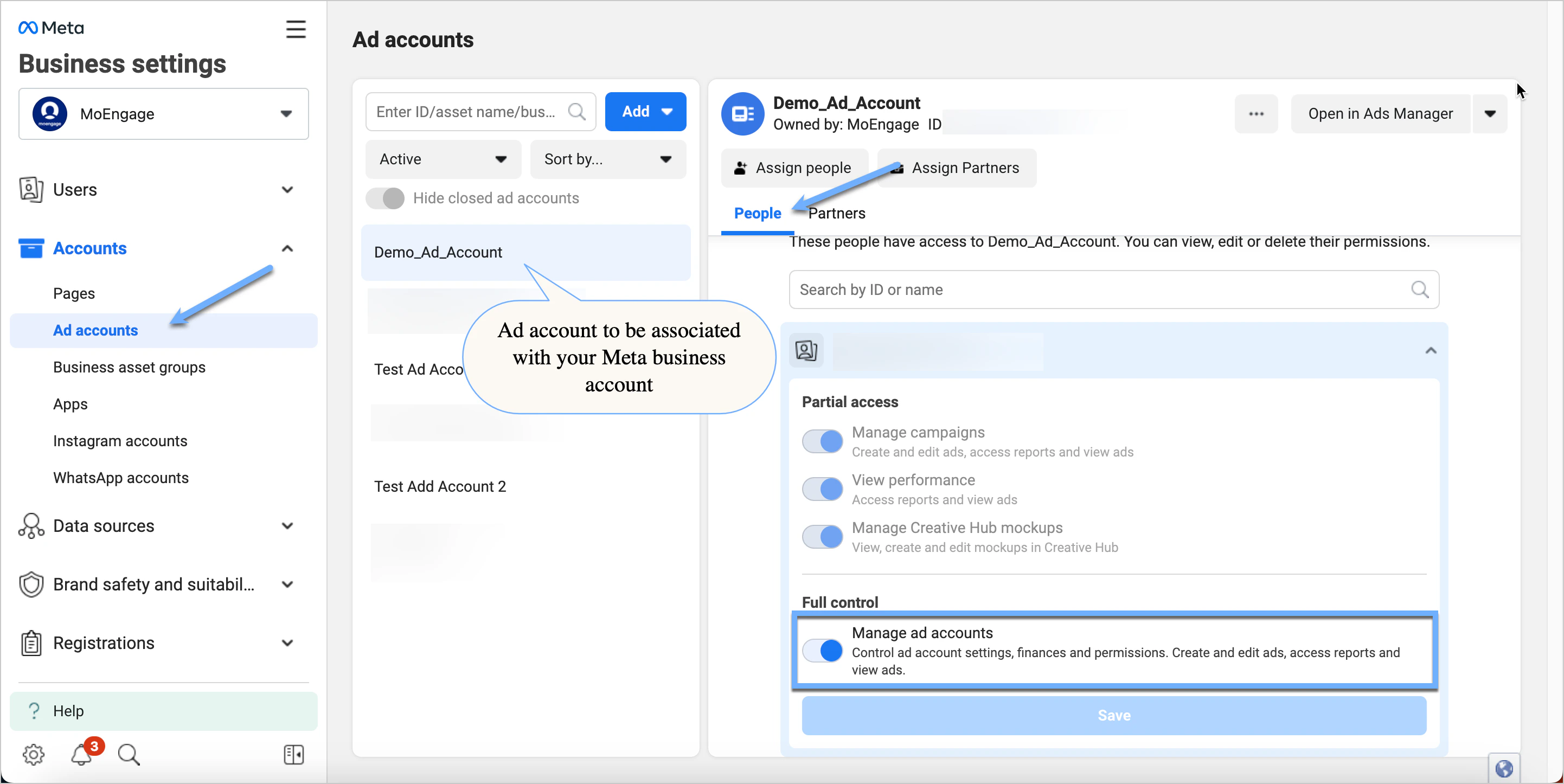
- If the ad account name is not in the menu, click the All Tools menu, and then select Ad Account Settings.
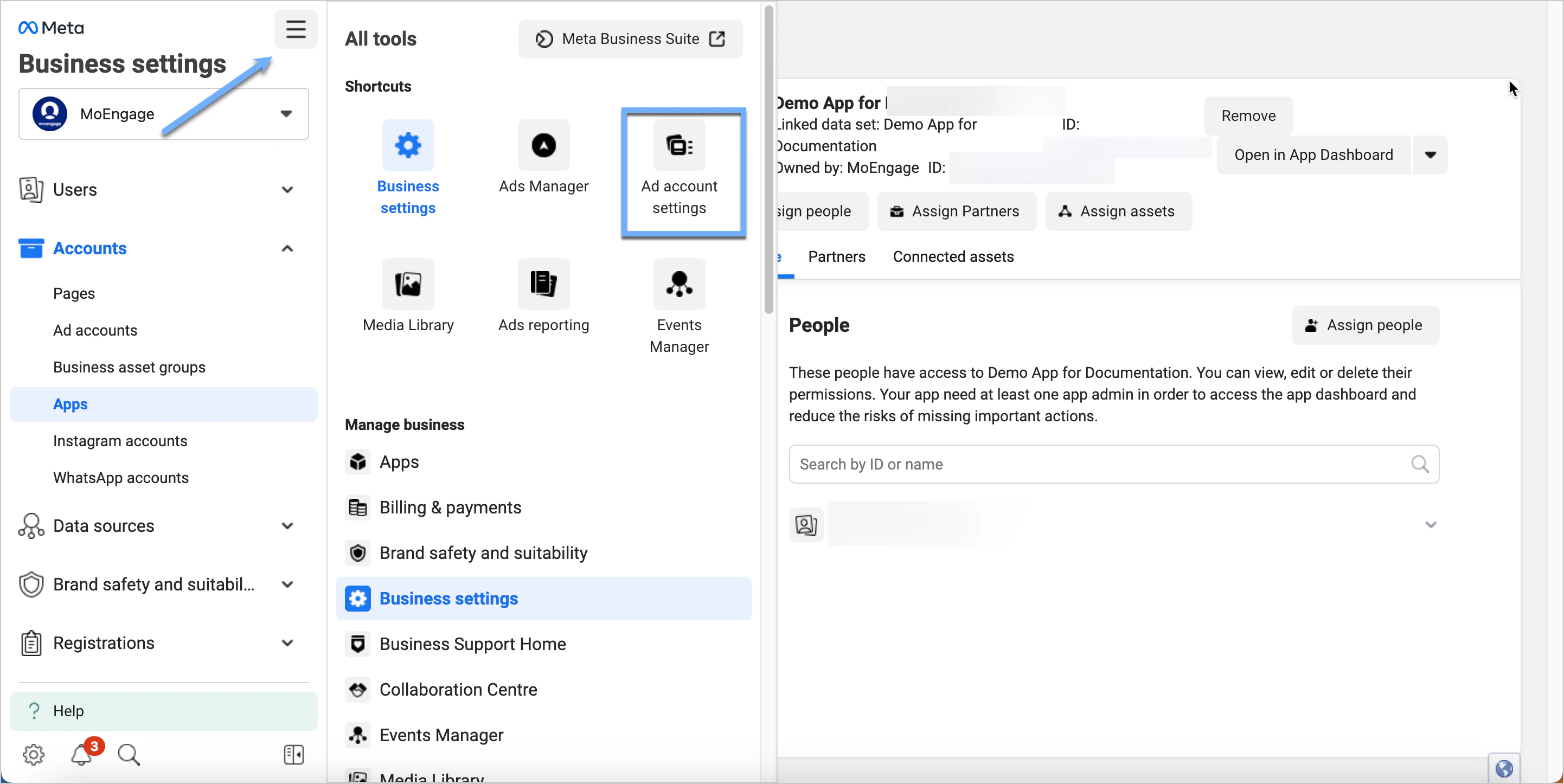
- Copy the Ad Account ID from the Ad Account Settings page that opens.
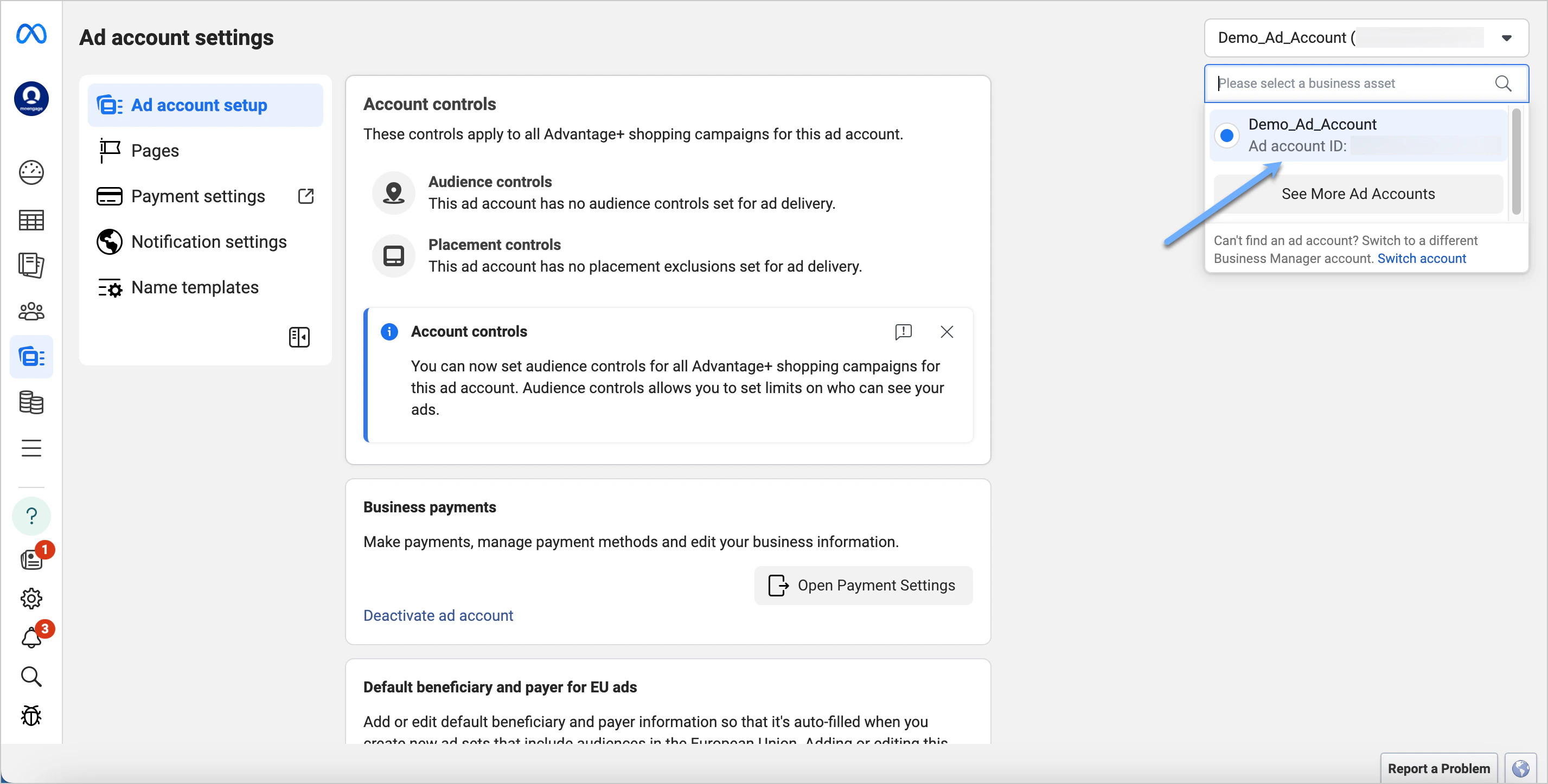
- Go back to the Meta Business Settings page. In the left menu, click Accounts, and then click Ad Accounts.
- Click the Add drop-down menu, and then select Add an Ad Account. Paste the copied Ad Account ID, and then click Add Ad Account. Once the account is added, the ad account name appears in the menu. Make sure you have admin access to the ad account you want to associate with your custom audience, as explained in Step 3.
Next Steps
Once you have successfully set up your Meta app and ad account, you can proceed with integrating MoEngage with Facebook Custom Audiences. This integration allows you to create and manage custom audiences directly from MoEngage. 
