

Overview
MoEngage allows customers to import users and events through tables stored inside your Snowflake databases.Types of Imports
MoEngage can import the following from your Snowflake data warehouse:- Registered Users: These are users who are already registered on MoEngage.
- Anonymous Users: These are users who are not yet registered on MoEngage.
- Events (Standard and User Defined): MoEngage can import standard events like Campaign Interaction Events as well as your own user-defined events.
Preparing the Data
MoEngage does not need any particular table schema to be prepared for imports. All the columns in your table can be either skipped or mapped separately on the MoEngage Dashboard. However, there are a few things to be taken care of before setting up the imports. User Imports Event Imports When you set up periodic User Imports on MoEngage, we will only sync the data that has changed since the last sync was run. MoEngage uses a timestamp (date + time) column calledupdated_at to identify which row has changed since the previous sync. You are free to name this column as you like provided it contains the timestamp of the instant when the row’s data was last changed. If you’re calling this column by a different name in your table, you can always configure this mapping separately on the MoEngage Dashboard.
When you set up Event Imports on MoEngage, you will need to mandatorily map a column that contains the event’s timestamp (date + time). This column will be used to only sync the new events since the previous sync. If you have a different name for this column, you can configure this mapping as well on the MoEngage Dashboard.
Additionally, if you want to import standard MoEngage events, make sure that the event names in your table match the ones with MoEngage standard event names.
Importing Datetype attributes
Importing Datetype attributes requires additional steps. You learn more about this in our dedicated guide.Required Access Permissions
MoEngage will requireREAD access to your database so that we can pull data into MoEngage. You can either grant these permissions to an existing database user or choose to create a new dedicated database user for MoEngage:
- “ - The name of the warehouse you want MoEngage to use while executing queries.
- “ - The name of the database you want to import data from.
- “ - Give a strong password to the newly created database user.
Set Up Imports from Snowflake
PROTECTED_0 To set up Snowflake imports, perform the following steps:-
- On the sidebar menu in MoEngage, hover over the Data menu item PROTECTED_4 . The Data menu appears.
- Click Data imports.
PROTECTED_5
- On the Data imports page, click + Import and select Users or Events to create a new import.
- Click Snowflake to create a new import for either Users (Registered/Anonymous can be picked in the next step) or Events.
Step 1: Select Your Snowflake Connection and Table Source
Import Name
PROTECTED_7 Enter a name for this import to easily identify it on the Imports Dashboard. Based on the type of import selected, your next steps might vary:User Imports
User Imports
You will now have the option to select whether you want to import Registered users or Anonymous users. You can also choose to import both together:PROTECTED_8
Event Imports
Event Imports
For Event imports, you will now have the option to select which event it is that you want to import:PROTECTED_9You can either select an existing event or create a new one. If you have multiple events stored in a single table, MoEngage will look at the “Event Name” column to determine matching rows to import. The value of the “Event Name” column will be determined by the event you pick. Some of these events might have different Display Names and Event Names. You can always go to the PROTECTED_28 page and view the Event Information. For example, the event “App/Site Opened” should have the value of the “Event Name” column as
MOE_APP_OPENED:PROTECTED_10You can also create a new event by clicking on the ”+ Create event” option at the end of the dropdown:PROTECTED_11Give your event a name that is unique. By default, your Display Name will be the same as the Event Name. You can go to the PROTECTED_29 page to view or edit this event and also your other MoEngage events. Do note that any new events you create now will only be available in your app after the first successful import.Import Source
In this first step, “Source and format”, you will need to tell MoEngage which Snowflake connection to use and the table to import from.PROTECTED_12To get started, select a Snowflake connection to use for this Import. If you have not already created a Snowflake connection, you can click on the ”+ Add connection” option at the end of the dropdown and you will be taken to the App Marketplace to set it up. You can learn more about how to connect your Snowflake warehouse to MoEngage PROTECTED_30.Once you have selected your Snowflake connection, you will be required to select the schema and table to import from. If there is an error loading your schemas, ensure you have given MoEngage sufficient permissions as PROTECTED_31.PROTECTED_13Event Imports
In addition to the above steps, MoEngage provides additional support for tables containing multiple events. If your table contains multiple events, you need to first “Preview” the table and then select the “Table contains multiple events” option:PROTECTED_14MoEngage will use the values of the “Event name” column to filter out rows that need to be imported. We will import only those rows that match the selected event name. You can mark an existing column of your table as the column containing the event name. When you select this column and Preview again, we will show you the filtered rows for you to confirm before proceeding:PROTECTED_15After you preview your table, you can move on to the next step.Step 2: Map Your Columns to MoEngage Attributes
In this step, you need to map the columns of your table to the attributes present in MoEngage. All your columns will be shown one below the other: PROTECTED_16- Column name - This is the column name to be mapped. Below the column name, we also show a sample value (picked from the first row of the fetched table in the previous step) for your reference.
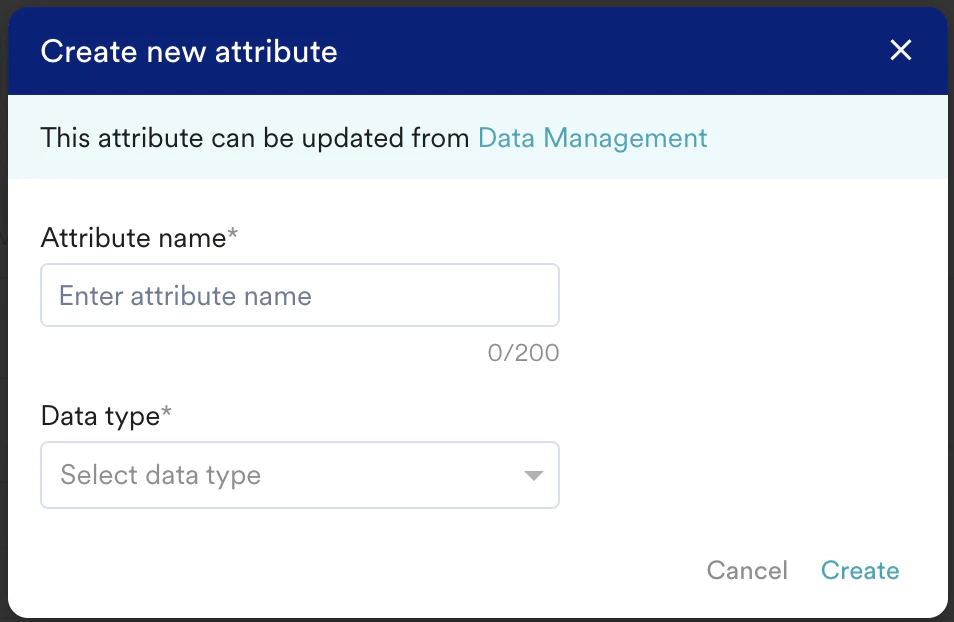
- Map attribute - Here you need to pick which MoEngage attribute you want to map the table column to. You can also choose to create a new attribute. Some attributes support ingestion from multiple data types, so you need to pick the data type of the column as well. For the “DateTime” columns, you also need to pick the PROTECTED_32.
- More actions - You can optionally choose to skip the column. The skipped column will not be imported.
User Imports
User Imports
Registered Users Anonymous Users All Users
Event Imports
Event Imports
| Mapping | Description |
|---|---|
| User ID | This column will be used to match the users in MoEngage to your events. |
| Event time | You need to map the column that contains the timestamp (date + time) of when the event occurred. You need to ensure that this timestamp (date + time) is in UTC Timezone. The column type for this should be TIMESTAMP_NTZ. The “Event Time” of the imported event will be converted to the timezone chosen in your MoEngage Dashboard settings:  For the full list of supported datetime formats, refer to this section. For the full list of supported datetime formats, refer to this section. |
Manifest Files
Optionally, you can choose to auto-map these columns by uploading a manifest file.To upload a manifest file, click the “Upload mapping file” option on the top-right of the mapping table: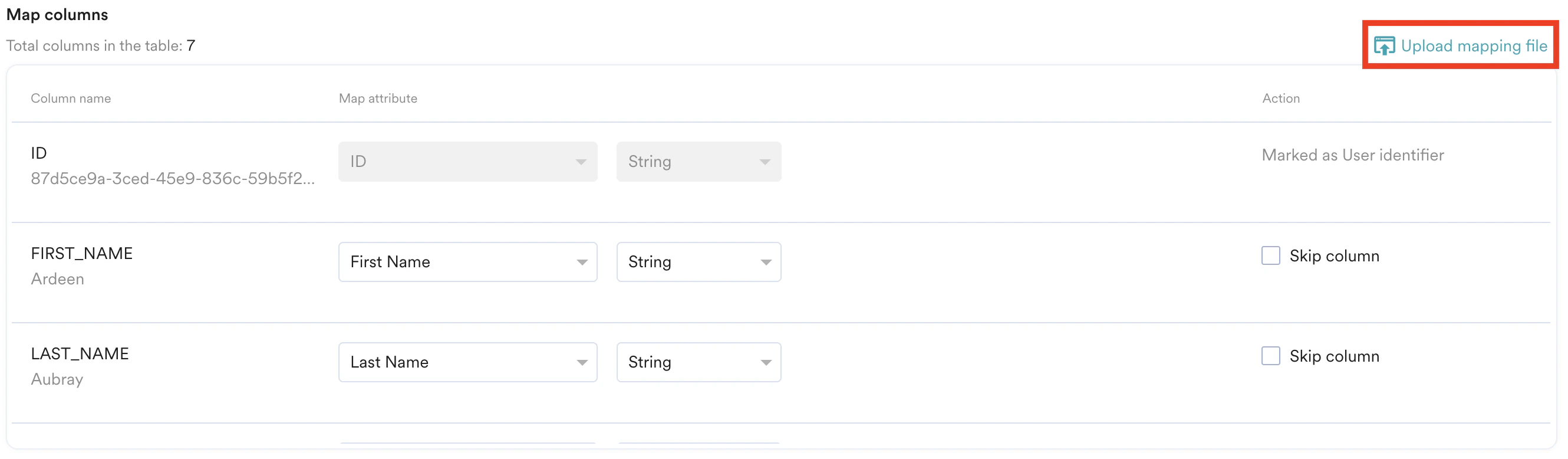 | 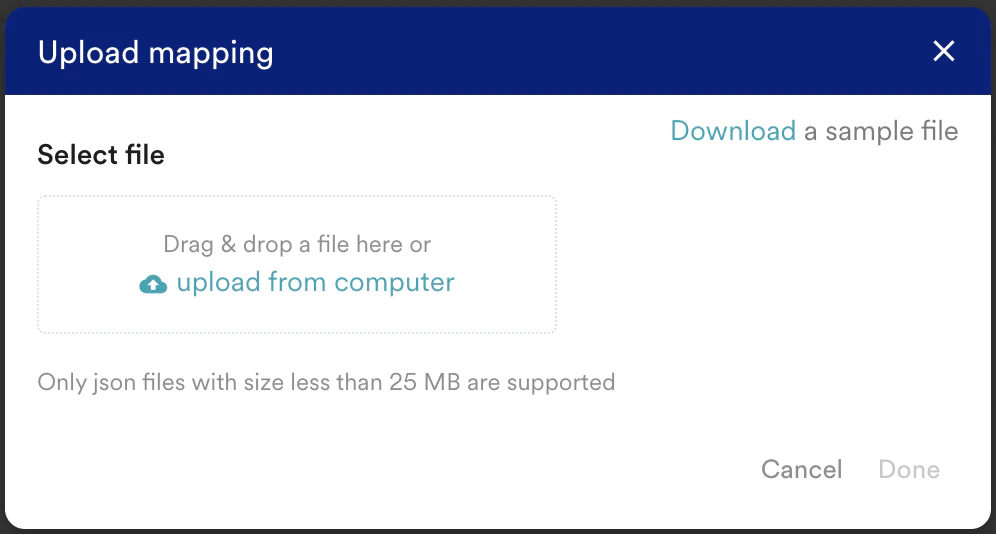 |
Support for Object Data Type
Support for Object Data Type needs to be enabled for your account.
Store Compatible JSON Data in Snowflake
To store valid JSON inside Snowflake, you must change the data type of the column to VARIANT type. For more information, refer here. The JSON stored inside Snowflake should be a valid JSON; otherwise, the values will not be written as JSON. Here is an example JSON column:JavaScriptImport JSON Data via Snowflake
Existing attributes in MoEngage that have been marked as an Object type and are available to map to columns in Snowflake: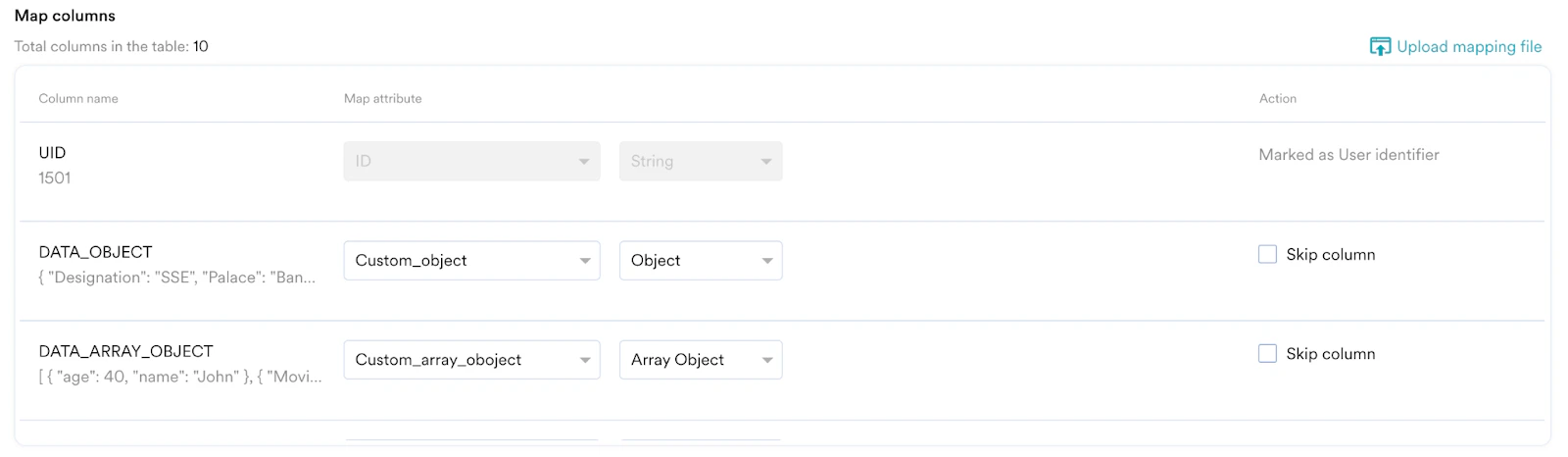
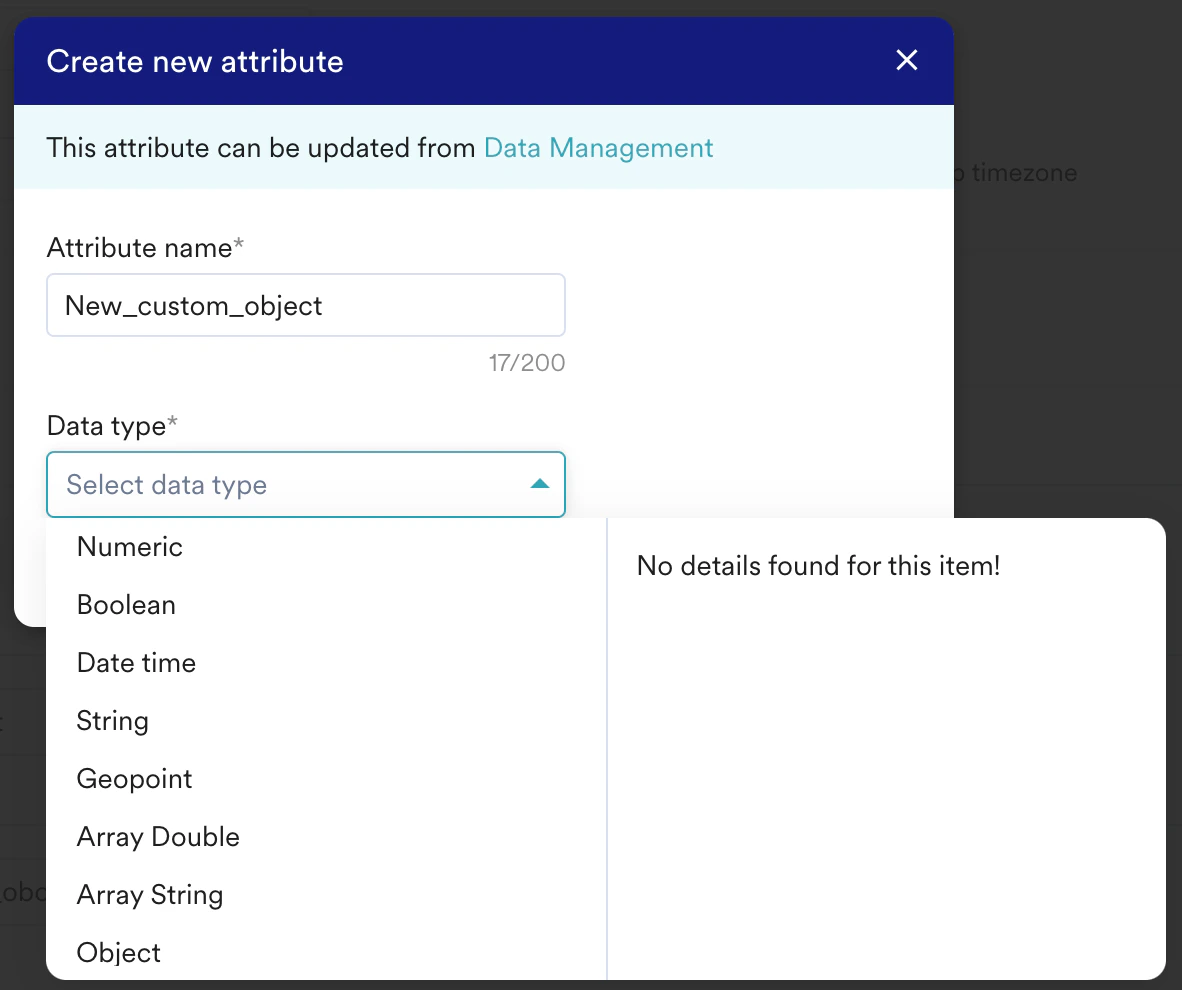
MoEngage does not support mapping with nested attributes. Only top-level attributes are available to map.
Save as a Segment
If you’re importing users, you can also add them to a custom segment inside MoEngage. Each time the sync is run, the imported users will continue to be added to this custom segment. We will not delete any users from this segment. You can then send targeted campaigns to this segment. To save your imported users in a custom segment, enable the “Save as a custom segment” option: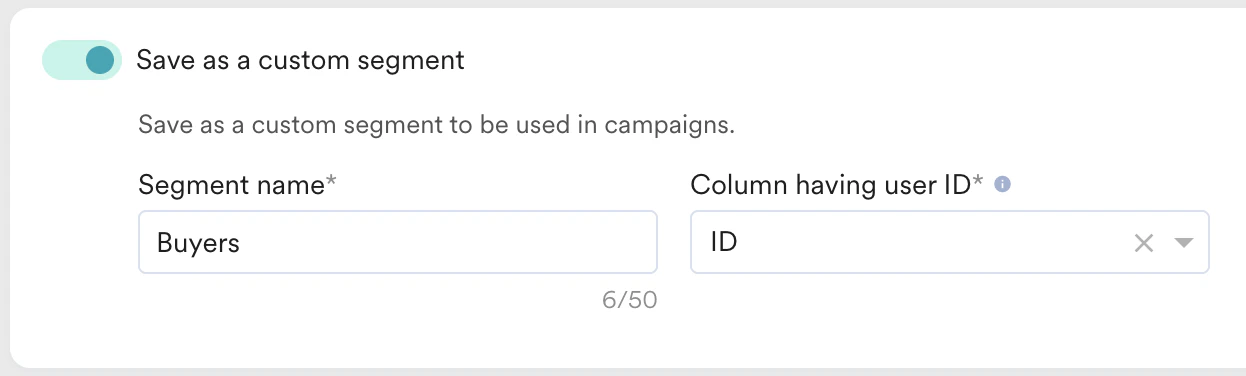
Import Behaviour
In the case of User Imports, you can also choose to update existing users only. This is helpful when you want to bulk update users’ attributes in MoEngage without creating any new users. To enable this, check the “Update existing users only” option under Import Behaviour: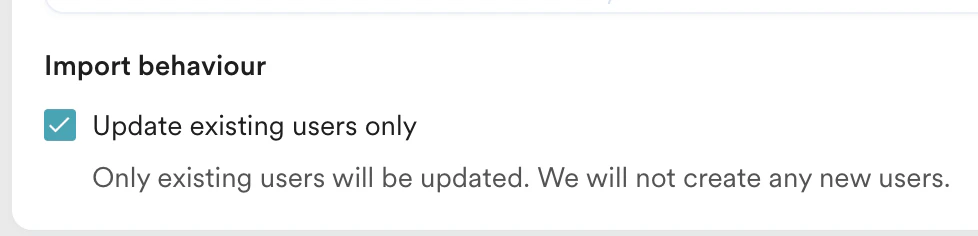
Sending Import Notifications
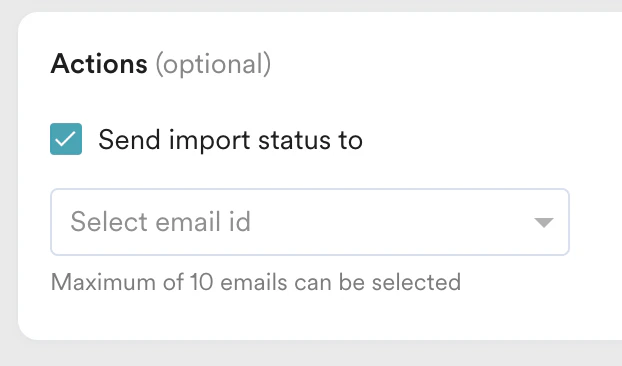
- An import was created
- An import was successful
- An import failed
Step 3: Select the Import Frequency
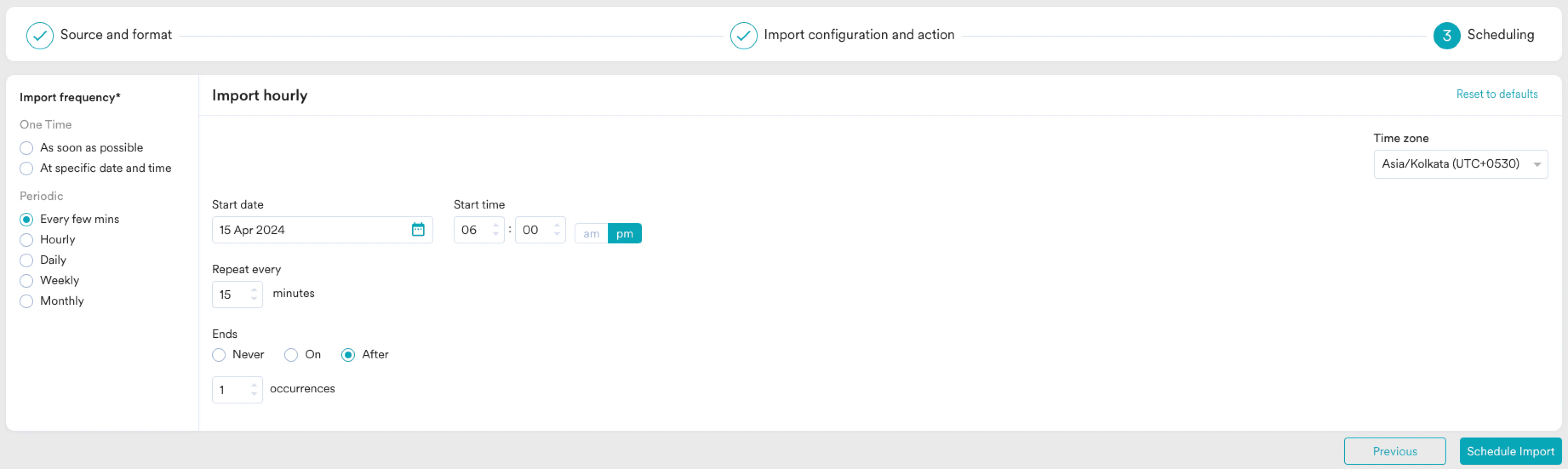
- One-Time imports: You can either choose to run the import as soon as possible or at a later date and time (scheduled). All existing rows that match the import criteria will be imported.
- Periodic: You can choose to run your imports every few minutes, hourly, daily, weekly, or monthly, or with intervals and advanced configurations.
Duplicate Imports
You can only configure one unique import at a time. An import is considered a duplicated import when all of these are the same:- Import Type - Users / Events
- Import Sub-Type - Event Name / Registered / Anonymous / All users - If the event name is the same, or there already exists a registered/anonymous/all users import with the same Snowflake connection
- Snowflake connection
- Import schema & table
Frequently Asked Questions
Can I import from data across tables?
Can I import from data across tables?
No. Currently, writing manual queries (to perform joins, etc) is not supported. Creating a dedicated table or view with all the columns you want to import in MoEngage is recommended.
Do you support importing Views from Snowflake?
Do you support importing Views from Snowflake?
Yes! We also support importing data from your Snowflake Views. If you grant MoEngage access to read Views, they will be automatically listed under the Table/View selection dropdown.
Can I do a historical import?
Can I do a historical import?
Yes. Creating a one-time import is essentially the same as importing historical data since we pull in all the rows on the first sync.