

Introduction
MoEngage allows customers to import users and events through files stored in various sources like S3 Buckets and SFTP servers, as well as directly from tables in your data warehouses. MoEngage Dashboard enables you to configure multiple imports directly by defining file locations, configuring one or more file import sources, and import methods.Supported Sources
MoEngage currently supports importing files from: MoEngage also supports importing from data warehouses:Types of Imports
MoEngage can import the following from your sources:- Registered Users: These are users who are already registered on MoEngage. You can also use this type of import to update existing users in bulk.
- Anonymous Users: These are users who must register on MoEngage.
- Events (Standard and User Defined): MoEngage can import standard events like Campaign Interaction Events as well as your own user-defined events.
- Auxiliary Data: There are user data temporarily ingested into MoEngage for specific business purposes.
Prepare the Files
Before configuring the imports on the MoEngage dashboard, make sure that all your files are in the expected format and within the sanctioned limits.Supported File Types
Naming Conventions
<import type>_<date time format>.<file_extension>.. The final name depends on the type of import and the date-time format you pick.
Import Type
- Registered users
- File names should start with the prefix
registered_user_data_ - Example:
registered_user_data_01311997.csvorregistered_user_data_01311997.json
- File names should start with the prefix
- Anonymous users
- File names should start with the prefix
anonymous_user_data_ - Example:
anonymous_user_data_jan_2022.csvoranonymous_user_data_jan_2022.json
- File names should start with the prefix
- Events
- File names should start with the prefix
<event name>_ - In certain cases, the Event Name and Display Name can be different. To manage your events, go to the Data Management page in MoEngage.
- For example, if the event name is “Purchase Summary”:
Purchase_Summary_31011997.csvorPurchase_Summary_31011997.json - For example, if the event name is “Purchase_Transaction”:
Purchase_Transaction_19970131_1259.csvorPurchase_Transaction_19970131_1259.json
- File names should start with the prefix
File Extensions Supported
- Imports without having File Encryption enabled support only the following extensions:
.csv,.json - Imports having File Encryption enabled support only the following extensions:
.csv.asc,.json.asc,.csv.pgp,.json.pgp
Date Time Format
Your file names should end with the suffix<date time format>.<file extension>This “date-time” represents the day on which the import executes. For example, if the import is executed on “7th January 2022”, and the selected date-time format is ddmmyyyy, MoEngage looks for all the files that end with the suffix 07012022.csv or 07012022.json
MoEngage supports multiple date-time formats:
<custom name>_<date time format>.<file extension>.Filenames should contain the custom prefix name and date-time format separated by ”.” The custom name should consist of letters, numbers, a space, and ”.”For example: abc_31012024.csv or abc_31012024.jsonValid File Name Examples
The following are examples for valid file names:- Registered users import with date time format
{yyyymmdd}_{hhmm}have file names likeregistered_user_data_20220131_1259.csvorregistered_user_data_20220131_1259.json - Anonymous users Import with date time format
{mon_yyyy}have file names likeanonymous_user_data_feb_2022.csvoranonymous_user_data_feb_2022.json - Item purchased event import with date time format
{ddmmyyyy}have file names like ItemPurchased_31012022.csvorPurchased_31012022.json
File Structure
MoEngage supports importing data from CSV and JSON files. Your files must adhere to the following rules:- CSV Files
- JSON Files
- The first row of your file must be the column names. MoEngage always treat the first row of your file as the header row.
- Ensure there are no duplicate column names in your file. Do note that column names are case-sensitive.
- Ensure there are no missing column names.
- MoEngage only supports the comma (,) as a delimiter.
- Avoid empty rows (either the row is blank, or all the columns in that row are blank).
Sample Files
Here are some sample files:- Registered users import: Your files should have a column that can be mapped to the user ID (user identifier to identify User Profile in MoEngage).
- Anonymous users import: Your files should have a column (email, mobile, etc) that can be mapped to an anonymous ID. An anonymous ID such as email, mobile, etc can help you identify users who have used your app/website but have not yet signed up.
- Event Import: Your files must have separate columns for event time and user ID.
Manifest Files
A manifest file contains mappings between the source column and a MoEngage Attribute. It also contains the data type of the column. This file must be in JSON format. An example of a manifest file is shown below. Using the MoEngage Dashboard, you can map the columns in your CSV or JSON files to attributes inside MoEngage. Or optionally, you can also choose to upload a manifest file.- CSV Files
- JSON Files
- “column”: (required) Represents the column name from the source file. When mapping Level 2 columns of a JSON file, you can use dot-notations: key1.key2.
- “moe_attr”: (required) The MoEngage Attribute (attribute name) to which you want to map the source file column. You can view the number of Events, User Attributes, Volume of User and Events on the Data Management page. Ensure each column is mapped to a unique “moe_attr”.
- “type”: (optional) This field represents the data type of the column. Refer to the table below for the acceptable “type” formats for attributes. Refer to the Data Management page for more information.
- “datetime_format”: (optional) This field indicates the date and time format. It is mandatory for DateTime fields only. Refer to the table below for the complete list of supported date-time formats.
- “is_skipped”: (optional) This field represents whether MoEngage should import the column or not. It is a boolean field, and any attribute marked as true will be skipped during import.
Some other standard user attributes in MoEngage for reference:
Supported User Attribute Types
Reserved Keywords for User Attributes
Below is the list of keys that should not be used when tracking user attributes.- USER_ATTRIBUTE_UNIQUE_ID
- USER_ATTRIBUTE_USER_EMAIL
- USER_ATTRIBUTE_USER_MOBILE
- USER_ATTRIBUTE_USER_NAME
- USER_ATTRIBUTE_USER_GENDER
- USER_ATTRIBUTE_USER_FIRST_NAME
- USER_ATTRIBUTE_USER_LAST_NAME
- USER_ATTRIBUTE_USER_BDAY
- USER_ATTRIBUTE_NOTIFICATION_PREF
- USER_ATTRIBUTE_OLD_ID
- MOE_TIME_FORMAT
- MOE_TIME_TIMEZONE
- USER_ATTRIBUTE_DND_START_TIME
- USER_ATTRIBUTE_DND_END_TIME
- MOE_GAID
- INSTALL
- UPDATE
- MOE_ISLAT
- status
- user_id
- source
Supported Datetime Formats
Folder Structure
Place all files into a folder. You can configure the folder path while setting up the import.Note:MoEngage do not look for files in the root folder or sub-folders.
Setting Up Imports
You can set up the S3/SFTP Imports in the following navigation on the MoEngage Dashboard: Segment -> S3/SFTP Imports. You can also find user-specific imports in the following navigation on the Dashboard: Segment -> Import users.Amazon S3
In order to properly set up S3 Imports, you must give MoEngage relevant permissions and ensure all your files are properly accessible to us. Learn how to set up S3 Imports.SFTP Servers
To learn about the types of authentication methods MoEngage support and the steps to configure, see how to set up SFTP Imports.Imports Dashboard
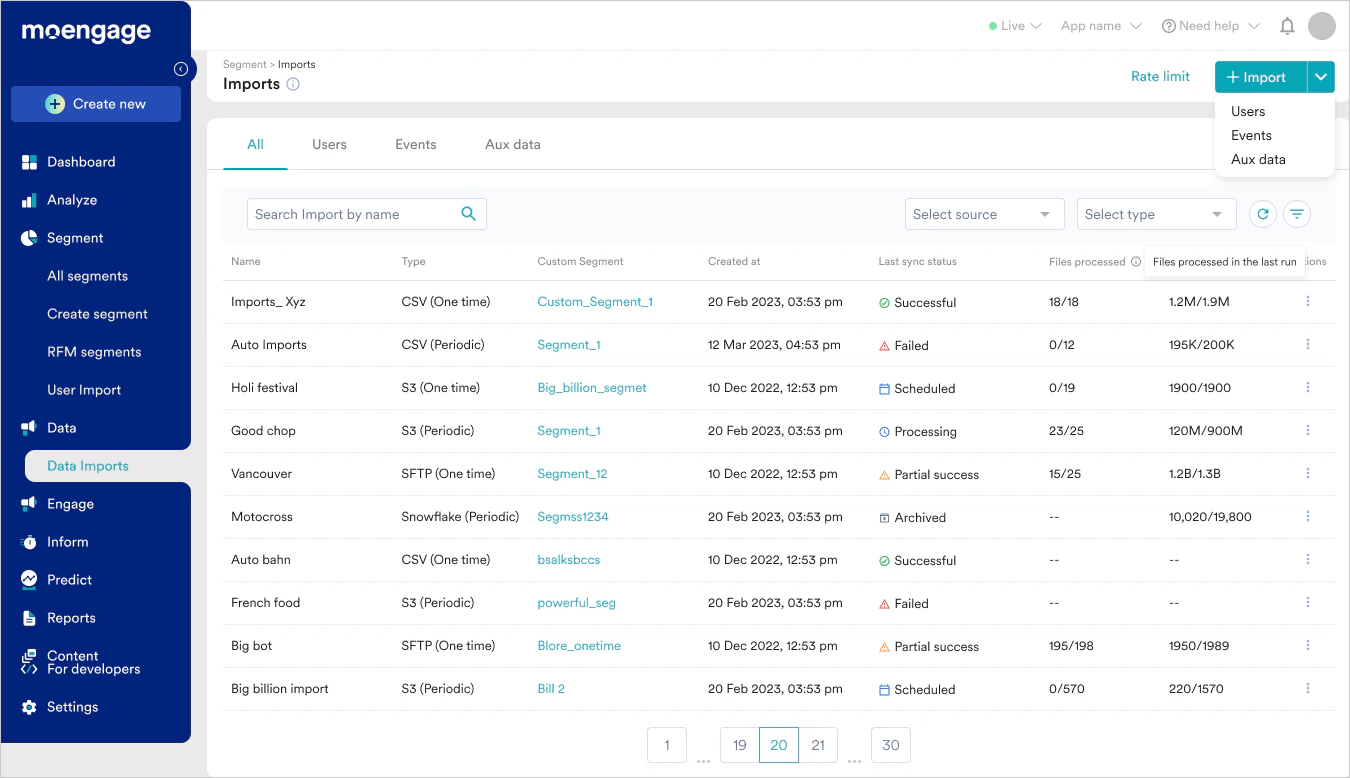
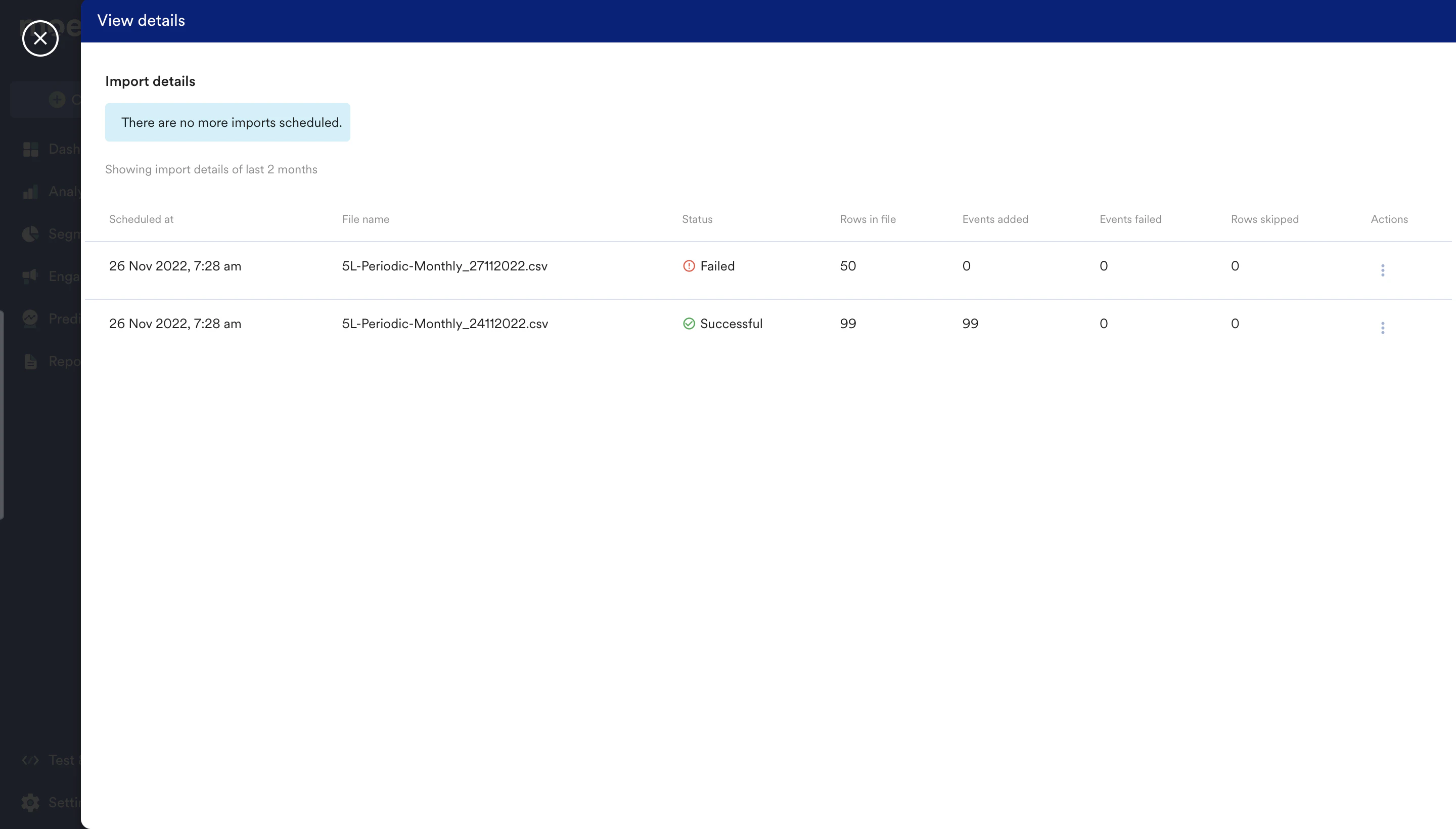
Triggering Imports
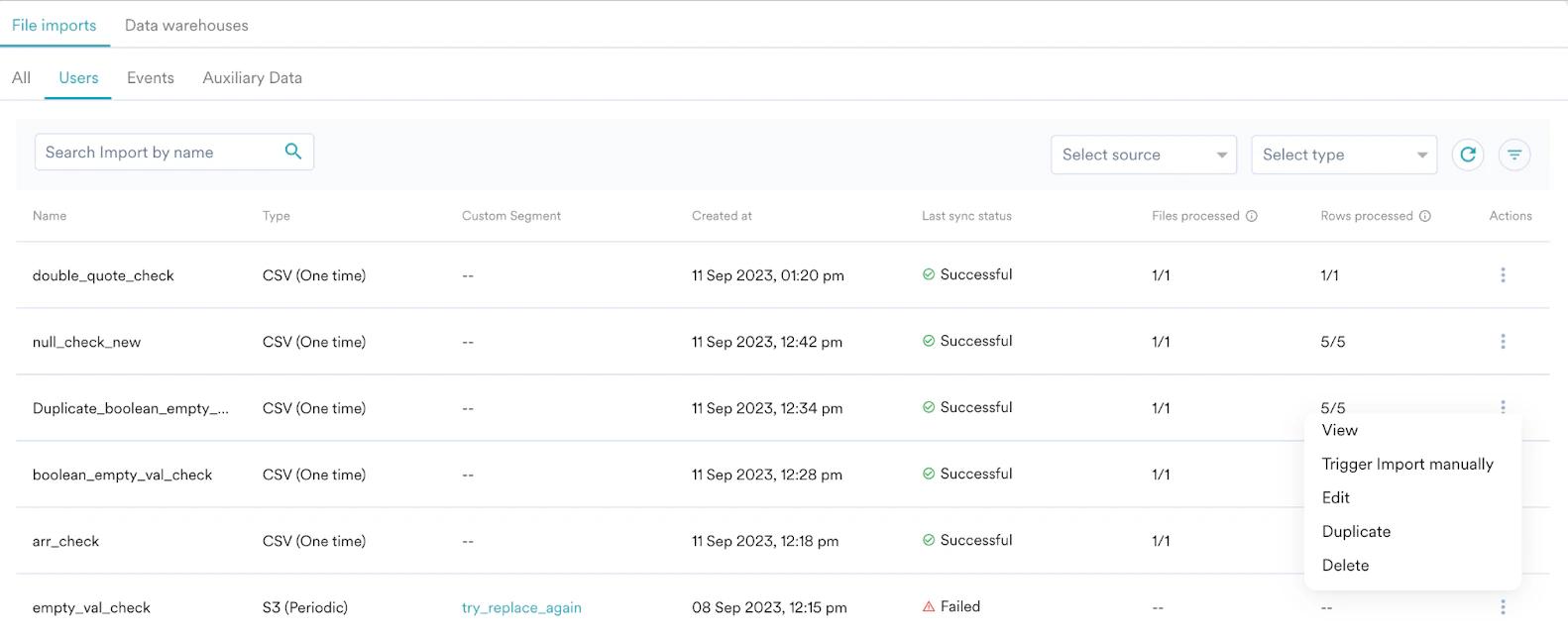
You can trigger imports using one of the following options:- Manually : Periodic imports can be triggered manually from the imports page by clicking Actions Note: Triggering an import within five minutes of the scheduled time may lead to an error.
- API : Imports can be triggered using the File Imports Trigger API. For more information, refer to File Imports Trigger API.
File Limits
The maximum file size that MoEngage supports is 200MB per file. In case of a bigger file, split it into files of 200MB or less before uploading.- Rows: A single CSV/JSON file supports up to your hourly row limit. Files exceeding your hourly limit are rejected.
- Columns/Attributes: MoEngage allows 100 columns (attributes) for users and 100 columns (attributes) per event.
- File size: The preferred file size should be less than 200MB (per CSV/JSON) for S3/SFTP and less than 150MB (per CSV) for Manual Uploads.
- File name prefix: The maximum number of characters in the file name prefix should be 100. These limits apply to S3 and SFTP Imports.
- Number of files: In each import run, MoEngage can import a maximum of 250 files.
- Import limits: Refer to the table below.
- The values mentioned above are the default rate limits. If your requirement exceeds these rate limits, you can get in touch with MoEngage to increase them.
- The default hourly rate indicates the total data that can be ingested in an hour and does not indicate the total data limit for the day. The Default Daily limit is the total cap on the data that can be ingested in a day, as indicated in the table above.
- For one-time historical imports, get in touch with the support team to guide you.
- For data warehouse historical migrations, the default import rate is 15 million rows per hour and 50 million rows per day, applied as a shared pool across user and event imports.
- When the rate limits for the imports are breached, you receive a Rate limit breached alert in the Segment-> Imports section on the MoEngage Dashboard.
Best Practices
To ensure your data imports run smoothly and efficiently, consider the following recommendations:- Optimize File Size for Speed: For faster processing, it’s recommended to keep individual import files under 1 million rows.
- Split Large Datasets: If you have a large amount of data to import, splitting it into multiple smaller files can generally result in faster overall processing than uploading a single, huge file.
Frequently Asked Questions
My imports have failed. How do I check what went wrong?
My imports have failed. How do I check what went wrong?
What happens when there is an error in fetching the files from the S3/SFTP folder?
What happens when there is an error in fetching the files from the S3/SFTP folder?
A file failed with 'Applicable rate limit breached'. Will the periodic import reprocess it automatically?
A file failed with 'Applicable rate limit breached'. Will the periodic import reprocess it automatically?
What if a scheduled import adds the data into a recently archived segment?
What if a scheduled import adds the data into a recently archived segment?
How does MoEngage pick up new files in a periodic run?
How does MoEngage pick up new files in a periodic run?
Will a periodic Data import pick up an earlier processed file?
Will a periodic Data import pick up an earlier processed file?
Can a CSV file contain both User and Event data?
Can a CSV file contain both User and Event data?
Can an import be stopped while it's running?
Can an import be stopped while it's running?
How can I stop future runs of a scheduled import?
How can I stop future runs of a scheduled import?
What should I do if an import seems stuck or is taking a long time?
What should I do if an import seems stuck or is taking a long time?
What is NDJSON, and why is it required?
What is NDJSON, and why is it required?
Are compressed files (e.g.,.gz,.zip) supported?
Are compressed files (e.g.,.gz,.zip) supported?
If I change the file type of an existing import, what happens to my mappings?
If I change the file type of an existing import, what happens to my mappings?