

The result is a ranking that reflects both what is strategically important to your business and what is personally relevant to each customer — recalculated in real time, without manual intervention. Custom Score = (Attribute 1 Score × Weight %) + (Attribute 2 Score × Weight %) + … + (Attribute N Score × Weight %) + (Performance Score × Weight %) + (Priority Score × Weight %)
How it compares to other ranking strategies
MoEngage offers three ranking strategies in Decision Policies. Understanding when each one fits helps you choose the right approach or combine them across different policies.InformationManual Priority does not account for the customer. Merlin AI does not protect high-value, low-CTR offerings. Custom Formula is the only strategy that lets you simultaneously express what an Offering is worth to the business and how relevant it is to this specific customer.
Parameters available in Custom Formula
A Custom Formula can include up to 5 dynamic parameters in addition to static parameters. Parameters fall into two categories.Dynamic parameters — Offering Attributes
These are attributes you configure under Settings > Offering Decisioning > Offering Attributes. You can include up to 5 offering attributes — Fixed Value, Dynamic Value, or a mix — as parameters in a formula. Fixed Value attributes capture the strategic importance of the Offering itself. The score is set by the author at Offering creation time and is the same for every customer. Examples: business objective, margin tier, campaign urgency. Dynamic Value attributes capture relevance to the individual customer. The score is calculated at decisioning time by matching the offer’s associated value against the customer’s live MoEngage profile. Examples: category affinity, churn propensity, purchase recency.Static parameters
Two built-in parameters are always available regardless of attribute configuration:- Offering Performance — the historical Click-Through Rate (CTR) or Conversion Rate (CVR) of the offer.
- Offering Priority — the manual priority rank assigned to the Offering (1 to 100). The priority number itself becomes the base score.
All weights across all selected parameters must sum to exactly 100%.
How to set up Custom Formula ranking
Before you begin If you have not yet set up attributes, navigate to Settings > Offering Decisioning > Offering Attributes and create at least one attribute before proceeding. Refer to the Create offering attributes guide for instructions. Step 1 — Create or edit a Decision Policy Navigate to the Decision Policy you want to configure, or create a new one. In the Ranking Strategy section, select Custom Formula from the available options.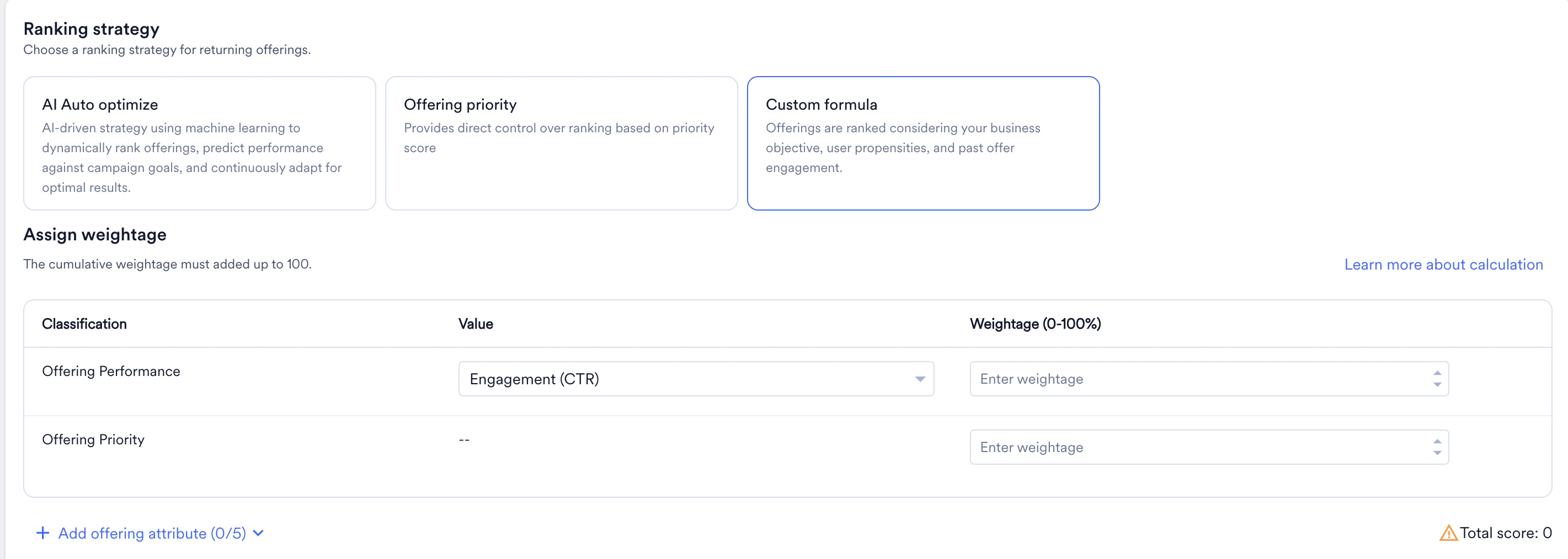
- Any offering attributes you have configured (Fixed Value or Dynamic Value)
- For Fixed Value attributes, you’ll have to choose one of the options from the dropdown.
- Offering Performance (Click-Through-Rate or Conversion Rate)
- Offering Priority score
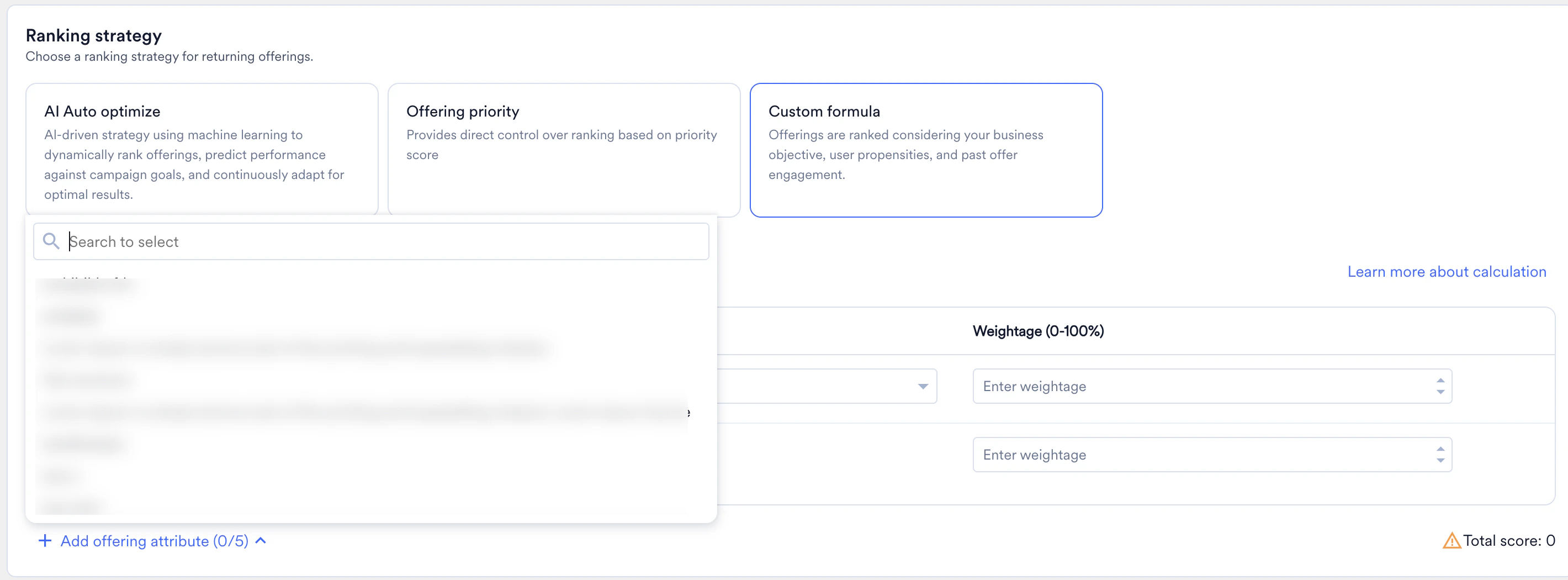
- Business Goal: Increase gross margin (Fixed Value attribute) — 40%
- Business goal is the name of the Fixed value attribute. Increase gross margin is one of the options.
- User preferred category (Dynamic Value attribute) — 30%
- Offering Performance (CTR) — 20%
- Offering Priority — 10%
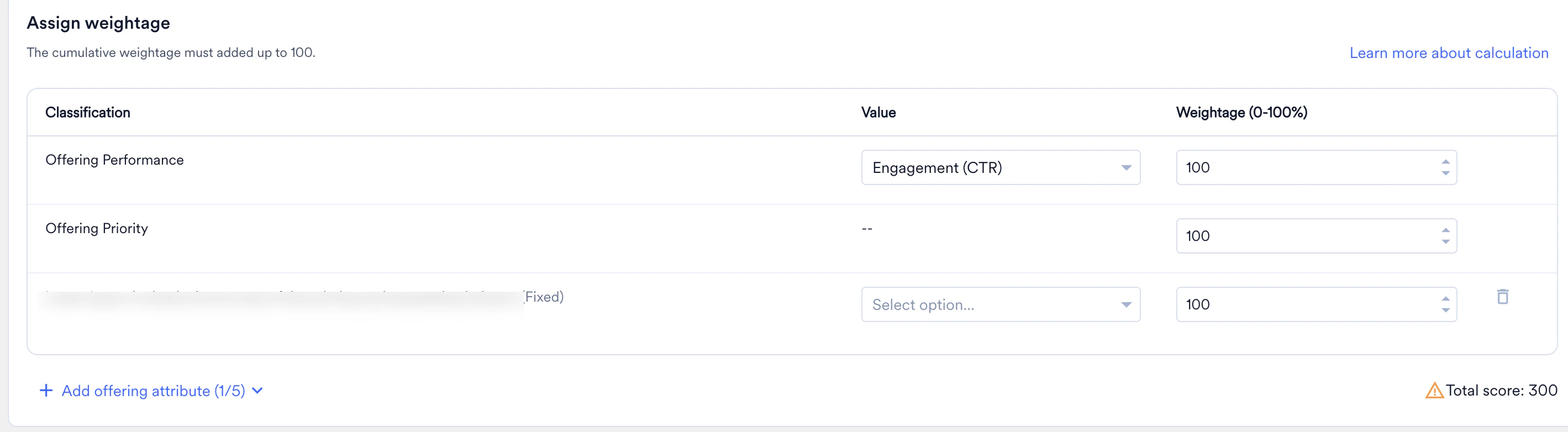
- A Decision Policy contains two offerings: Offering A (New iPhone launch) and Offering B (Discount on Apparel). The policy is configured with the attributes and weights listed above in Step 3.
- Offering configuration
- Offering A
- 1 Fixed value: Business goal with 2 options:
- Option 1: Increase gross margin ; Score: 90
- Option 2: Reduce customer churn ; Score: 10
- 1 Dynamic value attribute: User preferred category
- Option: Electronics
- 1 Fixed value: Business goal with 2 options:
- Offering B
- 1 Fixed value: Business goal with 2 options:
- Option 1: Increase gross margin ; Score: 75
- Option 2: Reduce customer churn ; Score: 25
- 1 Dynamic value attribute: User preferred category
- Option: Fashion
- 1 Fixed value: Business goal with 2 options:
- Offering A
- A user “Ross” has “Electronics” as their primary category affinity; User “Rachel” has “Fashion” as their primary category affinity.
Result for Ross
Offering A scores 85.00, Offering B scores 53.00. Offering A is ranked first — the iPhone launch is shown to Customer X despite having a lower CTR than the Apparel offer.
Scores for Rachel:
Result for Customer Y
Offering A scores 55.00, Offering B scores 83.00. Offering B is ranked first — the Discount on Apparel is shown to Customer Y.
What happens when two offerings have the same score?
If two or more Offerings in a Decision Policy calculate to the same Custom Score for a given customer, the engine applies a sequential tie-breaking logic to determine which Offering is ranked first:Next Steps
- To configure the Offering Attributes used by this strategy, refer to Managing Offering Attributes.
- To learn how to create a Decision Policy, refer to Create Decision Policy.
- To assign Offering Attributes to your offerings, refer to Create Offering Attribute.