

Flows Search
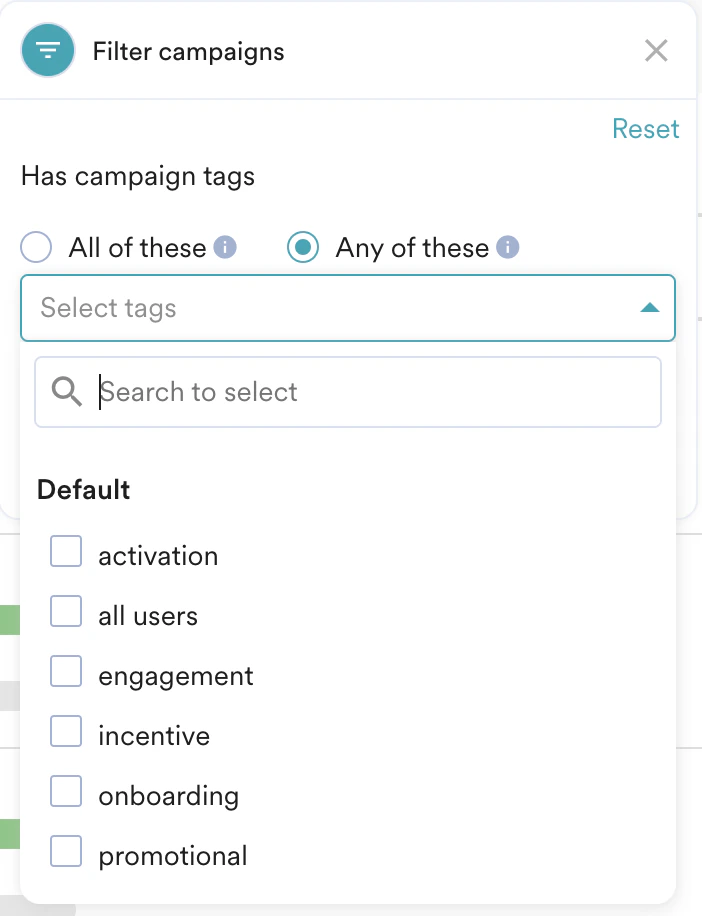
You can search among the flow campaigns based on the name, flow-id, creation date, entry type, status, and campaign tags. For a flow that has more than one version, the name, status, and performance columns show the values from the latest active version, and filters such as tags and created by match against that version as well. A tag you add in a later version therefore works in the filter without you having to reapply it to the original version.
Exporting Flow Campaign Data
You can export Flow campaigns data to build internal reports or gather additional insights. To export data, just click on the export button at the top of the All Flows Page.
- When you export a flow from this section, the data for all the versions of the Flow get exported (not the data of the active version alone).
- If you want to export the data of a specific version of the flow, navigate to the Flow using Engage -> Flows -> Choose the specific Flow and select the version for which you wish to export the data in the version selector. Click Export on the top right corner of the Flow Details Ribbon above the Canvas.
Flows Performance
In the All Flows page, for each flow, you can find its performance from the day the flow got published across all versions using the following metrics: