Use Cases
Merlin AI can be used to generate various types of In-App templates. You can use Merlin AI to:- Create gamified templates: Build interactive components like “Spin the Wheel” to drive user participation and reward distribution.
- Highlight time-sensitive offers: Generate countdown timers to emphasize sales deadlines or registration windows.
- Capture user leads: Design pop-ups with input fields to collect information such as email addresses or phone numbers.
- Collect customer feedback: Build multi-option survey forms to track user preferences or net promoter scores (NPS).
- Announce product updates: Create full-screen or partial pop-ups to communicate new feature launches or seasonal sales.
Feature Specifications
- Tracking: Automatically includes event tracking for close buttons, form submissions, and primary CTA clicks.
- Responsiveness: Templates adapt to both portrait and landscape orientations by default.
- Accessibility: Designs follow accessibility standards for inclusive user interaction.
Generate a Template
To generate an In-App template with Merlin AI, follow these steps:- Navigate to the Content step of the In-App campaign creation flow.
- In the Merlin AI template generator section, click + Create new.

- Specify your requirements using one of the following methods:
- Select a Suggestion: Choose a pre-defined use case, such as a Spin the wheel pop-up or Survey form.
- Custom Prompt: Enter technical or design requirements in the input field.
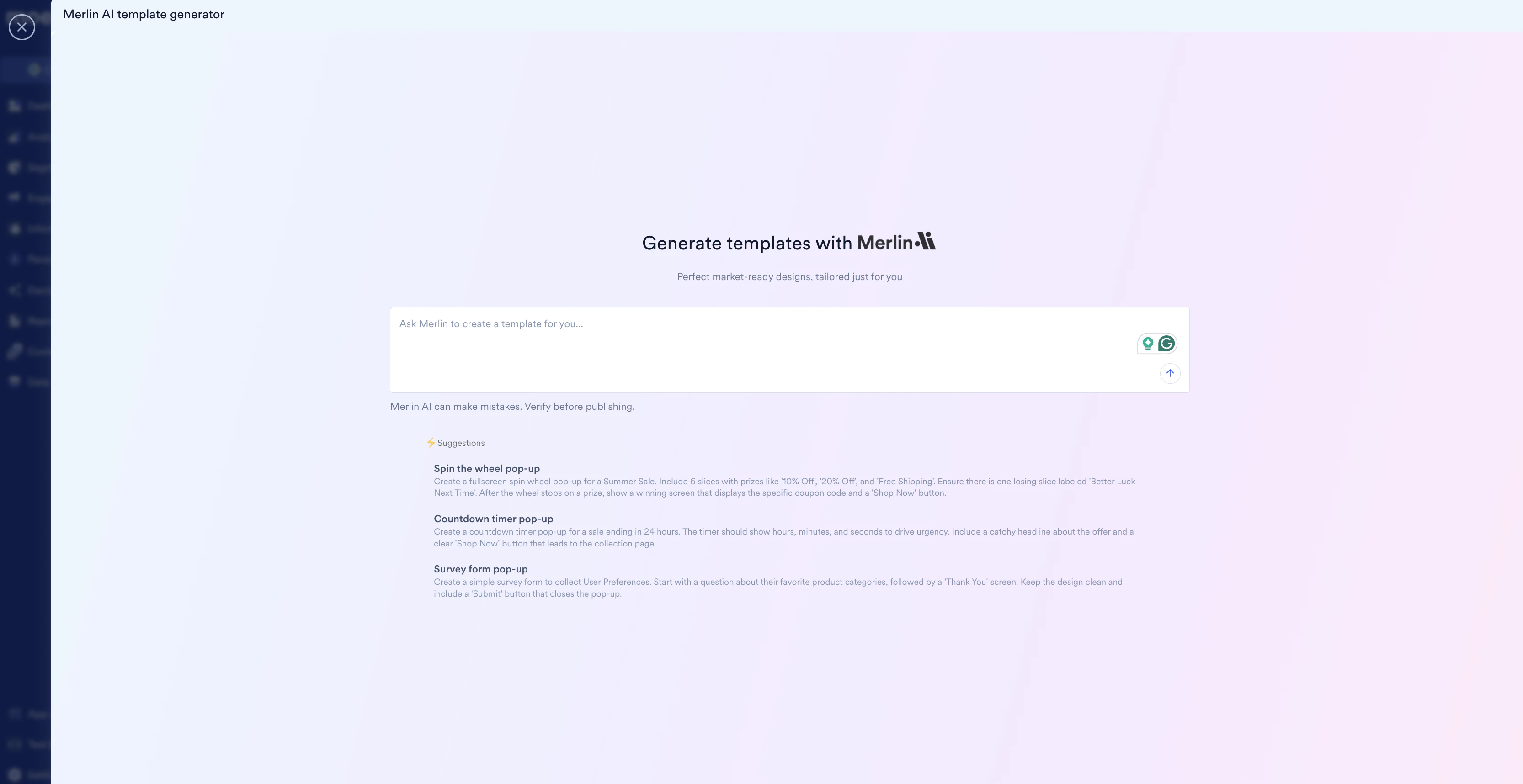
- Click the Send icon to generate the template.
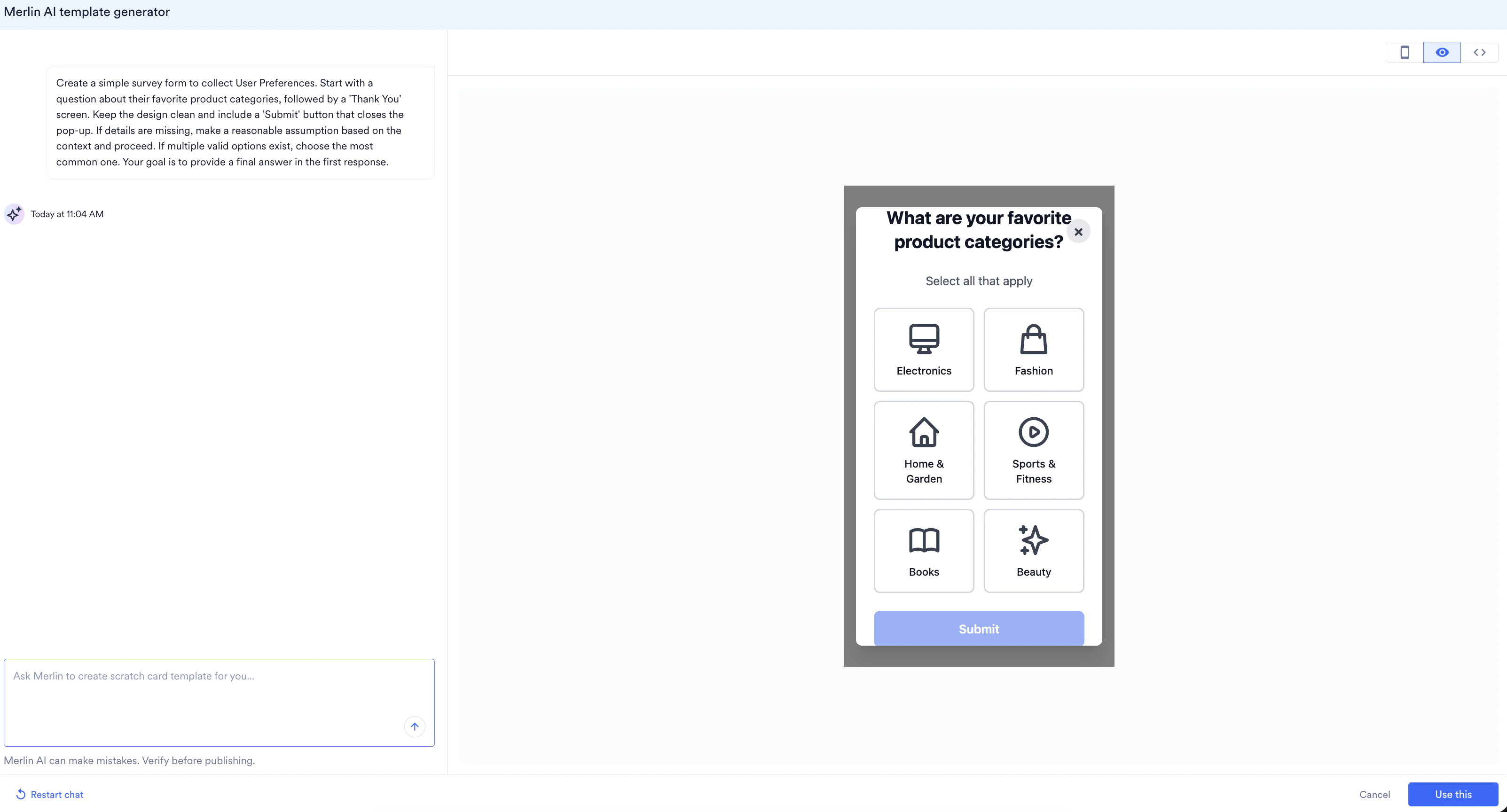
- Review the generated design using the preview tools:
- Device Preview: Click the Phone icon to view the layout on a mobile screen.
- Preview: Click the Eye icon to preview the generated template.
- Code Inspector: Click the Code icon to view the underlying HTML code.
- To refine the design, provide additional instructions in the prompt field (for example, “Change the ‘Submit’ button color to green” or “Add a ‘Skip’ option at the bottom”).\
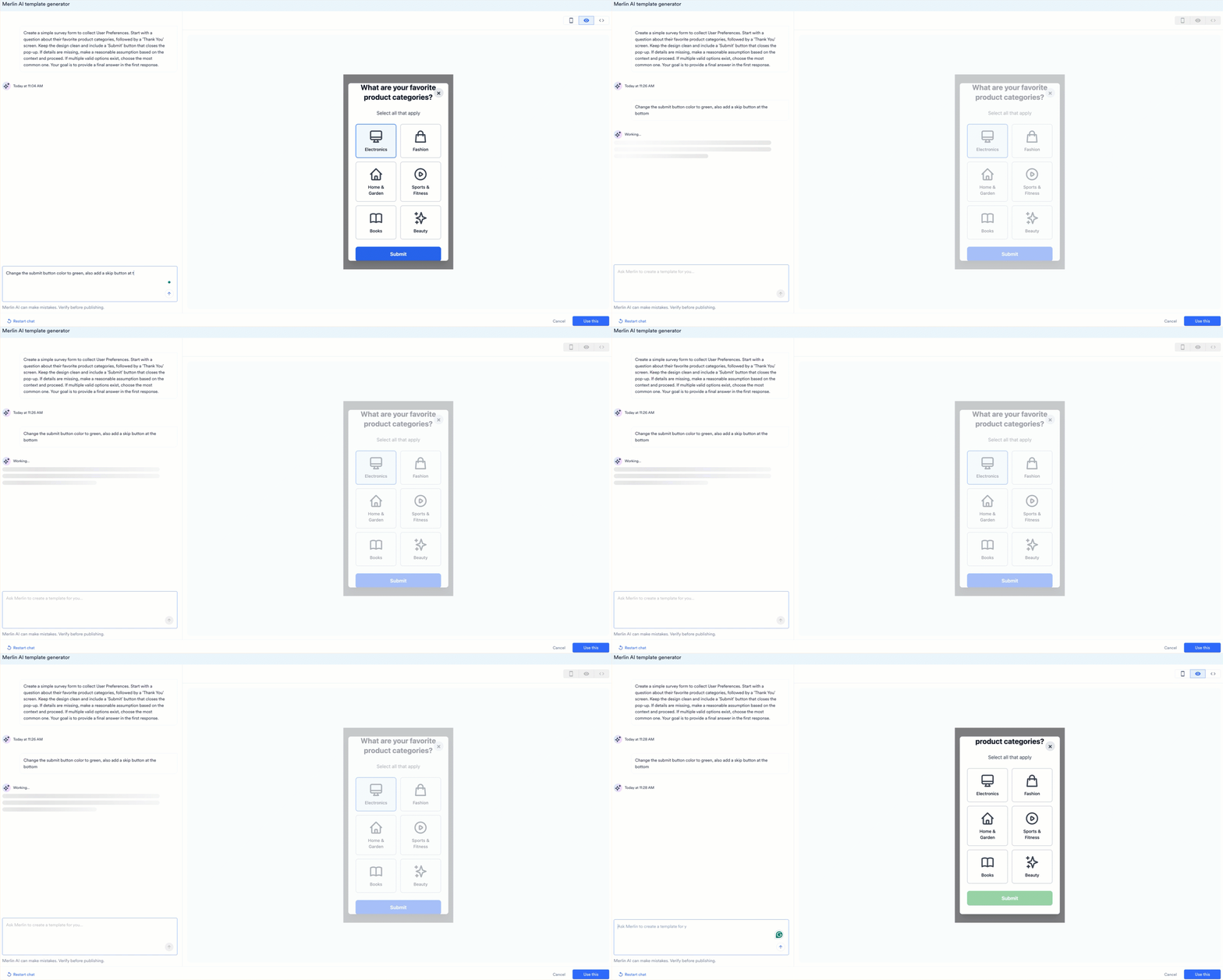
- Each iteration creates a new Version card in the chat history.
- Preview Versions: Click any version card (for example, Version 0, Version 1) in the chat to view that specific design in the preview pane.
- Edit a Version: Click the Pencil icon on a version card to select it as the base for further prompt-based edits.
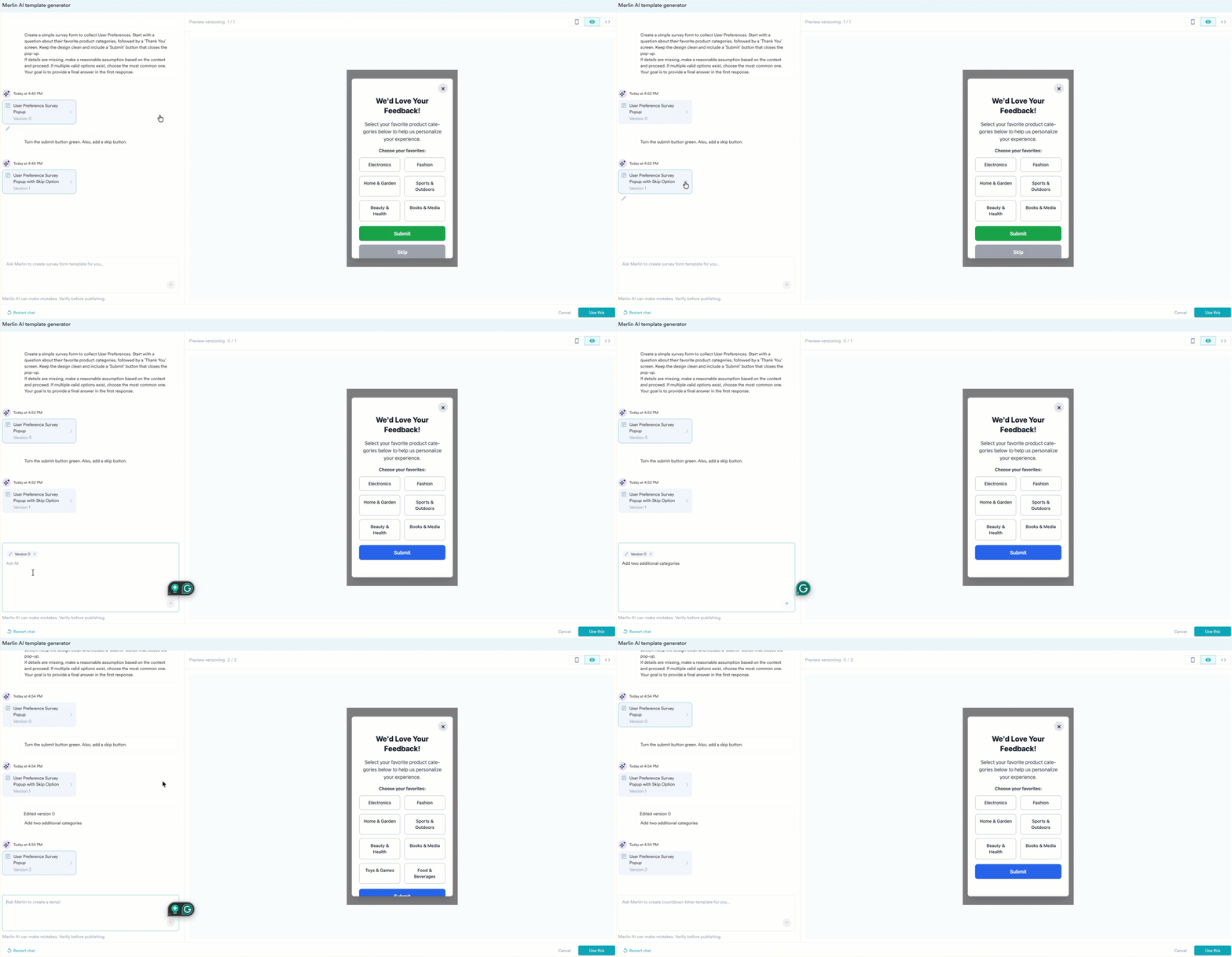
- Click Use this to apply the generated HTML to your campaign.
Prompt Guidelines
To ensure accurate output, provide specific details on the layout and components. Refer to the following structure:Template Type: Full-screen, Nudge, or Bottom sheet.Use Case: Lead generation, Promotional, or Feedback survey.Core Components: Input fields, countdown timers, or interactive wheels.Functional Elements: Specific CTA text, hex color codes, and close button placement.
Example: Structured Prompt
The following is an example of a comprehensive prompt for a “Spin the Wheel” campaign:Type: FullscreenUse Case: Lead GenCore Component: Spin wheel with 6 slices containing the following prizes:
- Slice 1: 10% Off (Coupon Code: SUMMER10)
- Slice 2: 20% Off (Coupon Code: SUMMER20)
- Slice 3: Free Shipping (Coupon Code: FREESHIP)
- Slice 4: 15% Off (Coupon Code: SUMMER15)
- Slice 5: Buy 1 Get 1 50% Off (Coupon Code: SUMMERBOGO)
- Slice 6: Better Luck Next Time (No coupon code)
- Dismiss button (X) in top-right corner.
- Email input field for lead capture before spinning.
- Winning overlay screen: prize name, coupon code, and a “Shop Now” button.
- Losing overlay screen: “Better Luck Next Time” text with a “Browse Anyway” button.
Template Management
Save for Future Use
Generated templates can be saved for use in other campaigns:- To transfer the generated design to the HTML editor, click Use this.
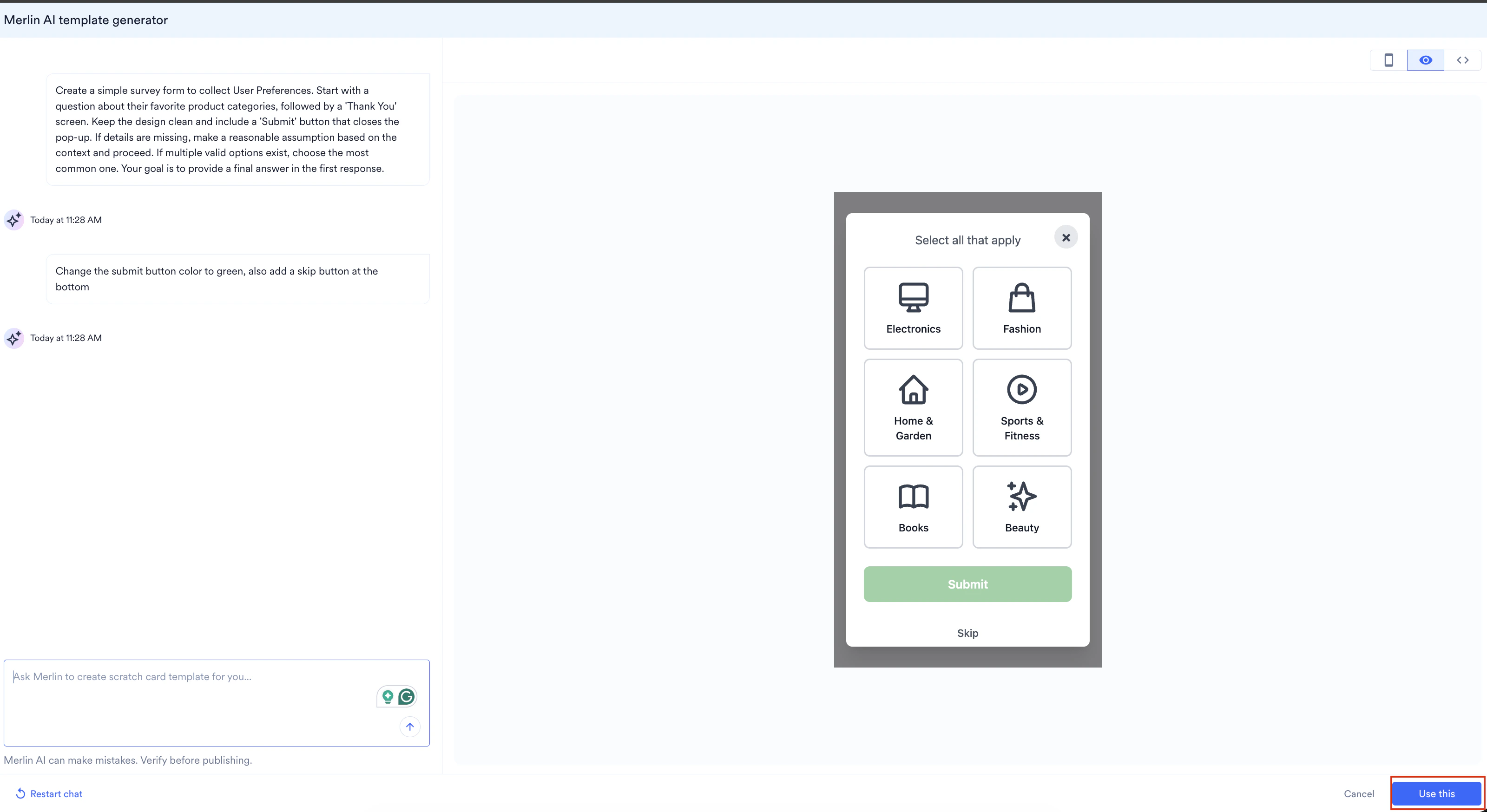
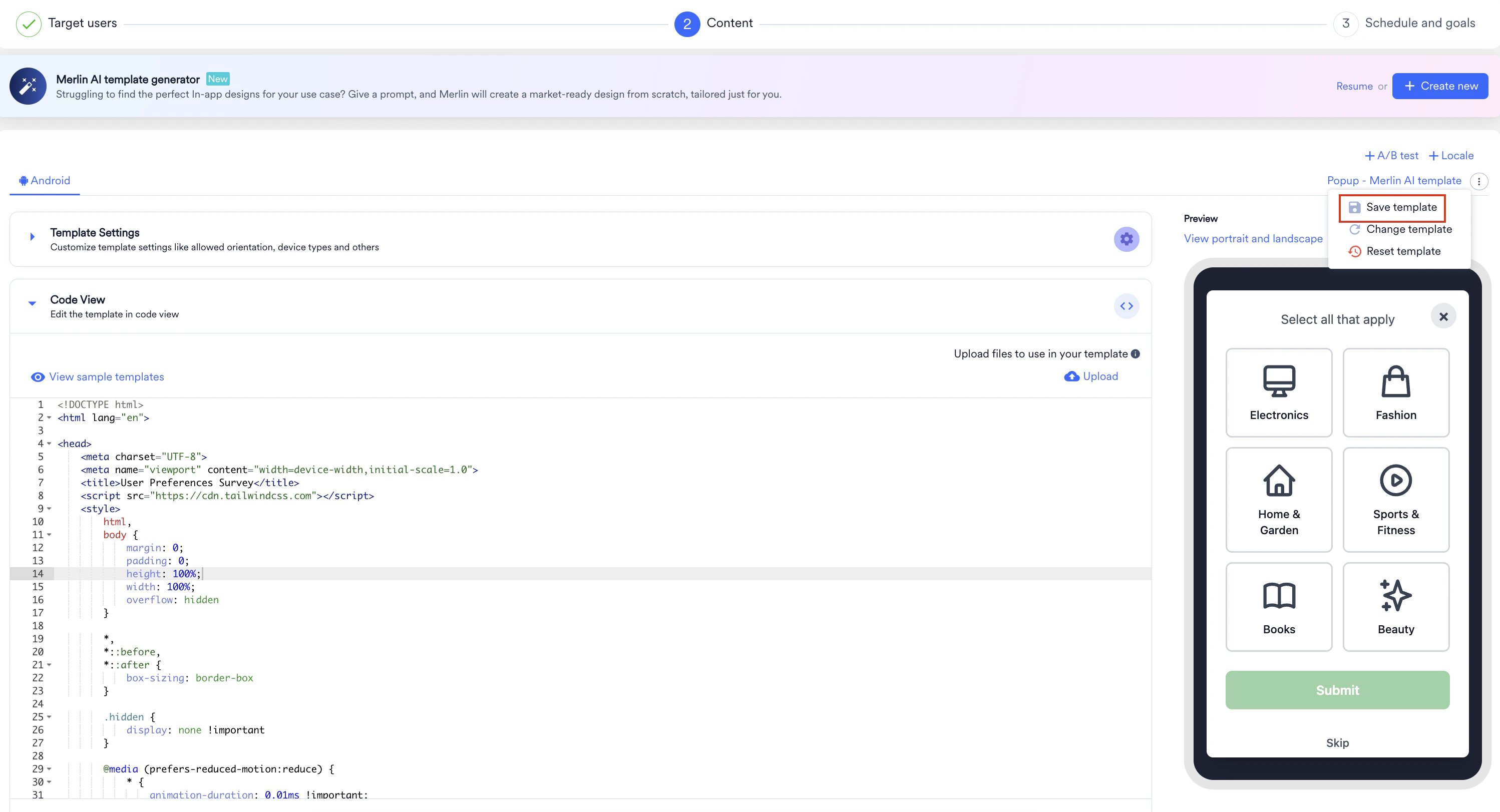
- On the Content page, click the three dots menu.
- Click Save Template. The Save as template for future use dialog box appears.
- In the Save as box, enter a desired name for your template.
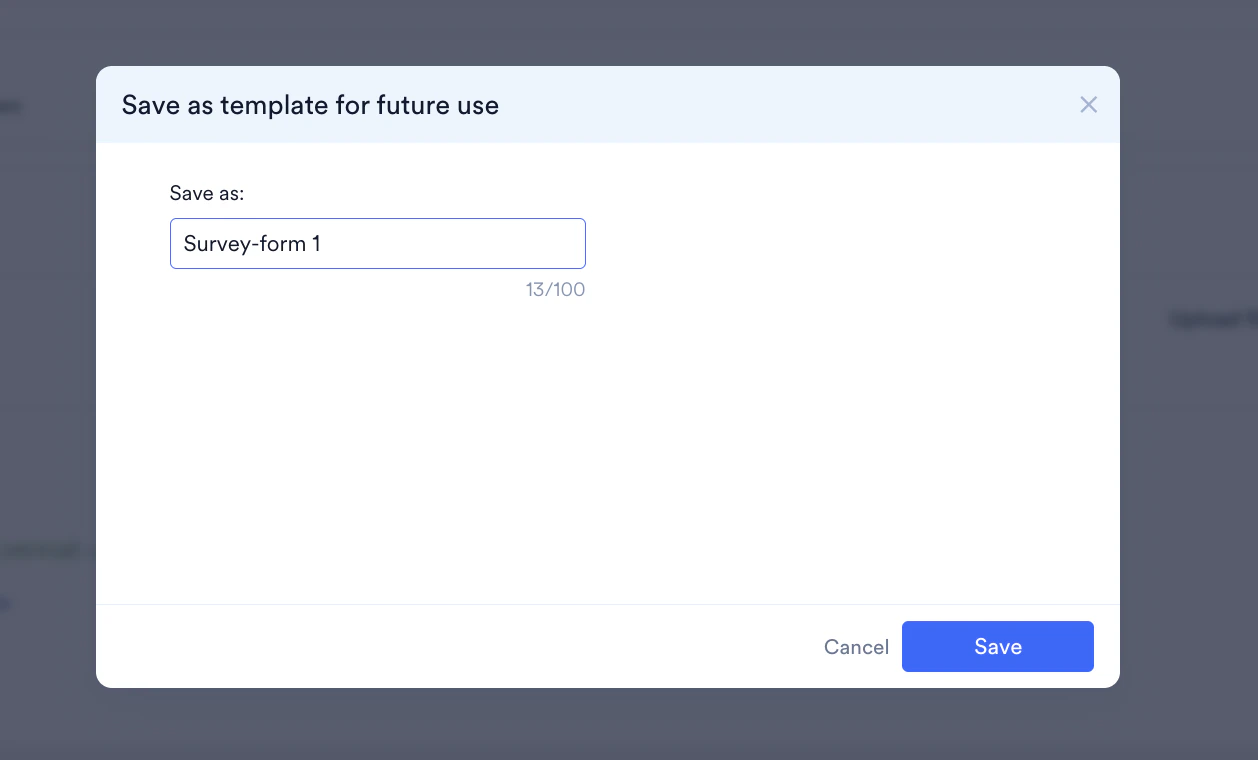
- Click Save.
Navigation Actions
- Resume: Returns to the active generation session if you have navigated to other parts of the dashboard within the same session.

- Restart Chat: Clears all current session data to initiate a new prompt sequence.