

- Big Query
- Snowflake
- Databricks
- Redshift
Follow the below steps to grant read access to certain tables in BigQuery to MoEngage. Additionally, it covers providing access to BigQuery Jobs API, enabling Moengage to submit jobs and download query results.These instructions assume you have administrative privileges in the Google Cloud Platform, specifically in the project that hosts the BigQuery dataset and jobs.
By following the above steps, you have successfully granted Moengage read access to specific tables in BigQuery.Additionally, you have authorized access to the BigQuery Jobs API, allowing them to submit jobs and download query results. It is essential to review and manage access permissions periodically to maintain data security.
Create a Service Account for MoEngage
- Open the Google Cloud Console.
- Navigate to the project housing the BigQuery dataset and jobs.
- Go to the IAM & Admin section and select Service Accounts.
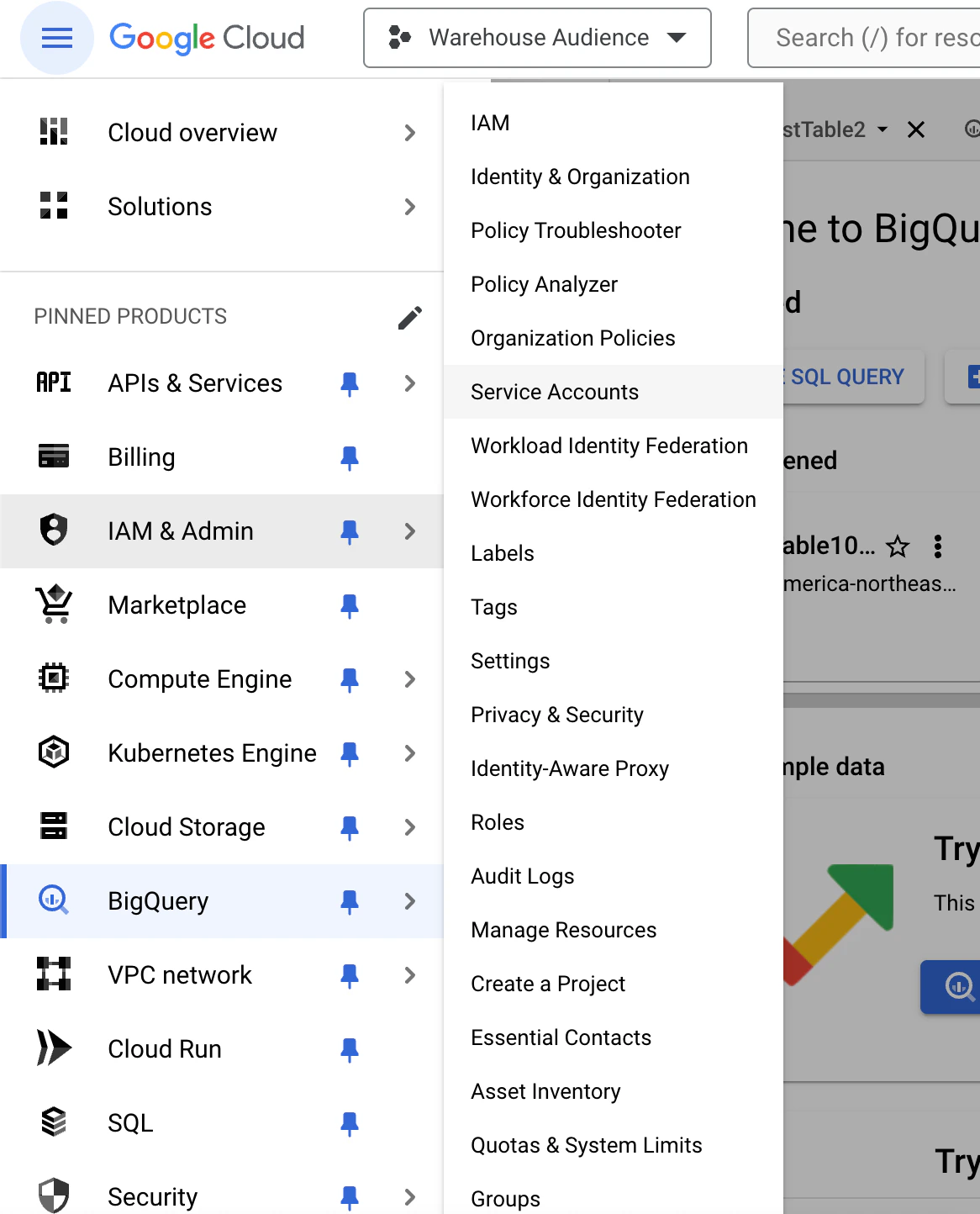
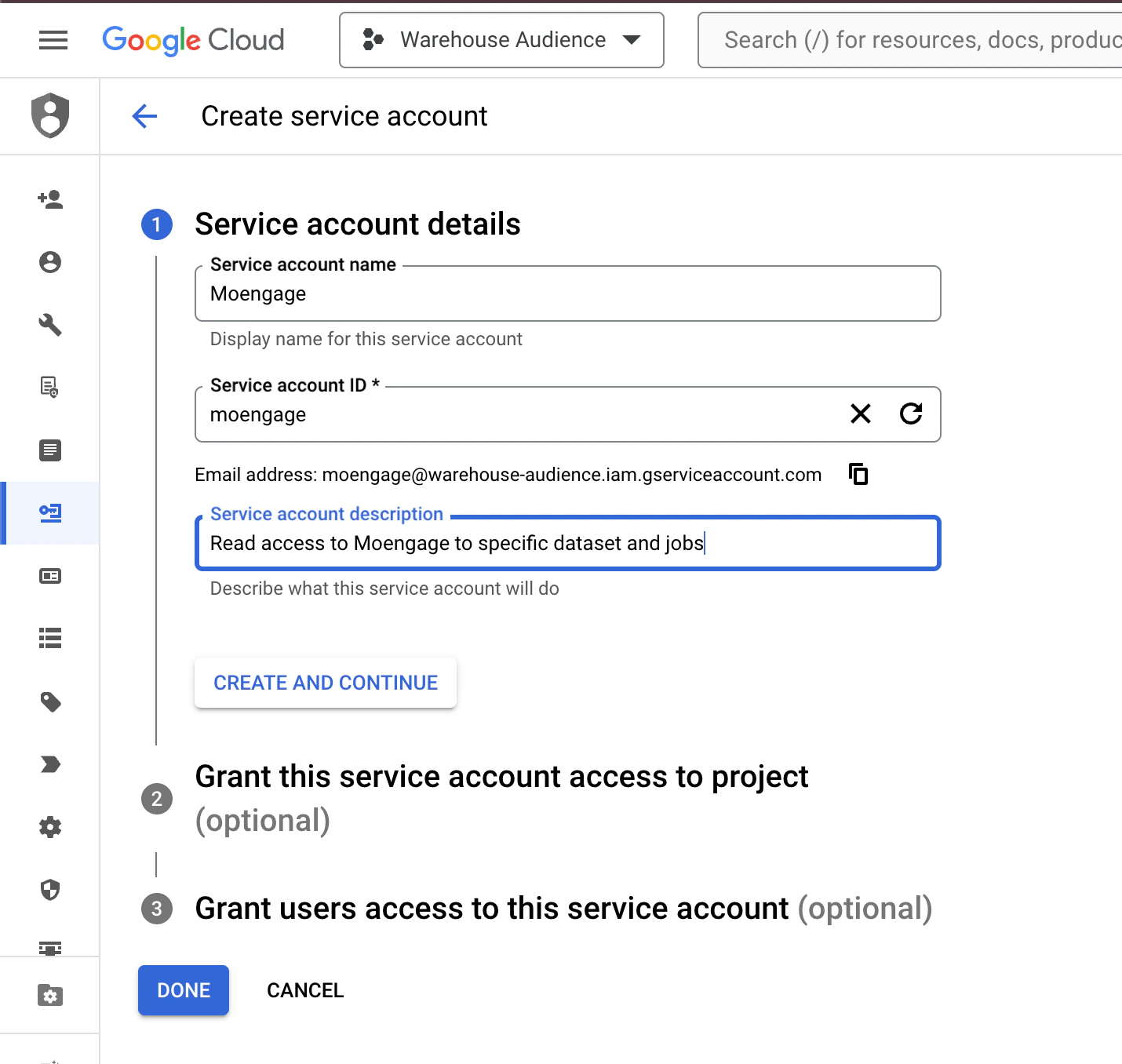
- Click Create Service Account.
- Provide a name for the service account (e.g., moengage-access).
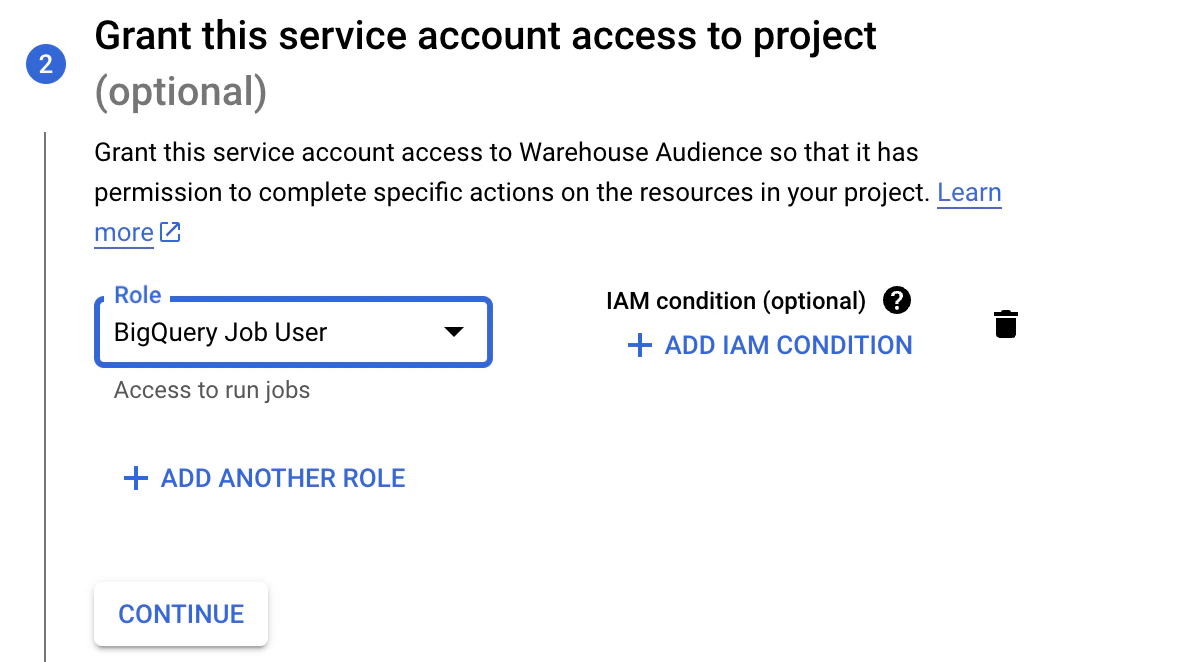
- Set the appropriate role for the service account as BigQuery Job User.
- Create the service account.
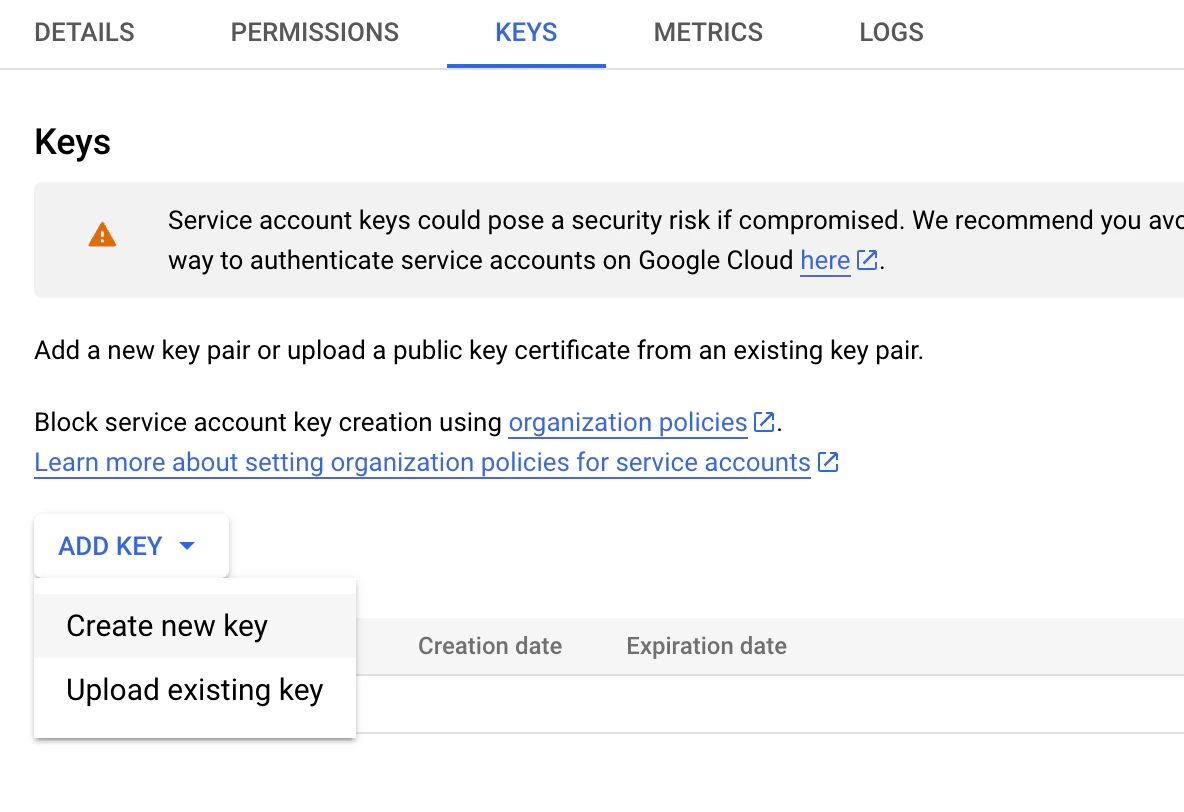
- Navigate to the service account and select the KEYS tab.
- Click the ADD KEY dropdown and then select Create new key.
- Select JSON as the screen type in the pop-up
- Click CREATE to generate and download the JSON key file.
- Keep the JSON file securely and share it with MoEngag as below.
- JSON key file of the service account created for MoEngage as per the steps above
- Your MoEngage workspace name, along with your data cluster (DC)
- Your BigQuery location
Share Access to Specific Tables with Moengage
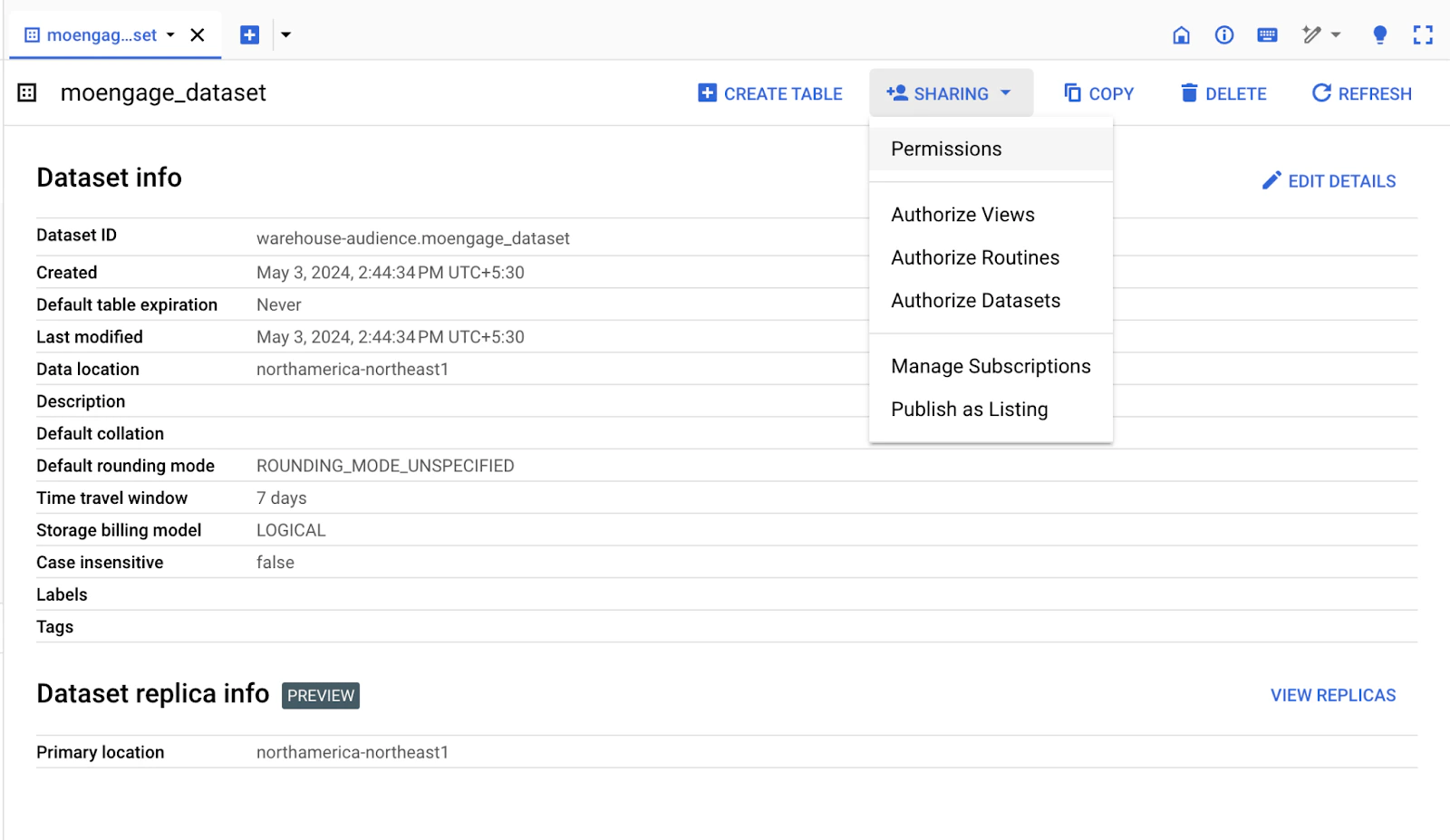
- In the BigQuery console, navigate to the dataset containing the tables you want Moengage to access.
-
Click the SHARING dropdown and then select Permissions.
-
Add the service account’s email address (found in the JSON key file) as a member with the “BigQuery Data Viewer” role.
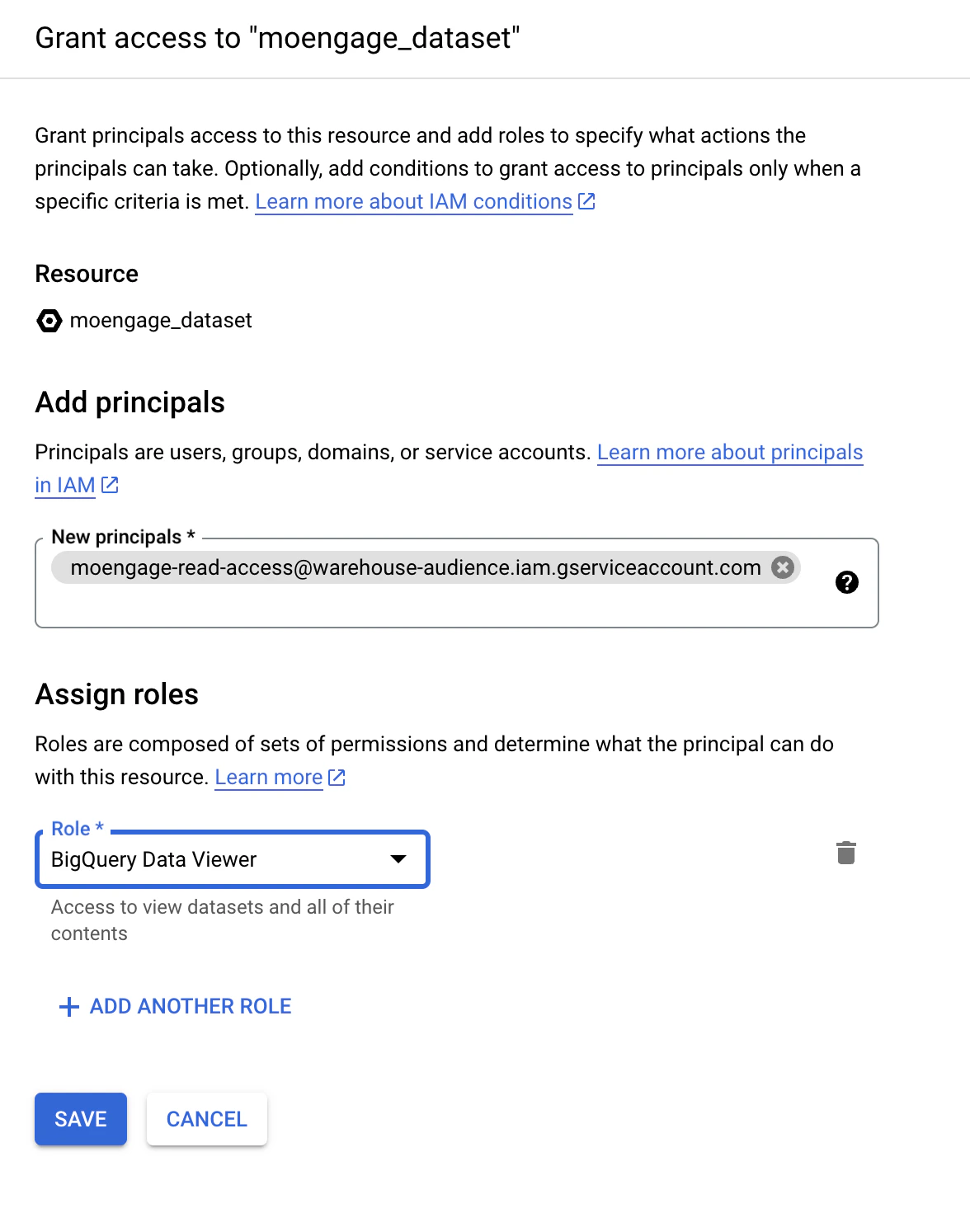
- Click Save to grant access to the dataset.
Grant Access to BigQuery Jobs API
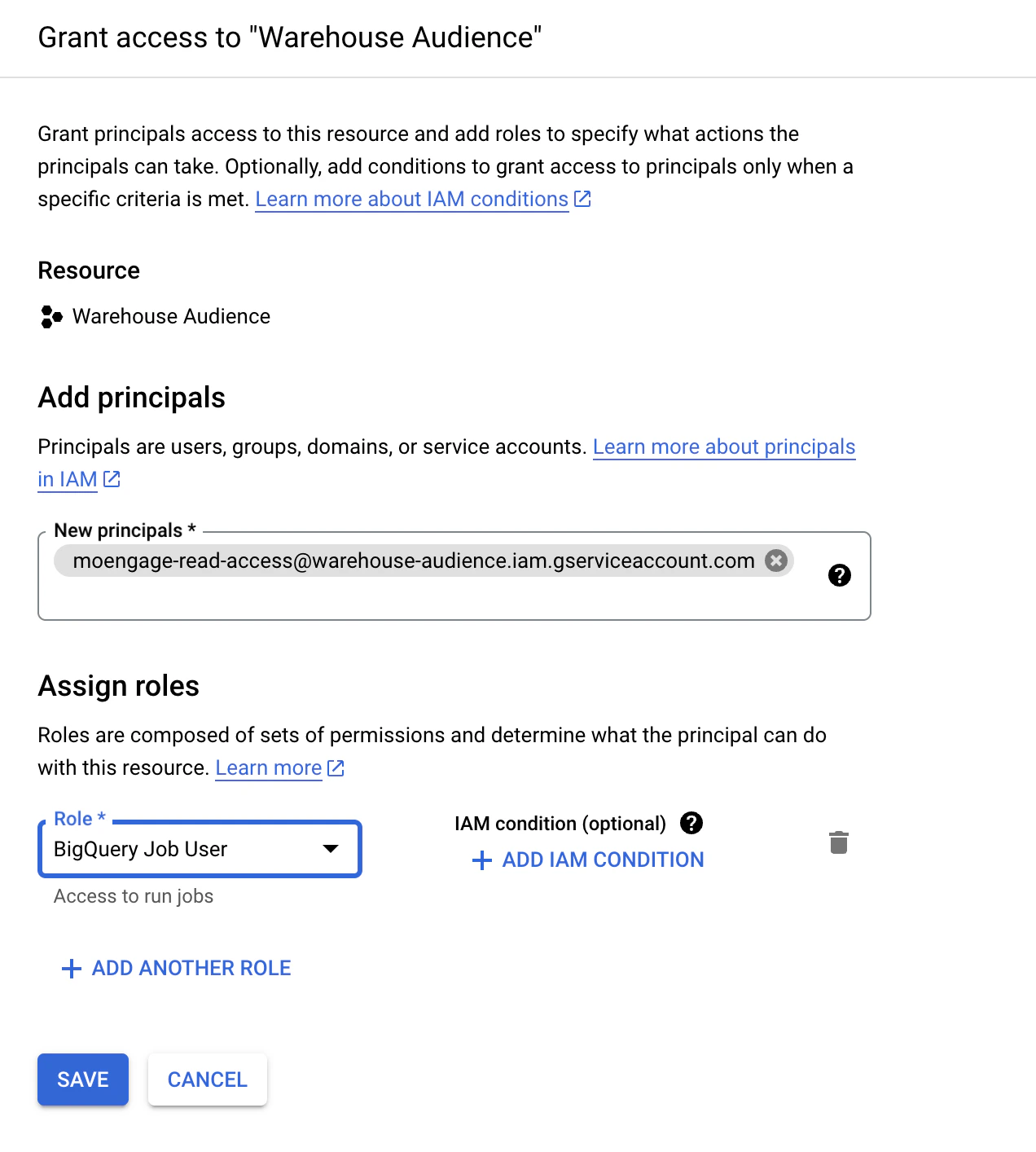
Skip if access is already given in the first step.- In the Google Cloud Console, go to the IAM & Admin section and then select IAM.
- Click Grant Accessto add a new member.
- Enter the service account’s email address (found in the JSON key file).
- Assign the Role as BigQuery Job User to enable interaction with the BigQuery Jobs API.
-
Click Save to grant access to the API.
Limit Access to Specific Tables (Optional)
Limit Access to Specific Tables (Optional)
- Open the JSON key file shared with Moengage.
- Locate the private_key_id attribute in the JSON content.
- In the BigQuery console, open the dataset with the desired tables.
- Select the table(s) you want to restrict access to and click on “Share Table” from the context menu.
- Add the service account’s email address as a member and restrict the role to “BigQuery Data Viewer” only for these table(s).


Next Steps
With a connection saved, choose how you want to define your audience:- To write a query that returns user IDs, refer to Create a Segment Using SQL.
- To map your tables so your marketers can build segments from dropdown filters, refer to Warehouse Schema.