

This is an Early Access feature. To enable it for your account, please contact your MoEngage Customer Success Manager (CSM) or the Support team.
Overview
API keys are typically used as an authentication or authorization mechanism. They are unique identifiers associated with a user or an application with access to API resources. The API keys serve as a way for the API provider to track and control access to their resources. They help ensure the security and accountability of API access and allow providers to manage and monitor usage effectively.The multikey feature is currently supported by data, segmentation, and push APIs.
- Generate a new key while the existing key is still available: With the multi-key support, the existing key can be used until the new key becomes functional. This helps you rotate your keys for security purposes and avoid downtime. Consider a scenario in which your internal team creates a new key, and it takes some time for the team to integrate it into the system. Because the old key is still functional, your team has the time to integrate the new key into the system. After integrating the new key, you can deprecate the old key. This avoids downtime when sending data to MoEngage.
- Use different keys for different teams: Consider a scenario where an enterprise customer works with various vendors. This enterprise customer can share a key with one of its vendors to fulfill a business use case, which restricts the other vendors from fulfilling the same use case for security reasons. Using this feature, all vendors can fulfill the same use case by accessing it using different keys. Furthermore, as an enterprise customer, you can use different keys for different internal teams based on their functionalities.
Create a Key
- After the multi-API key feature is enabled, the existing API keys in the API dashboard are migrated to your new API key dashboard as legacy keys.
- You can view the legacy key details and continue to use them. But you cannot archive, edit, or regenerate them.
- MoEngage recommends creating and utilizing new keys because legacy keys will be deprecated in the future.
- On the left navigation menu in the MoEngage dashboard, go to Settings > Account > API keys.
- Click + Create new key.
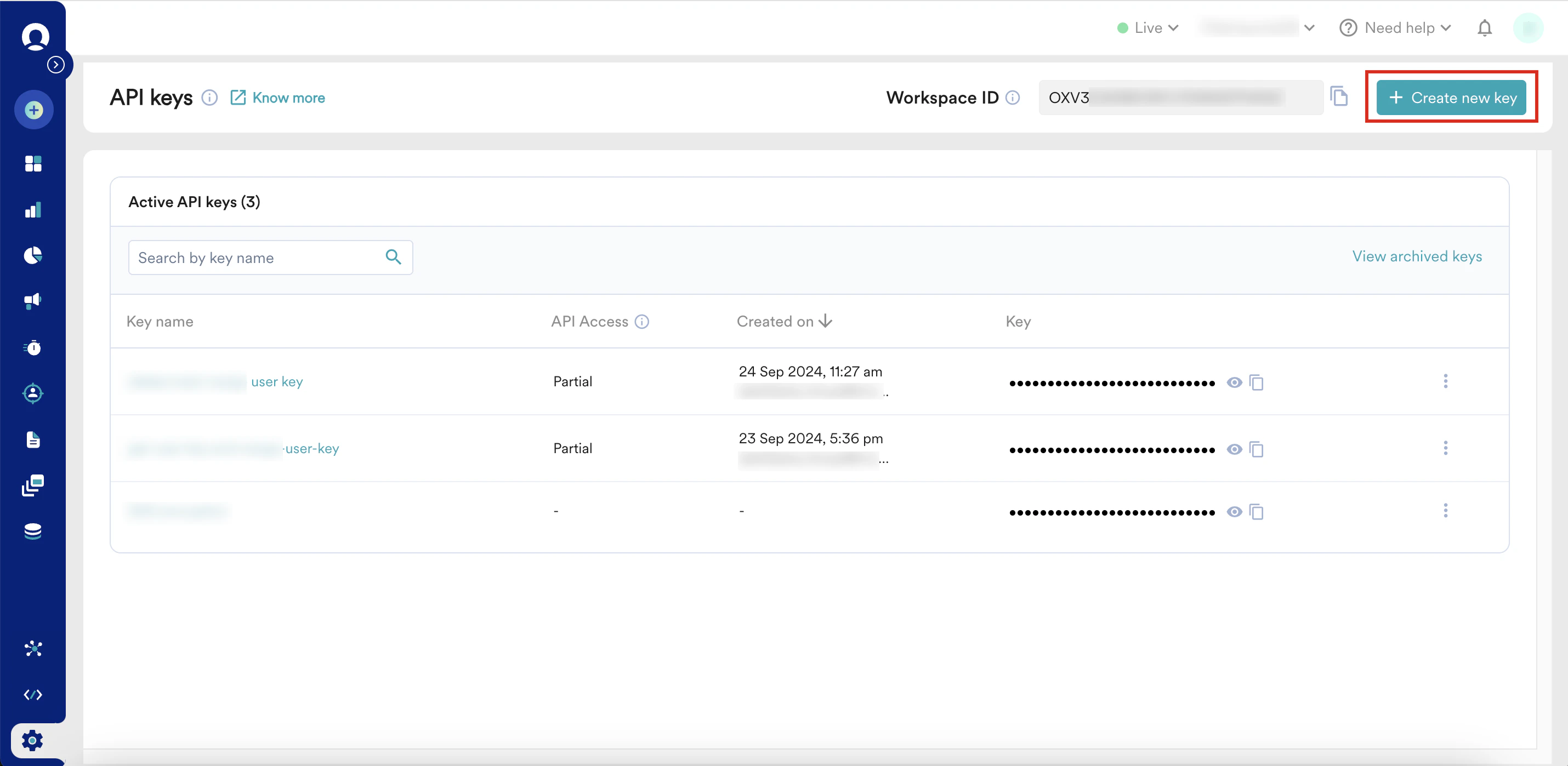
- In the Create new key page, enter the following details:
- In the Key name box, type a name for your key to facilitate easy identification.
- In the Select APIs for access check box list, select the APIs you want to access using this key.
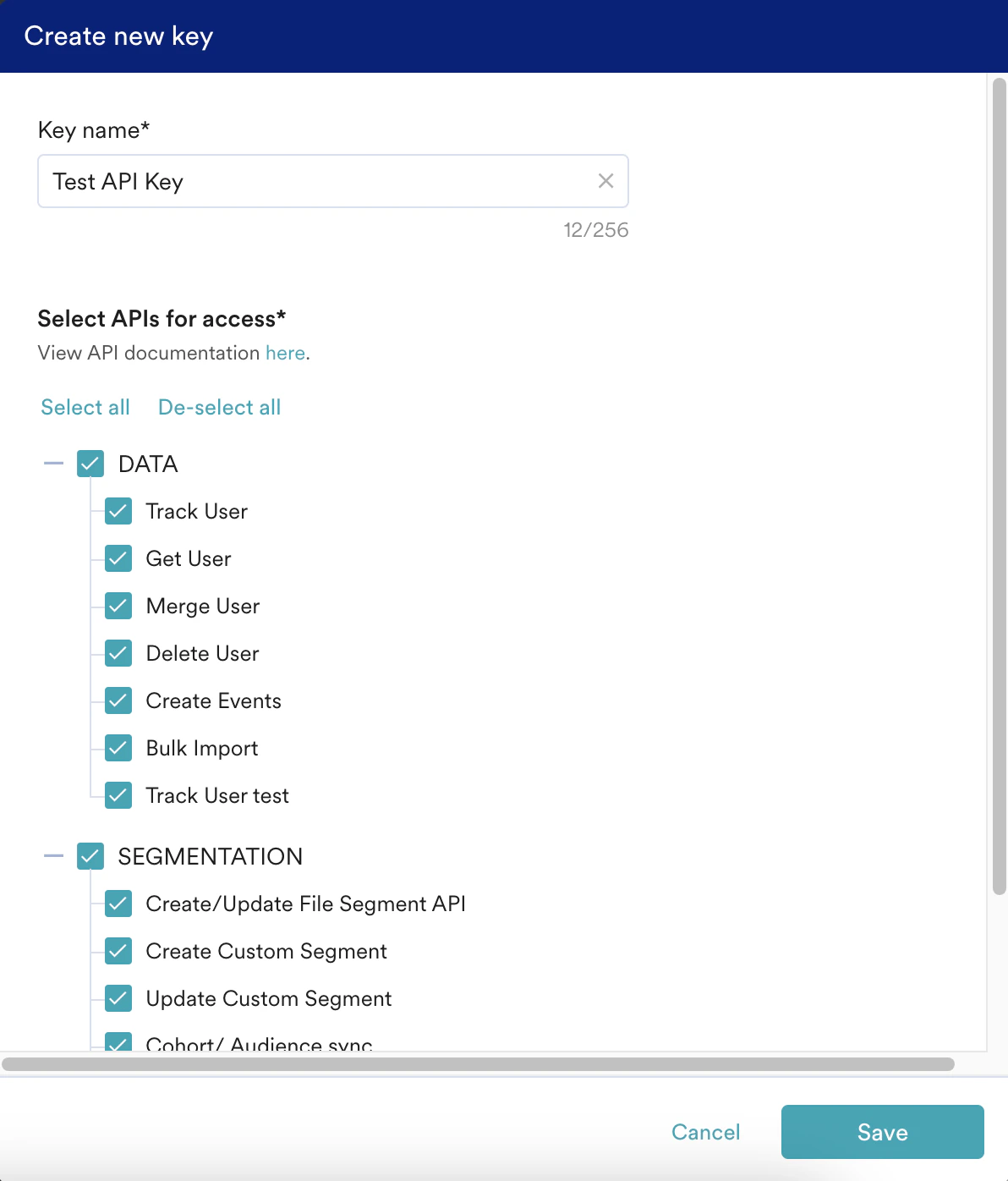
- Click Save. After saving, this key is listed under Active API keys.
The API Access is Full if all listed APIs can be accessed using this key; otherwise, it is Partial.
- Click View archived keys to view the list of archived keys.
- On the API Keys page, clicking for each API key displays the following options:

Option Description View key details Click this option to view the key details. You can access the edit key and regenerate key options from the View key details page. 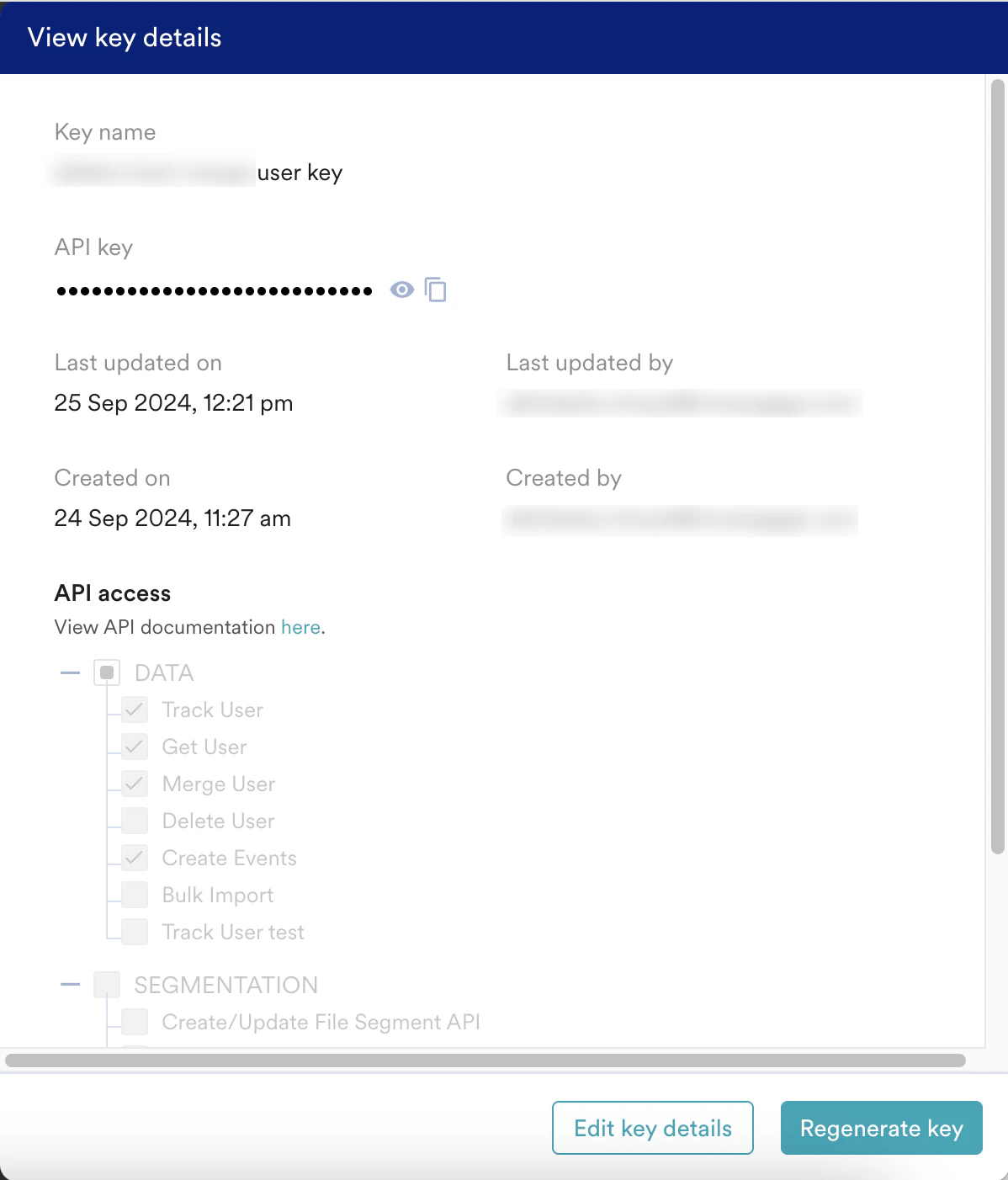
Regenerate key Click this optionto regenerate a new key. Note: The old key expires immediately after regenerating. To avoid errors, replace the old key with the regenerated key. Edit key details Click this option to edit the key name or access to your APIs. Archive key Click this option to archive your keys. After archiving them once, you cannot unarchive keys. Note: A maximum of 10 archived keys is maintained under the archived key list.
Audit Logs
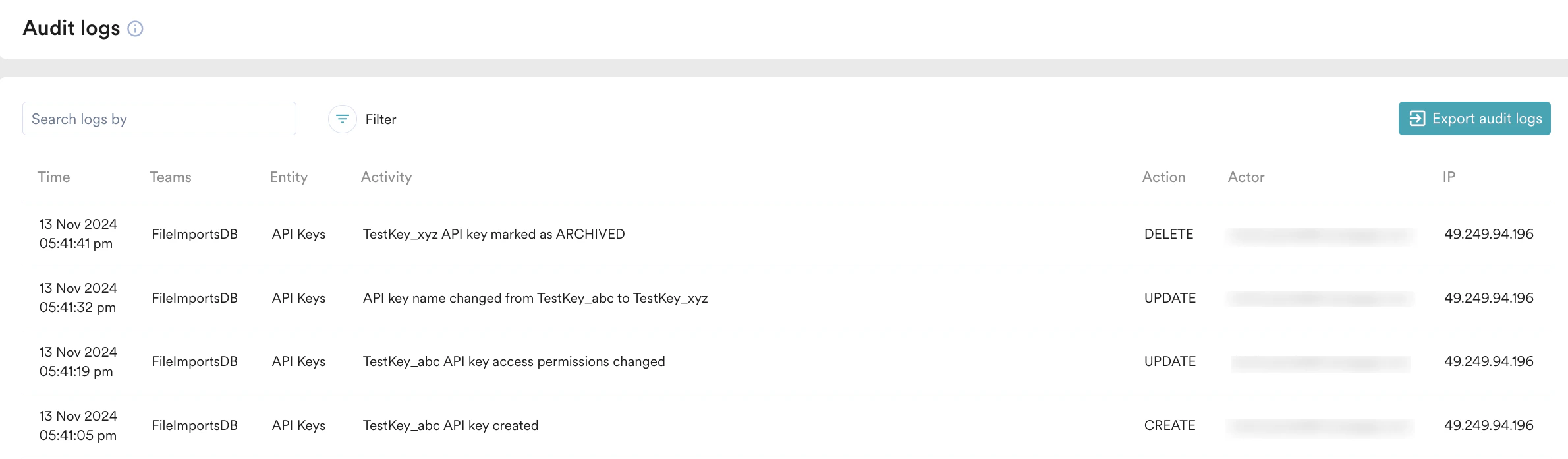
- Click to filter audit logs based on Team(s), Action, Actor, and Date time Range.
- Type the value in the Search logs by search bar for which you want to fetch the audit logs.
- Click Export audit logs to receive the audit log report in your email. You can download the report from the email.
- Create is displayed when an API key is created successfully.
- Update is displayed when:
- A key name is updated.
- The API access for a key is updated.
- A key is regenerated.
- Delete is displayed when a key is archived.