

Authentication Flow
The OAuth parameters map to dashboard values as follows:
Prerequisites
Before you begin, ensure that you meet the following requirements:- You have access to Settings > Account > API keys in the MoEngage dashboard.
- You have identified the data center that hosts your workspace. Your dashboard URL indicates the data center. For more information, refer to Data Centers. If you are unsure which data center hosts your workspace, contact MoEngage Support.
OAuth Base URLs
OAuth requests go to the OAuth host for your data center, and requests to the Public APIs go to your REST API host. Replace{dc} in the examples on this page with your data center number.
Step 1: Create an OAuth 2.0 API Key
1
Open the API Keys Page
On the left navigation menu in the MoEngage dashboard, go to Settings > Account > API keys.
2
Open the Create New Key Dialog
Click + Create new key.
3
Enter a Key Name
Enter a descriptive name in the Key name box, for example
orders-integration.4
Select the Authentication Type
Under Authentication Type, select OAuth 2.0.
5
Set the Access Token Expiration
In the Access token expiration (in minutes) box, enter how long each access token stays valid. The value must be between 5 and 60 minutes, and the default is 15 minutes.
6
Select the API Access
Under Select APIs for access, select the API groups that the key calls. The key accesses only the endpoints that you select in this list.
7
Save the Key
Click Create key. The dashboard then displays your Workspace ID and the API key value.
To call the Segmentation APIs or Inform, create a Basic Auth key instead. For the API groups that OAuth 2.0 keys support, and for the steps to edit, regenerate, and archive keys, refer to API Key Dashboard.
Step 2: Generate an Access Token
Exchange yourclient_id and client_secret for an access token and a refresh token. Send the request body in form-encoded format (application/x-www-form-urlencoded). A JSON body returns 415 Unsupported Media Type.
Generate Access Token
Determine the Token Expiry
Theexpires_in field in the response gives the access token’s lifetime in seconds, counted from the moment MoEngage issues the token. Schedule your refresh from that value. The lifetime reflects the Access token expiration (in minutes) set on the API key.
Step 3: Call the MoEngage Public APIs
Send the access token in theAuthorization header as a Bearer token.
Call an API with an Access Token
Authentication Errors
When authentication fails, the response carries aMOENGAGE-AUTH-ERROR-CODE header.
Step 4: Refresh the Access Token
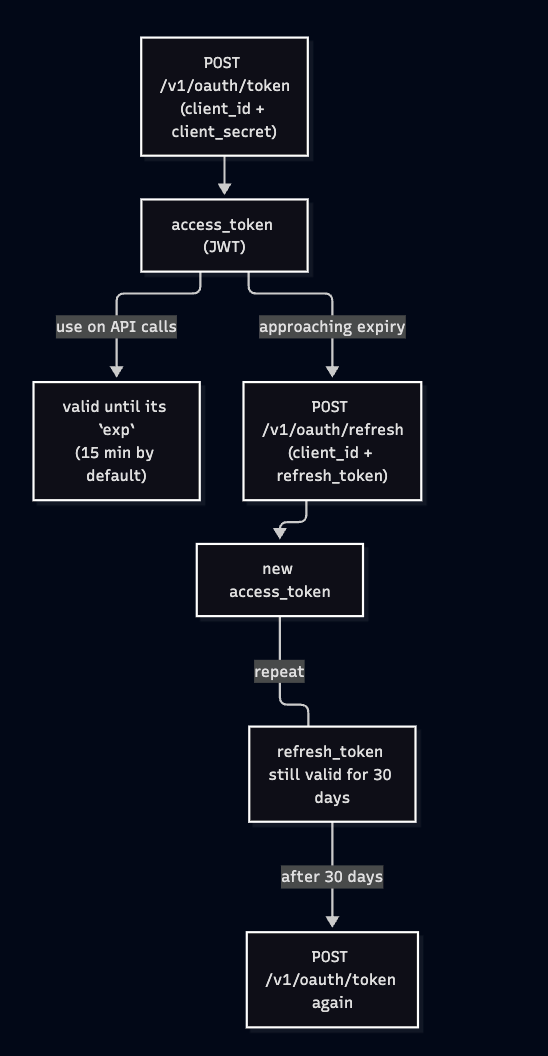
Before the access token expires, exchange the refresh token for a new access token. The refresh request does not use your API key. Send the request body in form-encoded format (application/x-www-form-urlencoded), as in Step 2.
Refresh Access Token
A refresh returns a new access token and preserves your existing refresh token. Continue using that refresh token until the token reaches its 30-day expiry, and then generate a new access token with your
client_id and client_secret.Token Lifecycle
Rate Limits
The token endpoint and the refresh endpoint share the following limits:
Both limits apply per
client_id and client_secret pair. A 429 response includes a Retry-After header that gives the number of seconds to wait.
These limits cover the OAuth endpoints only. For the limits and payload size caps on the Public APIs that you call with the access token, refer to Rate Limits.
Recommended Practices
- Reuse the access token for its full lifetime. Do not request a new access token for every API call.
- Refresh proactively, a few minutes before the access token expires, instead of waiting for an
ER008. Useexpires_into schedule the refresh. - Handle
ER010as a fallback. When a refresh returnsER010, generate a new access token with yourclient_idandclient_secret. - Store the API key securely. Treat the API key as a credential. Do not commit the key to source control or expose the key in client-side code.
- Honor
Retry-Afteron a429response instead of retrying immediately.
Integration Checklist
Confirm the following points before you move your integration to production:- The OAuth base URL matches your data center.
- The OAuth 2.0 API key carries the API access that your integration requires.
- Your application stores the Workspace ID and the API key securely.
- The token endpoint returns an access token and a refresh token.
- A Public API call succeeds with the access token.
- Your application reads the token expiry from the
expires_infield. - The refresh endpoint returns a new access token.
- Your application refreshes the access token before the token expires.
- The
ER010fallback path re-authenticates withclient_idandclient_secret. - Your application honors
Retry-Afteron a429response.
Related Articles
Generate Access Token
Request an access token and a refresh token with the client credentials grant.
Refresh Access Token
Exchange a refresh token for a new access token.
API Key Dashboard
Create, scope, edit, regenerate, and archive API keys.
API Documentation
Review the data centers, base URLs, authentication methods, and error handling that apply across the MoEngage REST APIs.
Contact Support
Contact MoEngage Support with your Workspace ID, the endpoint you called, the HTTP status, and theerror_type or MOENGAGE-AUTH-ERROR-CODE from the response. To raise a ticket, refer to Raise a Support Ticket.