Initialize the SDK on the main thread inside onCreate() and not create a worker thread and initialize the SDK on that thread.
import android.app.Application;import com.moengage.capacitor.MoEInitializer;import com.moengage.core.MoEngage;import com.moengage.core.DataCenter;public class MainApplication extends Application { @Override public void onCreate() { super.onCreate();// this is the instance of the application class and "YOUR_WORKSPACE_ID" is the Workspace ID from the dashboard.MoEngage.Builder moEngage = new MoEngage.Builder(this,"YOUR_WORKSPACE_ID", DataCenter.DATA_CENTER_X);MoEInitializer.initialiseDefaultInstance(this, moEngage); }}
Following details of the different data centers you need to set based on the dashboard hosts
Data Center
Dashboard host
DataCenter.DATA_CENTER_1
dashboard-01.moengage.com
DataCenter.DATA_CENTER_2
dashboard-02.moengage.com
DataCenter.DATA_CENTER_3
dashboard-03.moengage.com
DataCenter.DATA_CENTER_4
dashboard-04.moengage.com
DataCenter.DATA_CENTER_5
dashboard-05.moengage.com
Refer to the API reference for more information about the detailed list of possible configurations.
All the configurations are added to the builder before initialization. If you are calling initialize at multiple places, ensure that all the required flags and configurations are set each time you initialize to maintain consistency in behavior.
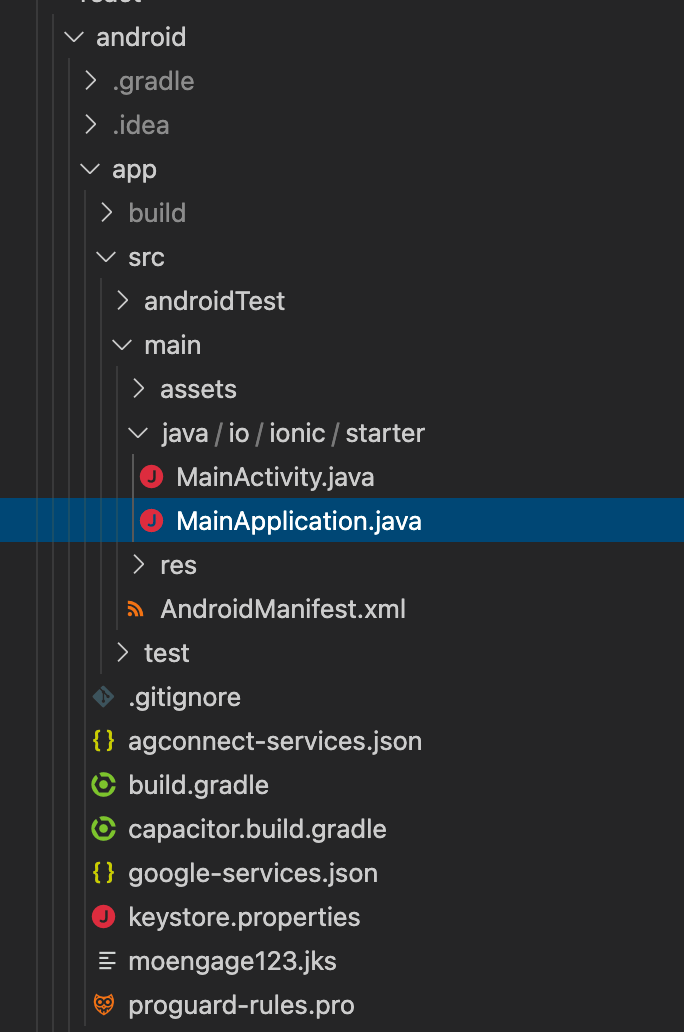
In case your application does not have an Application class yet navigate to the java source code inside the android platform folder and add the Application class file.Make sure your application class is defined in the AndroidManifest.xml file as well.
This is a mandatory integration step and is very essential to prevent your data from getting corrupted. Android’s auto back-up service periodically backs up Shared Preference files, Database files, etc, more details here. This backup results in MoEngage SDK’s identifiers being backed up and restored after re-install.This restoration of the identifier results in your data being corrupted and users not being reachable via push notifications.To ensure data is not corrupted after a backup is restored, opt out of MoEngage SDK’s storage files. Refer to Exclude MoEngage Storage File from the Auto-Backup section of the documentation to learn more about which files to exclude.
Assistant
Responses are generated using AI and may contain mistakes.