

MoEngage × Microsoft Advertising
The MoEngage and Microsoft Advertising integration allows you to synchronize audience segments from MoEngage to Microsoft Advertising. This enables you to create highly targeted advertising campaigns and track conversions tailored to specific end users.Use Cases
Integrating MoEngage with Microsoft Advertising helps you solve the following use cases:- Enhanced user retention: You can create remarketing campaigns based on purchase history and behavior patterns to target existing users who haven’t engaged recently.
- VIP user targeting: You can create premium audience segments for high-value users to deliver personalized ads with exclusive offers and promotions.
- Cart abandonment recovery: You can target users who abandoned their shopping carts by uploading their data to Customer Lists (pending verification) and showing them targeted ads to complete their purchase.
- Optimized advertising spend: You can create suppression audiences to prevent loyal users from seeing acquisition ads while building lookalike audiences to efficiently acquire new users.
- Cross-sell and conversion tracking: You can target users with complementary products and track offline conversions to measure campaign effectiveness and optimize ROI.
Integration
Prerequisites To use this feature, you must have access to a Microsoft Advertising Accountwith the required permissions.Note: Microsoft Advertising is part of the Connected Segments add-on. Contact your dedicated MoEngage customer success manager (CSM) to enable it for your account.
Step 1: Obtain your Microsoft Advertising Developer Token
- Log in to your Microsoft Advertising account.
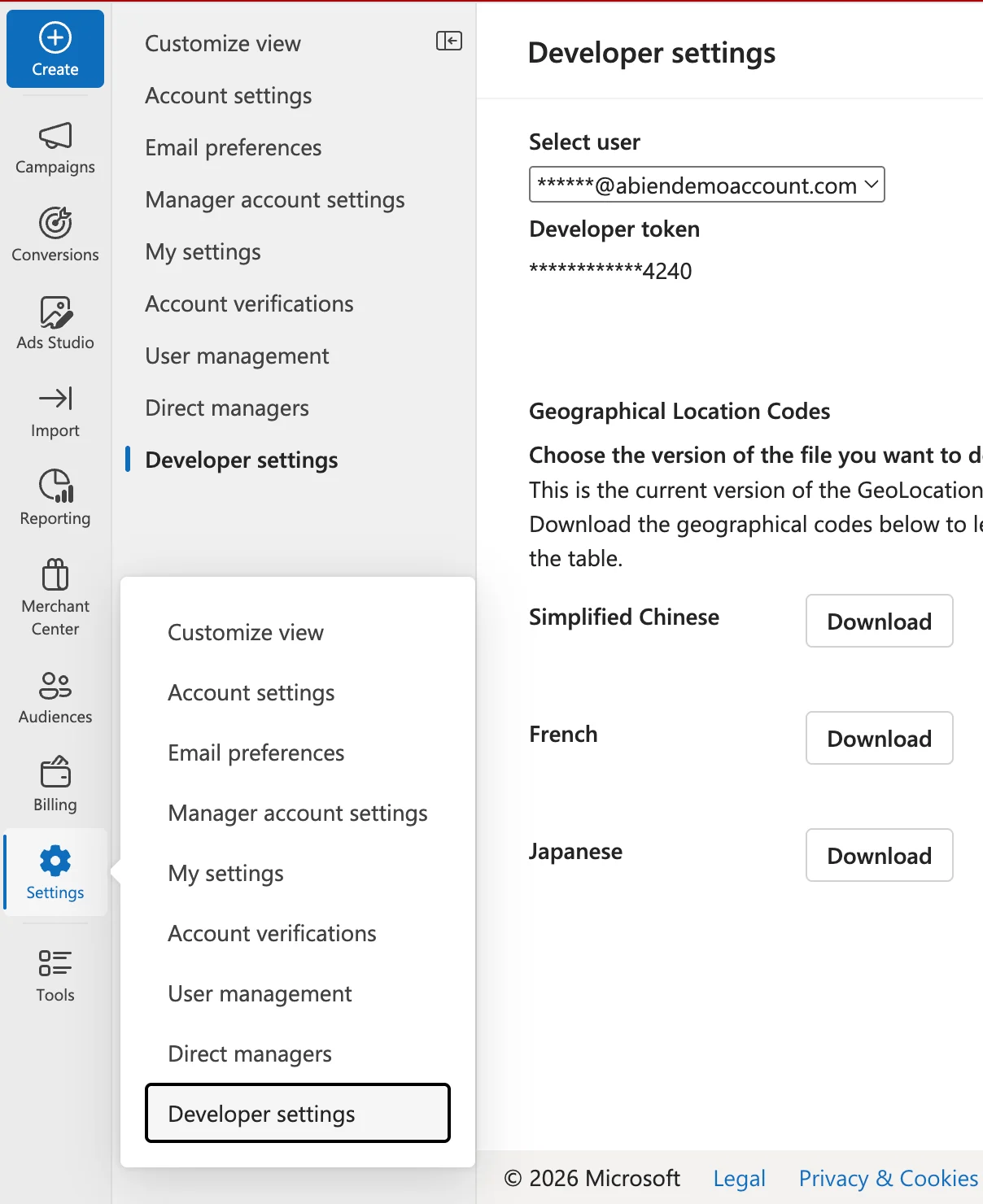
- Navigate to Tools > Developer settings.
- On the Developer settings page, copy the Developer token.
-
If you do not have a token, click Request Token.
Information
- You must accept Microsoft’s Customer Match Terms and Conditions through the Microsoft Advertising UI (one-time setup).
- The Client ID, Client Secret, and Developer Token are all required to set up the integration in the MoEngage App Marketplace.
- Copy the values of the cid and aid parameters from the address bar of your Microsoft Advertising account.

Step 2: Connect Microsoft Advertising on the App Marketplace
To connect Microsoft Advertising on the App Marketplace, perform the following steps:- On the left navigation menu in the MoEngage UI, click App Marketplace.
- On the App Marketplace page, search for Microsoft Advertising.
- Click the Microsoft Ads Audience tile.
- On the Microsoft Ads Audience page, go to the Integrate tab.
- Click the
 arrow and then select one of the following options:
- Create Audience
- Update Users to Audience
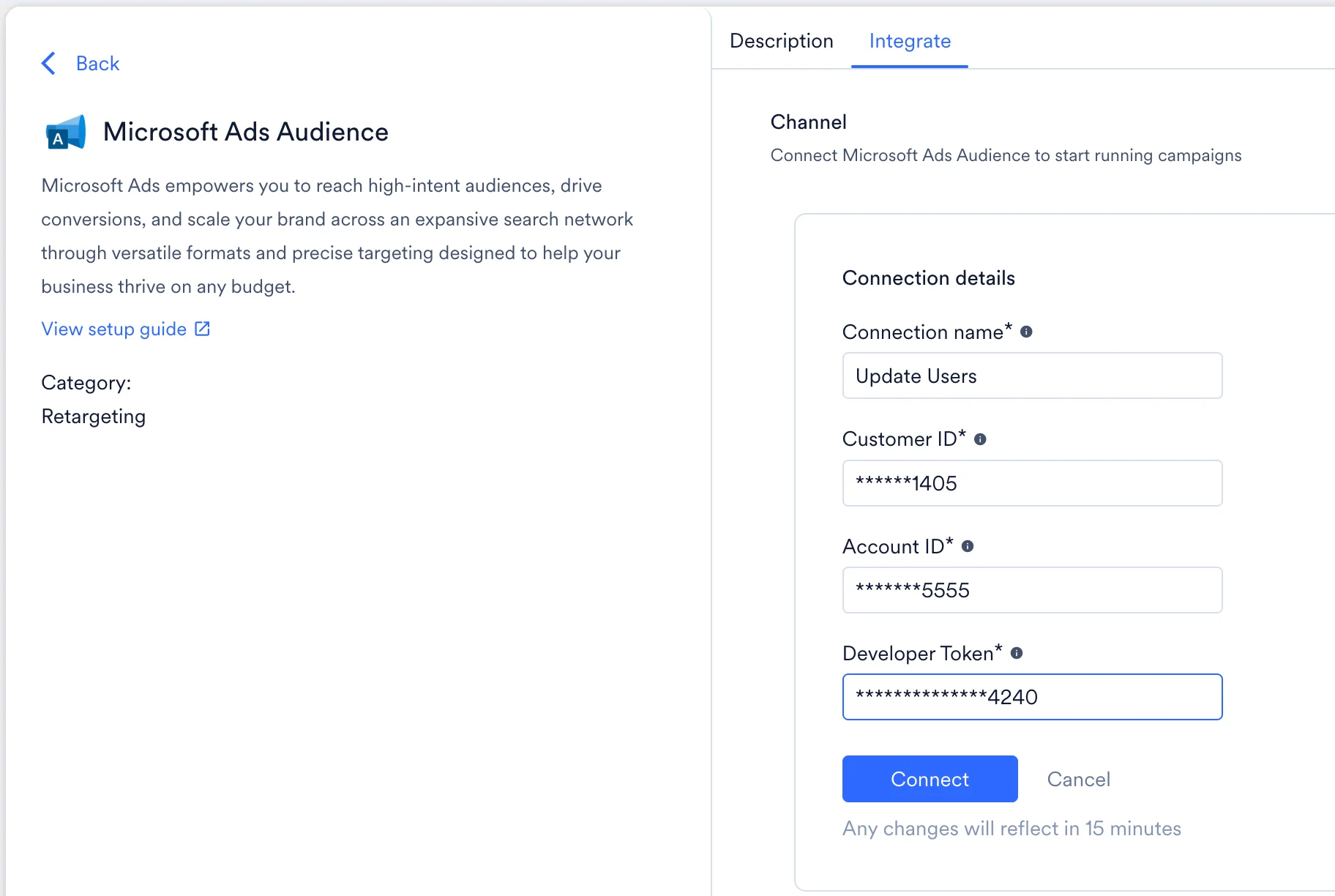
- Based on the selected connector type, enter the following details:
Field Required Description Connection name Yes This is the name of the Microsoft Advertising connection. Developer Token Yes This is the Microsoft Advertising Developer Token. Customer ID Yes This is the Customer ID of the Microsoft Advertising account. Find this in the URL as cid. Account ID Yes This is the Account ID of the Microsoft Advertising account. Find this in the URL as aid. - Click Connect.
- You will be directed to the Microsoft login page to authorize your account.
- Log in using an account with Administrator privileges to grant MoEngage the necessary permissions to establish the connection.
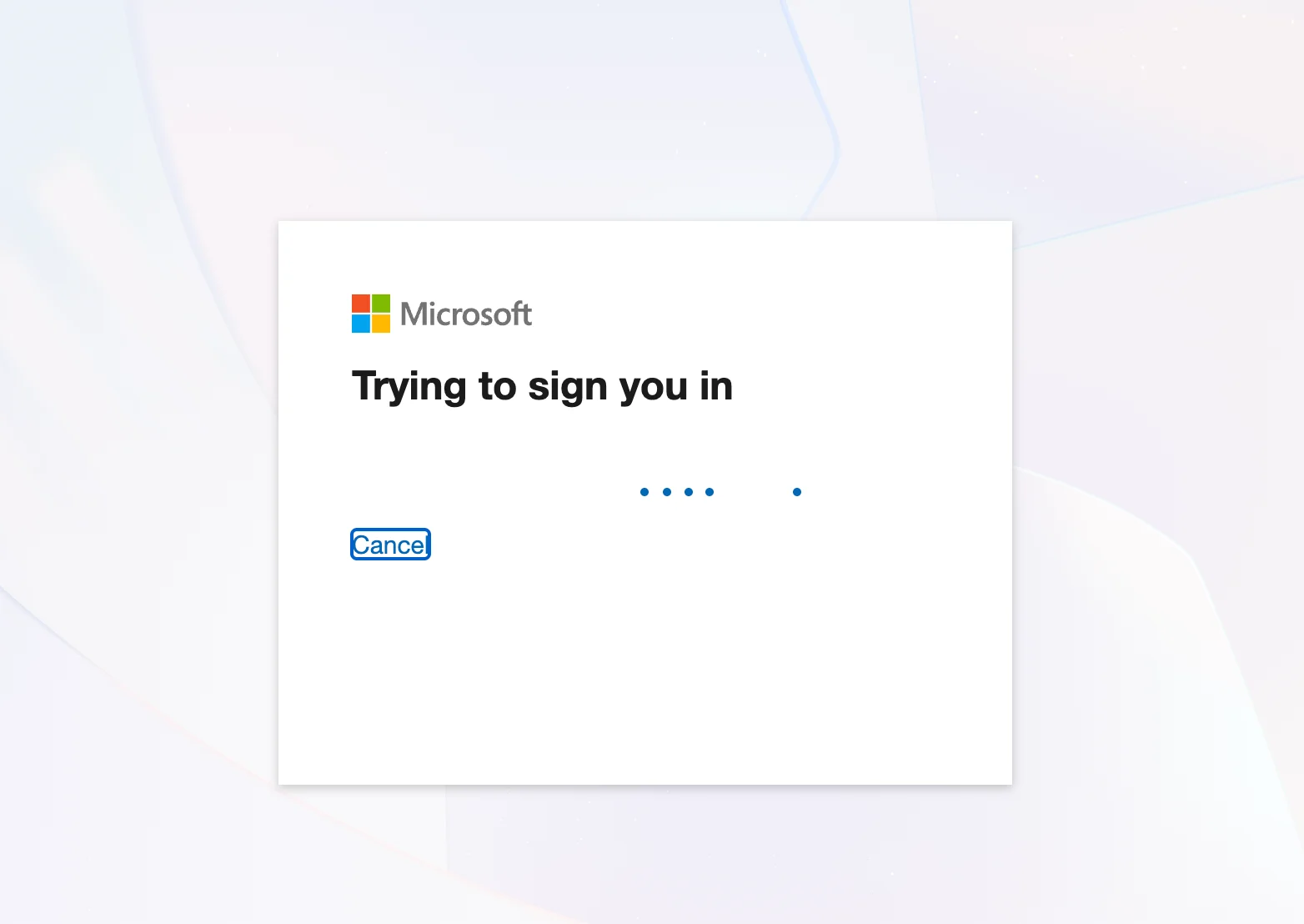
- Once authenticated, you will be automatically redirected back to the MoEngage dashboard.
Step 3: Create a Campaign on MoEngage to Update Audiences to Microsoft Advertising
To create a Microsoft Advertising campaign on MoEngage, perform the following steps:- On the left navigation menu in the MoEngage UI, click Engage, and then click Campaigns.
- On the All campaigns page, click + Create campaign.
- On the Create campaign dialog box, under Connected Apps, click Microsoft Ads Audience and then click the most suitable delivery type.
- Under Select audience, click Filter users by.
- On the User property tab, select the user segment for Microsoft Advertising syncing. You can combine this with other segment criteria.
- In step 2 of the campaign, Content, select the pre-configured connectors and specify the content you want to send out.
Update to an Existing Customer List on Microsoft Advertising
If you want to add or remove users from an existing Customer List on Microsoft Advertising, you must provide the Audience ID. You can view this by performing the following steps:- On the Microsoft Advertising account, navigate to Tools & Settings.
- Under Audiences > select Audiences Library.
- Note the Audience ID from the ID column.
Create a New Audience on Microsoft Advertising
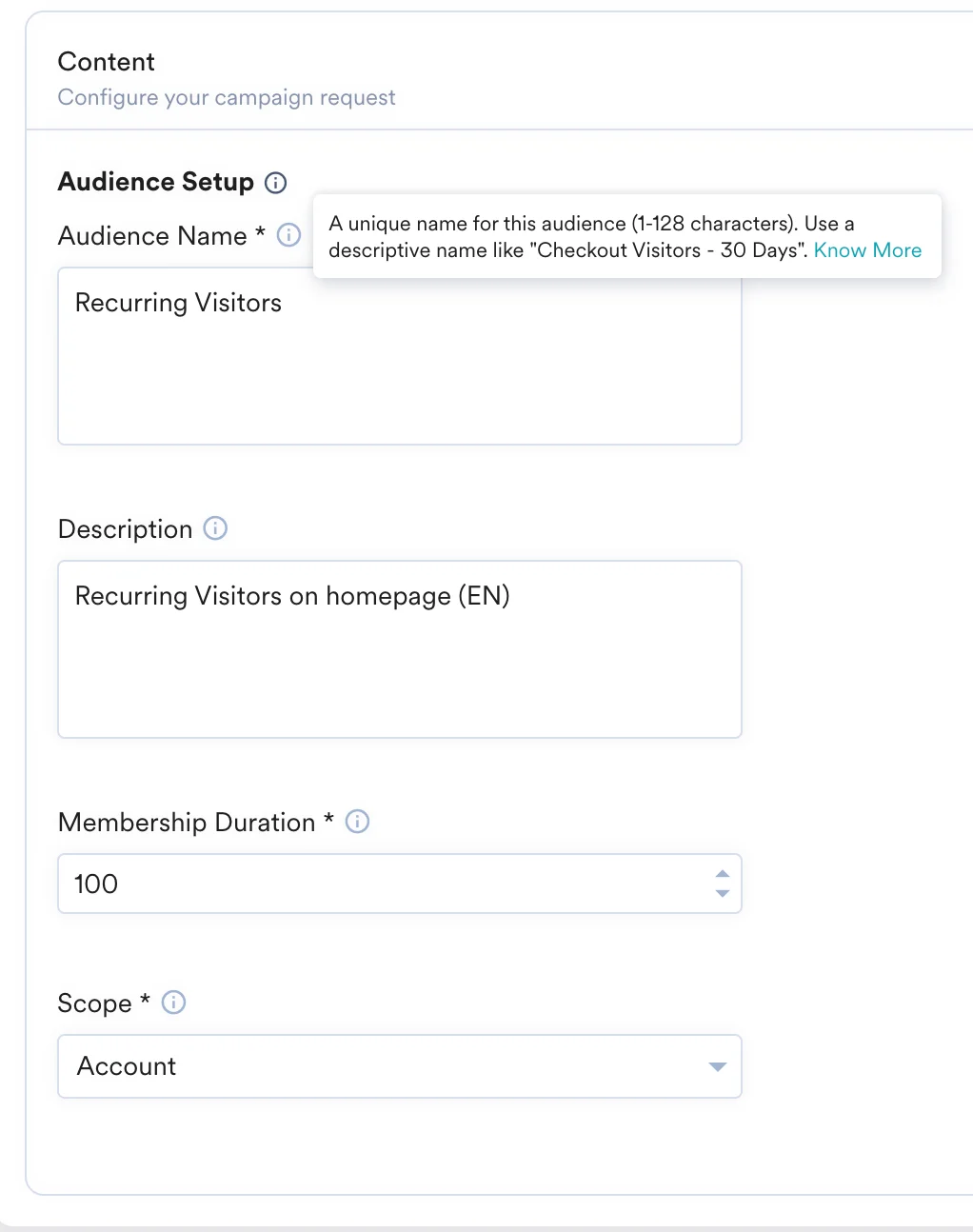
To create a new Audience on Microsoft Advertising, you can use the Create Audience connector and perform the following steps:- Select the Create Audience connector and the connection you created.
- Enter the Audience Name and other details.
- Run a test campaign and review the response.
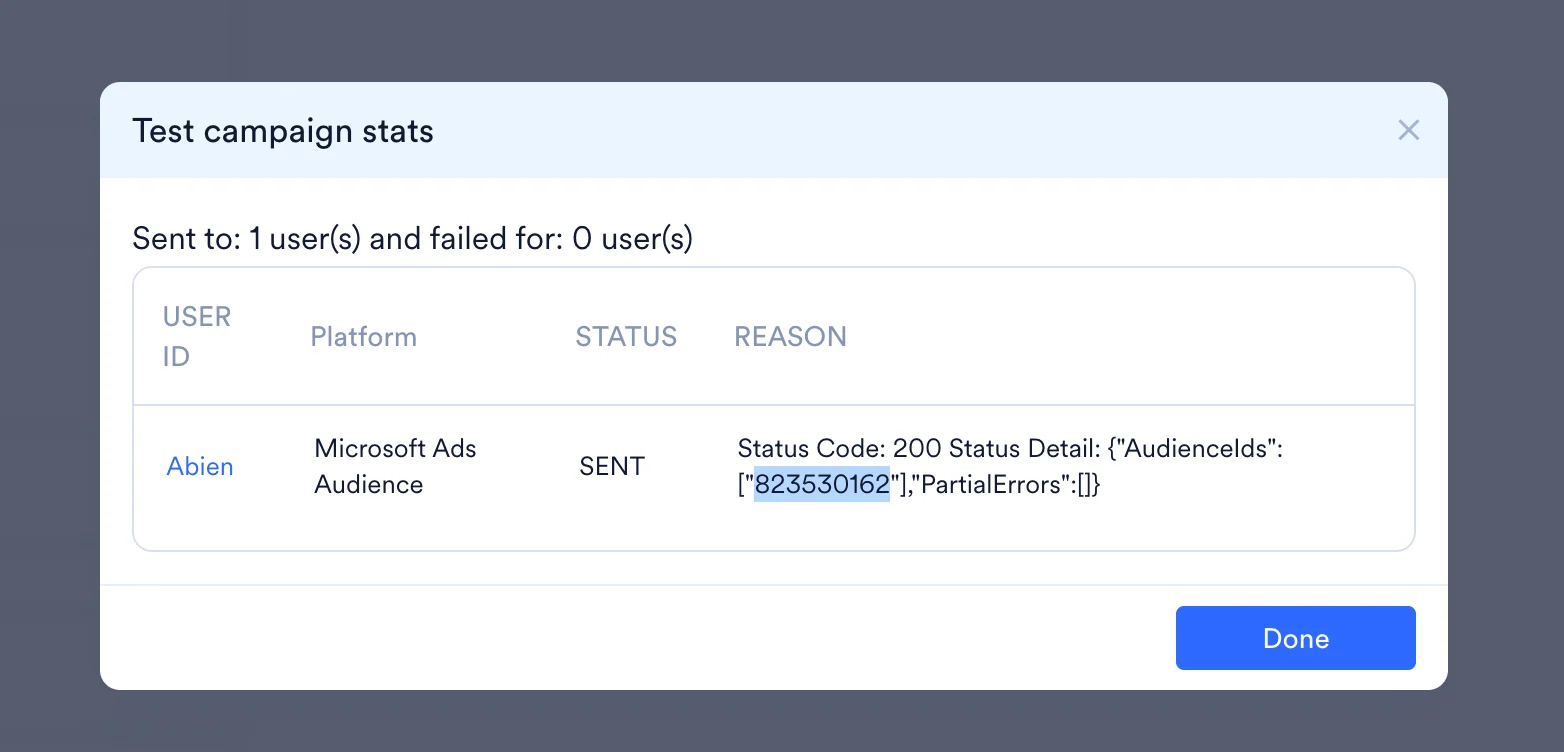
- The highlighted ID is your Audience ID. Use it to add or remove users from this Audience List. You can find this ID in the Microsoft Advertising account by following the steps above:
- Create Audience
- Update Users to Audience
| Field | Required | Description |
|---|---|---|
| Audience Name | Yes | This is the name of your audience. This creates a new Audience List with the provided name. |
| Description | No | Type a description for the audience. |
| Membership Duration | Yes | The number of days a user has been on the list (1-180). After this period, users are automatically removed. |
| Scope | Yes | This defines who can use this audience. Select Account to limit it to the current account, or Customer to share it across all accounts under your customer profile. |
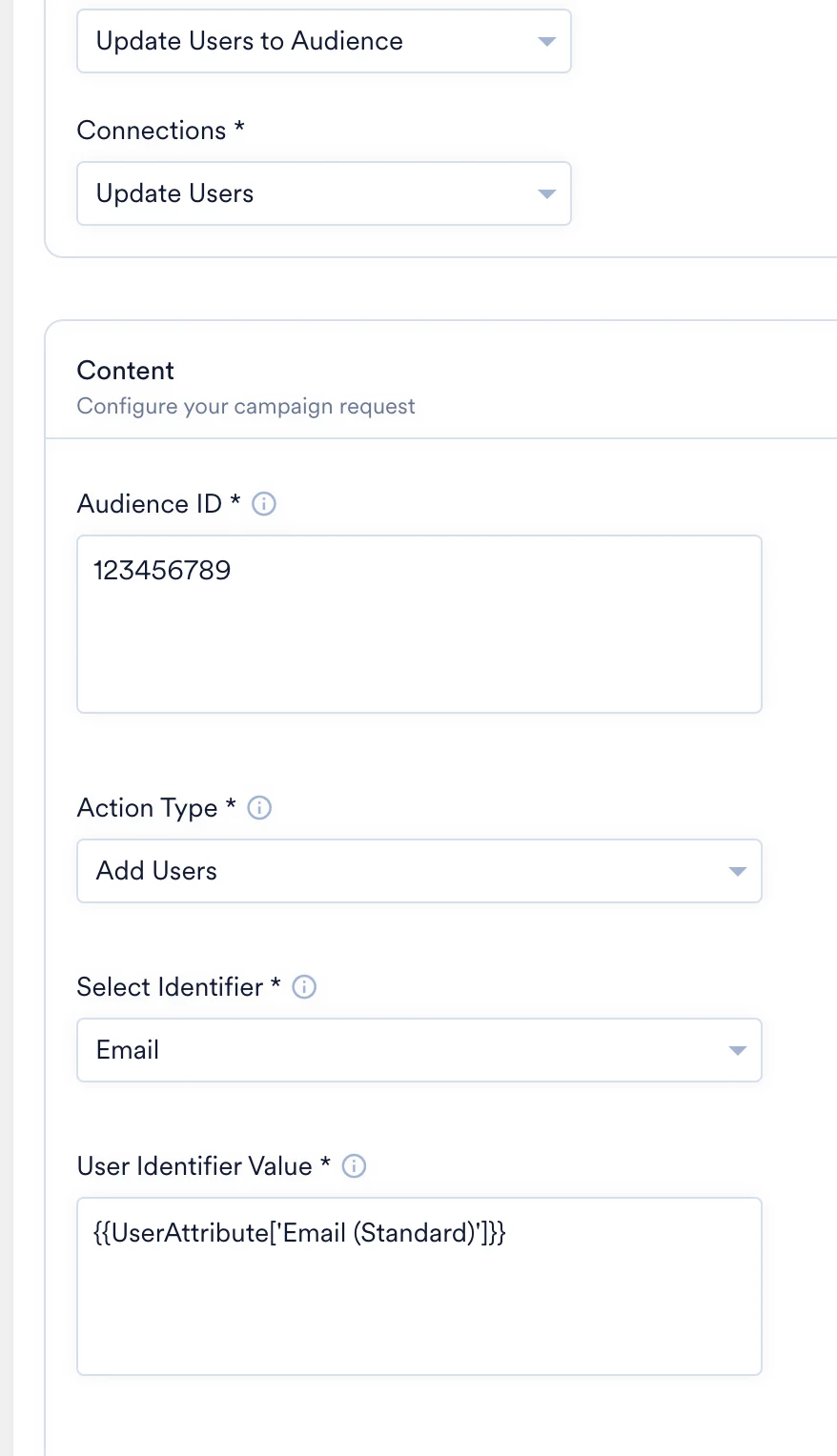
- Your campaign is now ready to test and send. Using the Test functionality, you can also test your connector configuration.

- If your test user successfully receives the message, your setup is ready.
- Publish the campaign.
Step 4: View Your Microsoft Advertising Customer Lists
In your Microsoft Advertising account, navigate to Tools & Settings > Shared Library > Audiences to view the size and synced users for each Customer List.InformationAfter creating or updating an audience, it typically takes 24 to 48 hours for the new size to be reflected in Microsoft Advertising.