

Introduction
Hightouch is a modern data integration platform that enables you to sync customer, product, or proprietary data from your warehouse or data lake to any app of your choice, all without assistance from your IT or engineering teams.MoEngage × Hightouch
The MoEngage and Hightouch integration allows you to build better campaigns on MoEngage with up-to-date customer data from your data warehouse. By automatically syncing users and events into MoEngage, you no longer need to worry about data consistency and can focus on building customer experiences.Use Cases
Use the integration for any of the following:- Sync data about users into MoEngage to build personalized campaigns.
- Sync Customer Events from Hightouch into MoEngage to keep the events consistent.
- Deliver better experiences by bringing data from other customer touchpoints into MoEngage.
- Sync Audiences from Hightouch to MoEngage for targeting.
- Trigger one-to-many campaigns from your warehouse with business events, such as breaking news, a new episode, or a product back in stock.
- Sync anonymous visitors and convert them into registered users when they sign in or subscribe.
Supported Syncing
Hightouch sends five kinds of data to MoEngage. Each one matches records differently and treats a user it has not seen before differently, as described in the following table:Integration Prerequisites
Before you connect Hightouch to MoEngage, collect the following:- Ensure you have access to your Hightouch account.
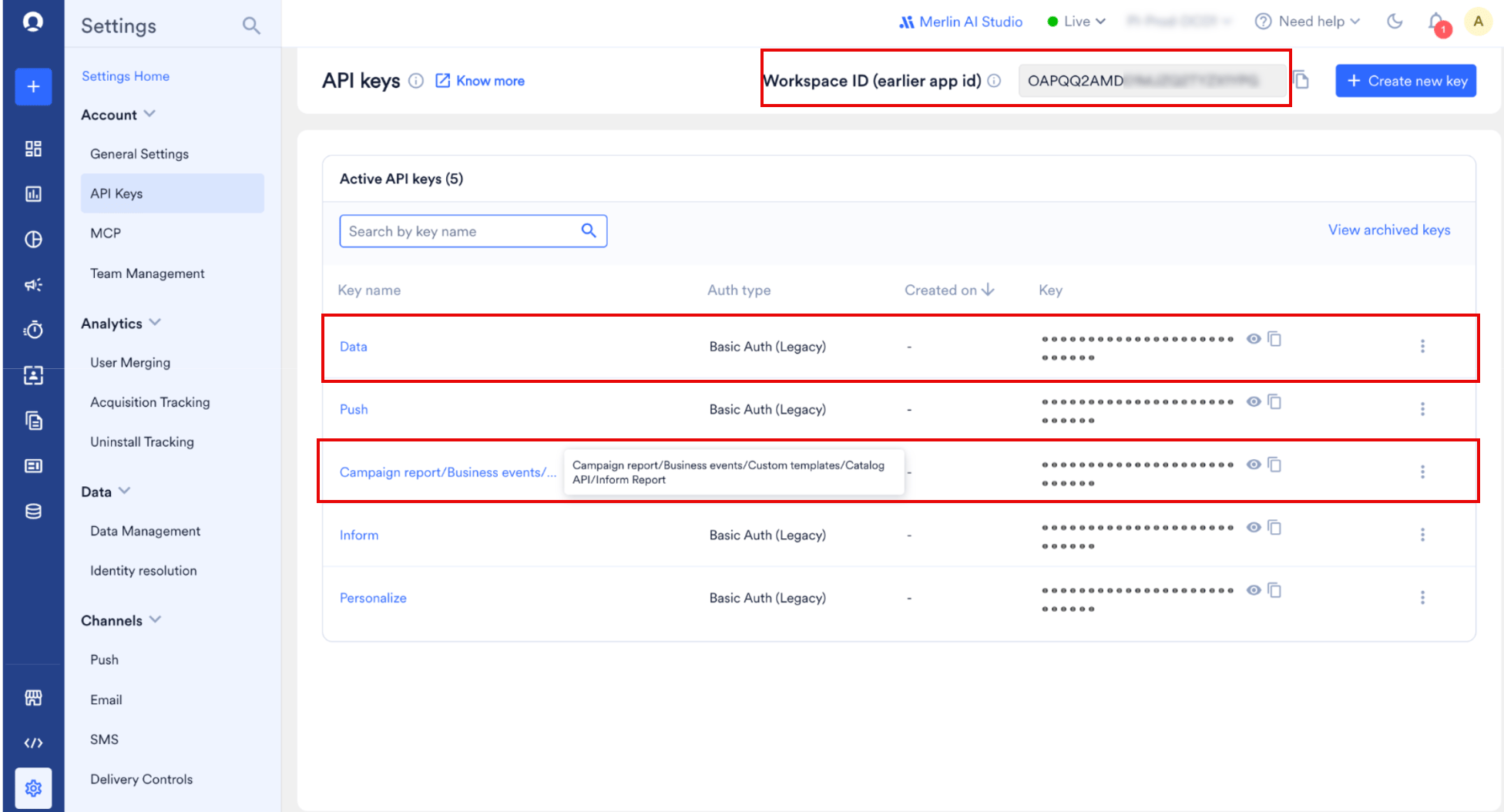
- Note your Workspace ID and the Data API key, both at Settings > Account > API Keys in MoEngage. The Workspace ID appears at the top of that page and is the same as the Data API ID.
- To sync business events, note the API key named Campaign report/Business events/Custom templates/Catalog API/Inform Report on the same page.
- Note your MoEngage data center. The number appears in the URL of your MoEngage dashboard.
Create a MoEngage Destination on Hightouch
To connect MoEngage as a destination in Hightouch, perform the following steps:- On the Hightouch platform, in the Destinations section, click Add destination.
- Select MoEngage from the list of available destinations.
-
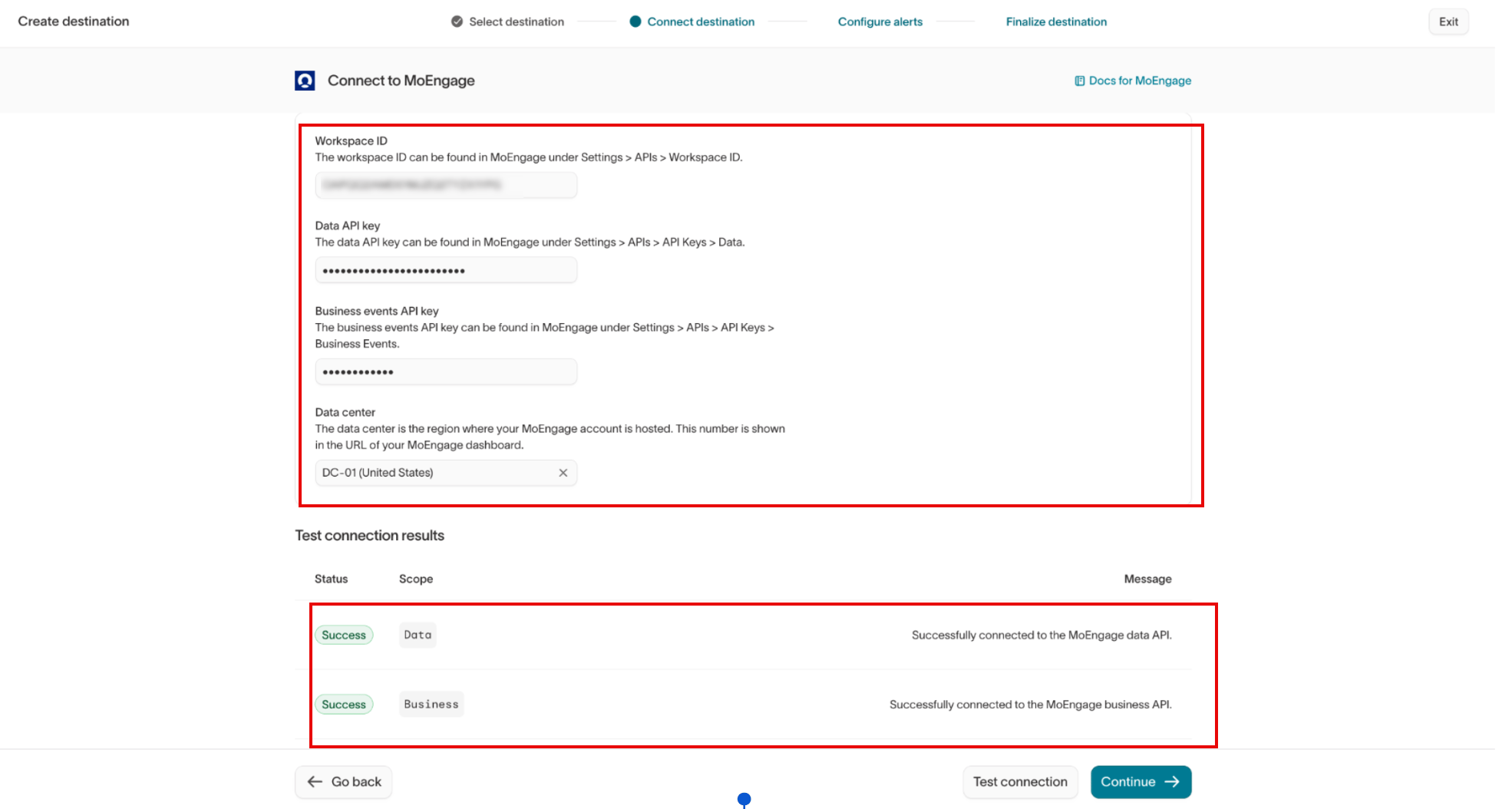
Enter the following details, and then click Test connection.
- When both scopes return Success, click Continue.
Sync Users
You can sync Hightouch objects (users) to the MoEngage users. You can also perform record matching to help unify data across the two platforms. The integration supports upserting users. In this mode, new users will be inserted into MoEngage and all user attributes will be kept up-to-date within MoEngage. Upsert has three configuration parameters:User Field Mapping
The attributes you map here are what you segment and personalize on in MoEngage, so map everything a campaign might need, not only what you use today. Map any column in your model to a standard or custom user attribute. MoEngage expects custom attribute names to follow thesnake_case format.
Read more on MoEngage-Hightouch user upsert here.
Sync Events
An event records something a user did, such as a purchase or a page view. Syncing events from your warehouse keeps the activity in MoEngage in step with the activity in your own systems, so campaigns trigger on the same behaviour your analytics report.Setting an Event Name
The event name is what you select when you build a campaign or flow on this event, so it has to be stable and recognizable. Type a static name when every row in the model is the same event, or select a column when the model carries several event types.Setting an Event Timestamp
The timestamp decides where the event lands on a user’s timeline, which matters for any campaign that depends on recency. Select the column that holds the time the event happened. MoEngage expects ISO 8601, or Epoch time in seconds. If you leave it empty, MoEngage uses the time the event reaches the server, which backdated rows report inaccurately.Record Matching
MoEngage attaches the event to a user by matching on Customer Id. Map the column in your model that holds that identifier, or the event reaches MoEngage without an owner. This is the destination field an event sync offers, and it differs from the User ID that user and segment syncs match on.Field Mapping
Map the columns your campaigns need to read. A column you leave unmapped does not reach MoEngage, so you cannot segment or personalize on it later.Custom Field Mapping
Use this section for anything MoEngage has no standard field for, such as an order value or a content category. MoEngage stores these as event attributes, and expects their names to follow thesnake_case format.
Sync Business Events
A business event is something your business did rather than something a user did, such as publishing a breaking news story, releasing an episode, or restocking a product. When Hightouch syncs a business event, MoEngage runs every business event-triggered campaign and flow linked to it, and decides who receives the message by matching user or event attributes to the event’s attributes. Before your first sync:- Create the business event in MoEngage with the Create Business Event API. This one-time setup defines the event name and its attributes.
- Add the business events API key to your MoEngage destination in Hightouch.
- On the Hightouch platform, navigate to Activation > Syncs and click Add sync.
- Select the model that holds your business events, and then select your MoEngage destination.
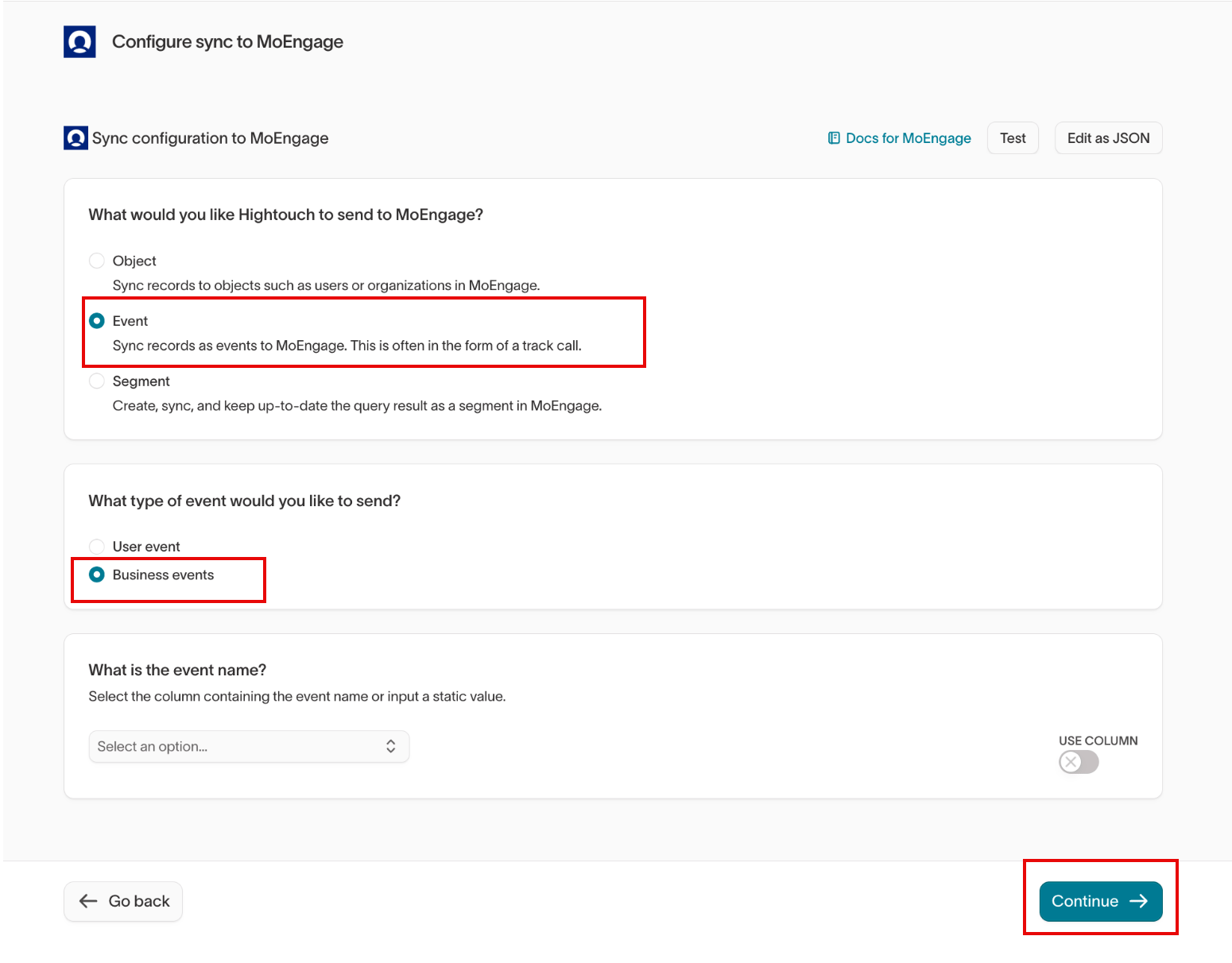
- Under What would you like Hightouch to send to MoEngage?, select Event.
- Under What type of event would you like to send?, select Business events.
- In What is the event name?, type a static name, or turn on USE COLUMN and select the column that holds it. The name must match the business event you created in MoEngage.
- Map your model columns to the business event’s attributes. The attribute names must match the ones defined on the business event.
- Click Continue.
Use the Business Event in MoEngage
To send a campaign from the business event, perform the following steps:- In MoEngage, go to Engage > Campaigns and click + Create campaign.
- Select a channel, and then select Business Event Triggered.
- In Select Business Event, select the event Hightouch syncs.
- In Target audience, map user or event attributes to the business event’s attributes. For example, target readers who viewed the football section when a
breaking_newsevent arrives withsectionset tofootball.
Trigger Campaigns and Flows from Your Warehouse
A Hightouch sync can start a MoEngage journey directly. Which sync you use depends on who the message is for:
You can use the event and business event attributes you mapped to target and personalize the message.
Sync Audiences
Hightouch can send a Hightouch audience to MoEngage as a segment. MoEngage keeps the segment membership up to date on every sync, and can also update the user attributes of its members in the same sync.Choosing a Sync API
Hightouch offers two sync APIs for segments. Select the one that matches what you need to keep up to date in MoEngage.
Use Partner Cohort Sync when you want member attributes in MoEngage to stay current without setting up a separate user sync.
Setting Up the Sync
To sync a Hightouch audience to MoEngage, perform the following steps:- On the Hightouch platform, navigate to Activation > Syncs and click Add sync.
- Select the model that holds your audience, and then select your MoEngage destination.
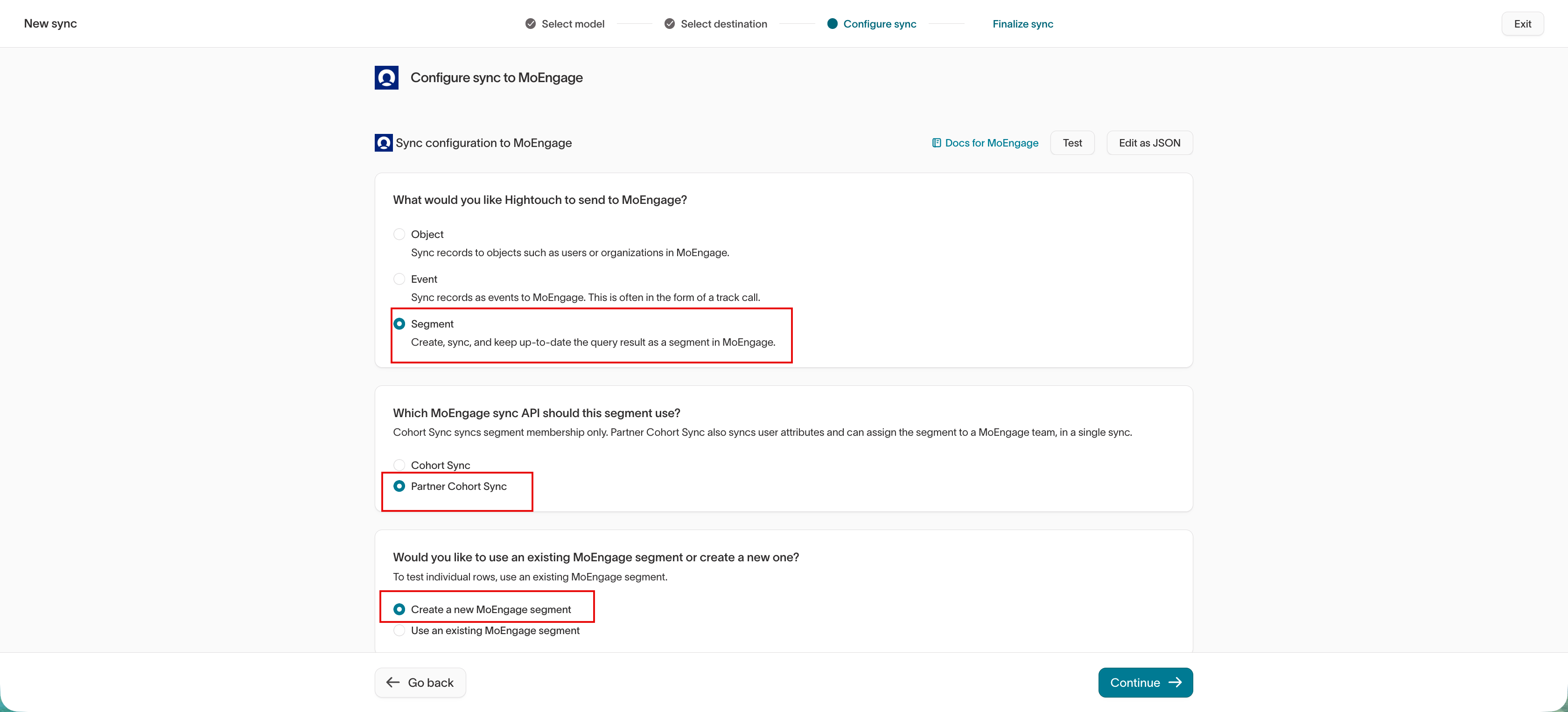
- Under What would you like Hightouch to send to MoEngage?, select Segment.
- Under Which MoEngage sync API should this segment use?, select Cohort Sync or Partner Cohort Sync.
-
Under Would you like to use an existing MoEngage segment or create a new one?, select Create a new MoEngage segment or Use an existing MoEngage segment.
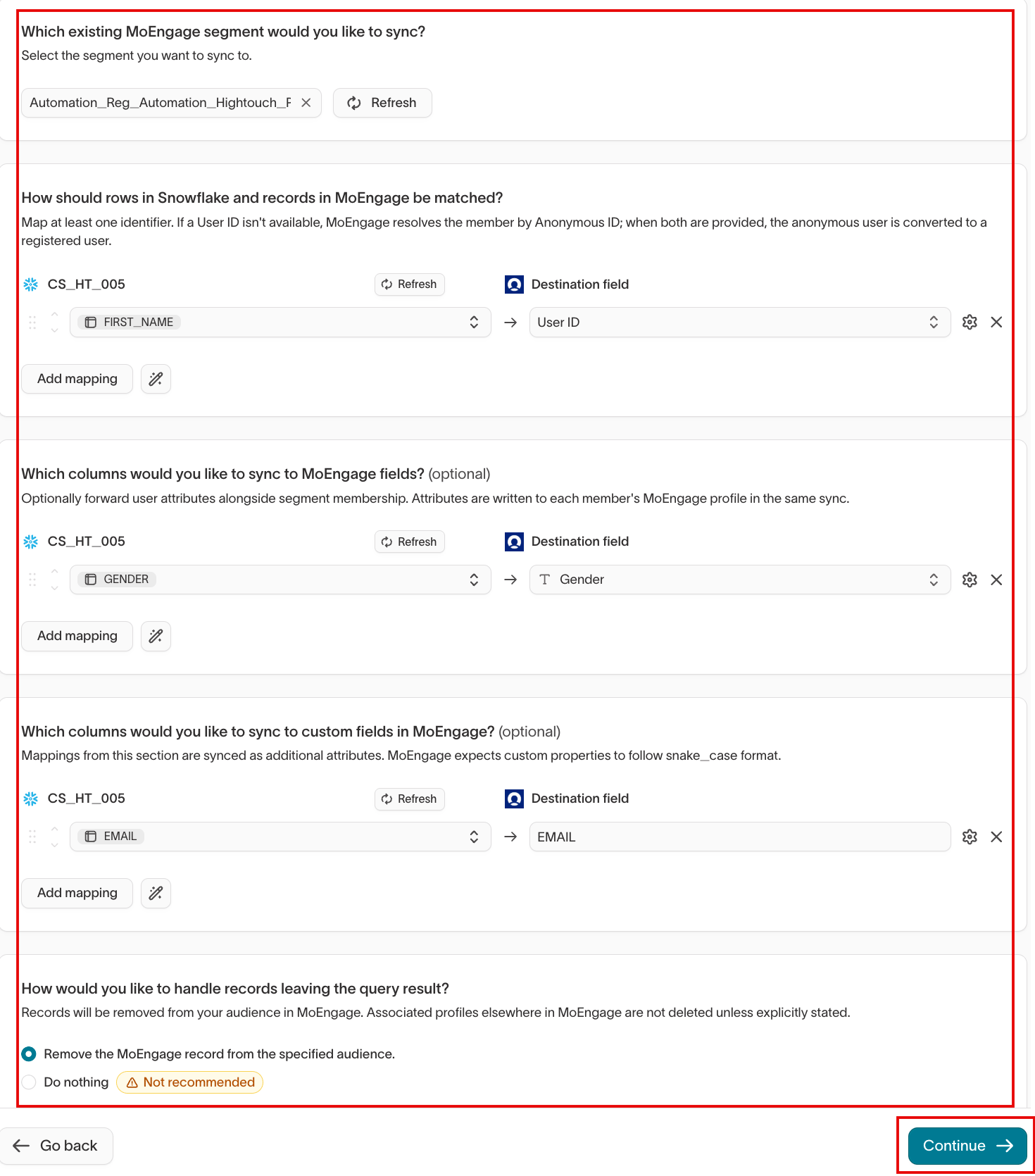
- In What should the segment be named?, type the name you want the segment to have in MoEngage. If you selected Use an existing MoEngage segment, select the segment you want to sync to in the Which existing MoEngage segment would you like to sync? list instead.
- Under the record matching section, select the column that holds your User ID, and then select User ID in the Destination field list.
- Under How would you like to handle records leaving the query result?, select Remove the MoEngage record from the specified audience or Do nothing.
- Click Continue.
Additional Options for Partner Cohort Sync
When you select Partner Cohort Sync, the configuration adds the identifier, attribute, and team options below. To configure them, perform the following steps:- Under the record matching section, click Add mapping, select the column that holds your anonymous identifier, and then select Anonymous ID in the Destination field list.
- Under Which columns would you like to sync to MoEngage fields?, select the column you want to forward, and then select the MoEngage user attribute to write it to, such as Gender.
- Under Which columns would you like to sync to custom fields in MoEngage?, select the column you want to forward, and then type the MoEngage custom attribute name in the Destination field box.
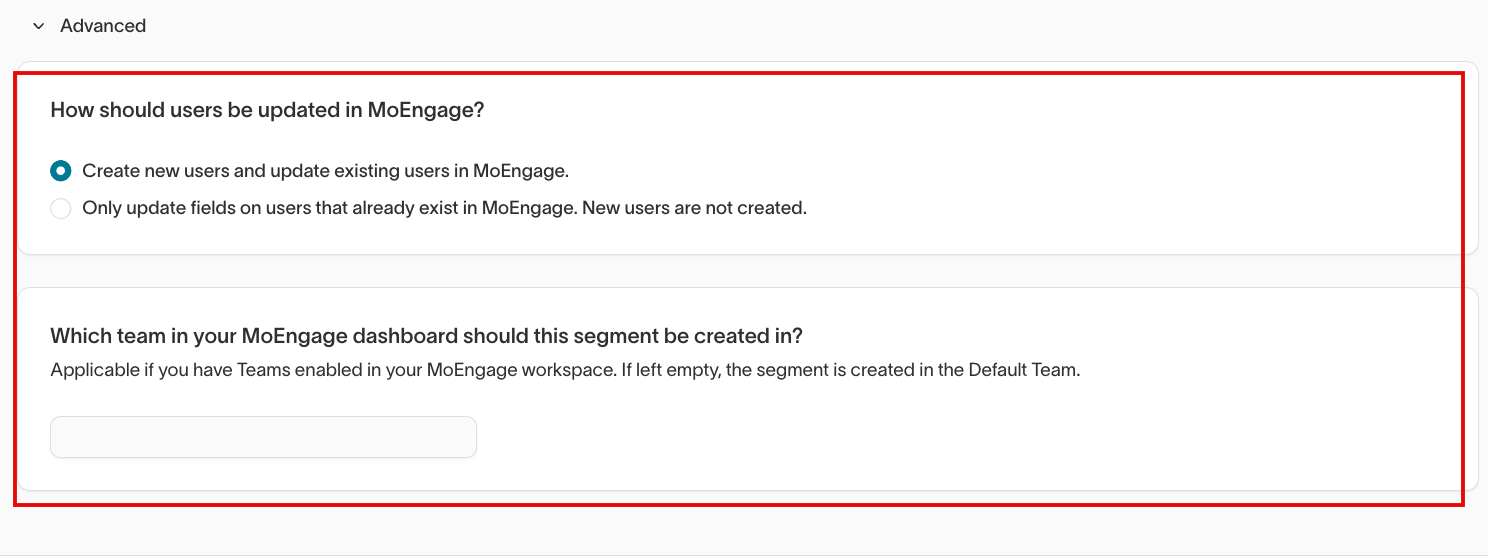
- Click Advanced.
- Under How should users be updated in MoEngage?, select Create new users and update existing users in MoEngage or Only update fields on users that already exist in MoEngage.
- In Which team in your MoEngage dashboard should this segment be created in?, type the name of the team exactly as it appears in your MoEngage dashboard.
snake_case format.
The team field applies only if you have Teams enabled in your MoEngage workspace. When you set a team, only the members of that team can see the segment, and MoEngage applies a team-level filter on top of the audience criteria. When you leave it empty, MoEngage creates the segment in the Default Team. For more information, refer to Teams 2.0 in MoEngage.
For more information, please read the Hightouch docs.
Validate Your Setup
After the first sync, check that the data reached MoEngage:Rate Limits
To maintain platform stability, MoEngage limits ingestion of Hightouch audience data to a maximum of 300 requests per minute (RPM) per workspace. If your workspace exceeds this limit, MoEngage returns an HTTP429 (Too Many Requests) status code.
User and event syncs from Hightouch follow the MoEngage Data API rate limits. For more information, refer to Partner Data Ingestion Rate Limits.
Business event syncs follow the business event trigger limits instead: 10 triggers per 5 minutes, 50 per hour and 200 per day for campaigns, and 3 per hour and 10 per day for flows. For more information, refer to Trigger Rate Limits.
Frequently Asked Questions
The following questions come up most often when teams set up this integration:What happens when an event arrives for a user who is not in MoEngage yet?
What happens when an event arrives for a user who is not in MoEngage yet?
MoEngage creates the user from the Customer Id on the event, so you do not need to run a user sync first.
Do business events need a user identifier?
Do business events need a user identifier?
No. A business event describes something your business did, not something a user did. MoEngage picks the recipients from the campaign’s target audience when the event is triggered.