

Introduction
Singular is a unified marketing analytics platform that delivers attribution, cost aggregation, marketing analytics, creative reporting, and workflow automation.MoEngage × Singular
The MoEngage and Singular integration allows you to import paid install attribution data from Singular into MoEngage to use intelligently within your campaigns.Integration
Prerequisites
- Ensure you have an active Singular account.
- Ensure you have access to the Settings section on your MoEngage dashboard.
Step 1: Get the MoEngage attribution tracking app key
- Navigate to Settings > Analytics > Acquisition tracking in the MoEngage Dashboard.
- Turn on Acquisition Tracking, and select Singular from the dropdown. This generates an App Key.
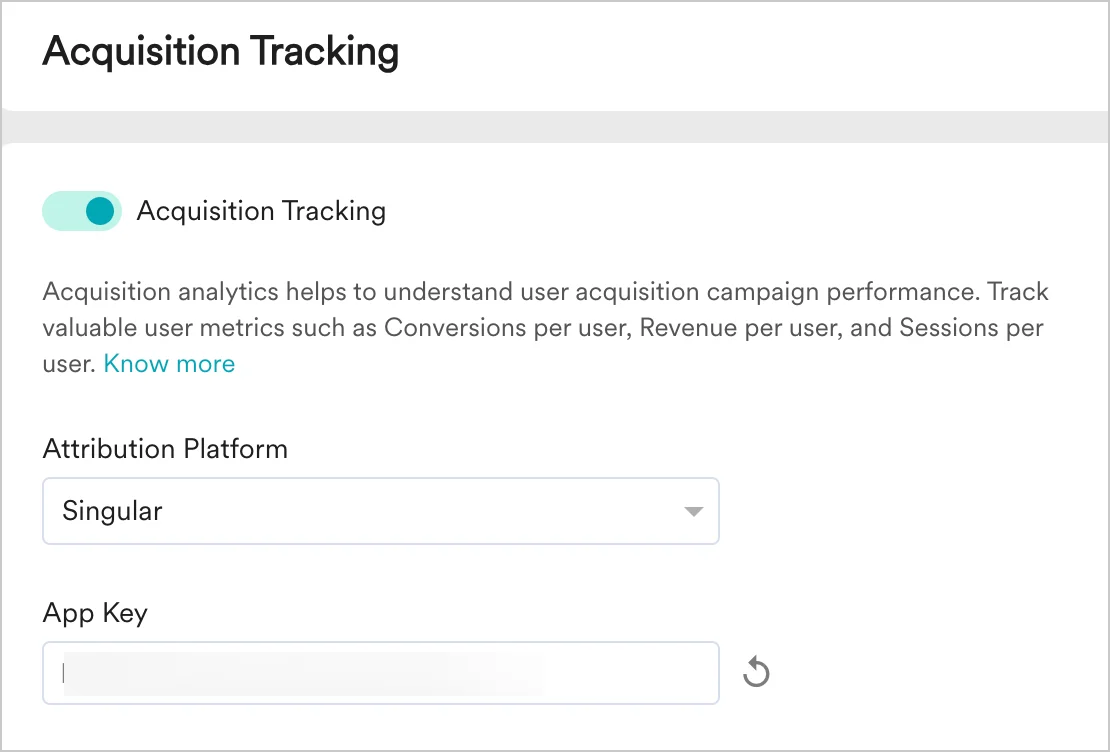
- Click Save.
- Copy the App Key. You will need it to configure MoEngage on Singular.
Step 2: Configure MoEngage on Singular
On your Singular dashboard, follow these steps:- Navigate to Attribution > Partner Configuration.
- Start typing the partner’s name (
MoEngage_Partner), and select MoEngage from the list. - In the Configuration window, select the App you want to configure, and then select App Site (platform version).
- Select the following checkboxes:
- Send Postbacks to Network on All Installs
- Send Event Postbacks on any app installs for this app
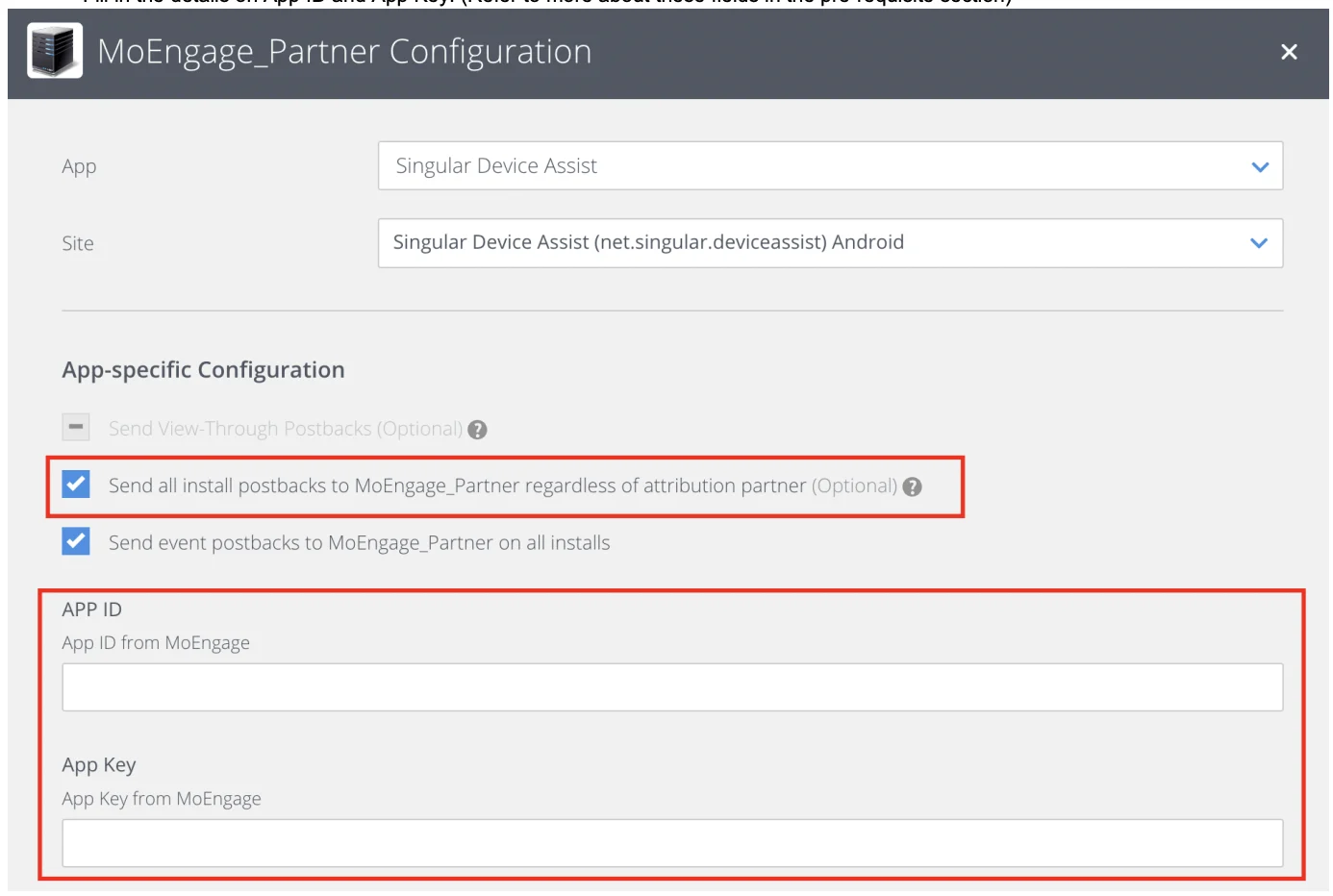
- Enter the following details regarding your MoEngage app:
Field Description App ID Workspace ID of your MoEngage account. You can find this by navigating to Settings > Account > APIs > API keys. App Key Acquisition tracking key of your MoEngage account. This is the key that you copied in the previous step. Region Region of your MoEngage data cluster. For details, refer to Data Centers in MoEngage. - Click Save.
How to use the acquisition data in MoEngage
After MoEngage starts receiving data from Singular, you can leverage this data in the following ways.User attributes
MoEngage tracks two user attributes: Campaign Name and Publisher Name. You can use these attributes in your campaigns, segmentation, and analytics. The Publisher Name and Campaign Name of install give you added insight into the persona of the user. You can leverage this data to enhance your onboarding campaigns and user funnels, and to personalize your marketing automation activities on MoEngage. The next sections list a few popular use cases for leveraging this data.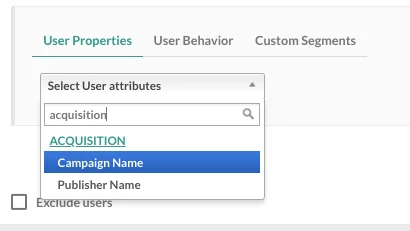
Analyze the performance of different publishers
The Singular integration helps you analyze the effectiveness of your app install campaigns and sources in MoEngage. Using data already tracked in MoEngage—user events, conversion goals, and uninstalls—you can compare the performance of different app install campaigns and analyze the relative performance of installs from different publishers to optimize your marketing spend. To analyze this data, view the MoEngage acquisition dashboard.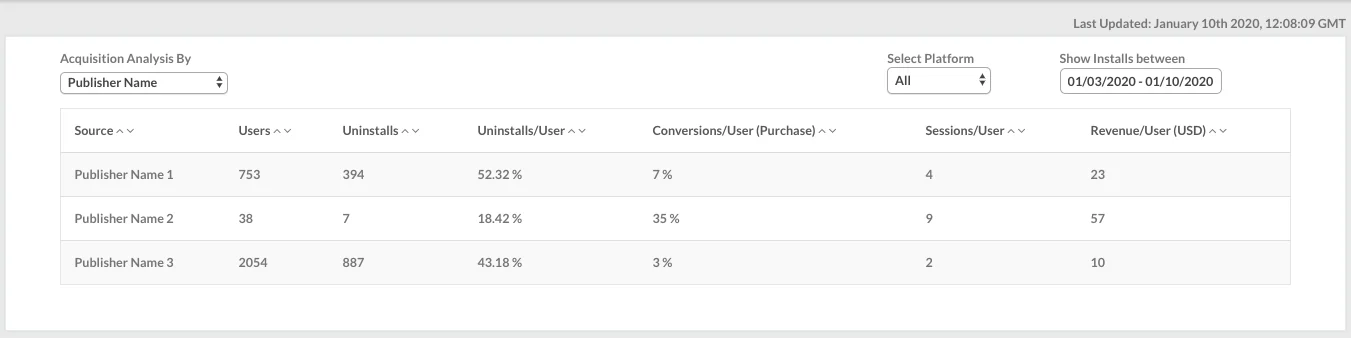
Analyze the performance of different campaigns
After the integration is enabled, you can also view your acquisition data analysis on the acquisition dashboard by navigating to Analyze > Acquisitions in the dashboard sidebar.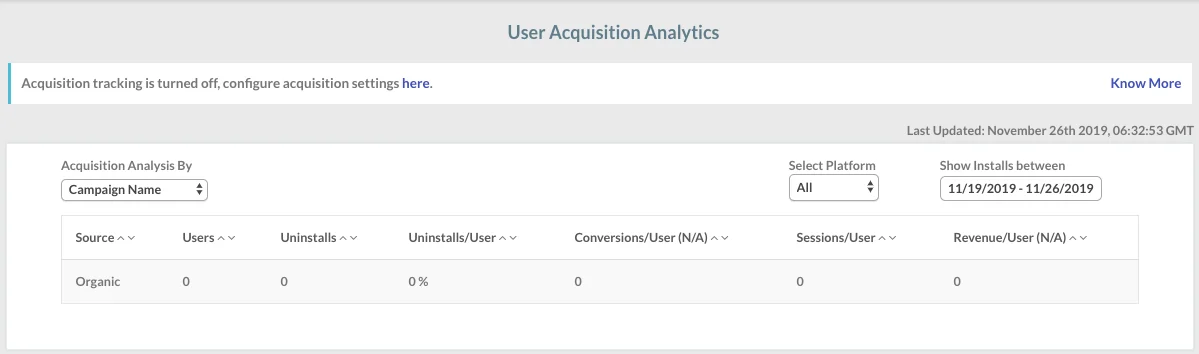
Enhanced onboarding campaigns
You can use the Publisher Name and Campaign Name of install—available as user properties in MoEngage—to create segments and personalize the push notifications, in-app messages, emails, and SMS that you send through MoEngage. Install attribution data gives you an insight into how users could progress in their lifecycle right when they install the app. This is a very useful piece of information and can help you enhance the performance of your onboarding campaigns by improving retention, reducing the time to first conversion, and driving a higher LTV per user.| Publisher category | Use case |
|---|---|
| Publishers where average sessions per user are low | Send push notifications periodically to increase the average number of sessions per user, right from the time users install the app. |
| Publishers where average LTV is high | These are your potential premium users. Implement a campaign strategy to nurture them into your premium-user segment. |
| Publishers where the uninstall rate is high | Identify users with a higher propensity to churn immediately after install, and incentivize them to make a first purchase—which can reduce your churn rate. |
Frequently Asked Questions
Can I see the install data from Facebook in MoEngage?
Can I see the install data from Facebook in MoEngage?
According to Facebook data sharing policies, install data from Facebook can only be viewed in Singular and not sent to other platforms. These appear as Organic Installs in MoEngage. You can alternatively use the MoEngage APIs to send Facebook install data to MoEngage separately.