

Introduction
Lokalise is a translation management platform designed for agile teams to efficiently manage multilingual content.This page covers the template sync integration, where you install the MoEngage app in Lokalise and exchange API keys. Lokalise also connects to Merlin AI Custom Agents, where an agent finds the content, translates it, and builds the campaign on a schedule you set. Refer to Lokalise Connector.
MoEngage × Lokalise
The integration between MoEngage and Lokalise enables you to deliver real-time, localized content across your campaigns without manual translation coordination. With this integration, you can:- Automatically fetch translations for all your campaign content through Lokalise and deliver high-quality, localized experiences to your users.
- Lokalise streamlines your translation workflow and frees up your teams to focus on campaign strategy and customer engagement.
Key features
With this integration, you can:- Real-time translation management: Automatically sync translations from Lokalise to MoEngage in real-time.
- Multi-language support: Deploy campaigns in multiple languages simultaneously with a single setup.
- Dynamic content delivery: Use language-based user attributes to serve language-specific content automatically.
- AWS S3 integration: Leverages secure cloud storage for translation file management.
- Template-based translation keys: Create once in Lokalise, reuse across all campaigns.
- Simplified localization workflow: Eliminates manual translation file management and reduces time-to-market.
Use cases
Integrating Lokalise with MoEngage helps you with the following use cases:- Global campaign localization: Deploy a single campaign template across 20+ countries with automatic language-specific content delivery. Each user automatically receives content in their preferred language, eliminating the need for separate campaigns per language.
- Real-time content updates: Update product descriptions, promotional messages, or campaign copy in Lokalise and see the changes reflected immediately in MoEngage campaigns. No need to recreate or republish campaigns — translations update instantly.
- Multi-language customer support: Deliver localized support messages, onboarding content, and FAQ responses to customers in their native language based on language preferences stored in their user profile.
- Regulated market compliance: Ensure compliance with regional marketing regulations by automatically serving legally required translated content and terms tailored to each language and region.
Integration
PrerequisitesBefore you begin, ensure you have the following:
- An active Lokalise account with translation project access.
- A MoEngage account with permission to access Settings > API Keys.
Workflow architecture
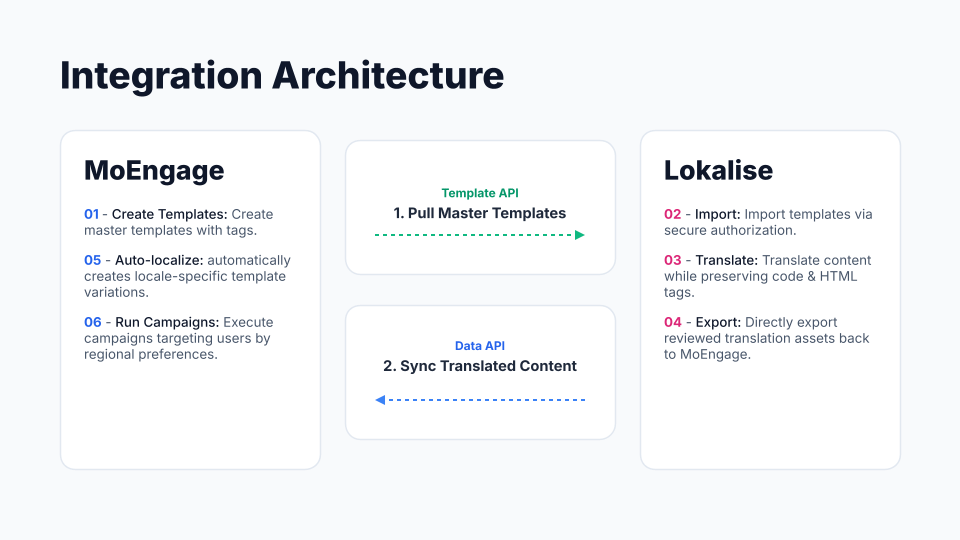
Channel support
Translation support is limited to templates created in the channels below.
To set up this process, perform the following steps:
- Step 1: Connect Lokalise to MoEngage
- Step 2: Create and save your template in MoEngage
- Step 3: Import the template into Lokalise
- Step 4: Translate content in Lokalise
- Step 5: Export translated templates back to MoEngage
- Step 6: Launch multilingual campaigns
Step 1: Connect Lokalise to MoEngage
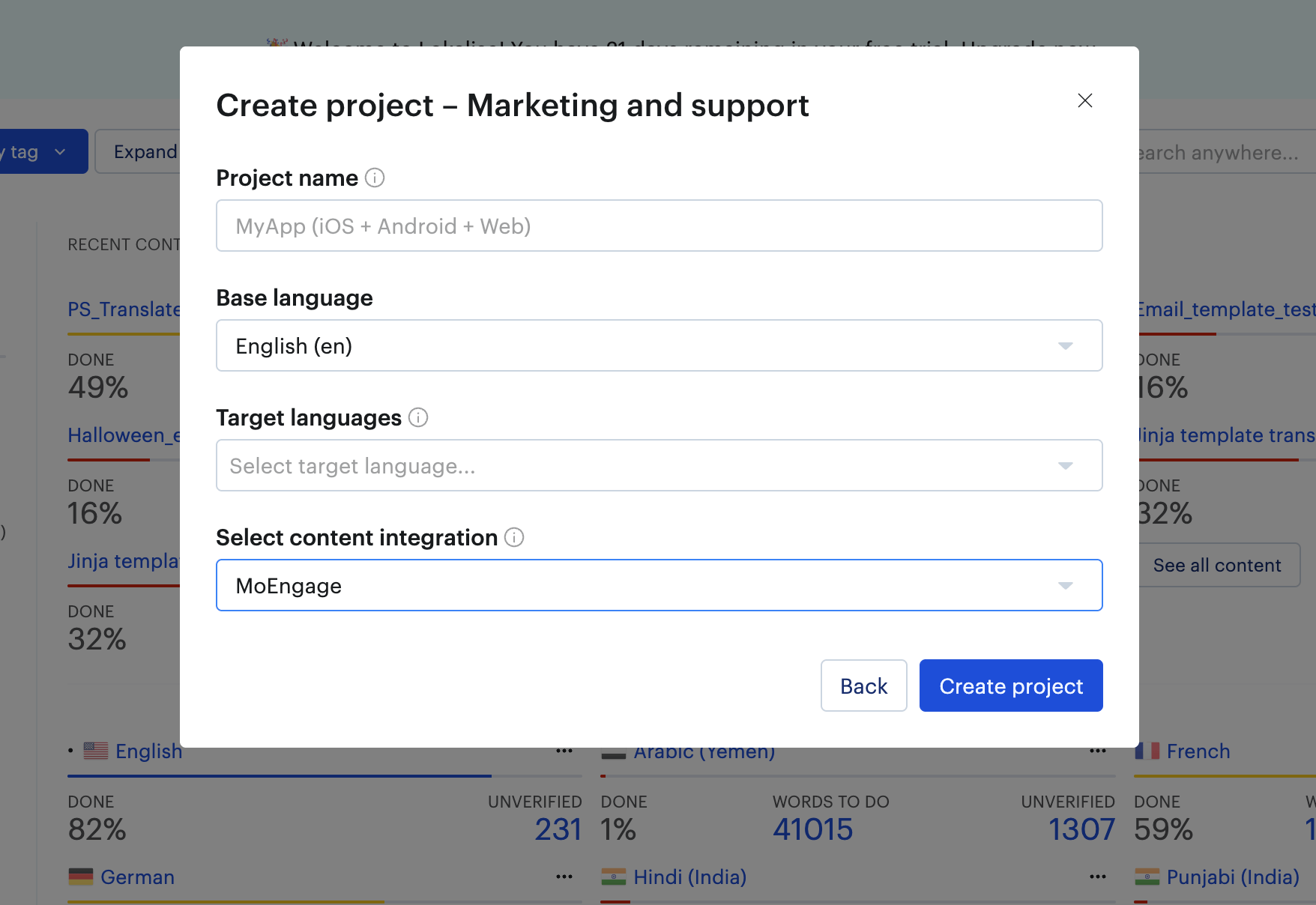
- In Lokalise, click New Project and select Marketing and support.
- Configure the project:
- Project name: Enter a descriptive name (for example,
MoEngage Campaign Translations) - Base language: The language you translate from (for example, English)
- Target languages: Add every language you need (for example, Spanish, French, German)
- Content integration: Select MoEngage
- Project name: Enter a descriptive name (for example,
- Click Create project.
- In MoEngage, go to Settings > API Keys. Copy the Workspace ID shown at the top of the page.
- Click + Create new key (or reuse an existing one) scoped for Data APIs — this is your Data API Key.
- Create (or reuse) a second key that includes the Custom templates scope — this is your Template API Key, and it’s what Lokalise uses to read and write templates.
- Note your Region: the number in your dashboard URL, for example
dashboard-01.moengage.com→ region01. - Back in Lokalise, open the MoEngage app and paste in all four credentials (Data API Key, Workspace ID, Template API Key, Region), then click Authorize.
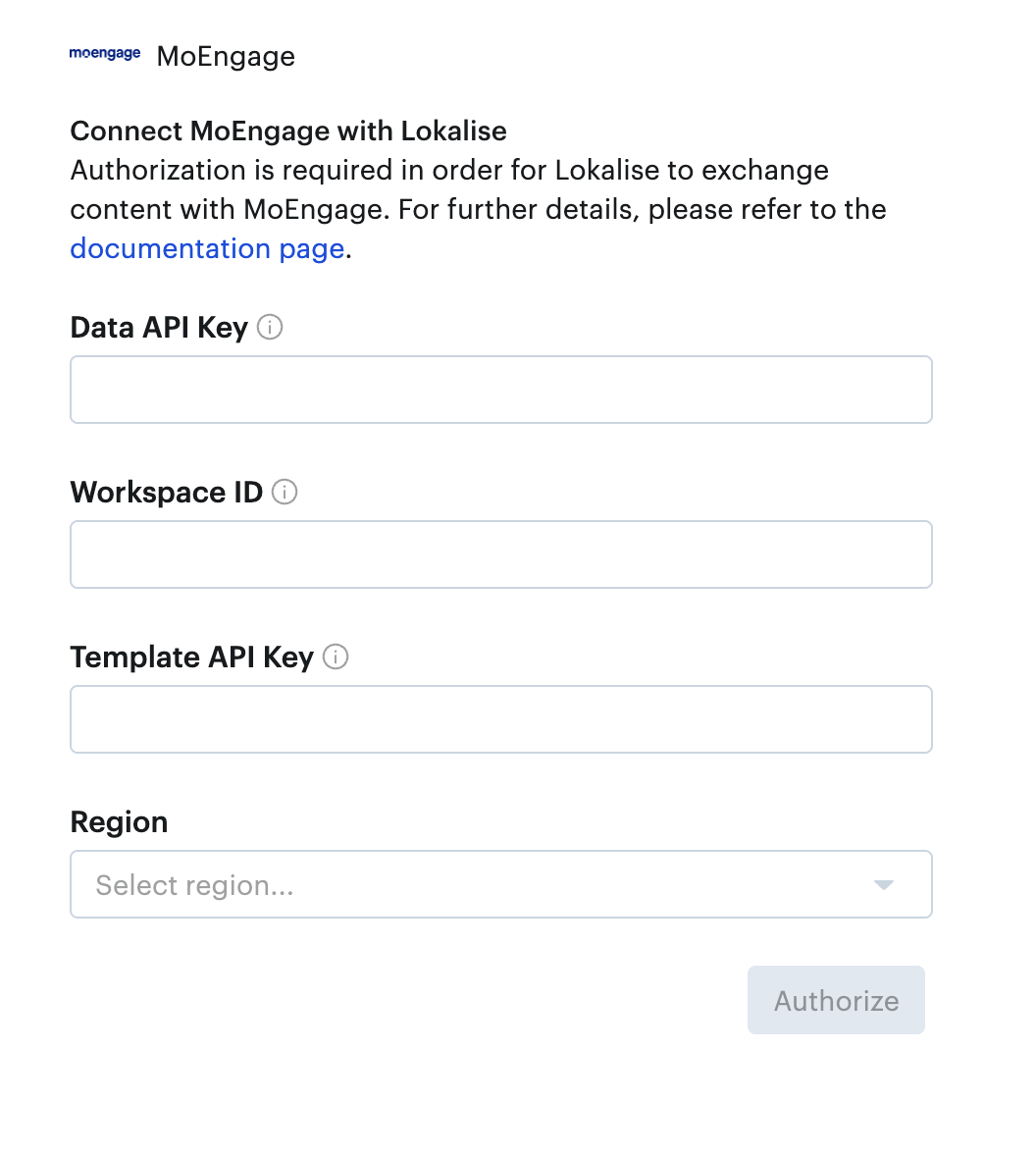
- Confirm you see Integration successful and that MoEngage appears as a connected integration.
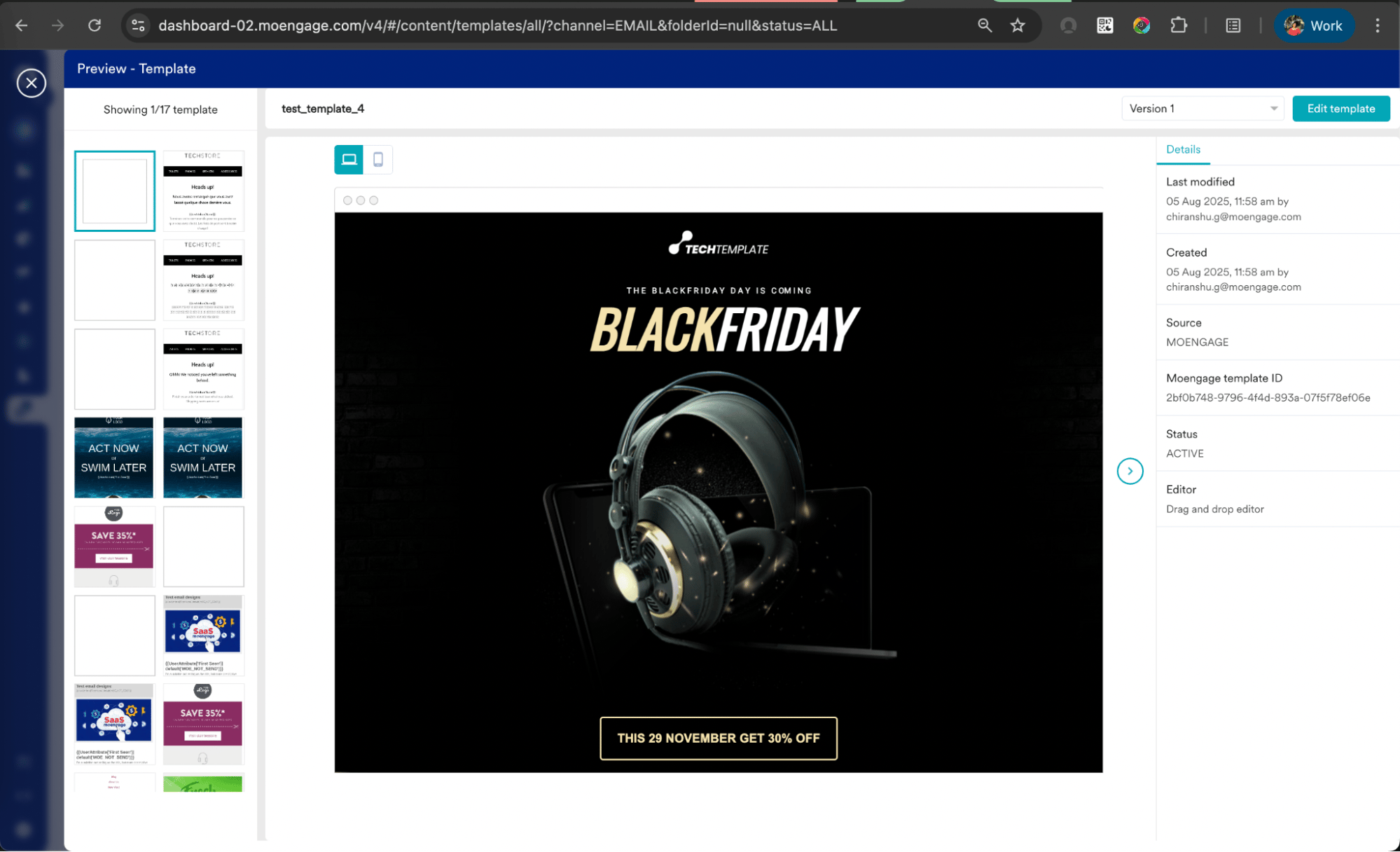
Step 2: Create and save your template in MoEngage
- Go to Campaigns > Email (or Push) and create your template as usual — subject line, body, CTAs, and any personalization tags like
{{first_name}}. - Use a clear, descriptive name (for example,
Black_Friday_2025_Promo).
- Save the template. Drafts don’t sync.
Step 3: Import the template into Lokalise
- In Lokalise, open Content management > Ready for import. Saved MoEngage templates appear here automatically.
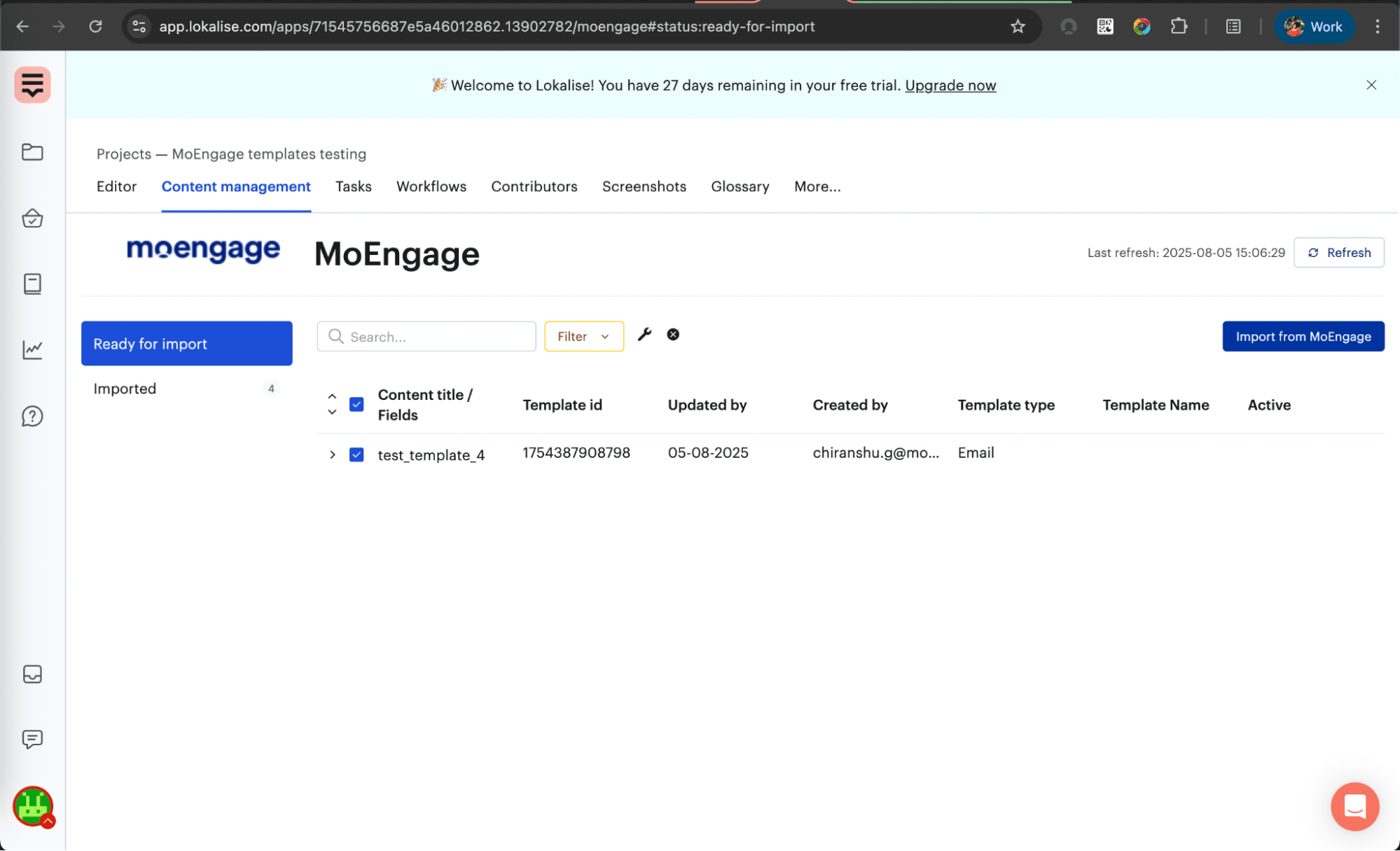
- Select one or more templates and click Import from MoEngage.
- Choose the base language and the target language(s) to import, then confirm.
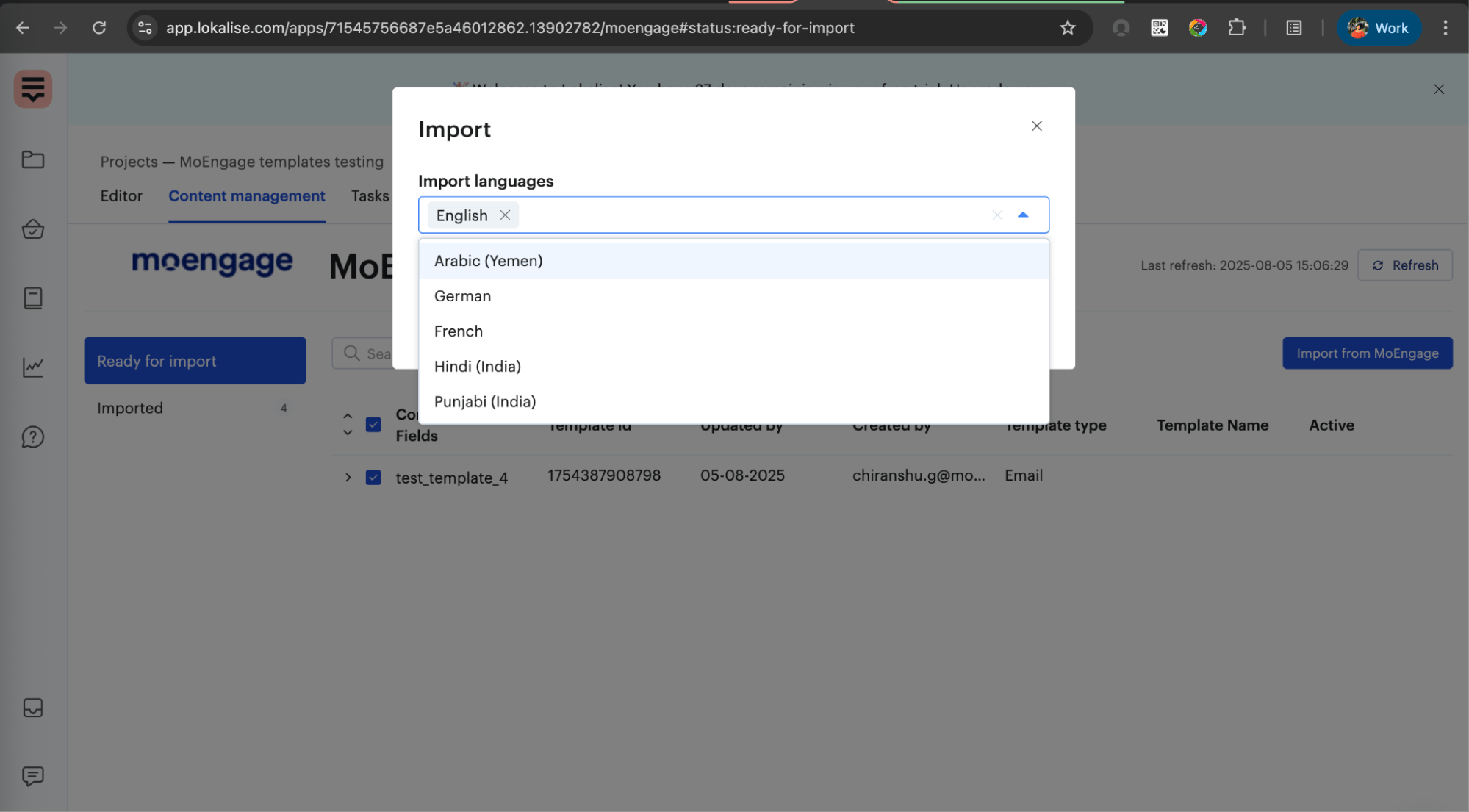
{{first_name}}) so they can’t be accidentally edited.
Step 4: Translate content in Lokalise
- Open the Editor, select the template, and choose a target language.
- Translate each segment. Lokalise surfaces translation memory suggestions from prior work — accept them to keep terminology consistent.
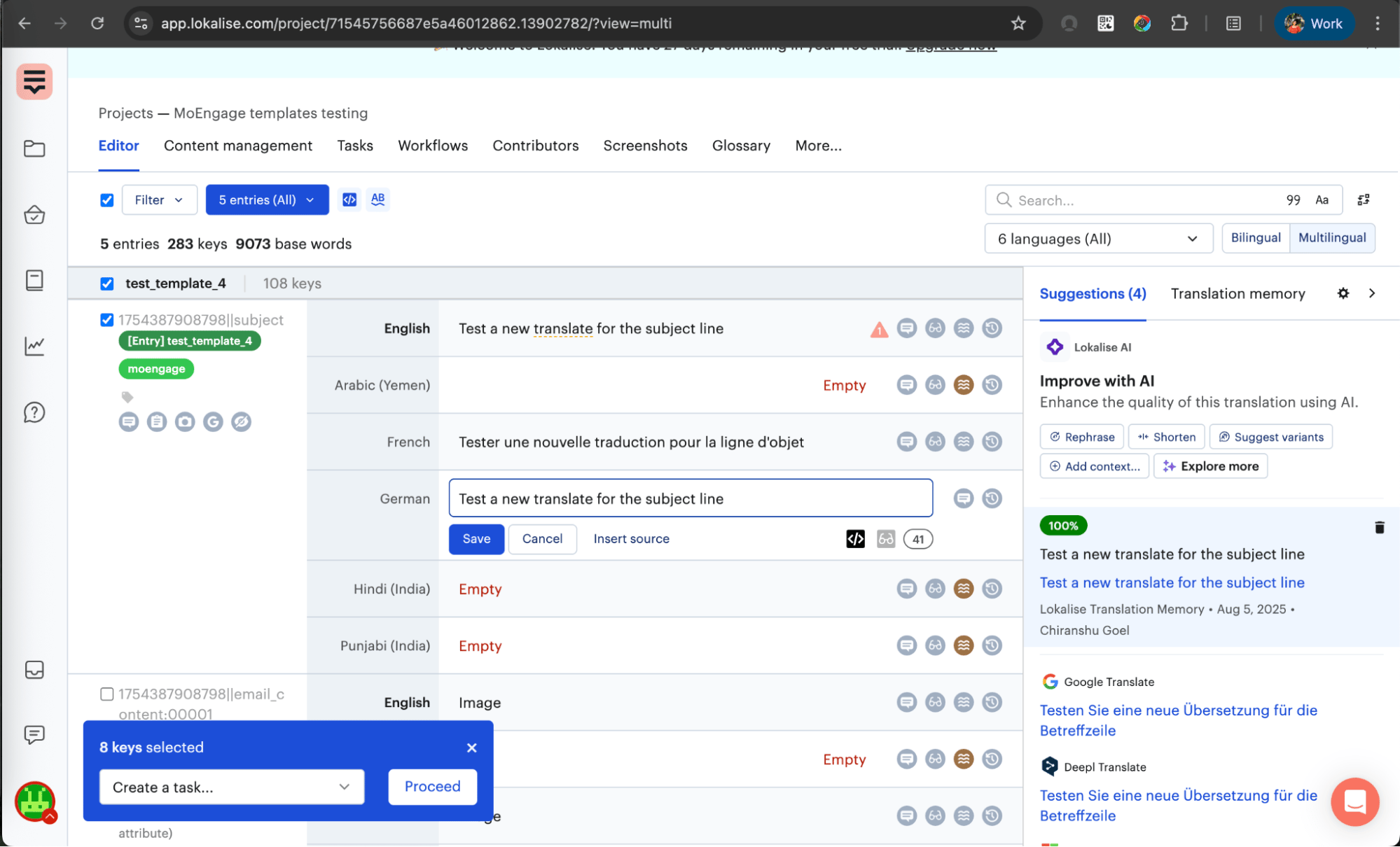
- Optionally, assign a reviewer to check accuracy, brand voice, and cultural fit before marking the translation complete.
Step 5: Export translated templates back to MoEngage
- In Content management, open the Imported tab and select the completed translations.
- Click Export to MoEngage.
- In the language picker, check only the target languages you’re exporting — uncheck the base language to avoid creating a duplicate of the original template.
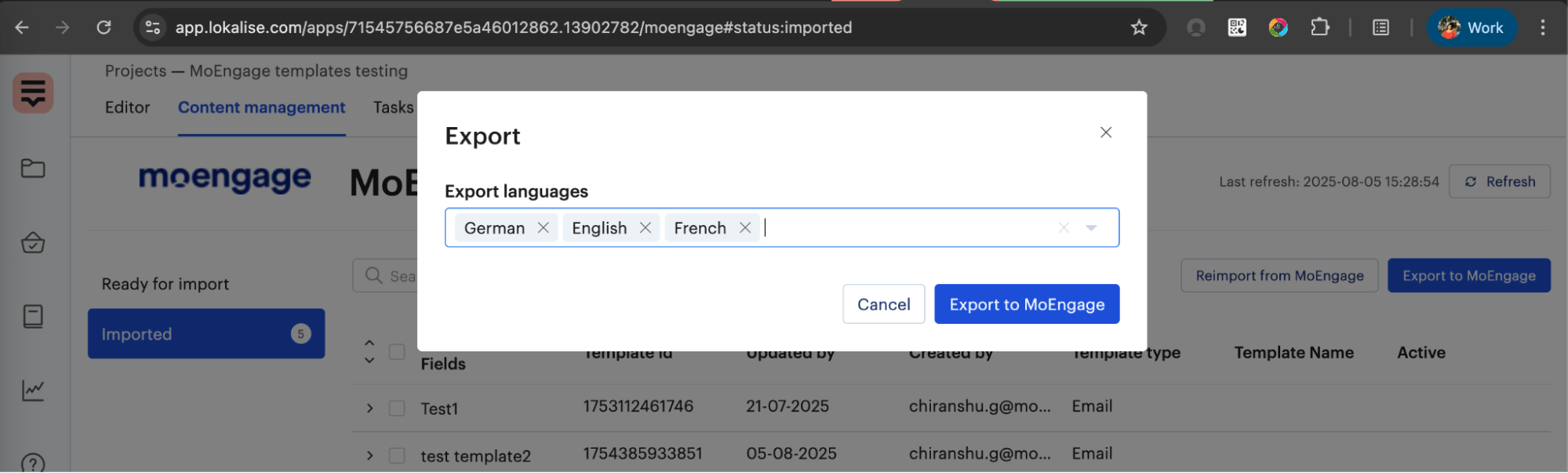
- Click Export to MoEngage.
[Template_Name]_[Language_Code] — for example, Black_Friday_2025_Promo_ES, _FR, _DE.
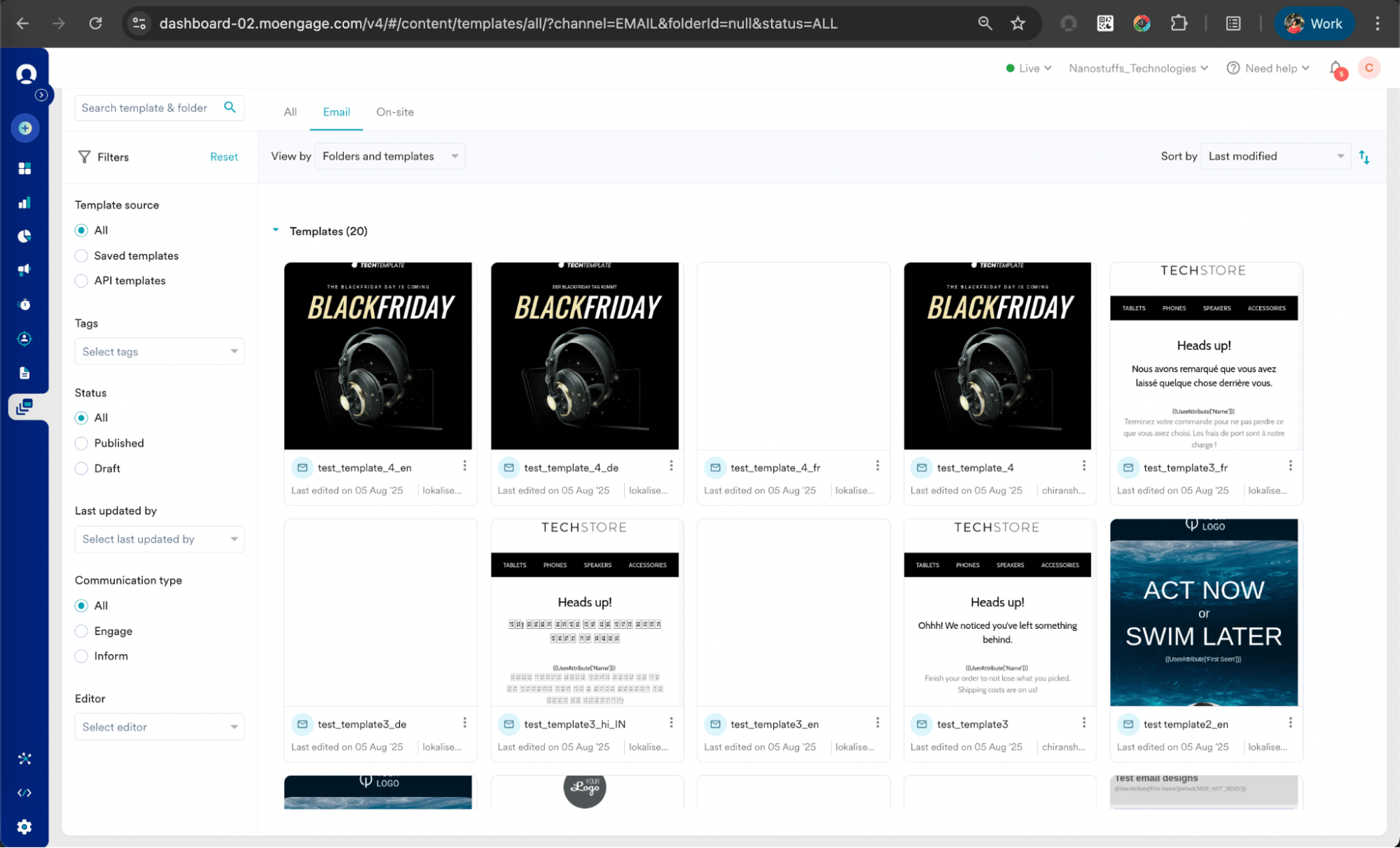
Step 6: Launch multilingual campaigns
- Segment your audience by locale (for example, a
user_languageorlocaleuser attribute). - Create one campaign variant per language, each pointing to its matching translated template.
- Send test emails to a native speaker per language to verify rendering and tag substitution.
- Launch — each segment receives the campaign in its own language, on the same schedule.
Troubleshooting
Templates not appearing in Lokalise’s “Ready for import”
Confirm the template is saved rather than a draft, and that it is an email, push, in-app, or SMS template. On-site messages are not supported yet. Sync can take 2–3 minutes; if it’s been longer, re-authorize the integration and check your API credentials are still valid.Dynamic tags broken after translation
Check the translator didn’t alter the tag syntax — it must stay exactly{{first_name}}, not {first_name} or {{firstName}}. Correct the segment in Lokalise and re-export.