

- Export the Email ID of users, who were engaged but uninstalled, and run re-engagement campaigns on Facebook.
- Export phone numbers of inactive users and send them an SMS to reactivate them.
Run Export
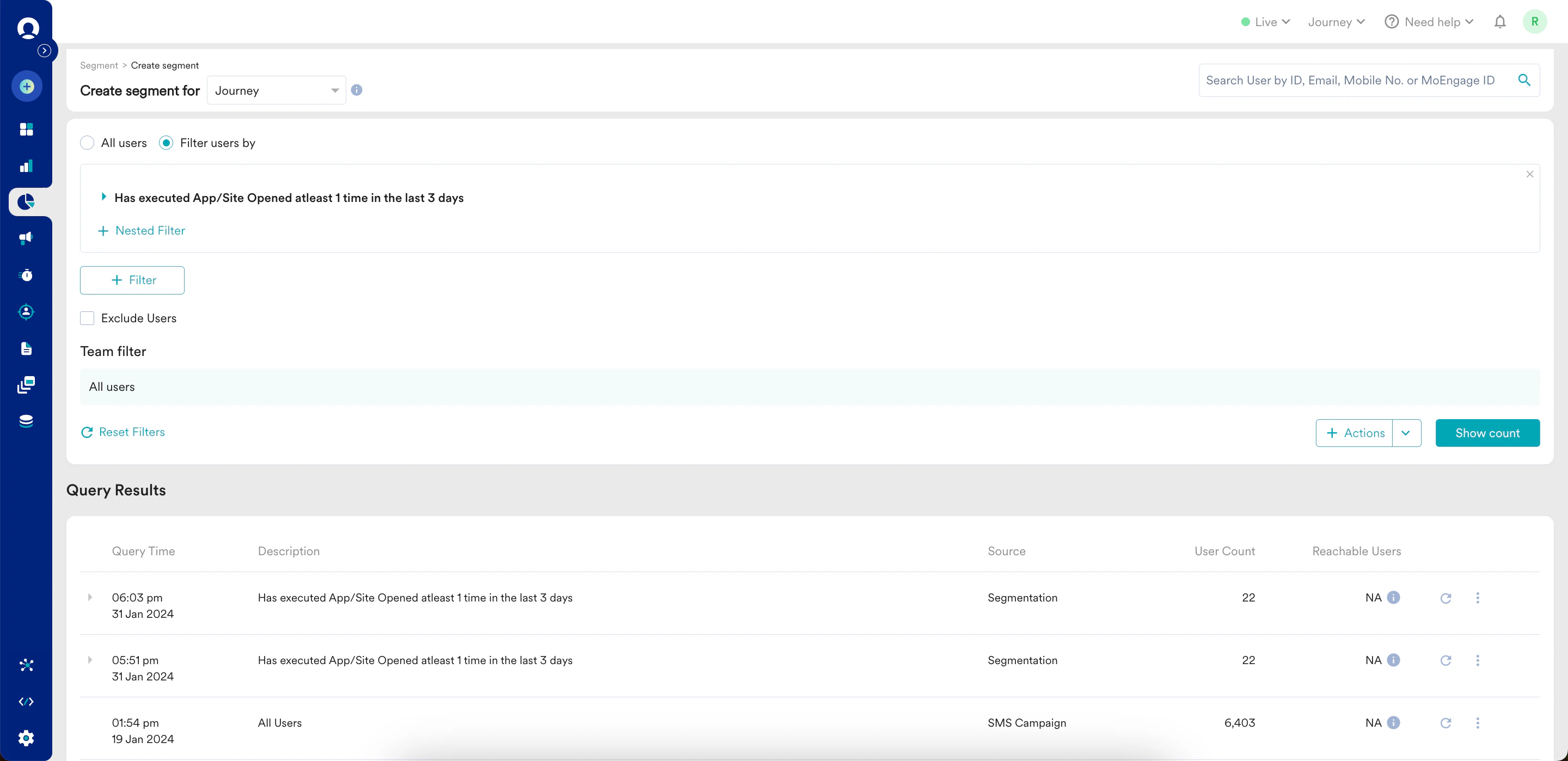
- Navigate to the MoEngage Dashboard and select Segment > Create segment from the left navigation. The Create segment page is displayed.
-
Build and run a query for the segment you wish to export. The query is displayed in the Query Results section.
-
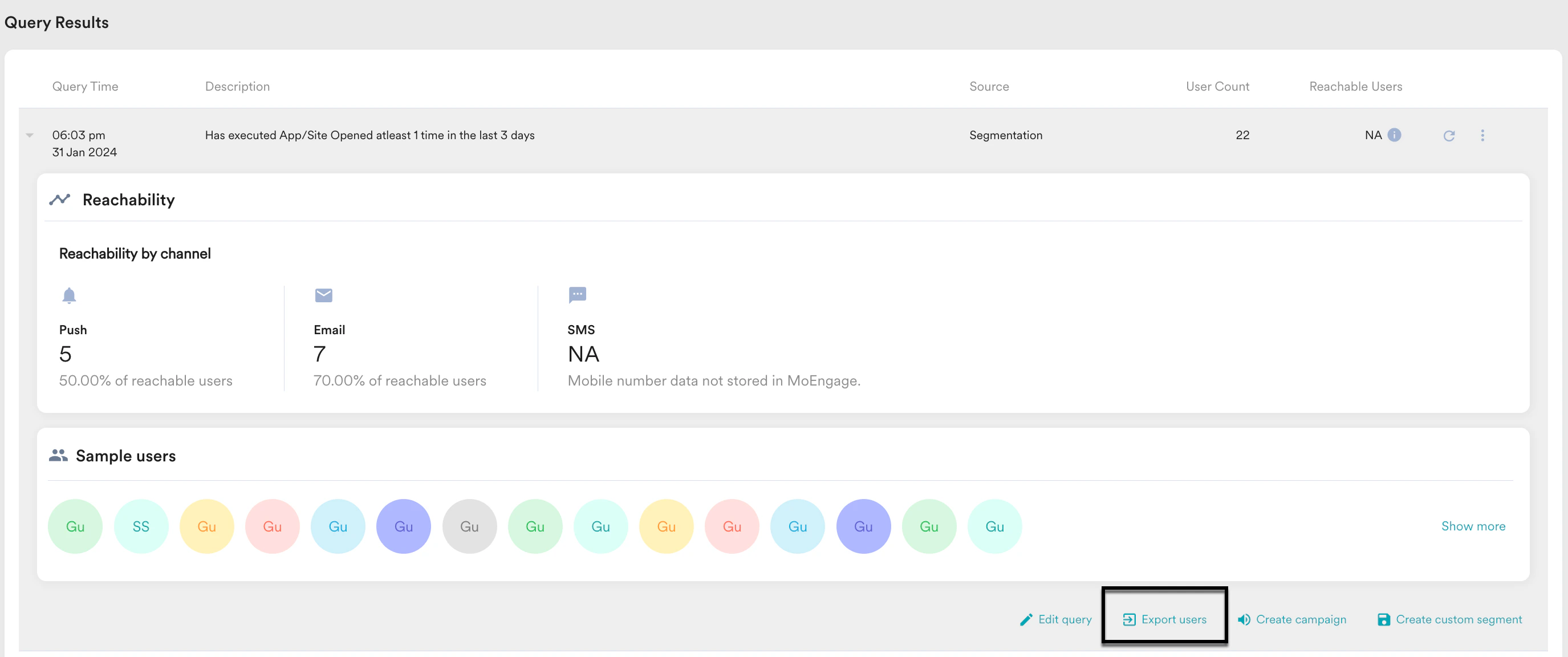
In the Query Results section, click a specific query and then click Export users.
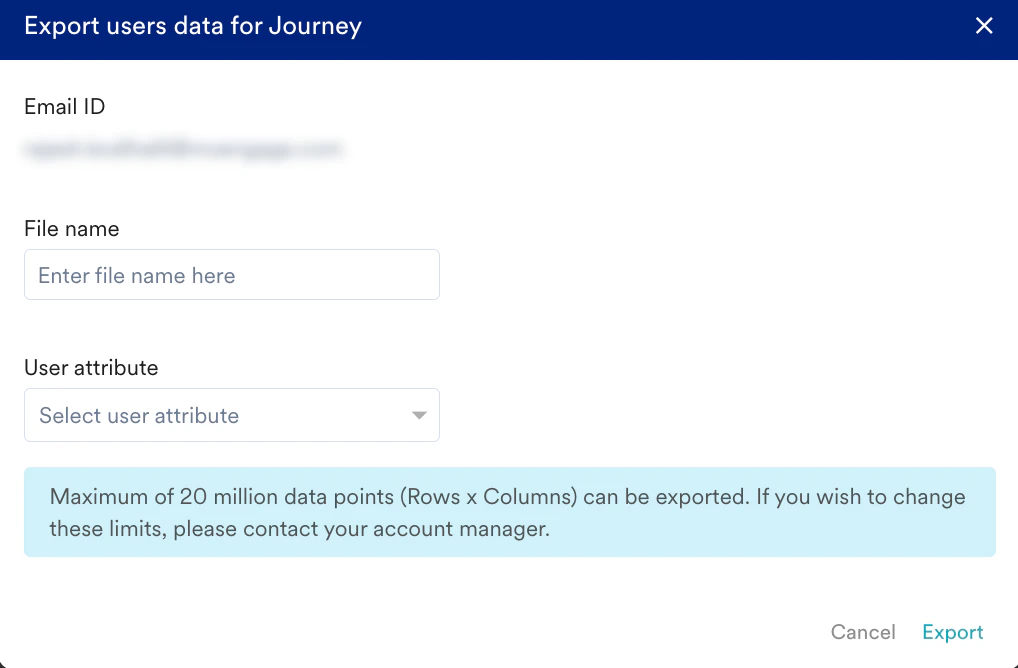
- In the File name field, enter a file name.
- From the User attribute drop-down list, select the user attributes you wish to extract.
- Click Export.
- Date and time attributes in the exported file are always provided in UTC, regardless of your dashboard timezone.
- The export of Personally Identifiable Information (PII) marked user attributes is restricted on the MoEngage dashboard. Know more.
- User data exports fair usage limits:
The number of data points (number of rows x number of columns) that can be exported is a maximum of 20 million, beyond which the export has a high chance of failure. For example, exports could be:- 20 million rows with 1 column or
- 4 million rows with 5 columns or
- 1 million rows with 20 columns
To change these limits, contact your CSM.