

Overview
There may be scenarios where you want to change the message in the Card campaign or target a different group of users to optimize your Card usage. In such cases, you can edit a previously created Card campaign without having to create a new one from scratch. Depending on the campaign delivery type and status, the editable fields may vary. We recommend that you get acquainted with the Create a Card Campaign process and the types of Card campaigns before proceeding.Navigation
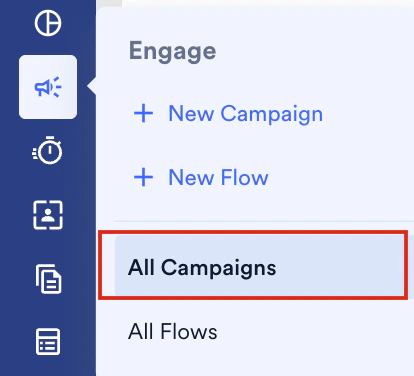
To edit a campaign:- On the sidebar menu in MoEngage, hover over the Engage icon
 .
.
- Click All Campaigns.
- Once you’ve searched for the desired campaign, click the vertical ellipsis in the Actions column and then click Edit.
Editing a Card Campaign
The fields you can edit in a published Card campaign depend on the campaign’s delivery type. The trigger condition cannot be edited once a campaign is published, regardless of delivery type.- One Time
- Event Triggered
- Periodic
You can edit the following fields:
- Campaign name
- Tags
- Campaign audience limit
- Template message
- Ends on date under scheduling
- Display controls (Remove card after X days and Once the card is delivered, show the card throughout)
You cannot edit the platform, audience, conversion goals, or global control group.
Change Fields That Cannot Be Edited
To change a field that is read-only on a published campaign:- Pause the existing campaign.
- Duplicate it.
- Make the required changes in the duplicate.
- Publish the duplicate.
Show/Hide Cards
You can use the Show card toggle button to show or hide Cards in the user’s inbox irrespective of the campaign state (Sent/ Active/ Paused/ Stopped).
When you disable the toggle button, the Cards remain hidden from the MoEngage Cards Inbox as well as the Self-handled Cards Inbox.
How does the Show card toggle work?
- When Show Card is disabled: The Card will be temporarily hidden and not be displayed in the app inbox. The Card will remain with the status Hidden.
- When Show Card is enabled: The Card will be delivered the next time the user opens their app Inbox.
- The campaign can only be resumed once it’s paused.
- A stopped campaign cannot be made active again.
- Show Card applies to the users for whom the Card has already been delivered and the new users who will qualify for the campaign.
- For periodic cards, the show/hide status of the periodic parent campaign applies to all current and future periodic child cards.
- Once a campaign’s show/hide status is changed, it will be reflected in the next fetch based on the Cards UI type and its sync method.