- Retrieving real-time data from MoEngage
- Passing data to other owned or third-party analytics systems
If your connector endpoint requires IP whitelisting or IP whitelisting for using Content API, refer here.
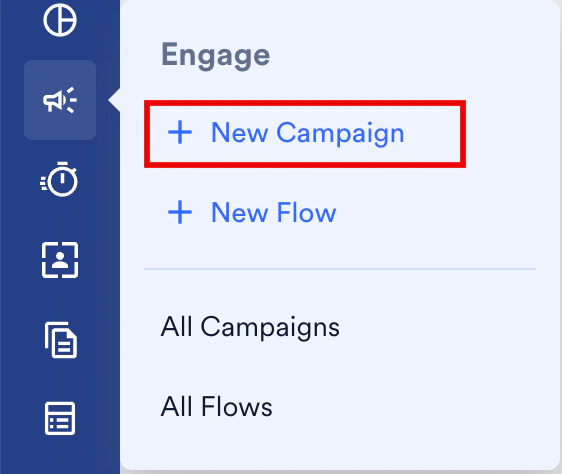
- On the sidebar menu in MoEngage, hover over the Engage icon
 . The Engage menu appears.
 - Click + New Campaign.
- On the New Campaign dialog box, under Connectors, click Custom.
- Select one of the following campaign delivery types:
- One Time
- Periodic
- Event Triggered
Steps to Create a Connector Campaign
The following are the steps to create a Connector campaign:- Target users: Define the target audience for the campaign.
- Content: Define the content of the Connector campaign to be sent.
- Schedule and Goals: Define the campaign’s delivery schedule and goals.
Step 1: Target Users
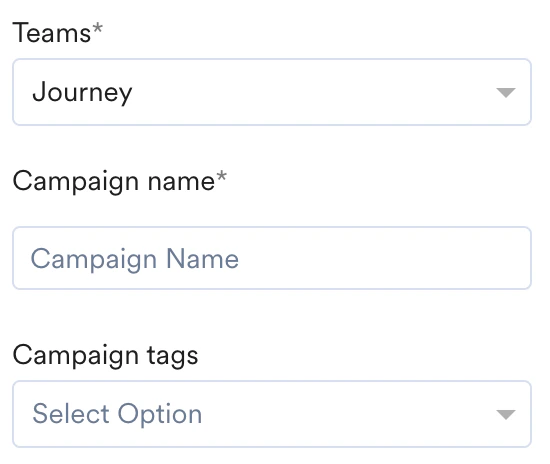
This section contains the following:Campaign Details
The campaign details section contains the following fields:
|  |
Event Triggered Campaigns
Event Triggered Campaigns
Event-triggered campaigns allow you to take personalized actions triggered by different user behaviors. For example, you can remind users about the item they added to the cart but have not purchased. For more information on creating such campaigns, refer to Create an Event-Triggered Campaign.
Select Audience
This section contains segmentation filters that help you choose the target audience for your campaign. The following options are available:- All Users
- Filter by User Property
- Filter by User Behavior
- Filter by User Affinity
- Filter by Custom Segment
This filter option allows you to send the campaign to all the app users. When you use this option, you cannot add multiple filters.
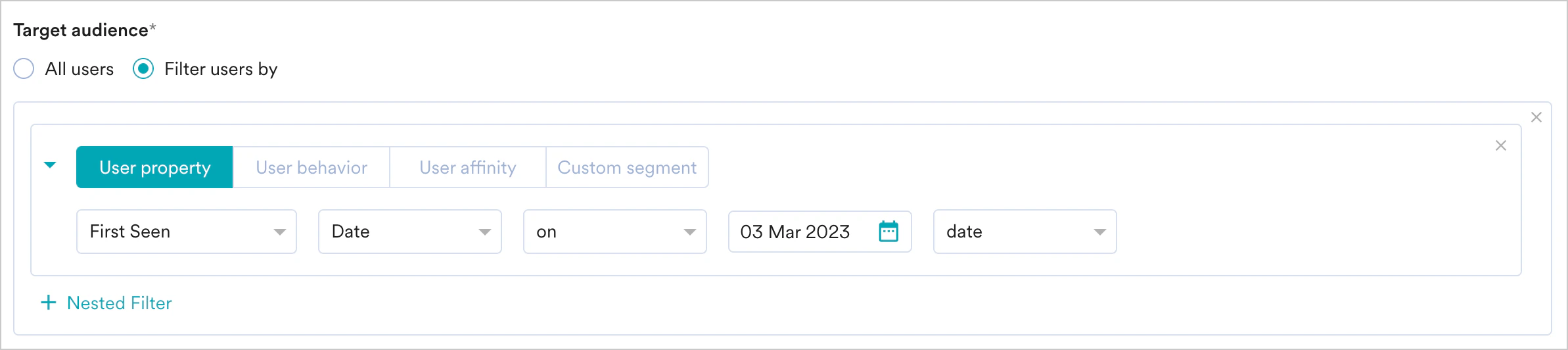
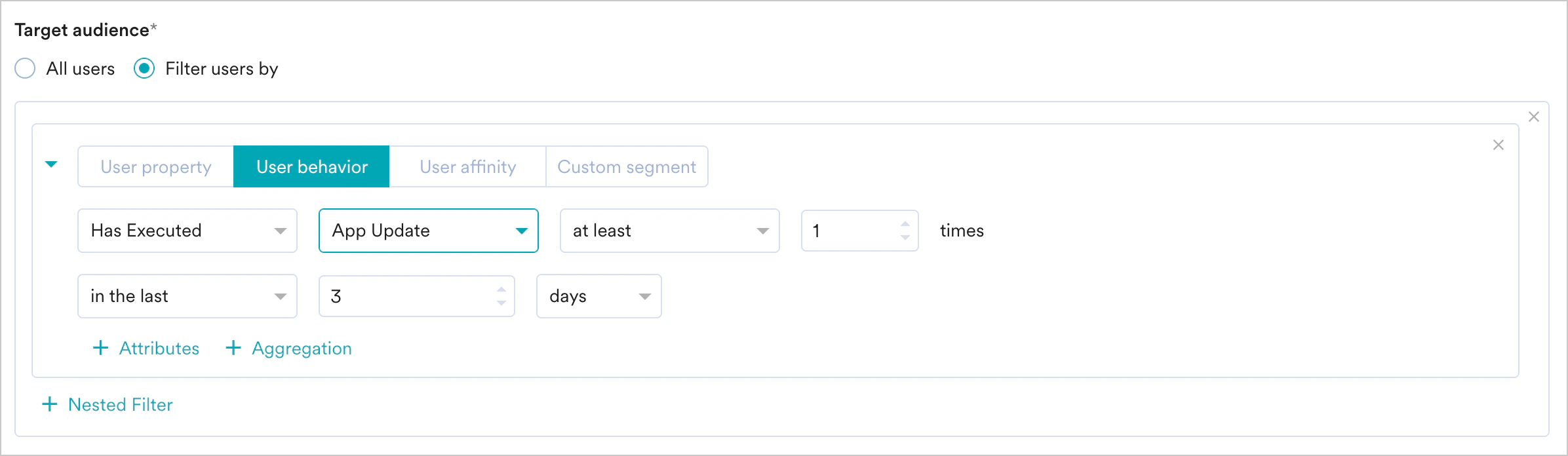
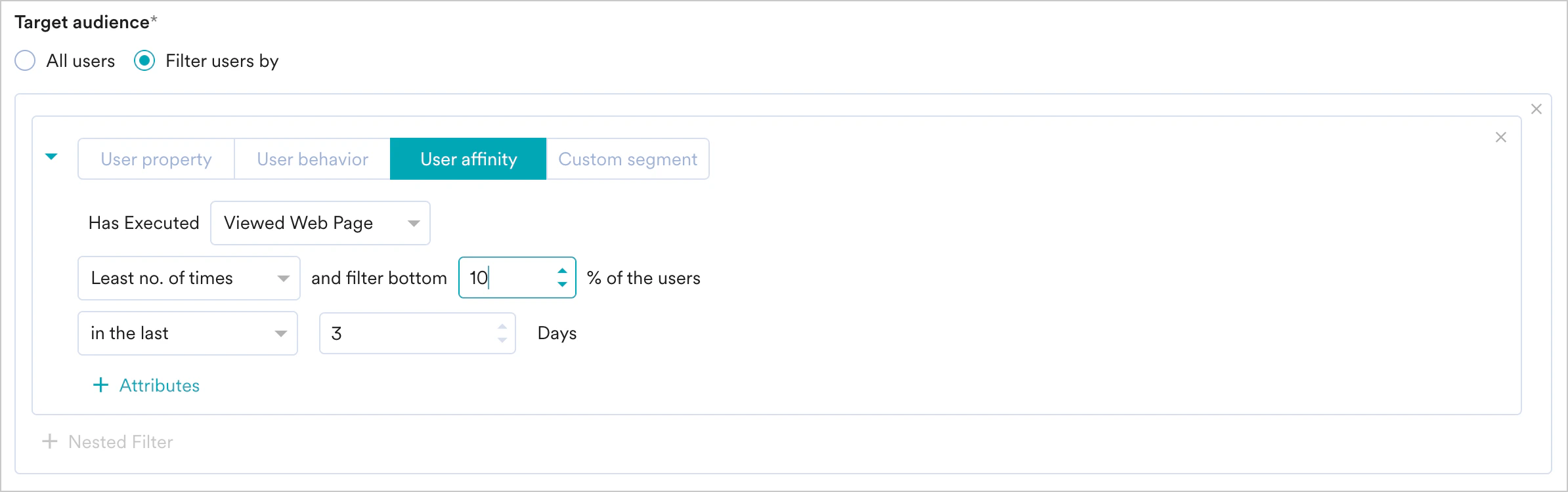
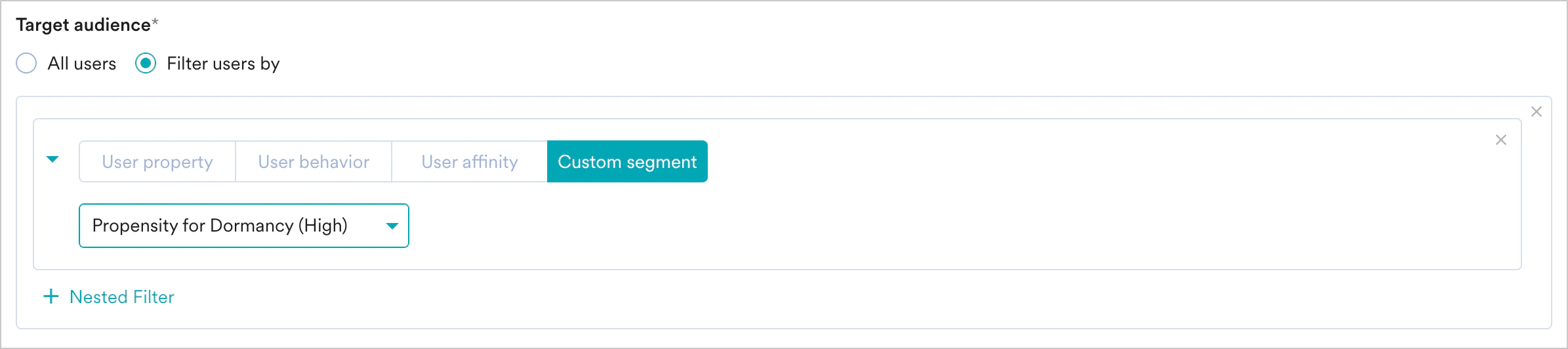
- Create Multiple Filters: You can create and combine multiple user property rules, user activity rules, and custom segment rules to create a complex user segment using this option.
- Click + Filter.
- Click AND or OR.
- Select the attribute or event and define the filter conditions.
- Exclude Users: Select this checkbox to define the filter criteria for users to be excluded from the campaign.
- Reset Filters: Click this option to reset the segmentation filters.
- Show Count: Click this button to display the total number of users who are currently in the configured segment.

If you have the Portfolio feature enabled, you can create user segments by combining user data and behavior from different apps and websites (Projects) within your workspace. For more information, refer to Segmentation in a Multi-Project Portfolio.
Campaign Audience Limit
This feature empowers you to control campaign reach and expenditure by capping the number of users who receive it based on engagement metrics like sends, impressions, and conversions. It allows you to set total, daily, or instance-level limits to campaigns. For more information, refer to Campaign Audience Limit.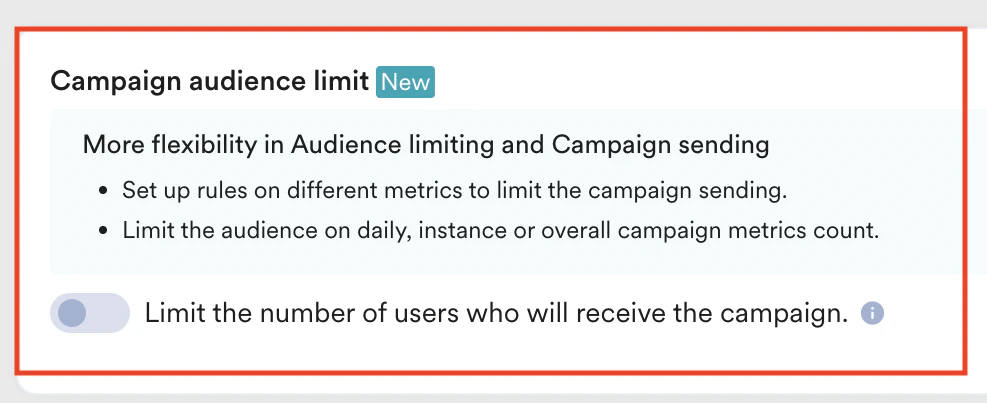
Control Group
This section contains information about control groups for the campaign. To exclude users from the control groups, do the following: In the Control groups section, enable the Global control group toggle to exclude the users from the campaign’s target segment.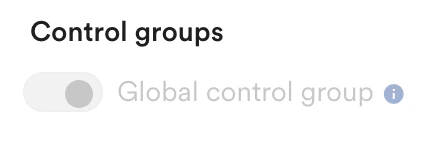
Step 2: Content
Configure Webhook URL or target connector URL. You can use the following methods:- GET
- POST
- PUT
- DELETE
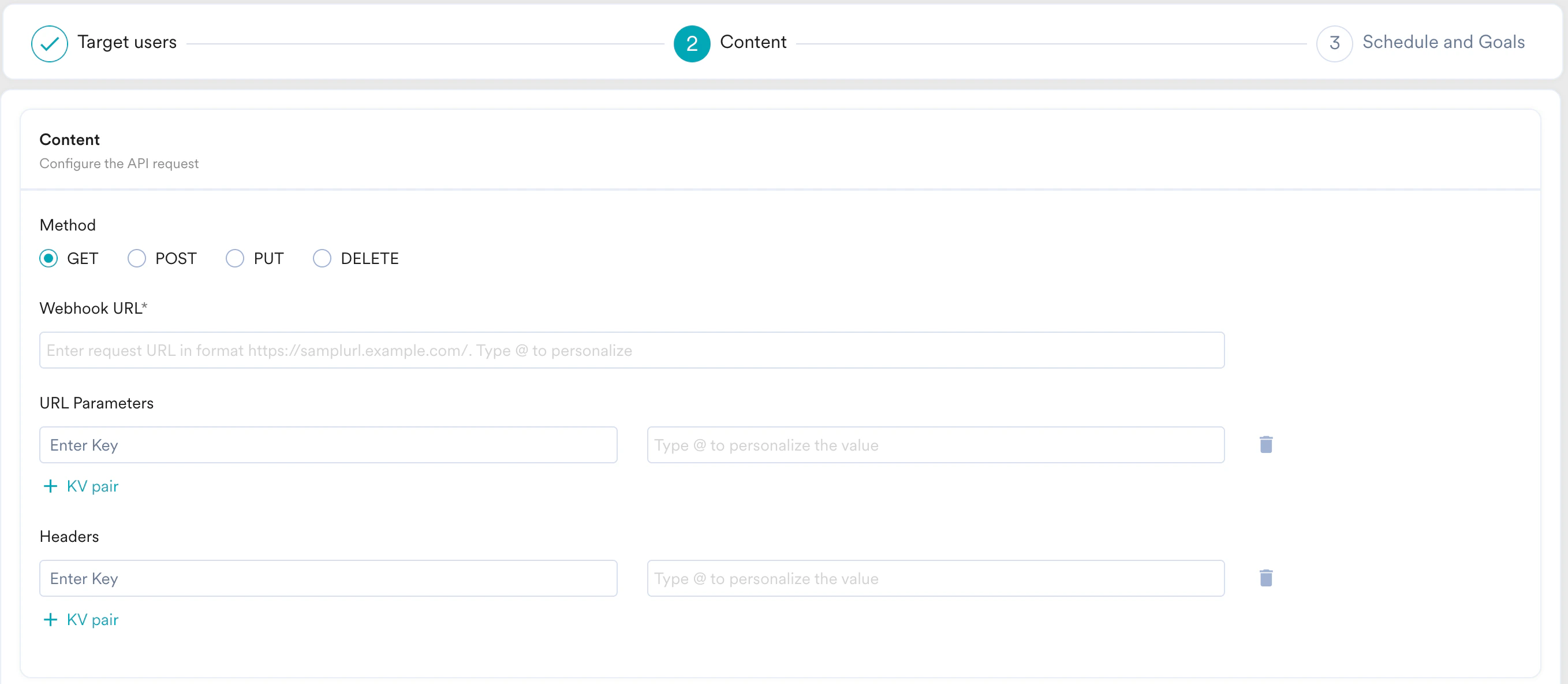
Common for GET, POST, PUT, and DELETE
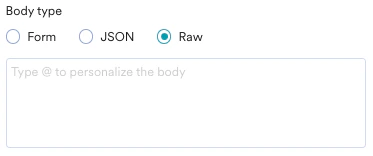
POST, PUT, and DELETE Body Type
Configure the Body for your requests using the following options:- Form
- JSON
- Raw Body
Create the body based on the form-encoded serialization for the webhook. Click + KV pair to add more form-encoded body.

Enable Authorization Settings
If your connector request involves a basic non-changing access token, you can simply add those as a key-value pair in the header. If your connector request involves an OAuth 2.0 authentication, perform the following steps: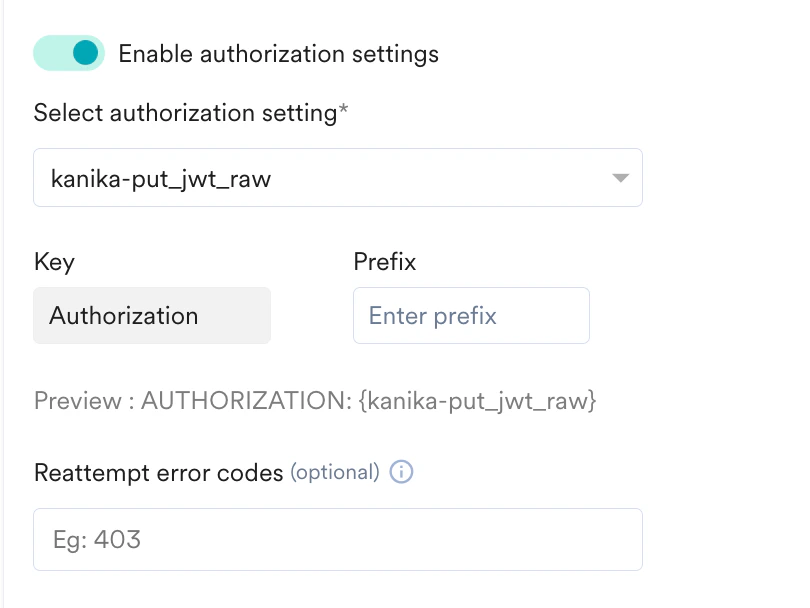
- Turn on the Enable authorization settings toggle.
- From the Select authorization setting drop-down list, select an OAuth configuration.
You can see the OAuth settings configured in the MoEngage system at Settings > Advanced settings > Authorization configuration. For more information, refer to OAuth 2.0. You must select a healthy OAuth setting, which is in “Active” status. If you select an OAuth setting in “Failed” status, you cannot create a Connector campaign.
- The Key field is populated as “Authorization” by default.
- In the Prefix field, enter a prefix. You can enter the name of a prefix added in the selected OAuth configuration. You can also override those prefixes and create your own prefix.
- In the Reattempt error codes field, enter error codes to initiate a reattempt in case of a failed response. For example, use the error code “400” for the expired error code to inform MoEngage to reattempt creating a Connector campaign.
Test Campaign (Optional)
Test Campaign (Optional)
Test campaigns enable previewing the campaign on a test device to ensure that your notification is conveyed in the manner that you desire.You can test the campaign you created by selecting any of the following options and providing the value for the attribute chosen for your test user:
- Unique ID
- Email ID
- Mobile Number
- Google Advertising Identifier
- iOS Identifier For Advertising
- Device Push Token
-
Custom Segment

Step 3: Schedule and Goals
This section contains the following:- Delivery Schedule: Choose when the campaign should be delivered to your users and the periodicity of delivery.
- Conversion Goals: Choose the conversion goals and revenue metrics to be tracked for the campaign.
- Delivery Controls: Choose the advanced delivery control options such as throttling, frequency capping, and expiration settings for the notification.
Delivery Schedule
One Time
One Time
- As soon as possible
- At specific date and time
Choose this option to send the campaign immediately to the target users.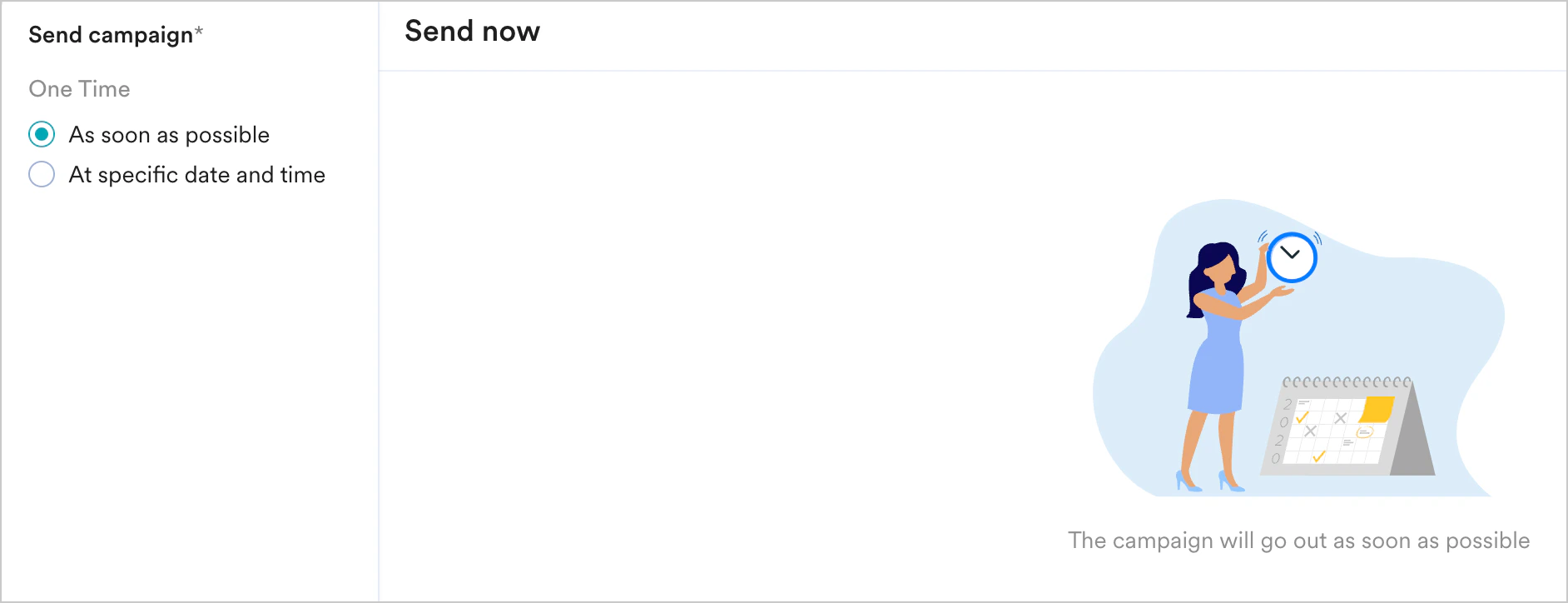

Periodic
Periodic
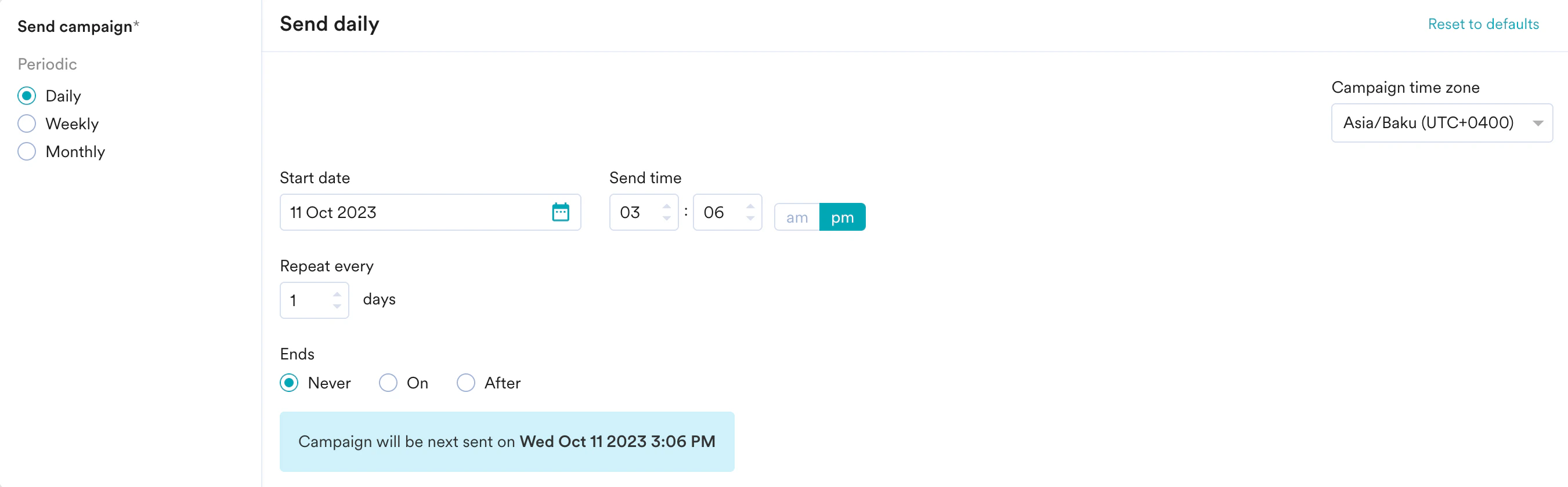
Choose this option to send the campaign periodically on a specified date and time. The following fields are available in this section:
- Campaign time zone: the timezone in which the campaign should be sent.
- Start date: the date on which the campaign should be sent.
- Send time: the time at which the campaign should be sent. Select am or pm depending on when the time of day at which the campaign should be sent.
- Periodic: the periodicity of the campaign. You can choose from the following options available:
-
Ends: the date on which the campaign should end. The following options are available:
- Never: the campaign runs daily.
- On: the campaign ends on the end date specified in the End Date field.
- After: the campaign ends after the number of occurrences specified in the occurrences field.
Event Triggered
Event Triggered
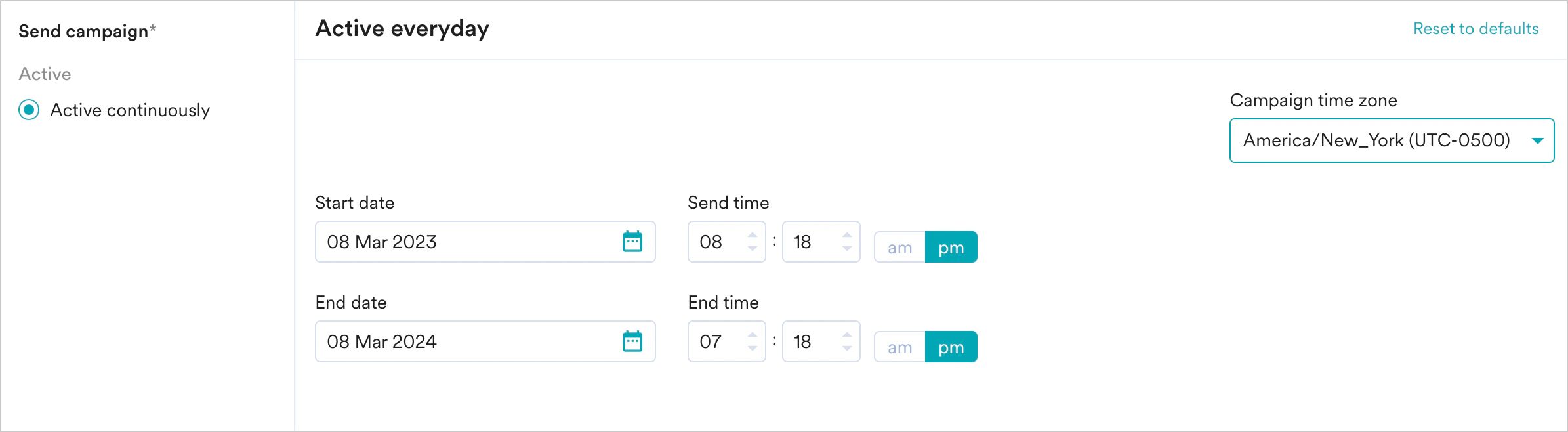
Choose this option to engage the right users (through segmentation) at the right time (through event triggering). The Active continuously option is selected by default under Send campaign and the following fields are available in this section:
- Campaign time zone: the timezone in which the campaign should be sent.
- Start date: the date on which the campaign should be sent.
- Send time: the time at which the campaign should be sent. Select am or pm depending on when the time of day at which the campaign should be sent.
- End date: the date on which the campaign should be stopped.
-
End time: the time at which the campaign should be stopped. Select am or pm depending on when the time of day at which the campaign should be stopped.
- The event property or attribute, which is used to create these type of triggers (such as flight_time in previous example), is in a valid date-time format. If it is not in date-time format, the string should have data in one of the supported formats. If the selected attributes do not contain data in any of these formats, the campaigns are not sent to the users.
- The date or time value from the attribute is greater than the time at which the trigger condition is fulfilled.
- The date or time value from the attribute is less than 30 Days + the time at which the trigger condition is fulfilled. For example, if your trigger condition is fulfilled at date D, the notification is sent only when the attribute value is less than D+30.
- The intelligent delay optimization (With Delay) does not work for campaigns sent on relative timing.
Conversion Goals
You can add conversion goals to track the business metrics for your campaigns. You can track a maximum of five conversion goals. You can choose any app event as a conversion goal activity and set more than one conversion goal. The first goal will be treated as a primary goal. For example, if you want to track the number of customers who have purchased an iPhone after your campaign was sent. (Event: Purchase event, Product: iPhone). Your conversion goal setup might be similar to the following image: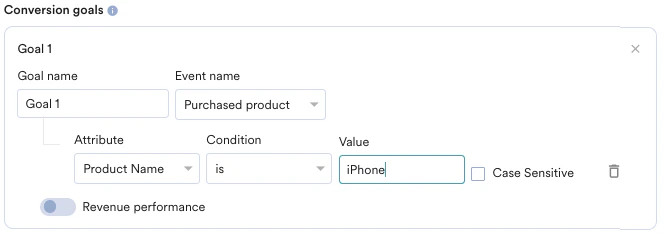
- How many users have viewed the product page?
- How many of them added that product to the cart?
- How many of them made a successful order?
Tracking Revenue Performance (Optional)
Tracking Revenue Performance (Optional)
| With MoEngage, you can track the revenue generated by your campaigns. For example, you can track the revenue generated by your product after sending a communication. To track revenue performance, enable the Revenue performance toggle for the conversion goal for which you want to track the revenue. In the example here, to track revenue for orderSuccessful events, you must enable the Revenue performance toggle. | 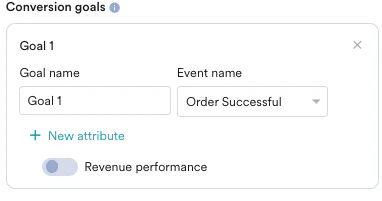 |
| After choosing the goal, you can select the numeric attribute that captures the order’s total monetary value. In this example, cartValue contains the total order value. You can choose the currency in which your monetary value is being reported. | 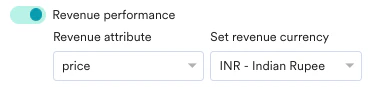 |
| Set Attribution window: You can set an attribution window (a time period or window that is calculated since the user has received the campaign, for which you want to attribute the conversion goals to a specific campaign.) By default, it is set for 36 hours. |  |
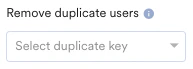
Remove Duplicate Users
Applicable to One Time and Periodic campaigns only.
Delivery Controls
- Delivery Control for One Time and Periodic Campaigns
- Delivery Control for Event-Triggered Campaigns
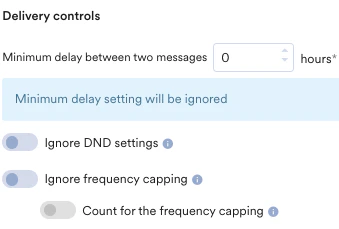
This section contains the following options: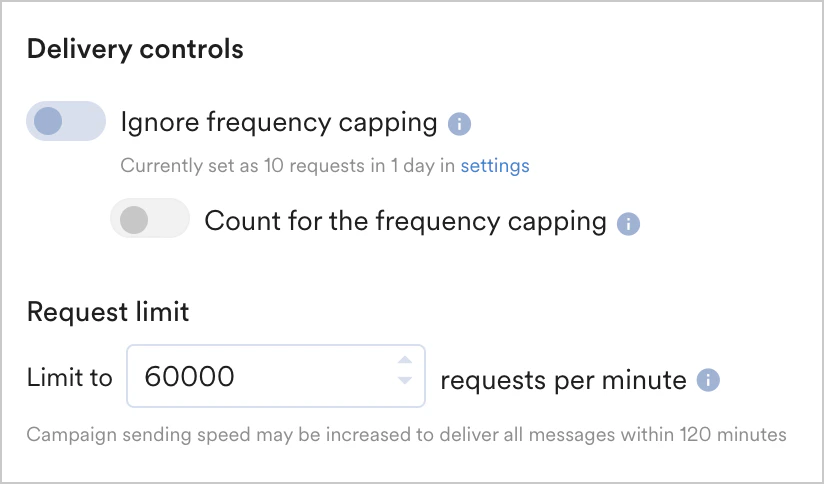
- Ignore frequency capping: Enable this toggle to ignore the frequency capping limit for this Connector campaign. For more information, refer to Frequency Capping.
- Count for the frequency capping: Enable this toggle if you want this connector to be counted for frequency capping limit.
- Request limit: Set the request limit to send the Connector campaign notifications. The maximum throughput is 200000 requests per minute.
Note: If the estimated time to send the campaign exceeds 4 hours, MoEngage automatically increases the requests per minute to finish sending in 4 hours. If multiple campaigns are running in parallel, campaigns might be delayed.