Overview
Frequency capping (FC) lets you control your campaign’s communication frequency with users. This significantly prevents customers from receiving bursts of communication from multiple channels simultaneously and improves user engagement and brand value in the market. You can configure Frequency capping in two ways,- Channel and Campaign Delivery: You can configure frequency capping for your campaign’s communication based on delivery types, such as one-time, event-triggered, etc., from any channel.
- Tag-based Frequency capping: You can configure frequency capping for your campaign’s communication with tags such as promotional, engagement, etc., which allows you to control the communication of your campaigns that have the tags you selected.
Channels Supported for Campaign Delivery Type-based FC and Tag-based FC
Configure Frequency Capping
The Frequency Capping settings page is divided into Outbound Channels and Inbound Channels. You can configure FC for multiple channels and delivery types within their respective sections.The frequency capping you configure applies only to the upcoming campaigns and does not affect existing ones.
- Log in to the MoEngage dashboard.
- On the left navigation menu in the MoEngage dashboard, select Settings > Channels.
- In the Channels section, select Delivery controls.
- On the Delivery controls page, click the Frequency capping tab.
- The page is divided into Outbound Channels (Push, SMS, Email, etc.) and Inbound Channels (In-App, On-Site Messaging). Navigate to the desired section to configure the rules.
Configure FC in Outbound Channels
For outbound channels, you can configure FC globally or for each channel specifically. Cross-channel configuration only applies to outbound channels.- Cross-channel configuration: Turn on the All channels toggle and specify the limit for the number of communications that must be sent to users from all channels. This is the maximum limit for the total number of communications that must be sent to a customer within the specified number of days. For example, if you set the cap at four communications in 6 days, you can send only four communications in total from all the channels in the next 6 days. This is performed on a first-come, first-served basis.
- Push
- SMS, MMS, & RCS
- Email
- WhatsApp
- Connector
To enable Frequency capping for the Push notifications:
- Turn on the Push toggle.
- Enter the maximum number of communications you wish to send over a specified number of days (for example, two push notifications in one day). This configuration applies to all Push campaigns by default. For example, if the FC for Push is set as six communications for the next 6 days, a maximum of six communications are sent in the next 6 days. This is done on a first-come, first-served basis.
- To set FC based on the campaign’s delivery type, add a rule below by clicking the plus sign (+) at the end of each configuration and configure the delivery type to one time/periodic, event triggered, etc.
- You can configure FC based on tags by adding another rule with the option, select from campaigns with any/all of the selected tags and select the tags to send communications accordingly.
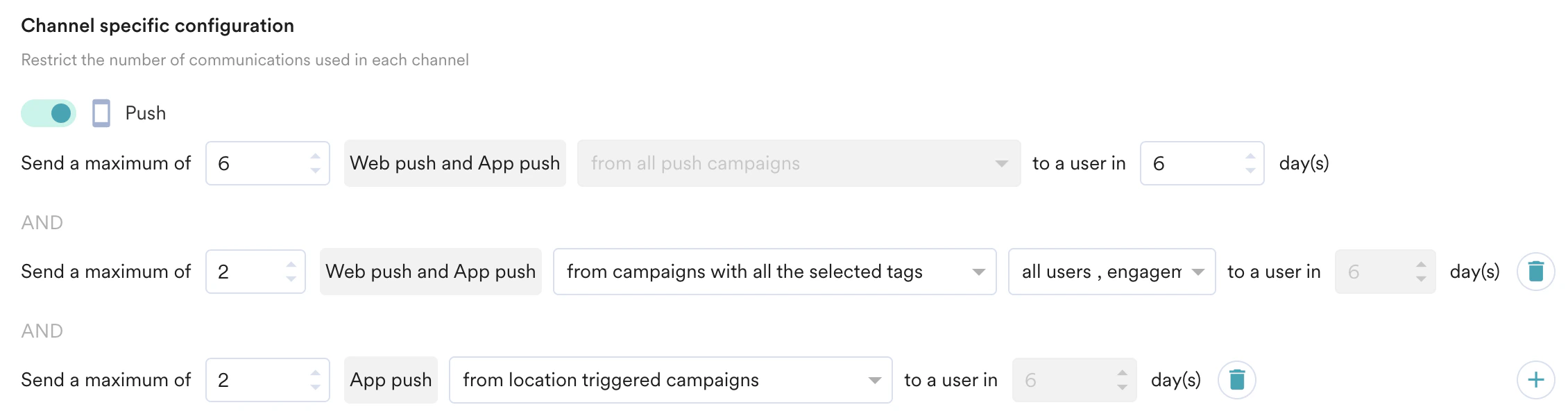
- Send a maximum of 6 Web and App push from all push campaigns to a user in 6 days.
- Send a maximum of 2 Web and App push from all campaigns with all the selected tags (Tags: all users, engagement, promotion) to a user in 6 days.
- Send a maximum of 2 Web and App pushes from location-triggered campaigns to a user in 6 days.
Working of FC in Push
Frequency capping limits the number of push notifications a user receives within a specified timeframe, based on the platform they are using. This capping operates at the user and platform level, not at the individual device level.For example, consider a frequency cap set at two notifications over two days, the configuration will be:- Android: 2 notifications
- iOS: 2 notifications
- Web: 2 notifications
- If a campaign targets Android, iOS, and Web, a user receives 1 notification per platform on Day 1. The frequency cap for each platform then reduces to 1.
- If a subsequent campaign targets only Android and iOS on Day 2, users receive 1 notification per platform, assuming the two-day cap hasn’t been reached for those platforms from other campaigns.
- If a campaign later targets Android and Web, only Web users receive a notification if the Android frequency cap for that user was already met by previous campaigns within the two-day window.
If a user has multiple devices on the same platform (e.g., three Android devices) and the frequency cap is one per day, each of their Android devices may still receive one notification.



Configure FC in Inbound Channels
Frequency capping for inbound channels (In-App and On-Site Messaging) helps you control how often users see messages in your app or on your website. You must configure the rules for each channel, based on trigger types and tags.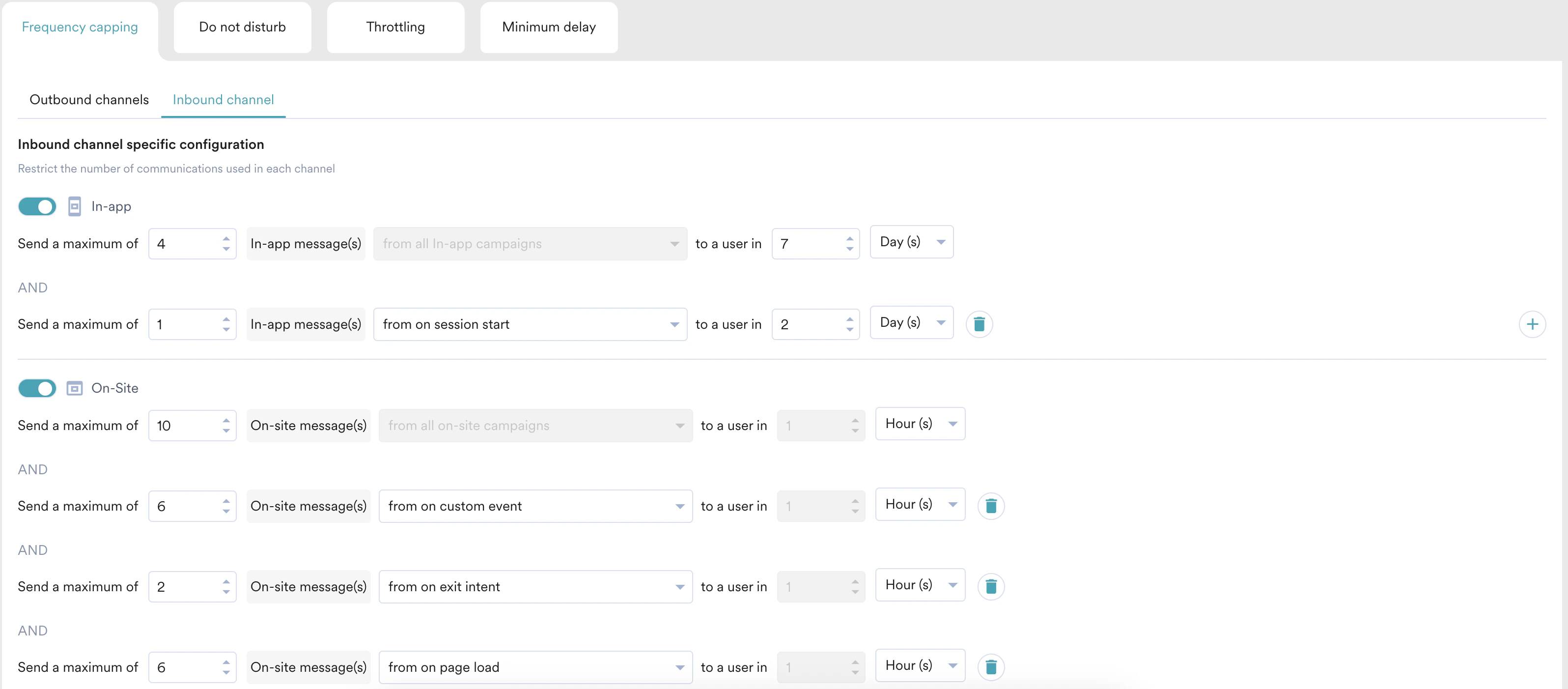
- In-App
- On-Site Messaging
To configure Frequency Capping for In-App messages:
- In the Inbound Channels section, turn on the In-App toggle.
- A default rule is present to cap messages from all In-App campaigns. You can set the maximum number of messages a user receives in a given session, hour(s), or day(s). The duration uses a rolling window (for example, “in the last 7 days”).
- You can add multiple rules, which are combined using an AND condition. A workspace can have a maximum of 10 In-App frequency-capping rules in total, including up to 3 tag-based rules. Click the plus sign (+) to add a new rule.
- You can create rules based on:
- Trigger Type: Limit messages for specific triggers like On Session start, On Screen load, or On Custom Event. You can only use each trigger type once in your set of rules.
- Tags: Limit messages from campaigns that have any or all of the selected tags.
- Set the default rule to: Send a maximum of 5 In-App messages from all In-App campaigns to a user in 3 Days.
- Add a new rule: Send a maximum of 1 In-App message from On Screen load campaigns to a user in 1 Session.
Applying FC in Different Scenarios
| Scenario | Configuration |
|---|---|
| Scenario 1: Outbound, based on campaign delivery type Let’s assume you want to send a maximum of six communications from Push for an upcoming week. Not more than three communications from one time/periodic campaigns and not more than three communications from event triggered campaigns via Push. | The configuration for scenario 1 is as follows:
 |
| Scenario 2: Outbound, based on tags Let’s assume you want to send a maximum of 10 communications for an upcoming week. Not more than four communications from One time/periodic campaigns and not more than two communications from campaigns with all the selected tags (Tags: engagement, promotion) via Email notification. | The configuration for scenario 2 is as follows:
 |
| Scenario 3: Outbound, FC for cross channel configuration Let’s assume you want to configure a frequency cap limited to 10 communications across all channels in 7 days. Not more than four communications should be sent from campaigns with all the selected tags (promotion, engagement). | The configuration for scenario 3 is as follows:
 |
| Scenario 4: Inbound, based on trigger type Let’s assume you want to limit In-App messages to a maximum of 6 per week to avoid overwhelming users. However, messages triggered by loading a specific screen are very common, so you want to limit those to only 2 per day. | The configuration for scenario 4 is as follows:
|
Editing FC Rules
If you try to edit the tags in your frequency cap setting once it is saved, it resets the existing FC configuration, and the new FC setting is applied to the communication. For example, You have configured a frequency cap with a limit of four SMS & RCS communications and not more than two SMS & RCS from campaigns with any of the selected tags(Tags: activation and promotion) in the upcoming week. On the third day, If you try to add or remove any tags from the configuration, It resets the communication setting to zero, and the campaigns with any of the selected tags(Tags: activation and promotion) are eligible to receive more than two SMS & RCS communications.Refresh setting
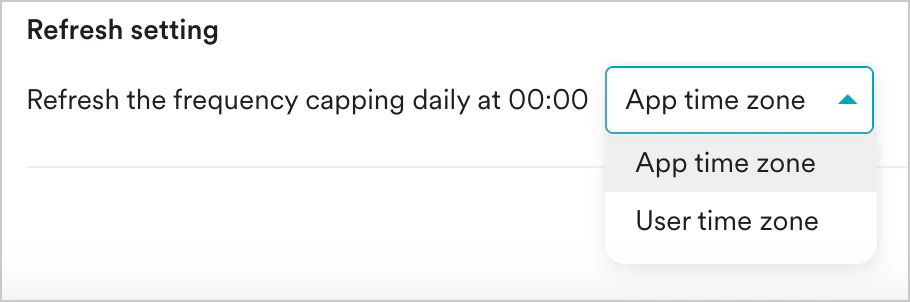
Refresh setting helps you reset the frequency cap daily based on a defined timezone.- You can reset the Frequency Cap daily at 00:00 based on your app’s or user’s timezone for all supported channels. By default, it refreshes at 12 AM in the app’s timezone for every user. This is especially useful if you are capping messages on a daily basis.
- Click Save
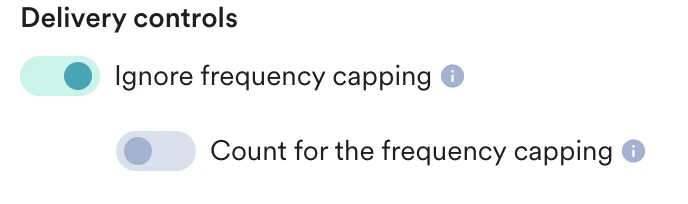
Delivery Controls
In Step 3 (Schedule and Goals) of campaign creation for any channel (including In-App and On-Site Messaging), you can configure the delivery controls for your frequency capping.