MoEngage auto-saves your campaign drafts every 30 seconds and when you navigate away, preventing lost work during the campaign creation process.
A campaign draft is a saved version of the campaign you created. MoEngage facilitates saving campaign drafts automatically and manually, as described in the following sections. This feature reduces the risk of losing work due to accidental navigation or browser crashes, ensuring your campaign creation process is seamless.
This feature helps you save campaign drafts automatically without having to click Save Draft during campaign creation. Your progress will be saved automatically every 30 seconds, and also when you navigate away from the campaign editor, provided there are changes compared to the last saved version.
If you are working on a draft and another user updates the same draft, you will see a message on top indicating that a newer version of the draft is available. The message will also prompt you to reload the page to get the updated changes.
Autosave will work only when the tab is active. While drafts are automatically saved, we recommend manual saves for critical changes or when experiencing unstable network connections.
The Autosave feature is not supported for campaigns with the Source as Imported.
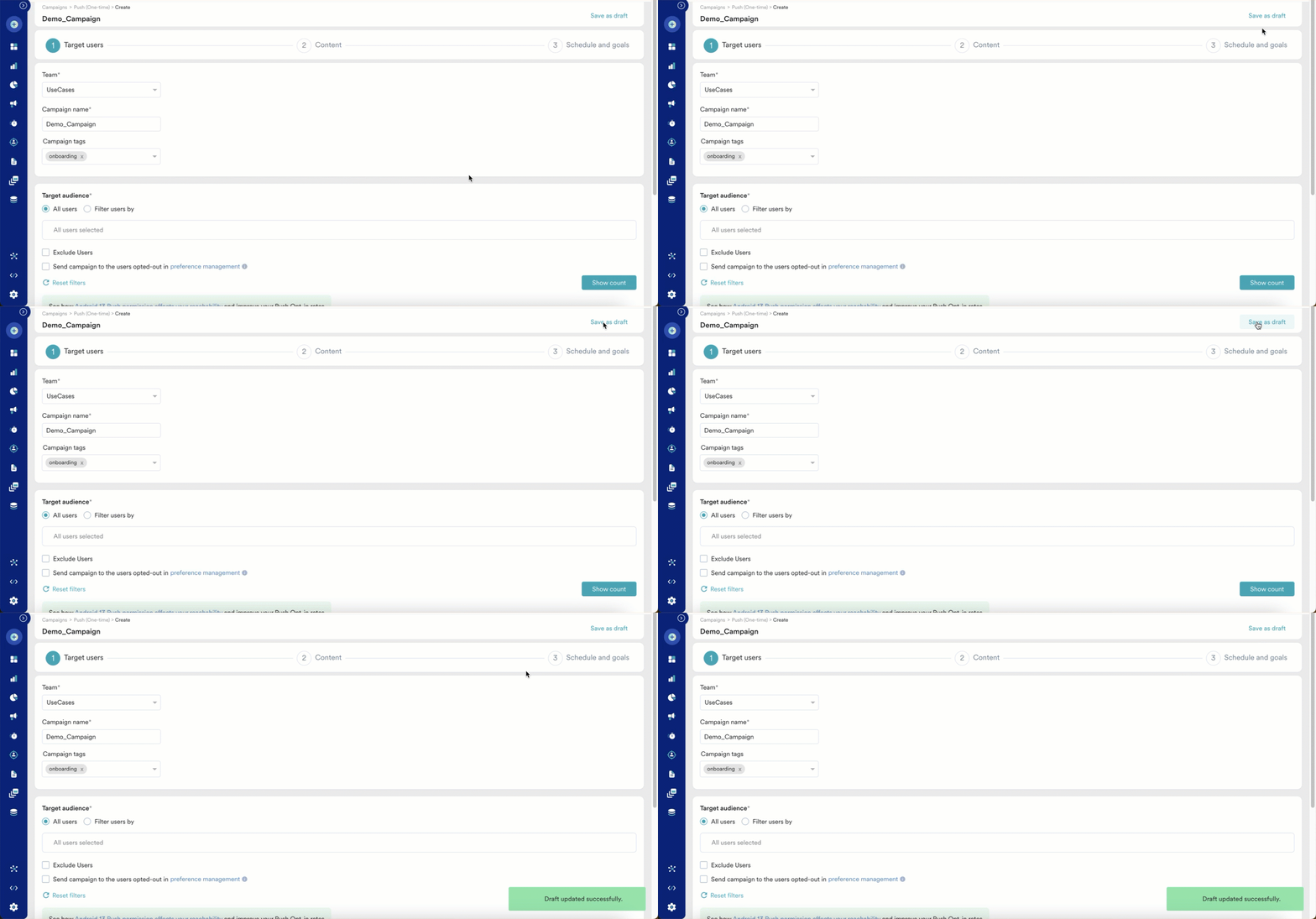
You can manually save a campaign draft by clicking Save Draft in the upper-right corner of your campaign creation screen, as seen in the following image:
Campaign drafts are available on the All campaigns page in the Drafts section. To see your drafts, perform the following steps:
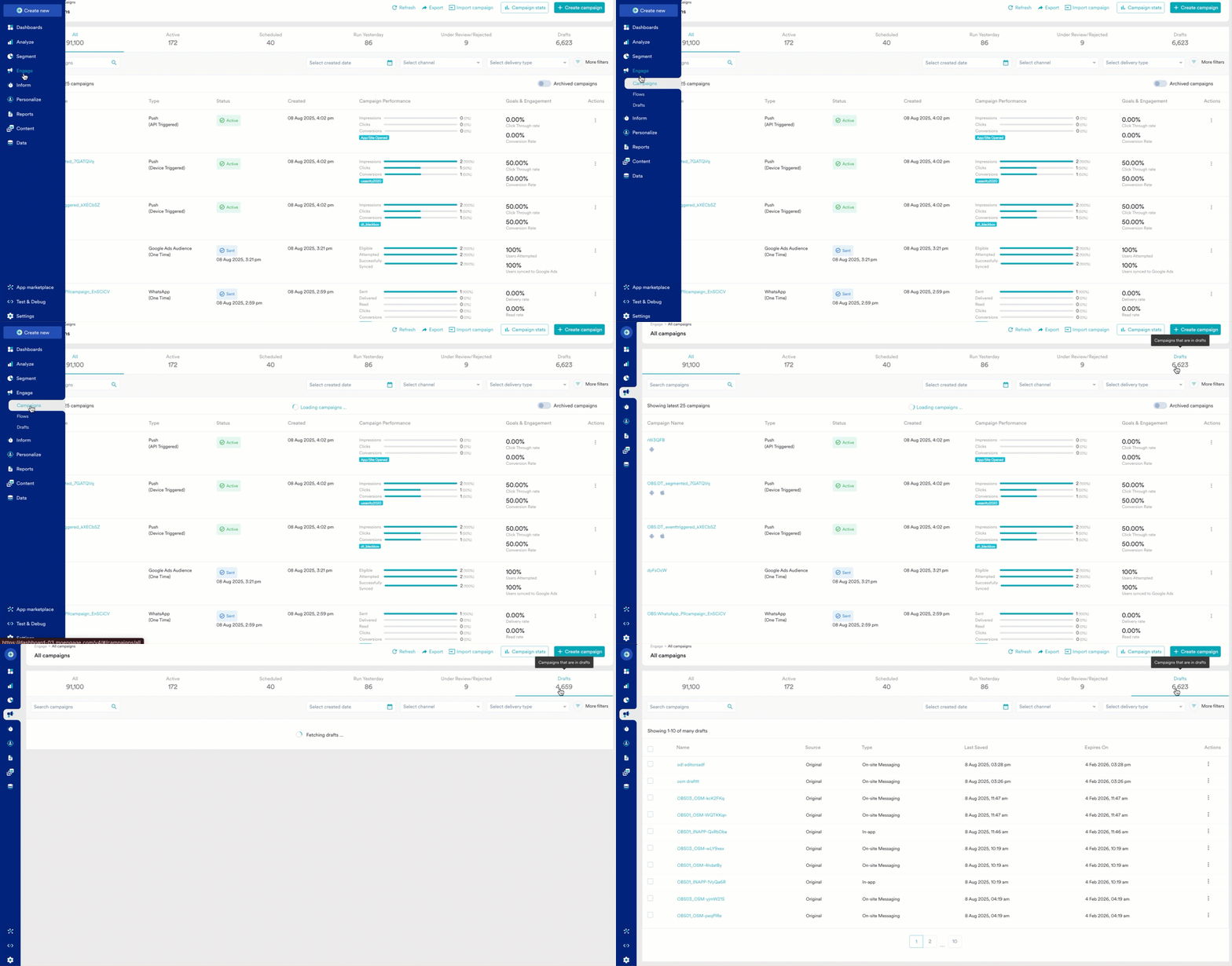
On the left navigation menu in the MoEngage dashboard, click Engage, and then click Campaigns.
On the All Campaigns page, click the DRAFTS tab.
Alternatively, you can view drafts by clicking Engage > Drafts from the left navigation menu.
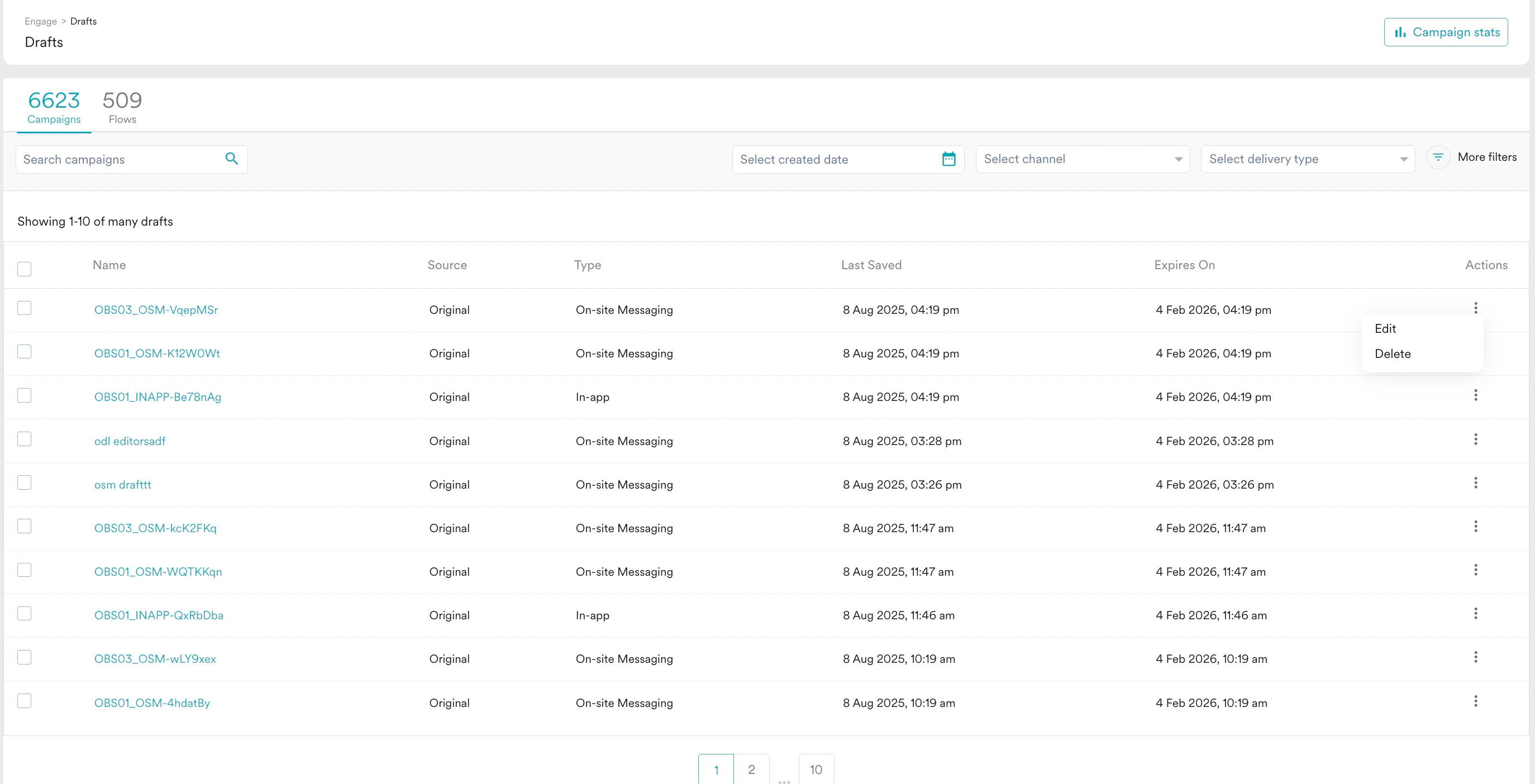
The draft list contains rows of draft campaigns. You can see the following details on the Drafts page:
Name: Specifies the campaign name.
Source: Specifies if the draft was created in the current workspace or imported from another workspace. For more information on how to import campaigns, see campaign migration.
Type: Specifies the campaign type, for example, whether it is a Push, Flow, or OSM.
Last Saved On: Specifies the date and time the draft was last modified.
Expires on: specifies the date the draft is scheduled to expire. This is set to 180 days after the last saved date and updates automatically each time the draft is modified. This applies to all campaign types, including Outbound, Flows, and Inbound (In-App, Cards).
Once a draft’s expiry date passes, MoEngage permanently deletes it — this action cannot be undone, and expired drafts cannot be recovered. This applies to Outbound and Flows campaign drafts. Publish or duplicate any draft you want to keep before it expires.
Actions: Clicking the ellipsis icon allows you to get the option to either edit or delete the specific draft campaign.