

Availability of this feature depends on your MoEngage plan and may require a paid add-on. To check what’s available for your plan, refer to Plans and Pricing. To get this feature, contact your MoEngage Customer Success Manager (CSM) or the Support team.
Overview
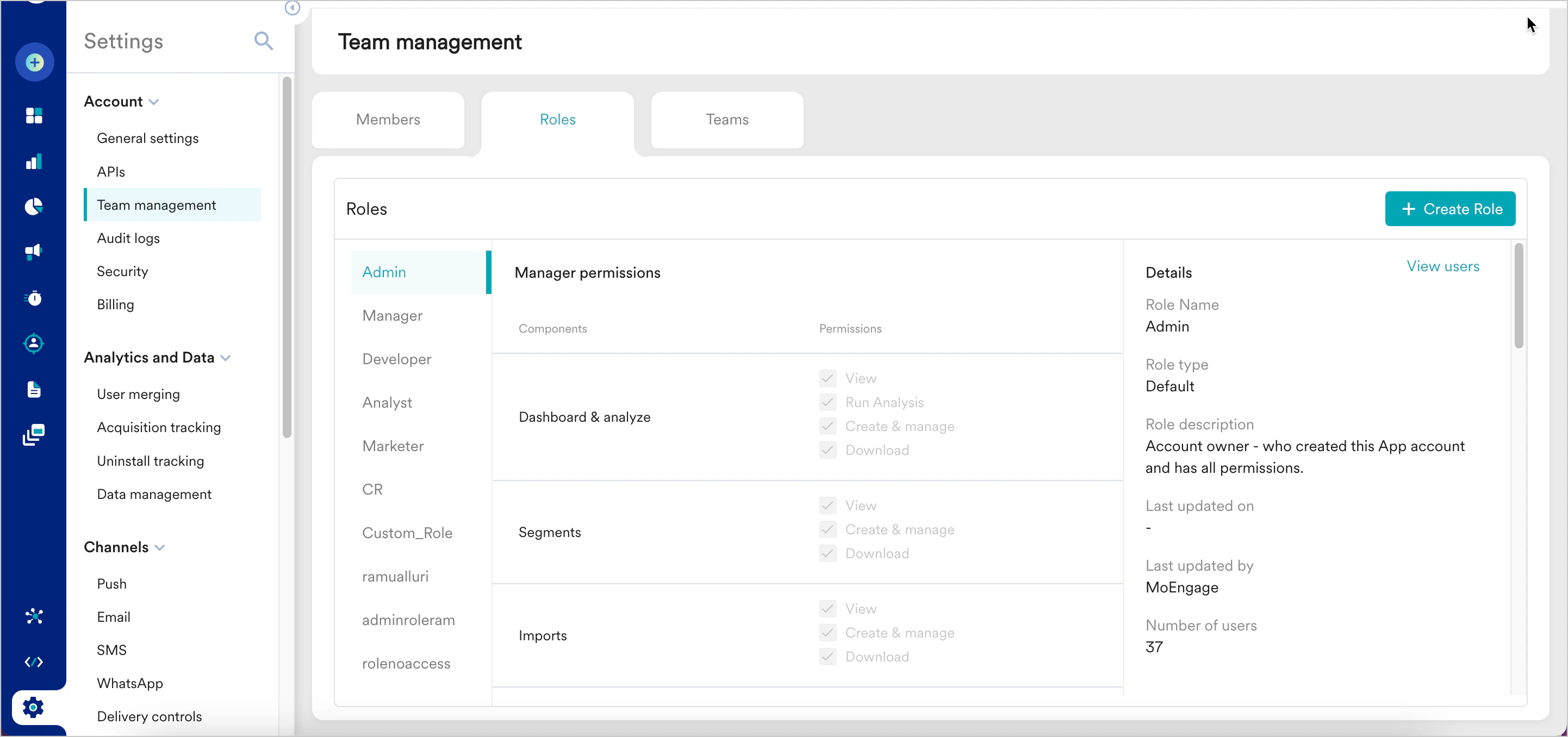
MoEngage offers role-based access control for account admins to enable different levels of access permissions (to dashboard components) for your team members. You can view the access roles by navigating to Settings > Account > Team management > Roles.Types of Access Roles
MoEngage provides two types of access roles to manage MoEngage UI permissions:- Default roles: Predefined roles with fixed permission sets that are available for every account. These roles cannot be modified.
- Custom roles: User-defined roles that you can configure with specific permission sets based on your organization’s requirements.
Default Roles
These are the default roles with fixed permissions and are available for every account. These roles cannot be edited. MoEngage provides the following default roles:Admin
The person who creates the workspace is assigned the Admin role by default. The role has all permissions for the account- Creating campaigns
- Changing account settings
- Inviting team members
Manager
The person who will run marketing campaigns for live users, and manage the account and all settings. This member has all permissions on the dashboard similar to Admin, barring the permission to Create/Edit/Delete Teams. There can be multiple managers in one account. Managers can invite team members to roles of Manager and below.Marketer
The person who will create the campaigns for live users has access to segmentation but cannot access billing info. With Campaign approval flow, a marketer’s campaigns will go live ONLY upon approval from the Manage or Admin. For more information, refer to Campaign Approval Flow.Developer
The person who will integrate your app/web with MoEngage. This member can access/test all features in the TEST environment but has restricted access in the LIVE environment. The access details are as follows:- Can not view Billing details and can only add Developers to the account
- Can not view campaigns created by Admin/Manager team members
- Can not change Push FC and DND settings
- Ask a user with a role that publishes to live users — Admin, Manager, or Marketer — to create the campaign, or to duplicate the existing campaign and send it.
- Mark the users you want to reach as test users before you send the campaign from a Developer account.
- Send the campaign from a test app when the intent is Developer testing.
Analyst
The person who has access to view/export campaign data, user segmentation data, and set up daily reports. This member can not create any campaigns or change any settings (except for setting up Reports). To summarise, the following are the default roles and their access permissions.Custom roles
These allow you to create new roles with your desired permission sets. You can also clone existing roles and assign permission sets as desired. Only admins have access to create/update roles.
Steps to create a new role
- Navigate to Settings > Account > Team management > Roles.
- Click Create role on the top right of the header.
- Provide a role name and description. You can choose to copy permission sets from an existing role or create one from scratch.
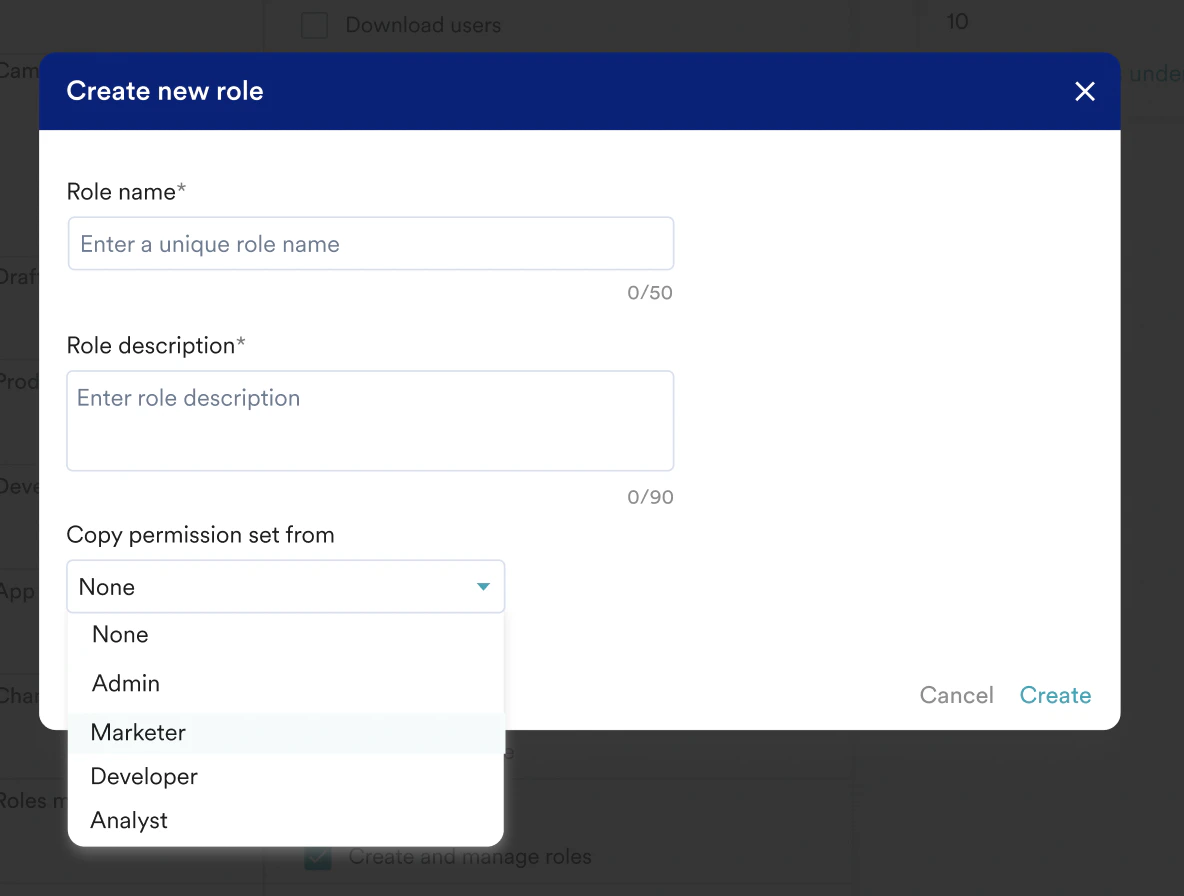
- Click Create.
- You can now check/uncheck permissions as per your requirement. The changes will be autosaved.