

Guide Users with In-App Message Navigation Actions
In-App messages are a powerful tool to engage your users and guide them through your app. MoEngage offers three distinct navigation actions that you can add to your in-app message widgets: Navigate to Screen, DeepLink, and Rich Landing. These actions direct users to specific locations within your app or to external content, enhancing their journey and improving feature adoption. This article explains how to configure these navigation actions within your in-app messages and outlines the purpose of each method.Configure In-App Navigation Actions
Follow these steps to configure navigation actions in your In-App campaign:- After you select a template in the Content section, select a widget to add a navigation action.
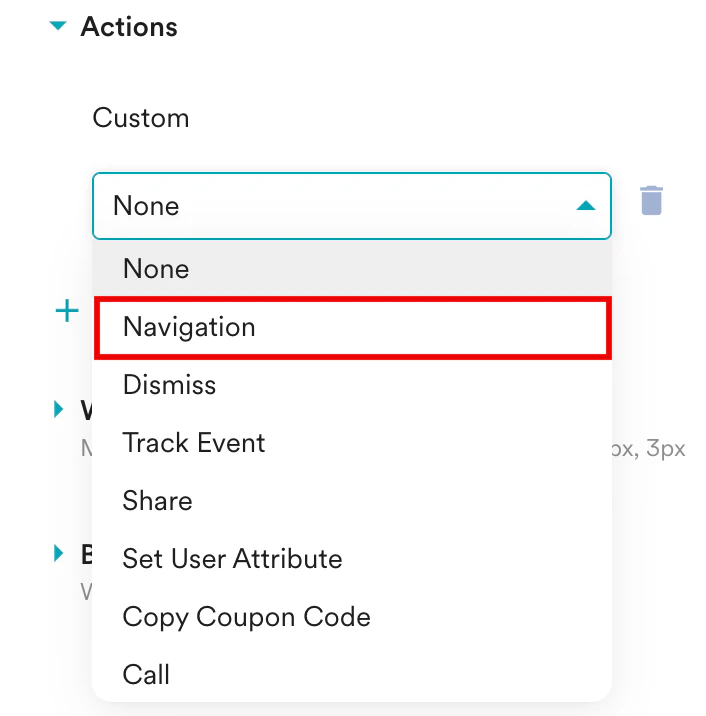
- Scroll down to the Actions section, and then click + Actions.

- From the dropdown list, select Navigation.
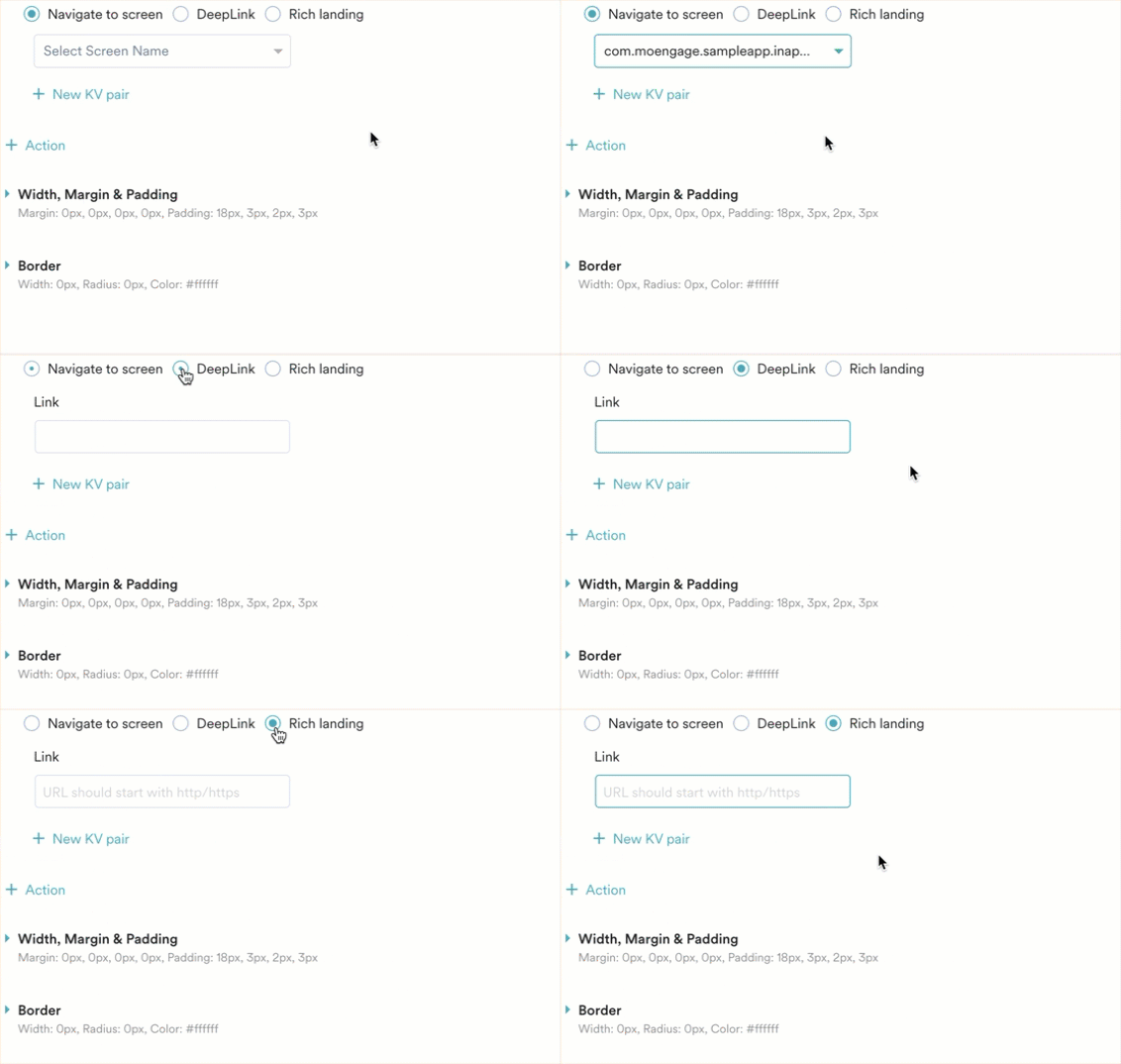
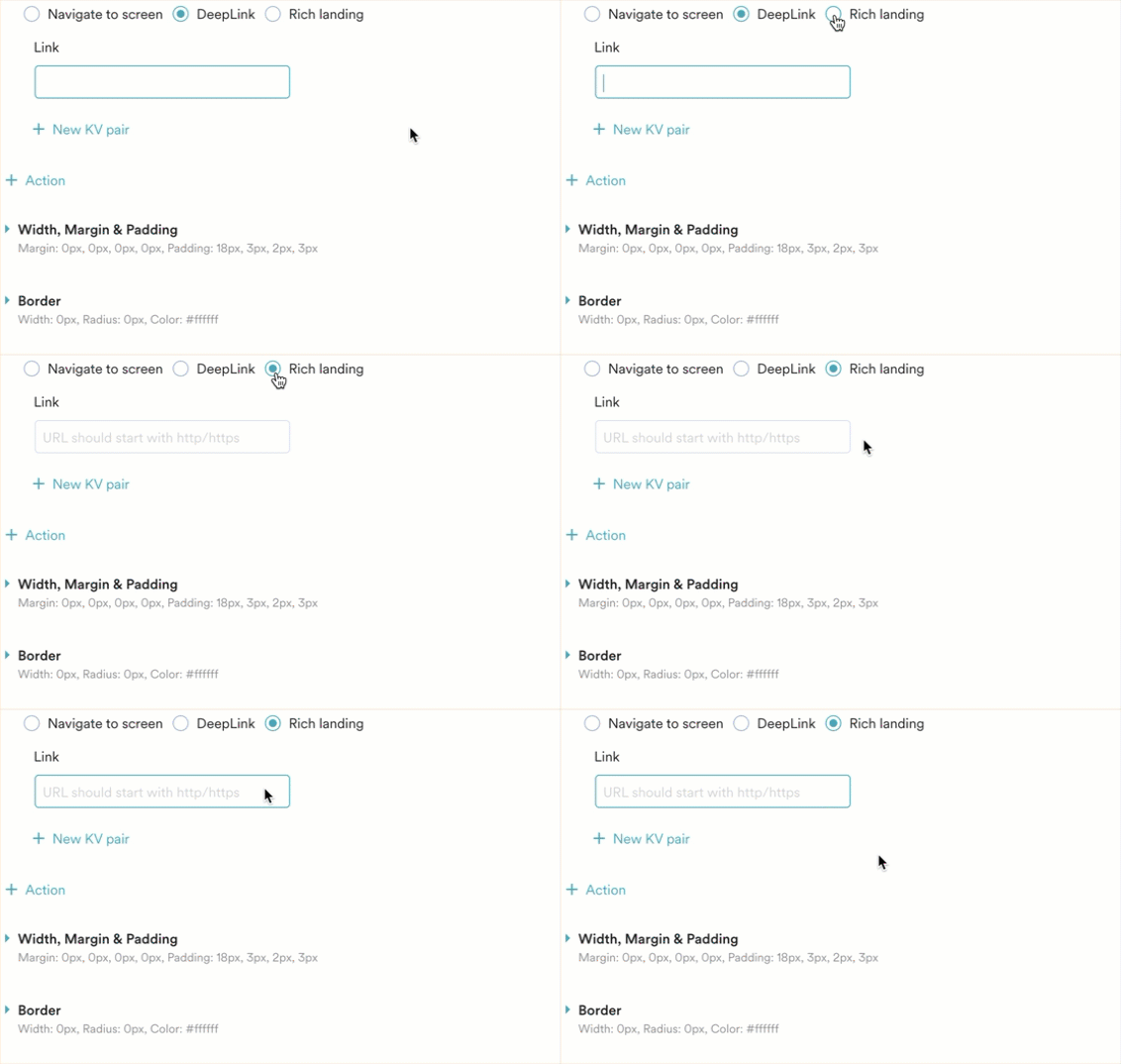
- Select one of the three available radio buttons for your navigation action:
- Navigate to screen
- DeepLink
- Rich Landing
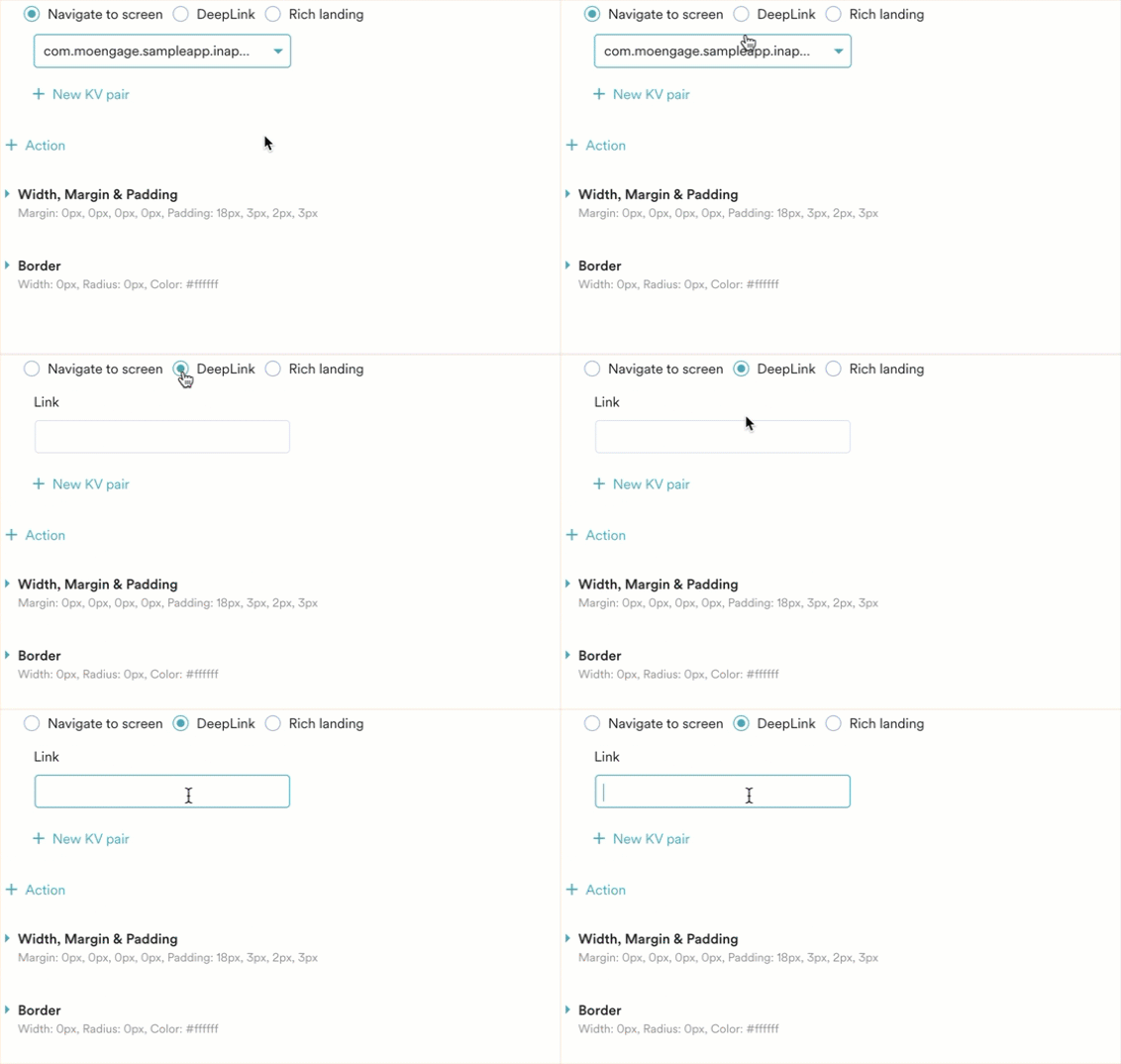
- Select the target screen or enter the target URL.
- Click Next.
Understand Navigation Options
- Deep Link
- Rich Landing
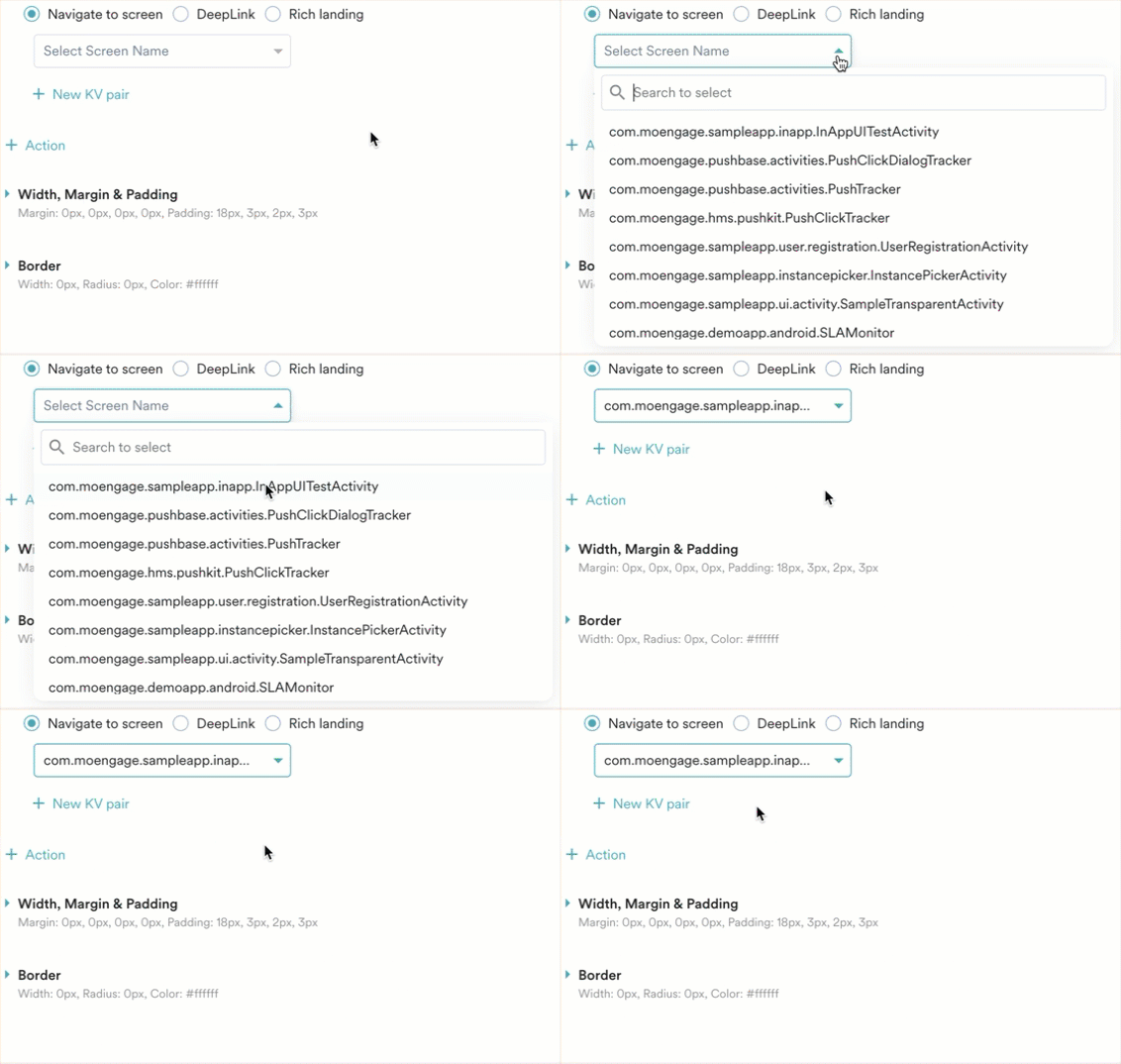
This action sends users to a specific screen within your app when they tap the configured widget. It is designed to keep users within your app, guiding them seamlessly between different sections or features.
- What it does: Opens a specified screen within the current app.
- When to use it: Guide users through onboarding flows, direct them to new features, promote specific product categories, or encourage content consumption without leaving your app.
-
How to configure: Select the target screen from the dropdown list in the MoEngage platform. Your app’s screens must be defined in MoEngage for this option to work.
Compare Rich Landing and Deep Link
The table below highlights the key differences between rich landing pages and deep links:
By using these navigation actions effectively, you can configure and manage diverse user experiences within the MoEngage dashboard, ensuring smooth and engaging user journeys.