

Overview
MoEngage In-App campaigns provide pre-designed templates with built-in guidance for effective use cases. These templates help you create campaigns quickly and efficiently, offering the following benefits:- Support popular and effective use cases.
- Include built-in help guides.
- Are easy to use.
- Support quick campaign creation.
Template Types
Use different types of templates based on your campaign requirements:| Template Type | Description |
|---|---|
| Popup | A Popup template appears in the center of the screen over a transparent overlay. Use this template to focus user attention on promotions or important announcements. |
| Full Screen | A Full Screen template occupies the entire screen, blocking the app. Use this template for critical information, such as mandatory app updates. |
| Rating | The Rating template is a special pop-up template that allows users to provide a 5-star rating within the app. Use this template to collect user feedback for retargeting purposes. |
| Nudges | A Nudge template is a non-intrusive message that lets users continue interacting with your app. Nudges can appear embedded in the app or at the top or bottom of the screen. Use these templates to deliver new information or promotional alerts. Prerequisites: Nudges require additional SDK integration. For more information, refer here. Important: Do not select the On custom event trigger criteria when creating nudges, as nudges do not work with event triggers. To ensure in-app nudges are visible within the iOS app interface, turn on the iOS Safe Area toggle in the Template Settings section during content creation for the iOS platform, as shown in the following image: 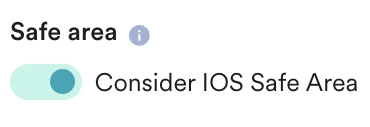 |
| Self Handled | A Self-Handled template allows you to use MoEngage’s In-App campaign delivery, segmentation, and personalization features while rendering the message content yourself. This option is useful for creating complex, custom message visuals. |
Customize Native In-App Templates
Follow these guidelines to ensure your In-App templates display optimally across all devices.Customize Images
Upload high-definition images for your In-App campaigns, but keep the file size under 2 MB. Before an In-App message is shown on the device, the image within the message is downloaded from a CDN before being shown to the user. Larger images can cause delays in displaying the message, especially for users with slower internet connections.Image Aspect Ratios
MoEngage recommends the following image aspect ratios for each template type:Accepted Image Types
You can upload .png, .jpeg, and .gif images for any In-App native template. To use GIFs in Android In-App native templates, ensure you complete the required integration steps outlined in the Android In-App NATIV SDK documentation. The iOS platform supports GIFs by default.Image Quality and Size
Use high-resolution images for In-App native templates to prevent distortion on large screens. Large image files may fail to download on devices with unreliable internet connections. Keep images under 2MB to balance image quality and download time.Image Scaling for Devices
In-app messages display on devices with various screen sizes and DPIs. This means that images you upload are scaled up or down to fit different device dimensions. For example, if you upload a 600 x 1000 pixel image for a Popup - Image template, and it displays on a device with a 320-pixel width where the message occupies 400 pixels, the image’s width will be scaled down to 300 pixels. Its height is then calculated based on the original aspect ratio (3:5), resulting in a 300 x 500 pixel image. This process ensures the image remains proportional and does not distort.Background Images
To configure background images for your in-app messages:- In Step 2 of campaign creation (Content), click Template Settings.
- Under Template background image, select one of the following options:
- Click Image URL, and then type or paste the image URL.
- Click Upload Image, and then drag and drop the image, or click Upload from Computer to select the image.
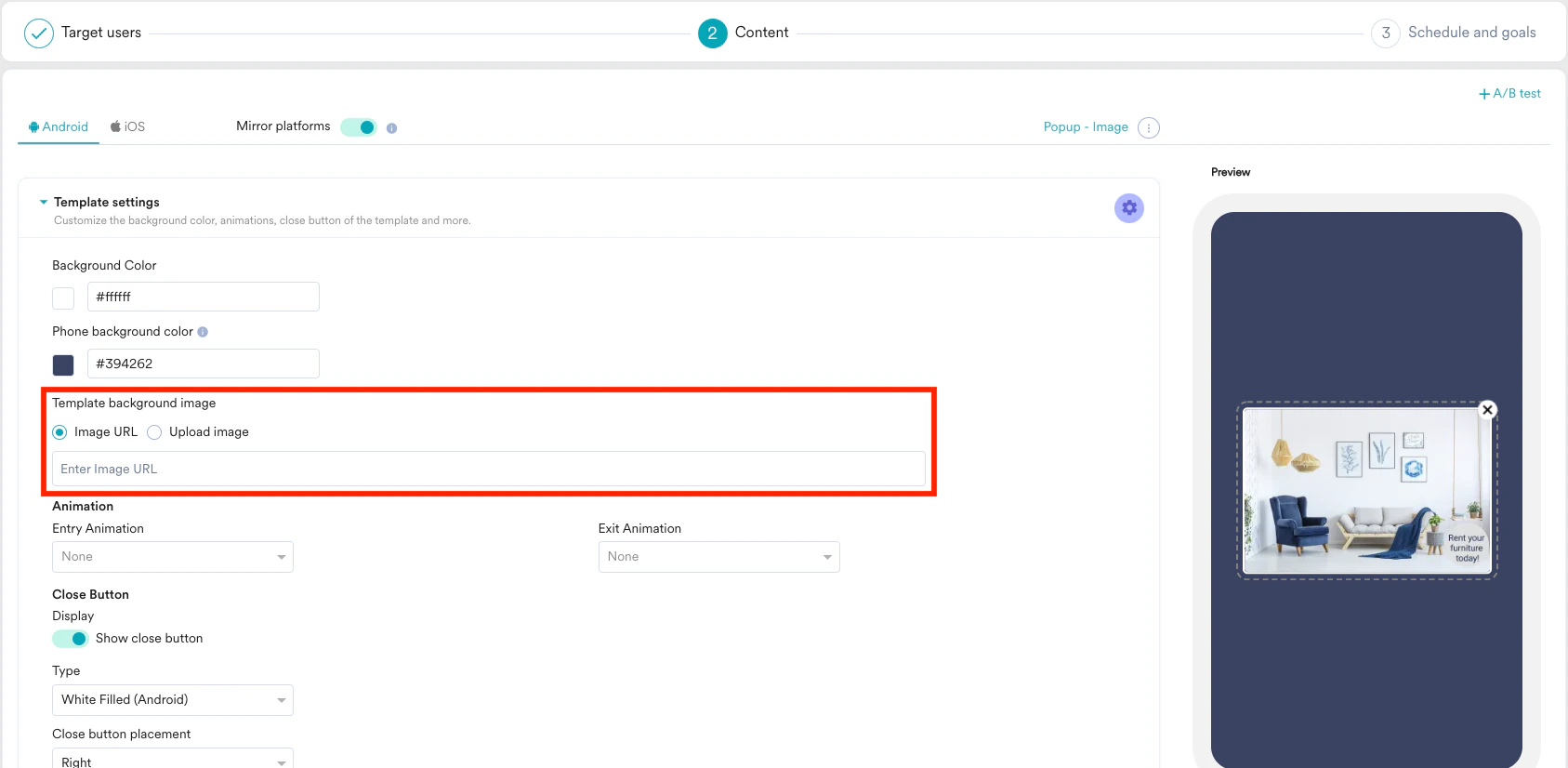
Background Color
You can set a background color for your in-app messages, or remove it to make your messages transparent.- In Step 2 of campaign creation (Content), click Template Settings.
- Under Background color, select a color.
- Under Phone background color, select a color.
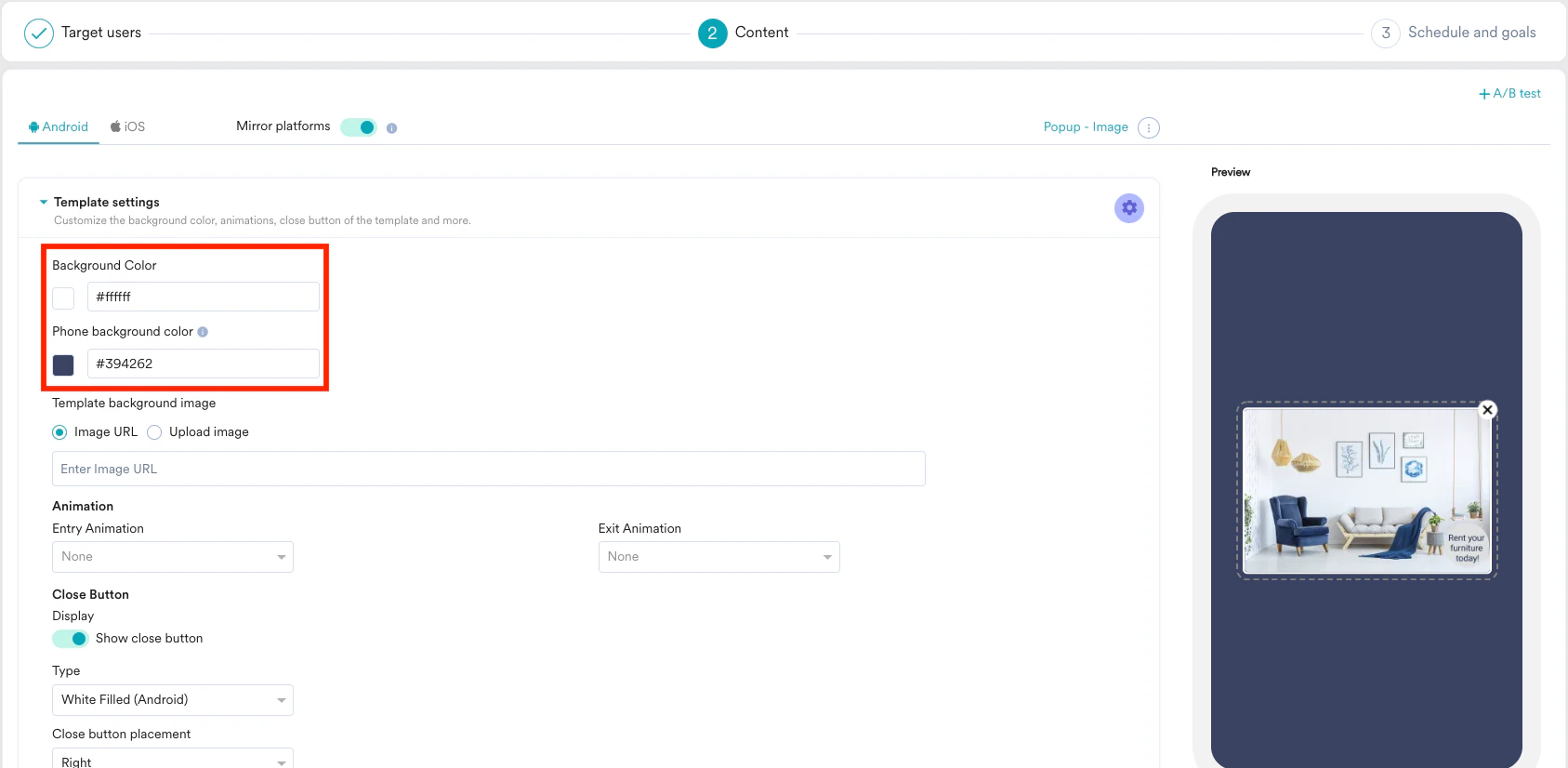
Create In-App Campaigns Using Nudge Templates
Nudge templates allow you to create non-intrusive in-app messages that enhance user experience and improve your return on investment (ROI) through impactful personalization. MoEngage offers the following Nudge templates:Nudges are supported from InApp iOS SDK version 4.15.00 and InApp Android SDK version 7.0.0. For more information, refer to In-App Nativ Nudges.
- In Step 2 of In-App campaign creation, type “Nudges” in the Search templates box or select Nudges from the Filter By Type menu on the left. The template selector displays all Nudge templates.
- Hover over the desired Nudge template, and then click Select. A preview of the template appears on hover. After you select a template, the template editor displays.
- Fill in the following fields in the template editor to create your Nudge. As you make changes, a preview of the template displays.
-
Template Settings
The Floating placement (Movable Nudges) is available from In-App Android SDK version 11.0.0 and In-App iOS SDK version 10.14.0.
-
GIF
-
Buttons
Section Field Description Button Appearance Button Type Specify the button type: Filled, Outlined, or Text. Button Text Specify the text to display on the button. Font Size Specify the font size for the button text. Font Color Specify the font color for the button text. Custom Font Specify the name of the custom font (as available in your app bundle) for the button text. Button Color Specify the button color by clicking the textbox and selecting the color gradient. Focused State Font Size Specifies the text size when the user navigates to the button using a remote. Font Color Specifies the text color when the user navigates to the button using a remote. Button Color Specifies the button color when the user navigates to it using a remote. Actions Default The default action for the button is Dismiss (the nudge will close when clicked). You can remove this default action by clicking the Delete icon next to the Default dropdown. + Actions Click +Action to add a custom action. Select the action from the Custom dropdown list. The default action closes the nudge. For more information, refer to Custom Actions. Width, Margin & Padding Width Specify the width for the button. Margin Specify the margin for the button. Top, Bottom, Right, and Left Specify the top, bottom, right, and left margins for the button. Padding Specify the padding width for the button in pixels using the scale. Top, Bottom, Right, and Left Specify the top, bottom, right, and left padding for the button. Border Width Specify the border width for the button inside the nudge container in pixels using the scale. Radius Specify the border radius for the button inside the nudge container in pixels using the scale. Border Color Click the textbox to select the border color for the button inside the nudge container. You can also click the button in the preview to customize it. 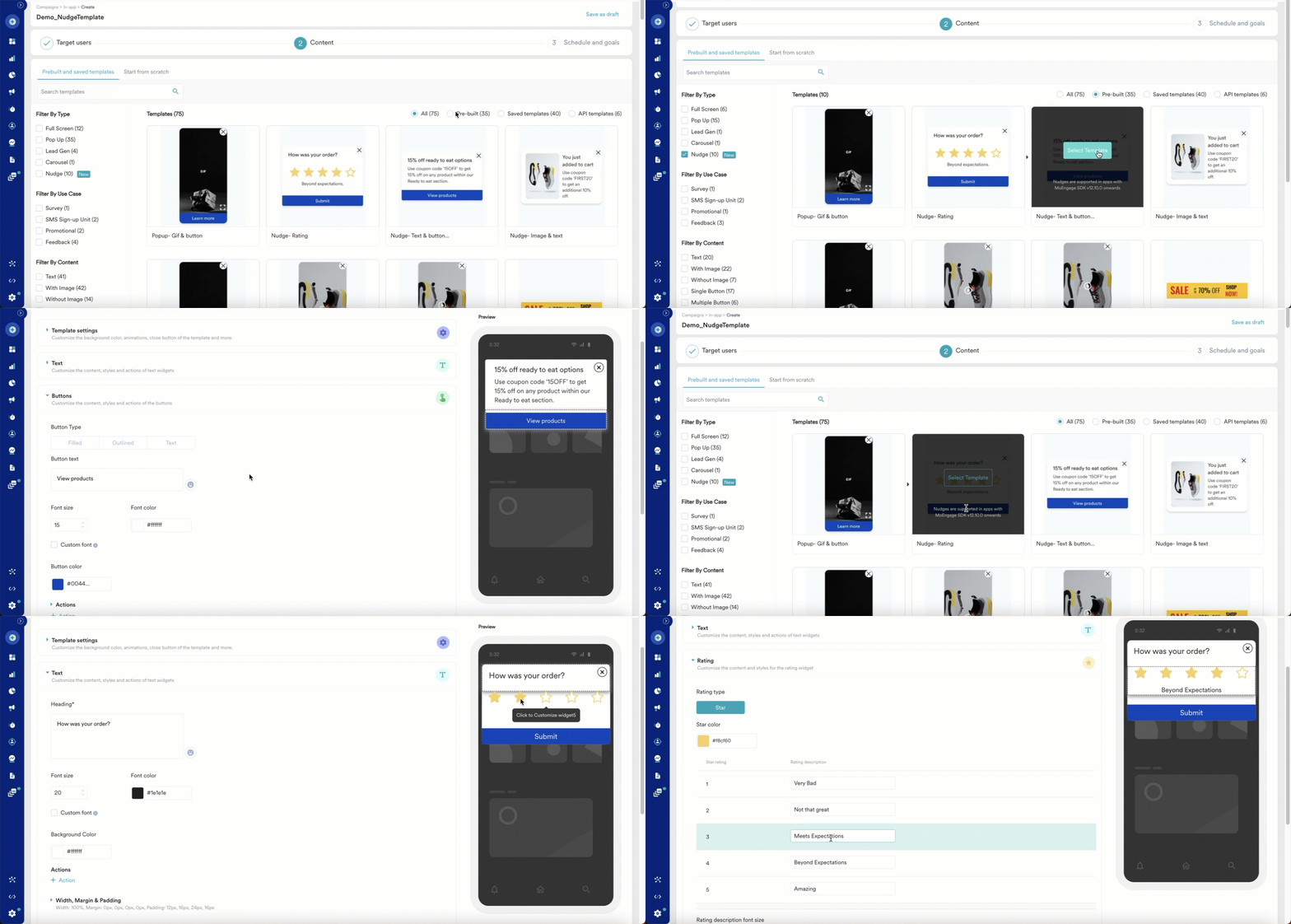
-
Template Settings
- Preview the template.
- Test your campaign. For more information, refer to Test In-App Campaigns.
- Schedule your campaign in Step 3, and then publish it.
TV Templates
TV templates allow you to deliver engaging and personalized in-app experiences on TV platforms. These templates enhance user interactions and improve your return on investment (ROI). MoEngage provides a variety of TV templates to suit your needs:
To create an In-App campaign with a TV template, follow these steps:
- In Step 1 of In-App campaign creation, in the Target Platforms section, select TV. The template selector displays all TV templates in the next step of campaign creation.
- Hover over the desired TV template, and then click Select Template. A preview of the template appears on hover. After you select the template, the template editor displays.
- Fill in the following fields in the template editor to create your campaign. As you make changes, a preview of the template displays.
- Template Settings
- Image
- Text
- Buttons
- Template Settings
- Preview the template.
- Test your campaign. For more information, refer to Test In-App Campaigns.
- Schedule your campaign in Step 3, and then publish it.
SMS Sign-Up Templates
The SMS Sign-Up template allows you to request consent from your users to receive SMS notifications. For more information on compliance for the North America region, refer to SMS for North America Region. MoEngage provides two SMS Sign-Up templates:- Fullscreen - SMS Sign-Up with Image
- Popup - SMS Sign-Up without Image
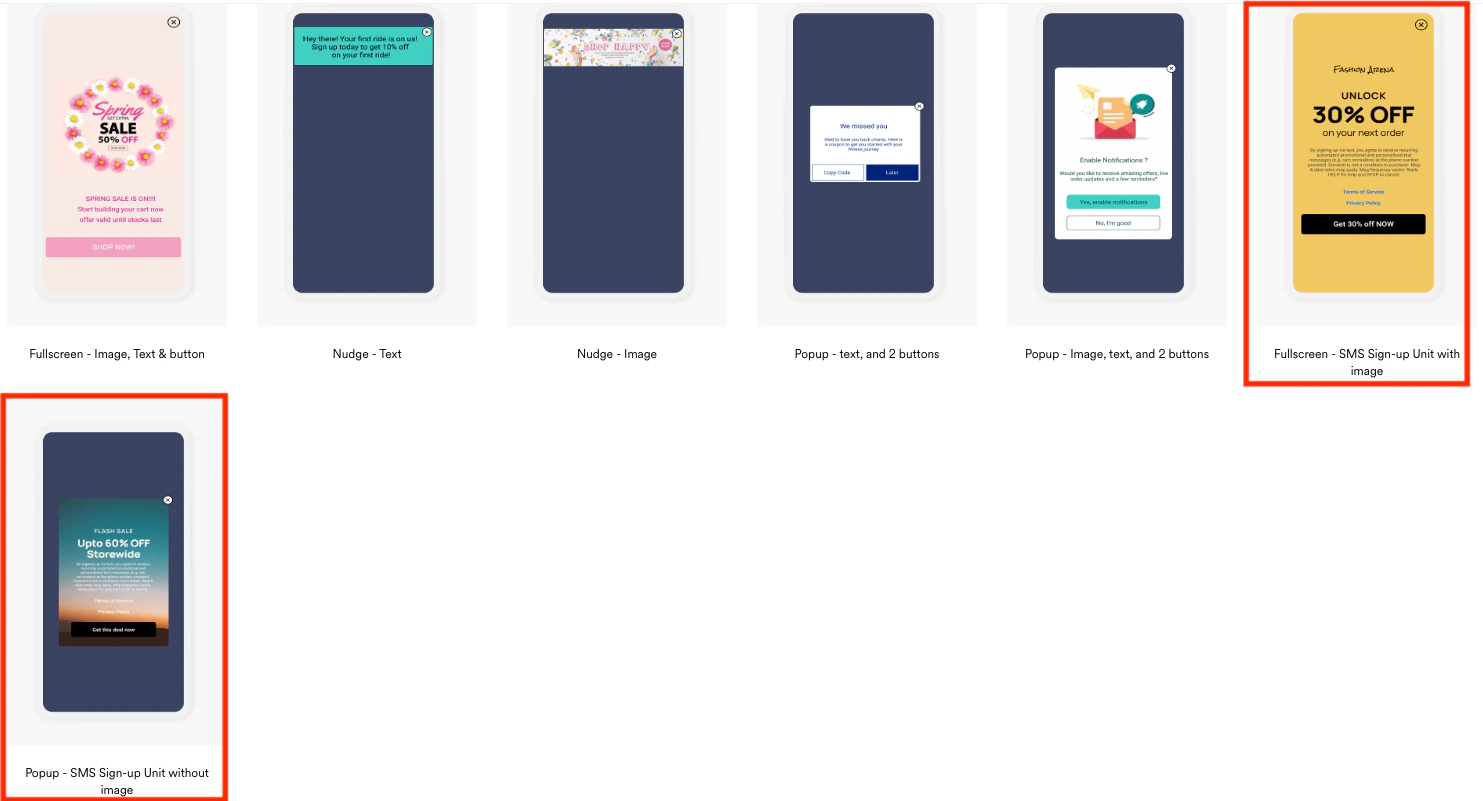
Fullscreen - SMS Sign-Up with Image
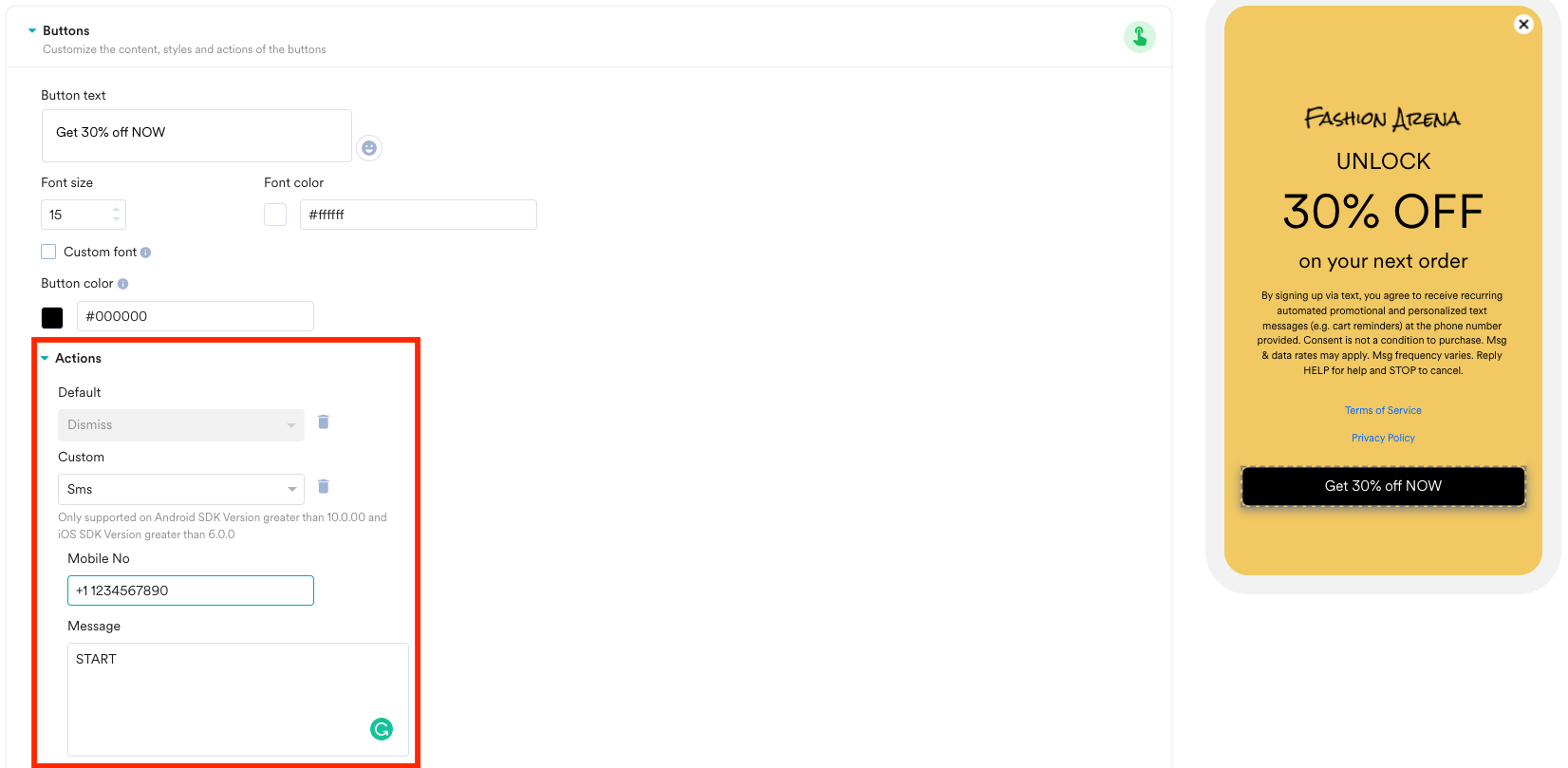
When creating an SMS sign-up template with an image, modify the image and text as needed, and then follow these steps:- Review the default legal text provided by MoEngage: “By signing up for text messages, you agree to receive recurring automated promotional and personalized text messages (cart reminders) at the phone number provided. Consent is not a condition to purchase. Msg & data rates may apply. Msg frequency varies. Reply HELP for help and STOP to cancel.”
- Configure the Terms of Service as needed.
- Configure the Privacy Policy as needed.
- Configure the button to receive consent.
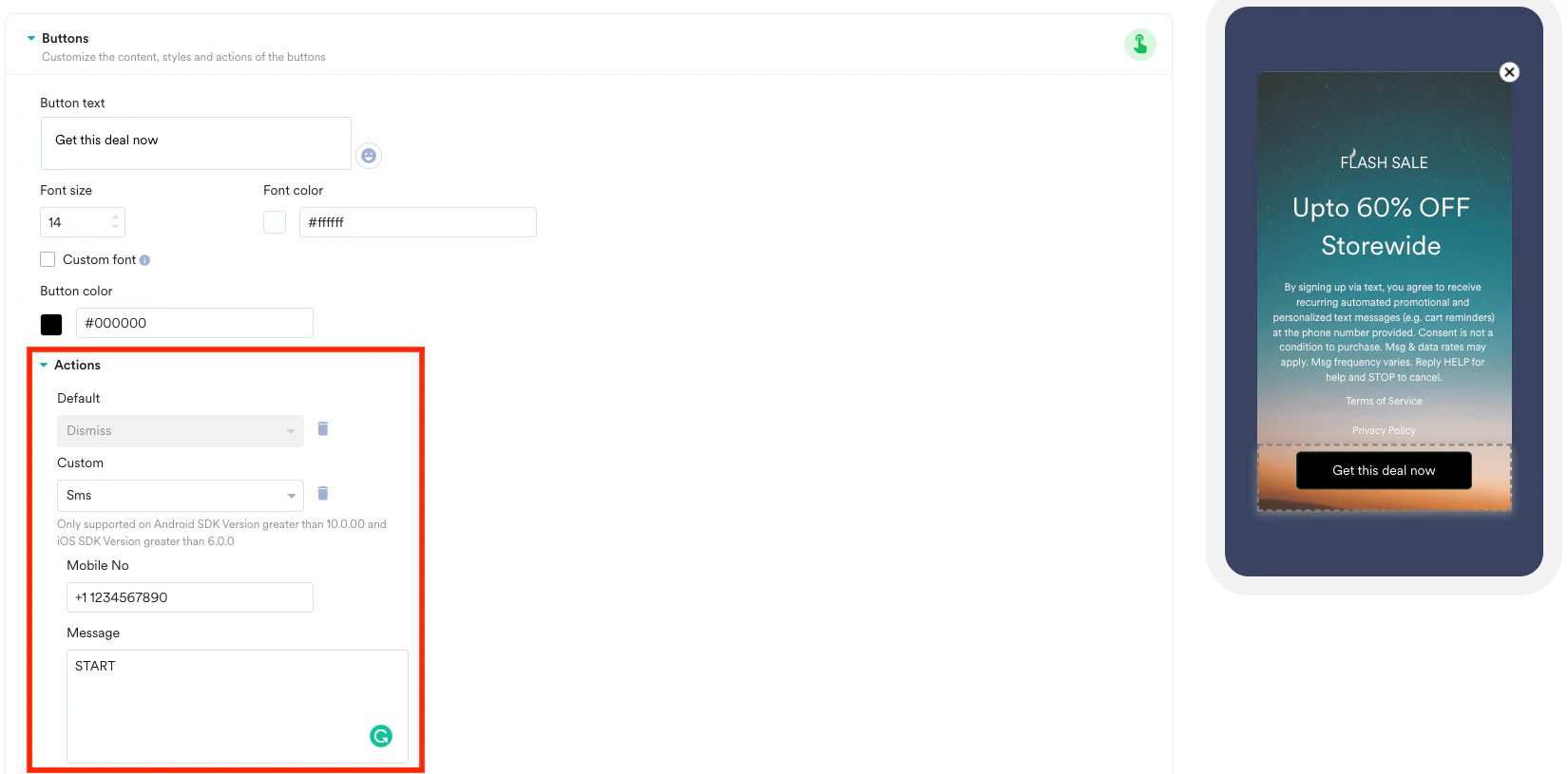
Popup - SMS Sign-Up without Image
When creating an SMS sign-up template without an image, modify the text as needed, and then follow these steps:- Review the default legal text provided by MoEngage: “By signing up for text messages, you agree to receive recurring automated promotional and personalized text messages (cart reminders) at the phone number provided. Consent is not a condition to purchase. Msg & data rates may apply. Msg frequency varies. Reply HELP for help and STOP to cancel.”
- Configure the Terms of Service as needed.
- Configure the Privacy Policy as needed.
- Configure the button to receive consent.
Personalization
You can personalize your campaign content using various data sources. For more information, refer to the following:- MoEngage Templating Language (Jinja)
- Derived Events & Attributes
- Product Sets
- Content APIs
- Content Blocks
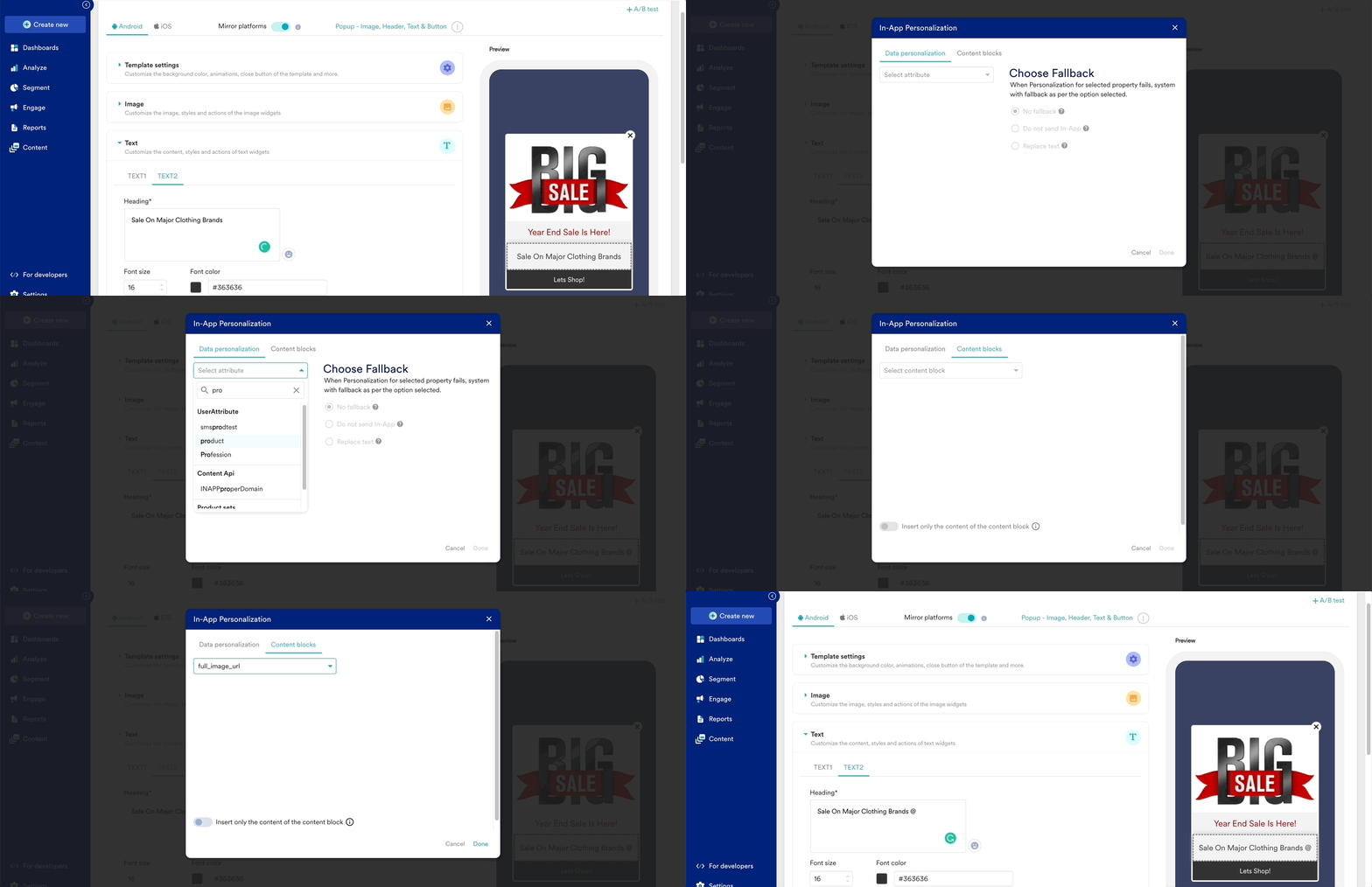
- Type @ in the content editor to open the personalization options.
- Select either Data Personalization or Content Block.
- If you select Data Personalization, choose one of the following options:
- User Attributes
- Select one of the following options as an alternative (fallback) if personalization does not work:
- No Fallback: No alternative content is displayed if personalization fails.
- Do Not Send In-App: The in-app message is not sent if personalization fails.
- Replace Text: Specify text to display if personalization fails.
- Product Sets
- Content API: Modify the values of the Content API parameters.
- If you select Content Block:
- Select the content block to insert.
- Click Insert Only the Content of the Content Block.
- Only the content from the block is inserted.
- The inserted content is disconnected from the original content block.
- Any future updates to the original content block do not reflect in the inserted content.
- Click Done.
Configure In-App Message Accessibility
Configure accessibility features for your in-app messages in MoEngage to make them accessible to all users. For a comprehensive understanding of accessibility principles, refer to Accessible Campaigns in MoEngage.Add Alternative Text (Alt Text) for Visuals
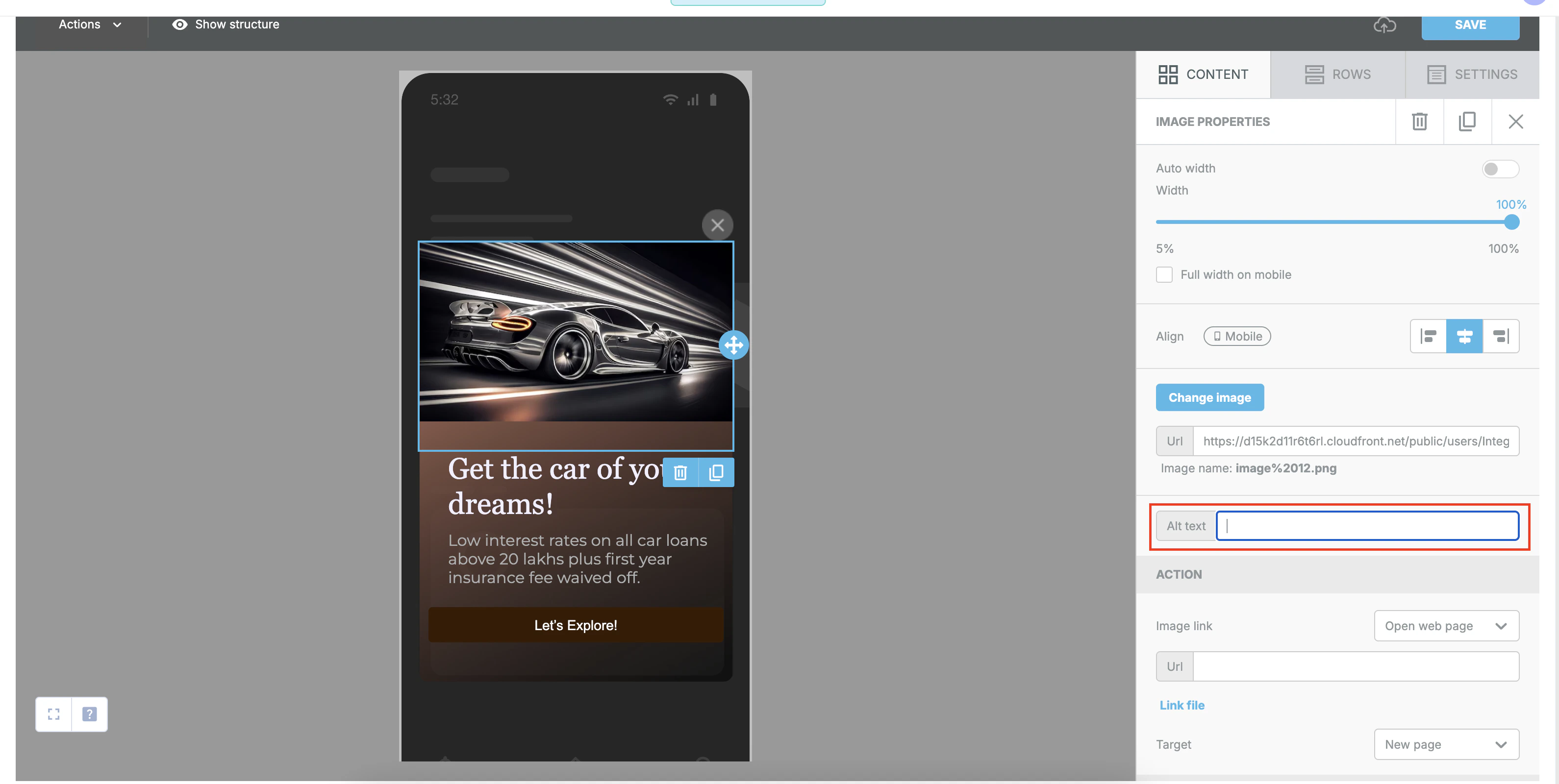
Alt text provides a textual description for images and GIFs, making them understandable to users who rely on screen readers.- Using the drag-and-drop editor: When you add an Image or GIF element to your In-App campaign, type a clear and concise description in the Alt Text box.
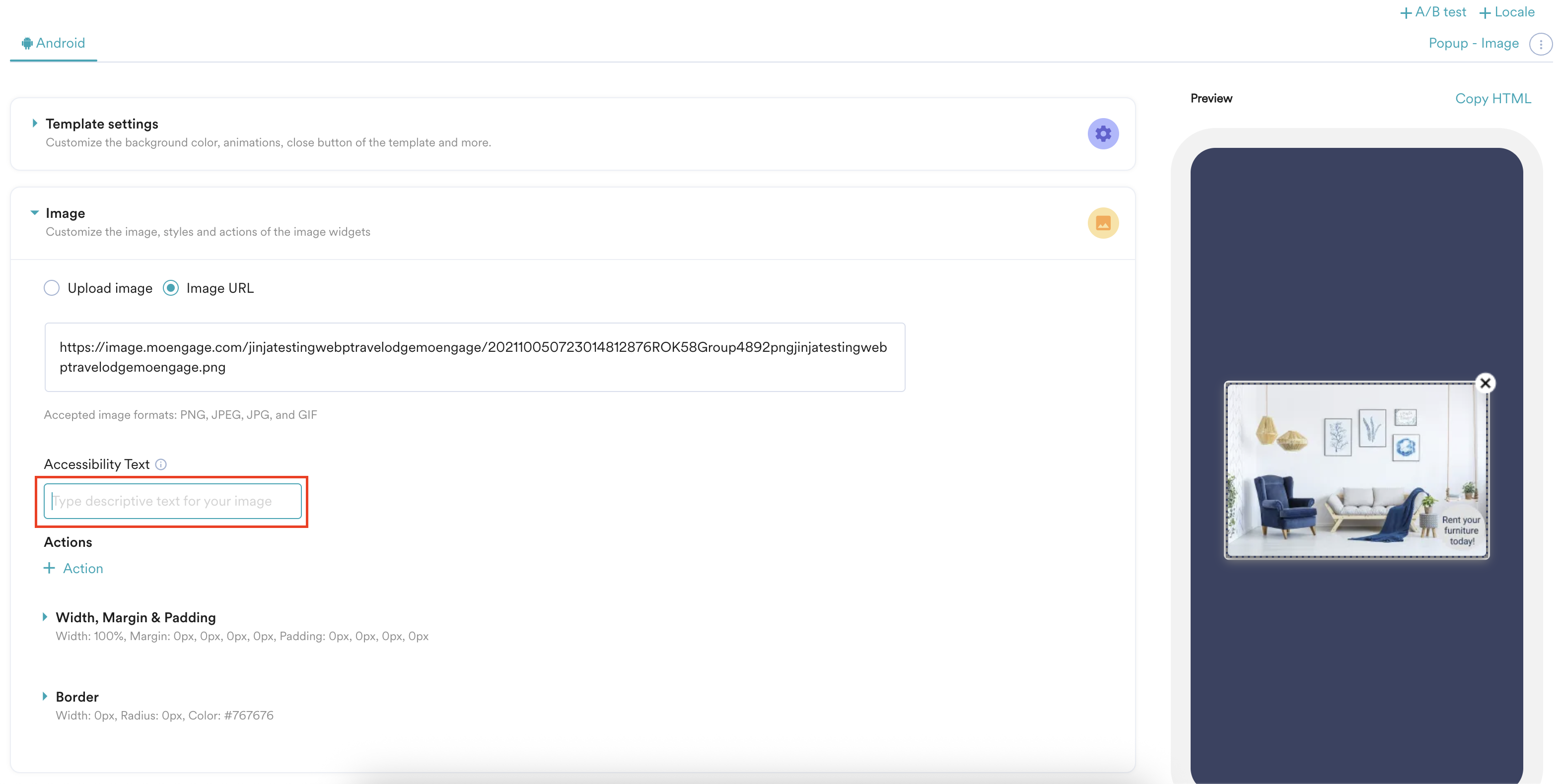
- For native In-App templates: In a native template, such as Popup—Image, Text, and Button, type alt text for images in the Accessibility Text box.
- For custom HTML In-App messages: If you build your in-app message with custom HTML, you are responsible for adding the
altattribute with a meaningful description to all your__PROTECTED_14__tags directly in your code. For example:__PROTECTED_15__
Considerations for Alt Text:
- Describe your images: Ensure your alt text accurately describes the image’s content and purpose. If the image contains important text, include this in the alt text. For tips on writing effective alt text, refer to Accessible Campaigns in MoEngage.
- Use personalization in alt text: The alt text boxes in MoEngage support dynamic descriptions based on user attributes or event data.
- Static user interface elements: MoEngage automatically includes default alt text for standard user interface elements like the Close button (X). You do not need to configure these manually.
Video Content Accessibility
If your in-app message includes video content, consider the following for accessibility:- Add captions and transcripts: Create captions and a transcript for your video content using external tools or services.
- Link or embed transcripts: When you add video content to your in-app message (whether embedded or linked), ensure you also provide a way for users to access the transcript. For example, include a link to the transcript near the video. MoEngage does not automatically generate transcripts.
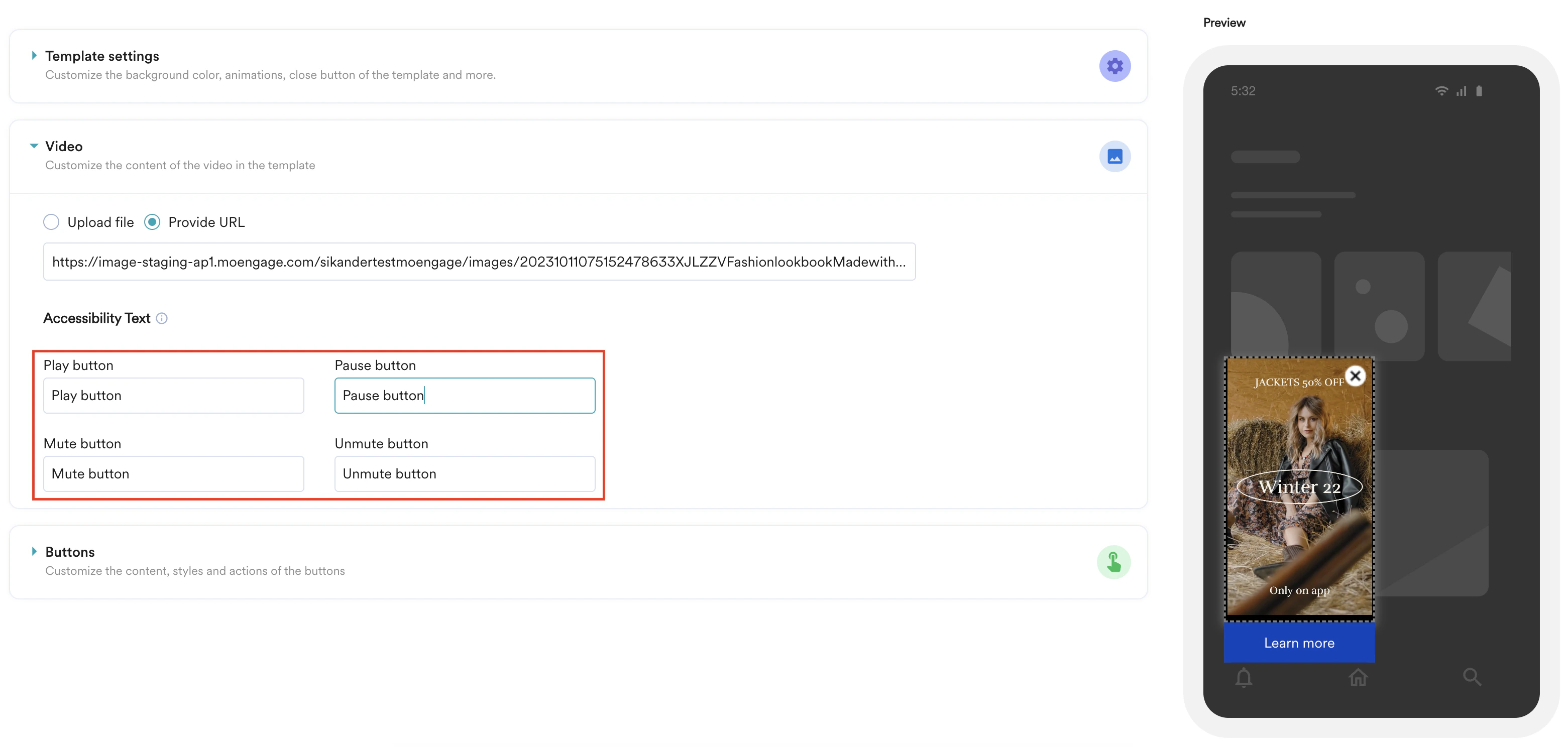
- Video controls: Add Accessibility Text to video controls such as Play, Pause, Mute, and Unmute buttons. This ensures all users, including those using assistive technology, can easily understand them.
Rating Template Accessibility
For the Nudge - Rating template, the screen reader automatically reads the selected rating, followed by the associated text. For example: “4 out of 5 stars, Beyond Expectations.”Ensure Font Size and Layout Adaptability
MoEngage In-App messages are designed to adapt to user preferences:- Automatic font scaling: Text in in-app messages generally respects the font size settings users choose on their Android or iOS devices. You typically do not need to configure this manually. However, consider how very large text might affect your layout.
- Content scrolling:
- For Full Screen In-App messages: If a user’s larger font settings cause content to overflow, scrolling is automatically enabled.
- For Nudges (non-intrusive In-App messages): The content within the nudge becomes scrollable if necessary, while the nudge itself maintains its position.
Keyboard Navigation and Focus Management
The MoEngage SDK manages keyboard navigation and focus to ensure a good user experience:- Focus handling: When an in-app message appears, focus automatically shifts to the message and is appropriately trapped for intrusive messages. When the message closes, focus typically returns to the previous element.
- Accessible Close button: The standard Close button (X) on in-app messages includes an accessible label by default. If you create a custom Close button (for example, in an HTML In-App message), ensure it is keyboard accessible and has a proper accessible name.
Set Up Touch Target Sizes
- Native templates: MoEngage’s native In-App templates are designed with touch target sizes that aim to meet accessibility guidelines.
- Custom HTML In-App messages: If you design in-app messages using custom HTML, ensure all interactive elements (buttons, links) are large enough for easy tapping. For general guidelines on touch target sizes, refer to Accessible Campaigns in MoEngage.
Address TV In-App Considerations
If you design In-App messages specifically for TV platforms:- Platform Guidelines: Be aware of the target TV platform’s specific accessibility requirements and navigation patterns (e.g., remote control interaction). Ensure your content, especially any custom interactive elements, is compatible.
Frequently Asked Questions
- What happens if an In-App message exceeds device height?
An In-App message will not render if its height exceeds the device’s display height. - Are images mandatory for In-App templates?
Images are mandatory only for In-App templates that are designed to contain images. If you do not provide images for these templates, they will not display on the user’s device. - Is text scaled across different device sizes?
Currently, text does not scale automatically across different device sizes. The font size you specify when creating the message will be used on all devices. - Can I remove images from In-App messages?
Images are currently mandatory for In-App messages that include image components to display on end-user devices. - Can I remove the background color from In-App messages?
Yes, you can remove the background color from an In-App message by setting its opacity to 0. - What happens to In-App messages when the app is in landscape mode?
Pre-built In-App messages currently do not display when the app is in landscape mode. However, HTML In-App messages will display if landscape orientation is allowed during their creation. - Are In-App messages supported on tablets?
No, pre-built In-App messages are not currently supported on tablets. However, HTML In-App messages are supported.