

How Exit Intent Works
MoEngage detects user exit intent on desktop and mobile web, as follows:- Desktop web: MoEngage detects cursor movement. When the cursor moves off the browser tab, the MoEngage SDK triggers an Exit Intent campaign.
- Mobile web: MoEngage detects exit intent based on these actions:
- When the user taps the Back button or gestures back in the browser.
- When the user double-taps the browser to switch tabs or taps the tab button.
- When the user scrolls down 50% and then scrolls up 5%. This action displays the browser’s top bar, which allows opening a new tab.
Use Cases for Exit Intent Campaigns
- Capture users’ email addresses as they prepare to leave your site.
- Show users your best offers to keep them interested. Personalize these offers by creating segments and content for specific geographic regions.
- Ask for user feedback as they prepare to leave your site to understand how you can improve.
Create OSM Campaigns with Exit Intent
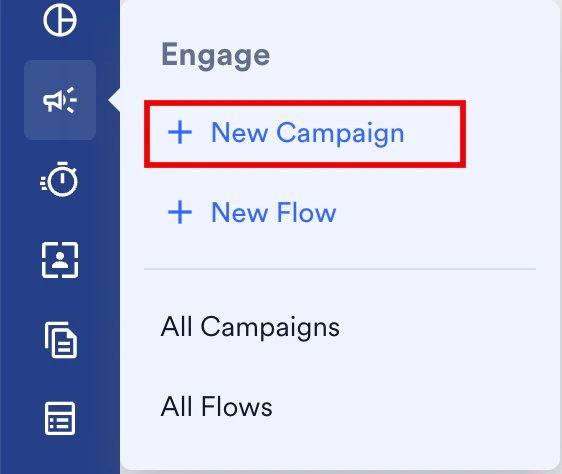
To create an On-Site Messaging (OSM) campaign that uses exit intent, follow these steps:- On the sidebar menu in MoEngage, hover over the Engage menu item
 . The Engage menu appears.
 - Click + New Campaign.
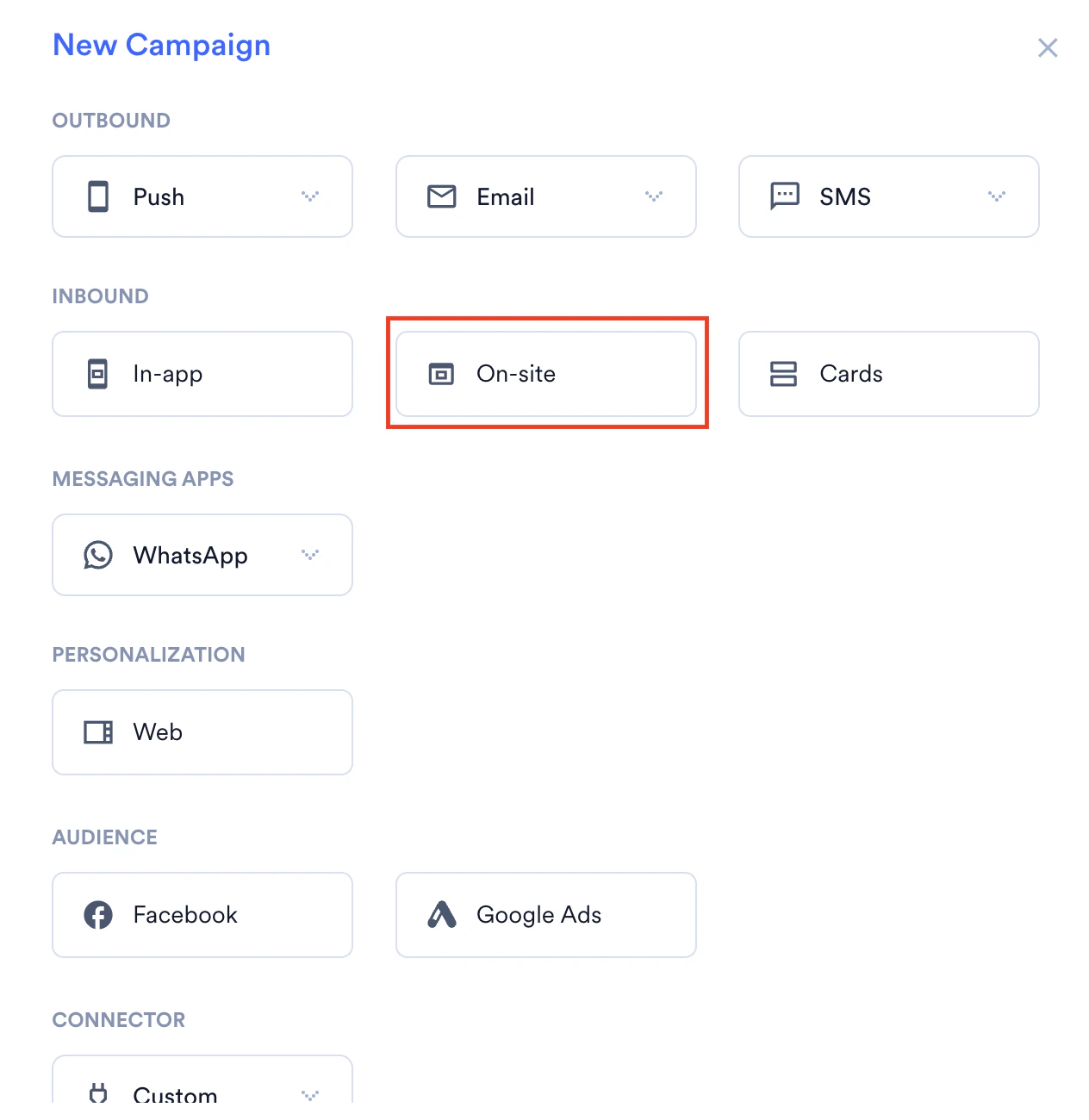
- In the New Campaign dialog box, under INBOUND, click On-site.
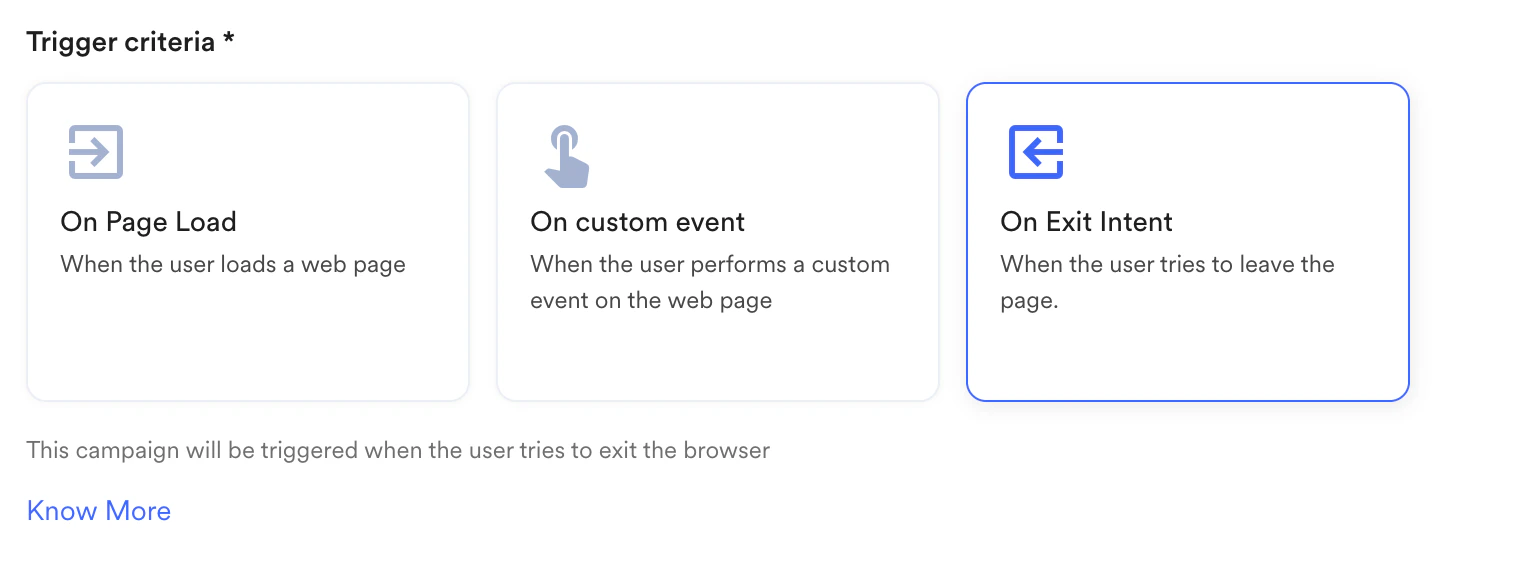
- In the Trigger criteria section, select On Exit Intent.
- Add the necessary campaign details, and then publish the campaign. For more information, refer to Create On-Site Messaging Campaigns.
Frequently Asked Questions
How long does it take for the Exit Intent campaign to appear after a user shows exit intent?
How long does it take for the Exit Intent campaign to appear after a user shows exit intent?
Typically, messages appear in the browser within 1-2 seconds after exit intent is detected, depending on network latency. For the first page visit, the campaign might take about 5 seconds to appear after the page loads.