

- Target users
- Content
- Schedule and Goals
Create Card Campaigns with Recommendations
To create a card campaign with recommendations, perform the following steps:-
On the sidebar menu in MoEngage, hover over the Engage menu item

- Click + New Campaign.
- On the New Campaign dialog box, under INBOUND, click Cards.
- Click Periodic campaign. You can follow the same steps for any other card campaign type. For more information about delivery types, refer to Delivery Types.
- Enter the basic campaign details, define the audience in step 1 ‘Target users’, and click Next.
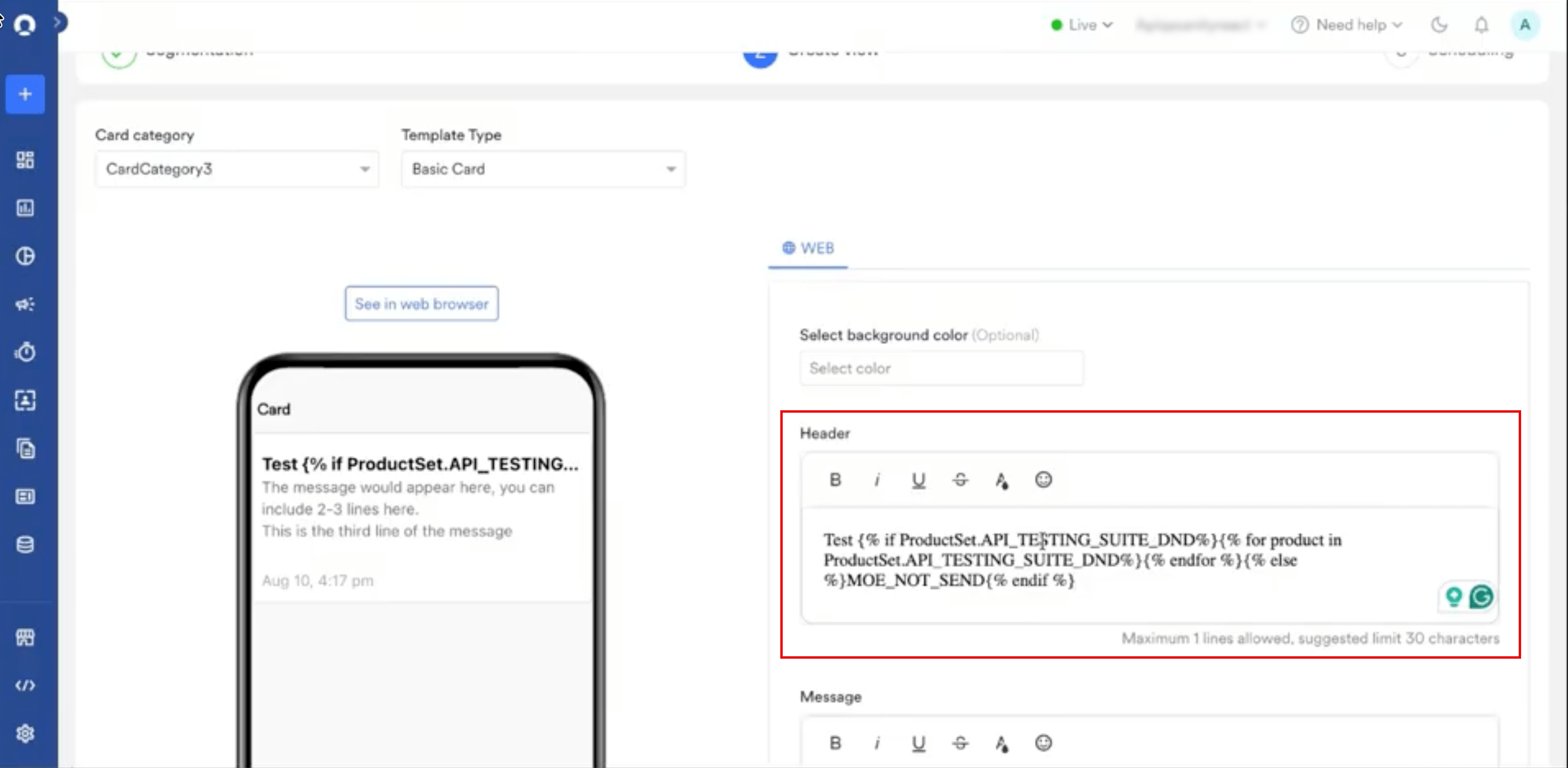
- In step 2, on the Content tab, select the Card category and the Template Type, such as Basic Card.
-
In the Header or Message field, type @ where the recommendation should appear. The Cards Personalization window opens.
- On the Data personalization tab, search for your recommendation and click it under Product sets.
-
Under Choose Fallback, select what happens when personalization fails for a user:
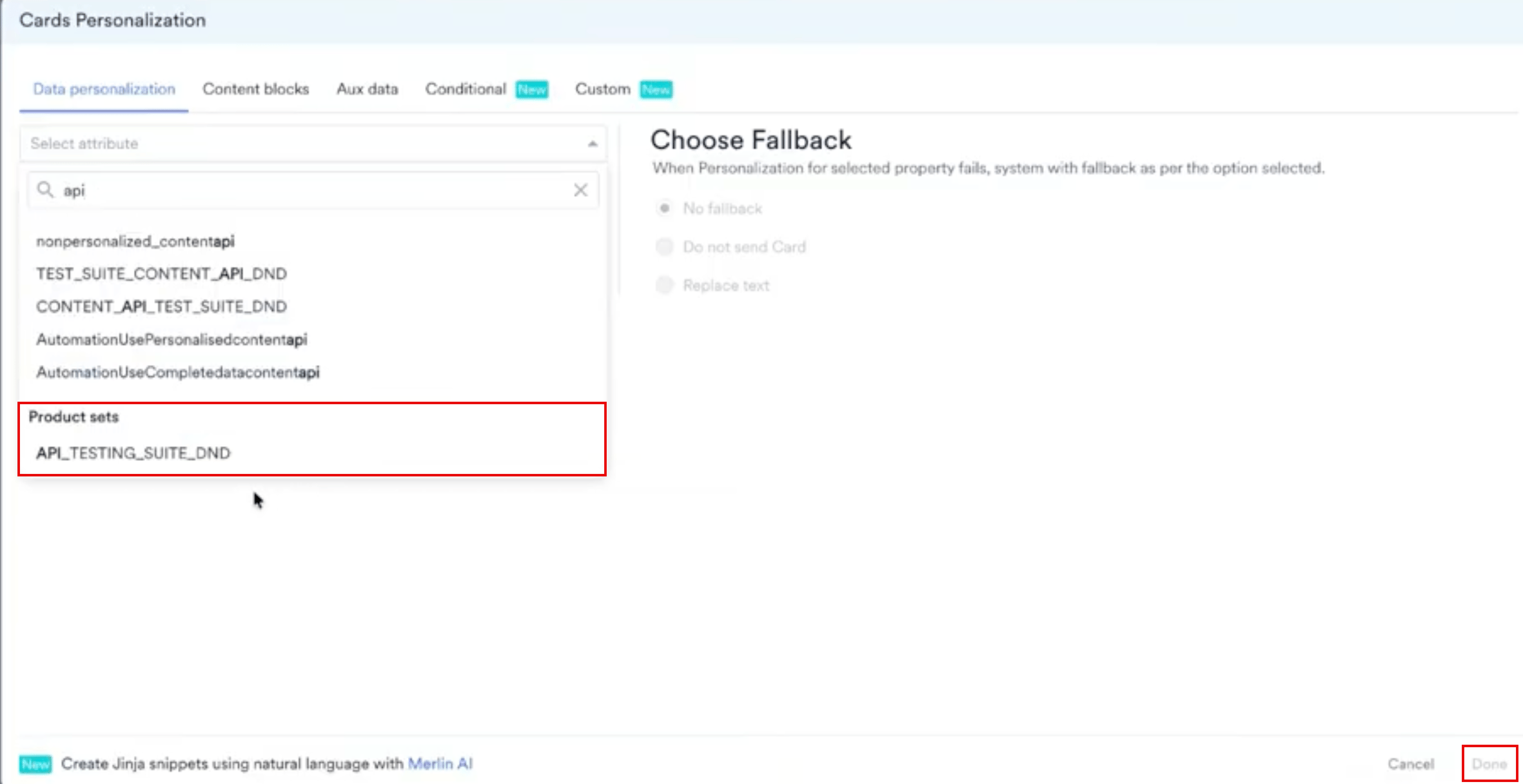
- Click Done.
- Modify the inserted Jinja code to fetch a single item, as described in the following section.
- Click Next at the bottom to move to ‘Schedule and Goals’, which is step 3 of campaign setup.
- Set up the appropriate settings in Schedule and Goals and publish the campaign.
The Cards channel does not have a personalized preview. Use Test campaign to check how the card renders, and to confirm that the recommendation resolves to a real product rather than a placeholder, before you publish.
Fetch a Single Recommended Item
Adding a product set on its own inserts every item in the set. To show one product instead, loop through the product set. The following example uses a product set namedProductSet with a recommendation named Recommendations.
To fetch the title of the first recommended item:
MOE_NOT_SEND stops the card from going out when the product set is empty for a user, so no one receives a card with a missing product. To use a different fallback, replace MOE_NOT_SEND with the text you want to show, or leave it empty to show nothing.
A product set contains a list of items, each with attributes such as title, description, id, link, and image link. The attributes available to you come from the catalog that the recommendation uses, so open that catalog to see which ones exist. To fetch an attribute inside the loop, type @ and select the property from the personalization window.
The Jinja code you build for a card campaign works unchanged in In-App and On-Site Messaging, because these channels read product sets the same way.
Add UTM Parameters
Add UTM parameters so that traffic from the card is attributed to the campaign that drove it. A parameter value can be personalized in the same way as card content, so one campaign can report per variation or per segment. Click + Create custom parameter to add your own key-value pair. For the full list of parameters and how account-level defaults apply, refer to Add UTM Parameters to Campaigns.UTM parameters apply to the links in your card. Turn on the general UTM parameters at Settings > App > UTM tracking before you use them in a campaign.