

Types of Imports
MoEngage can import the following from your files:- Registered Users: Users who are already registered on MoEngage.
- Anonymous Users: Users who are not yet registered on MoEngage.
- Events (Standard and User-Defined): Standard events such as Campaign Interaction Events, as well as your own user-defined events.
- Auxiliary Data: Supplementary user data ingested temporarily. Auxiliary Data has its own setup. See Auxiliary Data.
Prepare Your Files
Supported File Types
MoEngage supports CSV and NDJSON files, in UTF-8 encoding.Naming Conventions
Name your files so that MoEngage can identify the import type and the run date:<import type>_<date time format>.<file extension>.
- Registered users: prefix
registered_user_data_, for example,registered_user_data_01311997.csv. - Anonymous users: prefix
anonymous_user_data_, for example,anonymous_user_data_jan_2022.csv. - Events: prefix
<event name>_, for example, for the event “Purchase Summary”,Purchase_Summary_31011997.csv.
<custom name>_<date time format>.<file extension>, where the custom name uses letters, numbers, spaces, and underscores.
The <date time format> suffix represents the day the import runs. For example, if an import runs on 7 January 2022 and the selected format is ddmmyyyy, MoEngage looks for files ending in 07012022.csv or 07012022.json. Configure the format on the dashboard during setup. Supported formats:
moe_ as a prefix for events, event attributes, or user attributes. It is a reserved system prefix.- Without encryption:
.csv,.json - With PGP encryption:
.csv.asc,.json.asc,.csv.pgp,.json.pgp
File Structure
Structure your files according to the file type you import:- CSV Files
- JSON Files
- The first row must be the column names (treated as the header row).
- No duplicate column names (names are case-sensitive) and no missing column names.
- Only the comma (
,) is supported as a delimiter. - Avoid empty rows.
| (pipe) character in non-array columns. Ensure String, Numeric, and Boolean columns do not contain this character.Folder Structure
Place all files into a single folder and configure the folder path during setup. MoEngage does not look inside subfolders or the root folder.Array Support (CSV)
- Simple arrays are supported. Nested and associated arrays are not supported.
- The supported delimiter in the CSV is the pipe (
|). For example:[1|2|3]. - The supported data types are Array String and Array Double (numeric). Select the type in the Map column to attribute list during column mapping.
- All elements in an array must be homogeneous, either all integer/double or all string. If they are not, MoEngage attempts to typecast each element to the declared type and stores the result.
- Array typecasting: If an array
["1" | 2 | "abc"]is mapped as Array Integer, MoEngage ingests[1, 2], because"abc"cannot be cast to an integer and is dropped. For more information, see typecasting in MoEngage.
Limits
File imports have the following limits:Required Access and Connection
Grant MoEngage access to your source before you create the import:- Amazon S3
- SFTP
Set Up the Import
Set up your import in three steps: configure the connection and file format, map your columns to MoEngage attributes, and select the import frequency.Step 1: Configure the Connection and File Format
Select whether to import Registered users or Anonymous users (for User imports), or select the event to import (for Event imports). Registered and anonymous imports expect different file names; see Naming Conventions. For events, your file names must begin with the event name of the chosen event. For example, the event “App/Site Opened” has the event nameMOE_APP_OPENED, so file names begin with MOE_APP_OPENED_. To create a new event, click + Create event and enter a unique name; new events appear in your app only after the first successful import.
Next, configure the connection and folder:
- Amazon S3
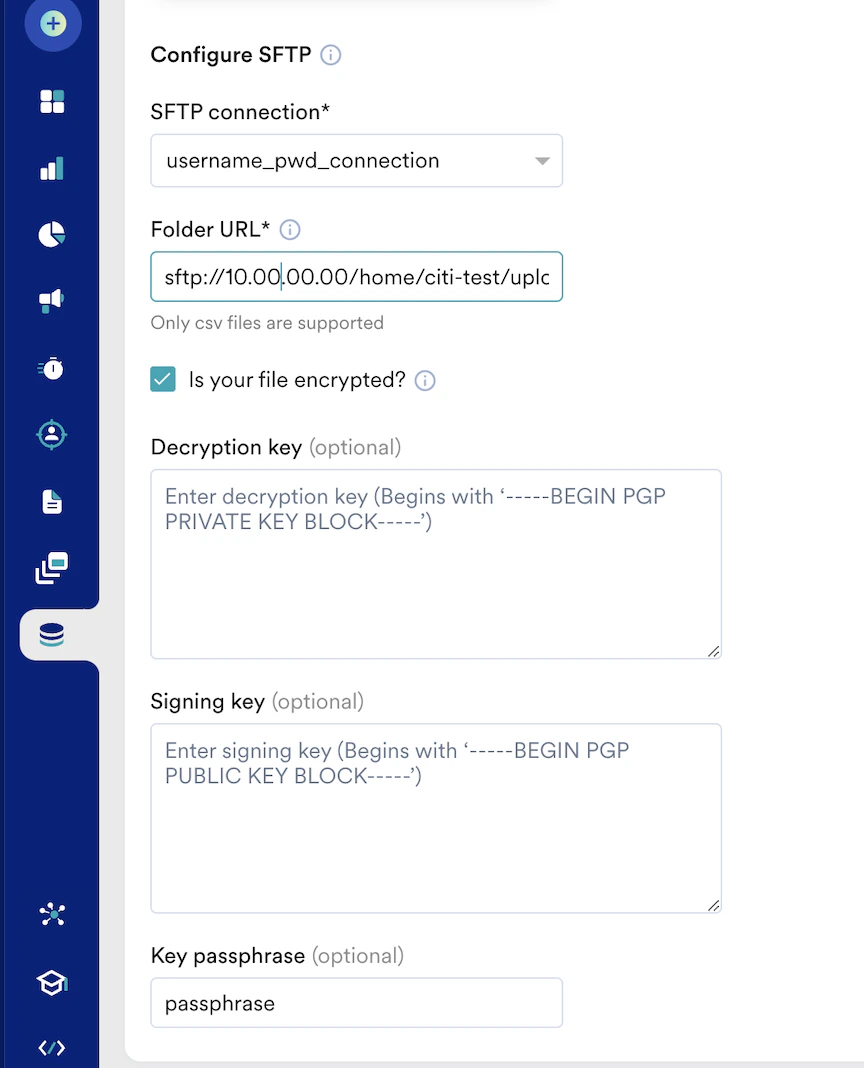
- SFTP
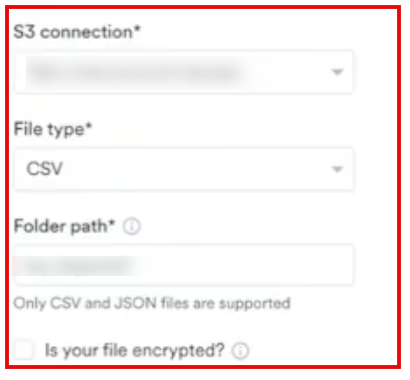
- In the S3 connection list, select your connection (or click + Add connection).
- In the File type list, select CSV or JSON.
- In the Folder path box, enter your directory path. Do not include the bucket name or trailing slashes, because MoEngage resolves the bucket name from your marketplace connection.
- To import PGP-encrypted files, select Is your file encrypted? and provide your private Decryption Key, optional public Signing Key, and Key passphrase.
Set up PGP encryption
Set up PGP encryption
- PGP key pair: A public key (to encrypt the file) and a private key (to decrypt it). Never share the private key.
- Signing key pair: A public key (to sign the file, required for MoEngage SFTP integration) and a private key (used internally to verify the signature).
gpg --full-generate-key), selecting RSA and a 1024-bit key size.- MoEngage supports file encryption using RSA keys of up to 1024 bits in length. Larger RSA keys, such as 4096-bit, are not supported and fail during decryption. Generate your key pair with a smaller RSA key size.
- Turn off compression during encryption.
--sign option signs the file while encrypting it.status.signature_id:File Configurations
Select the DateTime format present in your file name (your file name must end with_<date time format>.csv). Ensure at least one matching file exists in the folder, then click Fetch file(s). If the connection and format are correct, MoEngage shows a preview of the top 5 rows.
If MoEngage cannot fetch the file, you may see:
- Amazon S3
- SFTP
- Given S3 Access Key is not valid: Verify your S3 marketplace connection details.
- Please check the folder path and try again: Verify the folder path and that compatible files exist in it.
- Found zero data rows in the file: The file has no rows after the header. MoEngage expects at least 2 rows (1 header + 1 data row).
Step 2: Map Your Columns to MoEngage Attributes
Map each file column to a MoEngage attribute. For every column you see the column name with a sample value, the Map attribute selector (pick the data type, and for DateTime columns the format), and a Skip action. To create a new attribute, click + Create attribute. You can also click + Add Field to enter a mapping manually. Mandatory mappings depend on the import type:- User imports (Registered): map your identifier column to User ID.
- User imports (Anonymous): map your identifier column to Anonymous ID.
- Event imports: map your identifier column to User ID, and map your timestamp column to Event Time.
- Amazon S3
- SFTP
Mapping Files
Optionally, auto-map your columns by uploading a mapping file. Click Upload mapping file at the top-right of the mapping table and select your file. Mappings are auto-configured; a modal lets you create any attributes referenced in the mapping file that don’t yet exist. Columns in the mapping file but not in your file are ignored; columns in your file but missing from the mapping file are left blank for manual mapping. For a fresh import, MoEngage provides a sample mapping file you can use as a reference. If you duplicate an existing import, its mapping file is pre-attached and available to download. If a mapping file maps a column to an attribute that doesn’t exist in MoEngage, the mapping is left blank, create the attribute from the UI first, then map the column to it. A mapping file contains the mappings between each source column and a MoEngage attribute, along with the data type of the column. The file must be in JSON format. Instead of mapping columns one by one on the dashboard, you can upload a mapping file to automate the mapping.- CSV Files
- JSON Files
column(required): The column name from the source file. For Level 2 keys in a JSON file, use dot notation (key1.key2).moe_attr(required): The MoEngage attribute to map the column to. Ensure each column maps to a uniquemoe_attr.type(optional): The data type of the column. See the supported types below.datetime_format(optional): The date-time format. Mandatory for DateTime fields only.is_skipped(optional): A boolean field. Any column markedtrueis skipped during import.
Standard User Attributes for Reference
Map your source columns to MoEngage standard user attributes using the keys below. For the exhaustive list, refer to your Data Management dashboard.Supported Attribute Types
| (pipe) character in non-array type columns. Ensure your String, Numeric, and Boolean columns do not contain this character.Reserved Keywords for User Attributes
MoEngage reserves the following keys. Do not use them when you map or track user attributes.USER_ATTRIBUTE_UNIQUE_IDUSER_ATTRIBUTE_USER_EMAILUSER_ATTRIBUTE_USER_MOBILEUSER_ATTRIBUTE_USER_NAMEUSER_ATTRIBUTE_USER_GENDERUSER_ATTRIBUTE_USER_FIRST_NAMEUSER_ATTRIBUTE_USER_LAST_NAMEUSER_ATTRIBUTE_USER_BDAYUSER_ATTRIBUTE_NOTIFICATION_PREFUSER_ATTRIBUTE_OLD_IDMOE_TIME_FORMATMOE_TIME_TIMEZONEUSER_ATTRIBUTE_DND_START_TIMEUSER_ATTRIBUTE_DND_END_TIMEMOE_GAIDINSTALLUPDATEMOE_ISLATstatususer_idsource
Portfolio Support (Project-Level Routing)
You can route imported users and events to specific projects in your MoEngage portfolio workspace using column mapping. Map your identifier column (such asbrand_name or app_id) to the MoEngage attribute moe_project_name. Values must match your MoEngage project names exactly (matching is case-sensitive).
- Successful routing: If the value matches a project in your portfolio, MoEngage ingests the user or event at that project level.
- Fallback: If the mapping is missing, blank, or does not match a project name, MoEngage ingests the data at your global portfolio level.
Send Import Notifications
Turn on notifications and select up to 10 email recipients to be alerted when an import is created, succeeds, or fails. When your mappings are complete, click Next.Step 3: Select the Import Frequency
Define when MoEngage retrieves your files:- One-Time Imports: Run immediately or schedule for a future date and time.
- Periodic Imports: Run hourly, daily, weekly, or monthly, with intervals and advanced configurations.
Duplicate Imports
You can configure only one unique import at a time. An import is a duplicate when all of these match an existing active import:- Amazon S3
- SFTP
- Import type: Users or Events.
- Import sub-type: Event name, or Registered / Anonymous.
- S3 folder path.
- Bucket name.
Import Failure Policy
MoEngage retries a failed file automatically, up to 30 attempts, before marking it permanently FAILED. You can configure an email alert on failure during setup. A file-level failure does not stop the schedule, future scheduled runs continue independently.Supported Datetime Formats
Use these in thedatetime_format field of your mapping file, or when configuring DateTime columns during mapping.
Manage Your Imports
To monitor your imports, understand import statuses, or trigger a run manually or via API, see How Imports Work on the Imports Overview.Frequently Asked Questions
My imports have failed. How do I check what went wrong?
My imports have failed. How do I check what went wrong?
What if a scheduled import adds the data into a recently archived segment?
What if a scheduled import adds the data into a recently archived segment?
Can an import be stopped while it's running?
Can an import be stopped while it's running?
How can I stop future runs of a scheduled import?
How can I stop future runs of a scheduled import?
What should I do if an import seems stuck or is taking a long time?
What should I do if an import seems stuck or is taking a long time?
What happens when there is an error in fetching the files from the folder?
What happens when there is an error in fetching the files from the folder?
A file failed with 'Applicable rate limit breached'. Will the periodic import reprocess it automatically?
A file failed with 'Applicable rate limit breached'. Will the periodic import reprocess it automatically?
How does MoEngage pick up new files in a periodic run?
How does MoEngage pick up new files in a periodic run?
Will a periodic import pick up an earlier processed file?
Will a periodic import pick up an earlier processed file?
Can a CSV file contain both User and Event data?
Can a CSV file contain both User and Event data?
What is NDJSON, and why is it required?
What is NDJSON, and why is it required?
.json file is a complete JSON object separated by a newline. This format lets MoEngage process large JSON datasets line by line for scalable, robust imports.Are compressed files (for example, .gz, .zip) supported?
Are compressed files (for example, .gz, .zip) supported?
If I change the file type of an existing import, what happens to my mappings?
If I change the file type of an existing import, what happens to my mappings?