PrerequisitesBefore you run a simulation, ensure that you meet the following requirements:
- A decision policy must exist in your workspace. For more information, refer to Create a Decision Policy.
- Your user role must have the View permission for Decision Policy. Both editors and view-only users can access and run the simulation feature.
Access the Simulation Feature
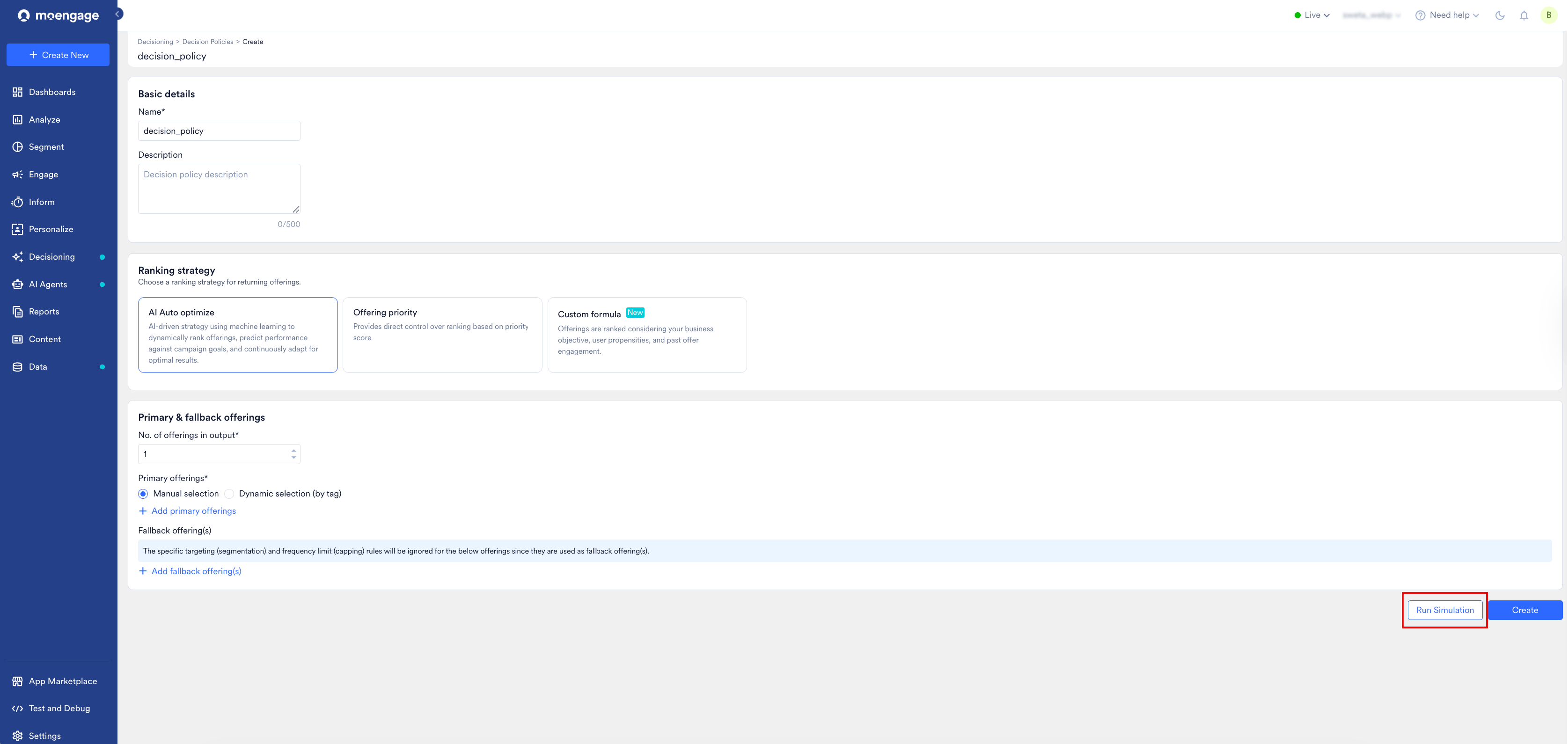
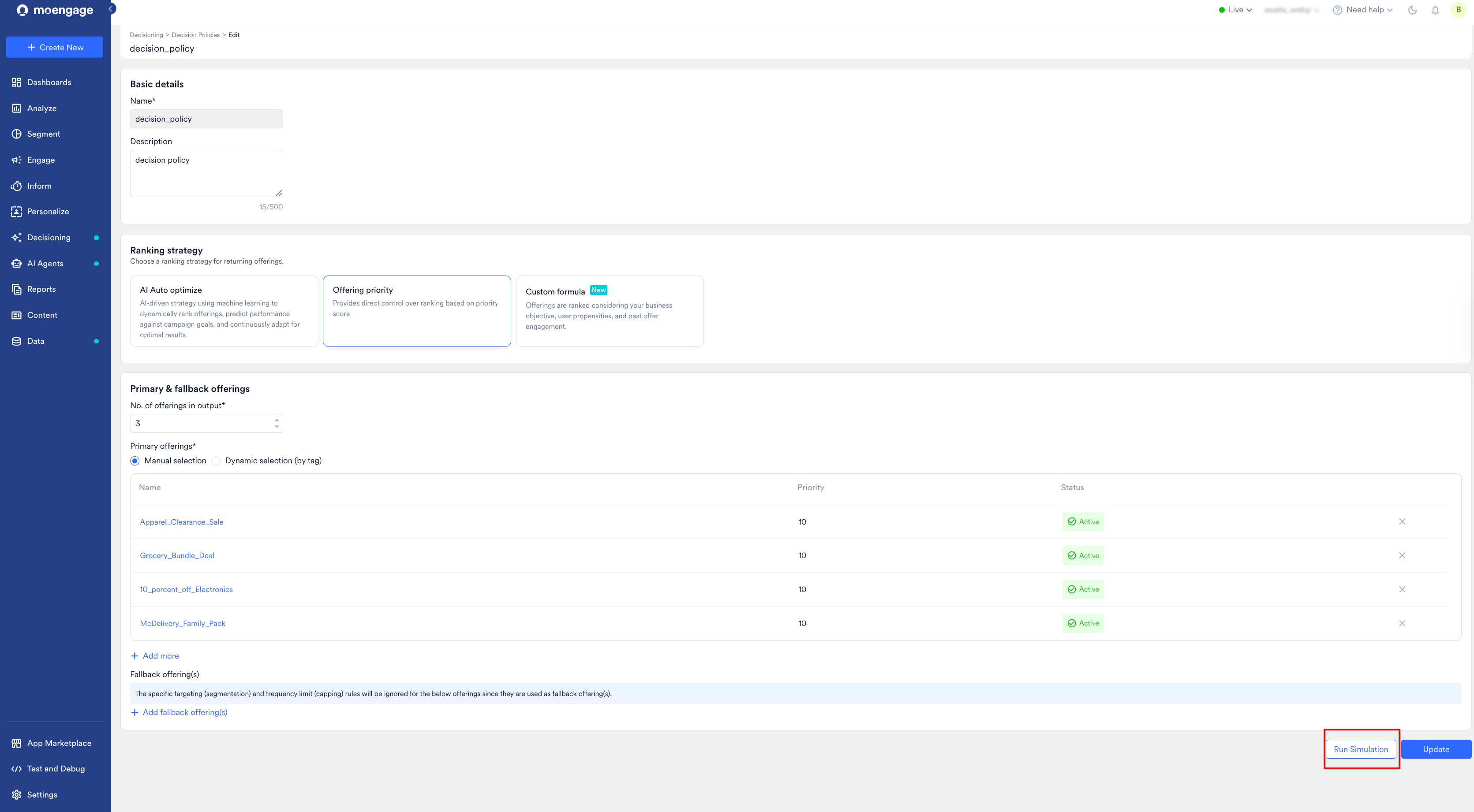
You can access the decision policy simulator from two primary flows in the MoEngage UI: Access during policy creation or editing If you are currently creating or editing a policy:- On the Create Decision Policy or Edit Decision Policy page, configure your basic details and offerings.
- Click Run Simulation (which is located to the left of Create in the lower-right corner).
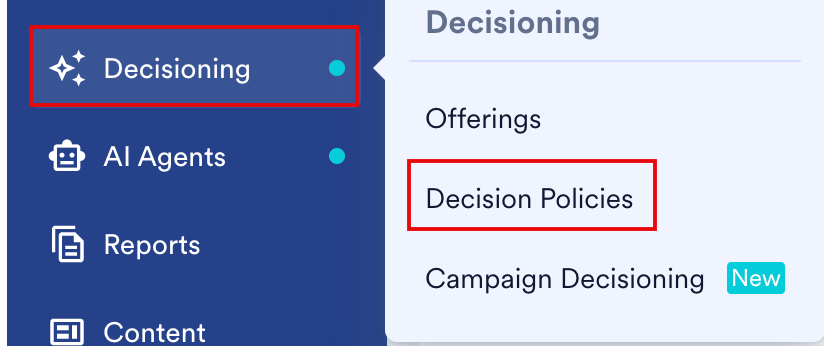
- On the left navigation menu in the MoEngage UI, hover over the Decisioning menu item
 . The Decisioning menu appears.
 - Click Decision Policies.
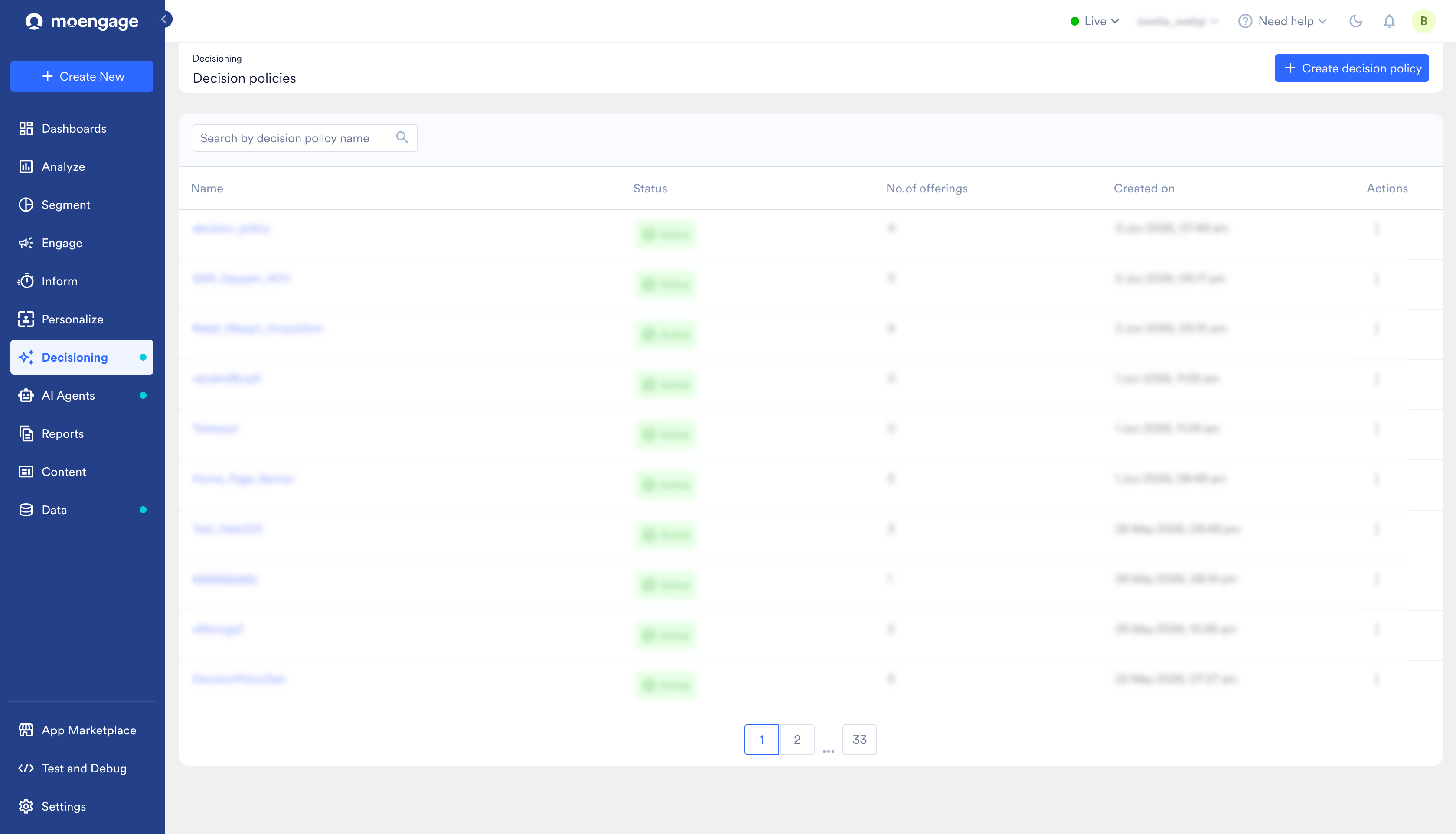
- From the policy list, open the simulator using one of the following methods:
- Directly from the list: Locate the policy you want to test, click the ellipsis icon in the Actions column next to the policy name. Click Edit and then click Run Simulation.
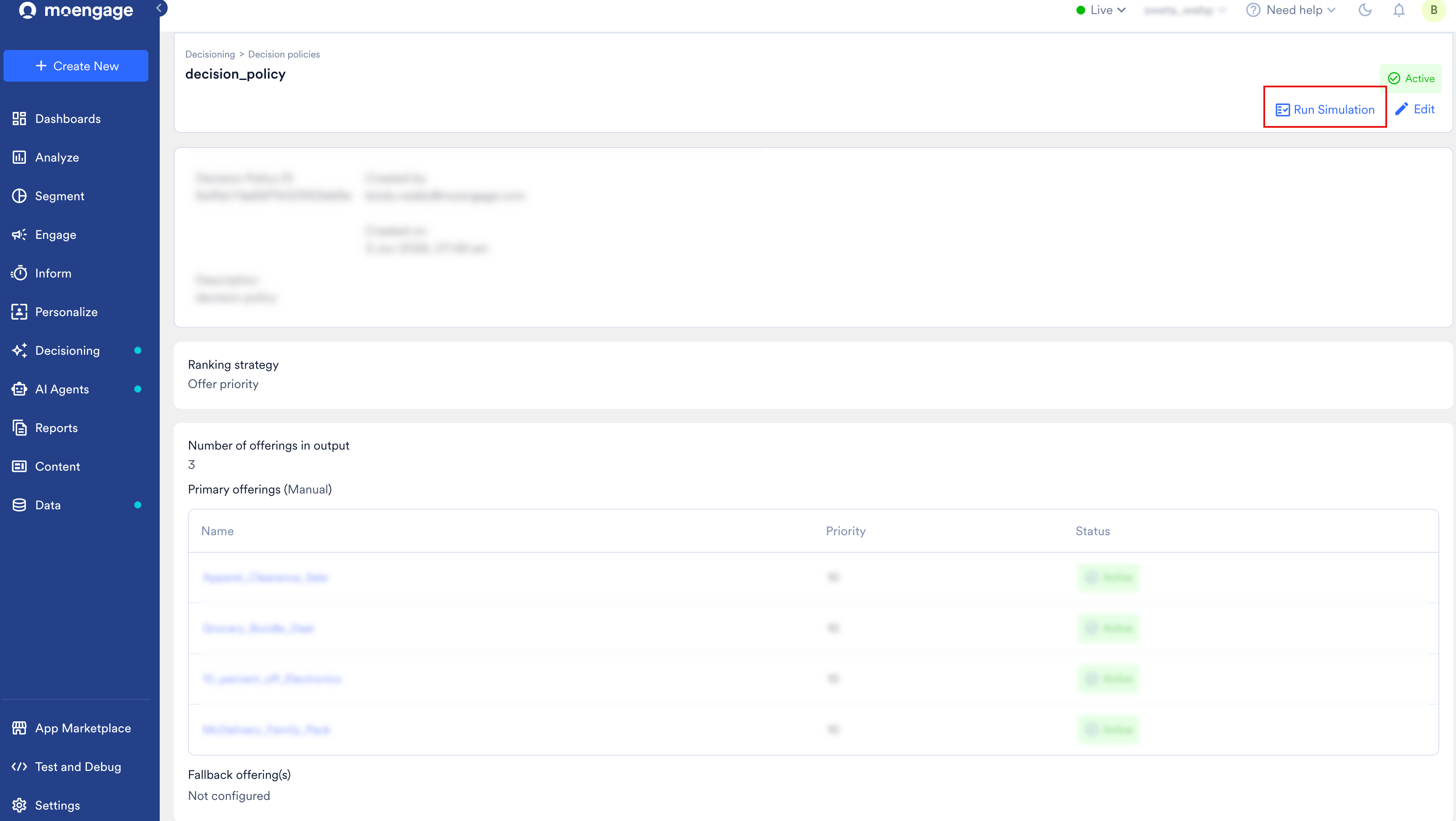
- From the policy details page: Click the name of the policy you want to view to open its details page, and then click Run Simulation (located next to Edit in the upper-right corner of the page).
- Directly from the list: Locate the policy you want to test, click the ellipsis icon in the Actions column next to the policy name. Click Edit and then click Run Simulation.
Configure a Simulation
When the Simulate decision policy window appears, the top section displays the active policy parameters, such as Ranking Strategy, Offering Selection mode, Total Input, and Expected Output limit. To configure your simulation, perform the steps detailed under your chosen user configuration mode below:Identified User
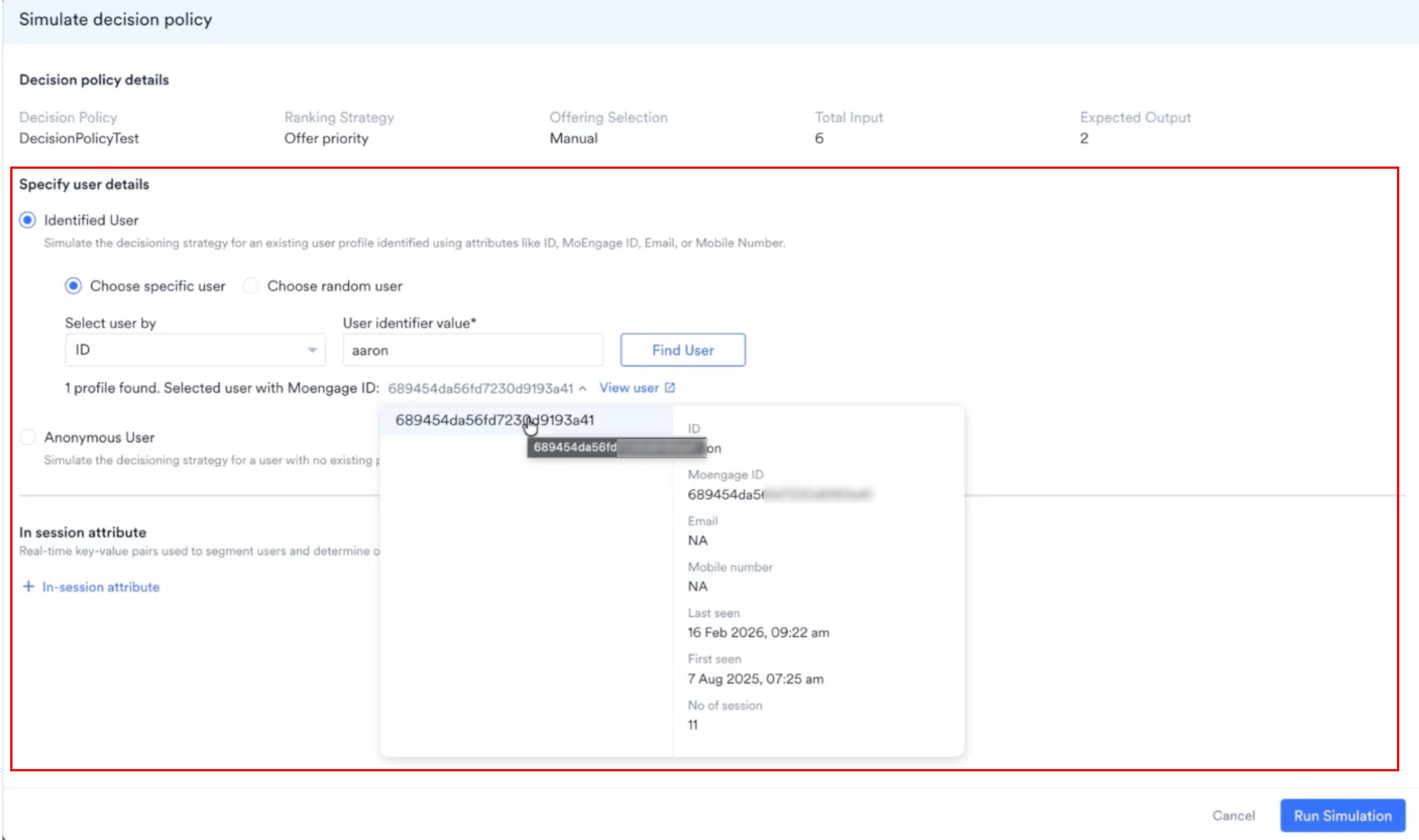
Select the Identified User option to evaluate the decision policy with an existing user profile in your database. Specific user If you choose a specific user, select the Choose specific user option. You can search for the user profile using any of the key system identifiers described in the table below:
To search and load a specific user:
- In the Select user by list, click the identifier you want to search by: ID, Email, Phone, or MoEngage ID.
- In the User identifier value box, type the corresponding ID value and click Find User.
Profile Not Found: If no matching profile is returned, verify that you are searching within your correct active workspace partition. For security and testing accuracy, simulations are isolated locally to your active workspace partition.
- After a matching profile is located, the message “1 profile found. Selected user with [Identifier Type]: [value]” appears. Hover your pointer over the identifier value to inspect the profile attributes, or click View user to open the full profile details in a new tab.
Anonymous User
Select the Anonymous User option to simulate a first-time visitor with no existing database profile or historical identifiers.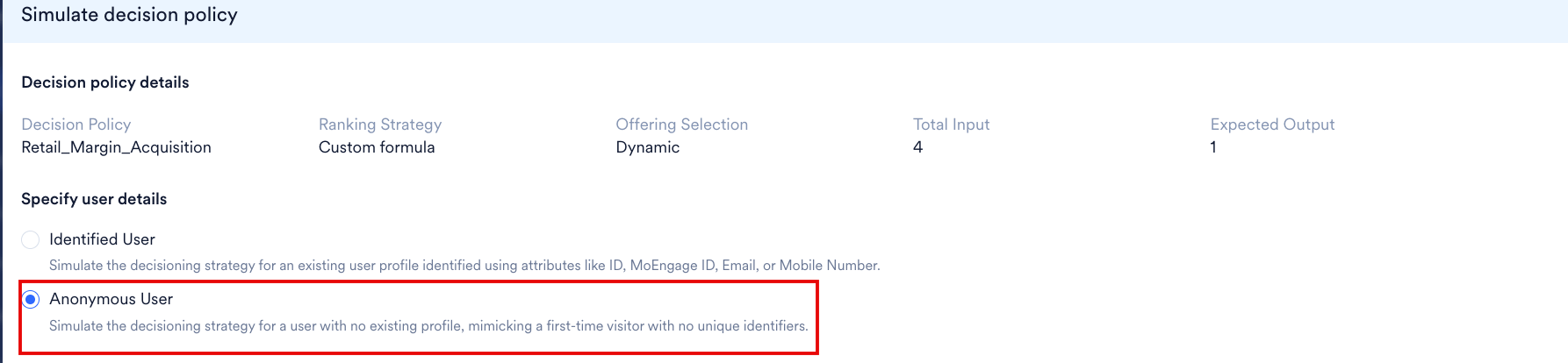
For Anonymous users, MoEngage evaluates only Primary offerings that are targeted to All Users and have no capping rules configured (neither user-level nor overall). All other offerings within the Decision Policy — including those with specific targeting rules or any capping rules configured — are skipped. If no eligible Primary offerings are found, fallback offerings, if configured, will be returned.
Define In-Session Attributes (Optional)
In the In session attribute section, click + In-session attribute to define real-time, session-specific key-value pairs to test the contextual eligibility rules: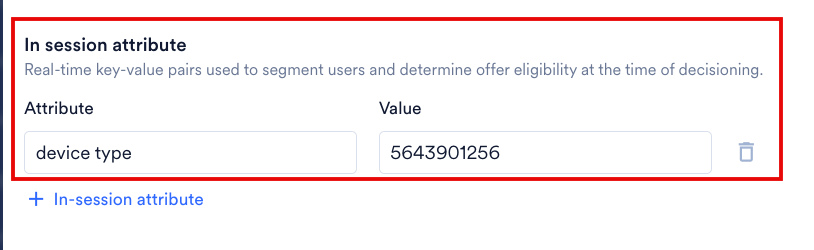
- Device type [for example, Key:
device_platform| Value:iOS]. - Referral source [for example, Key:
traffic_source| Value:google_search]. - Current cart value [for example, Key:
cart_value| Value:150.00].
Run a Simulation
Running a simulation is a read-only operation. It does not deliver offerings, record events, or deduct from user frequency-capping limits.- Click Run Simulation.
 The Run Simulation is disabled during processing to prevent redundant requests. It remains disabled until you modify any of the simulation input parameters above.Running a simulation is a read-only operation. It does not deliver offerings, record events, or deduct from user frequency-capping limits. After the simulation runs, you can view a summary of the output.
Simulation Results
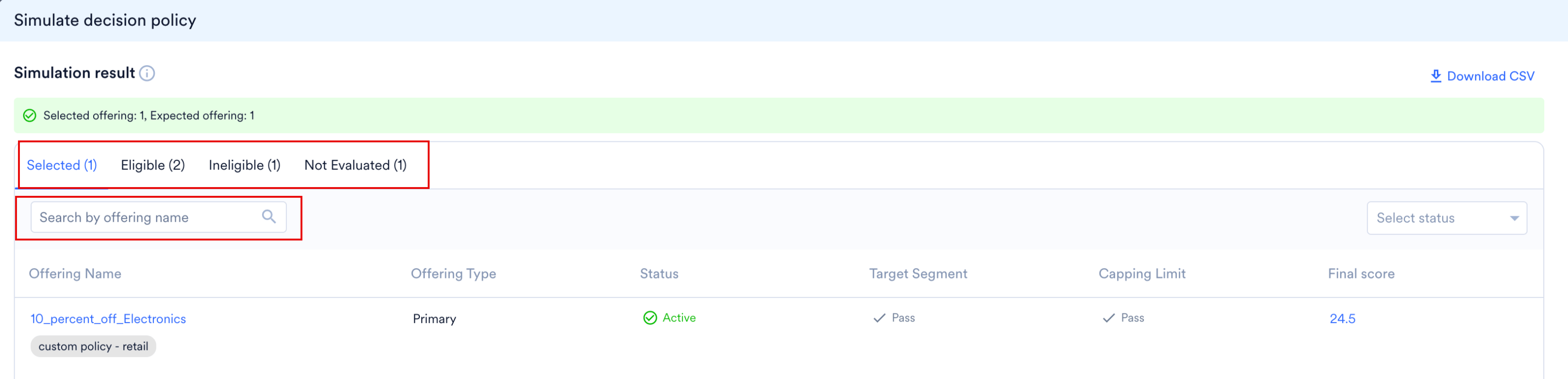
During a simulation, the feature evaluates each offering and assigns one of the following states: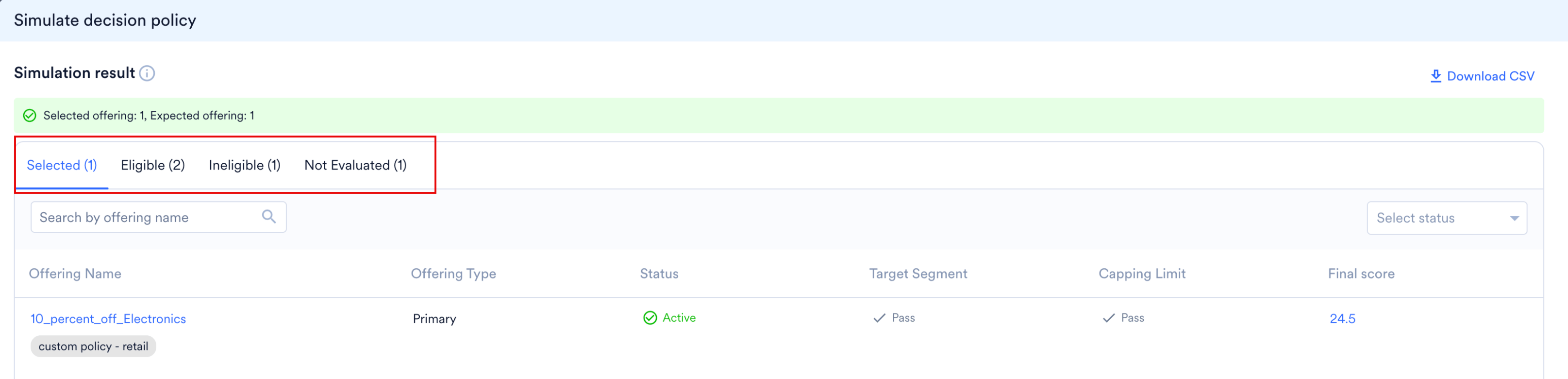
- Selected: The final offerings selected for display. These offerings successfully passed all eligibility checks and ranked highest under your policy’s strategy, up to the configured output limit.
- Eligible: Offerings that met all target segmentation and capping rules but were not selected. This can happen due to lower priority scores, lower custom formula values, or because higher-ranking offerings already met the output limit. If the priority scores or custom formula values are equal, eligibility is decided by applying tie-breaking logic. For more information, refer to FAQs on Decision Policy.
- Ineligible: Offerings that failed either the target segment check or the capping limit rules.
- Not Evaluated: Offerings that were completely bypassed during evaluation. This occurs for primary offerings with specific targeting rules or capping rules configured when simulating Anonymous users, or for fallback offerings when eligible primary offerings fully satisfy the expected output limit. Scheduled and expired offerings are also excluded from evaluation, as the engine prioritizes active offerings.
If an offering fails at the Target Segment stage, MoEngage automatically skips evaluation for subsequent stages (such as Capping Limit). These skipped stages are indicated in the table by a double dash (—). The offering’s original Priority score remains visible for debugging purposes.
Analyze the Results Table
The columns display the following details: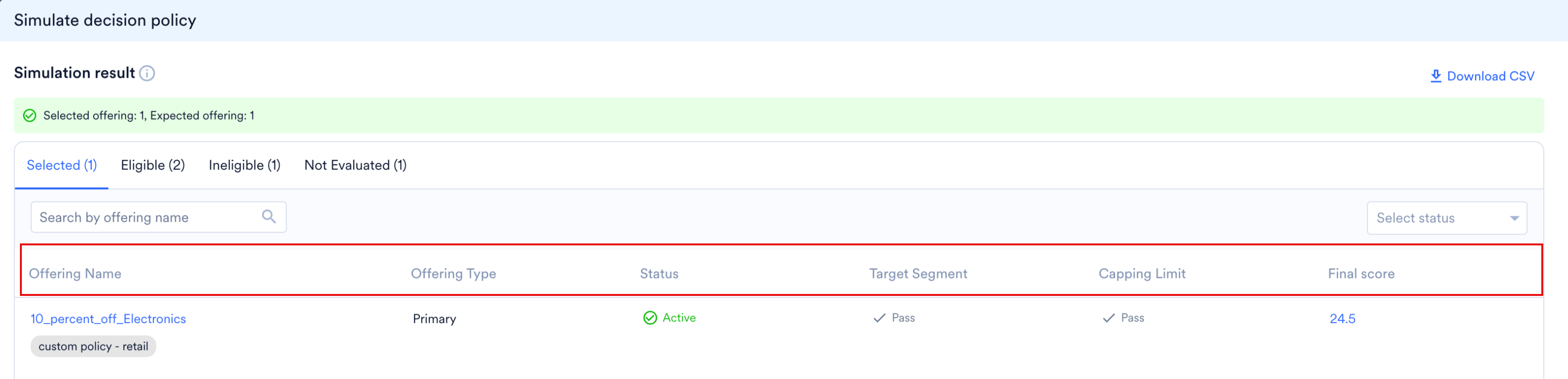
| Column Name | Description |
|---|---|
| Offering Name | The offering’s Name. |
| Offering Type | Identifies the offering as either Primary or Fallback. |
| Status | The active schedule status of the offering (for example, Active, Scheduled, or Expired). |
| Target Segment | This displays Pass if the simulated user matches the segment criteria; this displays Fail if they do not match or if skipped. |
| Capping Limit | This displays Pass if the user has not exceeded the offering’s frequency-capping rules; this displays Fail if they have exceeded them or if skipped. |
| Final Score | This column dynamically adapts based on the ranking strategy configured in your decision policy:
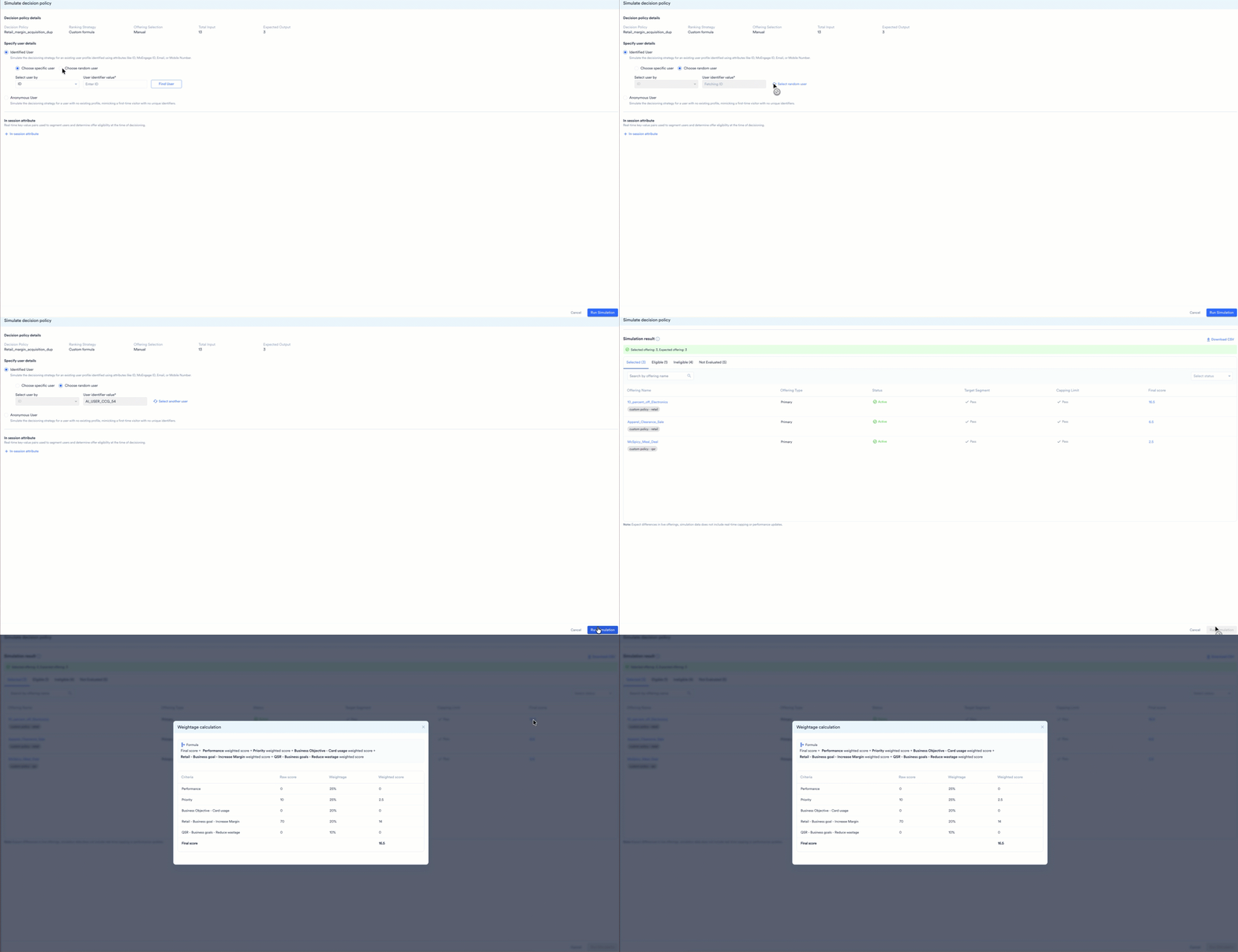 |
Manage and Export Simulation Data
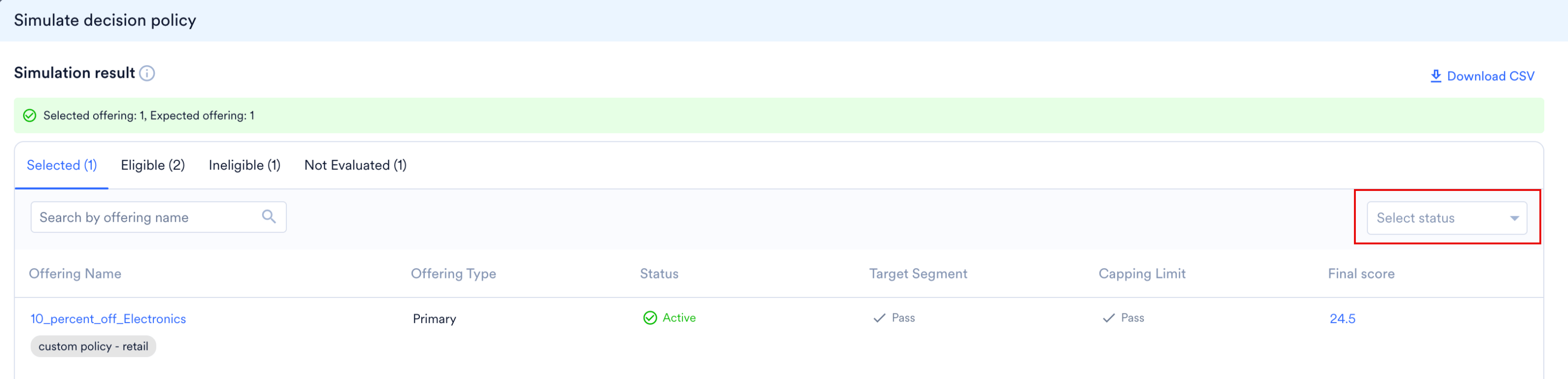
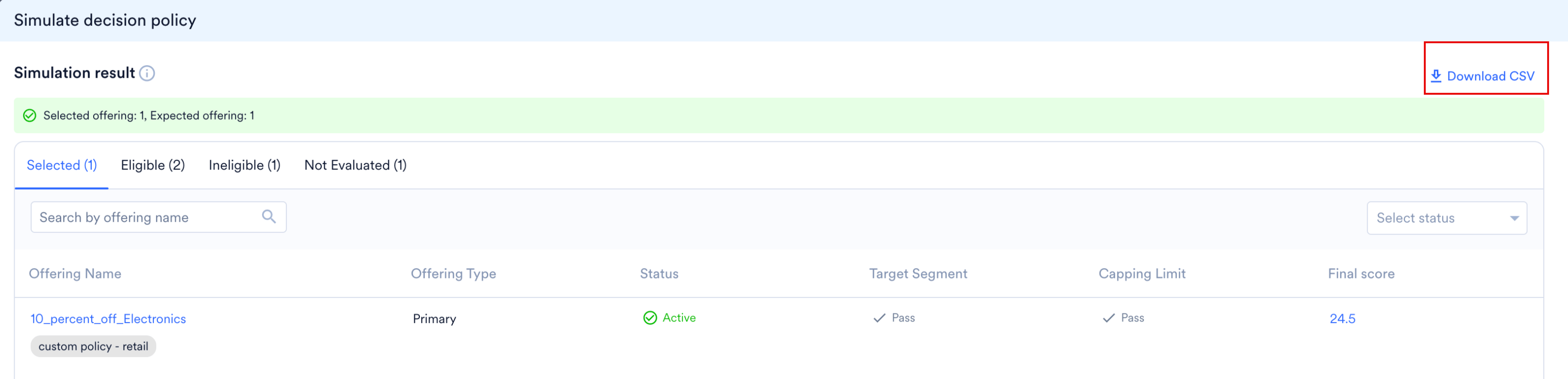
You can manage and extract the simulation results using the following tools on the results toolbar: Global Search Type a keyword in the Search by Offering name box. Search matches the offering’s Name; the internal System Name is not searchable. The table filters matching offerings across all four status tabs (Selected, Eligible, Ineligible, Not Evaluated) simultaneously.