

Rule Based Segments
On the MoEngage dashboard, growth teams can create rules and criteria to define a user segment. The rules and criteria can be applied to user attributes/properties, events & event properties, and a combination of the two. User properties are attributes of the user in the MoEngage system such as email, name, last location, etc. The value of user properties gets updated almost in real time and the latest values are available for calculation.Events are activities done by users such as App Open, Product Purchase, etc. These events also have event attributes such as app version, platform name, product category, product price, etc. Event attributes are tracked with events and are specific to the selected event.
Creating Rule-Based Segments
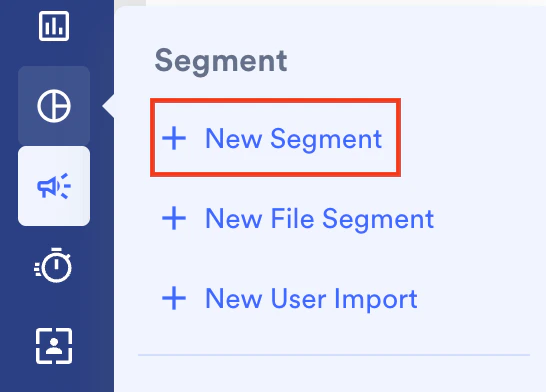
To create rule-based segment, perform the following steps:- On the sidebar menu in MoEngage, hover over the Segment menu item
 . The Segment menu appears.
 - Click + New Segment.
- Click the Filter users by option button.
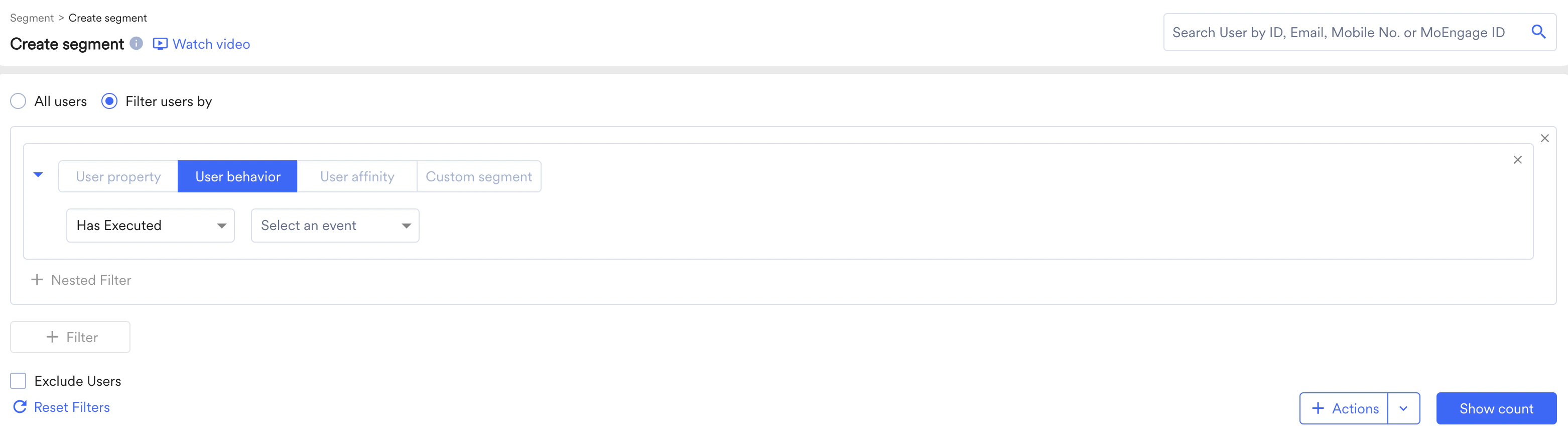
Use User Properties
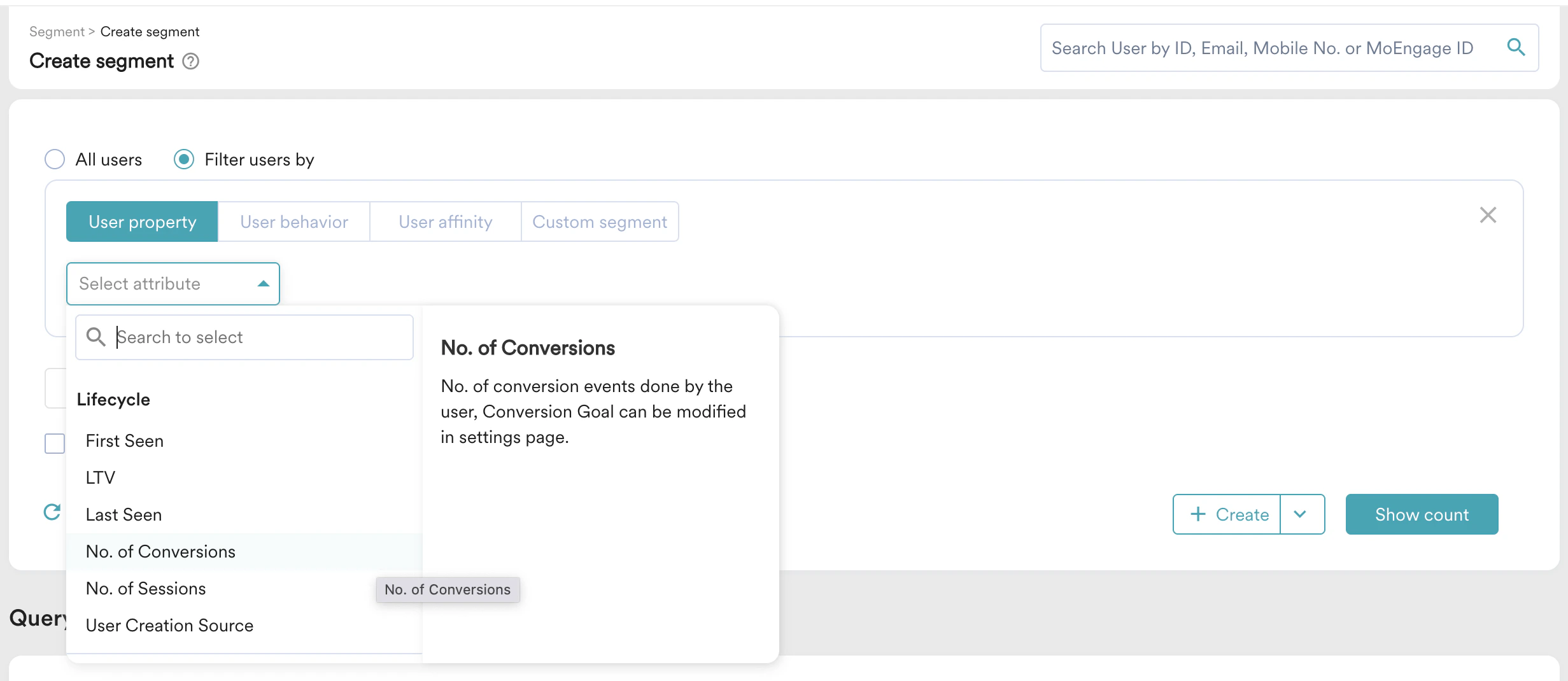
Select the User Property section then:- Select desired user property and filter conditions.
- Provide the filter value/s to create a rule.
Use Event and Event Properties
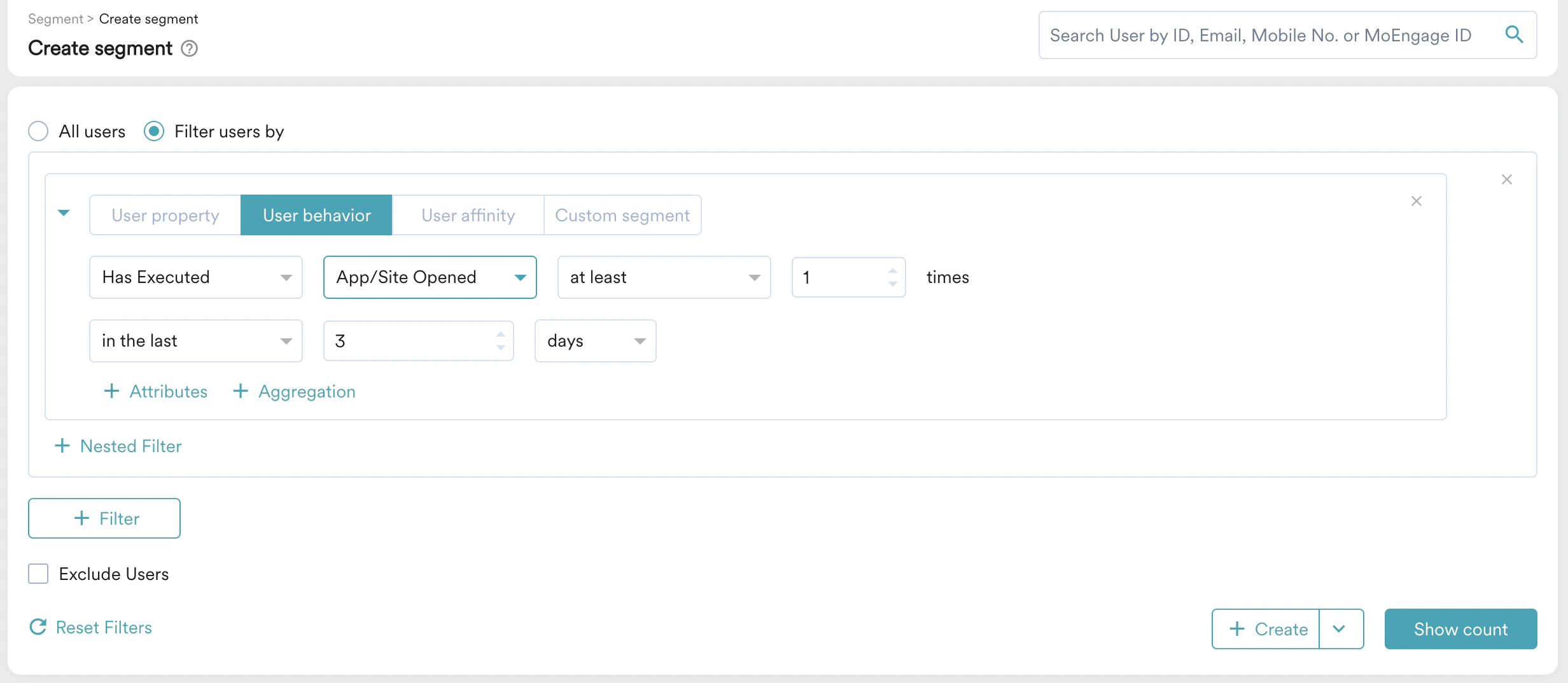
Select the User Behavior section then -- Select the execution condition and the desired user activity (event)
- Provide event frequency and time duration for the event execution
- Add Event attribute with a filter condition
- Provide the filter value/s to create a rule.
Information
- MoEngage generates a few default user properties, events, and event attributes. A list of all derived events and attributes can be found in this article.
- The analysis of segments is performed based on server time for all of the time-bound analyses. For more information about server time, refer to Event Time and Server Time.
Use User Affinity
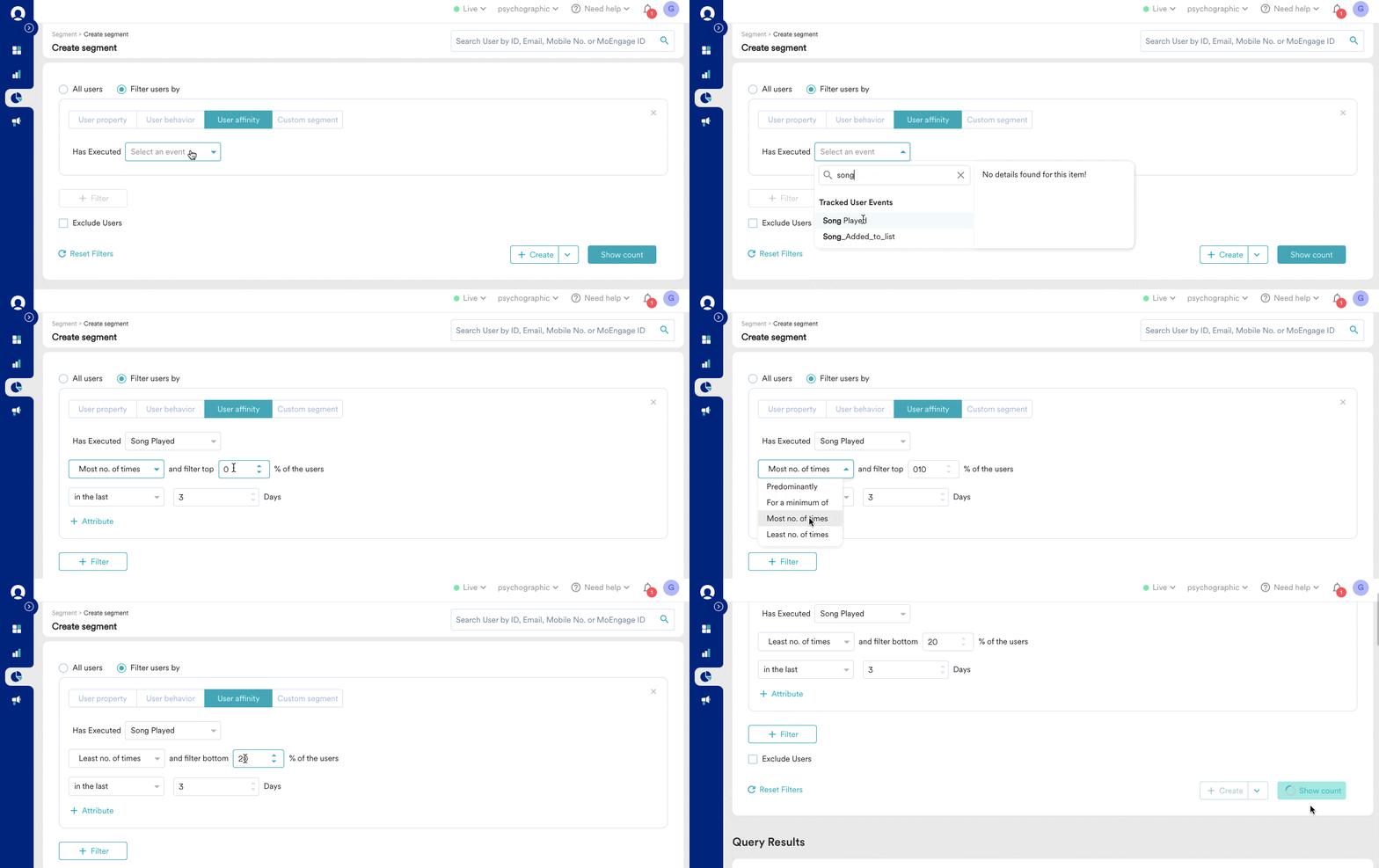
Affinity Segments are groups of users created based on the user performing an action with a specific attribute value.User affinity is explained in detail in this article. Select the User Affinity section then -
- Select the desired user activity (event)
- Select the user affinity parameter from - Predominantly, Minimum of, Most no. of times, and Least no. of times.
- For Predominantly & Minimum of, select affinity attribute with a filter condition and provide the affinity value/s.
- For Most no. of times & Least no. of times, provide top/bottom percentage of users
- Provide time duration for the event execution
- Add Event attribute with a filter condition and provide the filter value/s to create a rule.
Use Custom Segment
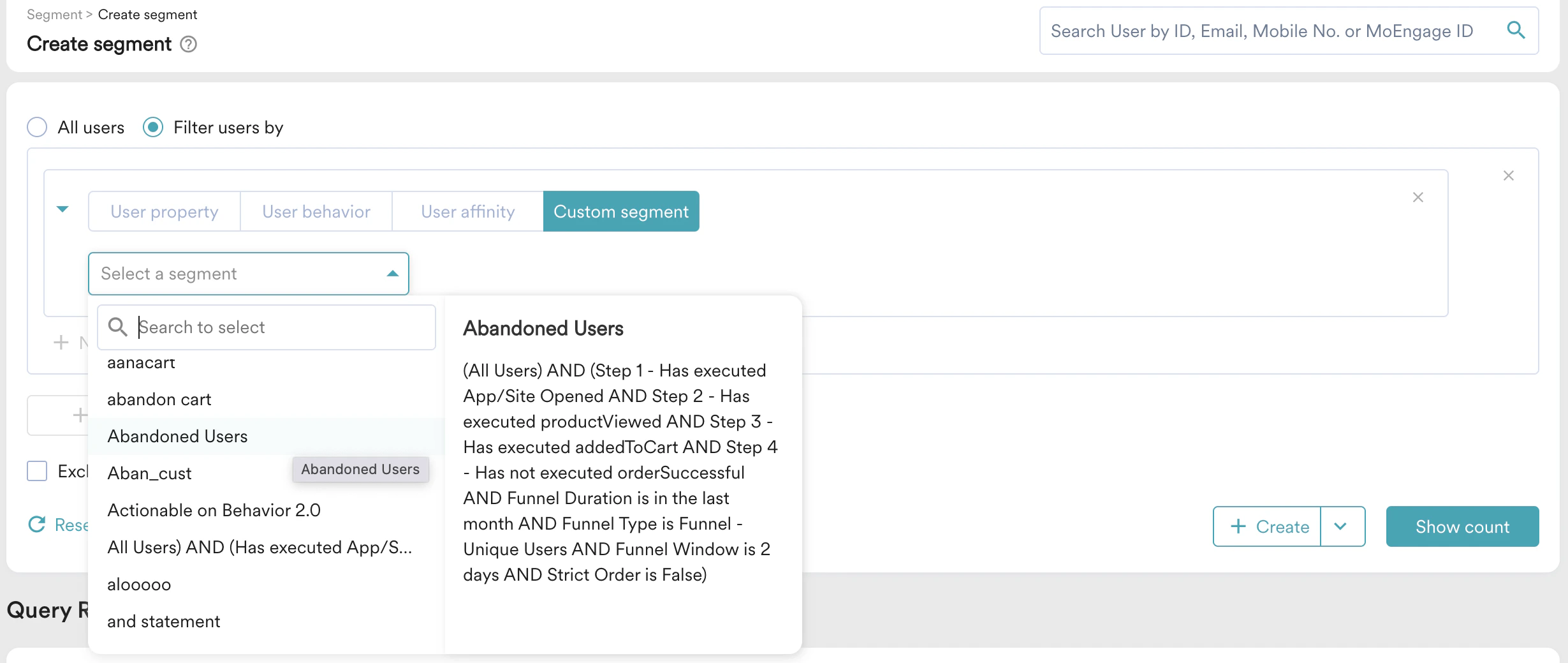
Select the Custom Segment section, then select the desired custom segment to create a rule.Custom Segments are explained in detail in this article. The description for the selected custom segment appears below the custom segment selection dropdown.
Multi-Project Segmentation
If you have the Portfolio feature enabled, you can create user segments by combining user data and behavior from different apps and websites (Projects) within your workspace. For more information, refer to Segmentation in a Multi-Project Portfolio.Teams in Segments
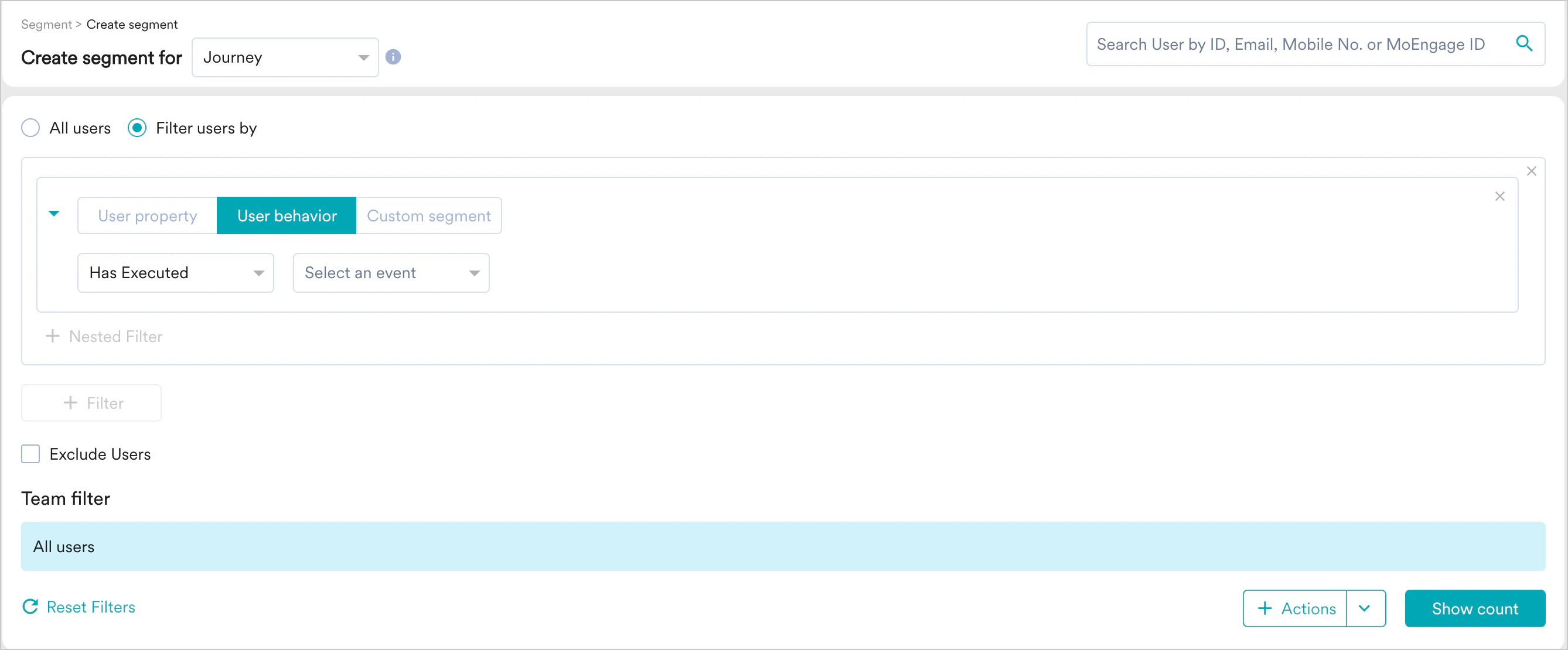
If teams are enabled for your account, you will be able to create segments for them by selecting the team from the Teams dropdown. Every team has a segment criteria specified for it during its creation. This condition gets added with an AND condition to segments created. For example, if you create a custom segment as a set of users whose last known city is Los Angeles and the segmentation criteria for your team is frequent buyers (users who have purchased products more than ten times in the last seven days), your custom segment will comprise frequent buyers whose last known city is Los Angeles. For more information, refer to Teams in MoEngage.When Teams are enabled:
- The User Affinity filter will not be available in the Filter users by section.
- The Select a segment dropdown in the Custom segment filter section lists only the custom segments that are associated with the selected team.
MoEngage Teams with the Segmentation Filters is a Beta feature. To get it enabled for your account, reach out to your CSM.
Combining Segments
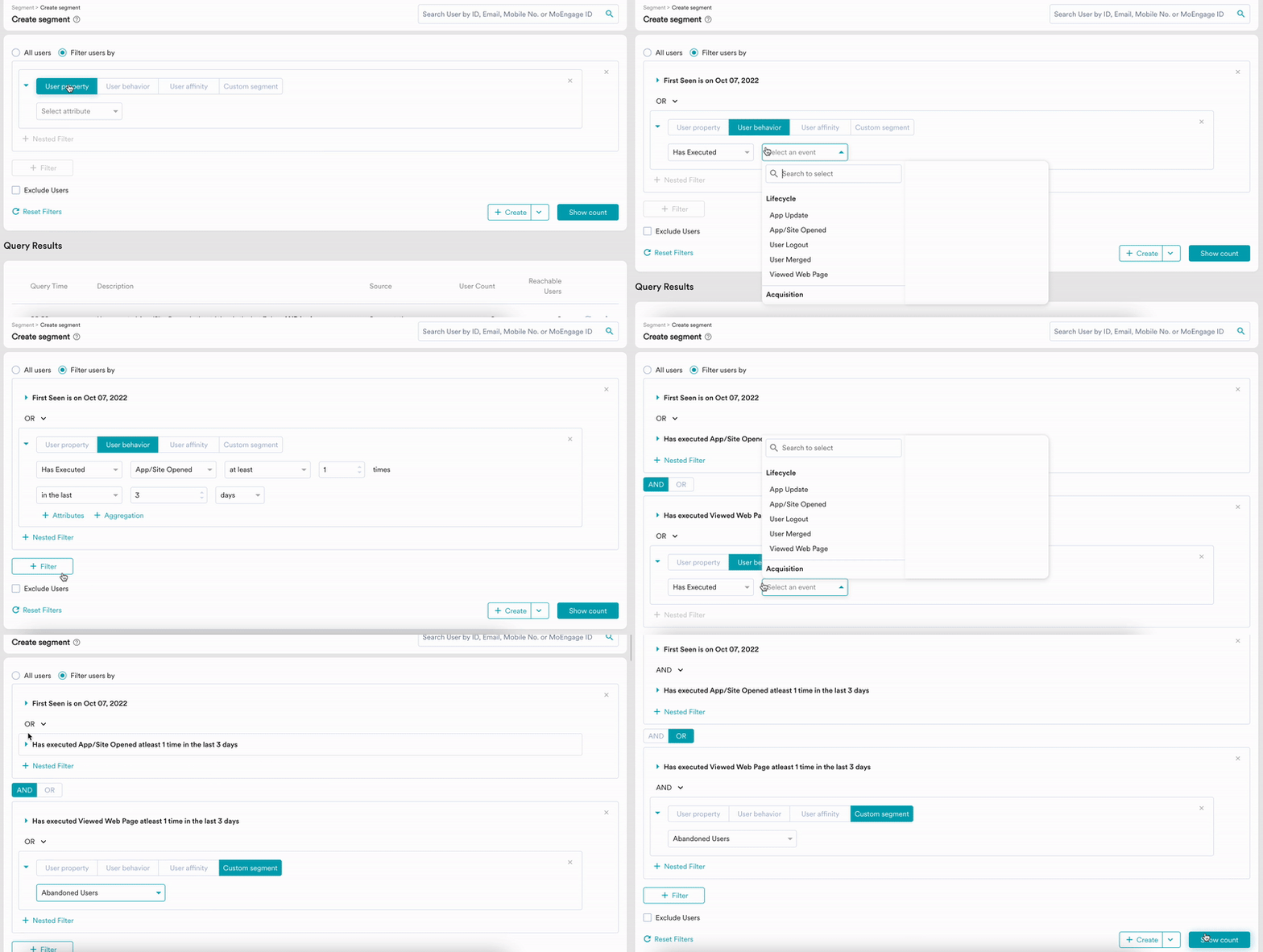
Multiple User Property rules, User activity rules, User Affinity rules, and Custom Segments can be combined using AND, OR and Exclude conditions to create a robust and complex user segment. With Nested AND/OR capabilities, along with (A AND B AND C AND D) and (A OR B OR C OR D) type of segments, complex segments such as the following can be created:- (A AND B) OR (C AND D)
- (A OR B) AND (C OR D)
- (A OR B) AND C AND D
- (A AND B) OR C OR D
Segment Actions
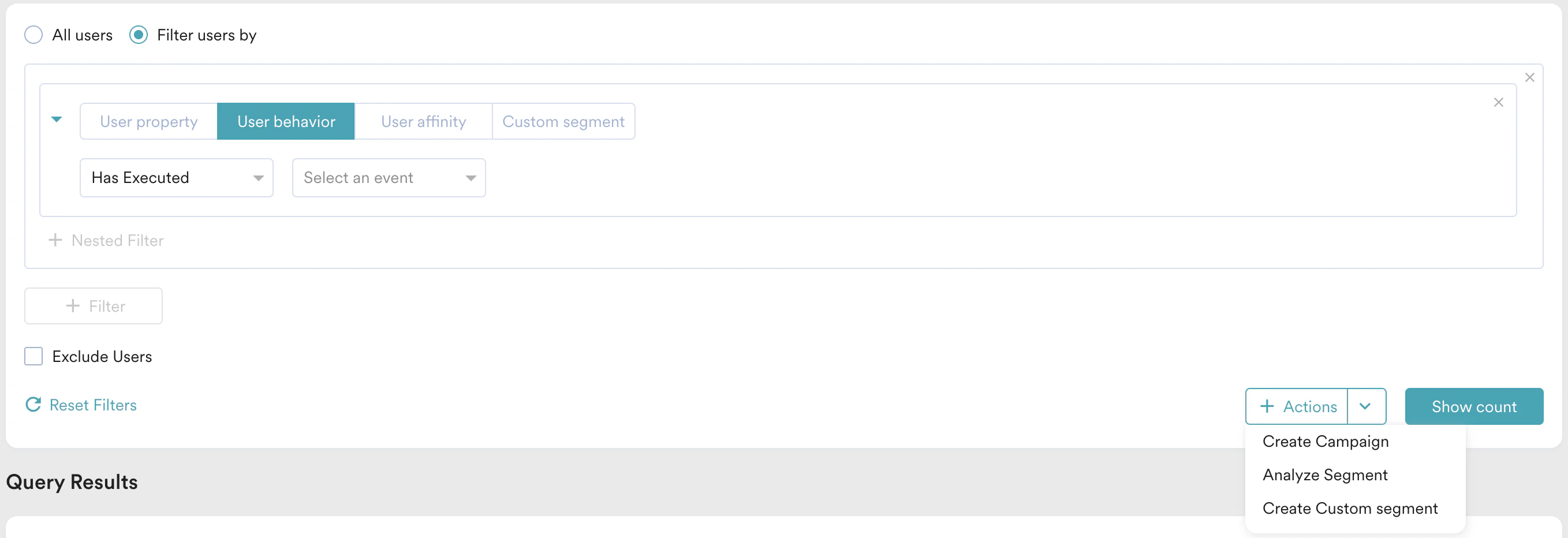
Show count
To see the user count for the created segment and other details explained in the Recent queries section below.Create
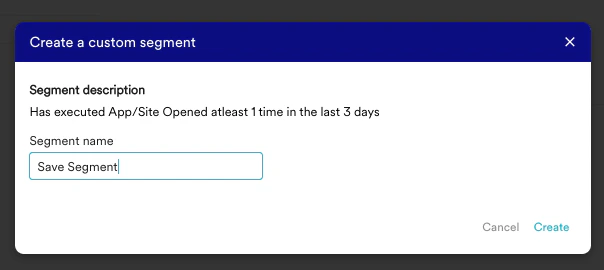
In Create, there are 2 options available:- Create Custom Segment - To save the created Segment as a Custom Segment, provide the segment name and click on Create button.
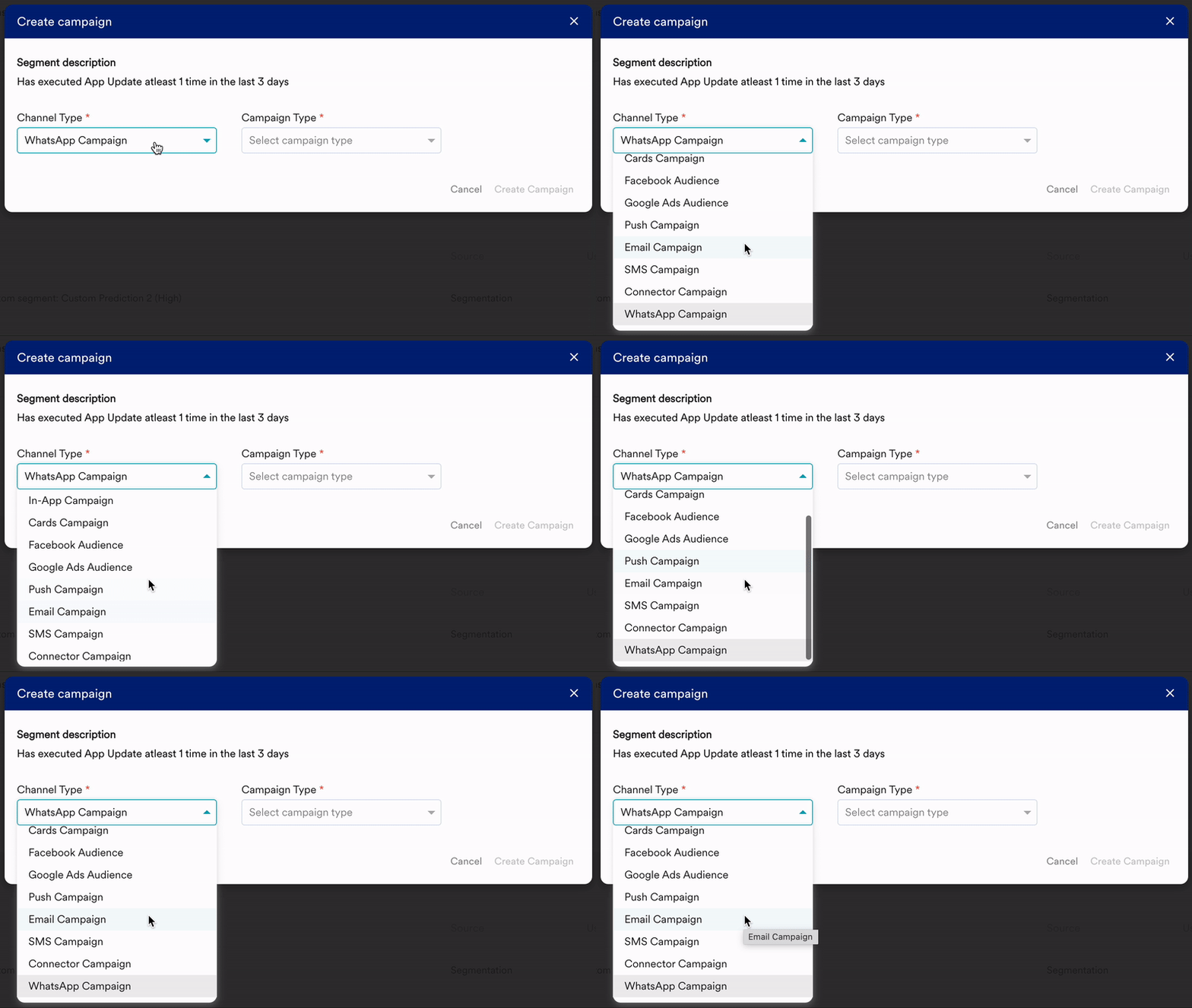
- Create Campaign - To create a campaign using the created Segment, select the channel type and the campaign type. Clicking on Create Campaign will redirect to the respective campaign page with the created segment populated in the Target Audience section.
Analyze
Analyze a segment directly from the Segmentation page. This action auto-populates the segment in the Target audience section of Behavior, Funnels, Retention, Session and Source, User Paths, and RFM analysis.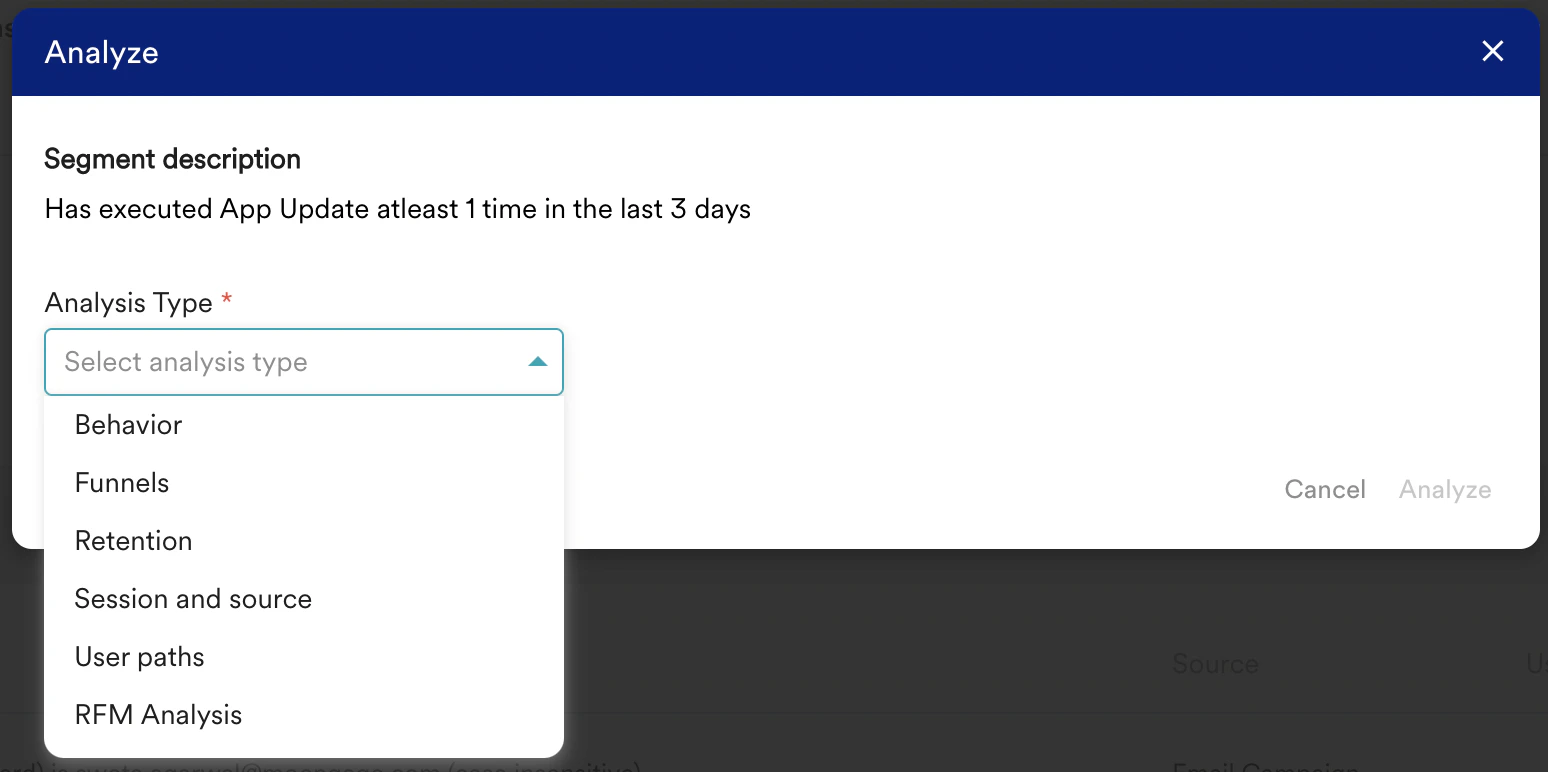
Recent Queries
The recent query section lists all the user segment queries run across the MoEngage dashboard. Be it segment queries run from Create Segment page or from All Campaigns (Email, Push, SMS, etc.), MoEngage users would be able to see contextual numbers for the target audience (Both Total and Reachable users on the channel where the query was made) along with query source information. When Teams are enabled, you will be able to see the recent queries for the selected team (team chosen in the Teams dropdown).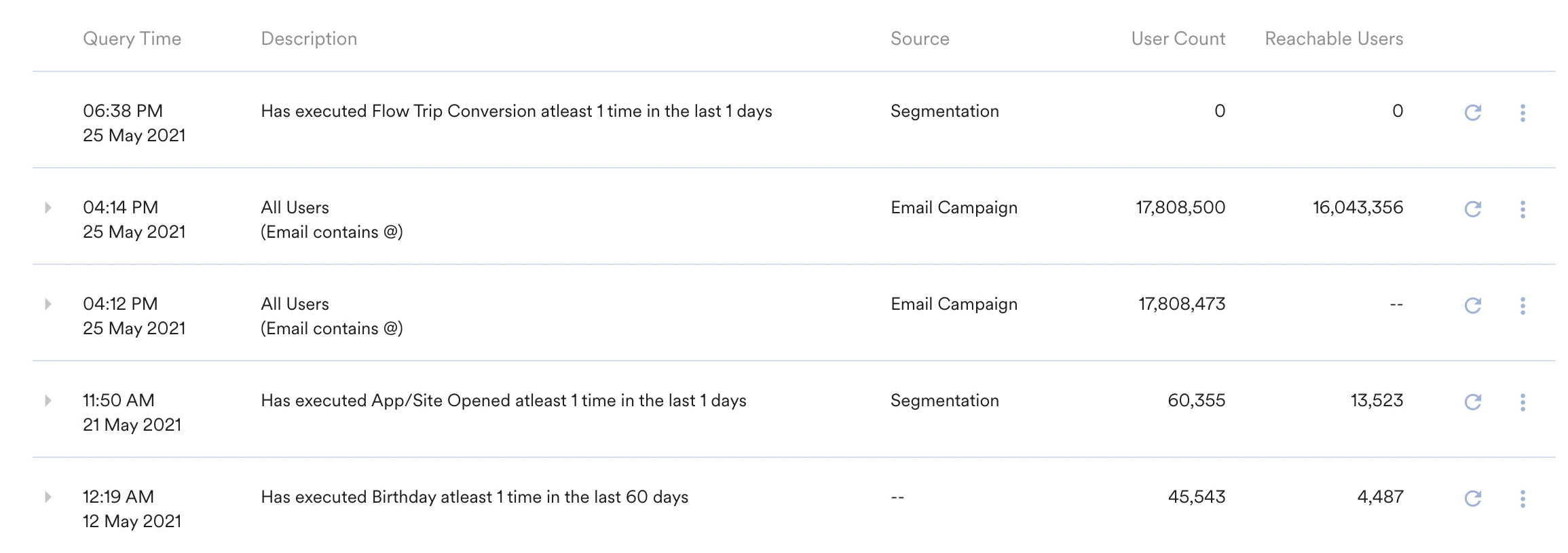

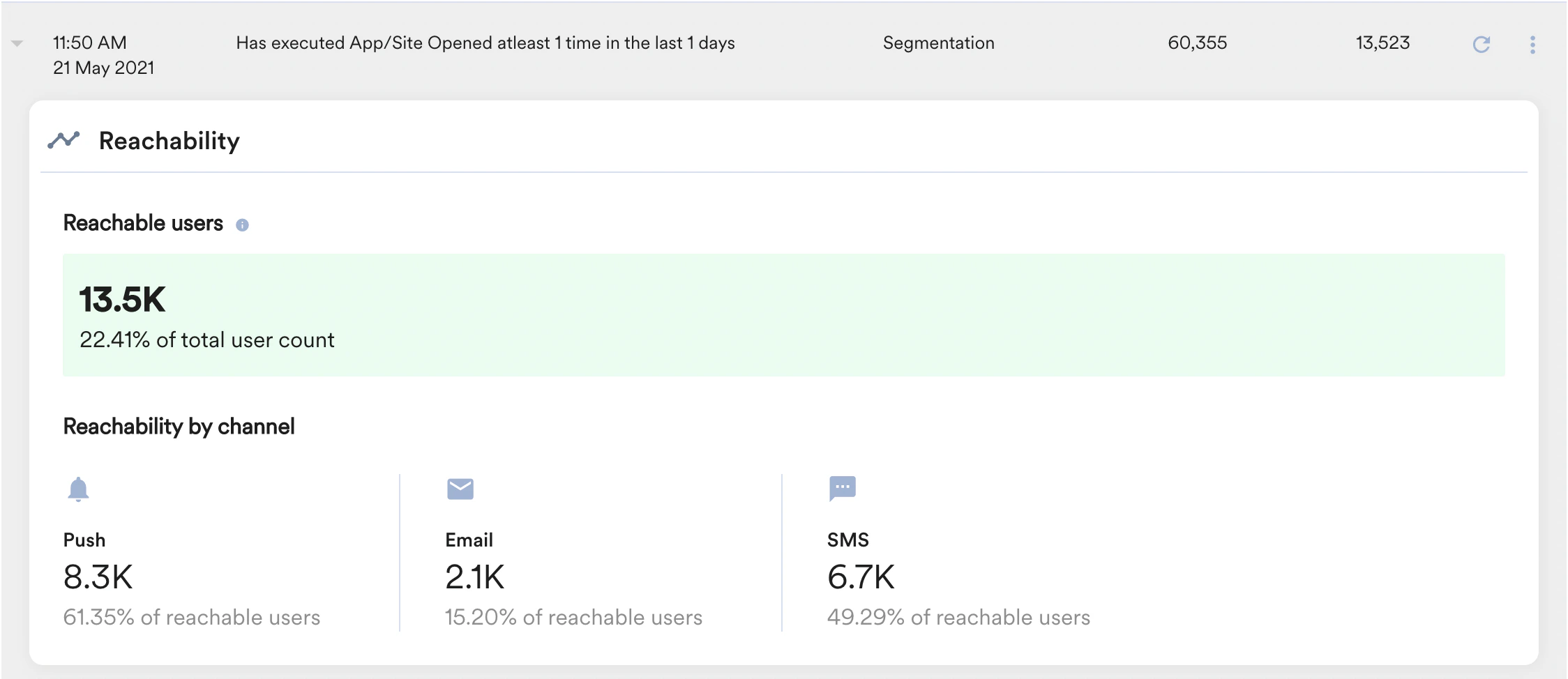
- Reachable Users
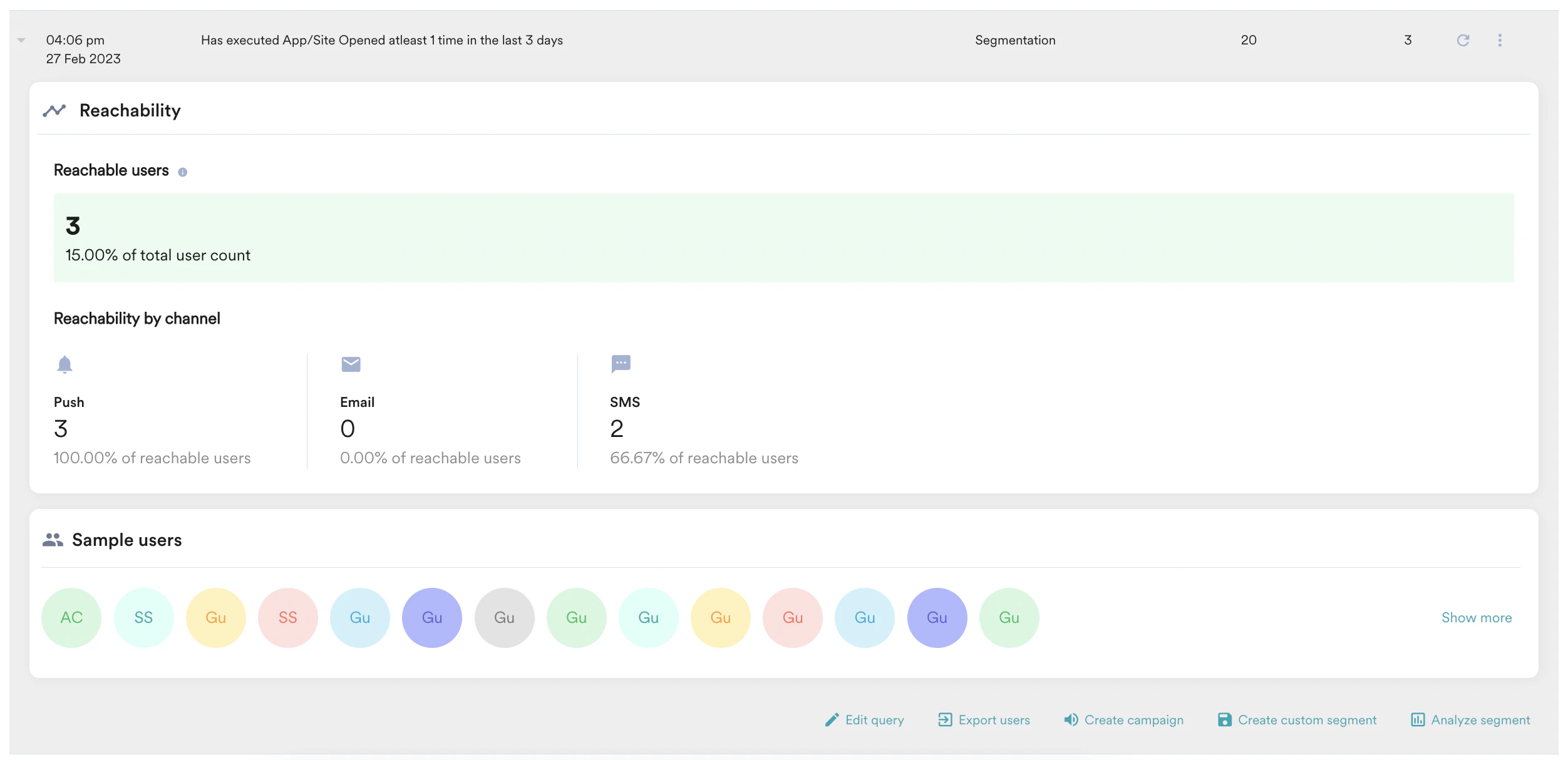
- where the source is Segmentation, it will show the reachable user count across all outbound channels (Push, Email & SMS). Reachable user count is also available for specific channels individually.
- where the source is the Push campaign, it will show the reachable user count for push notifications. Reachable user count is also available for Android, iOS, and Web platforms for the Push.
- Sample user’s initials or GU(Stands for Guest) - Click on these bubbles to open the user profile
- Edit query option to edit the query.
- Campaign and Custom segments can be created using:
- Create campaign to create a campaign directly from the Segment page
- Create custom segment to create a custom segment for reuse later
- Analyze segmentto analyze a segment in Behavior, Funnels, Retention, Session and Source, User Paths, and RFM analysis directly from the Segment page
- Export users option to export users and desired User Attributes/properties of the Segment. More details in this article.
- Show More to see the list of all sample users. The sample users count is limited to 50 at this point.
User Search
For a quick user view, users can be searched using ID, Email, Mobile No. or MoEngage ID. Just enter the text in the user search box and hit enter. MoEngage system will search for the provided text in all the four mentioned fields and show the results.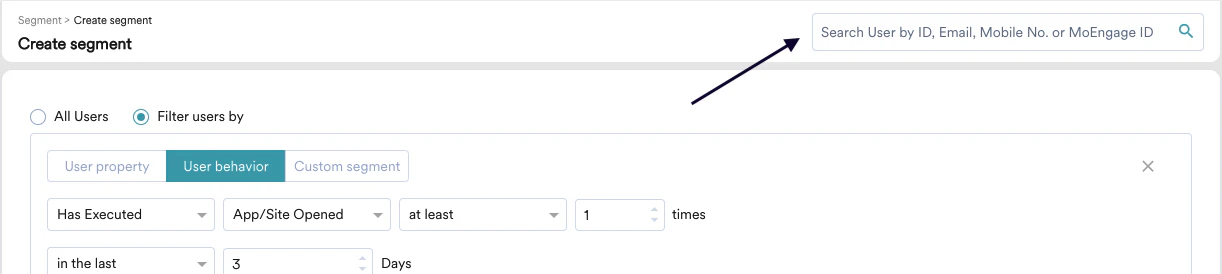
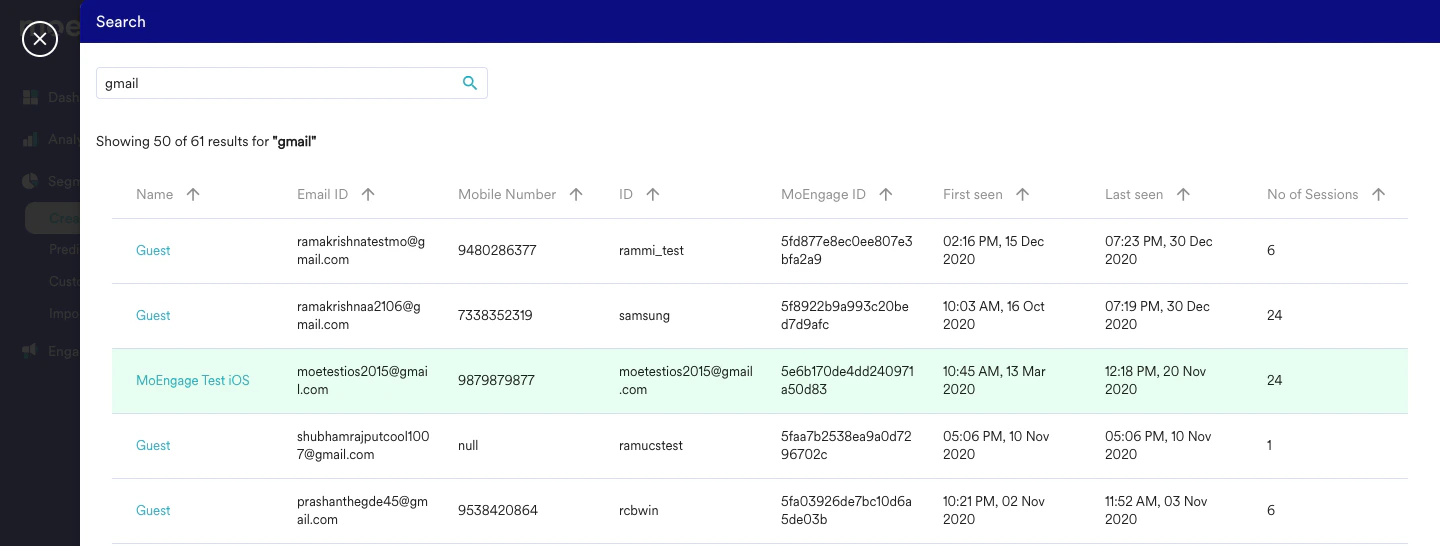
PII (Personally Identifiable Information) marked attributes are shown as Private or --- in the User Search and Show more popup. Know more.