

Overview
This feature enables you to configure a custom domain to be used in the messages instead of the standard MoEngage Domain. A custom domain is a personalized domain name that lends your brand credibility and authority and differentiates you from the competition. Oftentimes, it becomes your brand’s online identity. For example, it is common for customers to say Google it when they mean Google Search. Google’s domain name is Google.com, and it is everyone’s favorite moniker for the company’s search feature! The custom domain feature enables you to use your custom domain in the URLs sent in the message body of SMS, WhatsApp, or Email.In the MoEngage Email context, Custom Domain is referred to as Link Branding.
Glossary
How do CNAME Records work?
- SMS & Whatsapp
- Email
If your domain name is yourbrand.com and you add the following link to your SMS or WhatsApp message body: http://www.yourbrand.com/producregistrationpage and shorten it using MoEngage’s default URL shortening, the URL will appear as ux.moengage.com/register. If you want your shortened URL to be YourBrand instead of ux.mnge.co, you should add a CNAME DNS record to your DNS, as shown below. The shortened URL would then be: yourbrand.com/register.
When you request a web page, here’s what happens:
- A DNS request is created to look up the actual location where the resource is located for the domain name in the URL.
- The DNS resolver finds the actual location mapped to the domain name (this is called resolving the DNS) by fetching the CNAME record.
- This CNAME is returned to the browser. The CNAME helps the user’s app/browser understand the server domain that needs to be requested.
- The browser sends a new DNS request for the IP/domain mapped to the CNAME, and the web page for the requested resource is located and returned
Prerequisites
If you have Certificate Authority Authorization (CAA) records set up for your domain to control the Certificate Authorities (CAs) that can issue SSL certificates for their domain, please add http://sectigo.com/ to the same before trying to set up a custom domain in MoEngage.
- Look up a popular domain registrar (A domain name registrar provides domain name registrations to the general public. For example, GoDaddy and Google Domains)and look for a domain name that is not used.
- Purchase the domain name. You can also purchase a custom domain from your web hosting provider. In case you have a custom domain, you can go ahead and skip to the next step.
- Add a CNAME Record in your DNS to point to the MoEngage domain. For more information, refer to How CNAME Records Work.
- Set the Time To Live (TTL) to 30 minutes for this record.
Note: If your DNS provider doesn’t support 30 min TTL, select the minimal TTL time frame supported by your DNS provider. - After the records and details are successfully added and verified on your DNS, you can add the custom domain in MoEngage.
You can use the same custom domain for SMS and WhatsApp. For Email, you need to set up a different custom domain.
Configure a Custom Domain
To configure a Custom Domain for the SMS, WhatsApp, and Email channels: Navigate to the MoEngage Dashboard and select Settings -> Advanced settings -> Custom domain. You can create custom domains for SMS & WhatsApp or Email by clicking the respective tabs on the Custom domain screen.- SMS & WhatsApp
- Email
Follow the below steps to configure custom domain for SMS & Whatsapp:
- Make sure to follow the provided Pre-requisites to ensure that your custom domain is verified.
- Add the custom domain name in the Custom domain name field and click Verify. You must not add http://,https:// or www. to the domain name. Add the name as added in the CNAME record.
- After verification, you get a message stating that the custom domain is verified, as shown below.
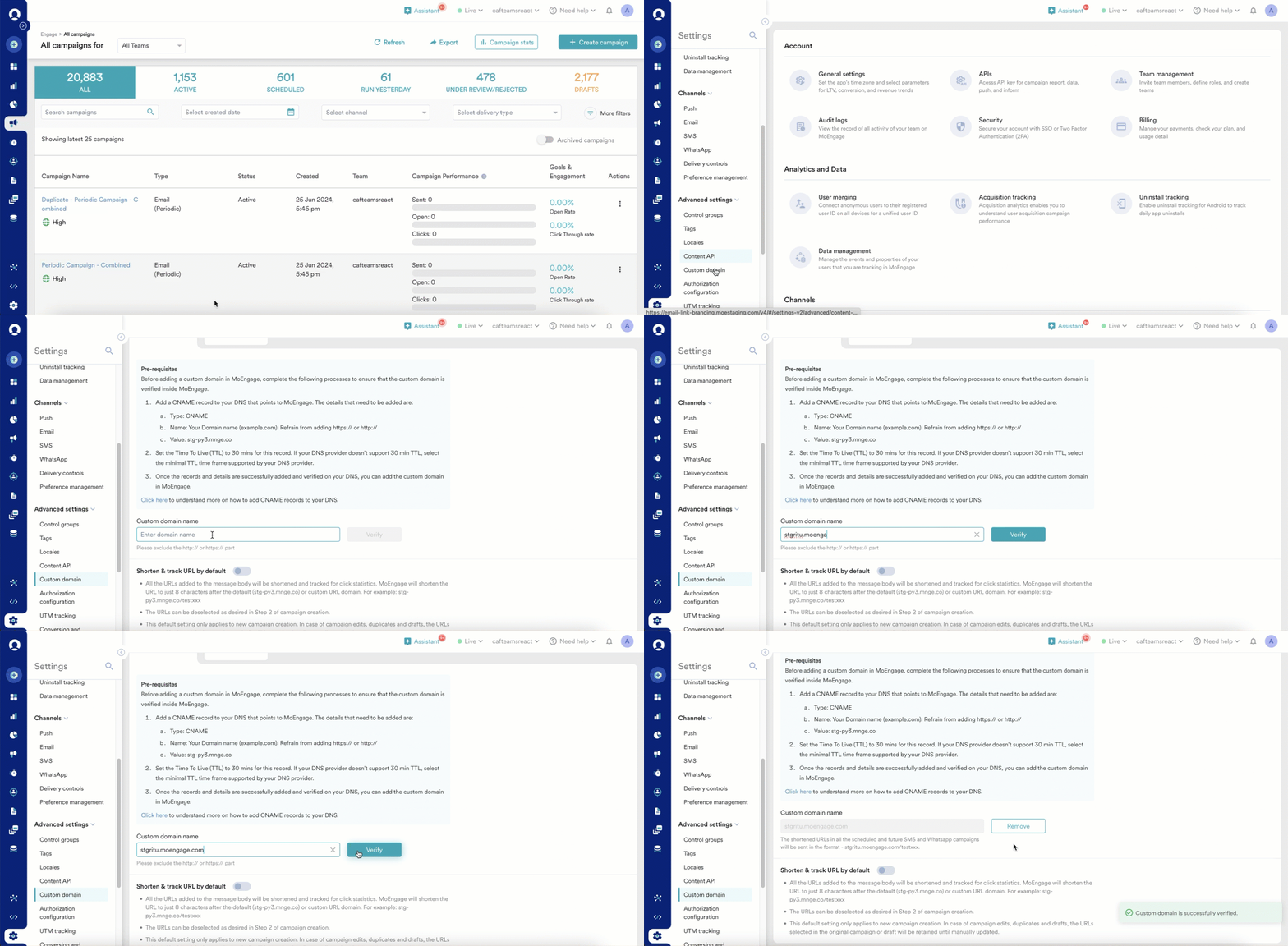
- Toggle Shorten and track URL by default to enable shortening and tracking of links added to SMS and WhatsApp messages using the custom domain. This will turn on the shortening and tracking of the URL for all SMS and WhatsApp campaigns. This ensures that tracking is automated and never missed. Also, it can be unchecked in the campaigns or turned off in the settings here when you do not wish to track clicks.
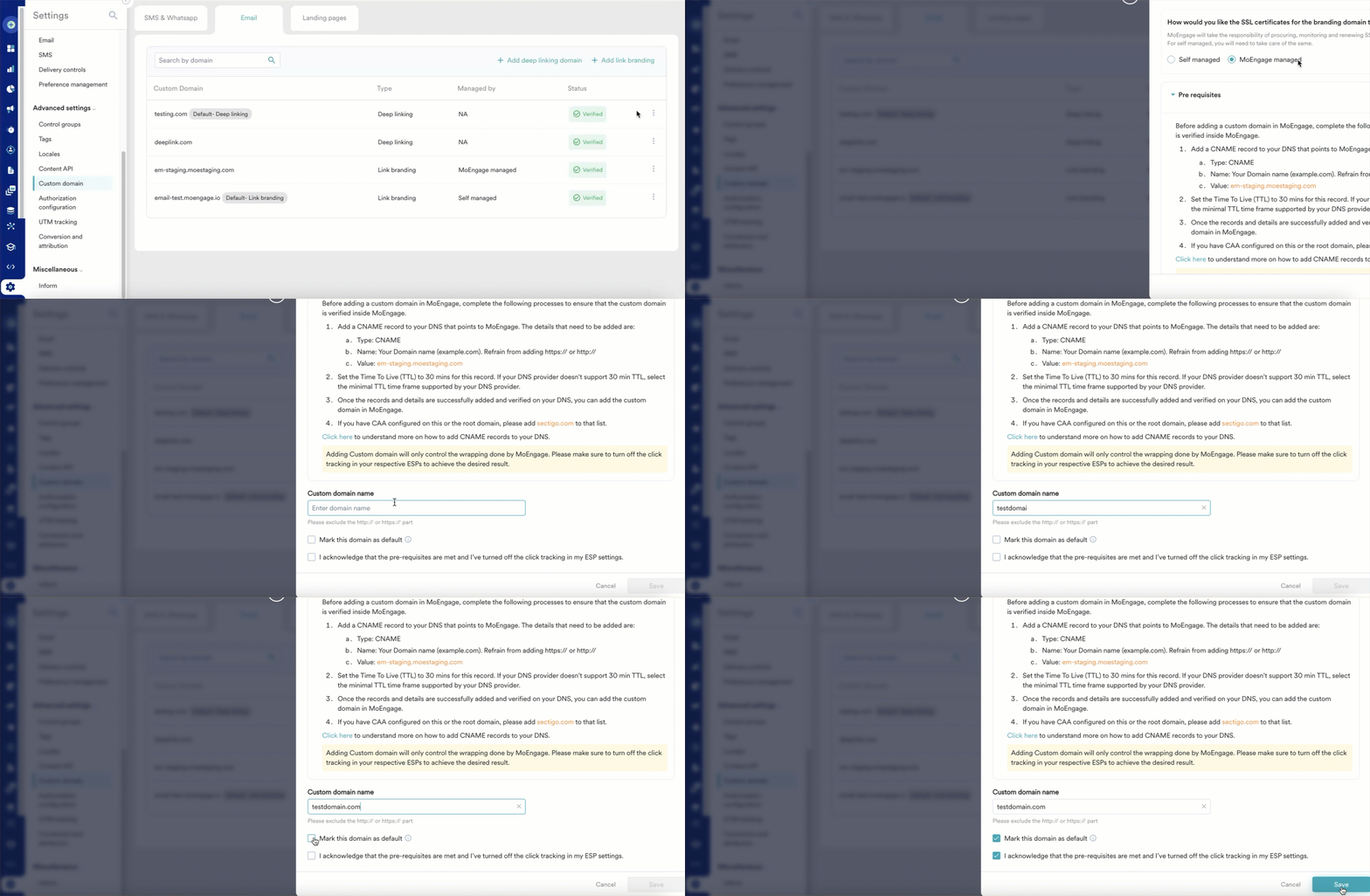
Campaign Previews
For SMS & WhatsApp, when you add a link to the message body and the Shorten and Track URLs option is selected, the preview will display a shortened link, as shown below.- SMS
- WhatsApp
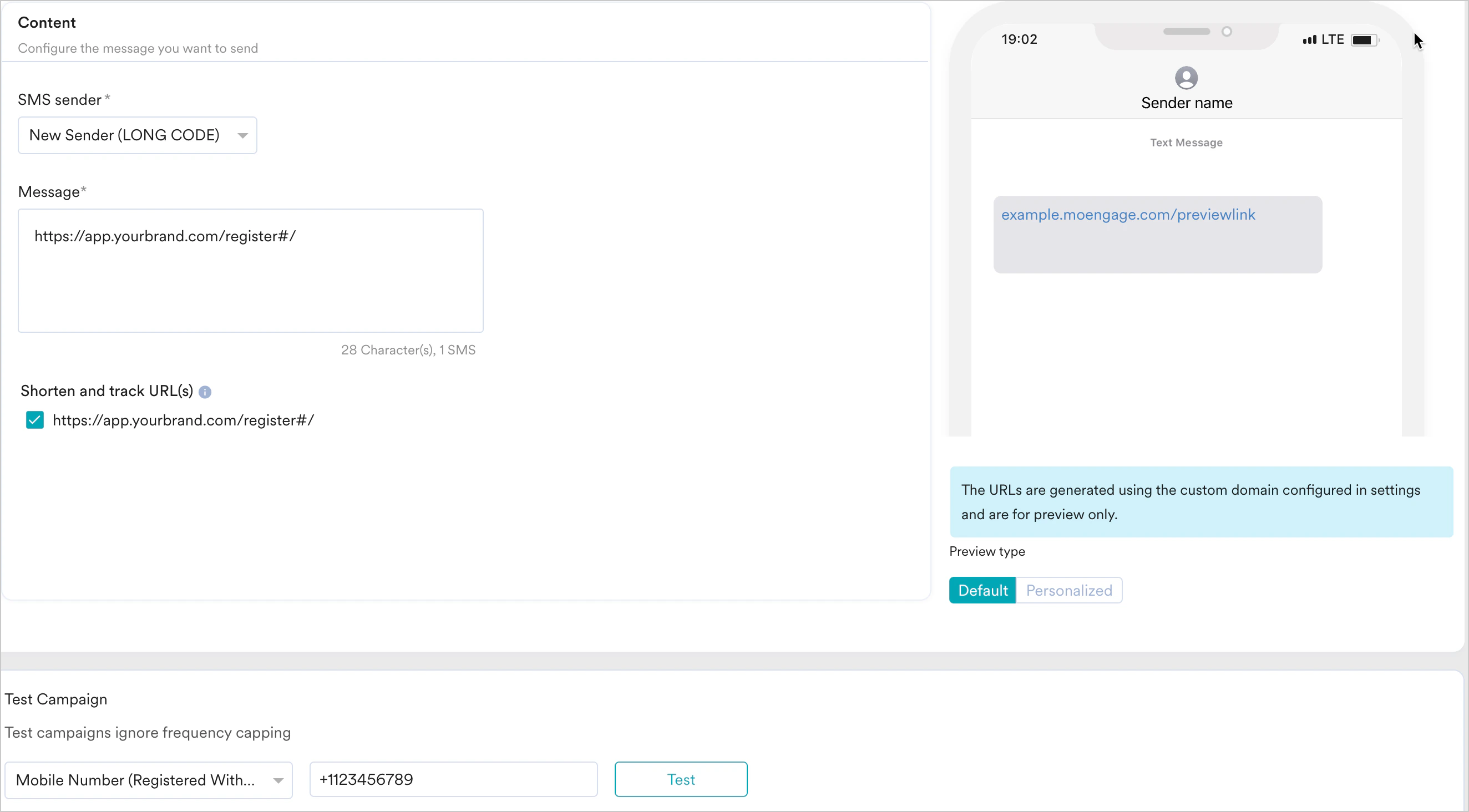
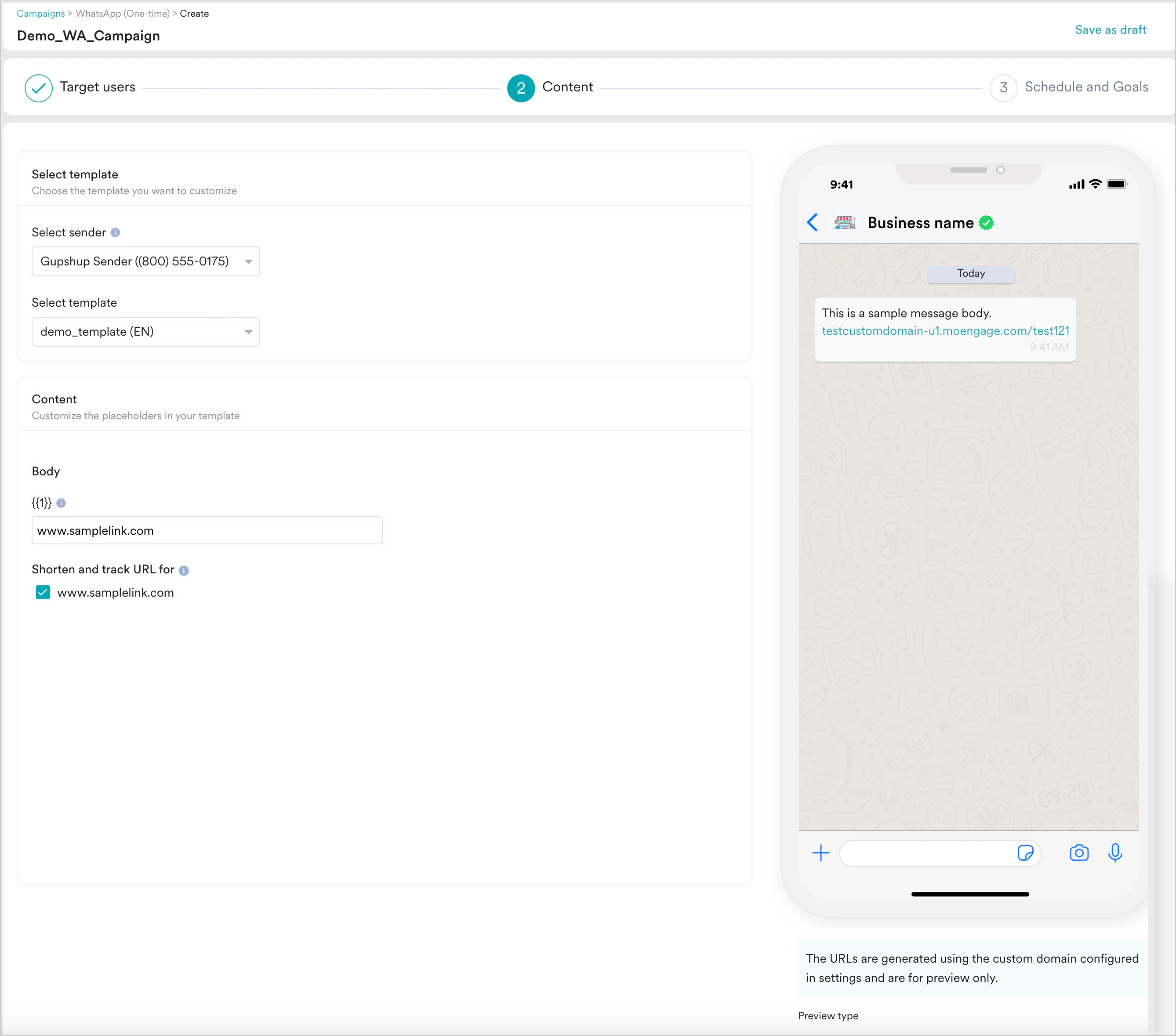
- The URL displayed in the preview is only an example of how the real message body would look and is not the real URL that would be sent in the campaign.
- To test how a user would receive the SMS, WhatsApp message, or Email use the Test Message(SMS), Test Campaign (WhatsApp, Email) feature and send a test message. You can view the URL as it would appear in your live campaign.
Troubleshooting
If you get the error “Unable to verify. Check domain settings where this domain is managed and retry,” make sure the DNS & CNAME mapping is done correctly in your specific Domain Registrar. To verify this, follow the steps your registrar has mentioned. If you don’t have the required access, you can share these details with your IT admin, and they can help you in setting these up:The Unsubscribe URL added in the Email Settings will not be a branded link if the unsubscribe URL is customized and not MoEngage’s default unsubscribe URL.