

Overview
As a marketer, you can set up a standard format for submitting mobile numbers to MoEngage and select the required details, such as adding + and country code so that MoEngage can submit mobile numbers in E.164 format, i.e., +countrycodemobilenumber to WhatsApp and SMS connectors. We recommend using one of the following formats to store a mobile number in MoEngage. Examples of a mobile number to be sent to a customer in the US / Canada are mentioned below:- E.164 Format i.e. +countrycodemobilenumber, for example, +1999999999
- Numbers without a + (plus ) sign, for example, 19999999999
- Mobile numbers without country code and + sign, for example, 999999999
MoEngage currently adds +91 as the default country code for all mobile numbers when submitting them to SMS and WhatsApp connectors.
Configure the Mobile Number Format
Perform the following steps to configure the country code:- Go to Settings > Advanced settings > Mobile number management. The Mobile number management page is displayed.
-
Turn the Add ’+’ sign to mobile number if missing toggle on to add a plus (+) sign to the mobile number if your mobile number does not have a plus (+).
Under Preview as per above set standard, you can see the format of the mobile number MoEngage expects from you. It has the country code and mobile number without a plus.
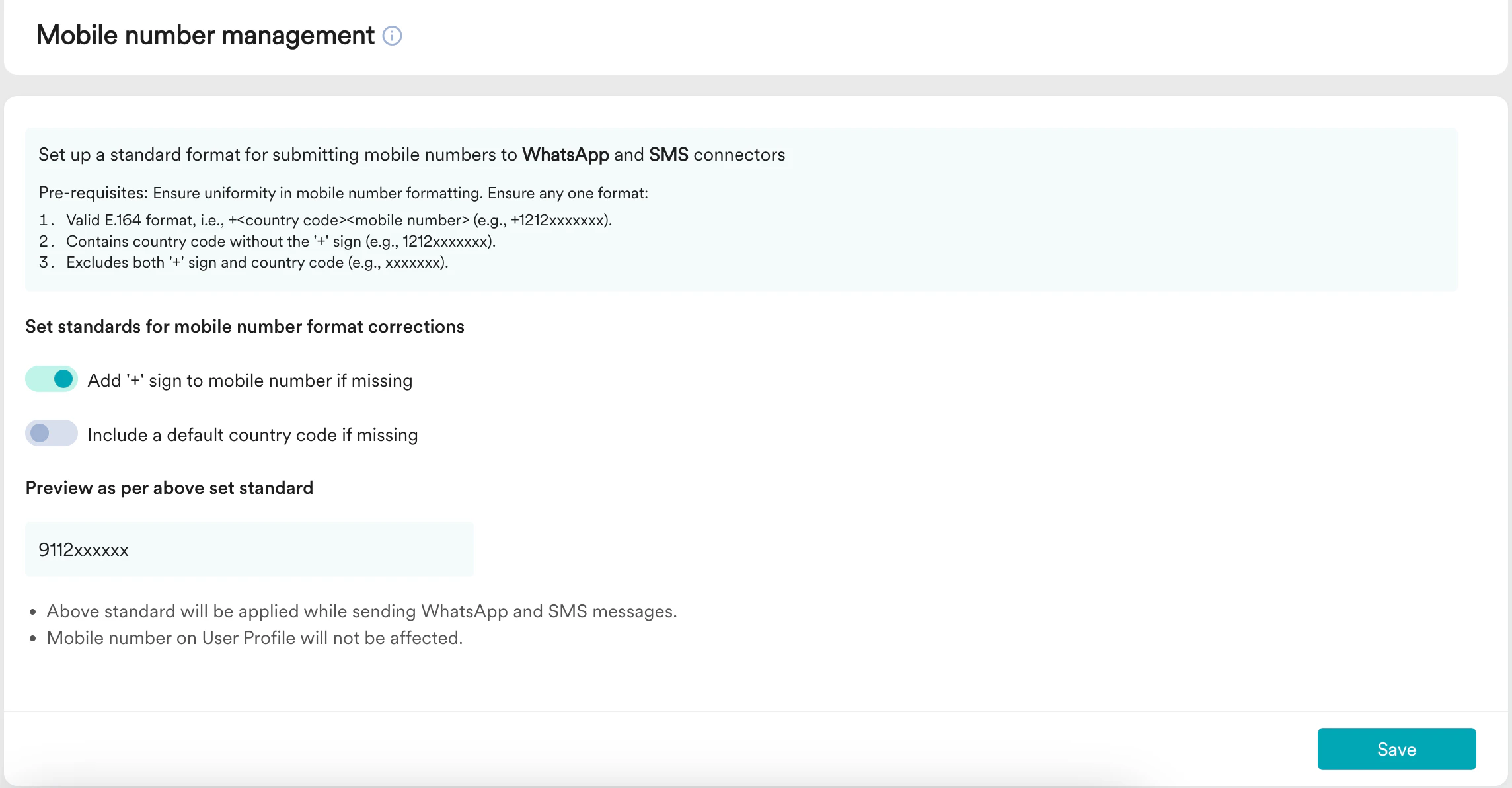
- Turn the Include a default country code if missing toggle on to add a country code to the mobile number if your mobile number does not have a country code.
-
When you turn the Include a default country code if missing toggle on, The Select the country code drop-down is visible. Select your country code from the drop-down list.
Under Preview as per above set standard, you can see the format of the mobile number MoEngage expects from you. It has only mobile number without a plus and country code.
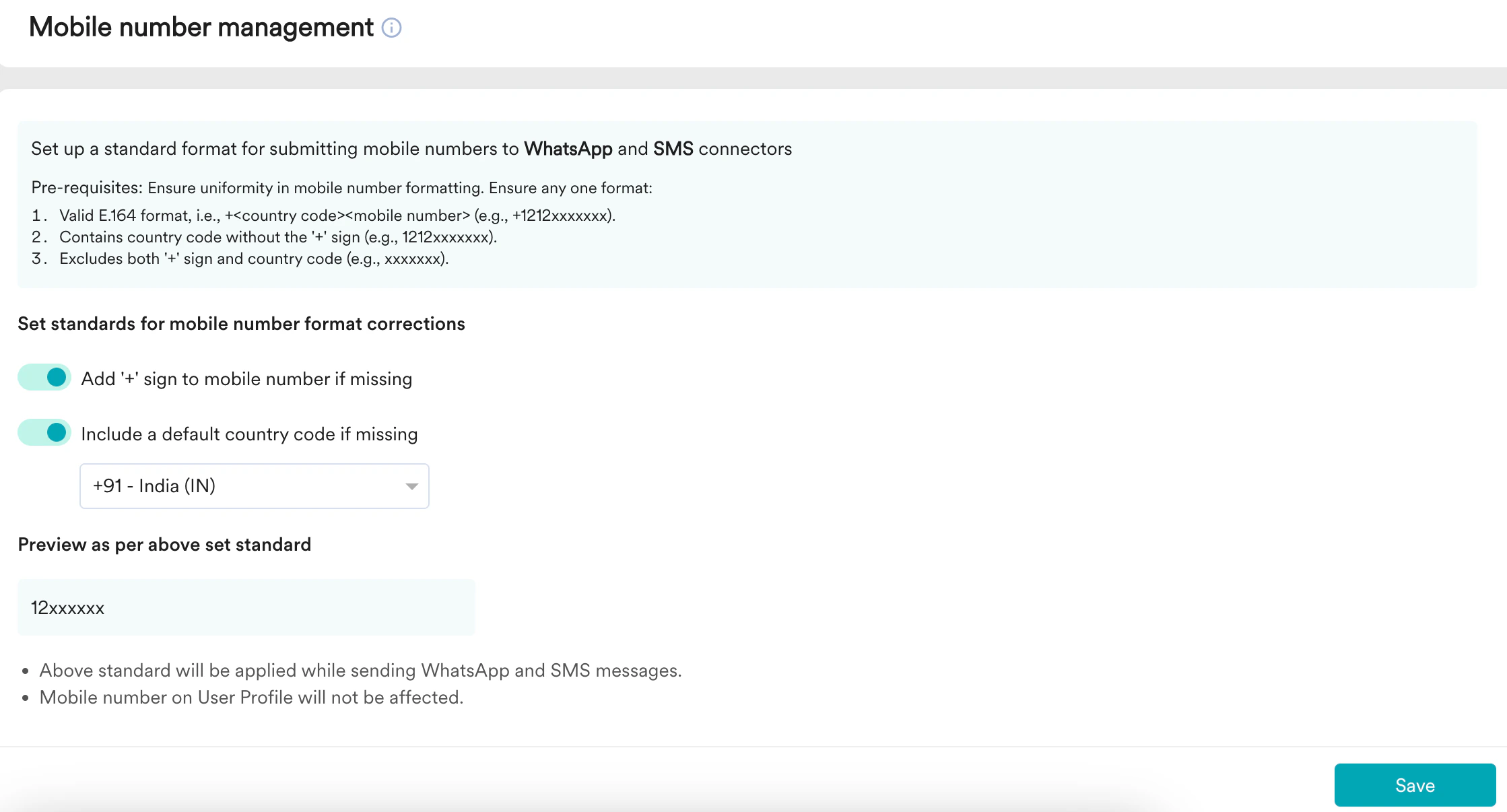
- Click Save. The Confirm Changes pop-up is displayed.
- Click Confirm to save the changes.
This feature is not supported for Twilio connector.