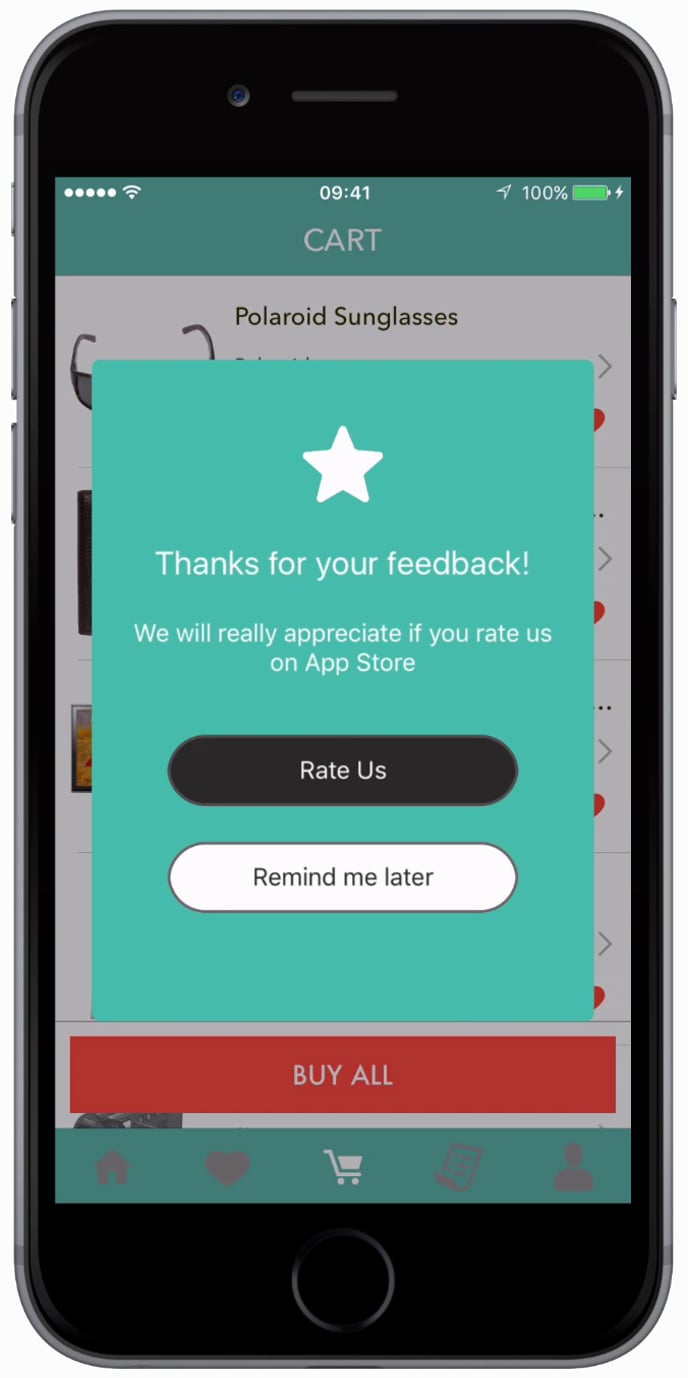
InApp NATIV Campaigns target your users by showing a message while the user is using your app. They are very effective in providing contextual information and help to cross-sell/up-sell on desired screens of your app or/and on desired actions performed by the user in your app.
Install Android Dependency
Install using BOM
Integration using BOM is the recommended way of integration; refer to the Install Using BOM document . Once you have configured the BOM add the dependency in the app/build.gradle file as shown below:
dependencies {
    ...
    implementation("com.moengage:inapp")
}
Note: Version numbers are not required for these dependencies; the BOM automatically manages them.
Requirements for displaying images and GIFs in InApp
Starting InApp version 7.0.0, SDK requires Glide to show images and GIFs in the in-apps. You need to add the below dependency in your build.gradle file.
dependencies {
 ...
 implementation("com.github.bumptech.glide:glide:4.16.0")
}
Display InApp
Call the showInApp() wherever InApp has to be shown in the app as shown below:
import { MoECapacitorCore } from 'capacitor-moengage-core';
MoECapacitorCore.showInApp({ appId: "YOUR_WORKSPACE_ID" });
Display Nudges
Starting with capacitor-moengage-coreversion 6**.0.0,**MoEngage InApp SDK supports displaying Non-Intrusive nudges.
To show a Nudge InApp Campaign call showNudge()
import { MoECapacitorCore } from 'capacitor-moengage-core';
// Display Nudge on the any available position
MoECapacitorCore.showNudge({position: MoENudgePosition.Any, appId: "YOUR_WORKSPACE_ID" });
// Display Nudge on the specific position
MoECapacitorCore.showNudge({position: MoENudgePosition.Top, appId: "YOUR_WORKSPACE_ID" });
InApp/Nudge Redirection default behavior
On clicking an Inapp or Nudge, MoEngage SDKs will handle only rich landing navigation redirection.
For the screen name and deep link redirection, your app code should redirect the user to the right screen or deep link. To handle the screen name and deep link redirection, you must implement inapp click callback methods. MoEngage SDK will just pass the inapp payload to this call back code. Implementation steps are mentioned in the InApp callback section of the Integration.
Self-Handled InApps
Single Self-Handled InApps
Self-handled In Apps are messages which are delivered by the SDK but displaying it has to be handled by the App.
To get self-handled In-App call the below method.
import { MoECapacitorCore } from 'capacitor-moengage-core';
MoECapacitorCore.getSelfHandledInApp({ appId: "YOUR_WORKSPACE_ID" });
import { MoECapacitorCore, MoEInAppSelfHandledCampaignData } from 'capacitor-moengage-core';
MoECapacitorCore.addListener("inAppCampaignSelfHandled", (data: MoEInAppSelfHandledCampaignData) => {
 console.log(" Received callback 'inAppCampaignSelfHandled',  data: " + JSON.stringify(data))
});
Multiple Self-Handled InApps
To fetch multiple self-handled in-apps, call the getSelfHandledInApps() method. This returns a promise containing the MoEInAppSelfHandledCampaignsData object.
import { MoECapacitorCore } from 'capacitor-moengage-core';
MoECapacitorCore.getSelfHandledInApps({ appId: "YOUR_WORKSPACE_ID" }).then((data) => {
    console.log("Self Handled InApps Data:", JSON.stringify(data));
});
Tracking Statistics
Since display, click, and dismiss for Self-Handled InApp is controlled by the application we need you to notify the SDK whenever the In-App is Shown, Clicked, or Dismissed. Below are the methods you need to call to notify the SDK. The campaign object provided to the application in the callback for self-handled in-app should be passed in as a parameter to the below APIs.
import { MoECapacitorCore, MoEInAppSelfHandledCampaignData } from 'capacitor-moengage-core';
//Track self handled shown
MoECapacitorCore.selfHandledShown(selfHandledCampaignData)
//Track self handled widget clicked
MoECapacitorCore.selfHandledClicked(selfHandledCampaignData)
//Track self handled dismissed
MoECapacitorCore.selfHandledDismissed(selfHandledCampaignData)
InApp Callbacks
The callbacks must be registered before inapps are displayed either via show methods or triggered events. Make sure you are calling initialize() the method of the plugin after you set up these callbacks. Refer doc for more info. import { MoECapacitorCore, MoEInAppLifecycleData, MoEInAppNavigationData, MoEInAppCustomActionData } from 'capacitor-moengage-core';
MoECapacitorCore.addListener("inAppCampaignShown", (data: MoEInAppLifecycleData) => {
console.log(" Received callback 'inAppCampaignShown', data: " + JSON.stringify(data))
});
MoECapacitorCore.addListener("inAppCampaignDismissed", (data: MoEInAppLifecycleData) => {
console.log(" Received callback 'inAppCampaignDismissed', data: " + JSON.stringify(data))
});
MoECapacitorCore.addListener("inAppCampaignClicked", (data: MoEInAppNavigationData) => {
console.log(" Received callback 'inAppCampaignClicked', data: " + JSON.stringify(data))
});
MoECapacitorCore.addListener("inAppCampaignCustomAction", (data: MoEInAppCustomActionData) => {
console.log(" Received callback 'inAppCampaignCustomAction', data: " + JSON.stringify(data))
});
| Event Type | Event Name |
|---|
| InApp Shown | inAppCampaignShown |
| InApp Clicked | inAppCampaignClicked |
| InApp Dismissed | inAppCampaignDismissed |
| InApp Clicked with Custom Action | inAppCampaignCustomAction |
Contextual InApp
You can restrict the in-apps based on the user’s context in the application apart from restricting InApp campaigns on a specific screen/activity. To set the user’s context in the application use setInAppContext() API as shown below.
Set Context
Call the below method to set the context, before calling showInApp().
import { MoECapacitorCore } from 'capacitor-moengage-core';

// replace array elements with actual values.
MoECapacitorCore.setInAppContext({ contexts: ["c1","c2"] , appId: YOUR Workspace ID });
Reset Context
Once the user is moving out of the context use the resetInAppContext() API to reset/clear the existing context.
import { MoECapacitorCore } from 'capacitor-moengage-core';
MoECapacitorCore.resetInAppContext({ appId: YOUR Workspace ID });
Payload Structure
 /**
 * In-App lifecycle event camapaign data
 */
export interface MoEInAppLifecycleData {
    /**
     * Account information
     */
    accountMeta: MoEAccountMeta;
    /**
     * In-App Campaign data
     */
    campaignData: MoEInAppCampaignData;
    /**
     * Platform information
     */
    platform: MoEPlatform;
}

/**
 * Campaign data.
 */
export interface MoEInAppCampaignData {
    /**
     * Unique Identifier for the campaign
     */
    campaignId: string;
    /**
     * Name given to the campaign while creation on the MoEngage Dashboard.
     */
    campaignName: string;
    /**
     * Additional Meta data related to the campaign.
     */
    campaignContext: MoEInAppCampaignContext;
}

/**
 * In-App navigation event campaign data
 */
export interface MoEInAppNavigationData {
    /**
     * Account information
     */
    accountMeta: MoEAccountMeta;
    /**
     * In-App Campaign data
     */
    campaignData: MoEInAppCampaignData;
    /**
     * Navigation action data
     */
    navigation: MoEInAppNavigation;
    /**
     * Platform Data
     */
    platform: MoEPlatform;
}

/**
 * In-App navigation action data
 */
export interface MoEInAppNavigation {
    /**
     * InApp Action type
     */
    actionType: MoEInAppActionType;
    /**
     * Type of Navigation.
     */
    navigationType: string;
    /**
     * Navigation URL
     */
    navigationUrl: string;
    /**
     * Key-Value Pair entered on the MoEngage Platform during campaign creation.
     */
    kvPair: Map<string, Object>;
}

/**
 * In-App custom event campaign data
 */
export interface MoEInAppCustomActionData {
    /**
     * Account information
     */
    accountMeta: MoEAccountMeta;
    /**
     * In-App Campaign data
     */
    campaignData: MoEInAppCampaignData;
    /**
     * Custom Action data
     */
    customAction: MoEInAppCustomAction;
    /**
     * Platform information
     */
    platform: MoEPlatform;
}

/**
 * InApp Action type
 */
export declare enum MoEInAppActionType {
    NAVIGATION = "navigation",
    CUSTOM = "custom"
}

/**
 * In-App custom action data
 */
export interface MoEInAppCustomAction {
    /**
     * InApp Action type
     */
    actionType: MoEInAppActionType;
    /**
     * Key-Value Pair entered on the MoEngage Platform during campaign creation.
     */
    kvPair: Map<string, object>;
}

export interface MoEInAppSelfHandledCampaignsData {
  /**
   * Account information
   */
  accountMeta: MoEAccountMeta;
  /**
   * Array of self handled campaigns
   */
  campaigns: Array<MoEInAppSelfHandledCampaignData>;
}

/**
* Data for self handled campaign.
*/
export interface MoEInAppSelfHandledCampaignData {
    /**
     * Account information
     */
     accountMeta: MoEAccountMeta;
    /**
     * In-App Campaign data
     */
    campaignData: MoEInAppCampaignData;
    /**
     * SelfHandled data
     */
    selfHandled: MoEInAppSelfHandledCampaign;
    /**
     * Platform information
     */
    platform: MoEPlatform;
}

/**
* Self Handled campaign object
*/
export interface MoEInAppSelfHandledCampaign {
    /**
     * Self handled campaign payload.
     */
     payload: string;
    /**
     * Interval after which in-app should be dismissed, unit - Seconds
     */
     dismissInterval: number;
    /**
     * Should the campaign be dismissed by pressing the back button or using the back gesture.
     * if the value is true campaign should be dismissed on back press.
     */
     isCancellable: boolean;
    /**
     * Display rules for the campaign
     */
     displayRules: MoEInAppDisplayRules;
}

/**
 * Display rules for self handled campaign
 */
export interface MoEInAppDisplayRules {
  /**
   * Screen name where campaign should be displayed
   */
  screenName: string;
  /**
   * List of contexts
   */
  contexts: Array<string>;
  /**
   * List of screen names
   */
  screenNames: Array<string>;
}

/**
 * Data returned when a logout operation is successfully completed.
 */
export interface MoELogoutCompleteData {
  /**
    * Account information
    */
    accountMeta: MoEAccountMeta;
  /**
   * Platform type
   */
    platform: MoEPlatform;
}
Handling Orientation Change
This is only for the Android platform
- Add the API call in the Android native part of your app
- Call MoEngage plugin’s onOrientationChanged()
Add the API call in the Android native part of your app
Notify the SDK when onConfigurationChanged() API callback is received in your App’s Activity class.
import android.content.res.Configuration;
import android.os.Bundle;
import com.getcapacitor.BridgeActivity;
import com.moengage.capacitor.MoECapacitorCorePlugin;
import com.moengage.capacitor.MoECapacitorHelper;

public class MainActivity extends BridgeActivity {

  @Override public void onConfigurationChanged(Configuration newConfig) {
    super.onConfigurationChanged(newConfig);
    MoECapacitorHelper.INSTANCE.onConfigurationChanged();
  }
}
Call the MoEngage plugin’s orientation change API
Call the below API to notify SDK of the orientation change.
import { MoECapacitorCore } from 'capacitor-moengage-core';
MoECapacitorCore.onOrientationChanged();

