

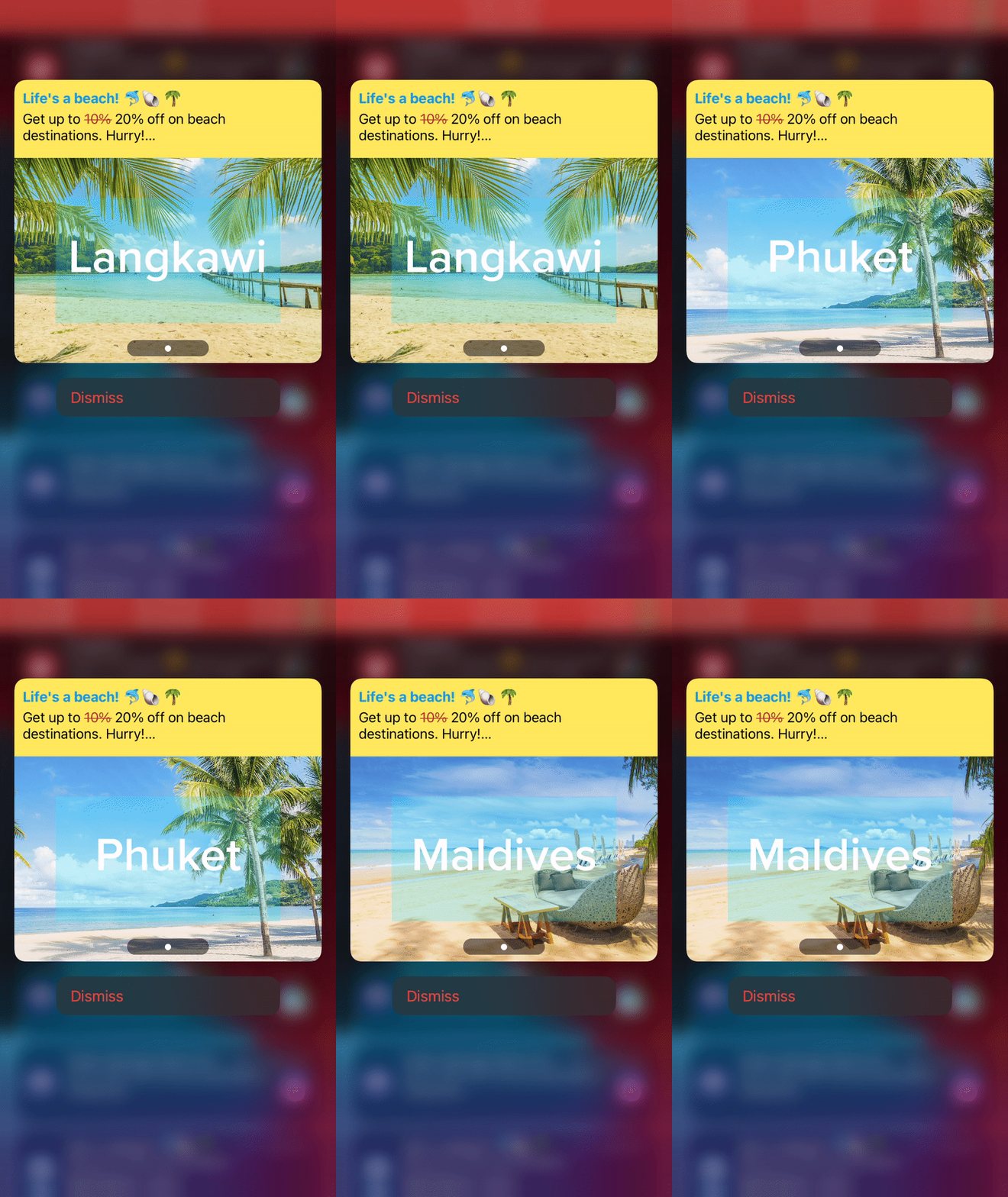
PrerequisitesMake sure you have completed the App Target and Notification Service Extension Implementation for supporting Rich Push in your project before proceeding with the below steps.
STEPS:
To support these custom push templates, your project needs to have a Notification Content Extension. Follow the below steps to create a Content Extension and to set it up to support MoEngage templates:1. Create a Notification Content Extension
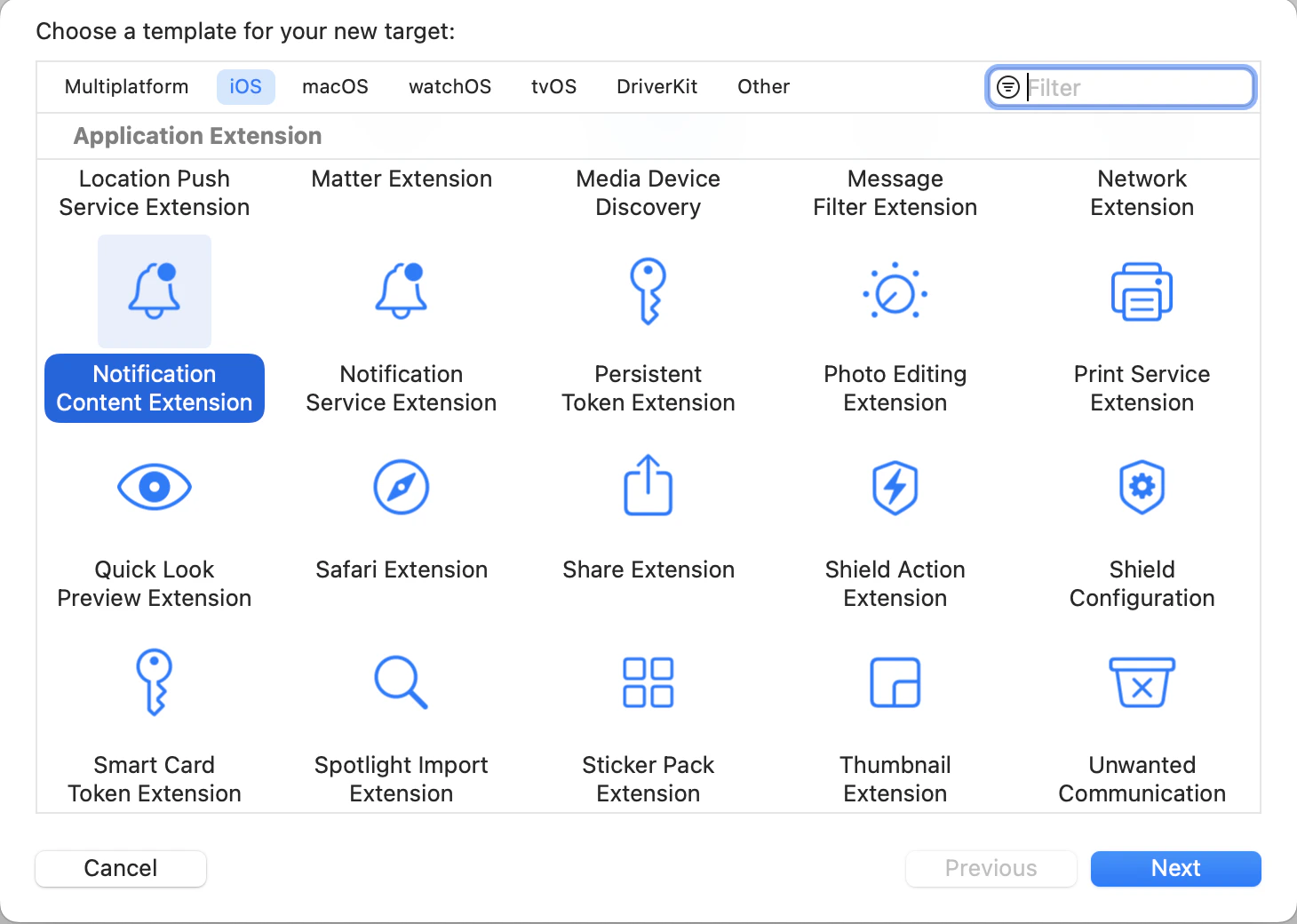
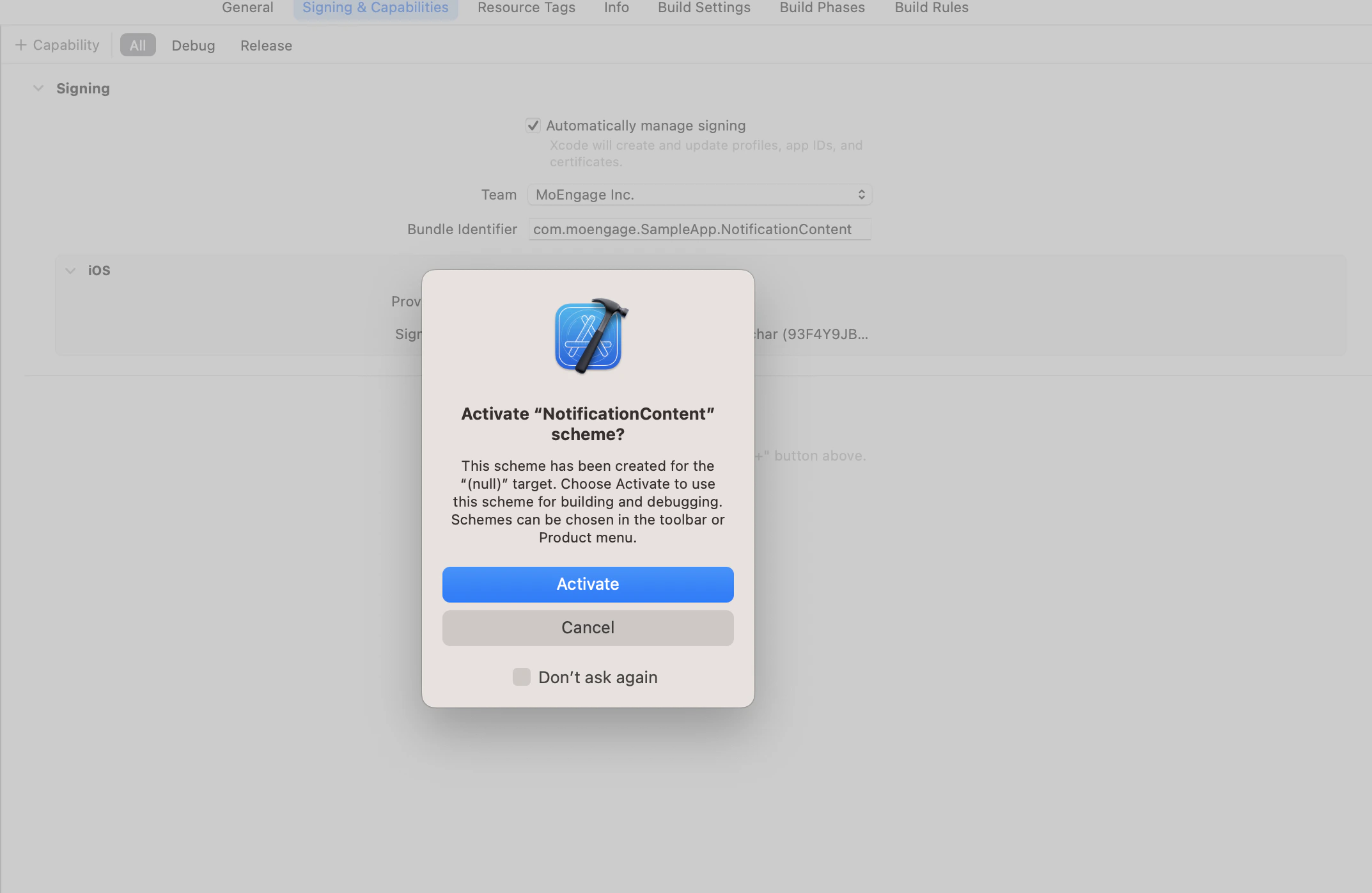
2. Set deployment target
Set the deployment target same as the main app target.3. Add required Capabilities
In the Capabilities Section add App Groups and select the same app group id that you have configured in your App target and Notification Service Extension target.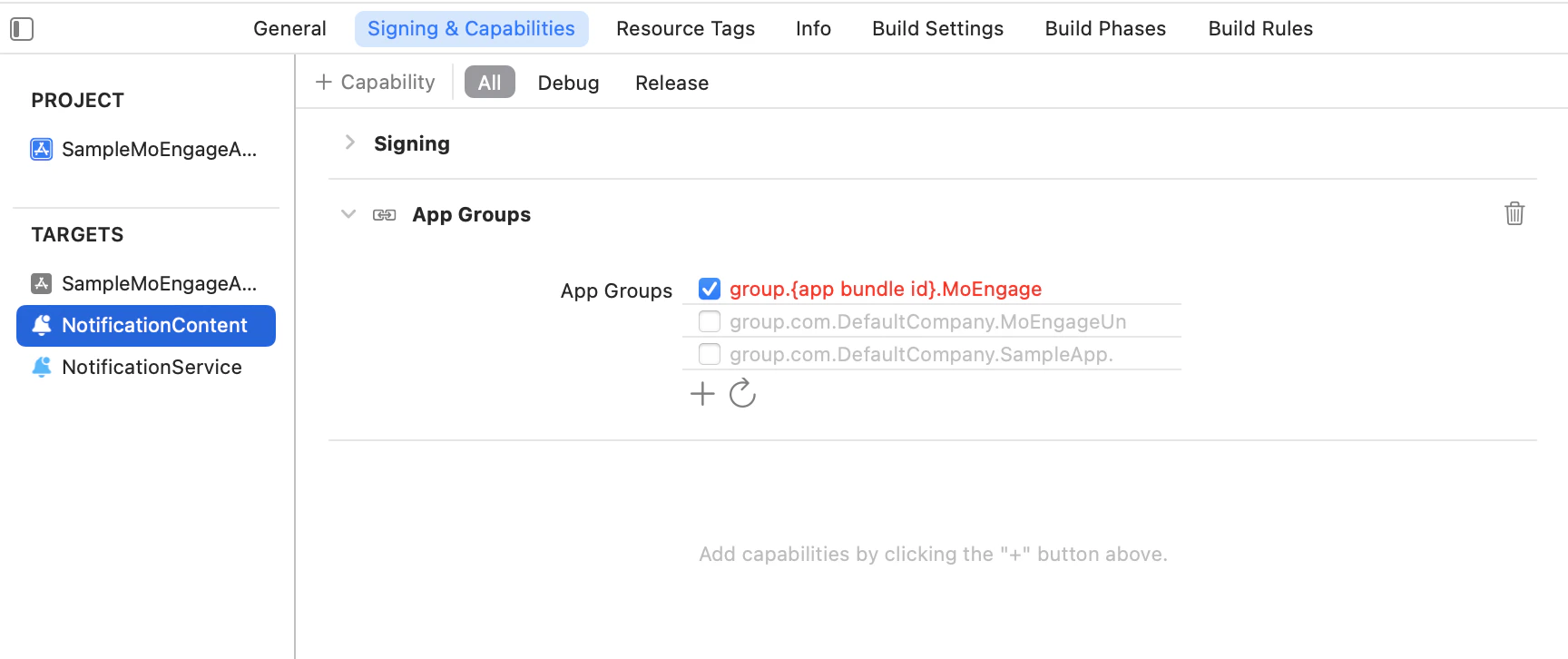
4. Info.plist changes
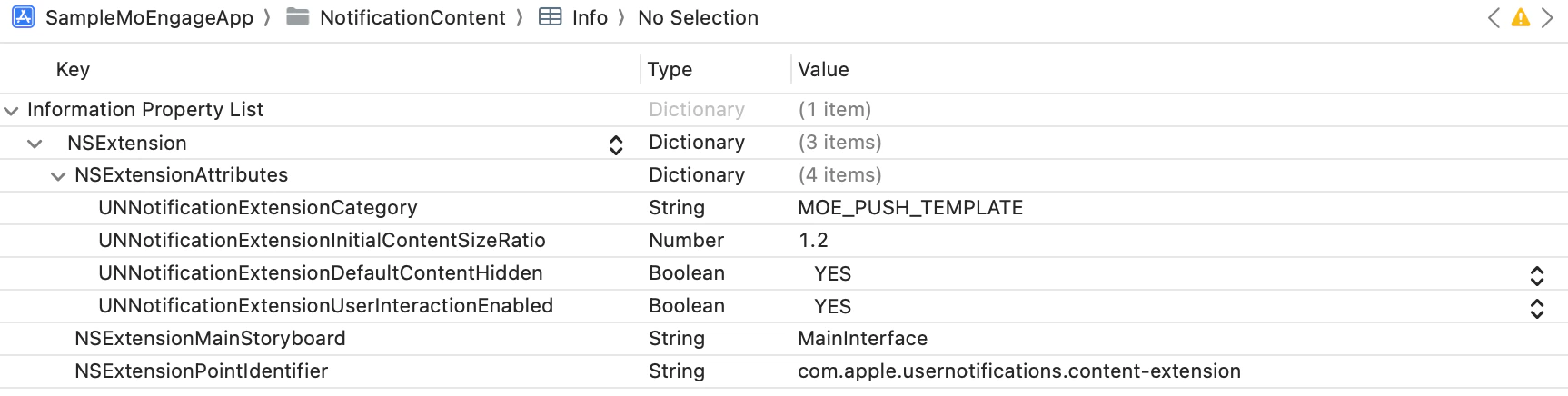
Info.plist of your Notification Content Extension, as shown above, set NSExtensionAttributes as following:
NoteUpdate the UNNotificationExtensionCategory with the necessary values according to the categories that you have declared.
5. Storyboard changes
Select MainInterface.storyboard in your Content extension and remove the default label which is placed there and set the background color of the view to clear color, as shown: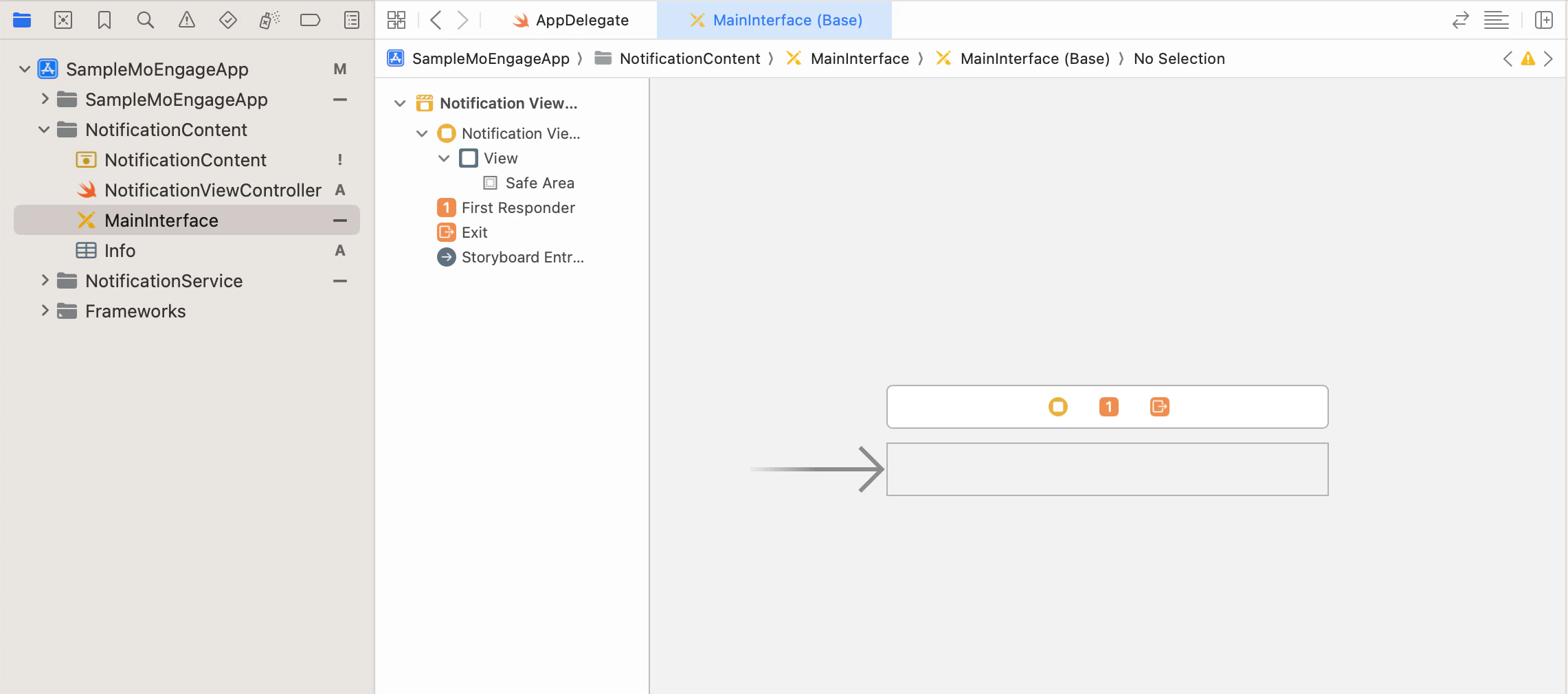
6. MoEngageRichNotification Integration
Integration via Swift Package Manager (Recommended)
To integrate via SPM, use the GitHub url https://github.com/moengage/apple-sdk.git for SDK versions equal and above 9.23.0, or https://github.com/moengage/MoEngage-iOS-SDK.git for other SDK versions link and set the branch as master or required version.Integration via CocoaPod
InformationCocoaPods is being deprecated. MoEngage recommends using Swift Package Manager for all new integrations. For more info on CocoaPods, refer to CocoaPods Integration Guide.
Manual Integration
- To integrate the MoEngageRichNotification SDK manually to your project follow this doc.
- Add MoEngageRichNotification to embed binaries in the App target, and ensure it is linked to your Notification Content Extension target.
7. Code Changes in Content Extension:
- Set the same App Group ID in viewDidLoad() method which was enabled in Capabilities.
- Call addPushTemplate(toController:withNotification:) method to add template in didReceiveNotification() callback.
8. Notification Click callback in App:
In the case of Simple Image Carousel notification, to know which slide was clicked by the user, make use ofMOMessagingDelegate to get notificationClicked(withScreenName: andKVPairs:) callback to get key-value pairs and screen name if set for the clicked slide. Refer to the example below, here we are registering for the callback in AppDelegate: