

ios/YourApp.xcworkspace in Xcode before proceeding.
This guide describes how to integrate MoEngage service and content extensions into your iOS application. These extensions enable notification impression tracking, support for rich media (images, GIFs, and video), and the use of rich push notification templates.
Integrating service and content extensions
Without these extensions, MoEngage cannot track push impressions, rich media notifications fall back to plain text, and rich push templates render with fallback template.Step 1: Prerequisites
Before proceeding, ensure the following are in place:- Ensure you are using MoEngage React Native SDK version 12.6.0 or above to utilize the extension integrator tool.
- SDK initialization: Initialize the MoEngage SDK using file-based initialization.
- App Group configuration: Define an App Group in your configuration using the
AppGroupNamekey (for example,group.com.organization.app).- Add this App Group to the Signing & Capabilities in Xcode.

- Add this App Group to the Signing & Capabilities in Xcode.
- App Group configuration: Define an App Group in your configuration using the
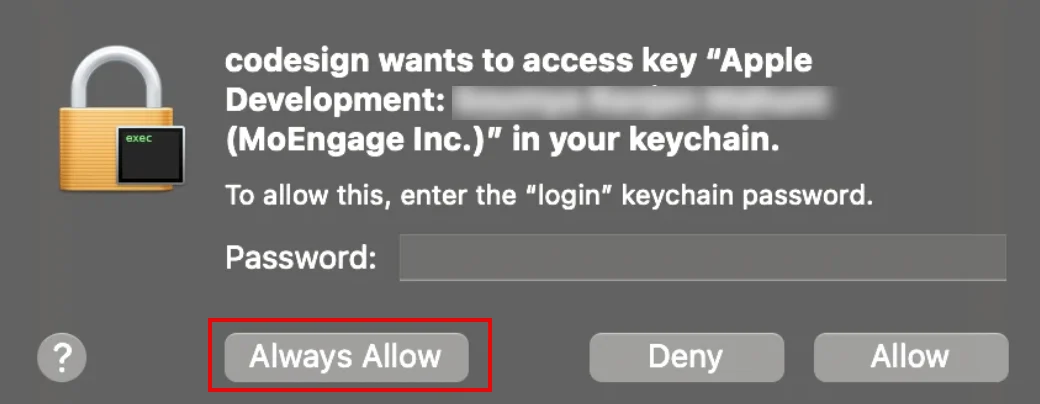
- After integration is complete, you may be prompted to access the keychain for code signing. Click Always Allow.
Step 2: Configure the service extension
The service extension tracks notification impressions and downloads rich media content.- Create an App Identifier: Use the format
[appBundleId].[serviceExtensionName].- Replace
[appBundleId]with your application’s specific bundle identifier - Replace
[serviceExtensionName]with your chosen name (which defaults to MoEngageNotificationService). For example : If your app bundle identifier iscom.org.appand your extension is namedNotificationService, the identifier iscom.org.app.NotificationService.
- Replace
If you already have an existing Notification Service Extension, you can reuse it — you do not need to create a new one. Pass its name using the
--notification-service-extension-name flag when configuring the Run Script Phase in Step 5. The tool will inject the necessary MoEngage logic without overwriting your custom code.- Select the service extension identifier created from step-1, open the Capabilities tab, add App Groups. Enter the name matching your
AppGroupNamekey.
- Generate provisioning profile: On the Apple Developer Portal, create a new provisioning profile for the identifier created in step 1, and download it. To download it in Xcode, click Xcode in the menu bar, choose Settings.

- Switch to the Apple Accounts section, and select your Apple developer account. On your Apple Accounts page, select Download Manual Profiles.

Step 3: Configure the content extension (Optional)
The content extension is required only if you intend to use MoEngage rich push notification templates.- Create an App Identifier: Use the format
[appBundleId].[contentExtensionName].- Replace
[appBundleId]with your application’s specific bundle identifier - Replace
[contentExtensionName]with your chosen name (which defaults to MoEngageNotificationContent). For example_:_ If your app bundle identifier iscom.org.appand your extension is namedNotificationContent, the identifier iscom.org.app.NotificationContent.
- Replace
- Select the content extension identifier, open the Capabilities tab, add App Groups. Enter the name matching your
AppGroupNamekey. - Generate provisioning profile: On the Apple Developer Portal, create a new provisioning profile for the identifier created in step 1, and download it. To download it in Xcode, click Xcode in the menu bar, choose Settings.

- Switch to the Apple Accounts section, and select your Apple developer account. On your Apple Accounts page, select Download Manual Profiles.
Step 4: Integrate MoEngageRichNotification (Optional)
IntegrateMoEngageRichNotification if you need to support either of the following push notification features:
- Rich media — display images, GIFs, or video in the notification banner
- Rich push templates — render interactive notification layouts such as carousel
This step is mandatory if you have integrated the content extension mentioned in Step 3.
- Swift Package Manager (SPM)
- CocoaPods
To install the
MoEngageRichNotification through SPM, perform the following steps:- Navigate to File > Add Package.
- Enter the repository URL:
https://github.com/moengage/apple-sdk.git
- Select the master branch or a specific version and select Add Package.
- Target the package to your application.
Step 5: Integrate the extension integrator tool
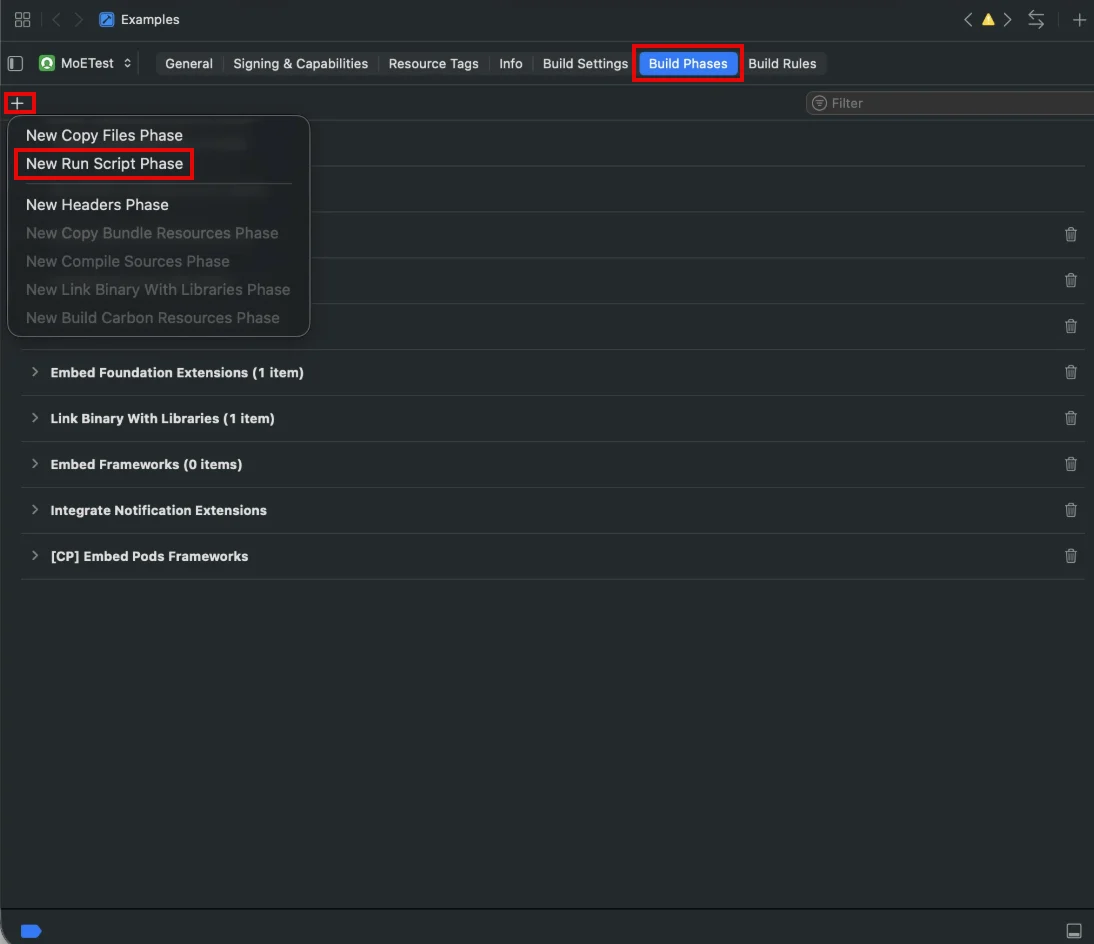
Automate the extension configuration by adding a custom script to your build process.- In Xcode, select your application target, go to Build Phases, and click + to add a New Run Script Phase.
- Add the following paths to the Input Files section:
$(BUILT_PRODUCTS_DIR)/$(INFOPLIST_PATH)$(INSTALL_DIR)/$(INFOPLIST_PATH)
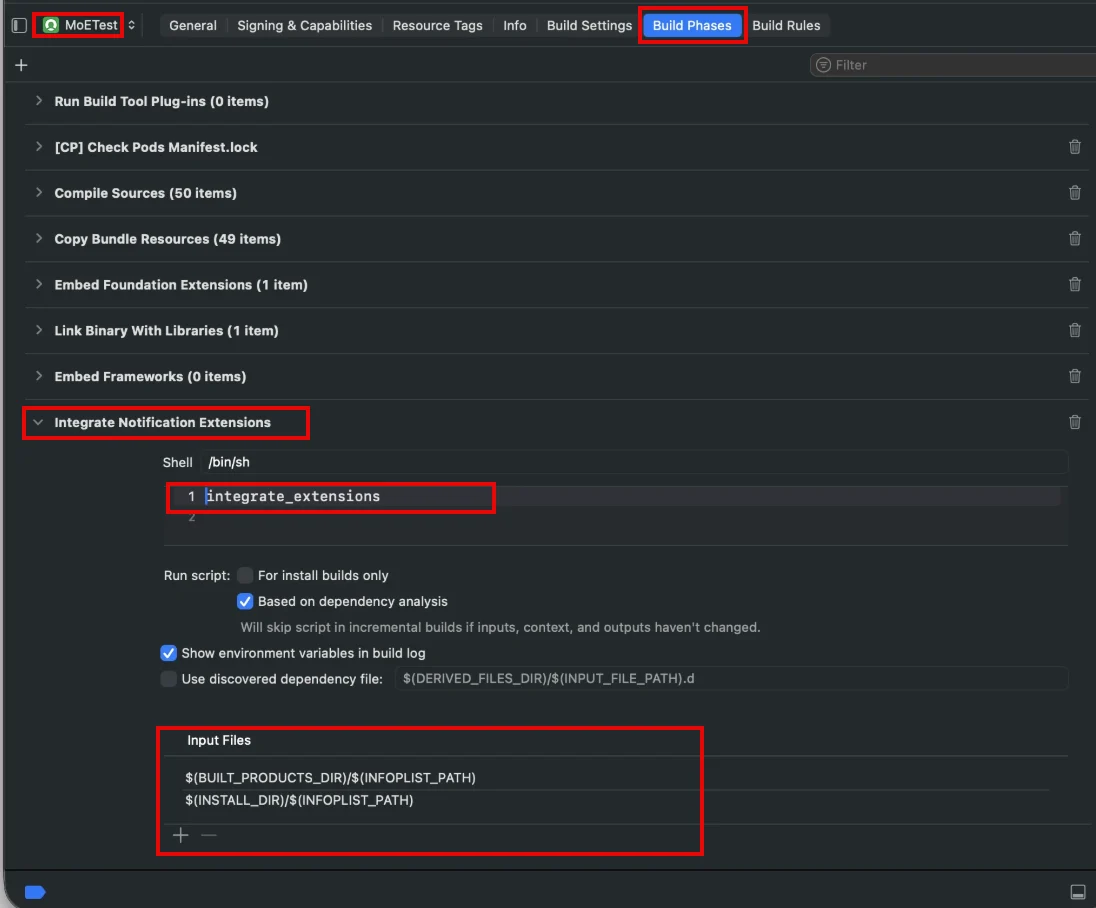
- Enter the command relevant to your dependency manager, replacing integrate_extensions in above image.
If you have already added a script phase and configured the input files, you can simply update the run command as described below.
- Swift Package Manager (SPM)
- CocoaPods
Swift Package Manager (SPM)
Available options
Replace$OPTIONS with one or more of the following:
Example Command (SPM)
For integrating a service extension namedNotificationService and a content extension named NotificationContent, the complete command for SPM would be:
Swift Package Manager (SPM)
- Disable sandboxing: In your application target Build Settings, set USER_SCRIPT_SANDBOXING to No.

Migrating to the extension integrator tool
To migrate from an existing manual implementation to the integrator tool, refer here.Troubleshooting and FAQs
The integrator tool returned an error. How do I resolve it?
The integrator tool returned an error. How do I resolve it?
Review the build logs for detailed information.
- Incorrect Integration: The setup does not follow the Integrating Service & Content Extension guide.
- Missing Configuration: The
Info.plistis missing required MoEngage configuration options. - App Group Mismatch: The
AppGroupNameprovided inInfo.plistis not included in the service and content extension bundle identifier capabilities or the application entitlements. - Environment Mismatch: The provisioning profile was not created for the specific build environment (e.g., using a Development profile when generating an App Store build).
- Custom Directory Issues: Provisioning profiles are not stored in default Xcode directories. Use the additional configuration build settings to pass custom paths.
- Certificate Issues: Missing or incorrect certificate configuration during the generation of the provisioning profile.
- Expired Profiles: The provisioning profile has expired. This requires re-generating and re-downloading the profile.
Do I need to integrate both the Service and Content extensions?
Do I need to integrate both the Service and Content extensions?
No, The Service Extension is mandatory for tracking notification impressions and downloading rich media (images/GIFs/video). The Content Extension is only required if you intend to use MoEngage’s interactive Rich Push Templates (e.g., carousels or custom button layouts).
Why is the 'App Group' configuration mandatory?
Why is the 'App Group' configuration mandatory?
iOS extensions run in a separate sandbox from your main application. The App Group creates a shared container that allows the MoEngage SDK in the main app to share authentication tokens, user data, and local storage with the extension. Without it, the extension cannot verify the user or track impressions correctly.
Why must I disable 'User Script Sandboxing' in Build Settings?
Why must I disable 'User Script Sandboxing' in Build Settings?
The Extension Integrator Tool needs to access the project’s built products and provisioning profiles located in system folders outside the standard Xcode sandbox. If
ENABLE_USER_SCRIPT_SANDBOXING is set to Yes, the script will be blocked, resulting in a “Permission Denied” error during the build phase.How do I handle multiple build environments (Dev/Staging/Prod) with the tool?
How do I handle multiple build environments (Dev/Staging/Prod) with the tool?
Additional build settings can be used to provide specific configuration inputs to the integrator tool for both local and CI builds.
MOENGAGE_EXTENSION_PROFILES_SEARCH_PATHS: Use this to provide additional folders to scan for your provisioning profiles. By default, the tool scans standard Xcode directories:~/Library/Developer/Xcode/UserData/Provisioning Profiles~/Library/MobileDevice/Provisioning ProfilesIf your provisioning profiles are not present in these folders, add additional paths with this build setting.
MOENGAGE_NOTIFICATION_SERVICE_EXTENSION_PROFILE: Provide the explicit provisioning profile filename for the Notification Service Extension. The tool will use this filename instead of searching for a provisioning profile. The profile must be present in one of the folders above. Use this option if the tool is not able to pick the right provisioning profile.MOENGAGE_NOTIFICATION_CONTENT_EXTENSION_PROFILE: Provide the explicit provisioning profile filename for the Notification Content Extension. The tool will use this filename instead of searching for a provisioning profile. The profile must be present in one of the folders above. Use this option if the tool is not able to pick the right provisioning profile.
My rich media isn’t rendering in the notification. What’s wrong?
My rich media isn’t rendering in the notification. What’s wrong?
This usually stems from one of three technical gaps:
- App Group Mismatch: Ensure the
AppGroupNamestring in yourInfo.plistmatches the Entitlements file exactly. - Payload Timeout: iOS gives extensions ~30 seconds to download media. If your assets are too large or the network is slow, it will fail over to plain text.
Does this tool work with custom Derived Data paths or CI/CD?
Does this tool work with custom Derived Data paths or CI/CD?
Yes. The
case "$ACTION" block in the Step 5 snippet covers every build action, so use it as written.If your CI environment uses a custom Derived Data or build directory that breaks path resolution, provide the absolute path to the moengage-extensions-integration binary instead.