

Enable Custom Manifest File
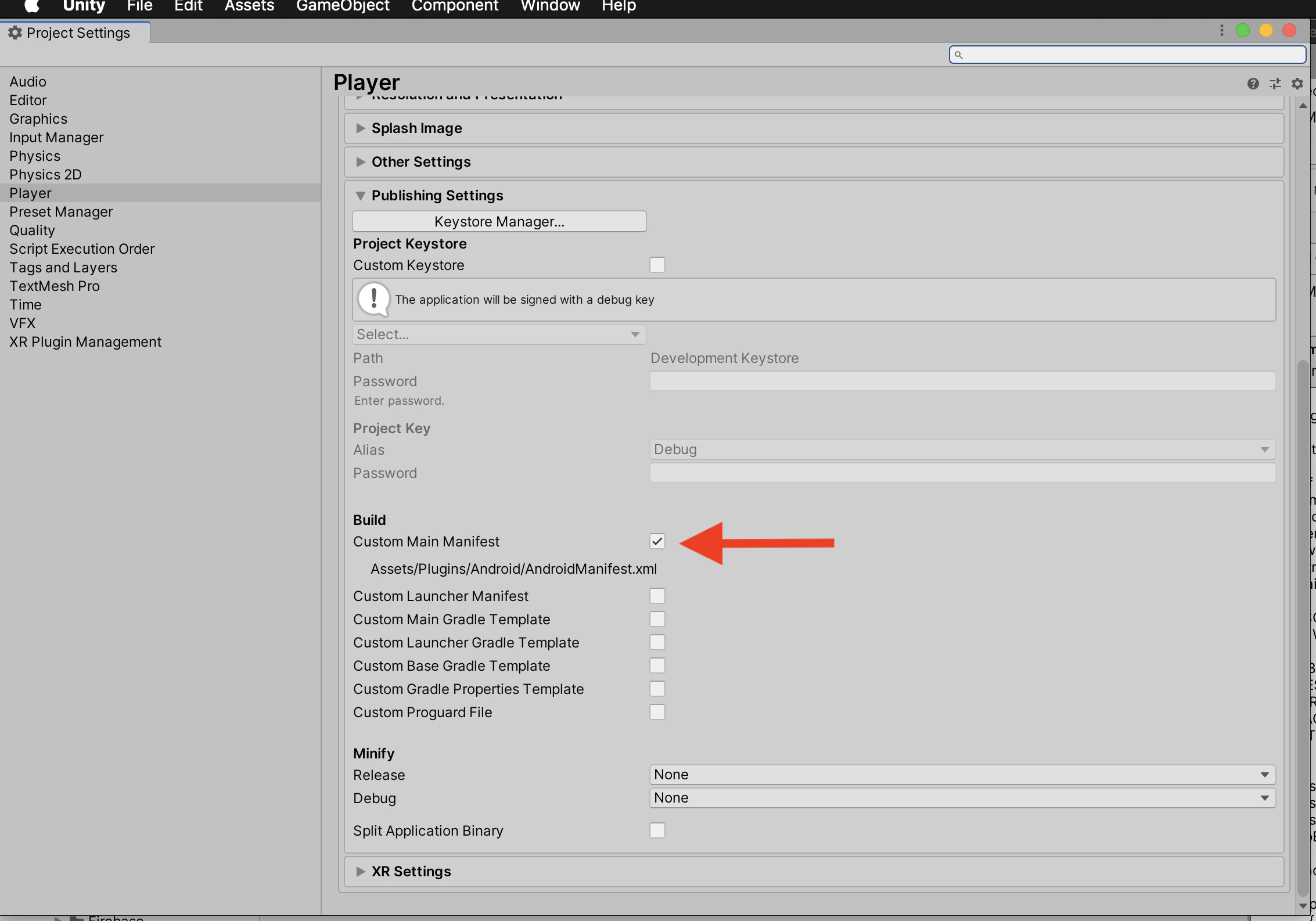
Navigate to Build Settings and switch the platform to Android. Then go to Player Settings —> Player —> Android —> Publishing Settings.Under the Build Heading check Custom Main Manifest.
Adding Dependencies
MoEngage plugin depends on the following Jetpack libraries. In case you don’t have them in your application already, please add them.You can choose to enable the custom gradle template in your Application’s Player Settings and the below dependencies.
Add Application Class
- Create a Java/Kotlin class and add it to the Assets —> Plugins —> Android folder. Extend the class with android.app.Application and override the onCreate().
- Declare the above-created class in the Manifest file inside the application tag.
SDK Initialization
Get the Workspace ID from Dashboard → Settings → Workspace → General on the MoEngage dashboard and initialize the MoEngage SDK in the Application class’s onCreate() method.It is recommended that you initialize the SDK on the main thread inside onCreate() and not create a worker thread and initialize the SDK on that thread.
File-Based Initialization
As an alternative to programmatic initialization, you can initialize the SDK using a configuration file. Createmoengage_init_config.xml in your Android library plugin at Assets/Plugins/Android/<YOUR_ANDROID_LIBRARY_PLUGIN>.androidlib/res/values/moengage_init_config.xml and specify your workspace ID and data center:
moengage_init_config.xml
MoEInitializer.initialiseDefaultInstance(application) in your Application class alongside the file-based config. When this file is present, the SDK reads configuration from it at startup. Programmatic initialization takes precedence if both are provided.
Following details of the different data centers you need to set based on the dashboard hosts
For more information about the detailed list of possible configurations, refer to the API reference.
All the configurations are added to the builder before initialization. If you are calling initialize at multiple places, ensure that all the required flags and configurations are set each time you initialize to maintain consistency in behavior.