Introduction
Freshsales is a popular CRM tool for support, sales, and marketing teams worldwide. Freshsales services allow businesses to use cloud technology to better connect with partners, customers, and potential customers.
MoEngage × Freshsales
The integration of MoEngage and Freshsales can streamline your marketing and sales initiatives by enabling the seamless transfer of leads and customer data from Freshsales to MoEngage. With this integration, you can:
- Create or update Freshales contacts, deals, and more in MoEngage.
- Import sales activities on Freshsales as events in MoEngage.
- Import any custom modules from Freshsales to MoEngage.
Use Cases
- Improve sales outreach with MoEngage’s personalized campaigns.
- Win back deals by updating lost opportunities about new features using campaigns in MoEngage.
- Convert leads to opportunities by sending them targeted campaigns using MoEngage.
- Move a prospect down the funnel by engaging them promptly using event-triggered campaigns in MoEngage.
Integration
PrerequisitesEnsure you have a Freshsales account to integrate MoEngage with Freshsales CRM.
Sync from Freshsales to MoEngage
| Freshsales Modules | Sync Support |
|---|
| Contacts | ✅ Supported as Users/Events |
| Accounts | ✅ Supported as Users/Events |
| Deals | ✅ Supported as Users/Events |
| Tasks | ✅ Supported as Events via Advanced Content only |
| Meetings | ✅ Supported as Events via Advanced Content only |
| Call Logs | ✅ Supported as Events via Advanced Content only |
| Custom | ❎ Not Supported by Freshsales |
- On your Freshsales CRM Dashboard, go to Admin Settings >> Workflows >> Create workflow.

- According to your use case, select which module you want to sync. If you want to Sync multiple modules, you must create individual workflows for each, as Freshsales only supports one module per Workflow. Please note that the MoEngage Endpoint for each Module is unique.

- In the “When to trigger this workflow?” section, select the trigger as “When <module> is created or updated” and run this workflow “repeatedly for the same <module>”.
- You can also add filter conditions in the “What conditions should be met?” section according to your use case. Leave it empty if you want it to trigger for all creates/updates.
- Under the “What actions should be executed?” section, select the “Trigger webhook” action for the module. Fill in the following:
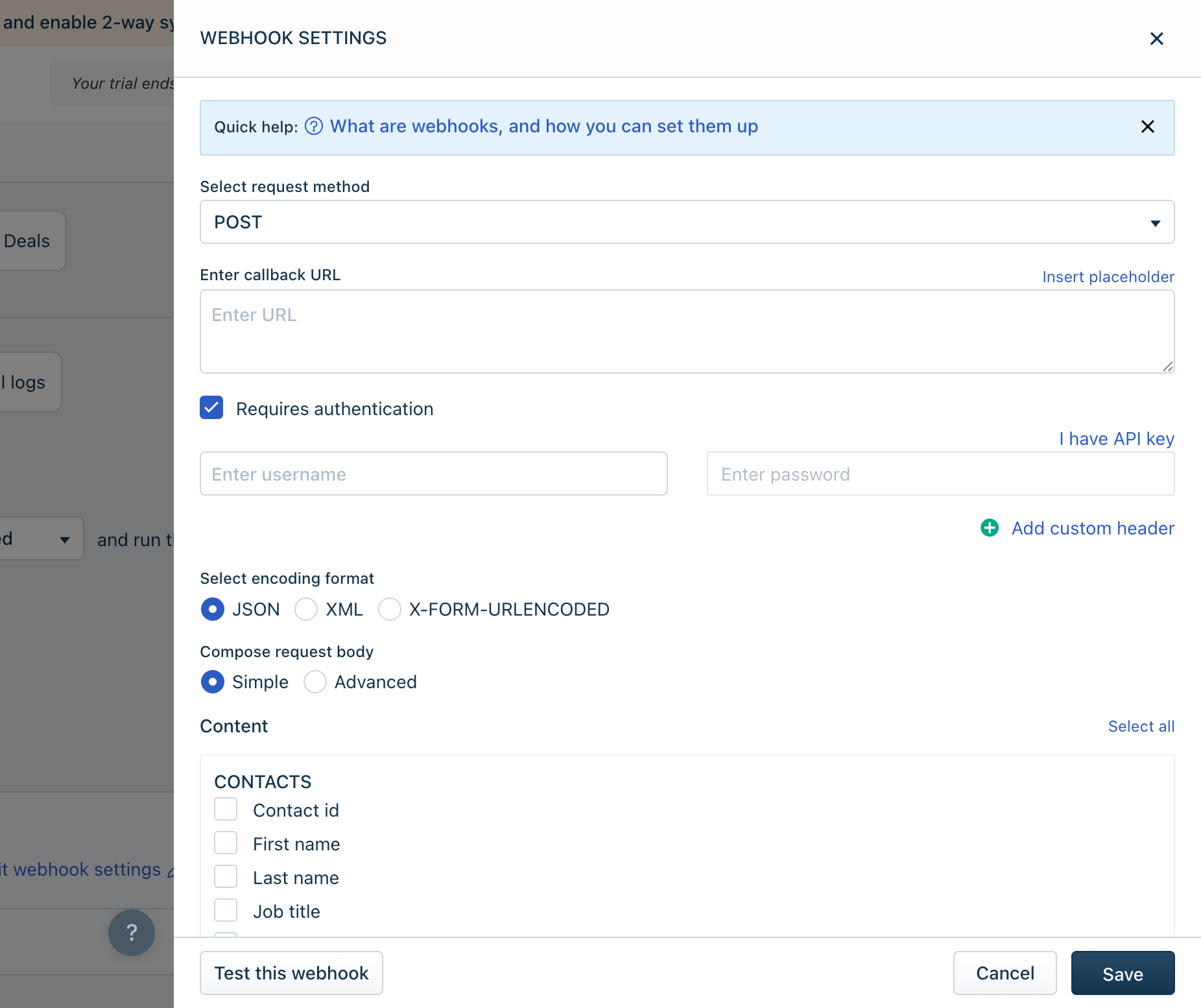
| Freshsales Section | Description |
|---|
| Select request method | POST |
| Enter callback URL | Enter the dedicated Webhook URL provided by MoEngage. Speak to your Customer Success Manager to have these URLs tailored to your use cases. |
| Requires authentication | Check this option. |
| Enter username | Your MoEngage account’s Workspace ID is available at Settings -> Account -> APIs -> Workspace ID. The Data API ID and the Workspace ID of your MoEngage account are the same. |
| Enter password | This is your Data API Key. Your MoEngage account’s data API key is available at Settings -> Account -> APIs -> API keys > Data. |
| Select encoding format | JSON |
| Compose request body | You can select Simple (Out-of-box integration) or Advanced integration with MoEngage Webhooks based on your use case. |
| Content | - If you pick Simple, select the properties you want to sync with MoEngage.
- If you pick Advanced, you must use Freshsales Placeholders to create a tailored payload according to your use cases.
|
| Freshsales Field | MoEngage Attribute |
|---|
| Contact External ID | Customer ID |
| Contact Mobile Number | Mobile Number (Standard) |
| Contact First Name | First Name (Standard) |
| Contact Last Name | Last Name (Standard) |
| Any other field | Custom Attribute with the same name |
Accounts as Users in MoEngage
| Freshsales Field | MoEngage Attribute |
|---|
| Sales Account ID | Customer ID |
| Any other field | Custom Attribute with the same name |
Tasks, Meetings, Call Logs as Events in MoEngage
Syncing Tasks, Meetings and Call Logs to MoEngage is only available via the Advanced Content mode. In the Compose request body, select “Advanced”. Here is a sample payload format for Tasks:
{
    "task_targetable_external_id": "{{task.targetable.external_id}}",
    "task_event_name": "Task Created or Updated",
    "custom_arr": "{{task.description}}"
}
Tasks
| Freshsales Field | MoEngage Attribute |
|---|
Contact External ID
(task_targetable_external_id) | Customer ID
- Tasks will be added as Events in MoEngage.
|
Event name
(task_event_name) | Event Name
- This field is not available in Freshsales. You need to add this manually in the Advanced content payload.
|
| Any other field | Custom Event Attribute with the same name |
Meetings
| Freshsales Field | MoEngage Attribute |
|---|
Contact External ID
(appointment_targetable_external_id) | Customer ID
- Meetings will be added as Events in MoEngage.
|
Event name
(appointment_event_name) | Event Name
- This field is not available in Freshsales. You need to add this manually in the Advanced content payload.
|
| Any other field | Custom Event Attribute with the same name |
Call Logs
| Freshsales Field | MoEngage Attribute |
|---|
Contact External ID
(phone_call_entity_external_id) | Customer ID
- Call Logs will be added as Events in MoEngage.
|
Event name
(phone_call_event_name) | Event Name
- This field is not available in Freshsales. You need to add this manually in the Advanced content payload.
|
| Any other field | Custom Event Attribute with the same name |
Advanced content body
If you wish to use Advanced content body for any of the above modules, you can use a payload structure similar to this:
{
    "external_id": "{{contact.external_id}} or equivalant",
    "event_name": "<Your event name>",
    "other attrs": "<their value>"
}
| Freshsales Field | MoEngage Attribute |
|---|
External ID
(external_id) | Customer ID (for both users and events) |
Event name
(event_name) | Event Name (only for events) |
| Any other field | Custom User/Event Attribute with the same name |
Introduction
Freshsales is a popular CRM tool for support, sales, and marketing teams worldwide. Freshsales services allow businesses to use cloud technology to better connect with partners, customers, and potential customers.
MoEngage × Freshsales
The integration of MoEngage and Freshsales can streamline your marketing and sales initiatives by enabling the seamless transfer of leads and customer data from Freshsales to MoEngage. With this integration, you can:
- Create or update Freshales contacts, deals, and more in MoEngage.
- Import sales activities on Freshsales as events in MoEngage.
- Import any custom modules from Freshsales to MoEngage.
Use Cases
- Improve sales outreach with MoEngage’s personalized campaigns.
- Win back deals by updating lost opportunities about new features using campaigns in MoEngage.
- Convert leads to opportunities by sending them targeted campaigns using MoEngage.
- Move a prospect down the funnel by engaging them promptly using event-triggered campaigns in MoEngage.
Integration
PrerequisitesEnsure you have a Freshsales account to integrate MoEngage with Freshsales CRM.
Sync from Freshsales to MoEngage
| Freshsales Modules | Sync Support |
|---|
| Contacts | ✅ Supported as Users/Events |
| Accounts | ✅ Supported as Users/Events |
| Deals | ✅ Supported as Users/Events |
| Tasks | ✅ Supported as Events via Advanced Content only |
| Meetings | ✅ Supported as Events via Advanced Content only |
| Call Logs | ✅ Supported as Events via Advanced Content only |
| Custom | ❎ Not Supported by Freshsales |
- On your Freshsales CRM Dashboard, go to Admin Settings >> Workflows >> Create workflow.
- According to your use case, select which module you want to sync. If you want to Sync multiple modules, you must create individual workflows for each, as Freshsales only supports one module per Workflow. Please note that the MoEngage Endpoint for each Module is unique.
- In the “When to trigger this workflow?” section, select the trigger as “When <module> is created or updated” and run this workflow “repeatedly for the same <module>”.
- You can also add filter conditions in the “What conditions should be met?” section according to your use case. Leave it empty if you want it to trigger for all creates/updates.
- Under the “What actions should be executed?” section, select the “Trigger webhook” action for the module. Fill in the following:
| Freshsales Section | Description |
|---|
| Select request method | POST |
| Enter callback URL | Enter the dedicated Webhook URL provided by MoEngage. Speak to your Customer Success Manager to have these URLs tailored to your use cases. |
| Requires authentication | Check this option. |
| Enter username | Your MoEngage account’s Workspace ID is available at Settings -> Account -> APIs -> Workspace ID. The Data API ID and the Workspace ID of your MoEngage account are the same. |
| Enter password | This is your Data API Key. Your MoEngage account’s data API key is available at Settings -> Account -> APIs -> API keys > Data. |
| Select encoding format | JSON |
| Compose request body | You can select Simple (Out-of-box integration) or Advanced integration with MoEngage Webhooks based on your use case. |
| Content | - If you pick Simple, select the properties you want to sync with MoEngage.
- If you pick Advanced, you must use Freshsales Placeholders to create a tailored payload according to your use cases.
|
| Freshsales Field | MoEngage Attribute |
|---|
| Contact External ID | Customer ID |
| Contact Mobile Number | Mobile Number (Standard) |
| Contact First Name | First Name (Standard) |
| Contact Last Name | Last Name (Standard) |
| Any other field | Custom Attribute with the same name |
Accounts as Users in MoEngage
| Freshsales Field | MoEngage Attribute |
|---|
| Sales Account ID | Customer ID |
| Any other field | Custom Attribute with the same name |
Tasks, Meetings, Call Logs as Events in MoEngage
Syncing Tasks, Meetings and Call Logs to MoEngage is only available via the Advanced Content mode. In the Compose request body, select “Advanced”. Here is a sample payload format for Tasks:
{
    "task_targetable_external_id": "{{task.targetable.external_id}}",
    "task_event_name": "Task Created or Updated",
    "custom_arr": "{{task.description}}"
}
Tasks
| Freshsales Field | MoEngage Attribute |
|---|
Contact External ID
(task_targetable_external_id) | Customer ID
- Tasks will be added as Events in MoEngage.
|
Event name
(task_event_name) | Event Name
- This field is not available in Freshsales. You need to add this manually in the Advanced content payload.
|
| Any other field | Custom Event Attribute with the same name |
Meetings
| Freshsales Field | MoEngage Attribute |
|---|
Contact External ID
(appointment_targetable_external_id) | Customer ID
- Meetings will be added as Events in MoEngage.
|
Event name
(appointment_event_name) | Event Name
- This field is not available in Freshsales. You need to add this manually in the Advanced content payload.
|
| Any other field | Custom Event Attribute with the same name |
Call Logs
| Freshsales Field | MoEngage Attribute |
|---|
Contact External ID
(phone_call_entity_external_id) | Customer ID
- Call Logs will be added as Events in MoEngage.
|
Event name
(phone_call_event_name) | Event Name
- This field is not available in Freshsales. You need to add this manually in the Advanced content payload.
|
| Any other field | Custom Event Attribute with the same name |
Advanced content body
If you wish to use Advanced content body for any of the above modules, you can use a payload structure similar to this:
{
    "external_id": "{{contact.external_id}} or equivalant",
    "event_name": "<Your event name>",
    "other attrs": "<their value>"
}
| Freshsales Field | MoEngage Attribute |
|---|
External ID
(external_id) | Customer ID (for both users and events) |
Event name
(event_name) | Event Name (only for events) |
| Any other field | Custom User/Event Attribute with the same name |

