

Introduction
Zoho Landing is a landing page builder that lets you create and publish high-converting pages to capture leads through embedded forms. When integrated with MoEngage, every form submission from a Zoho Landing page is sent directly to MoEngage as an enriched lead event, so you can act on new leads in real time with targeted campaigns and personalized messaging.The Zoho Landing integration is built and maintained by Zoho Landing. For customization requests or issues specific to the Zoho Landing connector behavior, contact [email protected].
Use cases
Integrating Zoho Landing with MoEngage helps you solve the following use cases:- Enrich lead capture from landing-page forms: Automatically push form submission data — including contact details, custom attributes, and page context — into MoEngage as lead events, so you can immediately segment and engage new prospects.
- Trigger real-time lead nurture flows: Use the events fired on form submission to kick off personalized onboarding journeys, drip campaigns, or sales alerts within MoEngage.
Sync types
| Sync type | What gets synced |
|---|---|
| User | Creates or updates a MoEngage user profile with custom attributes such as name, email, phone, demographics, and any custom user attributes. |
| Event | Records a behavioral event against a MoEngage user profile. Use this to track form submission actions such as lead_generation, demo_request, or webinar_signup. |
The sync type is automatically inferred from the URL path (
/user/ or /events/). The MoEngage Support team provides the correct endpoint URL for your use case.Integration
Prerequisites
- An active Zoho Landing account with access to Integrations.
- Your MoEngage Workspace ID and Data API Key.
Step 1: Get your MoEngage endpoint
To get a dedicated endpoint for your integration, contact the MoEngage Support team. To authenticate requests from Zoho Landing to MoEngage, you need your Workspace ID and Data API Key. To retrieve them:- On the MoEngage UI, navigate to Settings > Account > APIs.
- Under Workspace ID (earlier called App ID), copy your Workspace ID.
- Under API Keys, copy the key listed under Data.
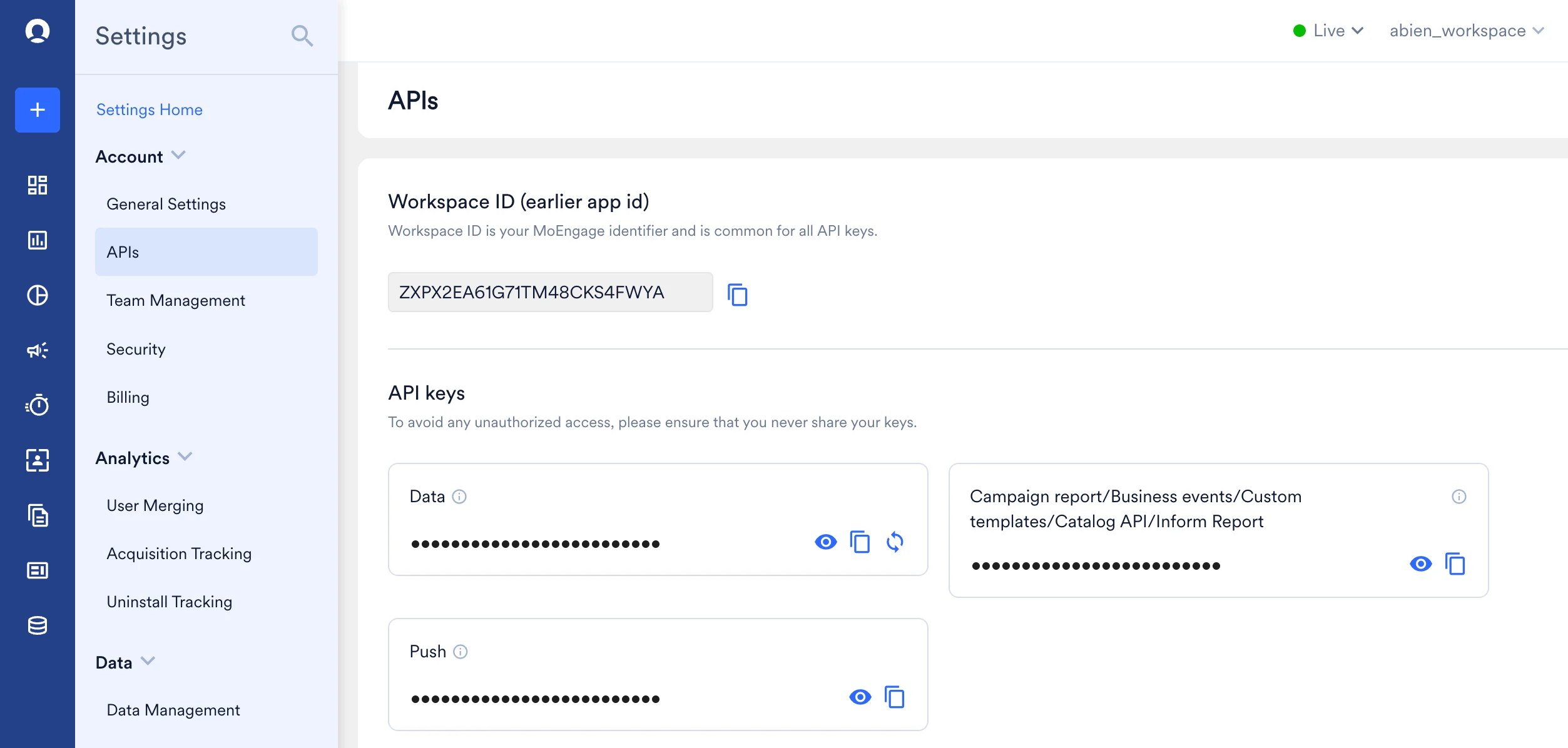
Authorization header value when configuring the connector in Zoho Landing.
Ensure the generated token is copied completely and does not contain any extra spaces. The token format is
Basic <base64-encoded-credentials>.Step 2: Configure the MoEngage connection in Zoho Landing
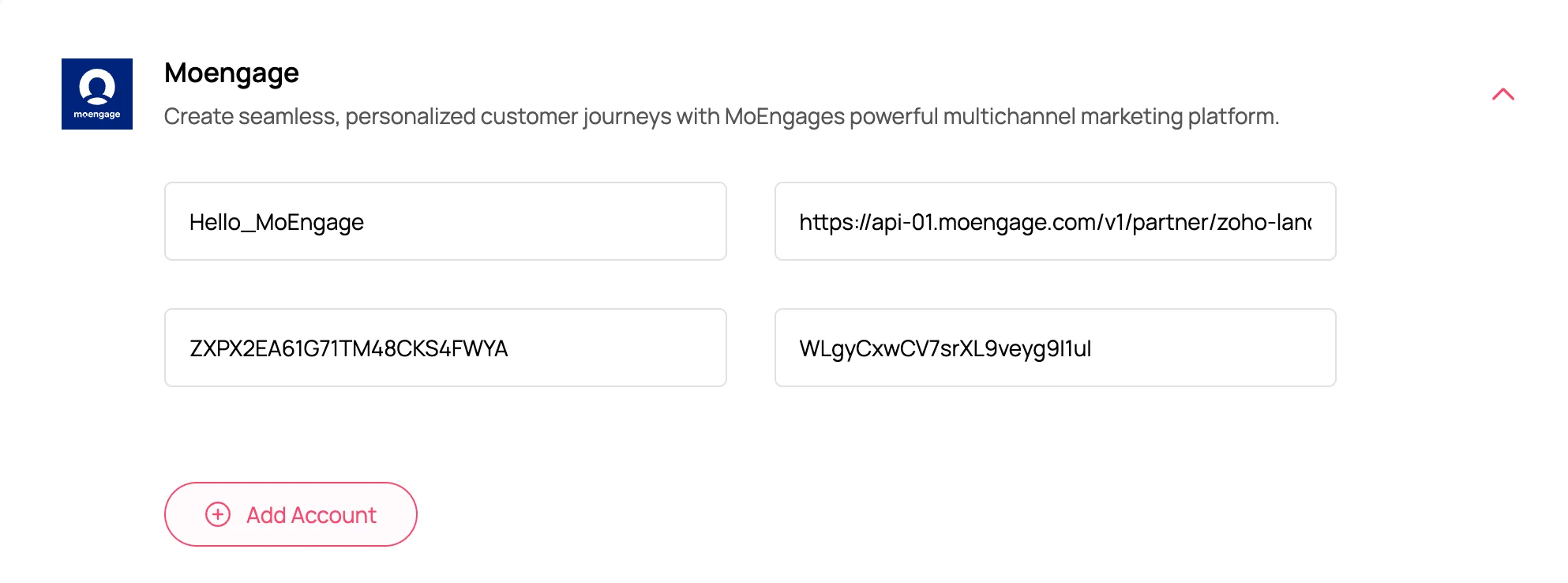
In Zoho Landing, navigate to Integrations > MoEngage and provide the following details:| Field | Value |
|---|---|
| Account Name | A label to identify this MoEngage account connection within Zoho Landing. |
| API URL | The MoEngage endpoint that receives events (collected from Step 1). |
| APP ID | Your MoEngage Workspace ID. |
| API Data Key | Your MoEngage Data API Key, copied from Settings > Account > APIs. |
Step 3: Map your form fields
Once the account is connected, map your Zoho Landing form fields to the corresponding MoEngage fields. Zoho Landing automatically includes the mapped values in the payload sent to MoEngage on every form submission.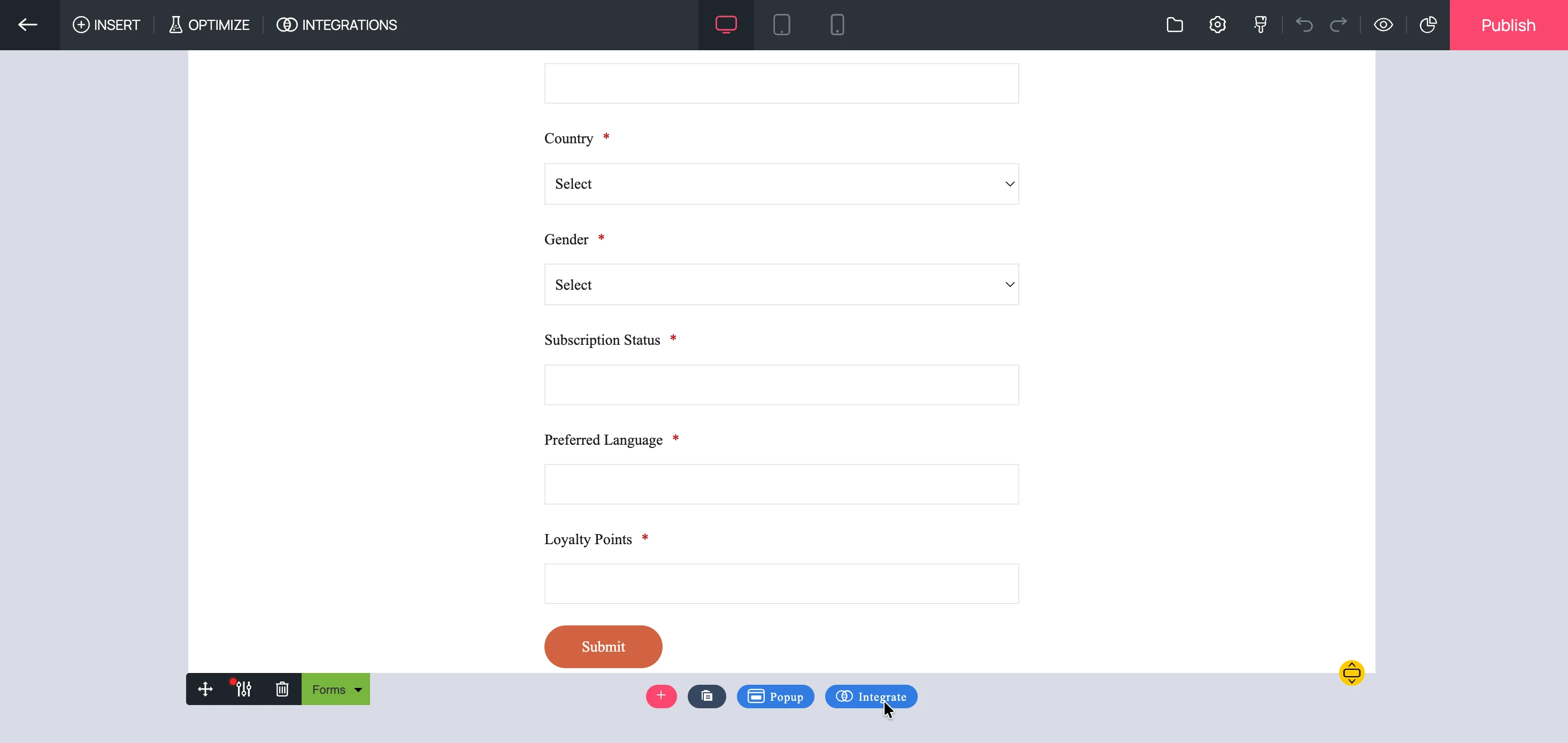
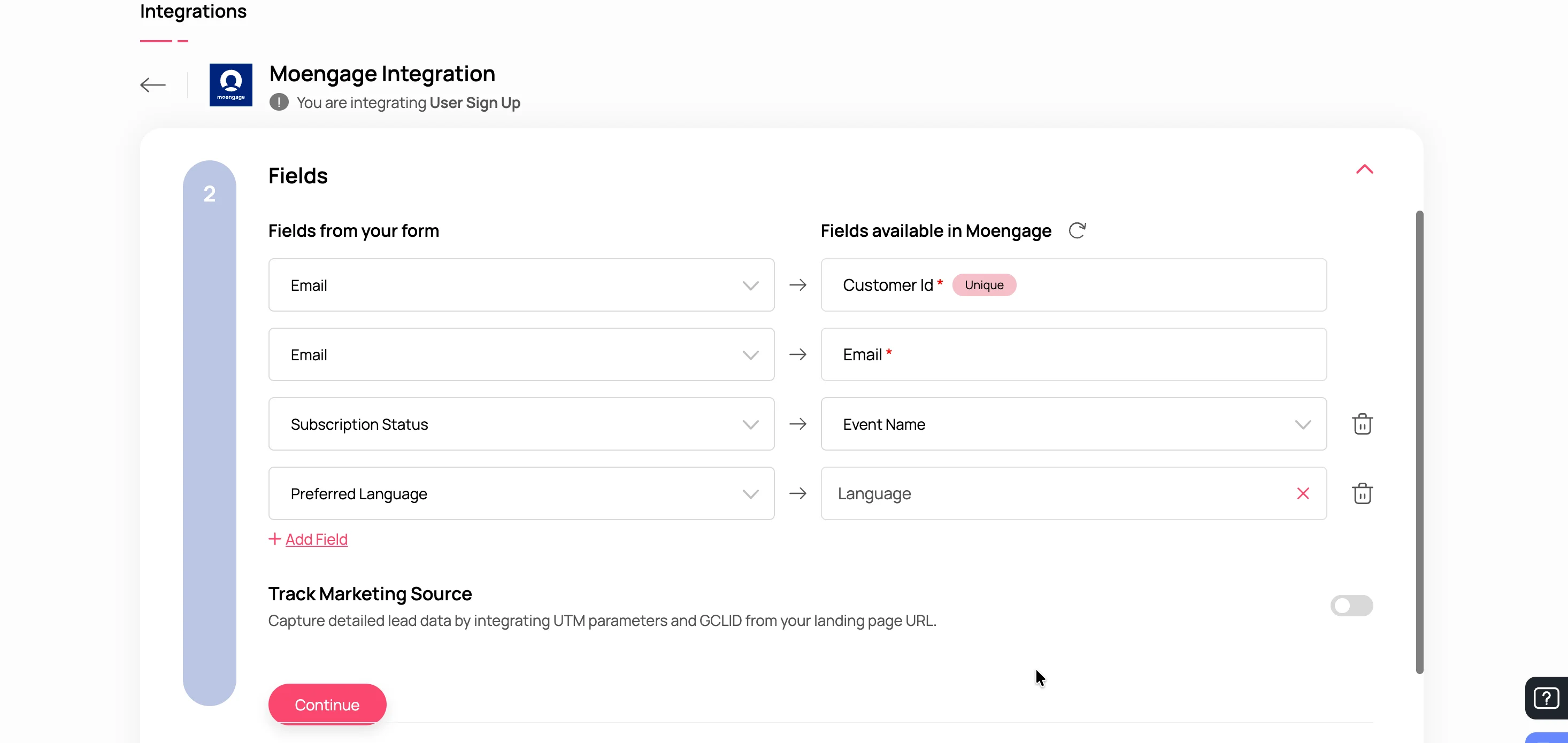
- The
event_namefield is mandatory for Event-type endpoints. Requests without anevent_nameare rejected. - Field mapping is managed within Zoho Landing. Contact [email protected] for any changes to the available fields or mapping behavior.
A test form submission appears in MoEngage as a user or event (depending on the configured endpoint) with all mapped attributes populated.