

Introduction
This guide provides detailed instructions for creating a MoEngage Event custom activity in SFMC.Prerequisites
- Salesforce Marketing Cloud Access: Ensure you have access to SFMC.
Integration
The integration leverages MoEngage event custom activity in SFMC to trigger an Event Triggered Campaign on MoEngage.
So, when a contact reaches this activity in a journey, it sends an event to MoEngage, which can then initiate related campaigns configured within MoEngage.
Steps
Step 1: Create a MoEngage Event Triggered Campaign
Refer to the guide here to create an event triggered campaign in MoEngage. You can choose an event that you want to send from SFMC as your trigger criteria. Any personalisation that you want to use in the campaign content can be passed from SFMC as event attribute.Step 2: Configure MoEngage Event
-
In your SFMC journey, drag and drop the “MoEngage Event” activity.
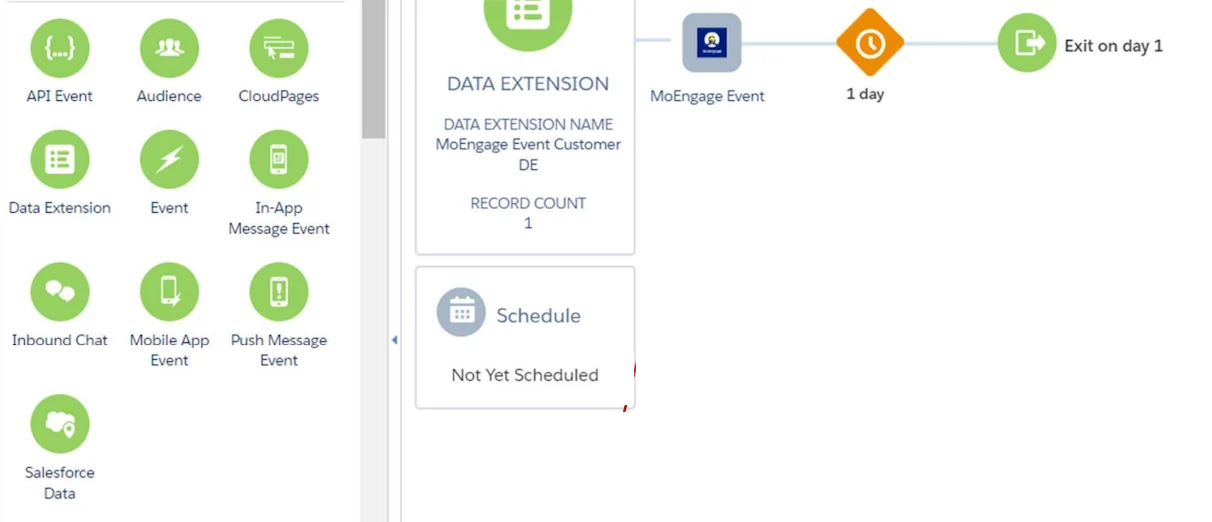
- Click on “MoEngage Event”.
- Fill in the relevant details for the Event.
| Field | Field name | Description |
|---|---|---|
| Workspace details | Workspace Name | Enter your workspace name. It is present in the header on your MoEngage dashboard. Note: Workspace name must be the same as the one entered on the “MoEngage User Authentication Page” CloudPage. To verify the Workspace name, go to the Data Extension titled “MoEngage Credentials DE” and open “MoEngage Credentials”. |
| Event Details | Event Name | Name of the event that you have used to create an Event Triggered campaign in MoEngage. Note: Ensure the Event Name matches the Event Trigger Campaign. |
| Event Details | User Identifier | Select the attribute and value that needs to be used to identify the user in MoEngage. |
| Event Attributes | Campaign ID [Optional] | ID of your event triggered campaign on MoEngage. You can use this as a filter criteria while creating your campaign. This is only to ensure that you are triggering the right campaign. |
| Event Attributes | Campaign Name [Optional] | Name of your event triggered campaign on MoEngage. You can use this as a filter criteria while creating your campaign. This is only to ensure that you are triggering the right campaign. |
| Event Attributes | Custom Attributes [Optional] | Any other data points from your SFMC Data Extension that needs to be passed to MoEngage for hyper-personalisation or targeting.
{{Field Name}} as is. |