

Sender Configuration
To configure a Sender from Unifonic on the MoEngage Dashboard, do the following:- Go to Settings ->WhatsApp ->Sender Configuration.
- Click +Add connector on the left menu.
- Choose Unifonic from the list of WhatsApp providers or connectors available in the dropdown and click Done.
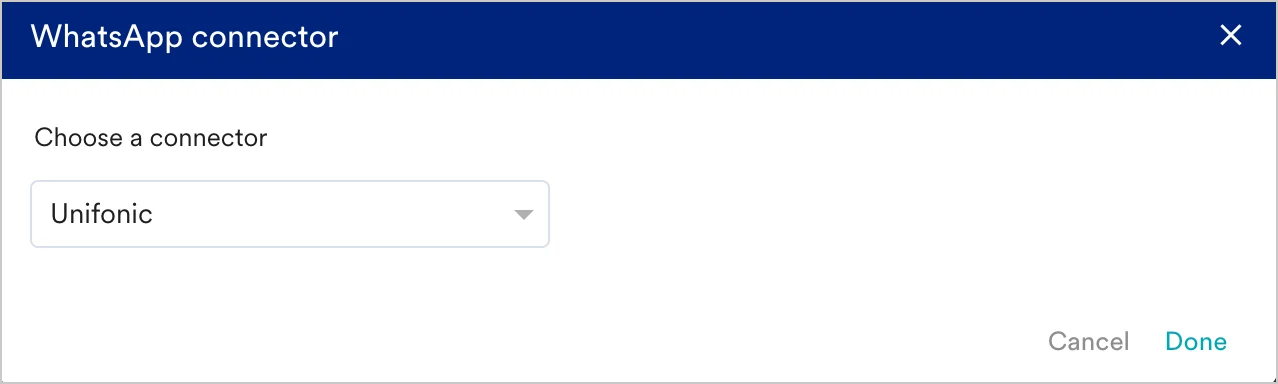
- Click on + Sender at the top right corner of the screen to configure the sender details.
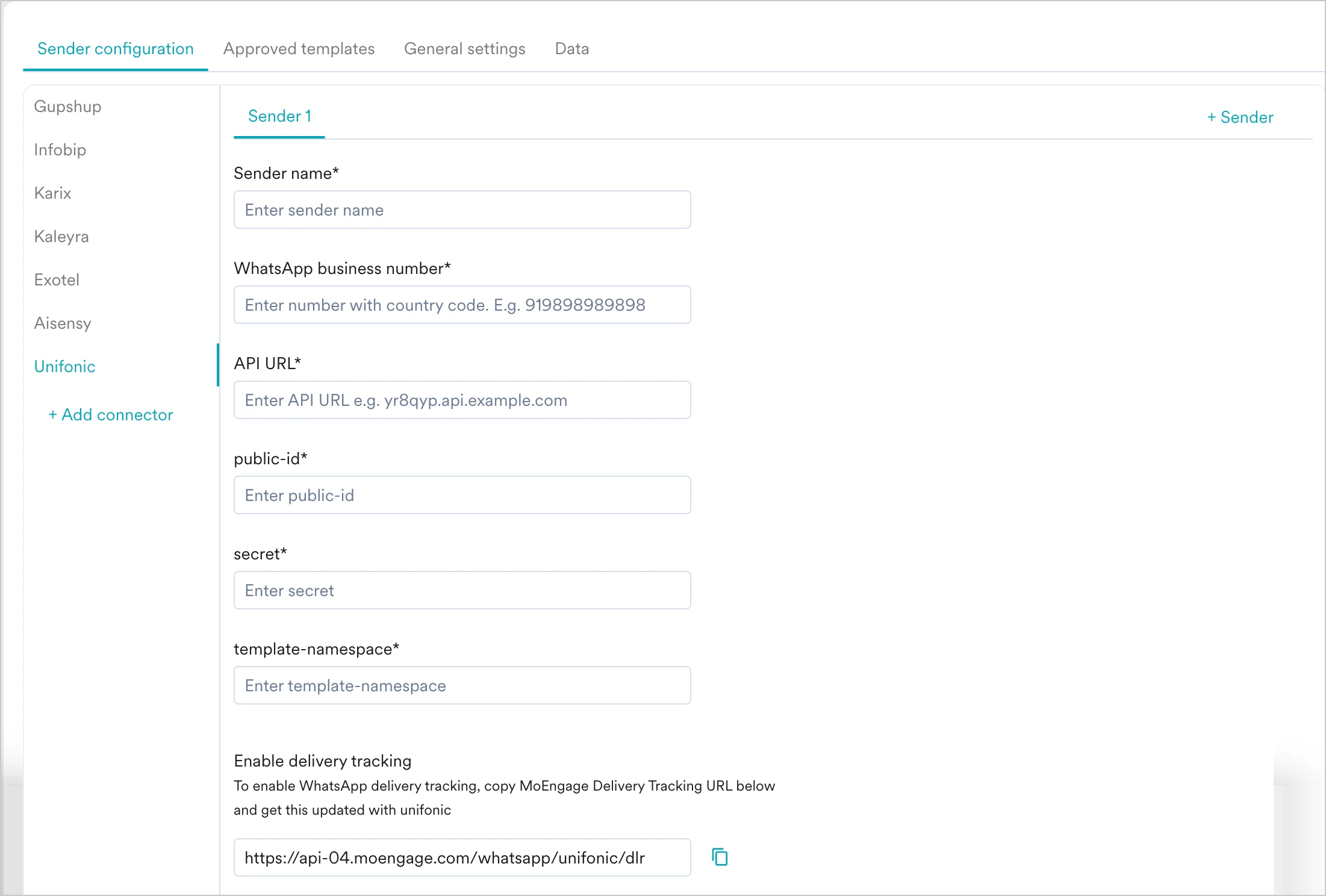
- Add the following details:
- Upon successful integration, you will get the following message.
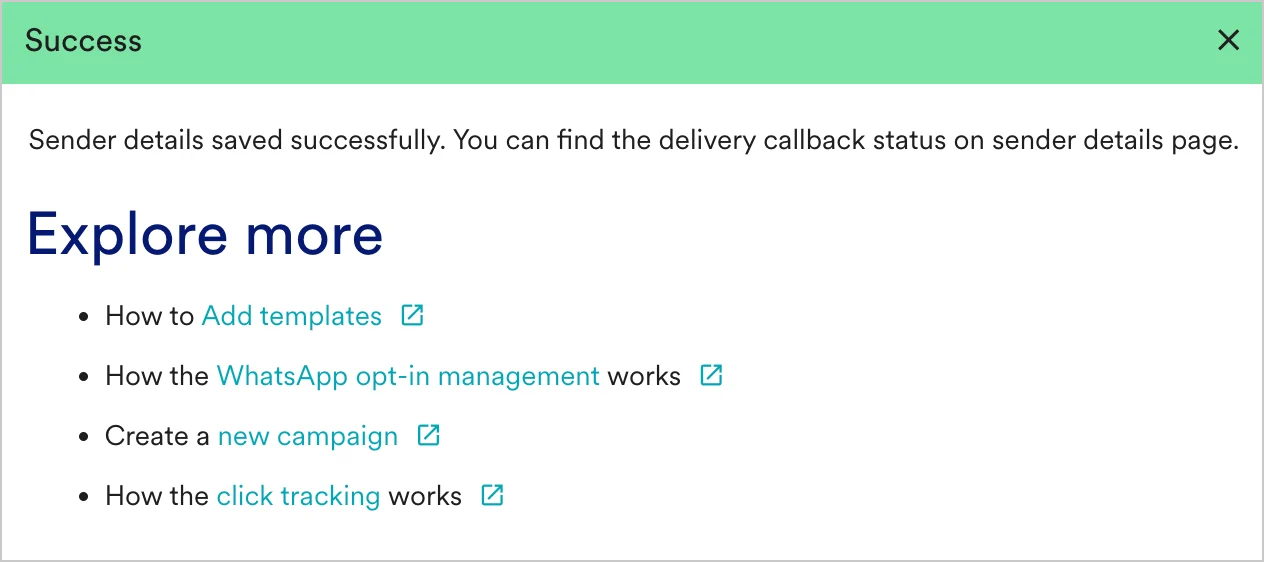
Delivery Tracking
To track the delivery of your WhatsApp Messages inside MoEngage, you would need to copy MoEngage Delivery Tracking URL and add it as a WebHook in WhatsApp Settings in Unifonic. Do the following:- You should be able to see the URL as shown below in MoEngage by navigating to Settings->WhatsApp->Sender Configuration-> Unifonic.
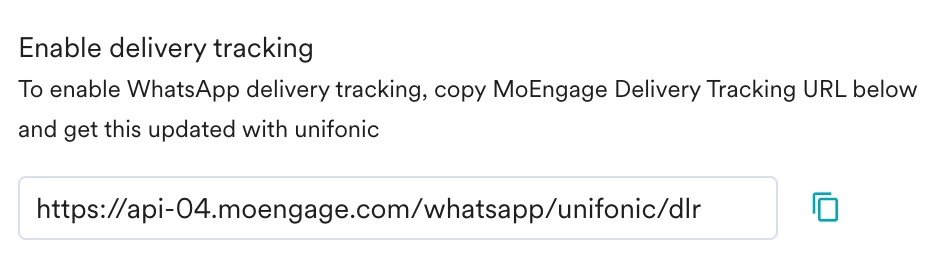
- Copy the exact URL from your MoEngage Dashboard.
- Follow the steps mentioned in Configuring WebHook URLs.
- You should have pre-approved templates with Unifonic to create a WhatsApp campaign for a Unifonic Sender in MoEngage.
- You can create templates verbatim to the pre-approved Unifonic templates in MoEngage. For more information, refer to Add Templates.