

Sender Configuration
To configure a Sender from ValueFirst on the MoEngage Dashboard, do the following:- Go to Settings->WhatsApp->Sender Configuration.
- Click +Add connector on the left menu.
- Choose ValueFirst from the list of WA providers or connectors available in the dropdown available and click Done.
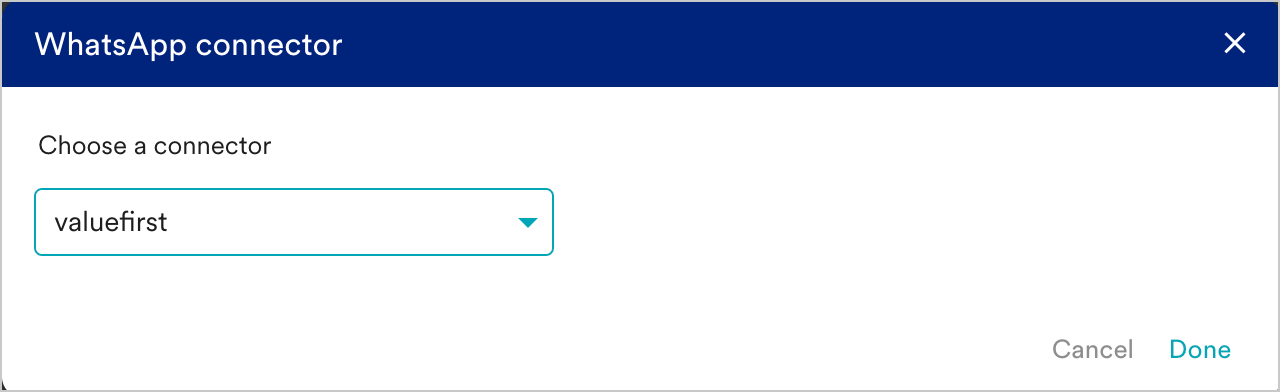
- Click on + Sender at the top right corner of the screen to configure the sender details.
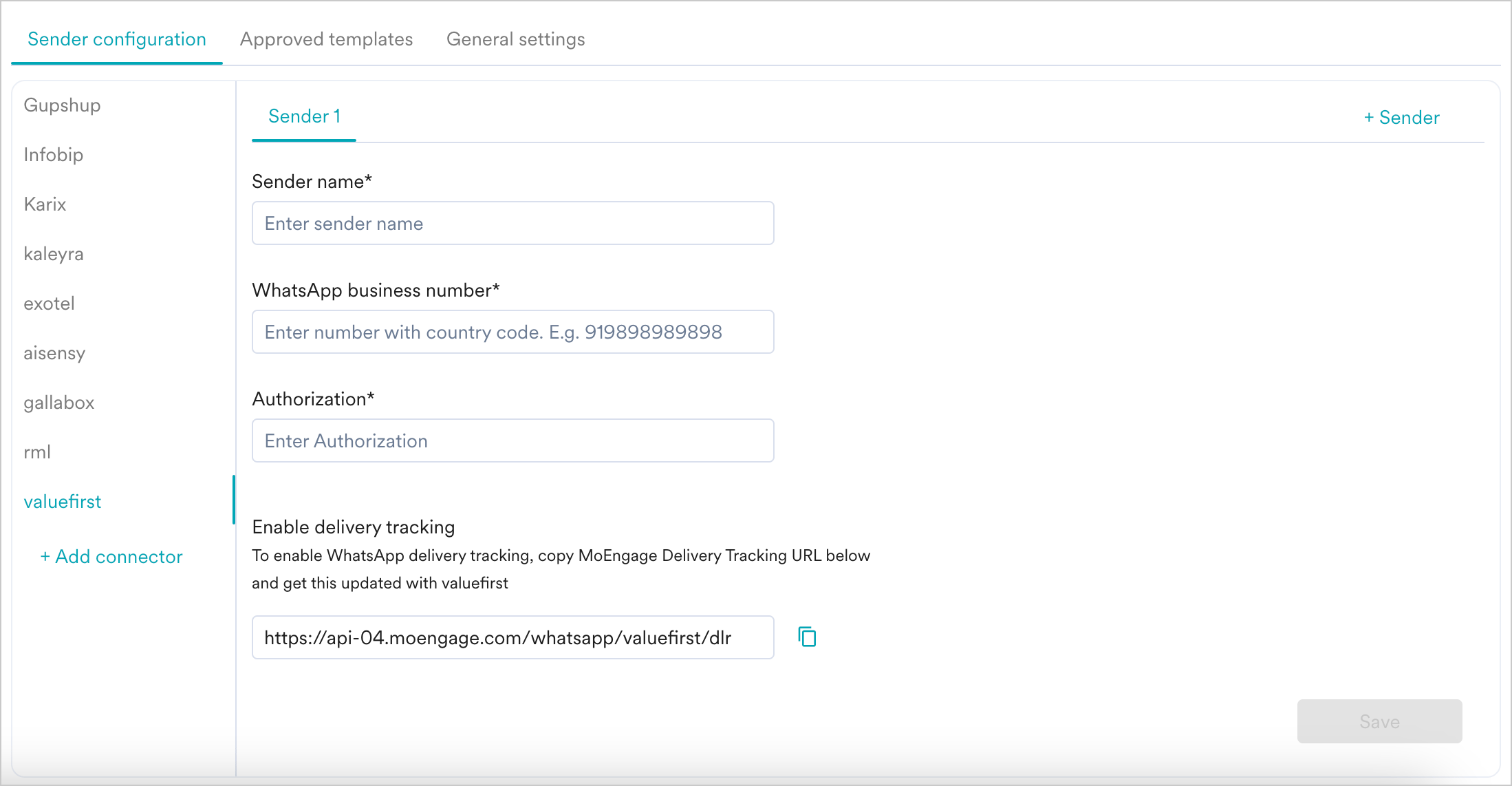
- Add the following details:
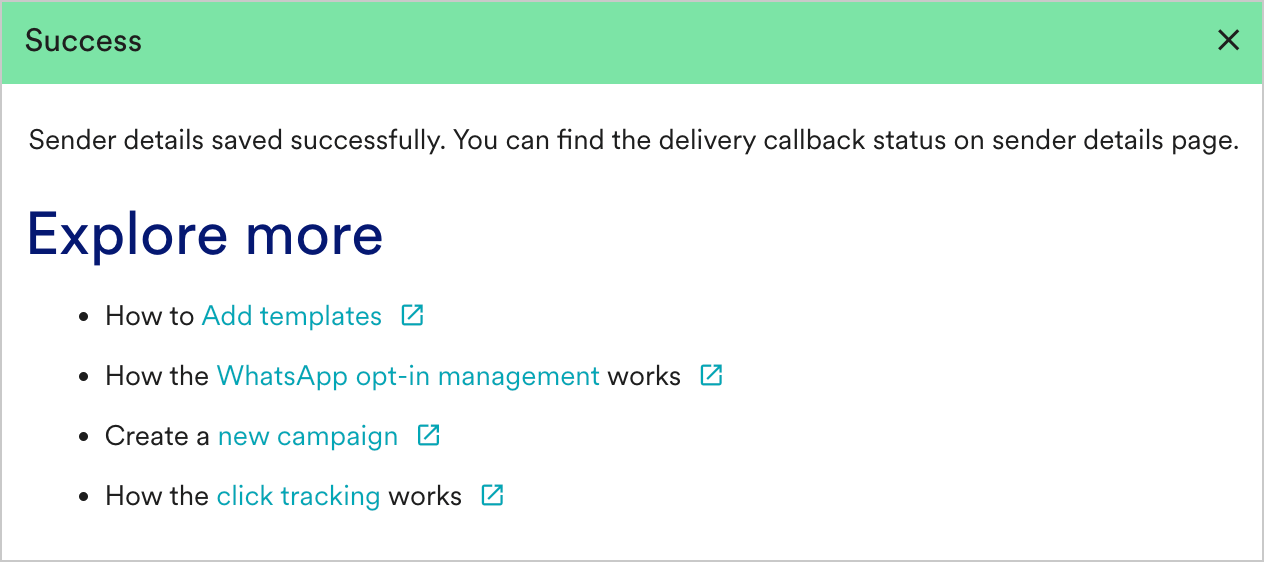
- Upon successful integration, you will get the following message.
Steps to configure MoEngage on ValueFirst
- Sign-up in the application portal(link shared below) with your name, email, and company details. https://moengage.vfplugin.com/signup
- Log in to the application portal using email and password given in the Signup Form.
- Click the ‘ValueFirst WhatsApp’ tab and configure ValueFirst Username, Password & WhatsApp Phone number.
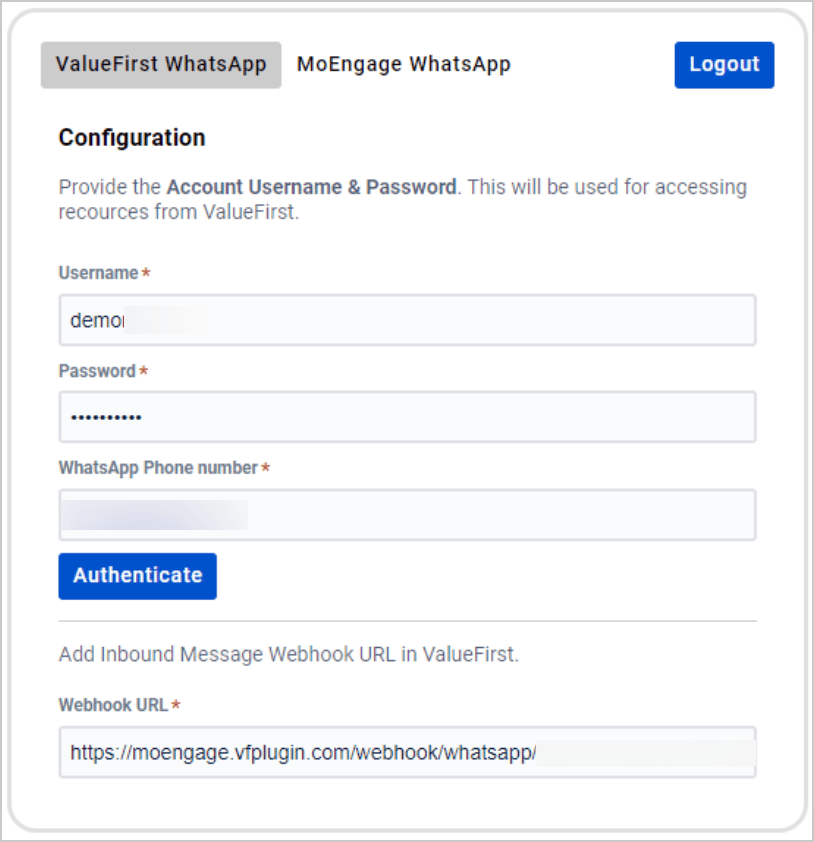
- You can copy the Inbound webhook from the portal and share it with the ValueFirst sales or support team.
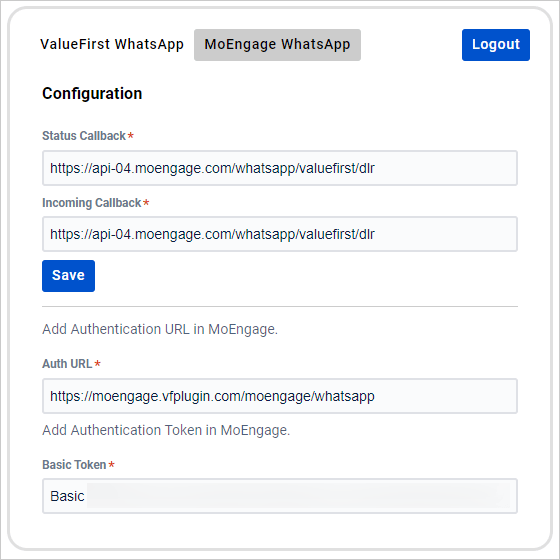
- Click the ‘MoEngage WhatsApp’ tab and copy the Basic Token, which is used as Authorization in Sender Configuration, as shown in the image below.
Delivery Tracking
To track the delivery of your WhatsApp Messages inside MoEngage, you would need to copy MoEngage Delivery Tracking URL and add it to the Configuration settings in ValurFirst. Do the following:- You should be able to see the URL as shown below in MoEngage by navigating to Settings->WhatsApp->Sender Configuration-> ValueFirst.
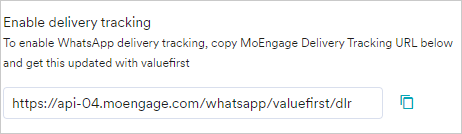
- Copy the exact URL from your MoEngage Dashboard.
- Log in to the Connector app and go to the ‘MoEngage WhatsApp’ tab.
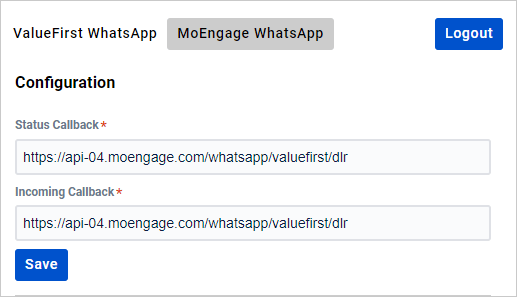
- Configure Status Callback and Incoming Callback by pasting the copied Delivery Tracking URL from MoEngage WhatsApp connector, as shown below.
- You should have pre-approved templates with ValueFirst to create a WhatsApp campaign for a ValueFirst Sender in MoEngage. You can create templates from the ValueFirst platform in the Approved Templates section.
- You can create the same template verbatim in MoEngage. For more information, refer to Add Templates.